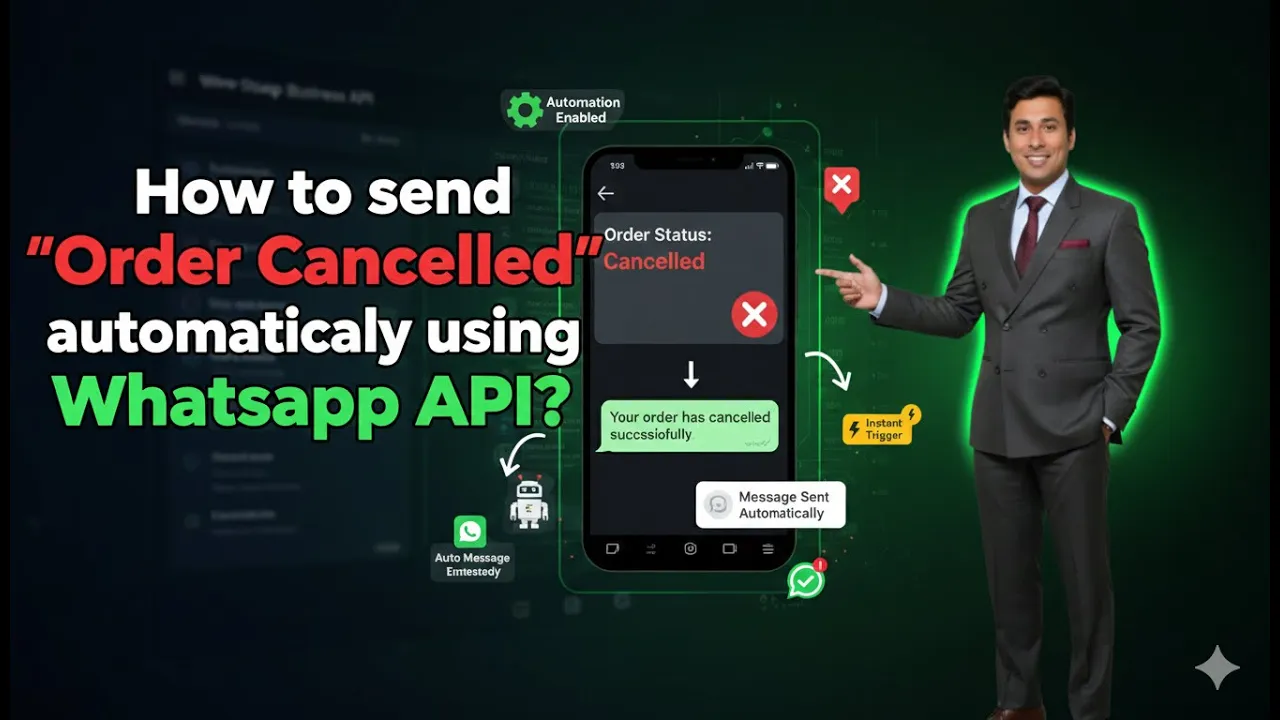
Sending timely notifications to customers is an important part of maintaining transparency and trust in an online business. When a customer places an order and later cancels it, they expect clear communication regarding the cancellation. Using WhatsApp Business API integrated with Shopify, this communication can be fully automated.
In this article, we will learn how to send order cancelled messages automatically to website users using WhatsApp Business API. This entire process is done through the Interakt platform, assuming that your Shopify store is already integrated with WhatsApp Business API.
Understanding Order Cancelled Messages in WhatsApp Business API
An order cancelled message is an automated WhatsApp notification sent to customers whose order has been cancelled after purchase. This message is triggered automatically when Shopify updates the order status to “cancelled.”
Once WhatsApp Business API is properly integrated with Shopify, Interakt automatically detects this event and sends a predefined message to the customer without any manual intervention.
This automation ensures that:
- Customers are informed instantly
- No manual follow-ups are required
- Communication remains consistent and accurate
Prerequisites Before Creating the Campaign
Before creating an order cancelled campaign, the following setup must already be completed:
- WhatsApp Business API must be active on Interakt
- Shopify store must be integrated with Interakt
- Required permissions must be granted during integration
- Whatsapp Business API Subscription must be active
If this integration is not completed, the campaign will not auto-fill details and will not trigger correctly.
Accessing the Campaign Section in Interakt
To begin the process, you need to log in to your Interakt account where WhatsApp Business API is configured.
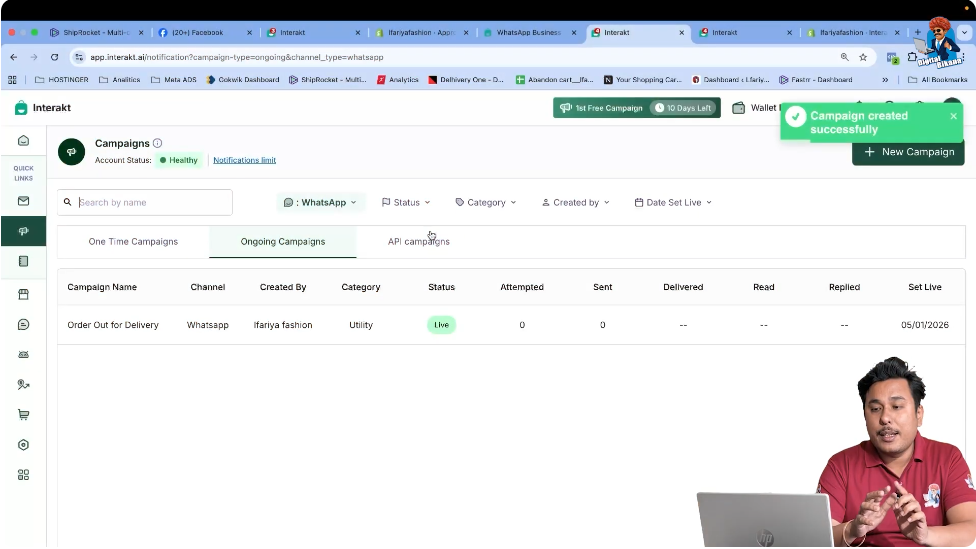
Once logged in, the dashboard will display multiple sections on the left-hand side. One of these sections is the Campaign section, which is used for creating automated message workflows.
How to Send Order Cancelled Messages Using WhatsApp API?
Step 1: Open the Campaign Section
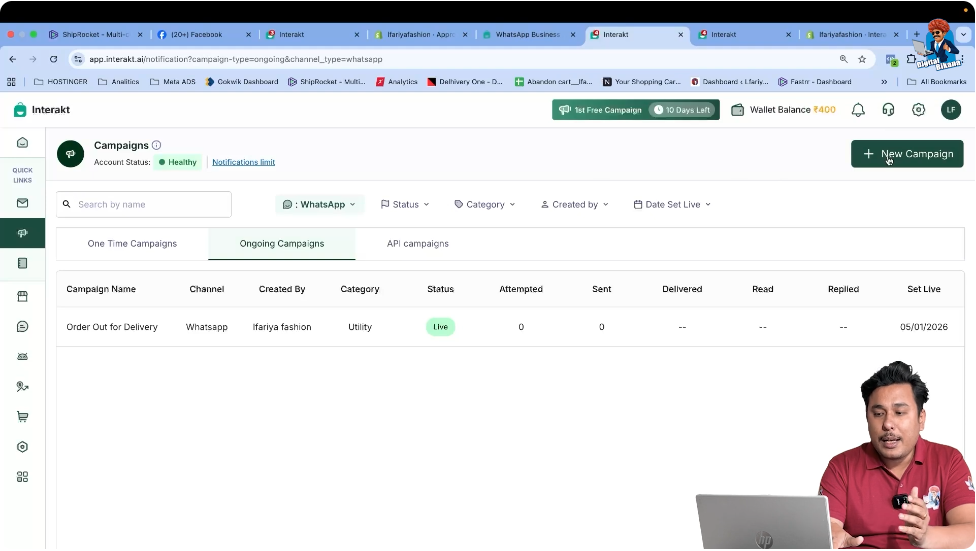
After logging into Interakt, navigate to the Campaign section from the left-side menu.
What Happens in This Step
- You enter the area where all automation campaigns are managed
- Existing campaigns (if any) are visible
- New campaigns can be created from here
This is the starting point for creating any automated WhatsApp Business API message.
Step 2: Create a New Campaign
Inside the Campaign section, click on New Campaign.
Why This Step Is Required
- A new campaign is required for each type of automation
- Order cancelled messages need a dedicated campaign
- Predefined templates are accessible only after starting a new campaign
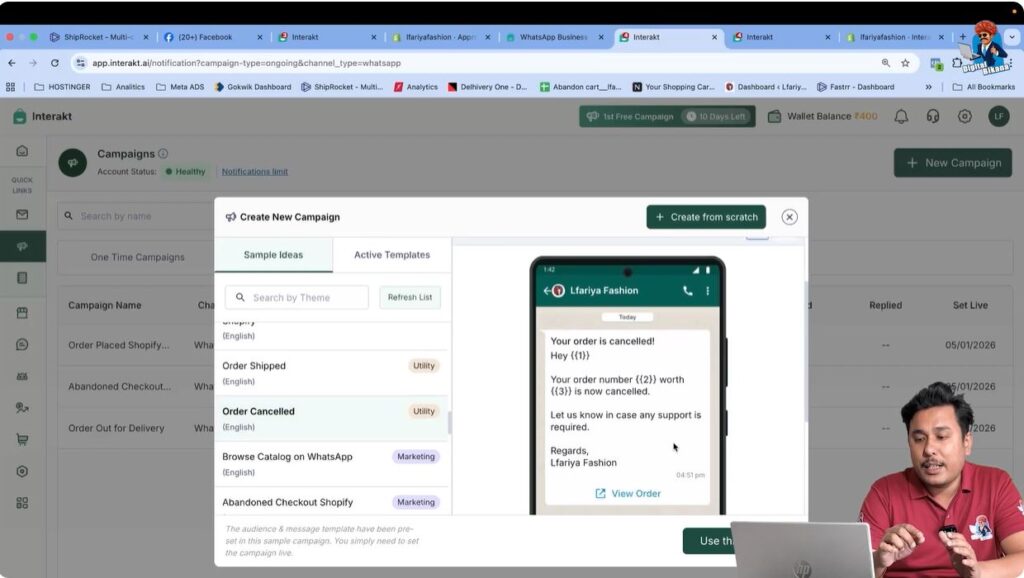
Once clicked, a new screen appears showing multiple campaign sample options.
Step 3: Select the Order Cancelled Sample Campaign
From the available campaign samples, locate and select Order Cancelled.
Then click on Use This Sample.
What This Sample Does
- It is designed specifically for cancelled orders
- It is already mapped with Shopify’s order cancelled event
- Message content, triggers, and variables are preconfigured
This sample eliminates the need for manual configuration.
Step 4: Review Automatically Prefilled Campaign Details
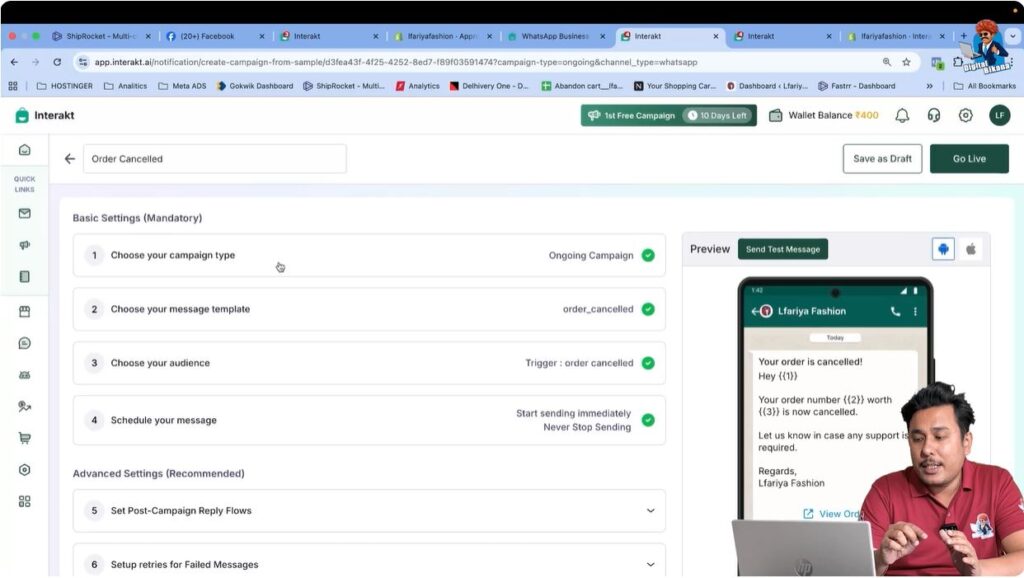
After selecting the order cancelled sample, you will notice that all campaign details are already filled.
Why Everything Is Prefilled
- Shopify is already integrated with WhatsApp Business API
- Interakt automatically pulls order-related data
- Message variables are mapped to Shopify fields
This includes:
- Message template
- Triggering condition
- Event mapping
You should not change anything in this section.
Step 5: Do Not Modify Any Campaign Settings
At this stage, it is very important not to edit or modify any settings.
Reason for Not Making Changes
- Editing may break the trigger
- Missing or altered values can stop message delivery
- Campaign may fail to activate correctly
Since the setup is already correct, no customization is required here.

Step 6: Verify the Triggering Event
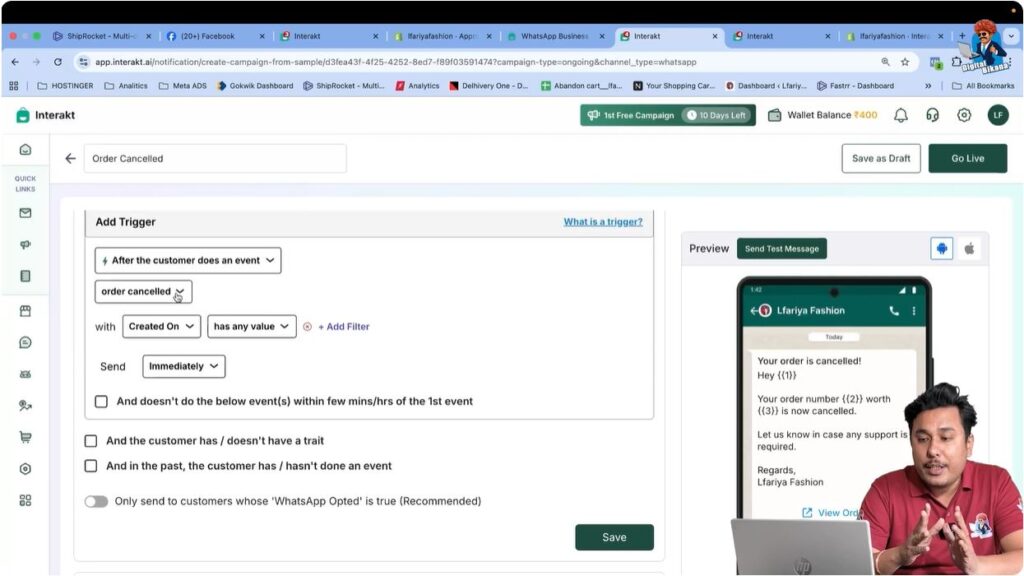
The triggering event for this campaign is Order Cancelled.
How the Trigger Works
- Shopify updates the order status to cancelled
- Interakt detects the status change
- WhatsApp Business API sends the message automatically
This trigger is already set correctly when using the sample campaign.
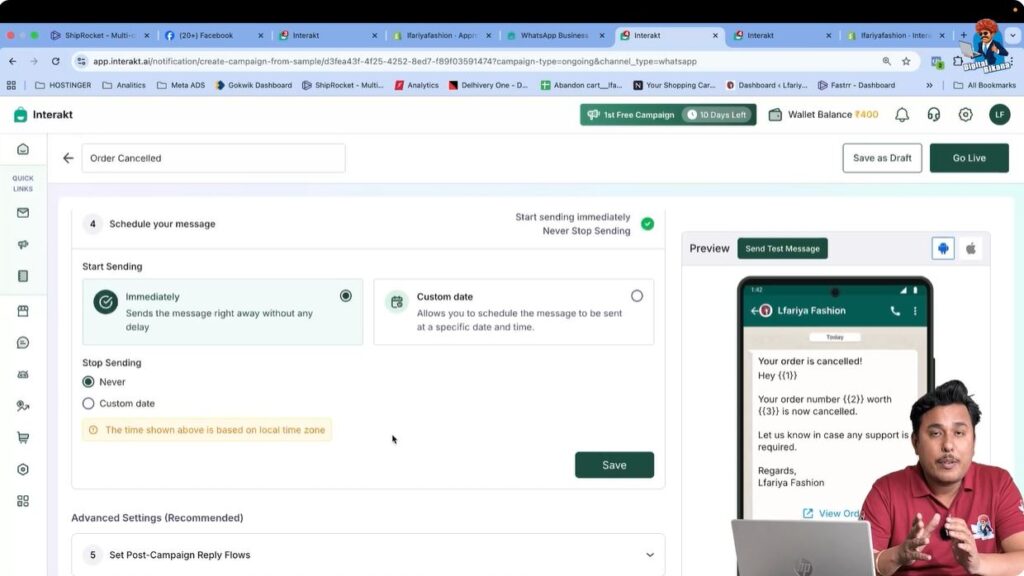
Step 7: Go Live With the Campaign
Once everything is reviewed, click on Go Live.
What Happens After Going Live
- The campaign becomes active
- Automation starts immediately
- Future cancelled orders trigger WhatsApp messages automatically
No further action is required after this step.
How the Order Cancelled Message Is Delivered
After the campaign goes live, the process works automatically:
- A customer places an order on the Shopify website
- The order is later cancelled
- Shopify updates the order status
- Interakt detects the cancellation
- WhatsApp Business API sends the order cancelled message
The customer receives a notification directly on WhatsApp informing them about the cancellation.
Benefits of Sending Order Cancelled Messages via WhatsApp Business API
Using WhatsApp Business API for order cancelled notifications provides multiple benefits:
- Instant communication
- Reduced customer confusion
- Improved customer experience
- No manual follow-up required
- Consistent messaging
This automation ensures professionalism and reliability in customer communication.
Common Use Cases for Order Cancelled Campaigns
Order cancelled message campaigns are useful for:
- E-commerce stores handling COD cancellations
- Stock-related order cancellations
- Payment failure cancellations
- Customer-initiated cancellations
In all cases, automated communication improves transparency.
Important Notes to Remember
- This campaign works only if Shopify is integrated
- Subscription must be active
- Do not modify prefilled campaign data
- Always use the sample campaign for reliability
Skipping or changing these points may result in campaign failure.
Summary
In this article, we learned how to send order cancelled messages automatically using WhatsApp Business API with Interakt and Shopify integration.
The complete process included:
- Opening the Campaign section
- Creating a new campaign
- Selecting the Order Cancelled sample
- Reviewing prefilled details
- Avoiding any changes
- Verifying the trigger
- Going live with the campaign
Once activated, the system automatically sends WhatsApp notifications to customers whenever an order is cancelled.
Conclusion
Order cancelled message automation using WhatsApp Business API helps businesses maintain clear and professional communication with customers. By using Interakt’s predefined campaign samples and Shopify integration, this process becomes simple, reliable, and fully automated.
This completes the setup for sending order cancelled notifications using WhatsApp Business API.

Related Posts