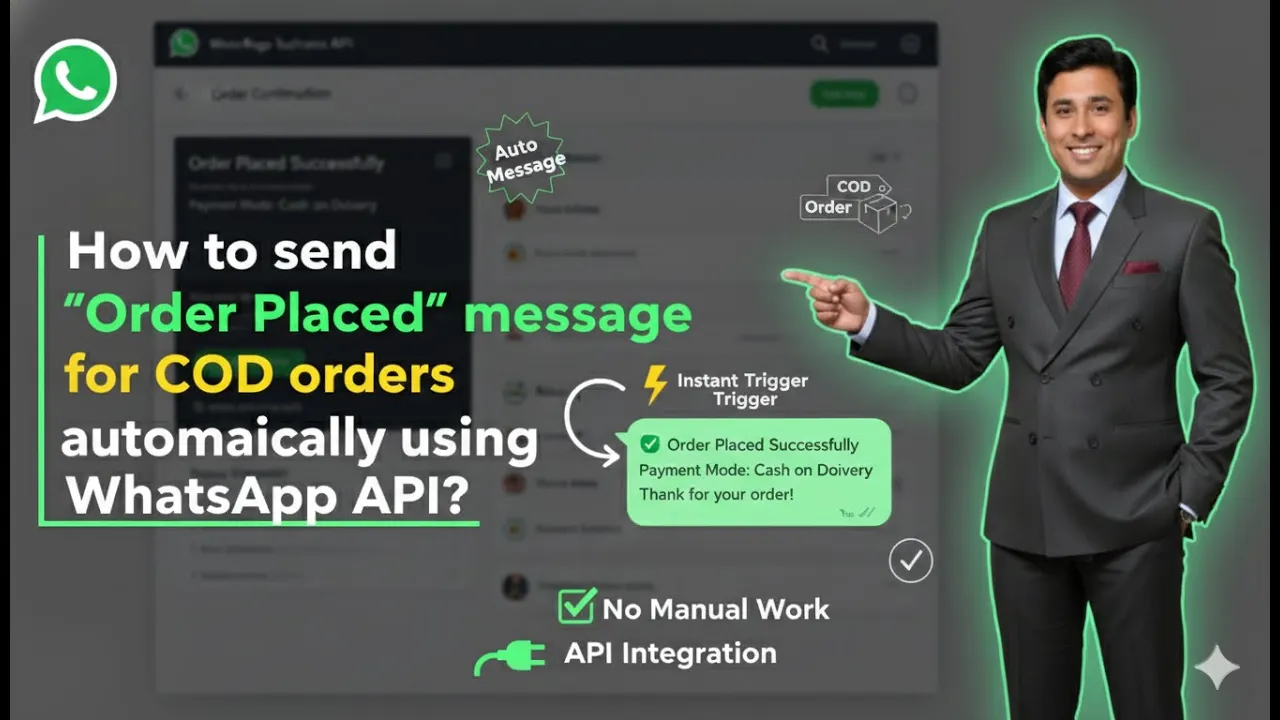
Sending automated order confirmation messages is an important part of post-purchase communication. When customers place an order using the Cash on Delivery (COD) payment method, sending an instant order placed message on WhatsApp builds trust and reassures them that their order has been successfully received. In this article, we will learn how to automatically send an “Order Placed” message for COD orders using WhatsApp Business API, when your Shopify store is already integrated with the Interakt platform.
Understanding Order Placed Messages for COD Orders
When a customer places an order on a Shopify website using the COD payment method, they usually expect immediate confirmation. Instead of manually sending messages, WhatsApp Business API allows this process to be fully automated.
By creating a predefined campaign in Interakt, the system automatically sends an Order Placed message to the customer as soon as the order is created with COD selected as the payment method.
This automation works only if:
- WhatsApp Business API is already integrated with the Shopify store
- The required Whatsapp Business API subscription is active
- The correct campaign template is used
Prerequisites Before Creating the Campaign
Before setting up this campaign, certain steps must already be completed.
Shopify and WhatsApp Business API Integration
Your Shopify store must already be connected with WhatsApp Business API using Interakt. This integration allows Interakt to fetch order details directly from Shopify.
If this integration is not done, campaign data such as order ID, customer name, and payment method will not be available automatically.
Active WhatsApp Business API Subscription
The WhatsApp Business API subscription must be active. Once the subscription is active, predefined Shopify-based campaign templates become available inside Interakt.
Accessing the Interakt Dashboard
To start the process, you need to log in to your Interakt account.
After logging in, you will land on the Interakt dashboard, where multiple sections such as Inbox, Contacts, Automation, and Campaigns are visible on the left-hand side.
For sending automated order placed messages, the Campaigns section is used.
How to Send Order Placed Messages for COD Orders Using WhatsApp Business API?
Step 1: Open the Campaign Section
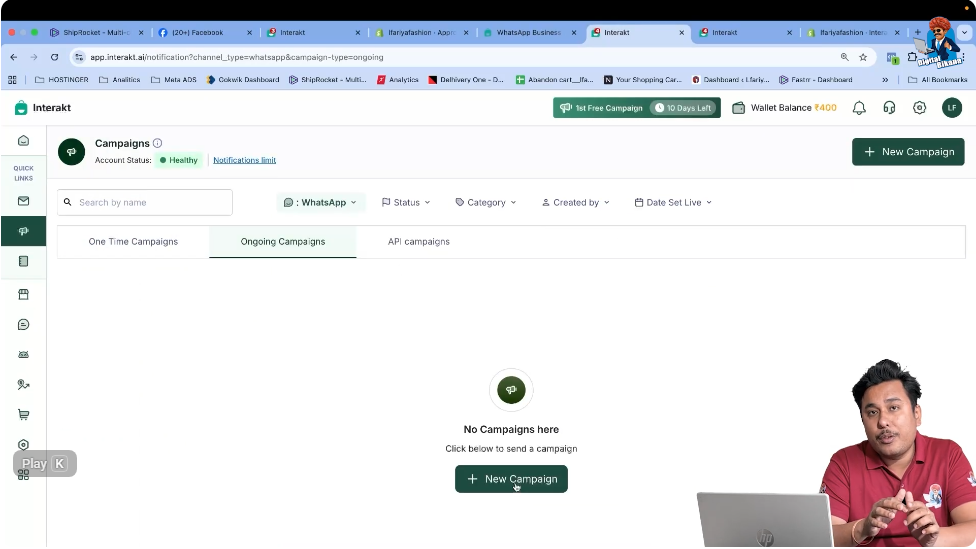
The first step is to access the Campaign section inside Interakt.
Navigating to Campaigns
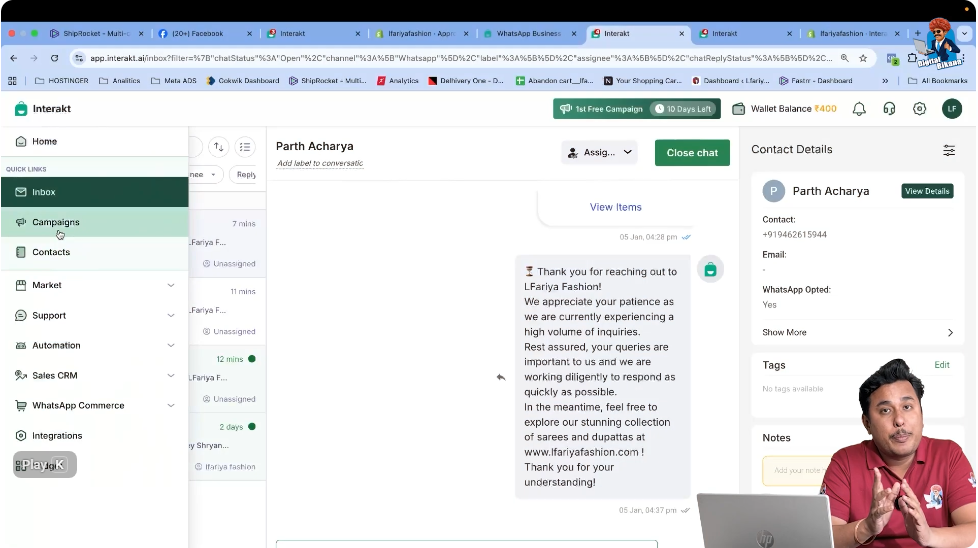
From the left-hand menu in the Interakt dashboard:
- Click on Campaigns
This section is used to create and manage all automated and marketing campaigns related to WhatsApp Business API.
Step 2: Create a New Campaign
Once you are inside the Campaign section, the next step is to create a new campaign.
Starting a New Campaign
- Click on New Campaign
This action opens a list of available campaign templates that are connected to Shopify events.
Step 3: Locate Order Placed Campaign for COD Orders
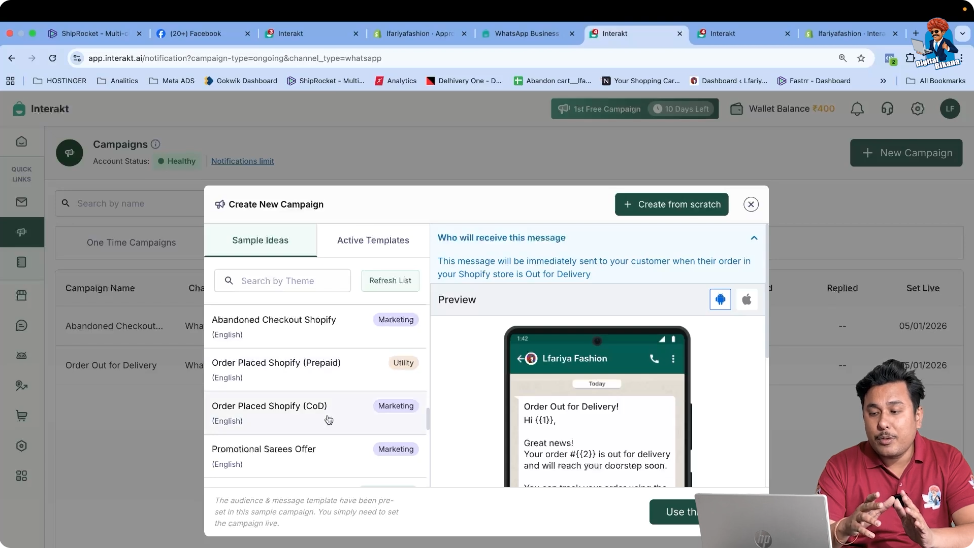
After clicking on New Campaign, you will see multiple predefined campaign options related to Shopify order events.
Scrolling Through Campaign Options
- Scroll down the list of campaign templates
- Look for Order Placed – Shopify COD
Two similar options may appear, but you need to select the one specifically related to COD (Cash on Delivery) orders.
Step 4: Select Order Placed Shopify COD Campaign
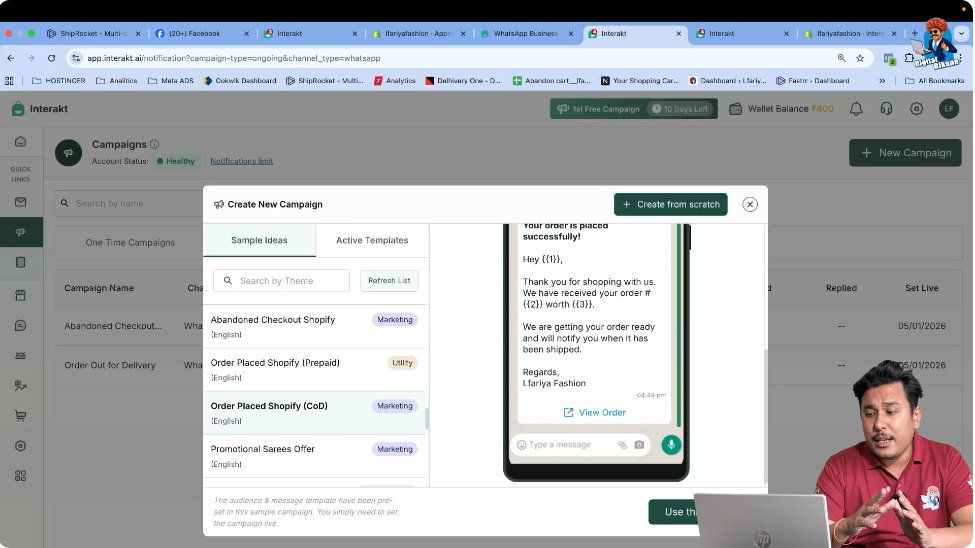
Once you locate the correct option:
- Select Order Placed – Shopify COD
- Click on Use This Sample
This sample campaign is designed specifically for customers who place orders using the COD payment method.
Step 5: Review Pre-Filled Campaign Details
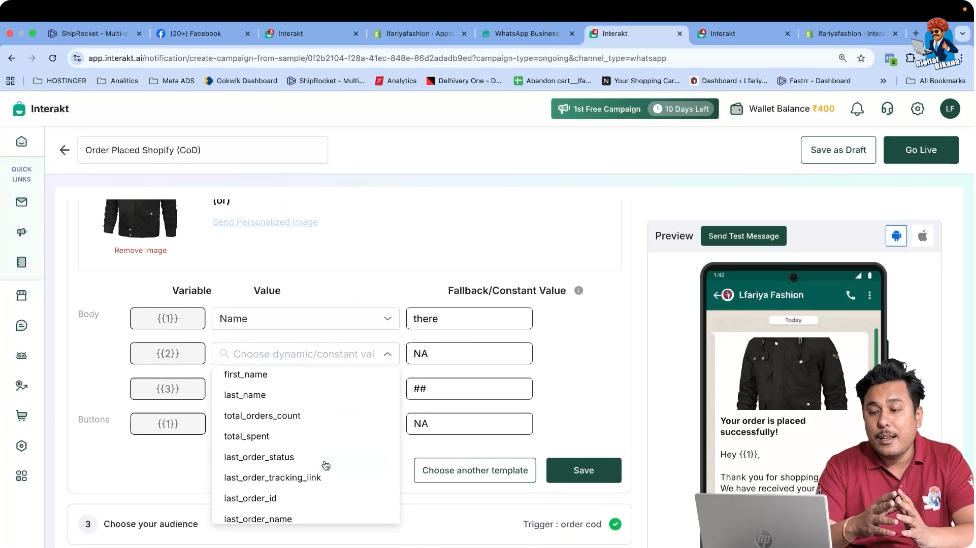
After selecting the sample campaign, you will notice that all details are already filled automatically.
Why Details Are Pre-Filled
All campaign settings are auto-filled because:
- WhatsApp Business API is integrated with Shopify
- Shopify shares order data with Interakt
- The campaign template in Whatsapp Business API is predefined
Important Instruction
You should not change anything in this campaign.
Reason:
- Changing message structure, triggers, or variables may break the automation
- The campaign may fail to trigger if required data is missing
The system is already configured correctly for COD order placement events.
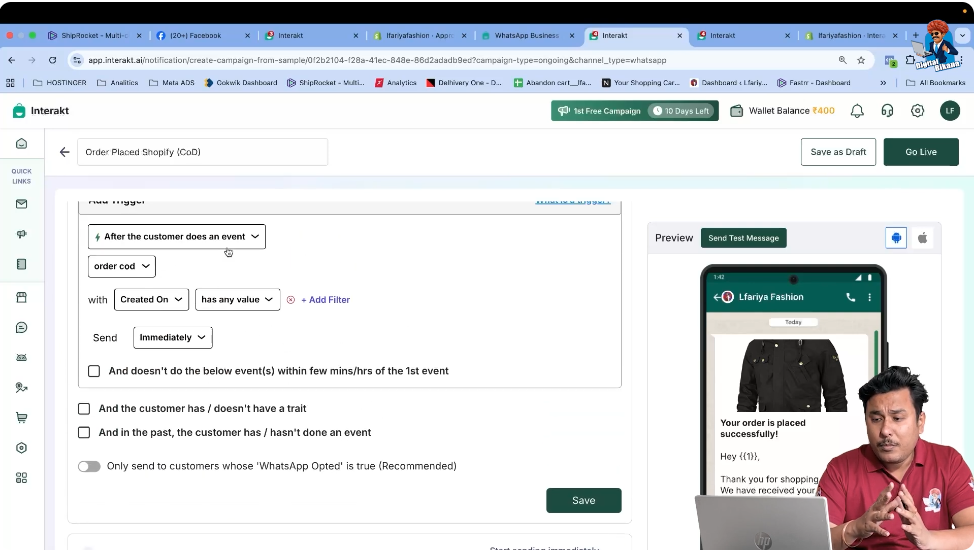
Step 6: Verify the Triggering Event
Before going live, it is important to verify the triggering event.
Understanding the Trigger
The trigger for this campaign is:
- Order Placed
- Payment Method: Cash on Delivery (COD)
This means:
- The message will be sent automatically
- Only when an order is placed using COD
- Not for prepaid orders
The trigger is already set correctly and does not require any modification.
Step 7: Save the Campaign
Once you have verified that:
- The correct campaign is selected
- All details are pre-filled
- The triggering event is correct
You can proceed to save the campaign.
Saving the Campaign
- Click on Save
This action stores the campaign configuration inside the system.
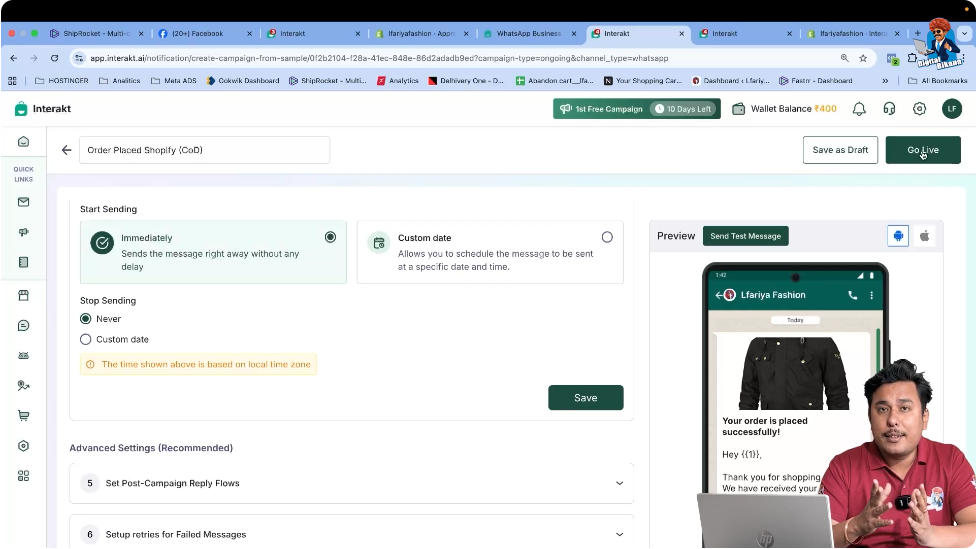
Step 8: Go Live With the Campaign
Saving the campaign does not activate it. To start sending messages, the campaign must be made live.
Activating the Campaign
- Click on Go Live
Once this is done, the campaign becomes active.
What Happens After the Campaign Goes Live
After the campaign is live, the automation starts working immediately.
Automatic Message Flow
Whenever:
- A customer places an order on your Shopify website
- The payment method selected is COD
Then:
- WhatsApp Business API automatically sends an Order Placed message
- The message is delivered to the customer’s WhatsApp number
No manual action is required.
Benefits of Sending COD Order Placed Messages
Sending automated order placed messages provides several advantages.
Improved Customer Trust
COD customers often need reassurance. Instant WhatsApp confirmation builds confidence.
Reduced Support Queries
Customers receive confirmation automatically, reducing follow-up messages and calls.
Professional Brand Communication
Automated messaging creates a smooth and professional post-purchase experience.
Why You Should Not Modify the Sample Campaign
The predefined campaign is carefully structured to match Shopify’s data flow.
Risks of Modification
If changes are made:
- Required variables may be removed
- Triggers may not match Shopify events
- Campaign may not execute properly
That is why the instruction is clear: do not change anything.
Summary
In this article, we learned how to automatically send Order Placed messages for COD orders using WhatsApp Business API with Shopify through Interakt.
The complete process included:
- Accessing the Campaign section
- Creating a new campaign
- Selecting Order Placed Shopify COD template
- Using the pre-filled campaign without changes
- Verifying the triggering event
- Saving and going live with the campaign
Conclusion
Automating COD order placed messages using WhatsApp Business API ensures timely communication and improves customer experience without manual effort. Once the campaign is live, every COD order placed on Shopify automatically triggers a WhatsApp confirmation message.
This setup completes the automation process for COD order confirmation and prepares your system for further WhatsApp-based order communication workflows.

Related Posts