Creating a custom audience of users who have previously engaged with your Facebook page is one of the most effective retargeting strategies in Facebook Ads Manager. When users interact with your page, posts, or ads, they show interest in your brand. Retargeting these users can significantly improve ad performance and conversion rates.
In this article, we will clearly explain how to create a custom audience of people who have engaged with your Facebook page, understand all available engagement events, and choose the best option for optimal results.
Why Create a Facebook Page Engagement Custom Audience?
Users who engage with your Facebook page are considered warm audiences. These users may have:
- Visited your Facebook page
- Liked or followed your page
- Reacted to your posts
- Commented on your content
- Shared your posts
- Clicked on links
- Swiped carousel ads
- Clicked on CTA buttons
Since they have already interacted with your content, they are more likely to respond positively to future advertisements.
Where to Create This Audience in Ads Manager
To create this custom audience:
- Log in to Facebook Ads Manager.
- Navigate to the Audiences section.
- Click on Create Audience.
- Select Custom Audience.
You will then be asked to select a data source.
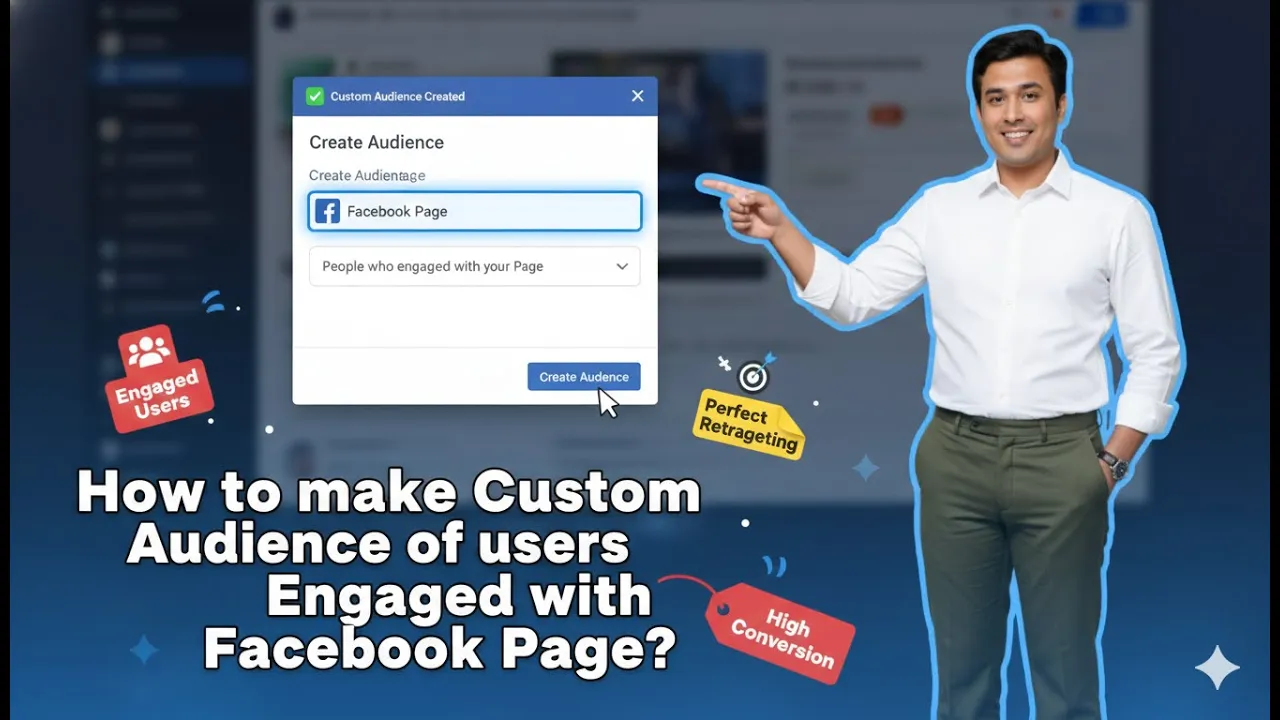
How to Create a Custom Audience of Users Who Engaged With Your Facebook Page?
Step 1: Select Facebook Page as Data Source
Choose Facebook Page in Custom Audience Sources
After clicking on Custom Audience:
- Select Facebook Page as the data source.
- Click Next.
This allows you to create an audience based on page engagement data.

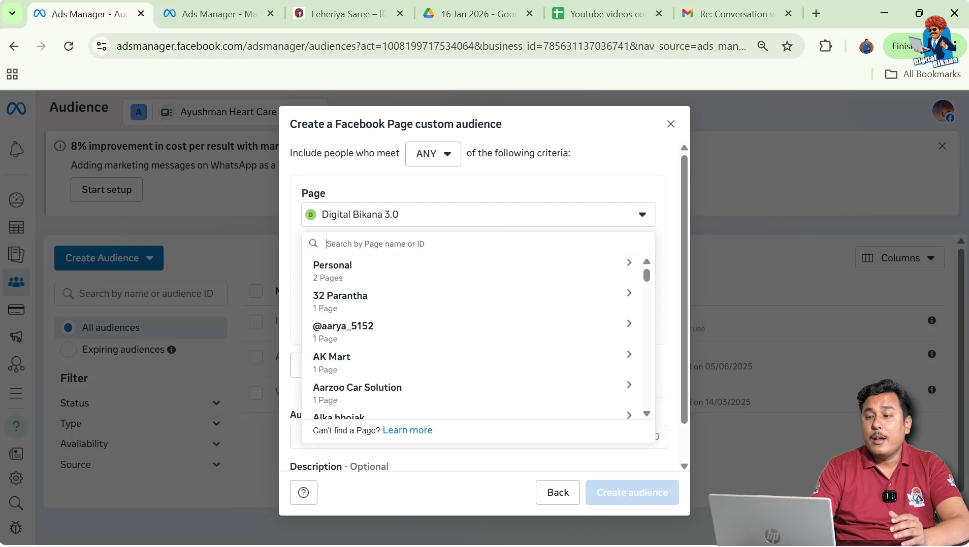
Step 2: Select Your Facebook Page
Confirm the Correct Page
- Choose your Facebook page from the dropdown list.
- Ensure that the correct page is selected before proceeding.
This page’s engagement data will be used to build the audience.
Understanding All Available Engagement Events
After selecting your page, you will see multiple event options. Each event defines which users will be included in the custom audience.
Let us understand each event one by one.
Event 1: People Who Currently Like or Follow Your Page
This option creates a custom audience of:
This is specifically for page followers.
Event 2: People Who Engaged With Your Page
This event includes users who:
- Visited your page
- Reacted to posts
- Commented
- Shared posts
- Clicked links
- Swiped carousel ads
- Engaged with ads
This is a broad engagement option and includes multiple interaction types.
Event 3: People Who Visited Your Page
This event includes only:
- Users who visited your Facebook page
It does not include users who engaged with posts unless they visited the page.
Event 4: People Who Engaged With Any Post or Ad
This event includes:
- Users who liked posts
- Users who commented
- Users who shared
- Users who swiped carousel ads
However, it does not include page visitors who did not engage with posts or ads.
The key difference between Event 2 and Event 4 is that Event 2 includes page visitors, while Event 4 does not.
Event 5: People Who Clicked Any CTA Button
This option includes users who clicked on:
- Call
- Message
- Visit Website
- Any other CTA button
If someone clicked on a CTA button under your post or ad, they will be included.
Event 6: People Who Messaged Your Page
This event includes:
- Users who sent a message to your Facebook page.
This is useful for retargeting people who initiated conversations.
Event 7: People Who Saved Your Post
This event includes:
- Users who saved any of your Facebook posts.
Saving content usually indicates strong interest.
Step 3: Choose the Best Engagement Event
Select “People Who Engaged With Your Page”
Among all events, the second event — People who engaged with your page — is often the best choice.
Meta also suggests this option by default because:
- It includes page visitors.
- It includes post engagements.
- It includes ad engagements.
- It covers multiple interaction types.
This creates a broader and more effective engagement audience.

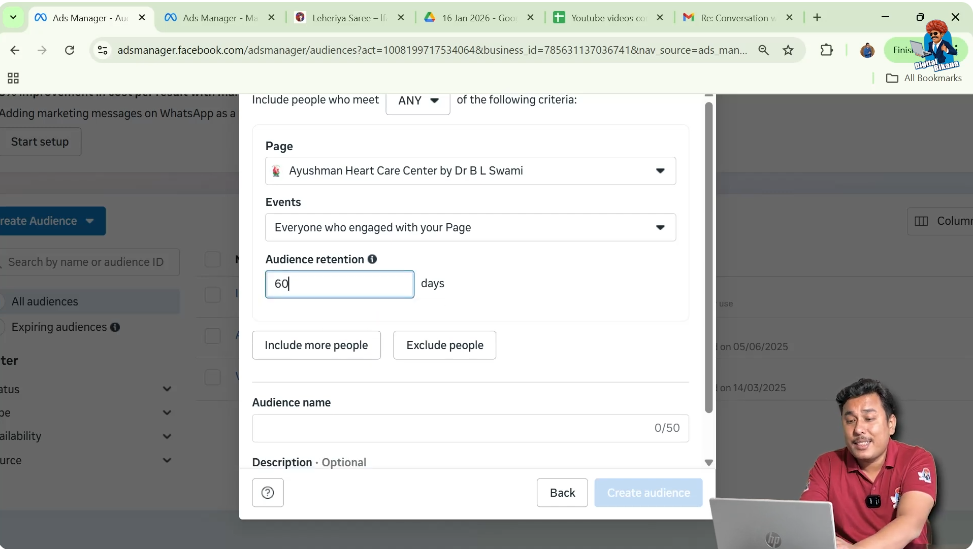
Step 4: Set Audience Retention Period
Define How Long Users Stay in the Audience
After selecting the event:
- Set the retention period.
- For example, enter 60 days.
This means:
- Users who engaged in the last 60 days will remain in the audience.
- After 60 days, they will automatically be removed unless they engage again.
This creates a dynamic custom audience in Facebook Ads.
Dynamic vs Static Custom Audience
This type of engagement audience is dynamic.
- Users are automatically added when they engage.
- Users are automatically removed after the retention period.
Static Custom Audience:
- Requires manual updates.
- Does not automatically refresh.
This engagement audience is dynamic because it updates automatically.
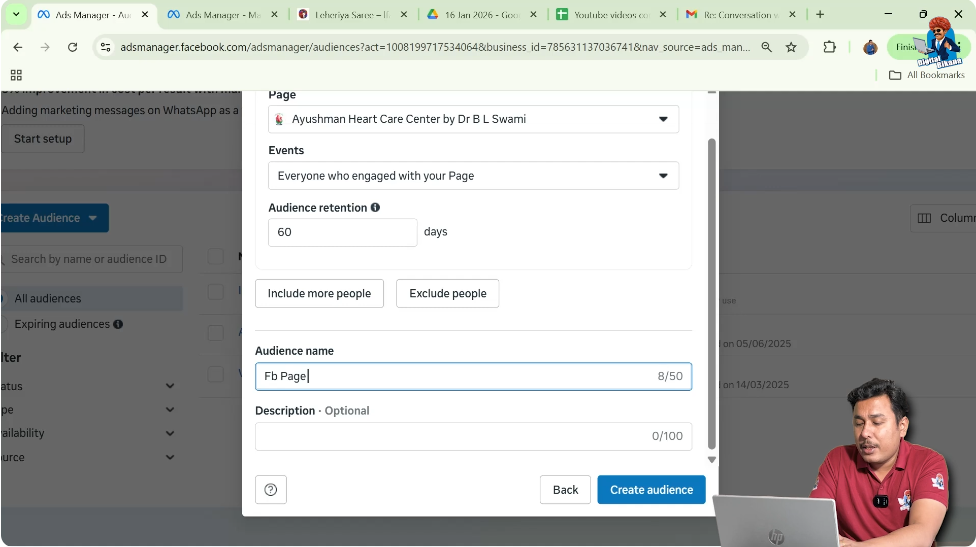
Step 5: Name Your Custom Audience
Enter Audience Name for Internal Reference
- Enter a name for your custom audience.
- The name is only for your internal reference.
It will not be visible to users in your ad campaigns.
Naming helps you:
- Identify audiences later.
- Understand what type of engagement it represents.
- Manage multiple audiences efficiently.
Step 6: Click on Create Audience
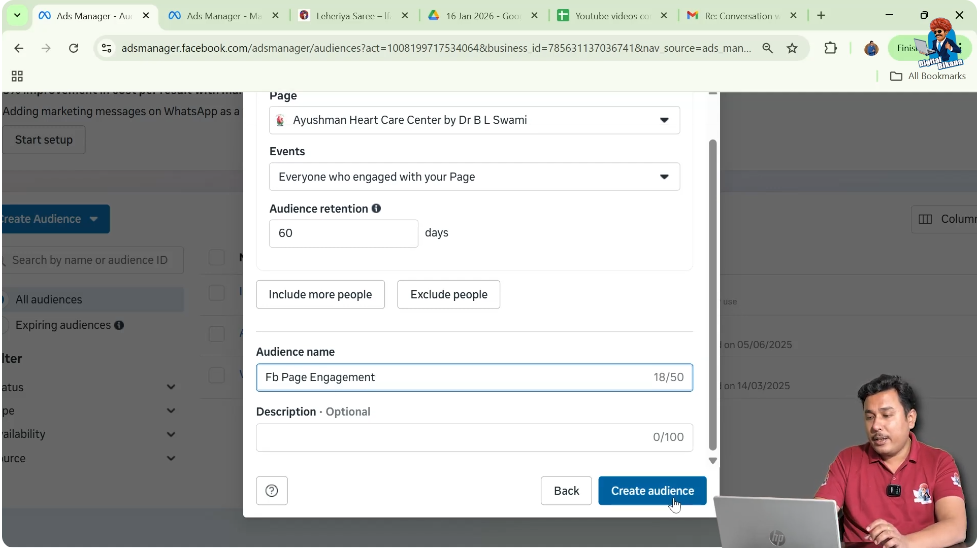
Finalize Audience Creation
- Click Create Audience.
Once done:
- The custom audience will be created.
- It will appear in the Audiences section.
It may initially show as Populating.
Audience Populating Phase
After creation:
- The audience may take some time to populate.
- It typically becomes ready within 6 to 24 hours.
Once ready, you can use it in your ad campaigns.
How This Audience Works
This engagement custom audience:
- Automatically updates.
- Includes users who engage within the selected retention period.
- Removes users who exceed the retention window.
It remains fresh and relevant.
When to Use This Custom Audience
You should use this audience when:
- Running retargeting campaigns
- Promoting limited-time offers
- Launching new products
- Re-engaging inactive users
Since these users already interacted with your content, they are more likely to convert.
Simple Summary
To create a Facebook page engagement custom audience:
- Go to Audiences section.
- Click Create Audience.
- Select Custom Audience.
- Choose Facebook Page.
- Select your page.
- Choose “People who engaged with your page.”
- Set retention period.
- Name the audience.
- Click Create Audience.
Your custom audience will be created.
Conclusion
Creating a custom audience of users who have engaged with your Facebook page is a powerful strategy in Facebook Ads Manager. By selecting Facebook Page as the data source and choosing the broad engagement event, you can build a dynamic audience that includes users who have interacted with your content in various ways.
Setting an appropriate retention period ensures that your audience remains fresh and relevant. Once created and populated, this audience can be used in retargeting campaigns to improve ad performance and increase conversions.
Using Facebook page engagement audiences allows you to target users who already know your brand, making your campaigns more effective and efficient.

Related Posts