In this session, we will learn how to integrate WhatsApp Business API with a Shopify store using the Interakt platform. This integration is required if you want to send messages such as cart reminders, order confirmation messages, and if you want your Shopify product catalog to appear inside WhatsApp Business API. Once the integration is completed, all the products published on your Shopify website will automatically sync with WhatsApp Business API and appear inside Facebook Commerce Manager. This setup makes it easier to manage products and customer communication from one connected system.
Purpose of WhatsApp Business API and Shopify Integration
WhatsApp Business API integration with Shopify allows businesses to:
- Send cart-related messages
- Send order confirmation messages
- Display Shopify products inside WhatsApp product catalogs
- Automatically sync products with Facebook Commerce Manager
This integration ensures that whatever products are published on the Shopify website are reflected inside WhatsApp Business API without manual uploading.
Accessing the Interakt Platform
Before starting the integration process, make sure you are logged in to your Interakt account.
Once logged in, you will see the Interakt dashboard. From here, all integrations and settings related to WhatsApp Business API can be managed.
Locating the Integration Section in Interakt
On the left-hand side of the Interakt dashboard, there is a menu.
From this menu, you will find the Integrations option. This section contains different platform integrations supported by Interakt.
How to Integrate Whatsapp Business API with Shopify?
Step 1: Open the Integrations Section
From the Interakt dashboard:
- Move to the left-side menu
- Click on the Integrations option
This will open the integrations page where different platform integrations are available.
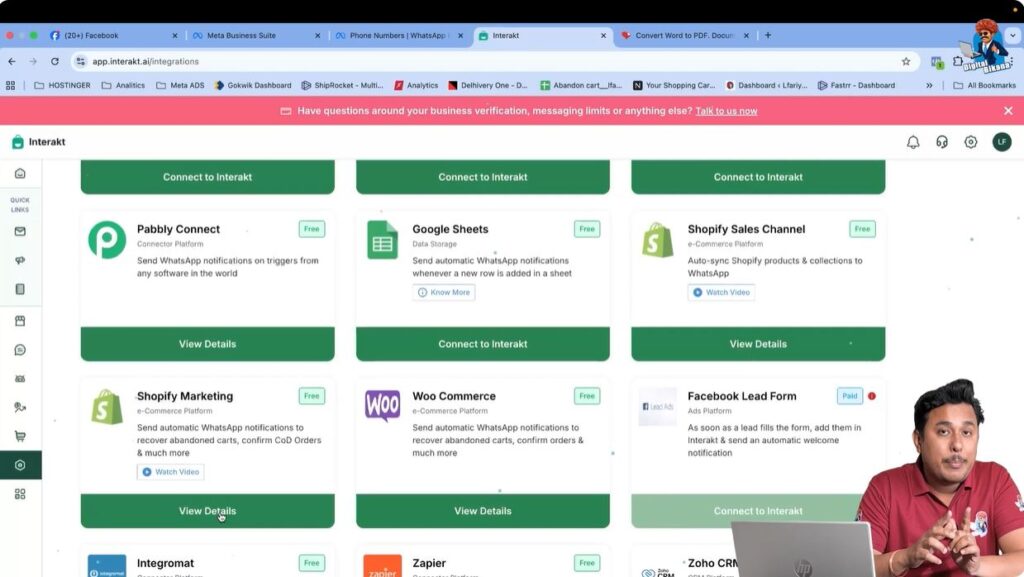
Step 2: Locate Shopify Marketing Integration
Inside the integrations section:
- Look for the Shopify Marketing option
- Once found, click on View Details
This option allows you to integrate your Shopify store with WhatsApp Business API through Interakt.
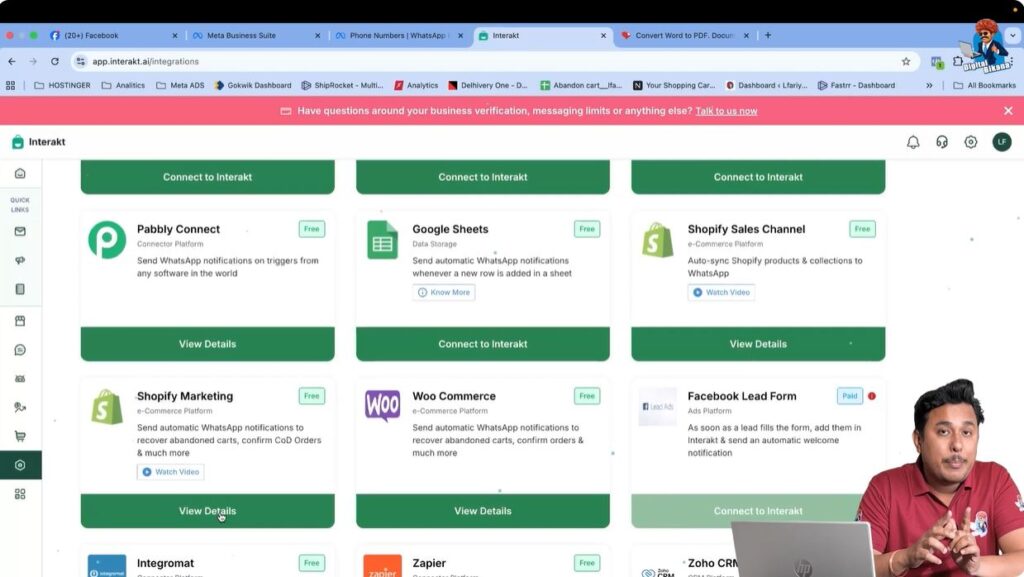
Step 3: View Shopify Integration Details
After clicking View Details:
- You will see detailed information about the Shopify integration
- An option to install the Shopify application will be visible
This confirms that Interakt provides a dedicated Shopify app for integration.

Step 4: Install the Shopify Application
To proceed with integration:
- Click on the Install button
After clicking install, you will be redirected to the Shopify App Store.
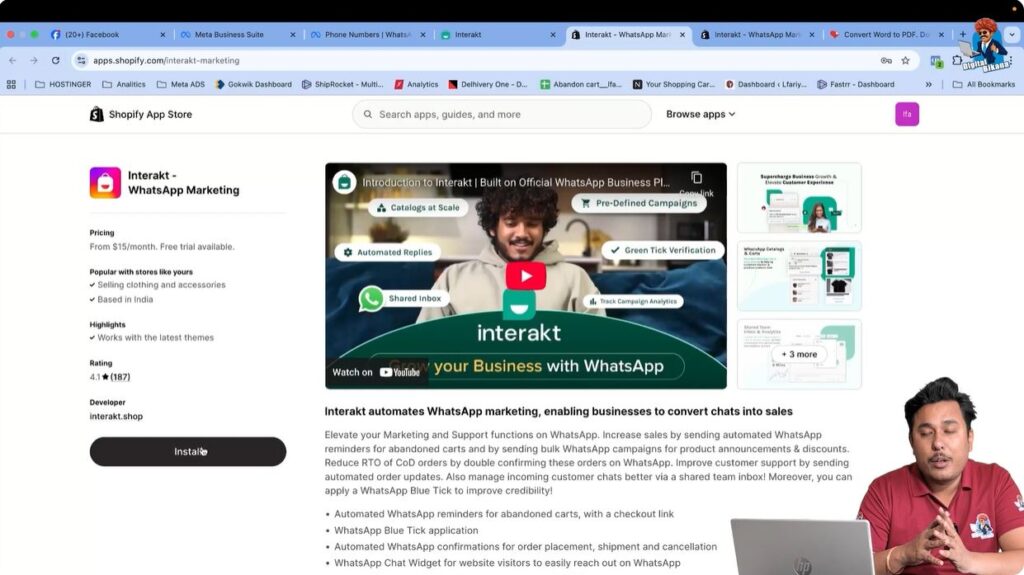
Step 5: Access the Shopify App Store
At this stage:
- Make sure you are already logged in to your Shopify admin dashboard
- The system automatically redirects you to the Shopify App Store
The Shopify App Store page for the Interakt application will now be visible.
Step 6: Confirm App Installation in Shopify
On the Shopify App Store page:
- Click on Install
- When prompted again, click on Install to confirm
Since the Shopify admin dashboard is already logged in, the installation process continues smoothly.
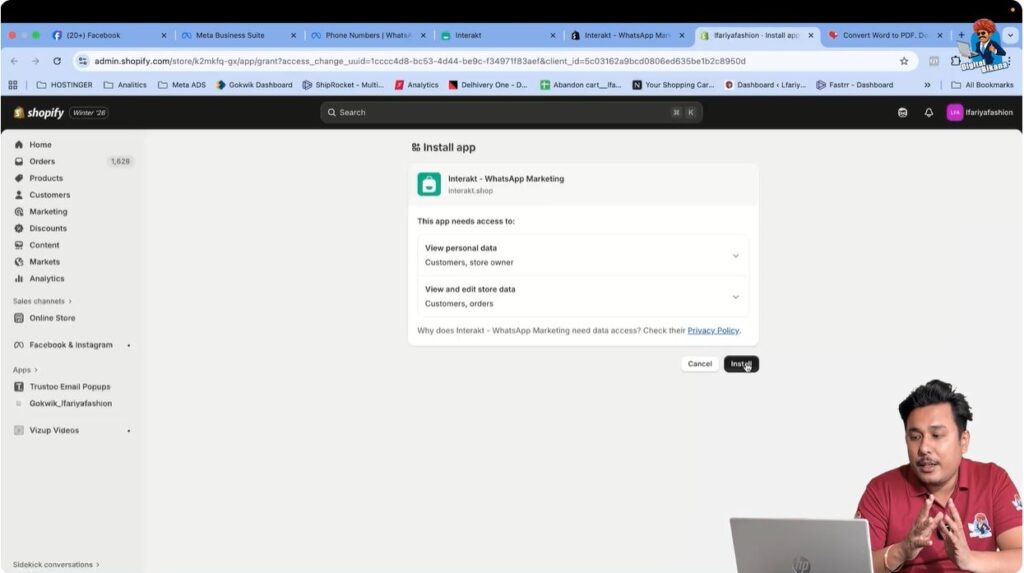
Step 7: Redirect to Shopify Admin Dashboard
After installation:
- You are redirected back to the Shopify admin dashboard
- This confirms that the app installation was successful
The Interakt app is now installed in your Shopify store.
Step 8: Connect the Logged-In Interakt Account
After installation, the system asks for confirmation:
- A prompt appears asking whether to connect the currently logged-in Interakt account
- Click on Yes to proceed
This step connects your Shopify store with your Interakt account.
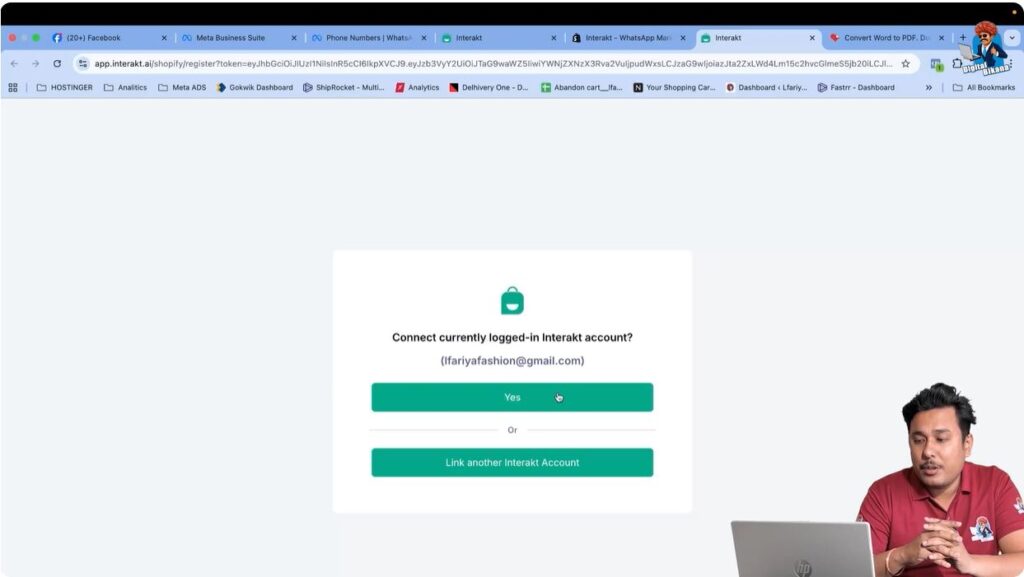
Step 9: Confirmation of Successful Integration
Once the connection is completed:
- A popup message appears
- The message confirms that the Interakt account is now linked with the Shopify website
This confirms that the integration process is successful.
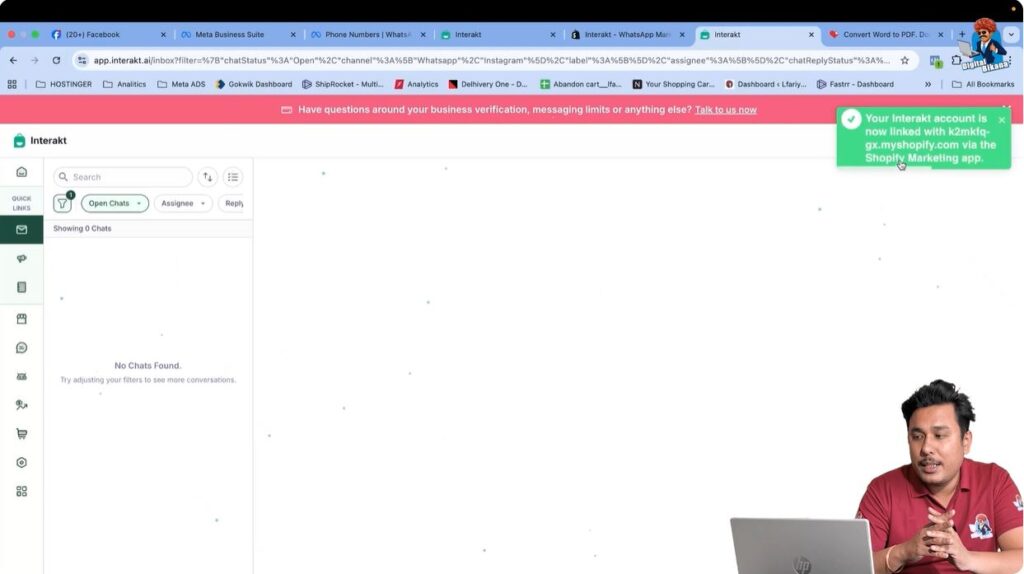
Verifying the Shopify App Installation
After completing the integration:
- Go back to the Shopify admin dashboard
- Navigate to the Apps section
Here, you will see the Interakt app listed among installed applications.
Available Options After Installation
Inside the Shopify admin dashboard:
- You will see options such as Open App
- You will also see More Actions related to the Interakt app
This confirms that the app is active and ready for use.
Understanding Product Catalog Synchronization
Once WhatsApp Business API is integrated with Shopify:
- All products published on the Shopify store are fetched automatically
- These products appear inside WhatsApp Business API product catalog
- The same products are also synced to Facebook Commerce Manager
No manual product upload is required after integration.
Viewing Products in Facebook Commerce Manager
After integration:
- Open Facebook Commerce Manager
- Navigate to the product catalog section
You will see all products that are published on your Shopify website.
For example, if 36 products are published on the Shopify store, all 36 products will appear inside Facebook Commerce Manager automatically.
How Product Sync Works After Integration
The synchronization process works as follows:
- Shopify products are connected to WhatsApp Business API
- WhatsApp Business API pushes the product data to Facebook Commerce Manager
- The catalog updates automatically whenever products are published on Shopify
This ensures consistency between the Shopify store and WhatsApp product catalog.
What Happens After Integration Is Completed
Once the integration is completed:
- WhatsApp Business API becomes connected with the Shopify store
- Product catalogs are automatically synced
- Order-related messaging can be configured
- Commerce-related settings can be managed further
In upcoming sessions, commerce settings and catalog configuration will be explained in detail.
Conclusion
Integrating WhatsApp Business API with a Shopify store using Interakt is a simple and structured process. By installing the Interakt Shopify application and connecting it with the Interakt account, the Shopify store becomes linked with WhatsApp Business API.
Once connected, all Shopify products automatically sync with Facebook Commerce Manager and become available inside WhatsApp Business API product catalogs. This integration simplifies product management and enables effective WhatsApp-based customer communication.
This completes the WhatsApp Business API and Shopify integration process using Interakt.

Related Posts