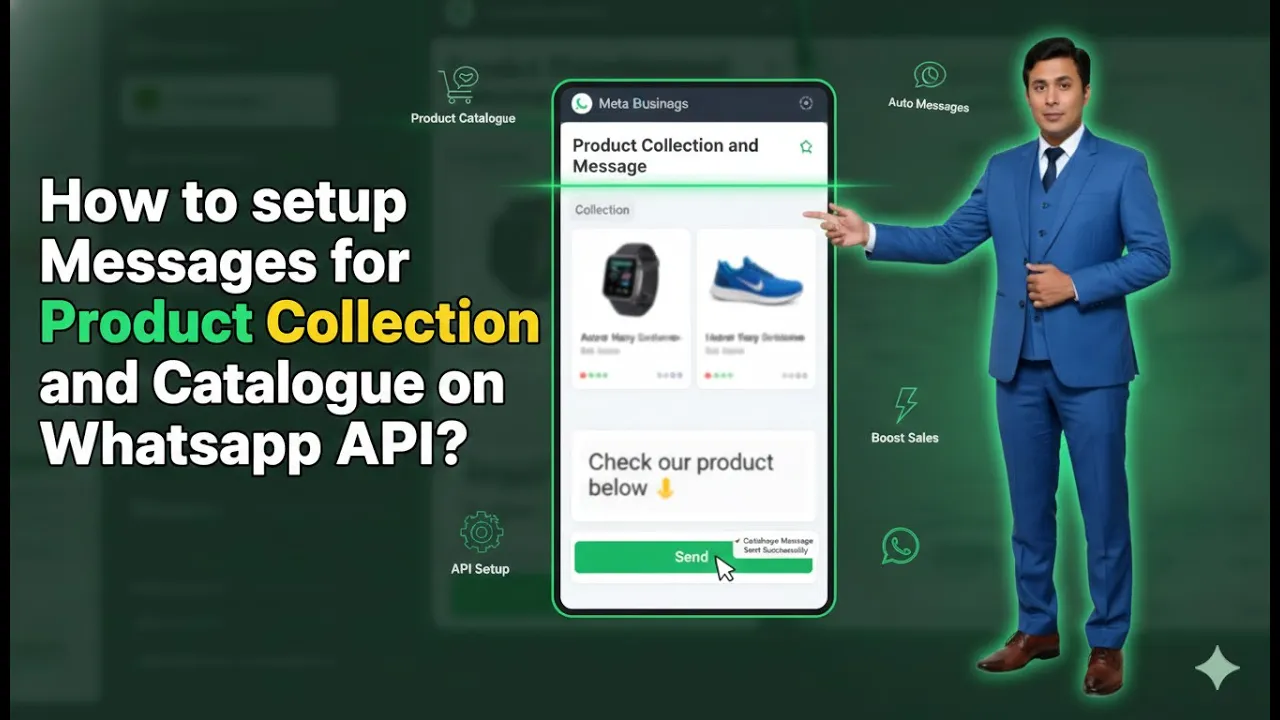
Sending product collections and catalogs directly on WhatsApp is one of the most effective ways to showcase products and increase user engagement. When a user messages your business on WhatsApp, sending them a product catalog instead of plain text improves clarity, trust, and conversion chances. In this article, we will learn how to set up product collection or catalog messages in WhatsApp Business API so that you can send product catalogs to users who message you on WhatsApp. This setup is done from the Commerce Settings inside the WhatsApp Business API dashboard.
Understanding Product Collection Messages in WhatsApp Business API
A product collection or catalog message allows you to send selected products from your connected product catalog directly to users on WhatsApp. These products are displayed visually, making it easier for users to explore items without leaving WhatsApp.
This setup works only if your product catalog is already connected to WhatsApp Business API. In earlier sessions, the product catalog from a Shopify store was connected to WhatsApp Business API, and the same catalog is now visible inside the dashboard.
If the catalog is not connected, the product collection message cannot be set up.
Accessing the WhatsApp Business API Dashboard
To begin the setup, you must be logged in to your WhatsApp Business API dashboard.
Once logged in, you will be able to see different sections on the left-hand side of the dashboard. These sections include automation, campaigns, contacts, and commerce-related settings.
For setting up product collection messages, the required section is the Commerce Settings tab.
How to setup Product Catalog Message on Whatsapp Business API?
Step 1: Navigate to the Commerce Settings Tab
What Is the Commerce Settings Tab
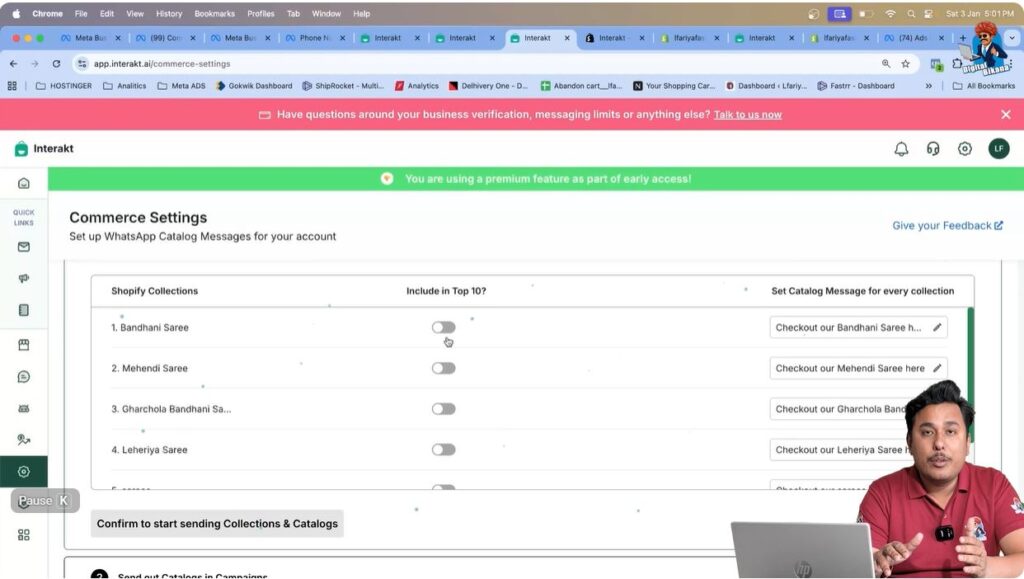
The Commerce Settings tab is where all product-related configurations are managed inside WhatsApp Business API. This includes product catalogs, collections, and settings related to showcasing products on WhatsApp.
Where to Find Commerce Settings
On the left-hand side of the WhatsApp Business API dashboard, locate the Commerce Settings tab and click on it. This opens the section where your connected product catalog is displayed.
Step 2: View the Connected Product Catalog
After opening the Commerce Settings tab, the product catalog appears on the screen.
Understanding the Catalog Display
This catalog contains all products that were previously connected from the Shopify store. The products displayed here are the same products that will be used for sending catalog or collection messages to WhatsApp users.
Confirming Catalog Connection
Seeing the products listed here confirms that the product catalog connection is active and working correctly.
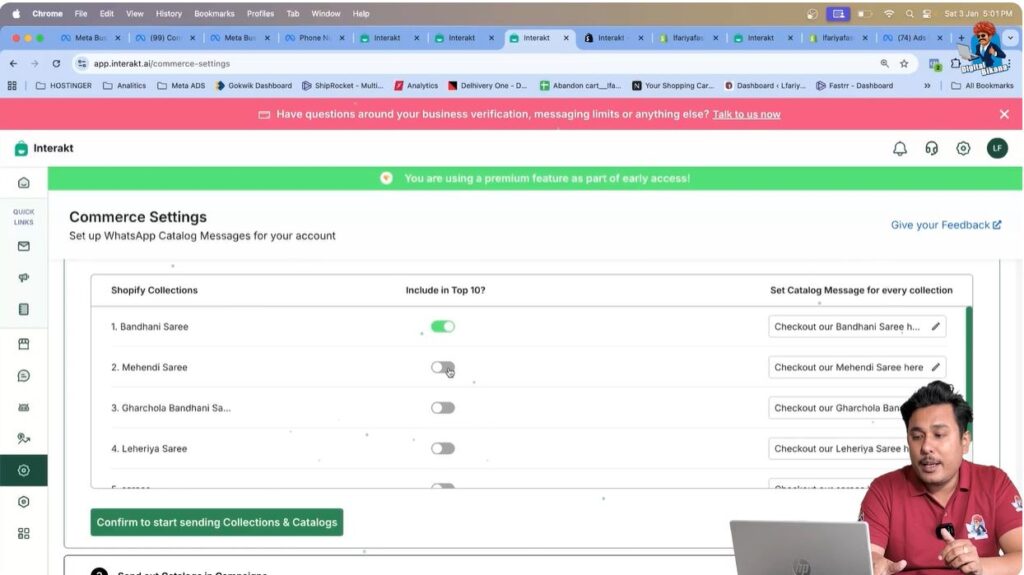
Step 3: Select Products for Product Collection Messages
Understanding Product Toggle Options
Each product in the catalog has an option to turn it on or off.
- Turning a product on means it will be included in product collection or catalog messages
- Turning a product off means it will not be shown in those messages
Choosing Products to Showcase
You can choose products based on your requirement:
- Turn on all products if you want to show the full catalog
- Turn on selected products if you want to highlight specific items
This gives full control over which products are visible to users.
Step 4: Confirm the Product Selection
Saving the Selection
After turning on the required products, click on the Confirm button.
Why Confirmation Is Important
If you do not click Confirm, the product selection will not be saved. Product collection and catalog messages will not work unless this confirmation step is completed.
Once confirmed, WhatsApp Business API becomes ready to send product collections to users.

Step 5: Enable Sending Product Collection and Catalog Messages
After confirmation, the system is now enabled to send product collection and catalog messages.
How Messages Are Sent
Whenever a user sends a message to your WhatsApp number, you can reply with a product collection message that showcases the selected products.
This allows users to view products directly inside WhatsApp without visiting any external website.
Step 6: Understand the Catalog Option for Campaigns
Second Option in Commerce Settings
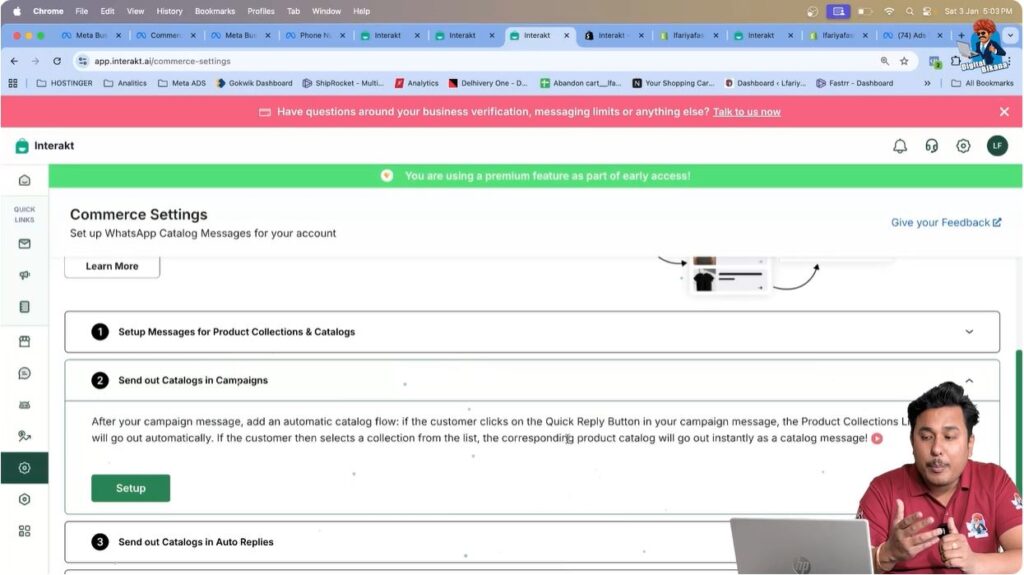
Inside the Commerce Settings section, there is another option that allows catalogs to be added to campaigns.
Why This Option Is Not Used Now
In this setup, campaigns are not created from this section. Campaign creation and catalog usage inside campaigns will be explained using a different method in a separate session.
At this stage, the focus is only on conversation-based product collection messages.
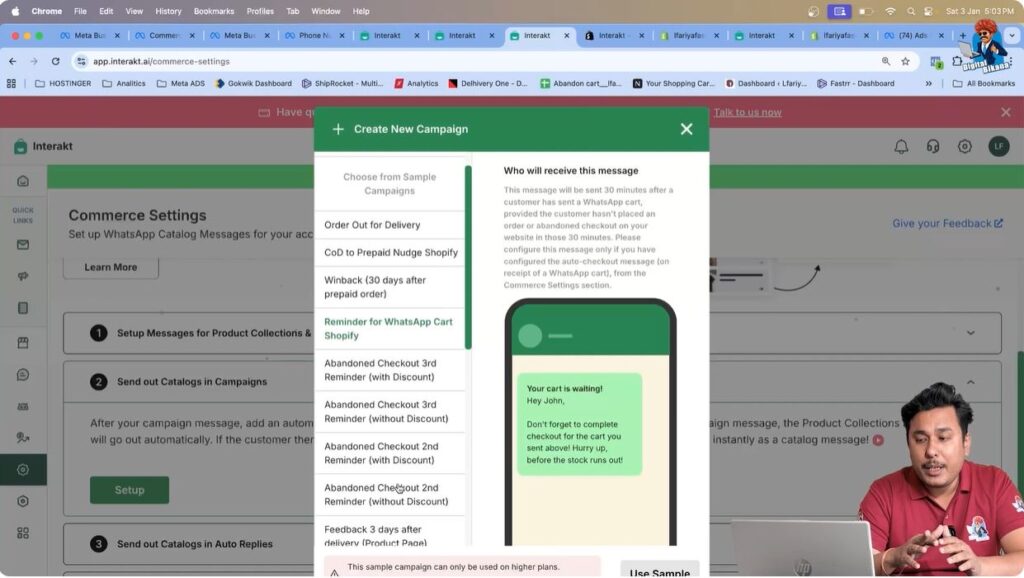
Step 7: Avoid Using Ready-Made Templates at This Stage
Why Ready-Made Templates Are Skipped
Although the platform provides ready-made templates, they are not used here. Custom templates and campaigns will be created later using a different approach that offers more flexibility.
What to Focus on Now
The only requirement at this stage is to complete the product selection and confirmation inside Commerce Settings.
Importance of Completing the Initial Setup
This setup acts as the foundation for all future WhatsApp commerce activities.
Once this step is completed:
- Products are ready to be showcased
- Catalog messages can be sent to users
- Future campaigns can use the same catalog
- Automation workflows can include product messages
Without completing this step, advanced WhatsApp commerce features cannot function properly.
How This Setup Helps Businesses
Setting up product collection messages offers several benefits:
- Users can browse products directly on WhatsApp
- No redirection to external websites is required
- Faster and clearer responses to inquiries
- Improved product visibility
- Better conversion opportunities
This setup is especially useful for businesses selling physical or digital products through WhatsApp.
Summary
In this article, we learned how to set up product collection or catalog messages in WhatsApp Business API using the Commerce Settings.
The process included:
- Accessing the WhatsApp Business API dashboard
- Navigating to the Commerce Settings tab
- Viewing the connected product catalog
- Selecting products to showcase
- Confirming product selection
- Enabling product collection and catalog messages
Campaign creation and template usage were intentionally skipped, as they will be covered using a different method in later sessions.
Conclusion
Setting up product collection messages is a crucial step in using WhatsApp Business API effectively for product-based communication. Once this setup is completed, businesses can easily share product catalogs with users who message them on WhatsApp.
This creates a smoother buying experience and prepares the system for future automation, campaigns, and advanced WhatsApp commerce features.
This completes the product collection and catalog message setup process.

Related Posts