In this article, we will learn how to set up custom auto replies in Interakt for WhatsApp Business API. Custom auto replies help businesses automate conversations based on specific user messages or button selections. By using these replies, a complete chatbot journey can be created where the system interacts with users step by step without manual involvement. In this article, we will build a full WhatsApp Business API journey starting from language selection and ending with brochure sharing.
How to Set Up Custom Auto Replies in WhatsApp Business API?
1. Accessing the Custom Auto Reply Section
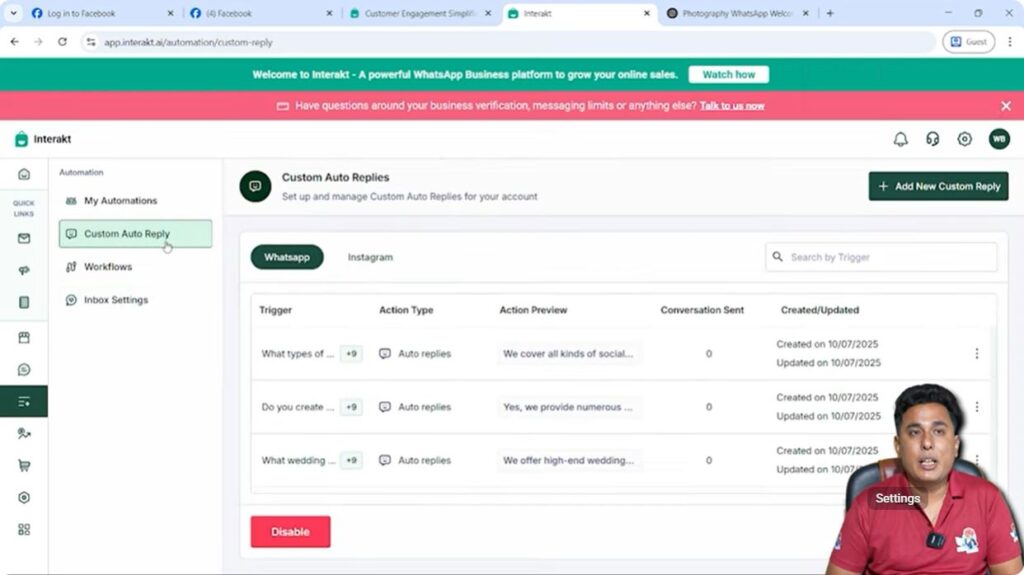
To begin the setup, go to the Custom Auto Reply section in Interakt.
On the side, you will see a button labeled Create New Custom Reply.
Click on this button to start creating automated messages.
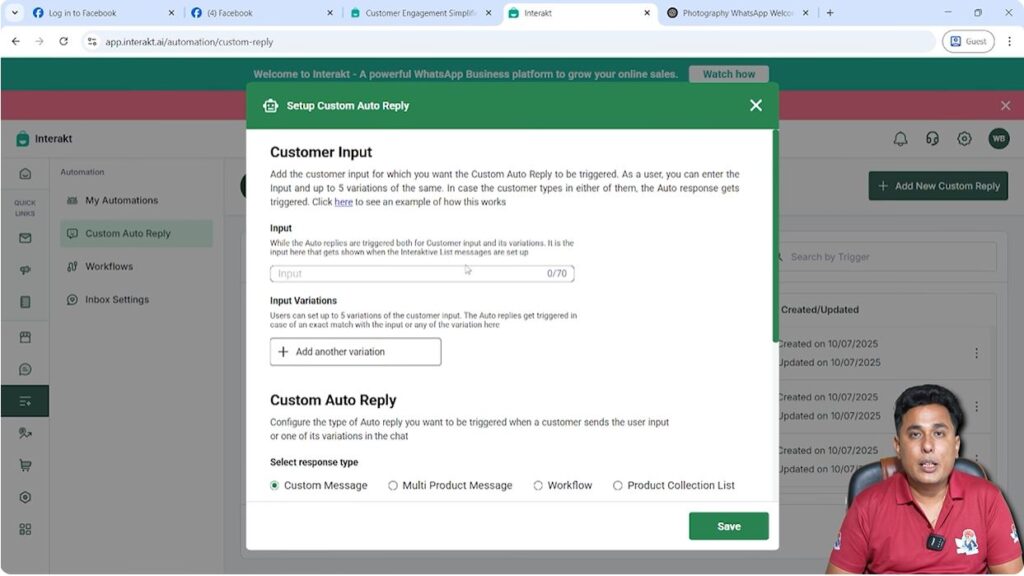
2. Understanding the Custom Auto Reply Components
Whenever you click Create New Custom Reply, four main components appear:
Input
Input Variation
Message Body
Buttons
Each component plays a specific role in building the automation flow.
3. Understanding the Input Field
The Input field is used only for your internal reference.
- It is not visible to users
- It does not trigger messages
- It helps you identify messages later when editing
When many messages are created, the input name helps you understand which message is related to which stage of the journey.

Understanding Input Variation
The Input Variation field defines the exact words or commands that trigger a message.
Whenever a user types or selects a word matching an input variation, the corresponding auto reply is sent automatically.
Spelling accuracy is extremely important here.
Understanding Message Body
The Message Body is the actual message sent to the user.
This message appears when:
- A specific word is typed
- Or a specific button is clicked
This is where the user is guided clearly.
Understanding Buttons
Buttons appear below the message body.
When a user clicks a button:
- That button text becomes the input variation for the next step
- The next custom auto reply is triggered
This is how the chatbot journey moves forward.
4. Create Language Selection Message
Input Name
Enter the following in the input field:
Language Message
This name helps identify the message later.
Input Variations
Add all greeting variations that users may type:
- Hi
- Hii
- Hello
- Hey
- Hy
Different users type greetings differently, so adding multiple variations ensures proper triggering.

Message Body
Write the following message:
Kindly select your preferred language to chat further from below options.
Buttons
Add two buttons:
- English
- Hindi
Click Save.

5. Create Service Selection Message (English)
Input Name
Click Add New Custom Reply and enter:
Service Message
Input Variation
Add:
- English
This message should trigger only when English is selected.
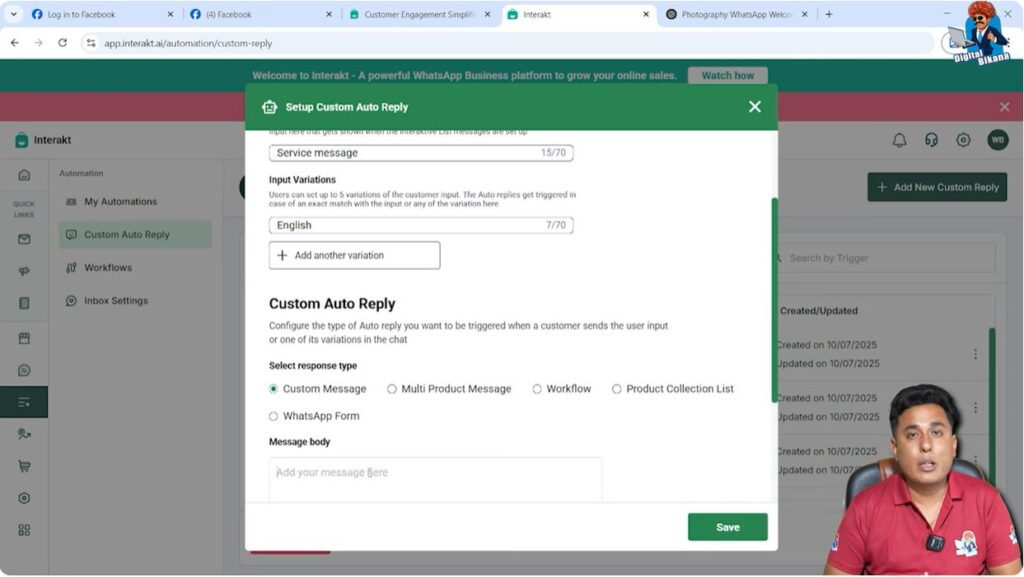
Message Body
Write:
What services are you looking for?
Buttons
Add:
- Photography
- Videography
- Cinematography
Click Save.

6. Create Event Type Message
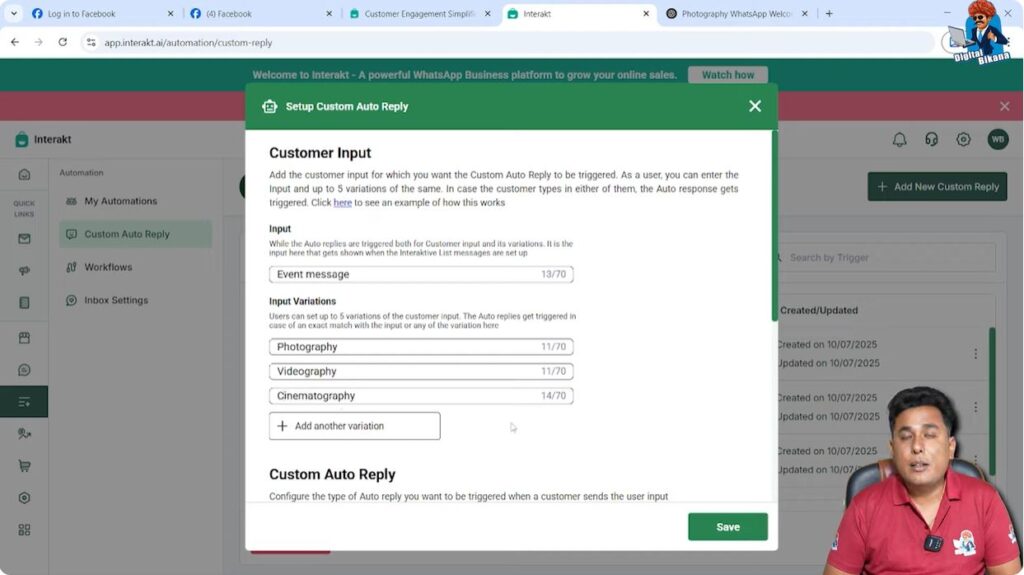
Input Name
Create another custom reply and enter:
Event Message
Input Variations
Add:
- Photography
- Videography
- Cinematography
⚠️ These spellings must exactly match the button text from the previous step.
Message Body
Write:
For which purpose do you want to avail our services?
Buttons
Add:
- Wedding
- Pre-Wedding
- Others
Click Save.

7. Create Separate Message for “Others”
Why This Step Is Required
When users select Others, they need more specific options.
Input Name
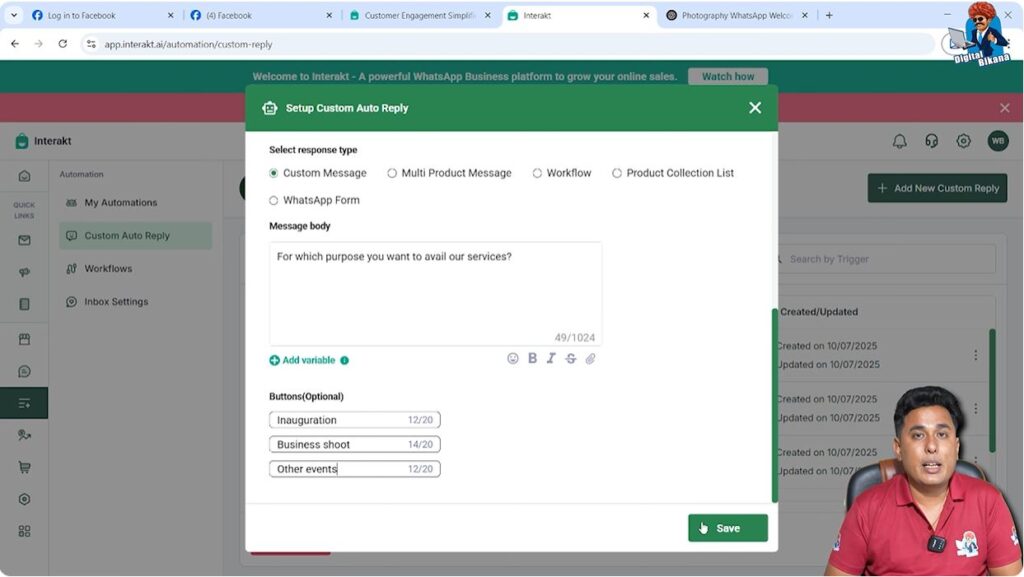
Create a new custom reply with input:
Event Message
Input Variation
Add:
- Others

Message Body
Write again:
For which purpose do you want to avail our services?
Buttons
Add:
- Engagement
- Business Shoot
- Other Event
Each button must be unique.
Click Save.
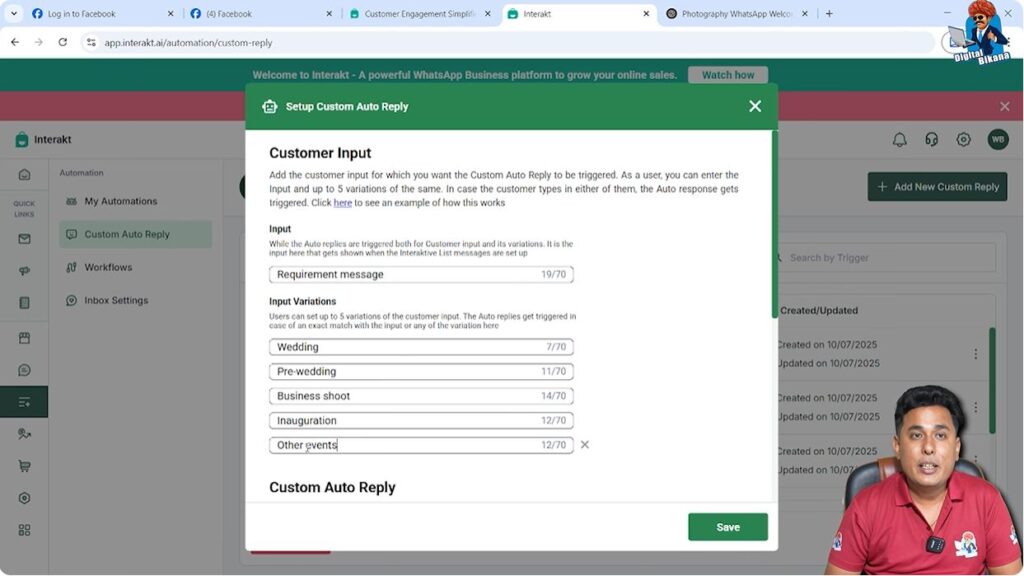
8: Create Requirement Timing Message
Input Name
Create a new custom reply and enter:
Requirement Message
Input Variations
Add:
- Wedding
- Pre-Wedding
- Engagement
- Business Shoot
- Other Event
Capital or small letters do not matter, but spelling must be correct.
Message Body
Write:
When do you require our services?
Buttons
Add a maximum of three buttons:
- Within a week
- Within 15 days
- More than 15 days
Click Save.

9. Create Package Selection Message
Input Name
Create another custom reply and enter:
Package Message
Input Variations
Add:
- Within one week
- Within 15 days
- After 15 days
These must match the previous button texts exactly.

Message Body
Write:
We offer a variety of packages. Which package do you want to hire us for?
Buttons
Add:
- Classic – Rs …
- Premium – Rs …
- Luxury – Rs …
Maintain consistent spacing and formatting.
Click Save.

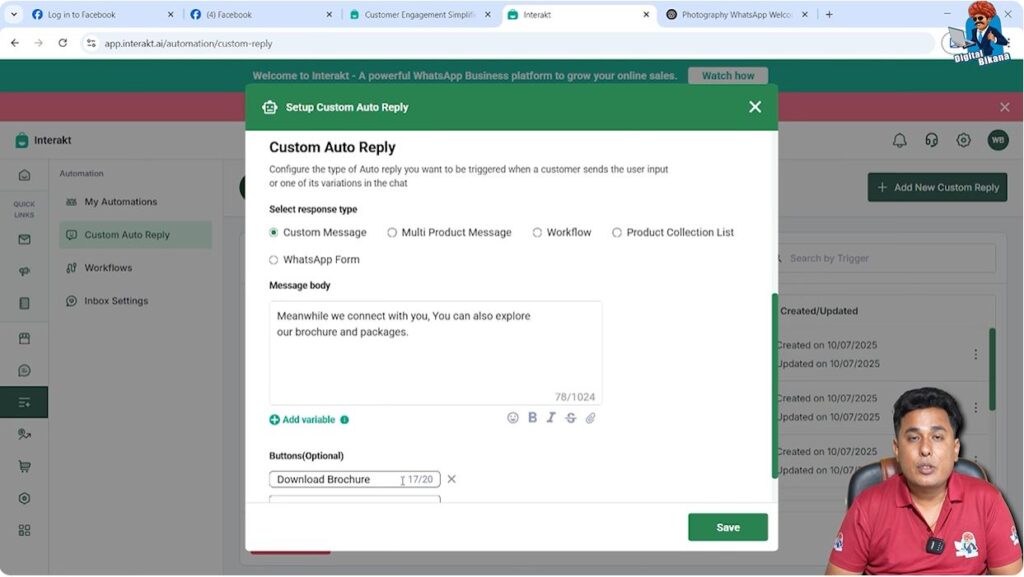
10. Create Brochure Message
Input Name
Create a new custom reply and enter:
Brochure Message
Input Variations
Add all package button variations from Step 6.
Even an extra space can break message triggering, so accuracy is crucial.

Message Body
Write:
Meanwhile, till we connect with you, you can also explore our brochure and packages.
Buttons
Add:
- Download Brochure
Click Save.
11. Create Final Message With Attachment
Input Variation
Create one final custom reply and add:
- Download Brochure

Message Body and Attachment
Attach:
- PDF brochure
- Or video
- Or image file
Do not add any buttons here, as this is the end of the conversation.
Click Save.

Completion of WhatsApp Business API Automation Journey
At this stage:
- The chatbot stops automatically
- You have collected service, timing, and package details
- You know which lead is more urgent
This helps you prioritize calls and prepare conversations properly.
Important Note About Hindi Journey
Only the English journey is created.
If a user selects Hindi, no further message will go because the Hindi journey is empty.
You must build the entire journey again in Hindi, following the same steps.
Understanding the Journey Logic
This WhatsApp Business API automation works like a family tree:
- Each step leads to the next
- Buttons become commands
- Each user choice defines the next message
It is recommended to draw the journey on paper before building it.
Final Summary
In this session, we created a complete custom auto reply flow in WhatsApp Business API using Interakt.
The journey included:
- Language selection
- Service selection
- Event selection
- Requirement timing
- Package selection
- Brochure sharing
Each step was connected using input variations and buttons.
Conclusion
Custom auto replies in WhatsApp Business API allow businesses to automate conversations in a structured and professional way.
By carefully planning input variations, message bodies, and buttons, you can create an efficient chatbot journey that saves time, improves customer experience, and helps prioritize leads effectively.

Related Posts