Instagram profile engagement custom audiences are powerful targeting tools in Facebook Ads Manager. They allow advertisers to retarget users who have interacted with their Instagram professional account in different ways.
If someone has visited your Instagram profile, liked your posts, commented on your ads, saved your content, or sent you a message, you can create a custom audience of those users and run ads specifically to them.
In this article, we will clearly explain how to create an Instagram profile engagement custom audience in Facebook Ads Manager and understand all available event options.
Why Create an Instagram Profile Engagement Custom Audience?
An Instagram profile engagement custom audience helps you:
- Retarget people who interacted with your profile.
- Run ads to warm audiences.
- Increase conversions from engaged users.
- Improve campaign performance by targeting interested users.
This type of audience includes people who have already shown interest in your Instagram account.
Accessing the Audience Section in Ads Manager
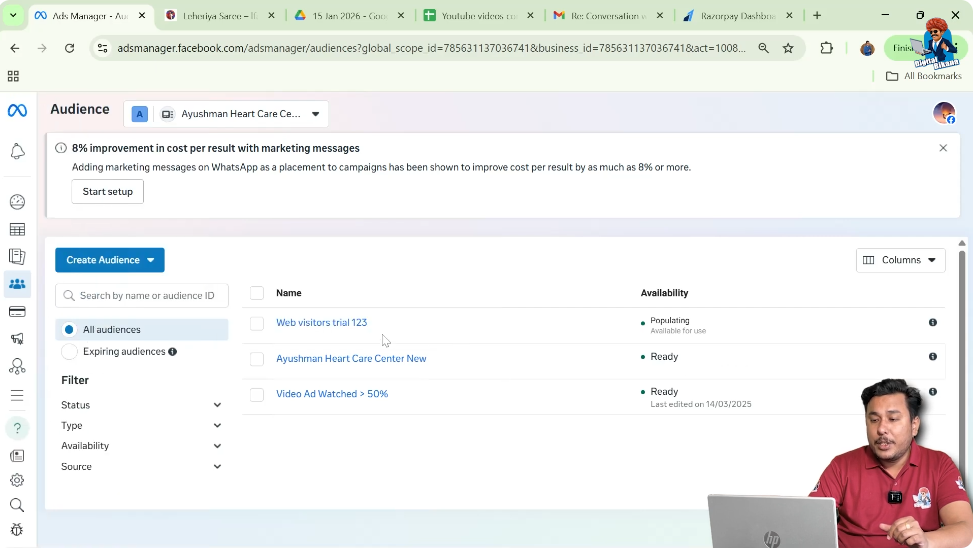
To create this custom audience, you need to access Facebook Ads Manager.
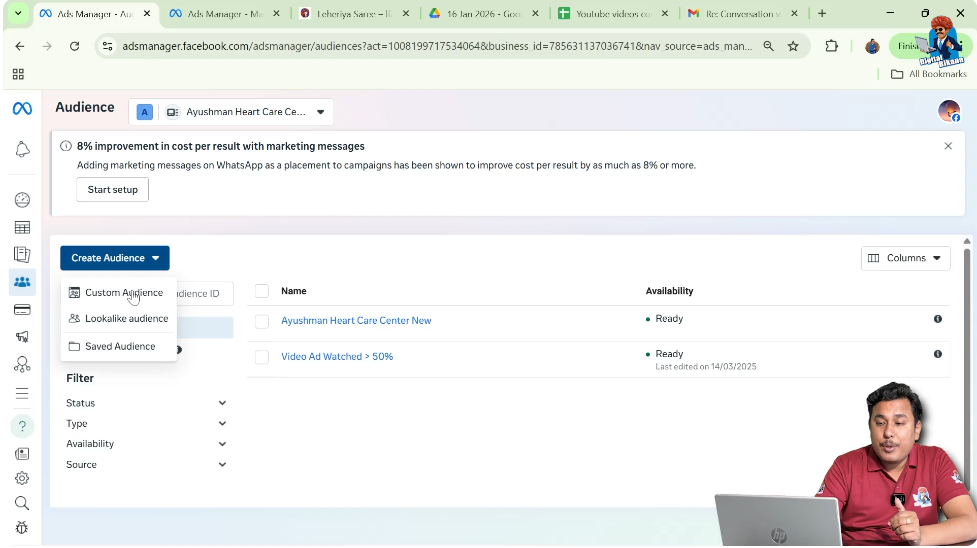
- Log in to Ads Manager.
- Go to the Audiences section.
- Click on Create Audience.
- Select Custom Audience.
This is the starting point for creating any custom audience.
Step 1: Select Instagram Account as Source
Choose the Correct Data Source
After clicking on Custom Audience, Facebook shows different data sources.
- Select Instagram Account as the source.
- Click Next.
This ensures that the audience will be created from Instagram engagement data.

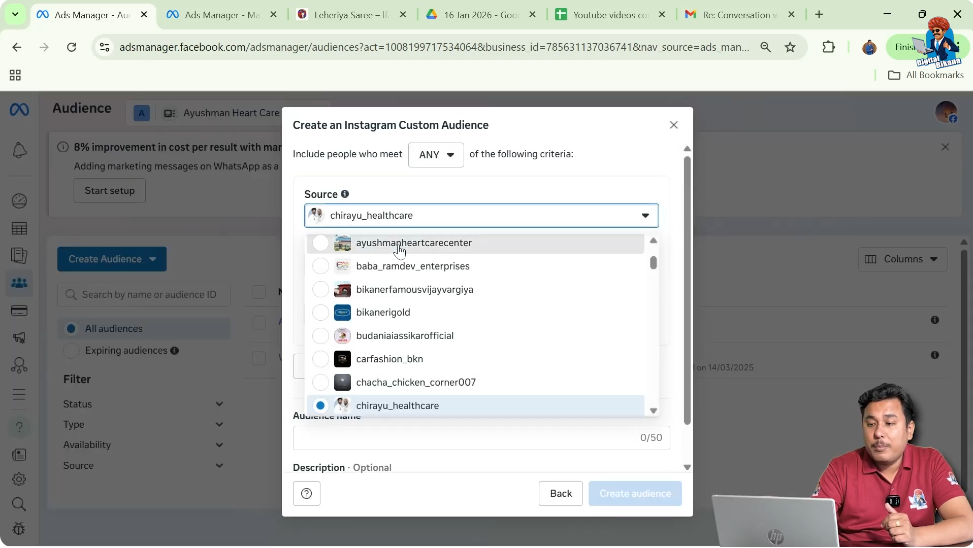
Step 2: Select Your Instagram Account
Choose the Professional Account
Once you select Instagram Account:
- Choose the Instagram professional account from the dropdown.
- Confirm the selection.
This is the account from which engagement data will be collected.
Understanding the Available Event Options
After selecting the Instagram account, Facebook provides multiple event options. These events determine which users will be included in your custom audience.
Let us understand each event one by one.
Event 1: People Who Started Following This Professional Account
If you select this option:
- The custom audience will include all users who followed your Instagram profile.
- Only followers will be part of this audience.
This is useful when you want to retarget followers specifically.
Event 2: People Who Engaged With This Professional Account
This is a broader engagement option.
If selected, the audience includes:
- Profile visitors.
- Users who liked posts.
- Users who commented.
- Users who saved posts.
- Users who shared content.
- Users who swiped carousel ads.
- Users who clicked buttons on ads.
This option includes almost all types of engagement.
Event 3: People Who Visited This Professional Account Profile
This event includes:
- Only users who visited your Instagram profile.
It does not include users who only engaged with posts or ads without visiting the profile.
This option is more specific than the broader engagement option.
Event 4: People Who Engaged With Any Post or Ad
This option includes:
- Users who liked posts.
- Users who commented.
- Users who shared.
- Users who swiped carousel ads.
However, it does not include profile visitors who did not engage with posts or ads.
This differs slightly from the broader engagement option.
Event 5: People Who Sent a Message to This Professional Account
If selected:
- The audience will include users who sent direct messages to your Instagram profile.
This is useful for retargeting highly interested users.
Event 6: People Who Saved Any Post or Ad
This event includes:
- Users who saved your Instagram posts or ads.
Saving content usually indicates strong interest.
Step 3: Choose the Best Event Option
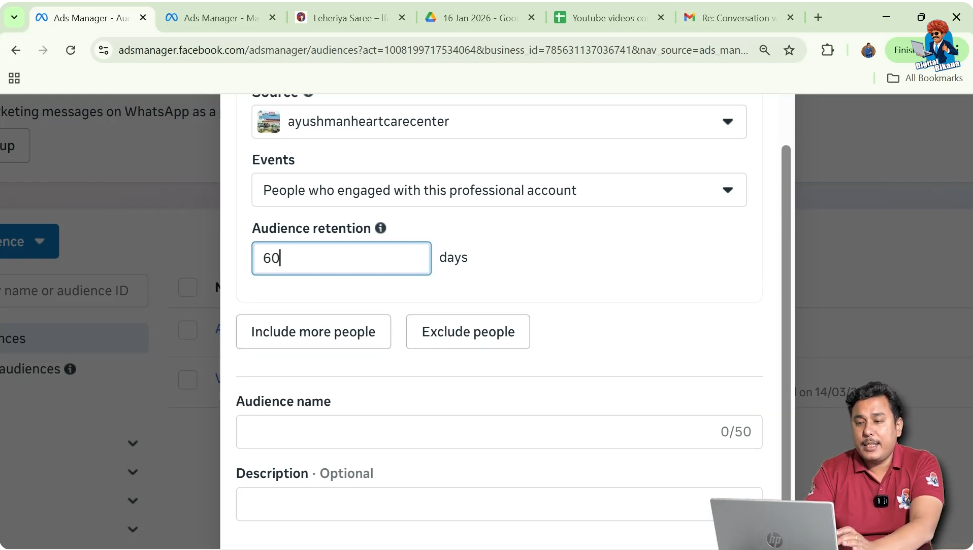
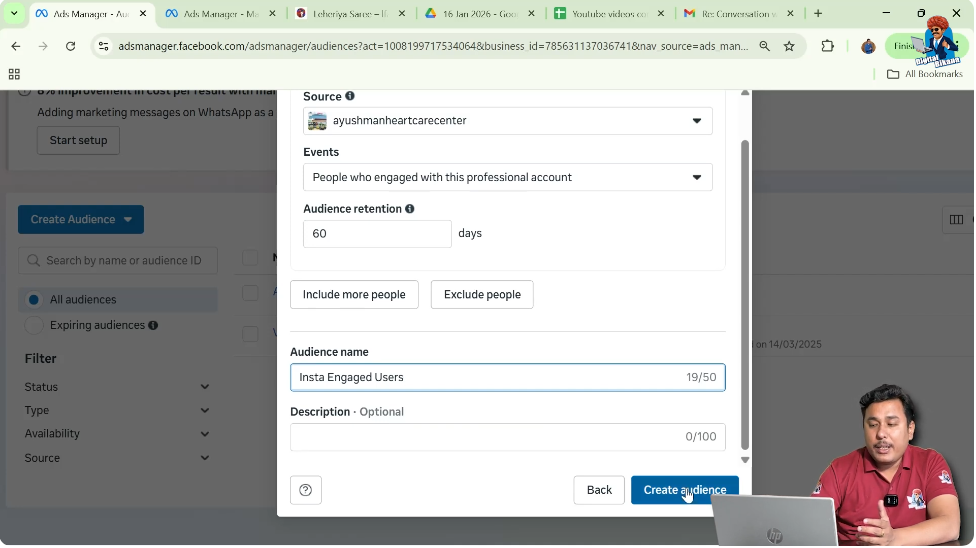
Select “People Who Engaged With This Professional Account”
Among all available events, the second option — People Who Engaged With This Professional Account — is often the most comprehensive.
This option includes:
- Profile visitors.
- Post engagements.
- Ad engagements.
- Button clicks.
- Shares and saves.
It covers almost all engaged users.

Step 4: Set Audience Retention Period
Define Retention Duration
After selecting the event:
- Choose the audience retention period.
- For example, set retention to 60 days.
This means:
- Users who engaged within the last 60 days will be included.
- After 60 days, inactive users will automatically be removed.
Retention controls how long users stay in the audience.
Step 5: Enter Audience Name and Description
Create a Clear Audience Label
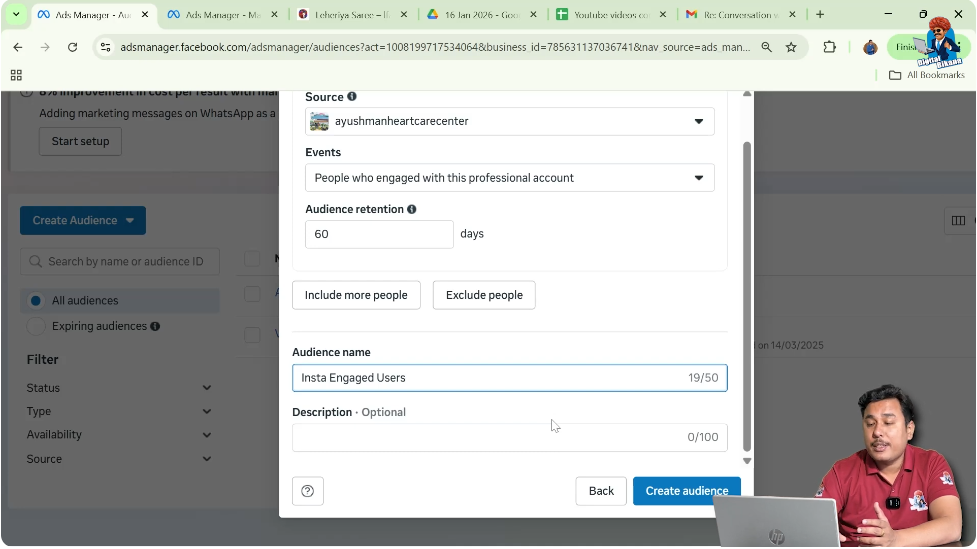
Next, provide a name for the audience.
For example:
- Insta Engaged Users
You can also add a description. This is for internal reference only.
Adding a description helps you remember:
- Why the audience was created.
- What type of engagement it includes.
Step 6: Click on Create Audience
Complete the Setup
After filling in the details:
- Click on Create Audience.
- Facebook will begin creating the audience.
- The audience will appear in the Audiences section.
It may initially show as populating until data is processed.
How the Audience Gets Populated
Once created:
- Users who match the selected event will be added.
- The audience updates automatically.
- It remains dynamic as new engagement happens.
This makes Instagram engagement audiences powerful retargeting tools.
Difference Between Engagement Events
To summarize the differences:
- Followers only → Only profile followers.
- Profile visitors only → Only visitors.
- Post/ad engagement only → Only engagement.
- Broad engagement → Includes almost all engagement types.
- Message senders → Only DM users.
- Saved posts → Only users who saved content.
Selecting the right event depends on your campaign goal.
When to Use Instagram Engagement Custom Audience
You should create this audience when:
- You want to retarget warm users.
- You want higher conversion rates.
- You want to promote offers to engaged users.
- You want to scale retargeting campaigns.
This audience performs better than cold targeting.
Benefits of Choosing the Broad Engagement Option
The broader engagement option is often recommended because:
- It includes maximum engaged users.
- It covers multiple interaction types.
- It creates a larger warm audience pool.
This increases retargeting opportunities.
Final Explanation in Simple Words
To create Instagram profile engagement custom audience:
- Go to Audiences section.
- Click Create Audience.
- Select Custom Audience.
- Choose Instagram Account.
- Select your Instagram profile.
- Choose engagement event.
- Set retention period.
- Name the audience.
- Click Create.
That’s all.
Conclusion
Creating an Instagram profile engagement custom audience in Facebook Ads Manager is a simple yet powerful strategy for retargeting engaged users. By selecting Instagram as the source, choosing the appropriate engagement event, setting retention, and naming the audience properly, you can build a highly valuable audience segment.
Among all available event options, selecting users who engaged with the professional account provides the most comprehensive coverage. This ensures that profile visitors, post engagers, ad engagers, and other active users are included.
Using this custom audience allows advertisers to run more effective retargeting campaigns and improve overall ad performance.

Related Posts