Adding Shopify products to your WhatsApp Business API catalog allows businesses to showcase their entire product range directly on WhatsApp. When WhatsApp Business API is integrated with Shopify through the Interakt platform, all products published on the Shopify store can automatically sync into the WhatsApp catalog. This makes it possible to send product catalogs, automate order-related messages, and later run advanced workflows such as abandoned cart reminders and sales follow-ups. In this article, we will understand how to add Shopify products to your WhatsApp Business API catalog using Interakt. The complete process is explained step by step, starting from accessing the WhatsApp Commerce section in Interakt to waiting for successful product synchronization.
Understanding WhatsApp Commerce and Product Catalog
WhatsApp Commerce inside Interakt allows you to manage product catalogs that are linked with your WhatsApp Business API account. When a Shopify store is connected, the system fetches all the products from Shopify and displays them inside the WhatsApp Business API catalog automatically.
This integration removes the need to manually upload products one by one and ensures that any updates made in Shopify reflect in the WhatsApp catalog.
Accessing WhatsApp Commerce in Interakt
Before starting the integration, make sure:
- You are logged into your Interakt dashboard
- Your WhatsApp Business API is already connected and active
- Your Shopify store is live and accessible
Once these conditions are met, you can proceed with catalog integration.
How to add Products in Whatsapp Business API Catalogue from Shopify Store?
Step 1: Opening the WhatsApp Commerce Section
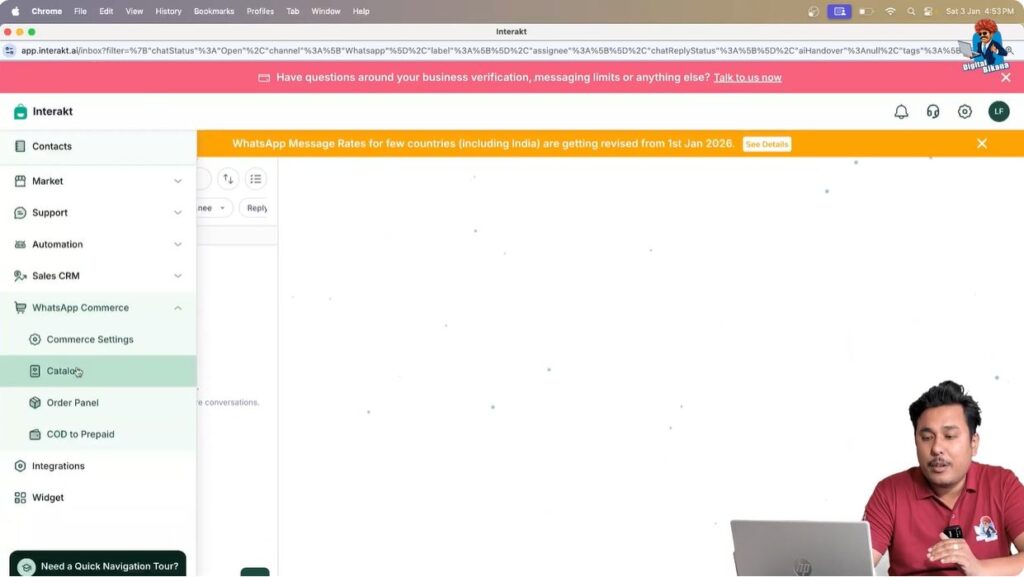
After logging into the Interakt dashboard, look at the left-hand side menu.
From the left panel, locate the WhatsApp Commerce option.
Click on it to open the commerce-related features.
Inside WhatsApp Commerce, navigate to the Catalog section.
This is where product catalogs connected to WhatsApp Business API are managed.

Step 2: Selecting the Catalog Section
Inside the Catalog section, you will see an option related to connecting an external store.
Here, Interakt provides a direct option to connect your Shopify store with WhatsApp Business API.
You will find a button labeled Connect Shopify Store.
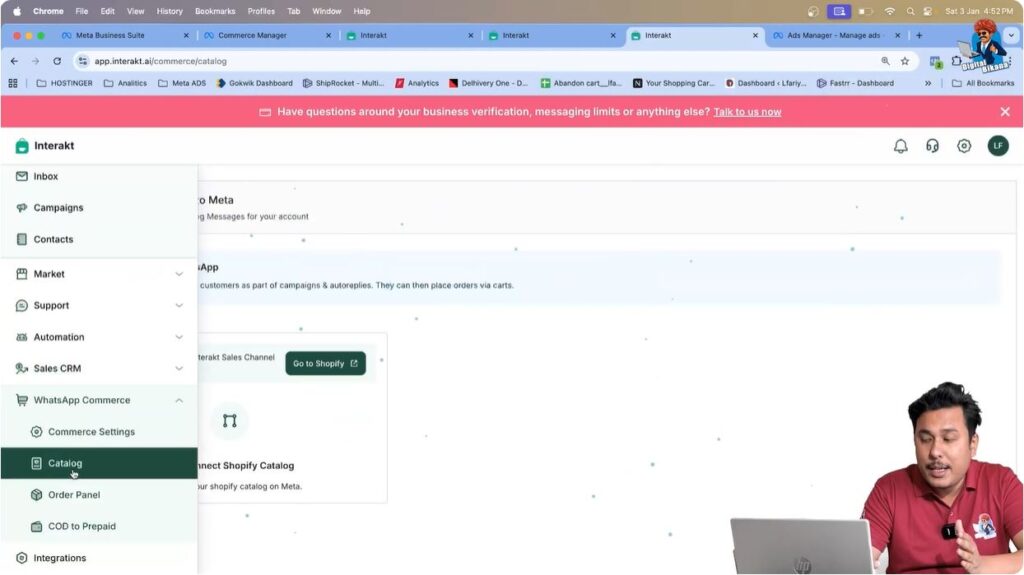
Step 3: Clicking on “Go to Shopify”
Click on the Go to Shopify button.
As soon as you click this option, you will be redirected from Interakt to the Shopify App Store.
This redirection happens because Shopify integrations require installing an official app inside your Shopify admin dashboard.

Step 4: Opening the Shopify App Store
After redirection, the Shopify App Store page opens.
On this page, you will see the Interakt Sell on WhatsApp application.
This app is required to establish communication between:
- Shopify store
- Interakt platform
- WhatsApp Business API catalog
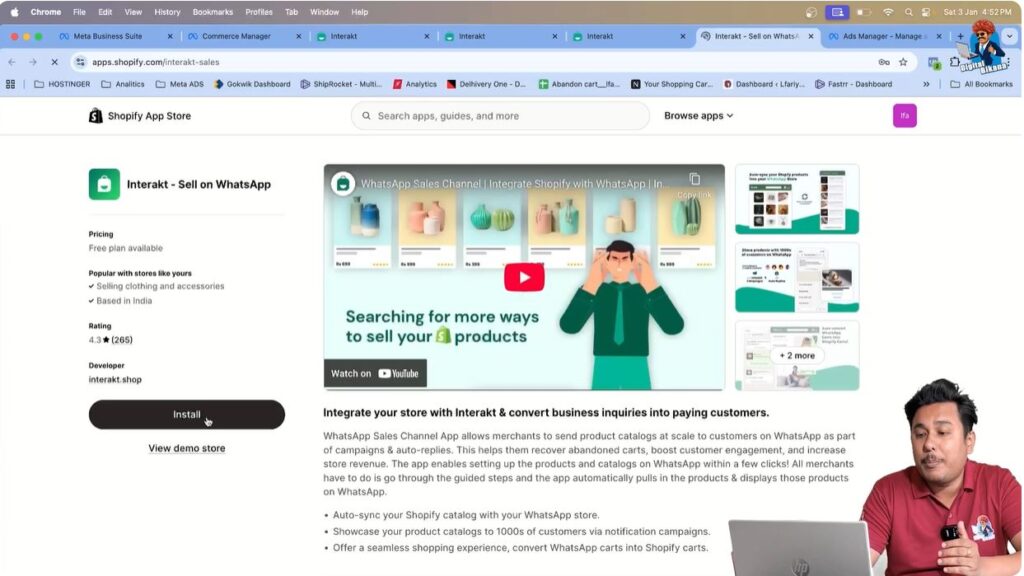
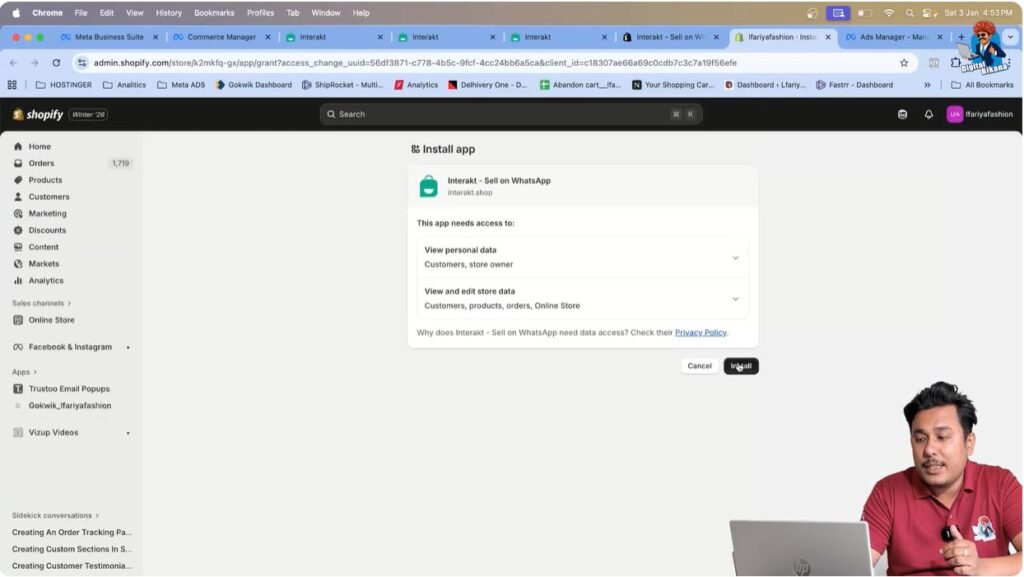
Step 5: Installing the Interakt Application on Shopify
On the Shopify App Store page, click on the Install button.
You will then be redirected to your Shopify admin dashboard.
Inside the Shopify admin dashboard, Shopify will again ask for confirmation to install the app.
Click Install once again to proceed.
After this step, the Interakt application gets installed successfully on your Shopify store.
Step 6: Setting Up the WhatsApp Store
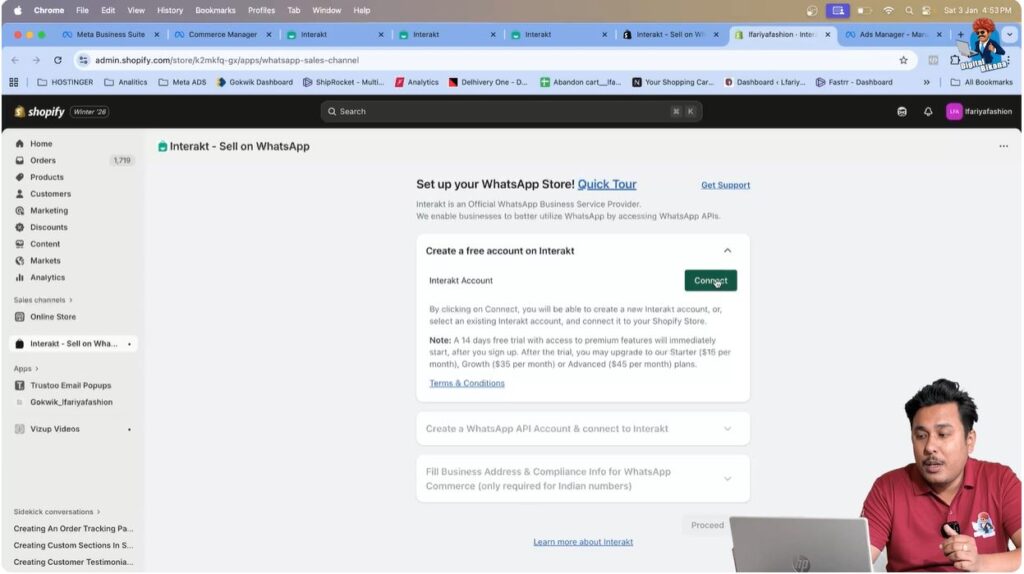
Once the application is installed, you will see an option to Set up your WhatsApp Business API Store.
Click on the Connect button.
At this stage, Interakt checks whether your current Interakt account is already logged in and active.
Step 7: Connecting the Interakt Account
After clicking Connect, a confirmation message appears stating that:
Your Interakt account is now linked with your Shopify website via the Shopify sales app.
This confirms that the Shopify store and Interakt platform are now connected successfully.

Understanding App Requirements for Shopify Integration
For proper integration, two applications are required on the Shopify store:
- Interakt Sell on WhatsApp application
- Shopify Sales Channel integration related to WhatsApp
Both applications work together to ensure smooth catalog synchronization and message automation.
Step 8: Initiating Shopify Catalog Connection
After the connection is confirmed, go back to the Interakt dashboard.
Navigate again to:
WhatsApp Commerce → Catalog
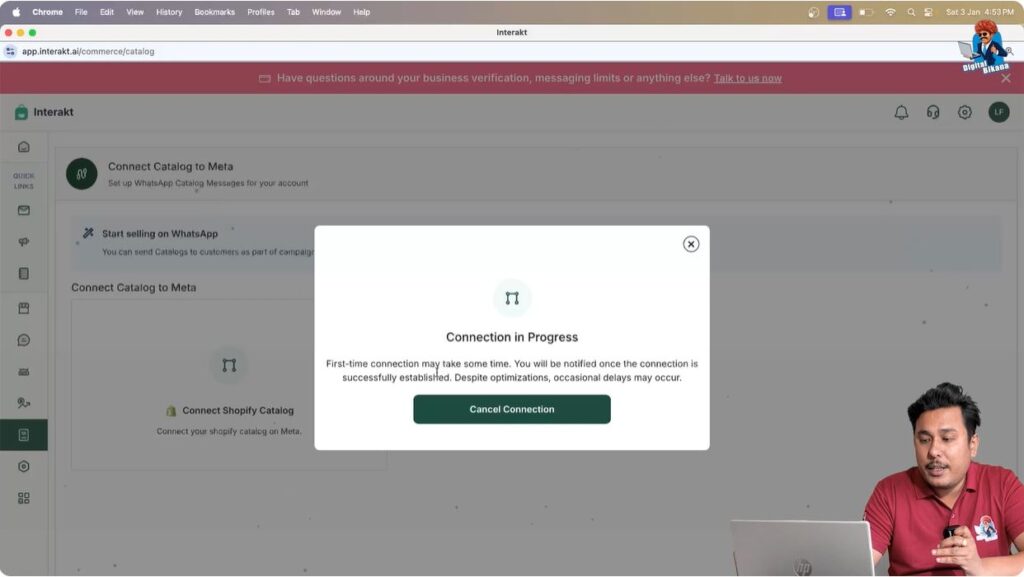
Here, you will see a message related to Connect Shopify Catalog.
The system informs that:
The first-time connection may take some time, and you will be notified once the connection is successfully established.
Step 9: Understanding Initial Connection Status
At this stage, even though the connection has started, the catalog may still show as not connected.
This is normal behavior.
The product synchronization does not happen instantly.
You may refresh the page, but the status may still show in progress.
Step 10: Waiting for Product Synchronization
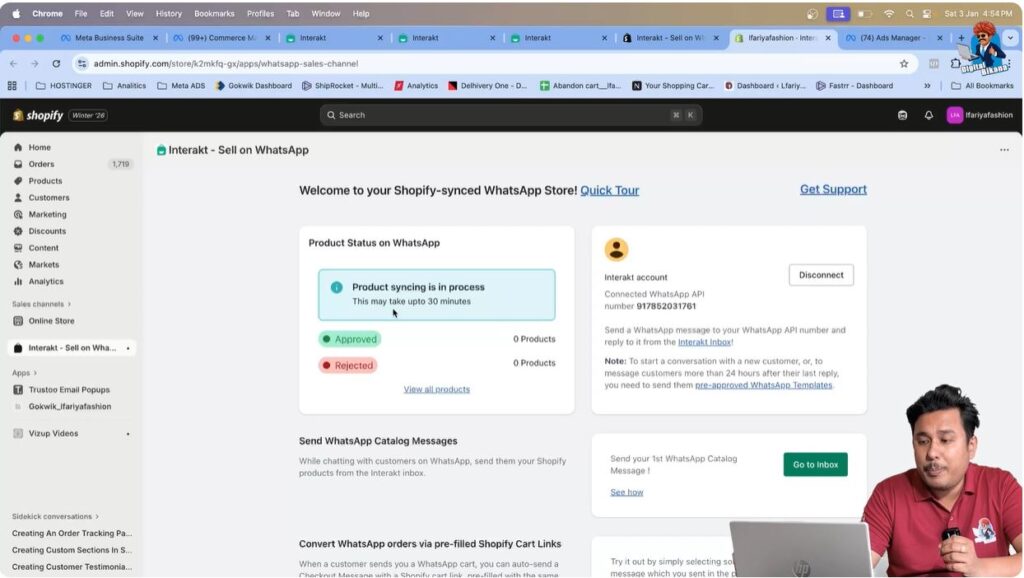
To understand what is happening in the background, return to the Shopify admin dashboard.
Once refreshed, a popup appears stating:
Product synchronization is in progress and may take up to 30 minutes.
This message confirms that Shopify products are being fetched and synced with WhatsApp Business API catalog.
At this stage:
- Zero products may appear initially
- Synchronization happens in the background
- Manual intervention is not required
Step 11: Allowing 30 Minutes for Synchronization
The system requires time to:
- Read all Shopify products
- Sync product details
- Create a WhatsApp-compatible catalog structure
You need to wait for approximately 30 minutes.
Do not interrupt the process.
Step 12: Verifying Product Sync Completion
After waiting for the required time, refresh the WhatsApp Business API catalog page inside Interakt.
Now, you will see that:
- All Shopify products have been synchronized
- Product count is updated
- Catalog is fully visible inside WhatsApp Commerce
This confirms that the Shopify product catalog has been successfully added to WhatsApp Business API.

Understanding What Happens After Synchronization
Once products are synced:
- All Shopify products appear inside WhatsApp Business API catalog
- Any future product updates in Shopify can reflect automatically
- Product data becomes usable for messaging, automation, and commerce workflows
Future Use of WhatsApp Business API Product Catalog
After catalog synchronization, businesses can:
- Send product catalogs to users on WhatsApp
- Create automated abandoned cart messages
- Send order confirmation and payment-related messages
- Build sales workflows for better conversion
These advanced use cases are covered in upcoming sessions.
Key Points to Remember
- Shopify integration is mandatory for automatic product sync
- Product synchronization may take up to 30 minutes
- Initial “in progress” status is normal
- Manual product upload is not required
- Catalog updates depend on Shopify product data
Common Issues During Synchronization
- Catalog not appearing immediately
- Product count showing zero initially
- Status showing “in progress” for some time
All of these are expected behaviors during first-time integration.
Final Summary
In this article, we learned how to add Shopify products to WhatsApp Business API catalog using Interakt.
The complete process included:
- Accessing WhatsApp Commerce in Interakt
- Navigating to the catalog section
- Connecting the Shopify store
- Installing the Interakt app on Shopify
- Linking Interakt with Shopify
- Waiting for product synchronization
- Verifying catalog availability
Once synchronized, all Shopify products become available inside WhatsApp Business API catalog automatically.
Conclusion
Adding Shopify products to WhatsApp Business API catalog through Interakt is a straightforward process that requires correct installation and patience during synchronization. This integration lays the foundation for advanced WhatsApp commerce features such as automated sales messages, abandoned cart recovery, and improved customer engagement.
With the catalog successfully connected, businesses can move forward to optimize their WhatsApp Business API usage and drive higher sales through conversational commerce.

Related Posts