In this session, we will understand how to set up WhatsApp Business API in a proper and systematic way. Earlier, we discussed what WhatsApp Business API is. In simple words, WhatsApp Business API works like a chatbot system that helps businesses automate communication with customers. It is especially useful for businesses running ads on Facebook and Instagram and receiving a high number of inquiries daily.
Why WhatsApp Business API is Required
Handling High Daily Inquiries
If you are running ads on Facebook and Instagram and receiving around 30–40 inquiries daily, replying to all of them manually becomes very difficult.
Many times, customers send messages late at night, such as:
- 12:00 AM
- 1:00 AM
In such situations, it is not possible to reply manually every time. WhatsApp Business API allows you to send automatic replies to customers.
This is one major reason why WhatsApp Business API is used.
Limitation of Normal WhatsApp and WhatsApp Business
Another major reason for using WhatsApp API is bulk messaging.
You cannot send bulk messages using:
- Normal WhatsApp
- WhatsApp Business
If you try to send bulk messages from these apps, your number can get banned.
WhatsApp Business API is specifically designed for bulk messaging.
Bulk Messaging Capability
Using WhatsApp Business API, you can send messages to:
- 5,000 users
- 10,000 users
- Even 1 lakh users
This is completely allowed and safe when done through WhatsApp Business API.
Verified Business Profile Advantage
With WhatsApp Business API:
- Your business profile appears as verified
- Your business name is shown by default
Even if the user has not saved your mobile number, your business name will still be visible when you message them.
Selling Products and Services Using WhatsApp Business API
WhatsApp Business API can also be used for:
- Selling products online
- Selling services online
It allows automatic communication with customers and can even collect payments through chatbot flows.
Mandatory Requirement Before WhatsApp Business API Setup
Meta Business Suite Account Requirement
To set up WhatsApp Business API, it is mandatory to have a Meta Business Suite account.
This means:
- You must have a business portfolio inside Meta
Without this, WhatsApp Business API setup is not possible.
WhatsApp Business API Service Providers
WhatsApp Business API is provided by multiple companies, such as:
- Interakt
- WATI
- AiSensy
In this setup process, Interakt is used.
Step-by-Step WhatsApp Business API Setup Using Interakt
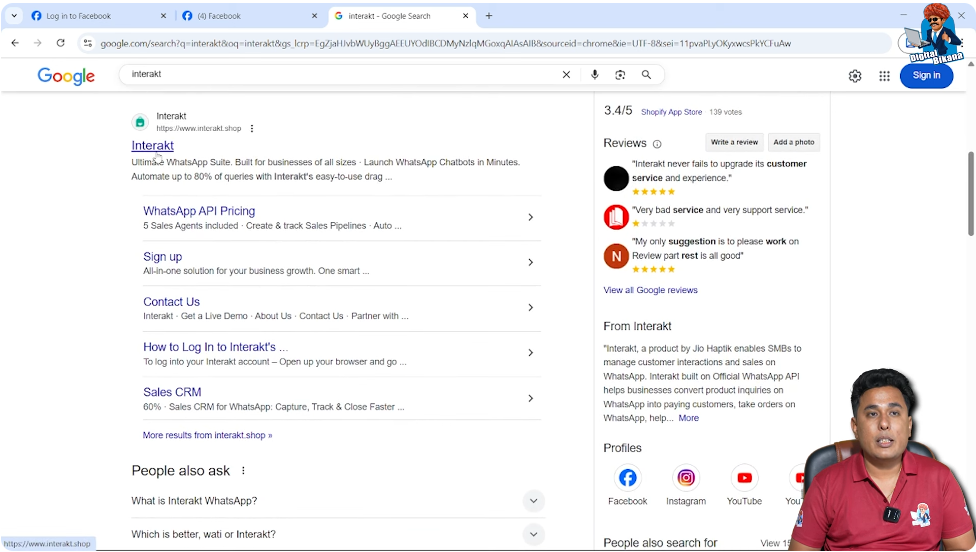
Step 1: Search Interakt on Google
Open Google and search for Interakt.
While searching:
- Ignore sponsored ads
- Do not click on ads
Click only on the organically ranked Interakt website.

Step 2: Open Interakt Website
After clicking the organic result, you will land on the Interakt website.
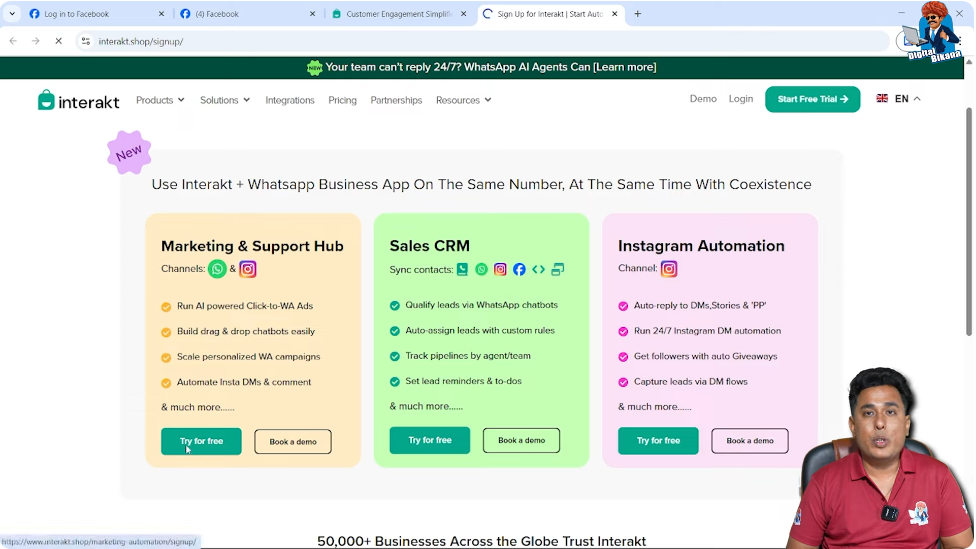
Here, you will see a Start Free Trial button.
Step 3: Click on Start Free Trial
Click on Start Free Trial.
Interakt offers:
- Marketing and Support Hub
- Sales CRM
- Instagram Automation
For WhatsApp automation, select Marketing and Support Hub.
Step 4: Understand Free Trial Details
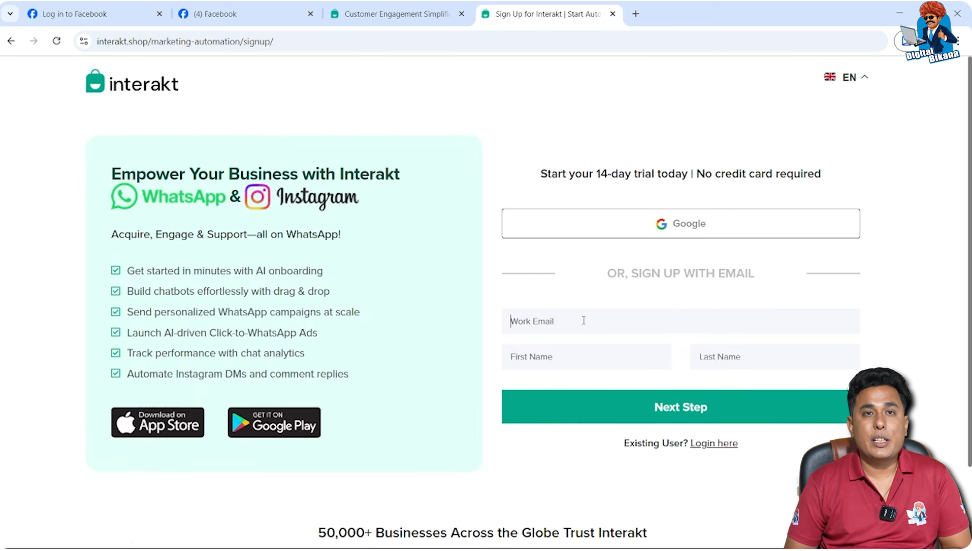
Interakt provides a 15-day free trial.
You need to enter:
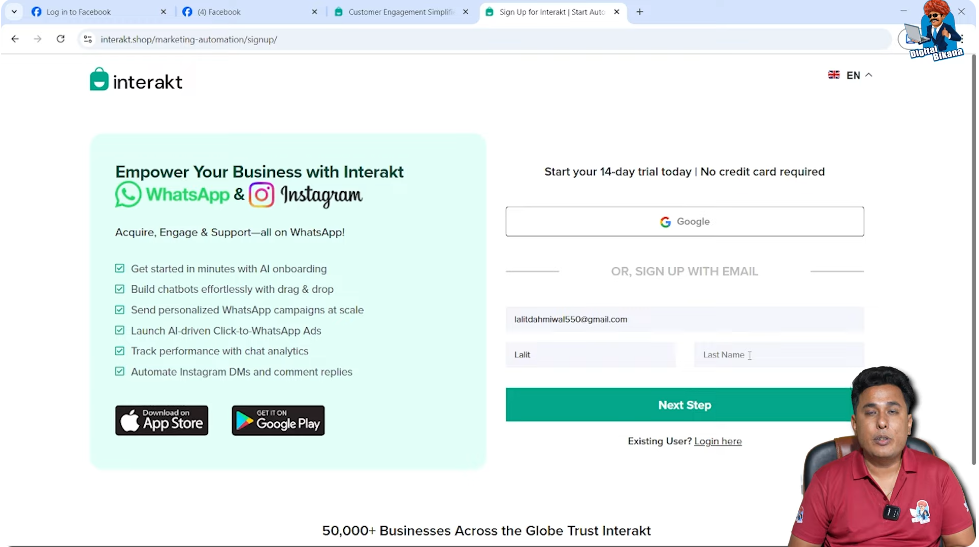
- Work email
- First name
- Last name
You can:
- Sign in with Google
- Or manually enter details
Capital and small letters matter, so enter details carefully.
Step 5: Select WhatsApp Channel
In the next step, you will be asked which channel you want to set up.
Select WhatsApp.
Step 6: Enter Business Details
Fill in the following details:
- Mobile number
- Company name (first letter capital)
- Company website
If You Do Not Have a Website
You can enter any dummy website URL. This is acceptable.
Step 7: Enter Additional Business Information
Now enter:
- Company location (example: Bikaner)
- Industry type
- Annual revenue (formal entry, such as “less than 5 lakh”)
Enter the OTP received on your WhatsApp number.
Tick I am not a robot and click Create Account.

Account Creation and Onboarding Benefits
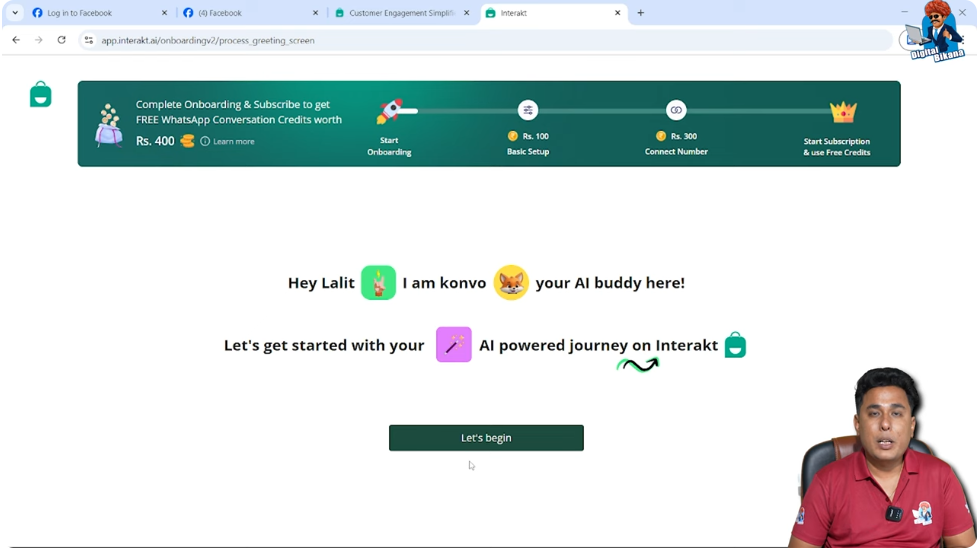
Once the account is created and onboarding is completed, you receive ₹400 credit.
This credit can be used for bulk WhatsApp messaging.
Initial Automation Setup
Interakt may automatically create a message journey using AI.
However, this journey is usually not accurate.
You should:
- Proceed
- Scroll down
- Continue setup
You can build your own journey later.
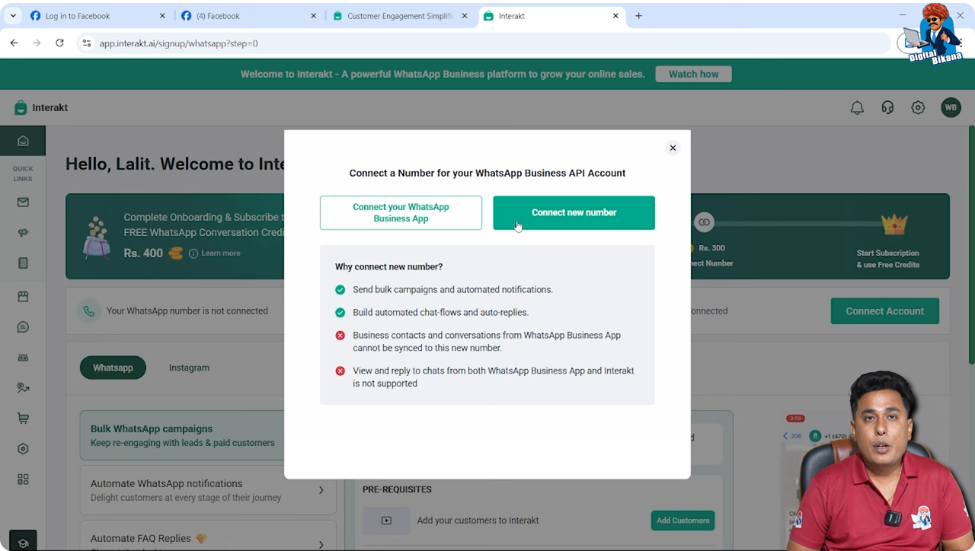
Step 8: Connect WhatsApp Number
Click on Connect Your Number.
This step requires Meta Business Suite verification.
Available Options
You will see two options:
- Connect WhatsApp Business App
- Connect New Number
Recommendation for WhatsApp Number
It is recommended not to connect your existing WhatsApp Business number.
Reasons:
- System is not fully stable
- Numbers may get banned
Best practice:
- Buy a new number
- Use it only for WhatsApp Business API
If you still want, you can connect your personal number, but it is not recommended.
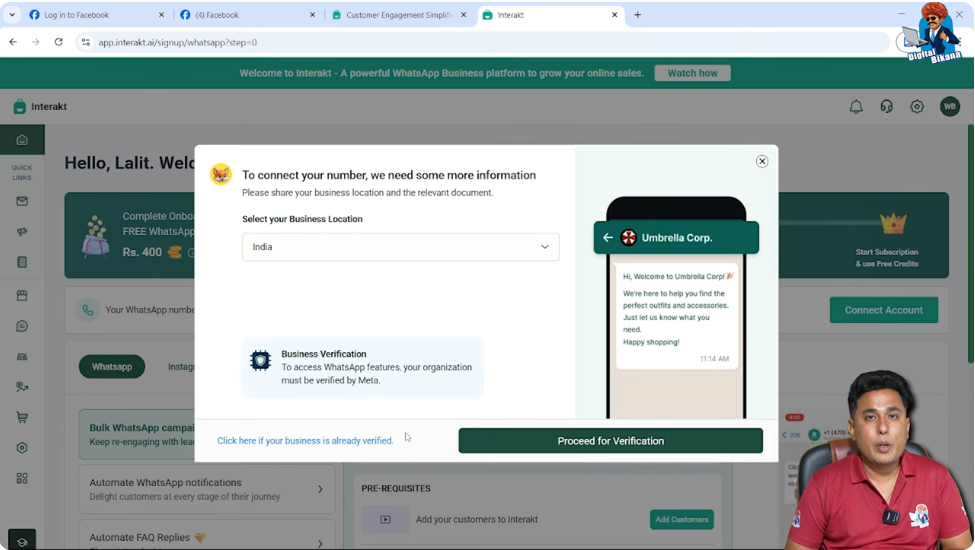
Step 9: Proceed for Verification
Click:
- Proceed for verification
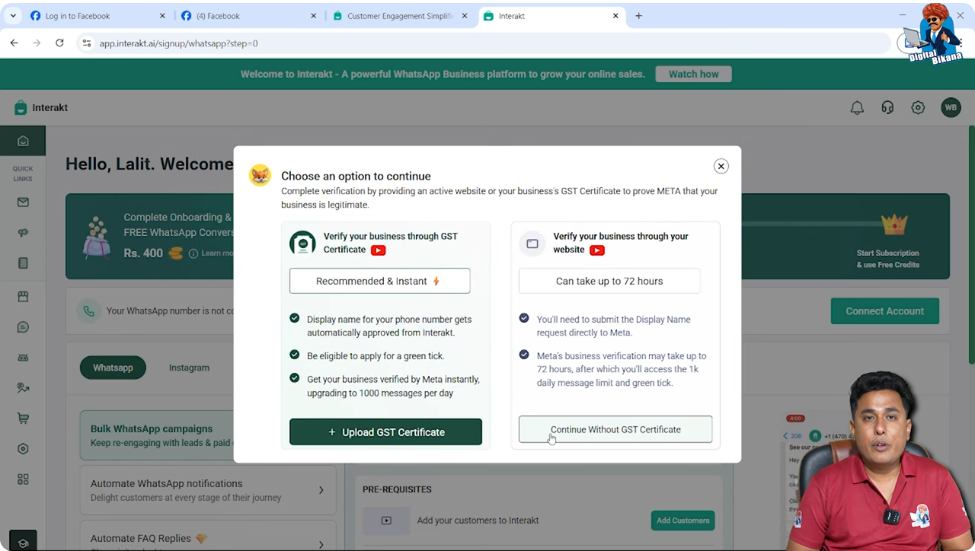
You can:
- Continue without GST certificate
- Or continue with GST certificate if available
Login with Facebook if required.
Step 10: Enter Business Display Details
Enter:
- Business name
- Country (India)
- WhatsApp Business Account display name
Do not enter your personal name.
Use your business name, which customers should see.

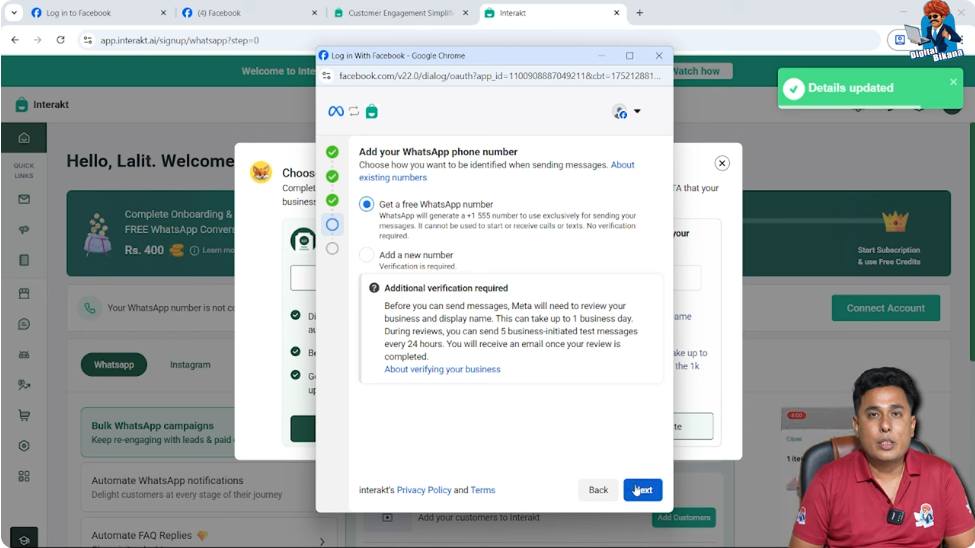
Step 11: Get WhatsApp Number
You will get two options:
- Add a new number
- Get a free WhatsApp number
If you do not have a new number, select Get a Free WhatsApp Number.
Interakt provides a virtual WhatsApp number.
Save this number by taking a screenshot.
Understanding the Interakt Dashboard
Inbox
All customer messages are received in the Inbox.
You can:
- Read messages
- Reply directly
Campaigns
Campaigns are used for:
- Bulk WhatsApp messaging
- Marketing broadcasts
Contacts
Contacts include:
- Numbers saved automatically when users message you
- Manually added contacts for bulk campaigns
Market
Market section is used to:
- Create message templates
- Set up auto-replies
Reports
Reports help you:
- Check campaign performance
- Analyze messaging data
Support
Support section allows you to:
- Raise support tickets
- Resolve Interakt-related issues
Automation Features
Under Automation, you can:
- Create WhatsApp Forms
- Set Custom auto-replies
- Build chatbots
- Create interactive lists
Sales CRM and WhatsApp Commerce
Sales CRM is available for advanced tracking.
WhatsApp Commerce Features
You can:
- Create product catalogs
- View orders
- Sell directly through WhatsApp
Integrations with WhatsApp Business API
WhatsApp Business API can be integrated with:
- Billing software
- Google Sheets
- CRM software
Example:
After a customer purchases from your store, an automatic WhatsApp message can be sent.
Team and Agent Management
You can add multiple agents.
For example:
- If you receive 500+ daily inquiries
- Add multiple agents
- Assign inquiries
Each agent can reply from their own device.
Final Summary
WhatsApp Business API helps businesses:
- Automate replies
- Handle bulk messaging
- Manage high inquiry volume
- Display verified business profiles
- Sell products and services
- Integrate with other systems
Final Conclusion
WhatsApp Business API is a powerful tool for businesses receiving high daily inquiries and running ads on Facebook and Instagram.
By setting up WhatsApp Business API through Interakt, businesses can automate communication, send bulk messages safely, manage teams, and improve customer experience.
In the next session, topics like welcome messages, auto-replies, chatbot journeys, and advanced automation will be covered.

Related Posts