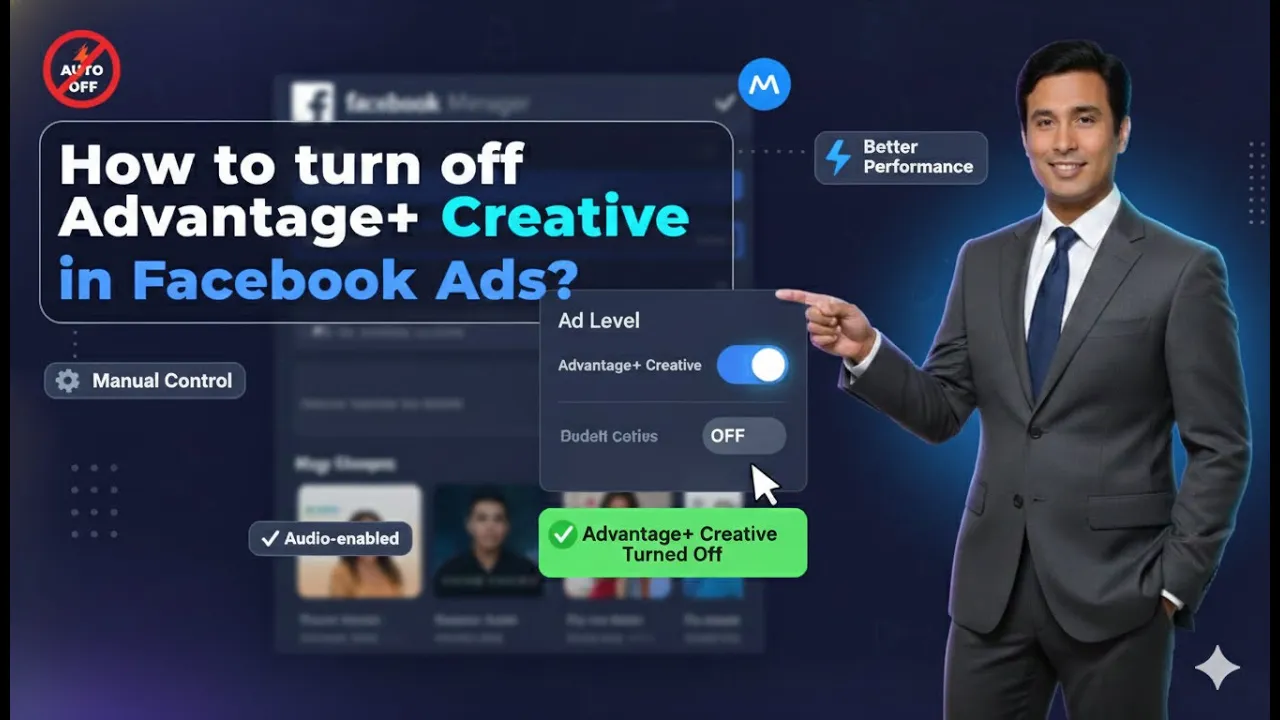
Hello friends, in this article we are going to understand in detail how to turn off Advantage+ Creative in Meta Ads Manager while creating a Meta ad campaign. This guide explains the full process step by step, exactly in the order it appears during campaign creation, and also explains the purpose of each stage so that there is no confusion. This article is especially useful for advertisers who want full control over their ad creatives and do not want Meta’s AI to automatically modify banners, text, or visual elements.
Understanding Where Advantage+ Creative Appears in Meta Ads
Before learning how to turn off Advantage+ Creative, it is important to understand where this option exists in Meta Ads Manager.
When you create an ad campaign in Meta Ads Manager, the campaign setup is divided into three main levels:
Advantage+ Creative appears only at the Ad Creative level. It does not appear at the campaign level or ad set level. This means you will see Advantage+ Creative only after you reach the stage where you design your ad.
Why You Might Want to Turn Off Advantage+ Creative
Advantage+ Creative is an AI-based enhancement feature that Meta enables by default in many cases. While it can be useful, some advertisers prefer to turn it off because:
- They want the banner to appear exactly as designed
- They do not want zoom, animation, or cropping effects
- They want full control over CTA placement
- They want to avoid visual or text changes by AI
Turning off Advantage+ Creative ensures that your original creative remains untouched.
How to Turn Off Advantage+ Creative in Meta Ads Manager?
Step 1: Opening Meta Ads Manager
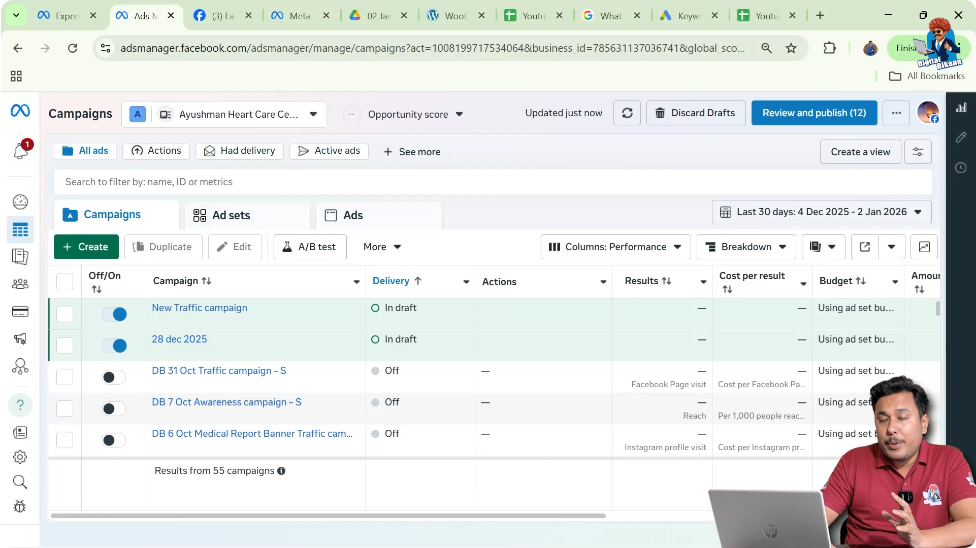
The first step is to log in to Meta Ads Manager.
Once you are inside Ads Manager, you will see the dashboard where all your ad accounts, campaigns, ad sets, and ads are managed.
From here, click on the Create button to start creating a new ad campaign.
Step 2: Creating a New Campaign
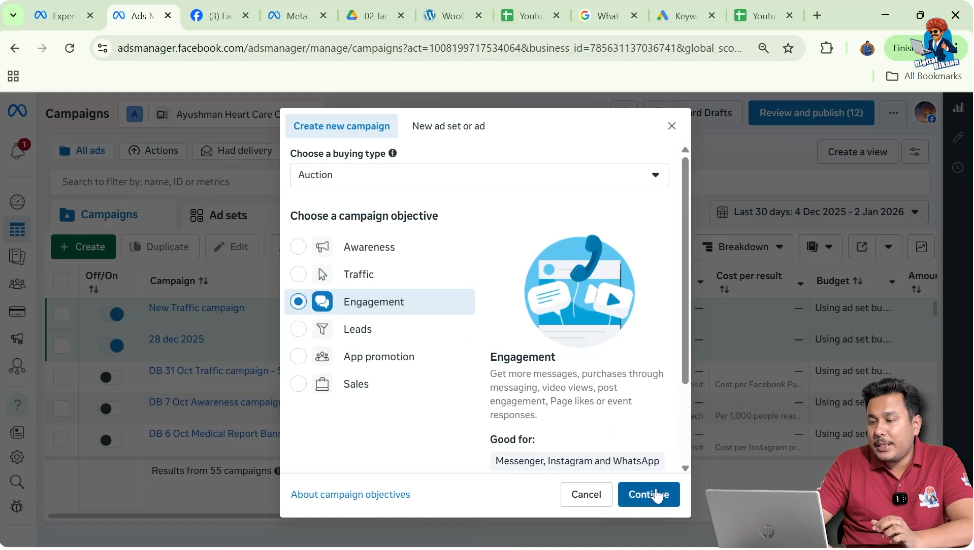
After clicking on Create, Meta Ads Manager asks you to choose a campaign objective.
At this stage:
- You can select any objective for now
- The objective selection does not affect the Advantage+ Creative setting
Once you select an objective, click on Continue.
This will move you forward in the campaign creation process.
Understanding the Campaign Creation Flow
During campaign creation, Meta Ads Manager moves in a fixed order:
- Campaign setup
- Ad set setup
- Ad creative setup
To turn off Advantage+ Creative, you need to reach the Ad Creative setup, because that is where the enhancement options are shown.
Step 3: Moving to the Ad Creative Level
After completing the campaign-level setup and ad set-level settings such as targeting, placements, and budget, you will reach the Ad Creative level.
This is the most important stage for this process.
At the ad creative level, you design:
- The banner or video
- The primary text
- The headline
- The call-to-action button
This is also where Advantage+ Creative becomes visible.

Step 4: Opening the “Set Up Creative” Option
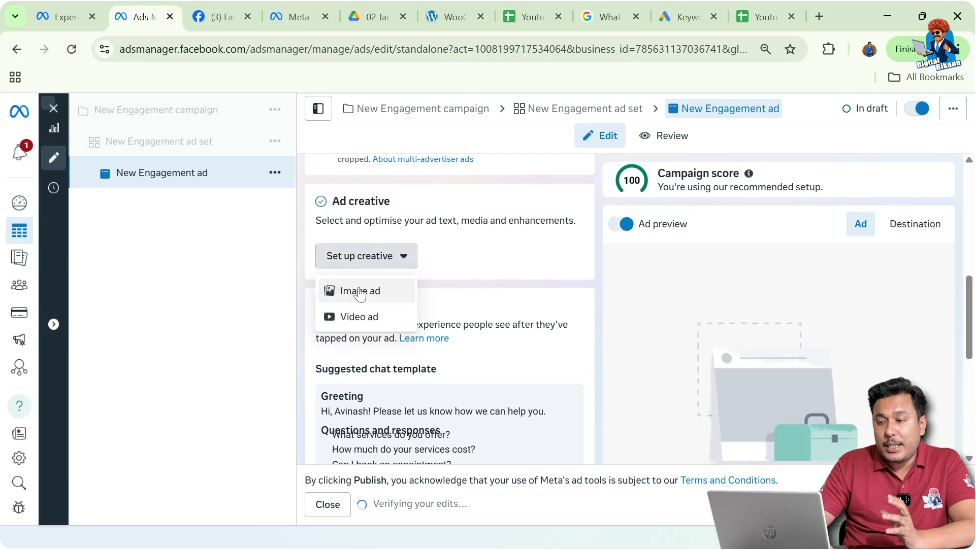
At the ad creative level, you will see a section named Set Up Creative.
This option allows you to define the format and appearance of your ad.
Click on Set Up Creative to proceed.

Step 5: Choosing the Creative Format
After clicking on Set Up Creative, Meta asks you to choose the type of creative you want to run.
You will see options such as:
- Image
- Video
To proceed with this explanation, select Image.
Image ads are the most common format where Advantage+ Creative enhancements are applied automatically.
Step 6: Uploading the Banner or Image
After selecting the image format, you need to upload the banner you want to advertise.
In this case:
- The banner is already uploaded
- You simply need to select that banner
Once the banner is selected:
- Click on Next
- Click on Next again
Meta Ads Manager uses these steps to confirm the creative selection.

Step 7: Adding Primary Text, Headline, and CTA
After selecting the banner, you reach the section where you can add:
Primary Text
This is the main text of your advertisement that appears above or alongside the creative.
Headline
This is the bold text that appears below the creative in many placements.
Call-to-Action Button
This defines what action the user should take, such as Learn More, Contact Us, or Shop Now.
These elements have already been discussed in earlier tutorials, so after filling them in, click on Next.

Step 8: Reaching Advantage+ Creative Enhancements
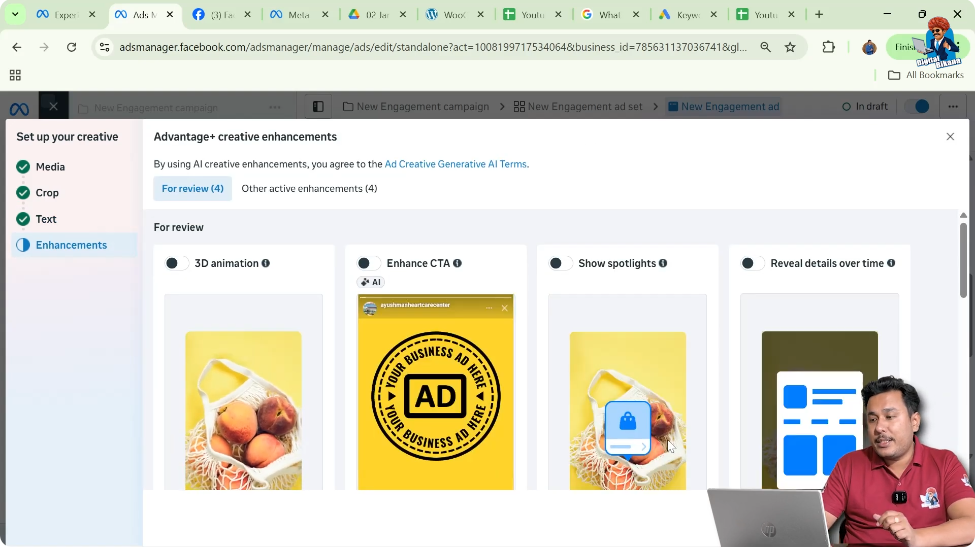
After clicking Next, you will now reach the Advantage+ Creative Enhancements section.
This is the most important stage of this entire process.
Here, Meta shows multiple enhancement options that are recommended by Meta and usually turned on by default.
These enhancements may include:
- Visual effects
- CTA enhancements
- Text improvements
- Other AI-driven modifications
Understanding the Advantage+ Creative Enhancement Section
At this stage, Meta suggests that these enhancements can improve performance.
However, if you do not want Meta’s AI to modify your ad creative, you must manually turn off these enhancements.
Meta does not automatically turn them off for you—you need to do it yourself.
Step 9: Turning Off Advantage+ Creative Enhancements
To turn off Advantage+ Creative:
- Look at each Advantage+ Creative enhancement option
- Manually switch off all enhancements
- Do not leave any enhancement turned on
This means:
- All toggles recommended by Meta must be turned off
- No Advantage+ Creative option should remain active
If even one option is left on, Advantage+ Creative will still apply that modification.

Step 10: Verifying That All Enhancements Are Off
After turning off all enhancement options:
- Recheck the section carefully
- Ensure that none of the Advantage+ Creative enhancements are enabled
This step is important to make sure your creative remains unchanged.

What Happens After Turning Off Advantage+ Creative
Once all Advantage+ Creative enhancements are turned off:
- Your banner will appear exactly as uploaded
- No zoom, animation, or visual effects will be applied
- CTA placement will remain standard
- Text will not be modified by AI
Your ad creative will stay fully manual and original.
Common Mistakes to Avoid
While turning off Advantage+ Creative, advertisers often make these mistakes:
Leaving One Enhancement Turned On
Even if one option remains enabled, Advantage+ Creative will still apply changes.
Skipping the Enhancement Section Quickly
Some advertisers click Next without reviewing this section carefully.
Assuming Advantage+ Creative Is Off by Default
In many cases, Meta keeps these enhancements turned on by default.
Always double-check this section.
When You Should Turn Off Advantage+ Creative
You should consider turning off Advantage+ Creative when:
- Your banner design is very precise
- Text placement is critical
- Branding consistency is important
- You do not want AI-based changes
This is especially true for professional graphic designs and brand-sensitive creatives.
When You Might Keep Advantage+ Creative On
Although this article focuses on turning it off, Advantage+ Creative may still be useful when:
- You want Meta to experiment with enhancements
- You are testing performance variations
- You are not strict about design control
In such cases, you may selectively enable enhancements instead of turning them all off.
Final Review Before Publishing the Ad
Before publishing your campaign:
- Go back and review the Ad Creative section
- Confirm that Advantage+ Creative enhancements are disabled
- Ensure your banner, text, and CTA look exactly as intended
This final review step prevents unwanted changes.
Final Conclusion
Turning off Advantage+ Creative in Meta Ads Manager is a simple but very important process for advertisers who want complete control over their ad creatives.
To summarize:
- Create a new campaign
- Move to the ad creative level
- Upload your banner
- Add text and CTA
- Reach the Advantage+ Creative enhancement section
- Manually turn off all enhancements
By following these steps carefully, you ensure that your ad appears exactly as you designed it, without any AI-driven modifications.
This completes the detailed, step-by-step explanation of how to turn off Advantage+ Creative in Meta Ads Manager while creating a Meta ad campaign.

Related Posts