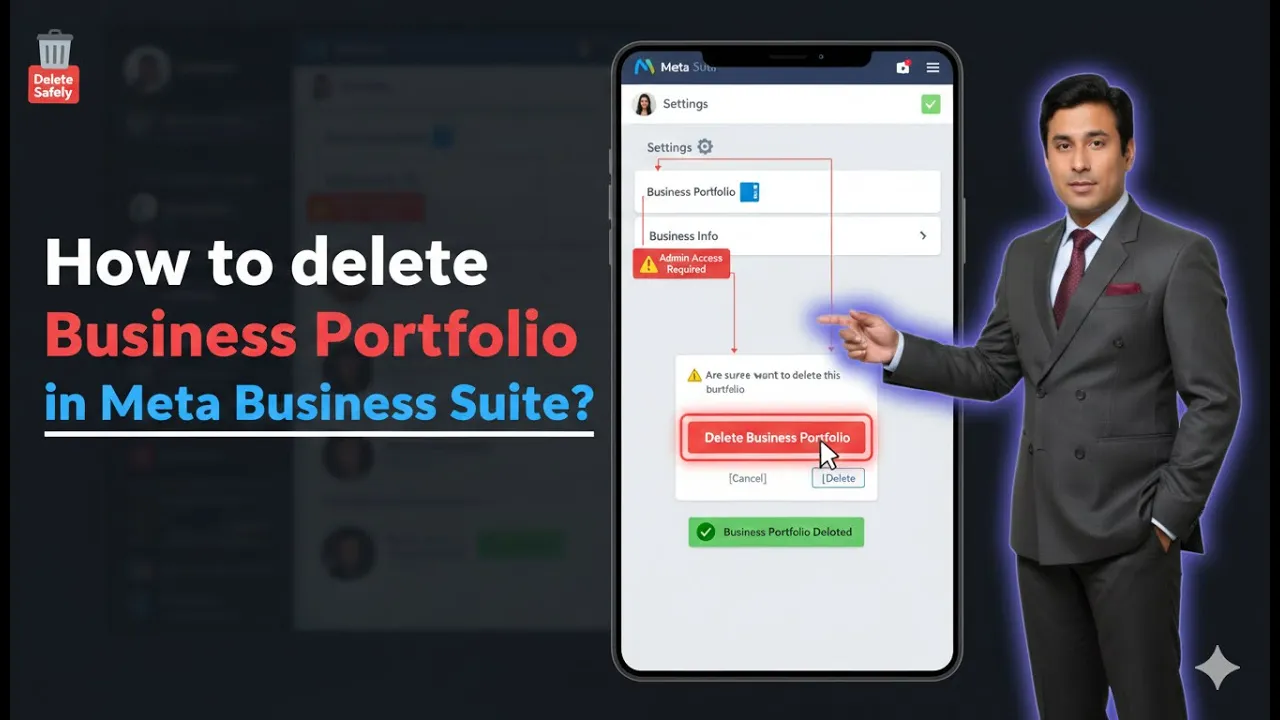
Managing businesses inside Meta Business Suite becomes easier when your setup is clean and organized. Sometimes, you may create a business portfolio that you no longer need, or a portfolio may have been created by mistake. In such cases, deleting the business portfolio is the right solution. In this article, we will explain how to delete a business portfolio in Meta Business Suite in a clear, step-by-step manner. Each step is explained in detail, exactly as the process works, so that even beginners can follow it without confusion.
How to Delete a Business Portfolio in Meta Business Suite?
Step 1: Logging in to Your Facebook Account
The first step is to log in to your Facebook account.
Make sure you are using the Facebook account that has admin access to the business portfolio you want to delete. Without proper access, you will not see the option to delete the business portfolio.
Once logged in successfully, you will land on your Facebook home screen.

Step 2: Switching to Your Facebook Page
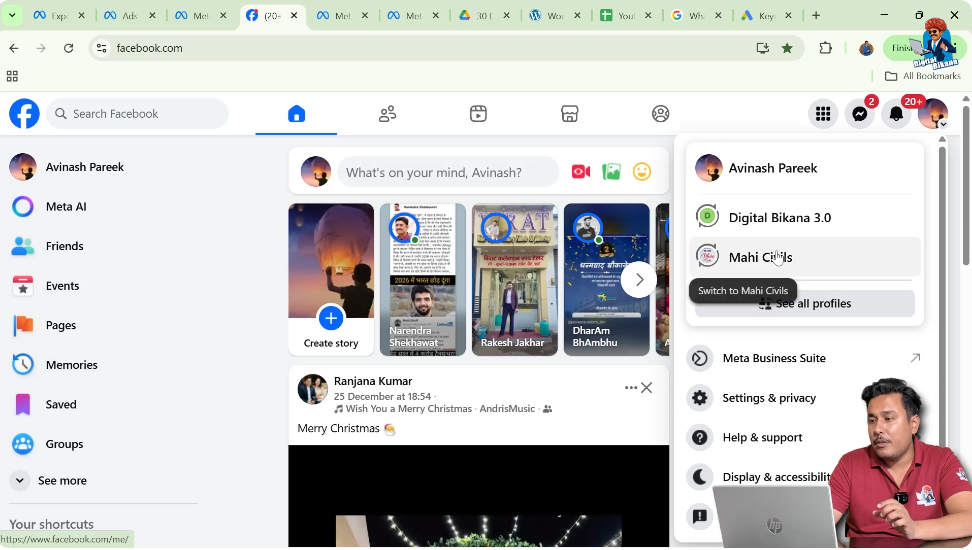
After logging in, you need to switch from your personal Facebook profile to your Facebook Page.
You can do this by selecting your Facebook Page from the account switcher. Once you switch, you will be on the homepage of your Facebook Page. This step is important because Meta Business Suite is connected with Facebook Pages and their assets.
Step 3: Clicking on the Profile Name on the Left Side
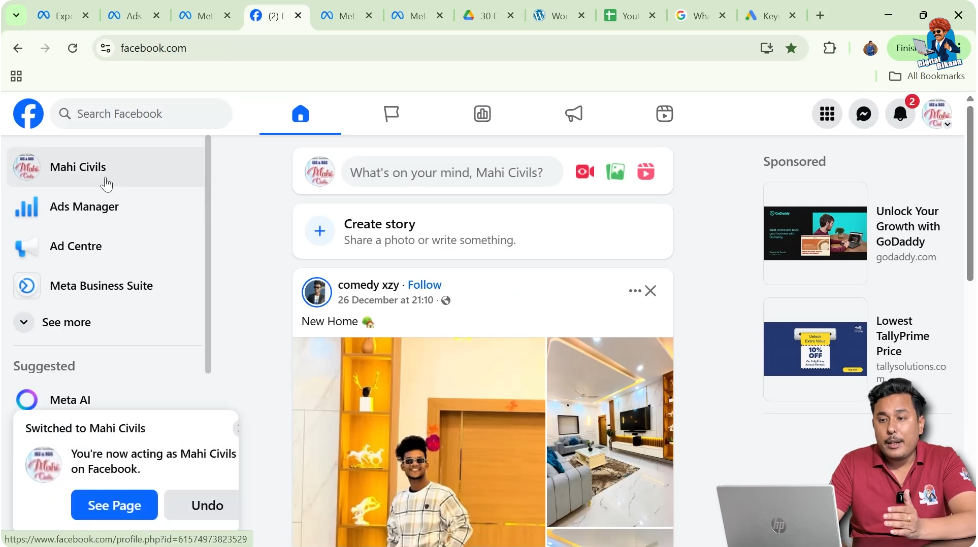
On the Facebook Page homepage, look at the left-hand side of the screen.
Here, you will see your profile name displayed. Click on this profile name. As soon as you click on it, the profile-related options will open.
This section allows you to access different Meta tools linked with your account and pages.
Step 4: Scrolling Down and Opening Meta Business Suite
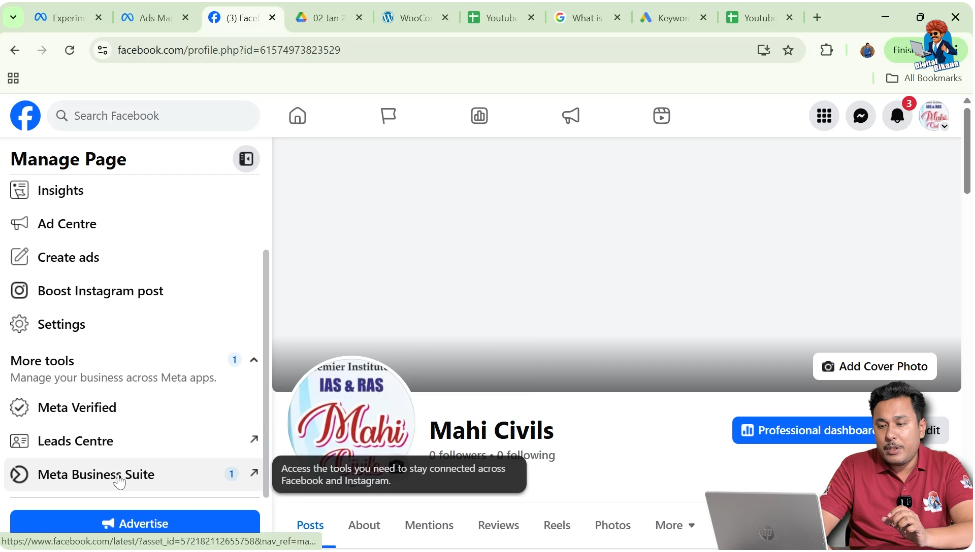
After clicking on the profile name, scroll down in the left panel.
You will find an option called Meta Business Suite. Click on this option.
Once you click on Meta Business Suite, the dashboard of Meta Business Suite will open, where you can manage your business portfolios, pages, Instagram accounts, and other connected assets.
Step 5: Understanding the Business Portfolio Section
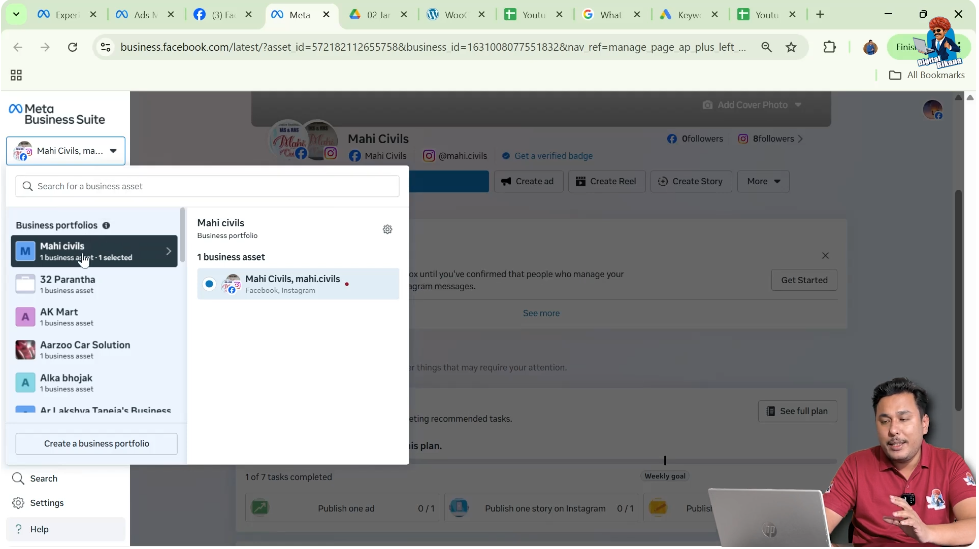
Inside Meta Business Suite, look at the left-side panel.
Here, you will see your business portfolios listed. For example, there may be a business portfolio named Mahi Civils.
A business portfolio usually contains:
- A Facebook Page
- An Instagram account
- Other connected assets
These assets are managed together under one business portfolio. Before deleting a portfolio, it is important to understand that all its connected assets are part of this structure.
Step 6: Identifying the Business Portfolio You Want to Delete
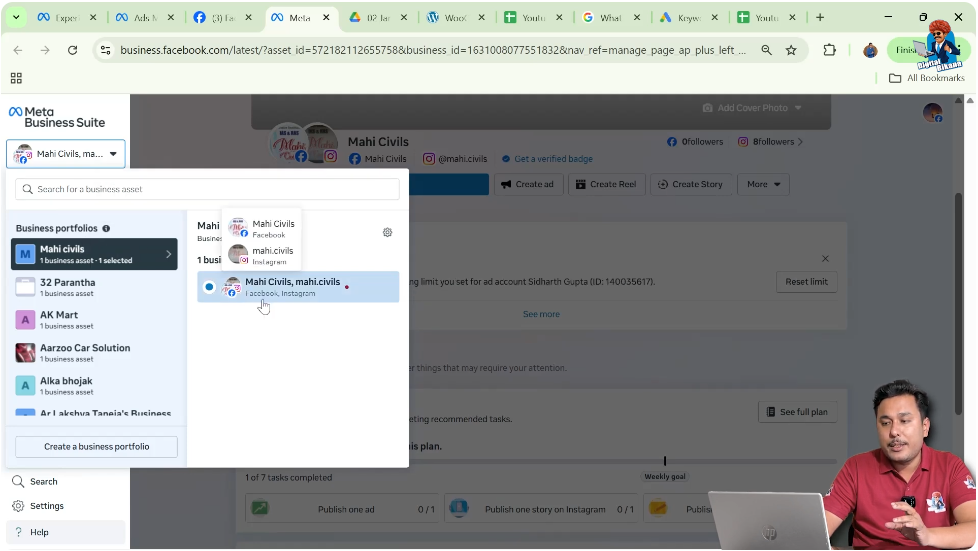
Now, identify the exact business portfolio that you want to delete.
In this case, the business portfolio named Mahi Civils is selected. This portfolio contains the Facebook Page and Instagram account related to the business.
Make sure you are selecting the correct business portfolio, because once it is deleted, the action is permanent.
Step 7: Opening the Settings Option
After selecting the business portfolio, look again at the left-side toolbar inside Meta Business Suite.
You will find an option called Settings. Click on Settings.
As soon as you click on it, the Meta Business Suite settings page will open. This section contains all configuration and control options for your business portfolio.

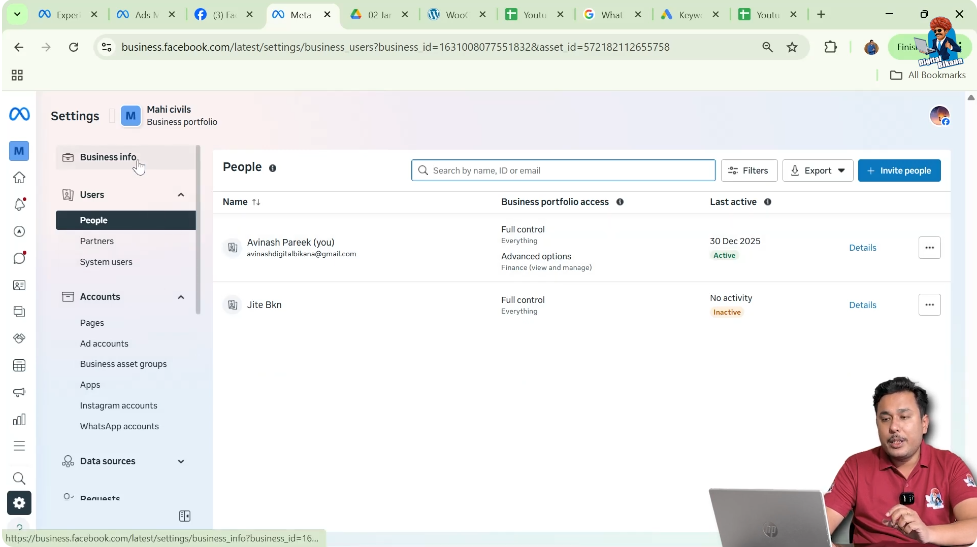
Step 8: Navigating to Business Info
Inside the Settings section, you will see several options related to your business.
From these options, click on Business Info.
The Business Info section displays important information related to your business portfolio, such as business details and administrative options.
Step 9: Locating the “Permanently Delete Business” Option
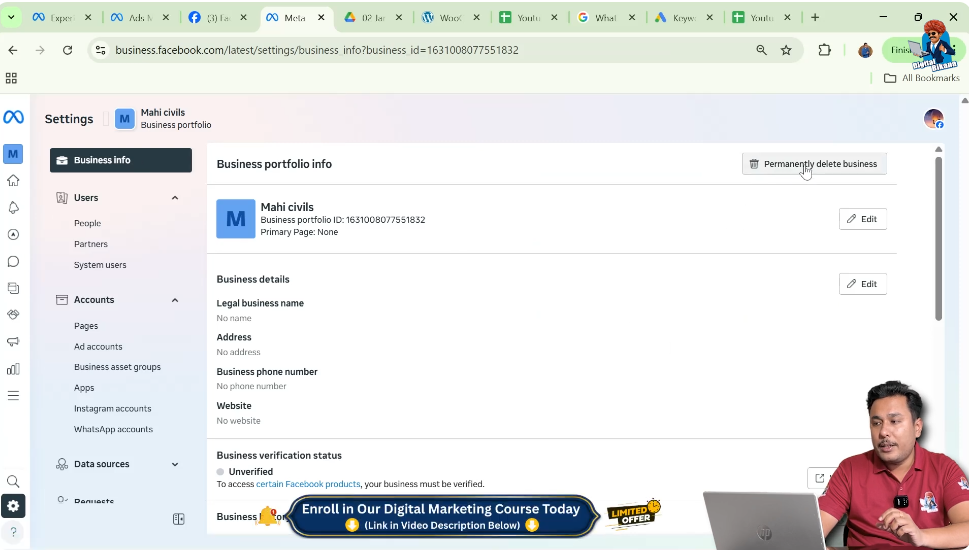
Once you are inside the Business Info section, scroll down carefully.
Here, you will find an option labeled Permanently Delete Business.
This option is specifically designed to remove a business portfolio completely from Meta Business Suite. It is only visible to users who have full administrative access.
Step 10: Clicking on Permanently Delete Business
Now click on Permanently Delete Business.
As soon as you click on this option, Meta Business Suite will show a confirmation message. This message is displayed to ensure that the deletion is intentional and not accidental.
Step 11: Confirming the Business Portfolio Deletion
The confirmation message will ask something like:
“Do you really want to delete this business portfolio?”
If you are sure that you want to delete the business portfolio, click Yes.
This confirmation step is very important because once you proceed, the business portfolio will be deleted permanently.
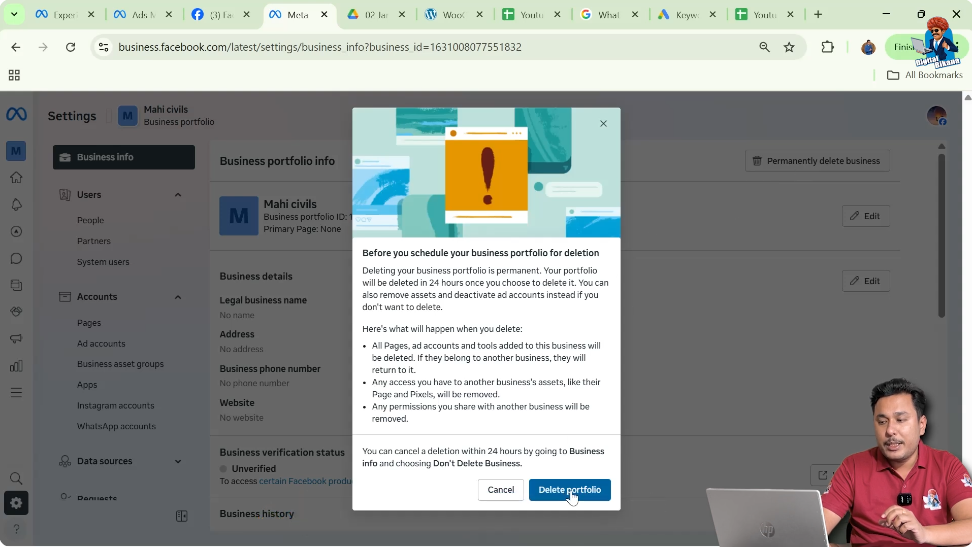
Step 12: Business Portfolio Deletion Process
After confirming the deletion, Meta Business Suite will start the process of deleting the business portfolio.
Once the process is complete:
- The business portfolio will no longer appear in Meta Business Suite
- The connected assets will be removed from that portfolio
- You will no longer be able to manage that portfolio
Understanding the Impact of Deleting a Business Portfolio
It is important to understand what happens when a business portfolio is deleted.
Deleting a business portfolio means:
- The portfolio itself is removed permanently
- The structure linking Facebook Page and Instagram account under that portfolio is deleted
- The action cannot be undone
Therefore, you should always double-check before confirming the deletion.
When You Should Delete a Business Portfolio
You may consider deleting a business portfolio in situations such as:
- The business is no longer operational
- The portfolio was created by mistake
- You want to clean up unused business portfolios
- The business has been restructured
Deleting unnecessary portfolios helps keep your Meta Business Suite organized and easier to manage.
Things to Remember Before Deleting
Before deleting a business portfolio, remember:
- You must have admin access
- The deletion is permanent
- The portfolio cannot be restored once deleted
- Make sure the correct portfolio is selected
Taking a few extra seconds to review these points can prevent accidental deletion.
Final Conclusion
Deleting a business portfolio in Meta Business Suite is a simple but critical process. By logging into your Facebook account, switching to your Facebook Page, opening Meta Business Suite, navigating to settings, selecting business info, and choosing the permanently delete business option, you can remove a business portfolio safely and correctly.
Following this step-by-step method ensures that the deletion process is smooth, clear, and error-free. This completes the detailed explanation of how to delete a business portfolio in Meta Business Suite, explained clearly and step by step.

Related Posts