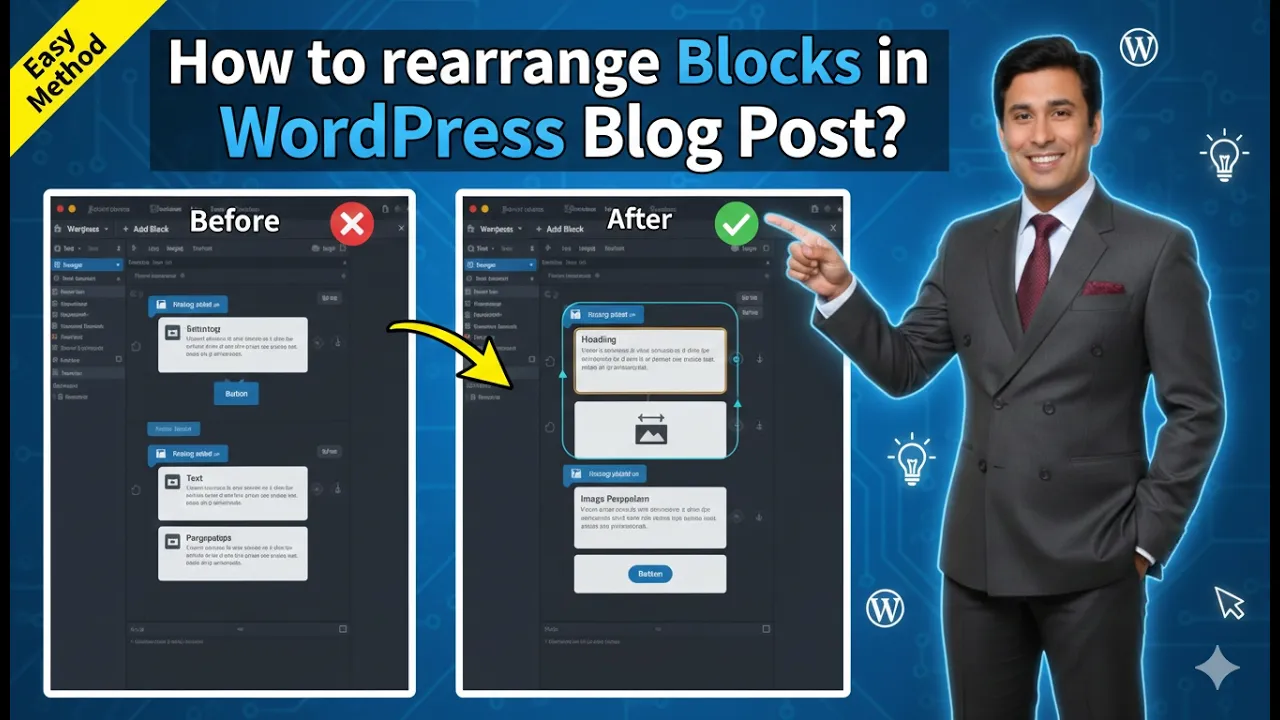
Rearranging blocks in a WordPress blog post is an important editing feature that helps organize content properly. While creating a blog post, it is possible that some blocks may be placed in the wrong location. Instead of rewriting the content, WordPress allows you to rearrange blocks easily by moving them upward or downward inside the editor.
In this article, you will learn how to rearrange blocks in a WordPress blog post using the WordPress block editor. This explanation uses an existing blog post as a reference so that the process can be understood clearly.
When you log in to the WordPress admin dashboard, you will see different options on the left side toolbar. One of these options is the Posts section, which allows you to manage blog posts.
Accessing the Posts Section
Before rearranging blocks, you need to open a blog post inside the WordPress editor.
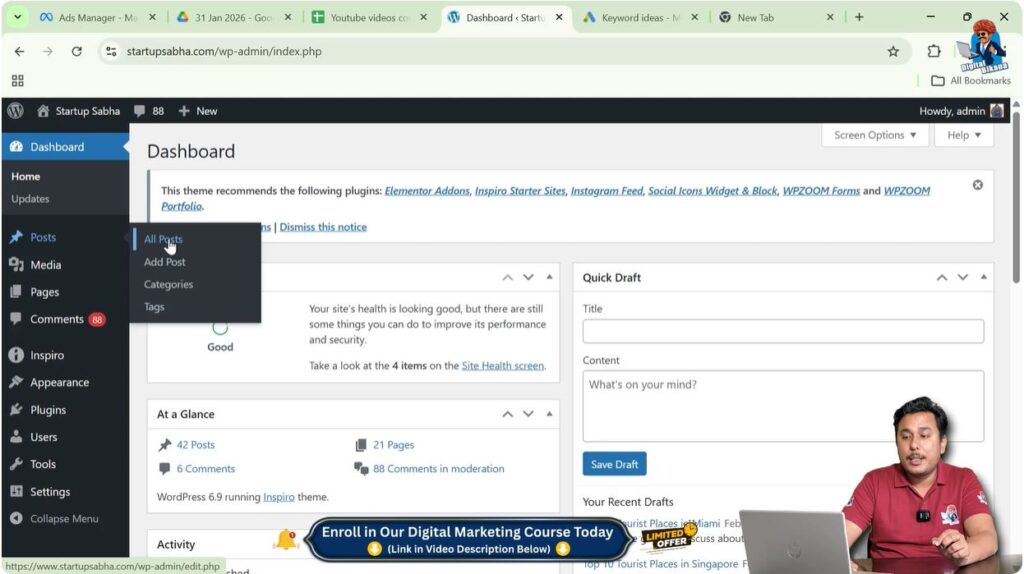
Step 1: Open the Posts Menu
Log in to the WordPress admin dashboard.
On the left side toolbar, move your cursor over the Posts option.
As soon as you move your cursor over Posts, a submenu automatically appears.
This submenu contains the following options:
- All Posts
- Add Post
The All Posts option displays all blog posts written on the website.
The Add Post option is used to create a new blog post.
In this case, the All Posts option is selected because an existing blog post is used as a reference to explain how to rearrange blocks.
Opening an Existing Blog Post
After clicking on All Posts, a list of blog posts will be displayed.
These posts include all articles written on the website.
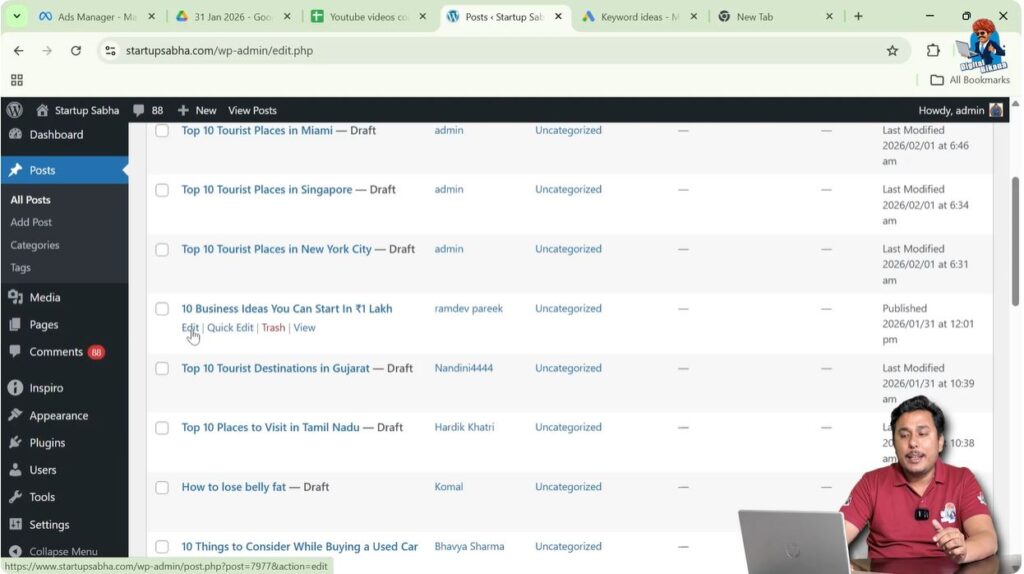
When you move your cursor over any blog post title, editing options will appear.
Step 2: Edit a Blog Post
Move your cursor over any blog post title.
The Edit option will appear under the title.
Click on the Edit button.
After clicking Edit, the WordPress editor will open.
This editor contains all the blocks used in the blog post.
Understanding Blocks in WordPress Editor
WordPress uses a block editor where each part of the content is placed inside a separate block.
Different types of content exist in different blocks.
For example:
- Headings are in separate blocks
- Text paragraphs are in separate blocks
- Bullet points are in separate blocks
- Images are in separate blocks
Each block can be moved independently.
This makes rearranging blocks simple and flexible.
Sometimes blocks may be added in the wrong location by mistake. In such situations, rearranging blocks helps correct the content structure.
Rearranging Paragraph Blocks
Paragraph blocks can be rearranged when the content order needs to be changed.
For example, there may be a paragraph titled Expenses Included, and above it there may be another paragraph titled Why This Business Works. If you want the Expenses Included paragraph to appear above the other paragraph, you can rearrange the block.
Step 3: Select the Block
Click anywhere inside the block that you want to rearrange.
You can click anywhere inside the block.
After selecting the block, a toolbar will automatically appear above the block.
This toolbar contains block movement options.
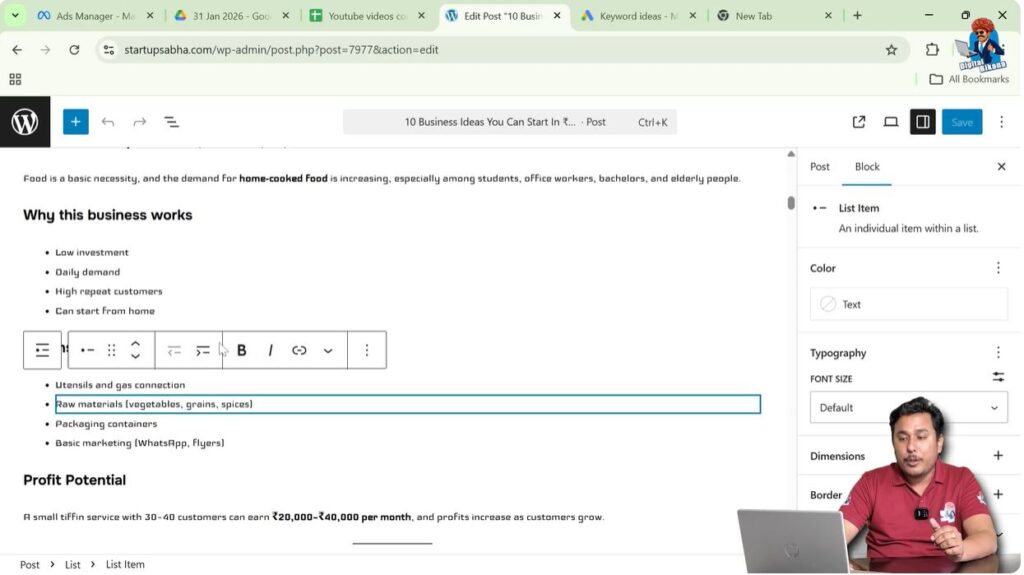
Step 4: Move the Block Upward
In the toolbar, you will see the Move Up option.
Click on Move Up.
The selected block will move upward.
You can continue clicking Move Up until the block reaches the desired position.
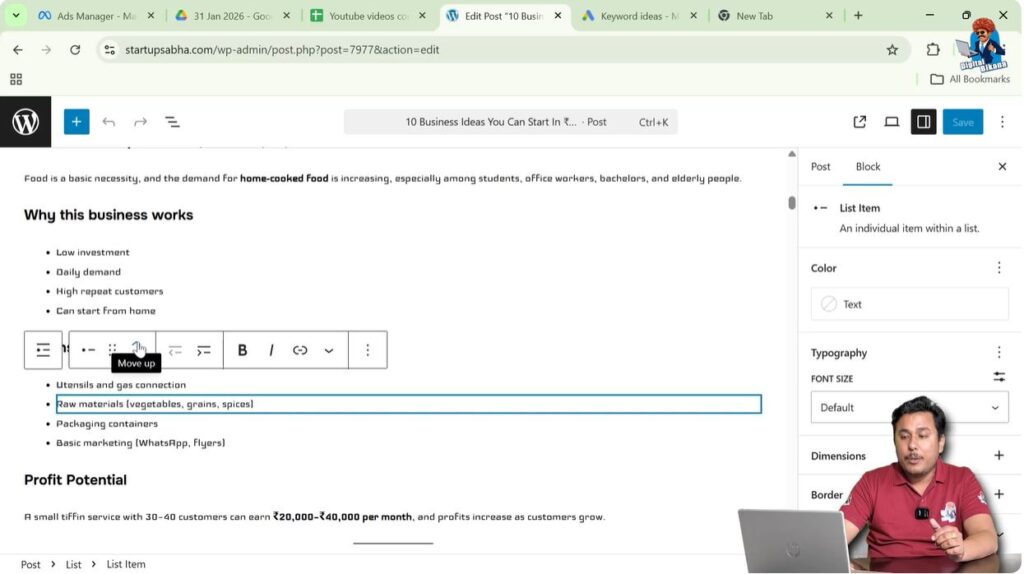
Step 5: Move the Block Downward
In the toolbar, you will also see the Move Down option.
Click on Move Down.
The selected block will move downward.
This allows you to rearrange blocks easily.
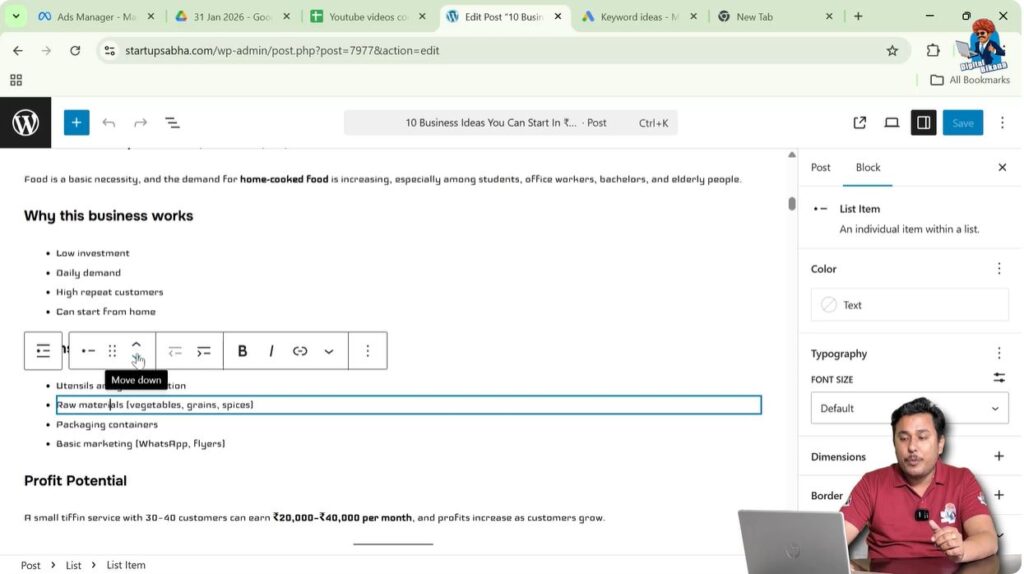
Selecting the Entire Block
To move a block properly, you need to select the entire block.
Click anywhere inside the block instead of selecting only the text.
Once the block is selected, the toolbar will appear automatically.
The movement options will be available in the toolbar.
Rearranging Bullet Point Blocks
Bullet points are also placed inside blocks in WordPress.
These blocks can be rearranged in the same way as paragraph blocks.
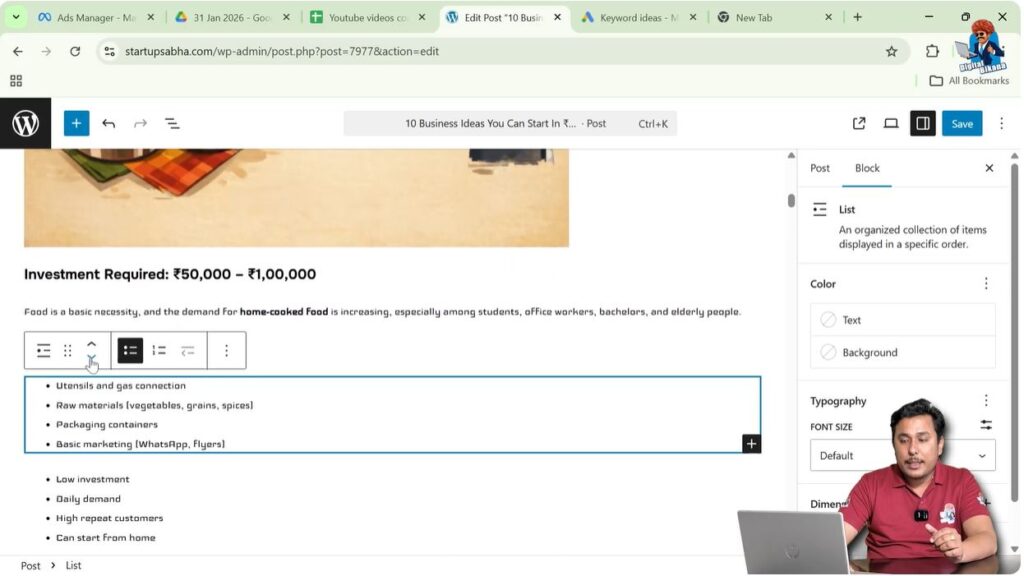
Step 6: Select the Bullet Point Block
Click anywhere inside the bullet point block.
The toolbar will appear above the block.
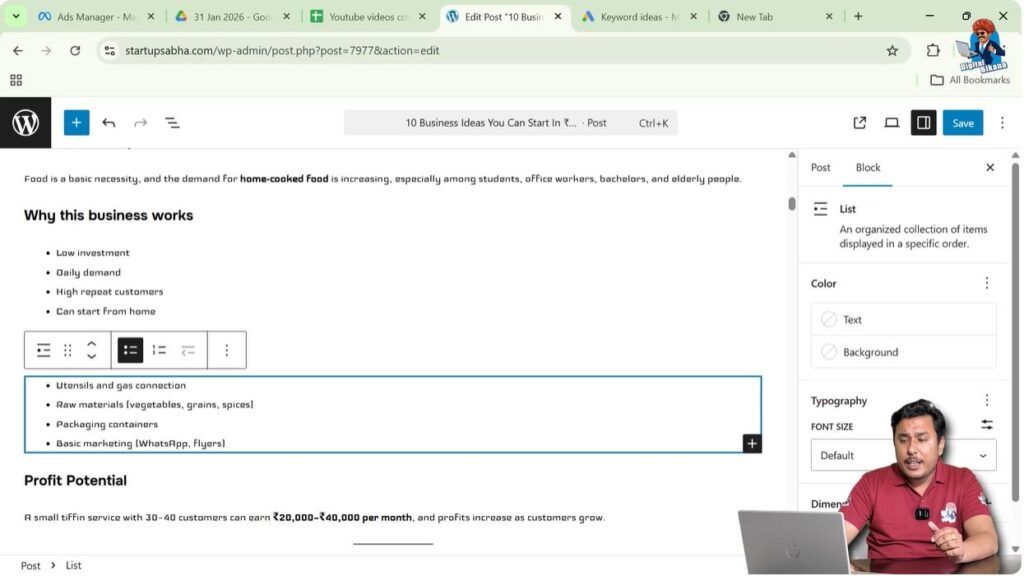
Step 7: Move the Bullet Point Block
Click Move Up to move the block upward.
Click Move Down to move the block downward.
The bullet point block will move accordingly.
Rearranging Image Blocks
Images are also stored in blocks in WordPress.
Image blocks can be rearranged using the same method.
Step 8: Select the Image Block
Click on the image block.
The toolbar will appear above the image.
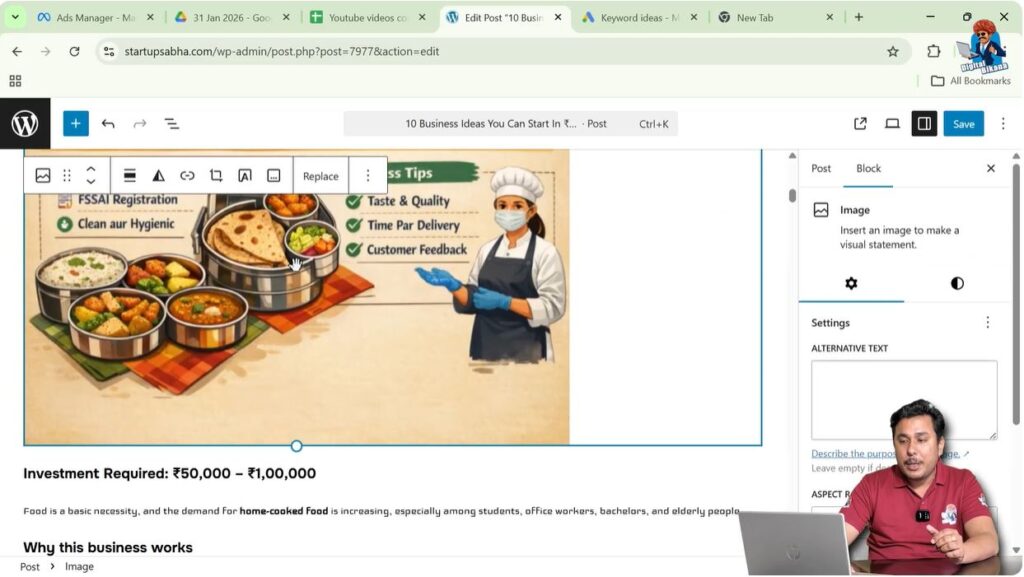
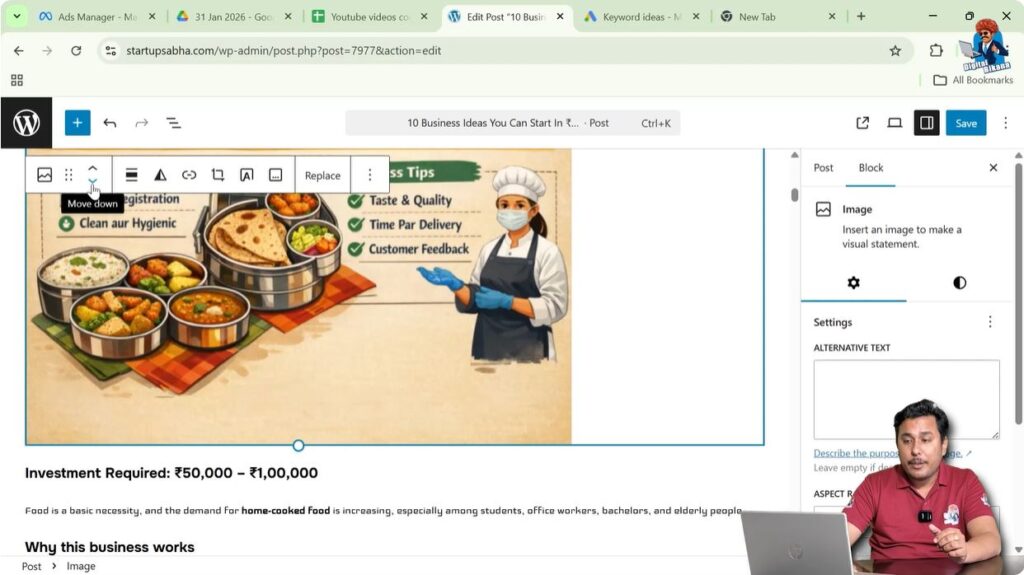
Step 9: Move the Image Block
Click Move Down to move the image downward.
Click Move Up to move the image upward.
The image block will move accordingly.
Example of Rearranging Blocks
For example, suppose there is a block containing bullet points under the heading Expenses Included, and above it there is a paragraph titled Why This Business Works.
If you want the Expenses Included block to appear above the Why This Business Works paragraph, you need to rearrange the block.
Click inside the Expenses Included block.
The toolbar will appear.
Click Move Up.
The block will move upward and appear above the previous paragraph.
This is how rearranging blocks works.
Block Toolbar Appears Only After Selection
The block toolbar appears only when a block is selected.
If you do not click inside a block, the toolbar will not appear.
Therefore, always select the block before trying to rearrange it.
Once the block is selected, the toolbar will appear automatically.
From there you can use the Move Up and Move Down options.
Moving Blocks Multiple Times
Blocks can be moved multiple times until they reach the desired position.
You can repeatedly click Move Up or Move Down.
This allows precise control over the arrangement of content.
Different Types of Blocks
Each content element in WordPress is placed inside a separate block.
For example:
- A heading is one block
- A paragraph is another block
- Bullet points are another block
- An image is another block
Because each element is separate, blocks can be rearranged independently.
This provides flexibility when editing blog posts.
Grouping Blocks
Blocks can also be grouped together so that multiple blocks can be moved at the same time.
Grouping blocks allows headings, paragraphs, bullet points, and images to be moved together.
Grouping blocks will be explained separately.
Grouping makes it easier to rearrange multiple blocks at once.
Conclusion
Rearranging blocks in a WordPress blog post is a simple process that helps organize content properly. WordPress allows blocks to be moved upward or downward using the Move Up and Move Down options available in the block toolbar.
Each content element such as headings, paragraphs, bullet points, and images exists in a separate block, and each block can be rearranged independently.
The toolbar appears automatically when a block is selected, and movement options can be used to adjust the position. Blocks can be moved multiple times until the desired arrangement is achieved.
This feature helps correct mistakes and organize blog content properly without rewriting the content.

Related Posts