
Facebook Lead Ads are one of the most popular tools for businesses to collect customer information directly from Facebook and Instagram. When you run a Facebook ad campaign with the Lead objective, users fill out an instant form, and their details are saved inside Facebook Ads Manager. However, many beginners are confused about how to download leads from a Facebook ad campaign after the campaign starts running.
In this article, we will explain how to download leads from a Facebook ad campaign step by step, in a detailed and easy-to-understand manner.
Understanding Facebook Lead Ads
When you create a Facebook ad campaign with the Leads objective, Facebook allows users to submit their details without leaving the platform. These details are collected through a lead form that you design while setting up the campaign.
Once your campaign starts running, users begin filling out the form, and Facebook stores all this data inside Ads Manager. These form submissions are what we commonly call leads.
How to Download Leads from a Facebook Ad Campaign?
1. Accessing Facebook Ads Manager
To download your leads, the first step is to log in to your Facebook Ads Manager.
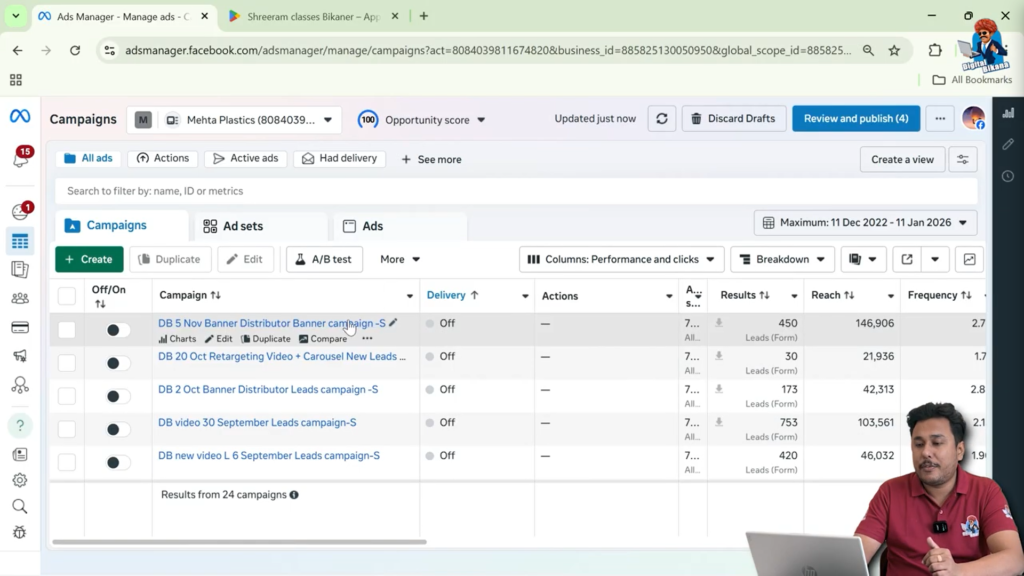
Inside Ads Manager, you will see all your ad campaigns listed. In this case, multiple campaigns are running, and all of them are lead ad campaigns. Each campaign shows the number of form fills received.
For example:
- One campaign has received 450 form fills
- Another campaign has received 30 leads
- Another campaign shows 73 leads
- One campaign has received 753 leads
Each form fill represents one lead generated through your Facebook ad.
2. Identifying Lead Ad Campaigns
It is important to understand that only campaigns created with the Lead objective will generate downloadable leads in this format.
When you look at your campaign list:
- You can clearly see the number of leads received for each campaign
- This data helps you identify which campaign is performing better
- It also helps you decide from which campaign you want to download leads
Once you identify the campaign whose leads you want to download, you can move to the next step.
3. Locating the Download Option in Ads Manager
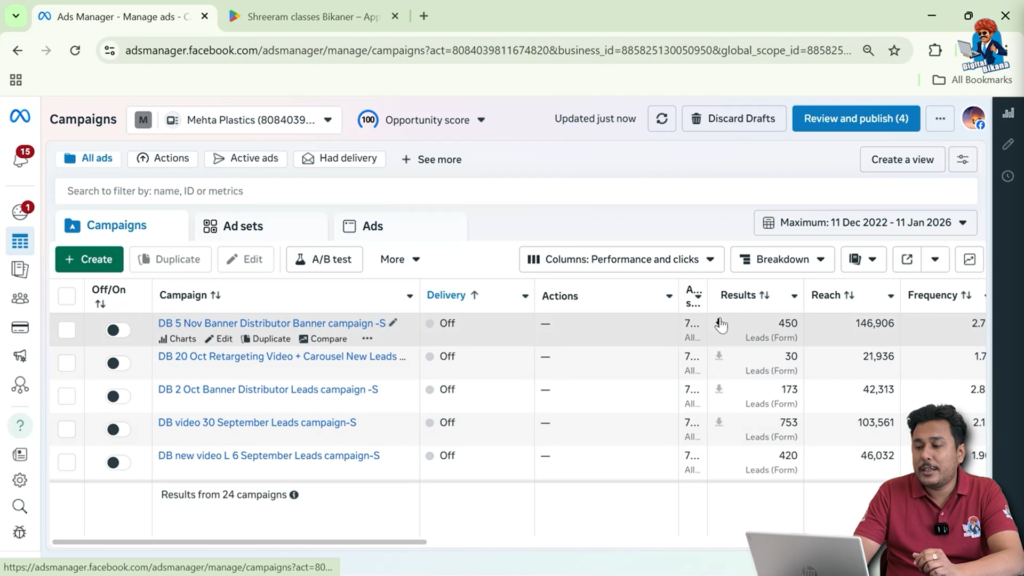
Inside Ads Manager, you will find a download icon. This icon allows you to export your lead data.
To start downloading leads:
- Click on the download icon
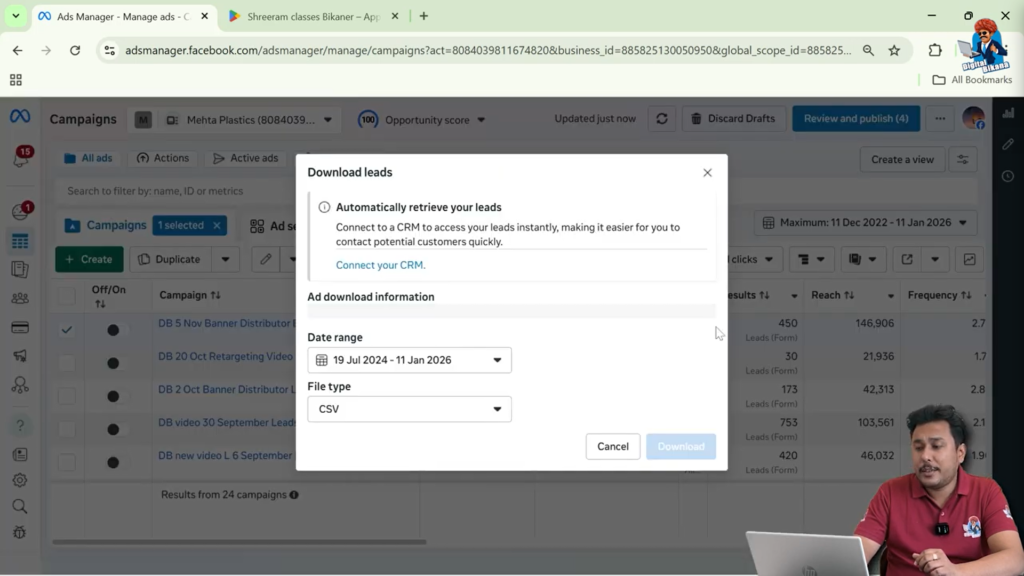
- Facebook will open a download window
This is the main tool provided by Facebook to export lead data manually.
4. Selecting the Date Range for Lead Download
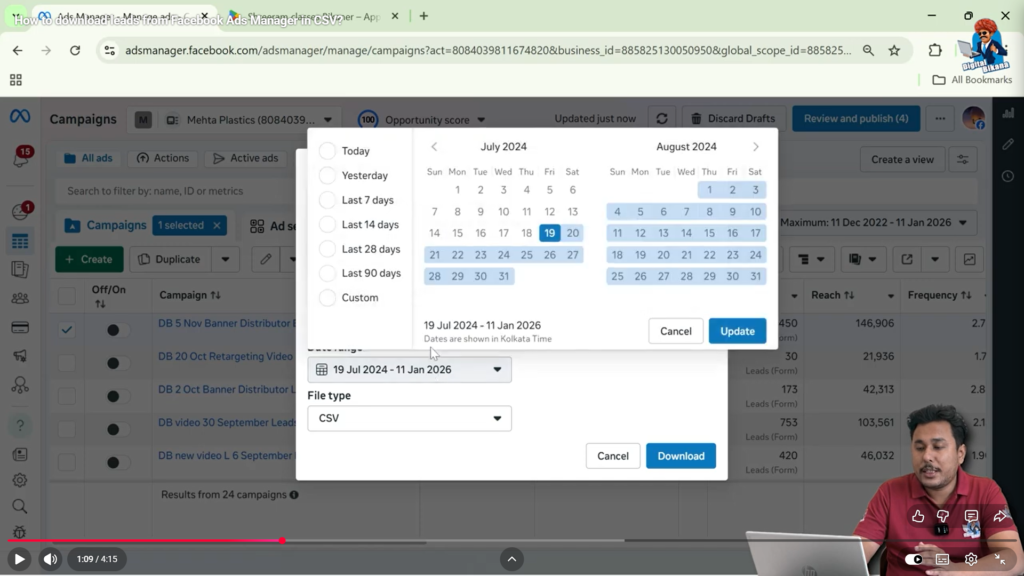
After clicking the download icon, Facebook asks you to select a date range.
This option is useful because:
- You may want to download leads for a specific day
- You may want leads from a particular week
- You may want to download all leads from the entire campaign duration
You can simply enter the desired start date and end date according to your requirement.
5. Choosing the File Format for Leads
After selecting the date range, Facebook will ask you to choose the file format for downloading the leads.
In this process:
- The leads are downloaded in CSV format
- CSV files can be opened easily in Excel or similar spreadsheet software
Once the CSV format is selected, you can proceed with the download.
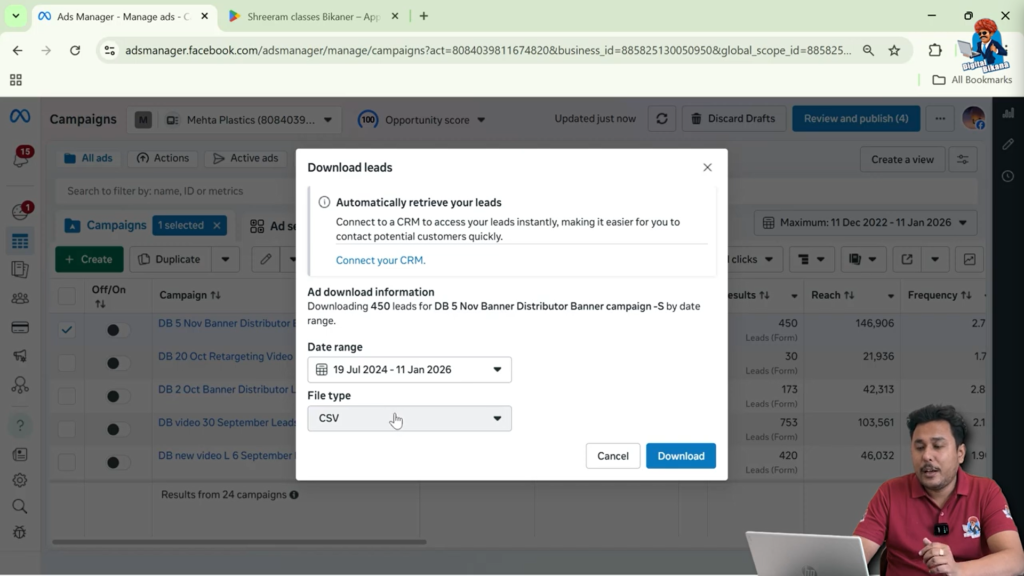
6. Downloading the ZIP File
After confirming the date range and file format:
- Click on the Download button
- Facebook generates a ZIP file
- This ZIP file is automatically downloaded to your system
The ZIP file contains all the lead data collected from the selected campaign and date range.
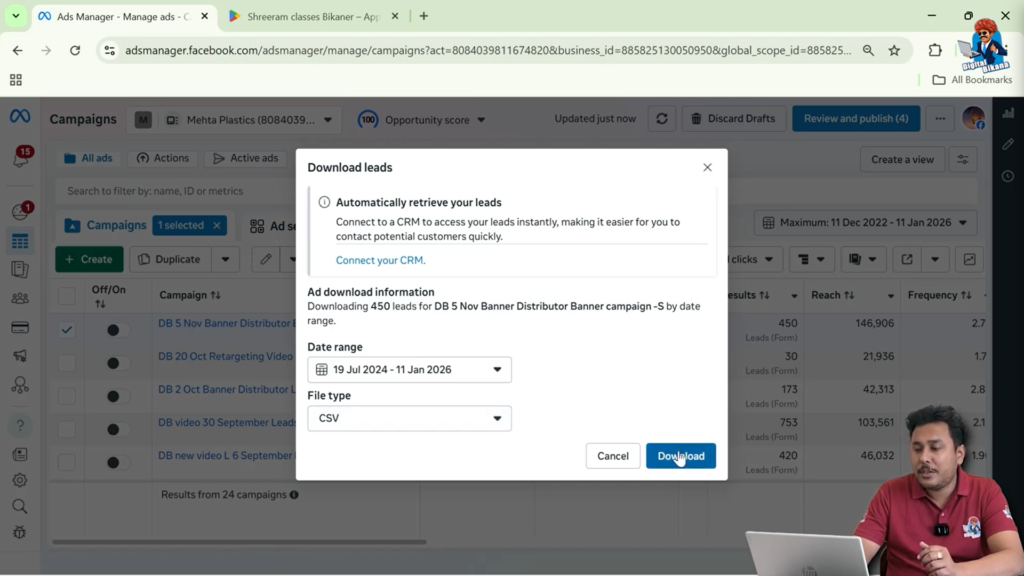
7. Extracting the ZIP Folder
Once the ZIP file is downloaded:
- Locate the file on your system
- Right-click on the ZIP folder
- Select Extract All
- Click on Extract
To perform this action, your system should have a ZIP extraction tool. If you do not have one, you can install software such as WinRAR or any other unzip tool available online.
After extraction, the contents of the ZIP file will be available in a normal folder.
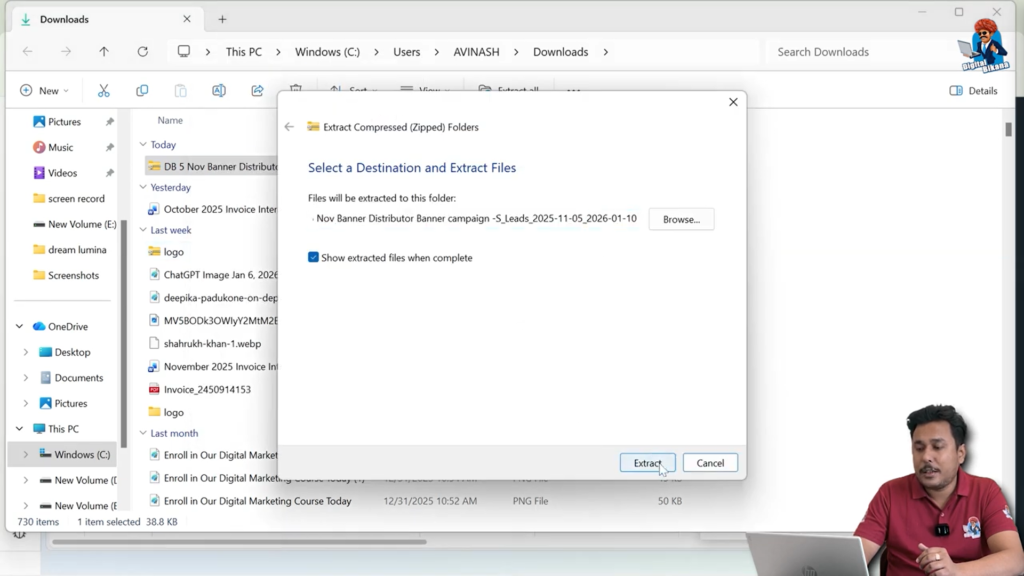
8. Opening the Lead Data in Excel Format
Inside the extracted folder, you will see:
- Lead data available in multiple Excel or CSV files
You can open any of these files to view the collected leads.
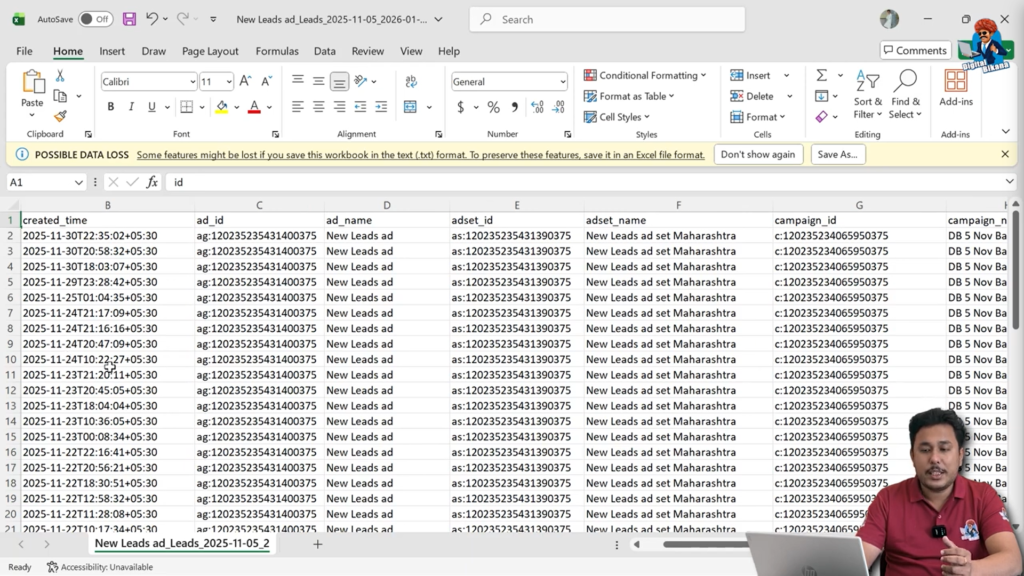
When you open the file in Excel, the data will appear in a tabular format with multiple columns.
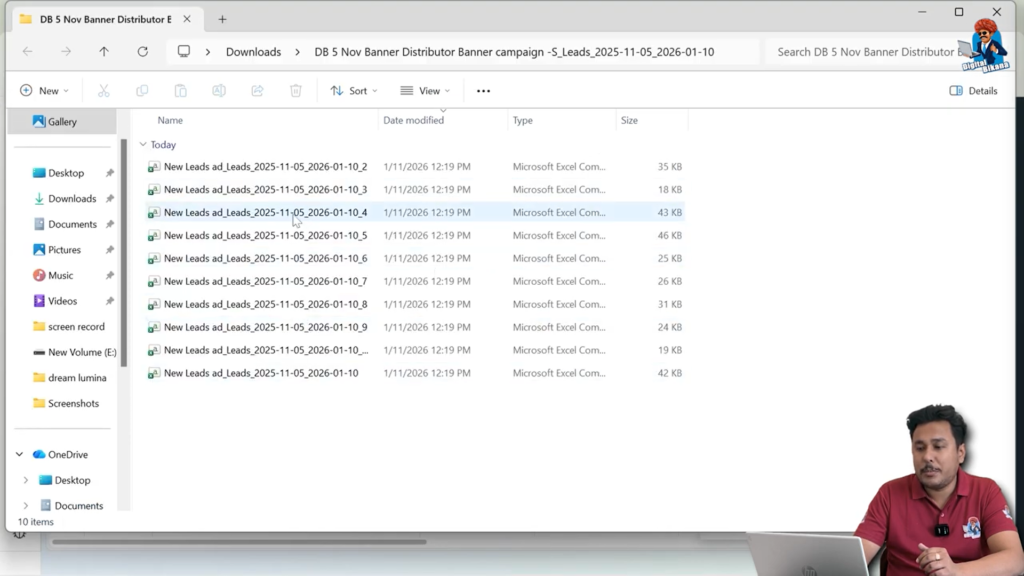
9. Understanding Lead Data Columns in Excel
The Excel file contains detailed information submitted by users through the lead form. Each column represents a specific data point.
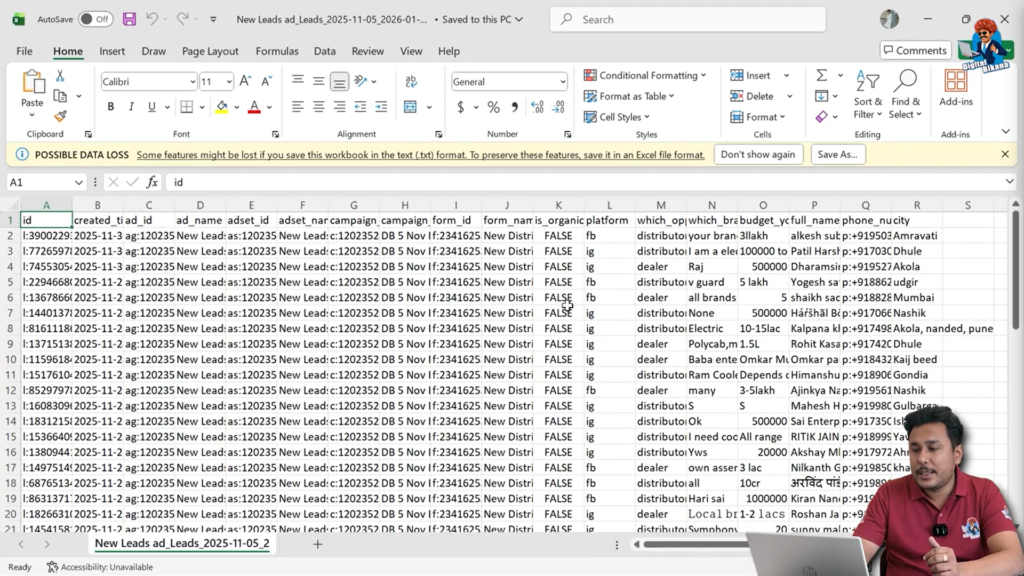
A. User Information Columns
- Full Name: The name entered by the user while filling the form
- Phone Number: The contact number provided by the user
These details are the primary information collected for lead follow-up.
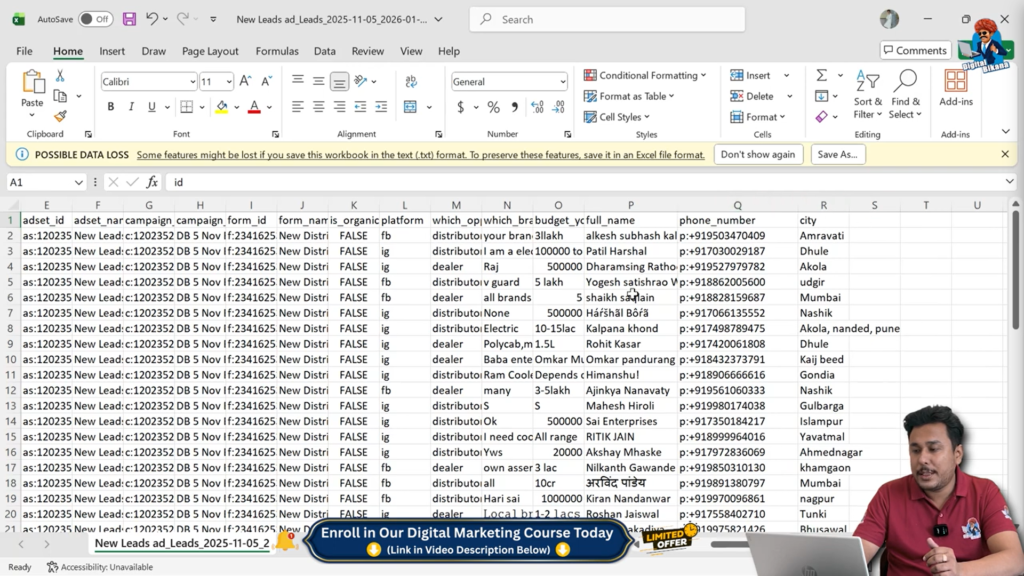
B. Form Question Responses
The Excel sheet also shows responses to the custom questions asked in the lead form, such as:
- The budget the user is planning to invest
- The brands they are currently working with
- The opportunity they are interested in, such as becoming a dealer or a distributor
These responses help you understand the intent and quality of each lead.
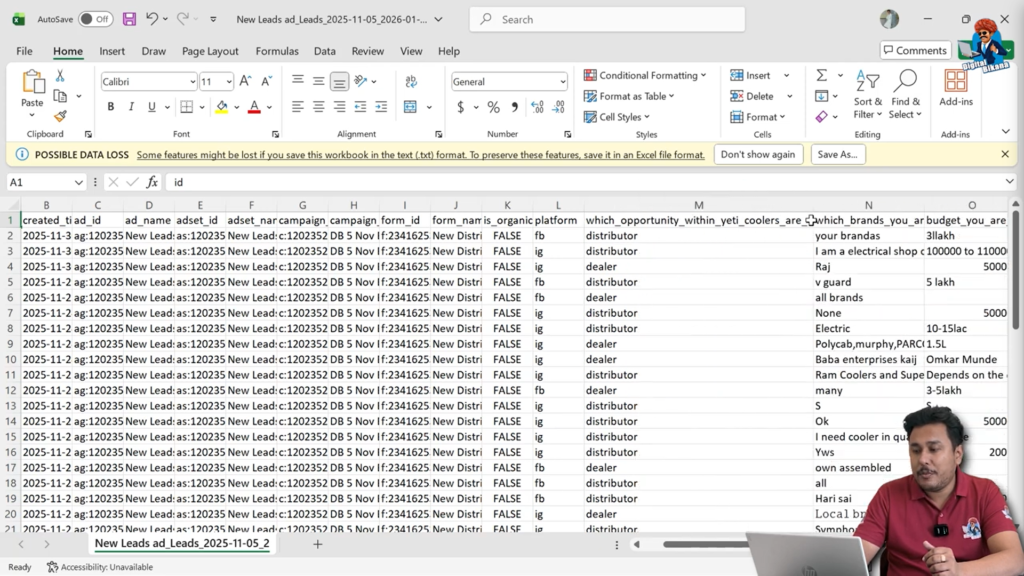
C. Platform Source of the Lead
Another important column shows:
- The platform on which the user filled the form
Some users filled the form after seeing the ad on Facebook, while others filled it after seeing the ad on Instagram.
This information helps you understand which platform is generating more leads.
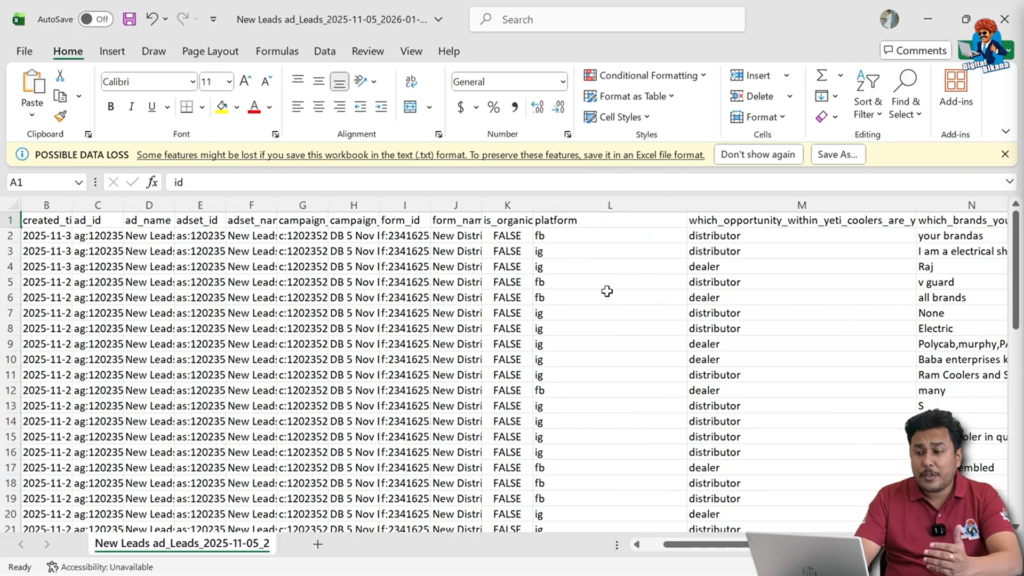
D. Organic vs Inorganic Leads
The Excel file also shows whether the leads are organic or inorganic.
In this case:
- All the leads are inorganic
- This is because the leads were generated through paid Facebook ads
This clearly indicates that the data came from advertising efforts, not organic reach.
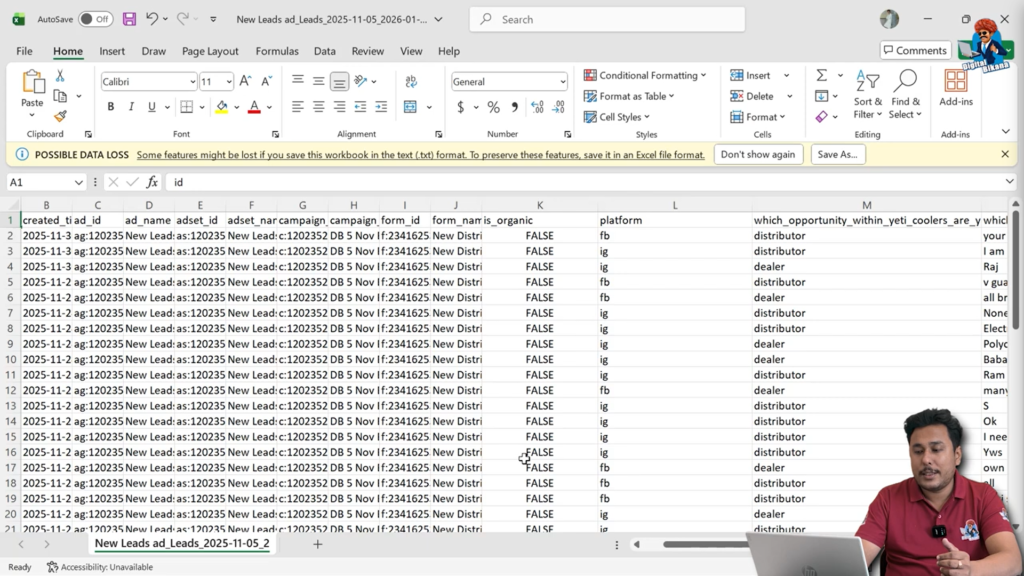
E. Lead Form Identification Details
Each lead entry also includes:
- Form Name: The specific lead form used
- Form ID: The unique ID assigned to the lead form
This is useful when you are running multiple forms under different campaigns.
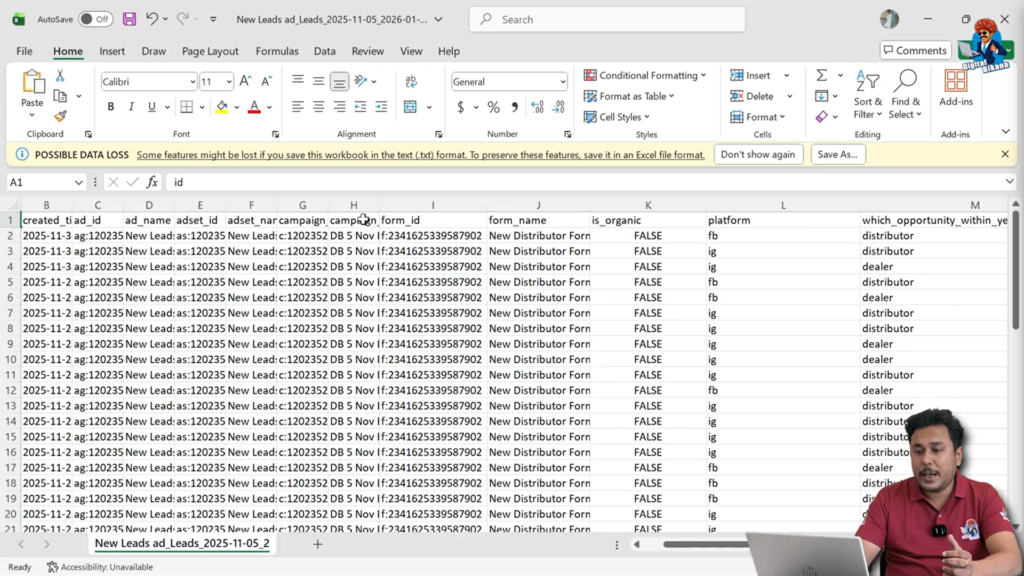
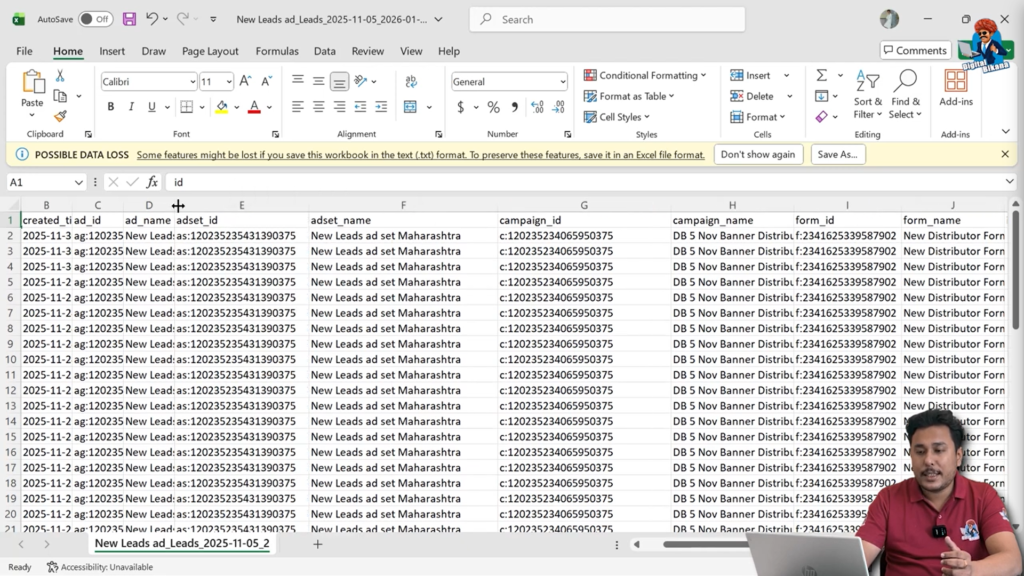
F. Campaign and Ad Set Information
The Excel file also contains advertising structure details, such as:
- Campaign Name: The campaign from which the lead was received
- Campaign ID: The unique ID of that campaign
- Ad Set Name: The ad set under which the lead was generated
- Ad Set ID: The unique ID of the ad set
These details help you analyze which campaign and ad set are performing best.
G. Ad Creative Details
You can also see:
- Ad Creative Name
- Ad Creative ID
This information allows you to track which creative is generating more leads and helps in optimizing future campaigns.
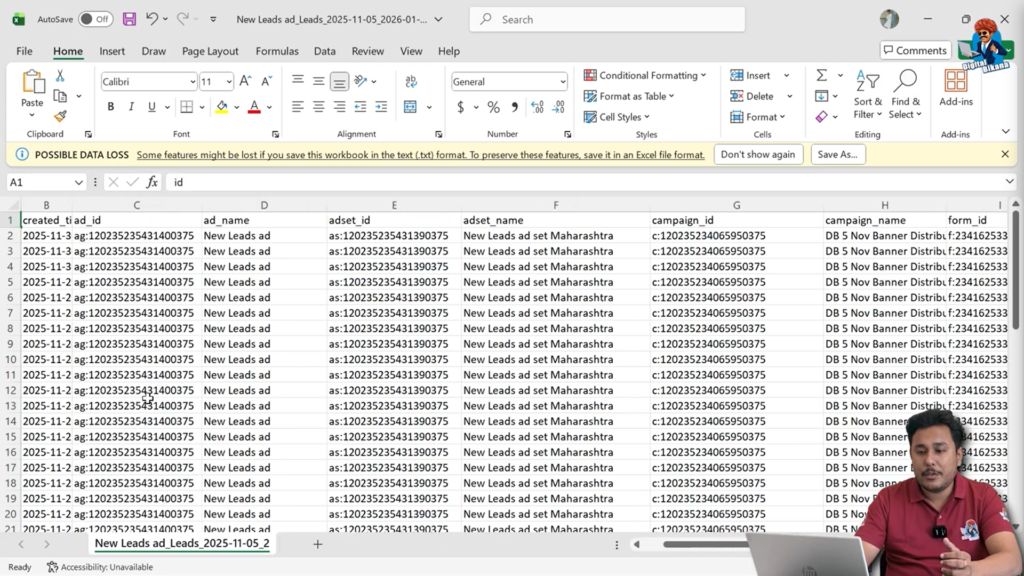
H. Lead Creation Date and Time
Finally, the Excel file shows:
- The date and time when each lead was created
This data helps you track lead activity patterns and analyze performance based on time.
Final Overview of the Lead Download Process
To summarize the complete process:
- Open Facebook Ads Manager
- Identify the lead ad campaign
- Click on the download icon
- Select the date range
- Choose CSV format
- Download the ZIP file
- Extract the folder
- Open the Excel file
- Review all lead details
This entire process allows you to safely store and manage your leads offline.
Conclusion
Downloading leads from a Facebook ad campaign is a simple but extremely important process for any business running lead ads. By exporting your leads in Excel format, you gain full control over your data and can easily analyze, follow up, and manage your leads effectively.
By following the steps explained in this article, you can confidently download, extract, and understand your Facebook lead data without confusion.

Related Posts