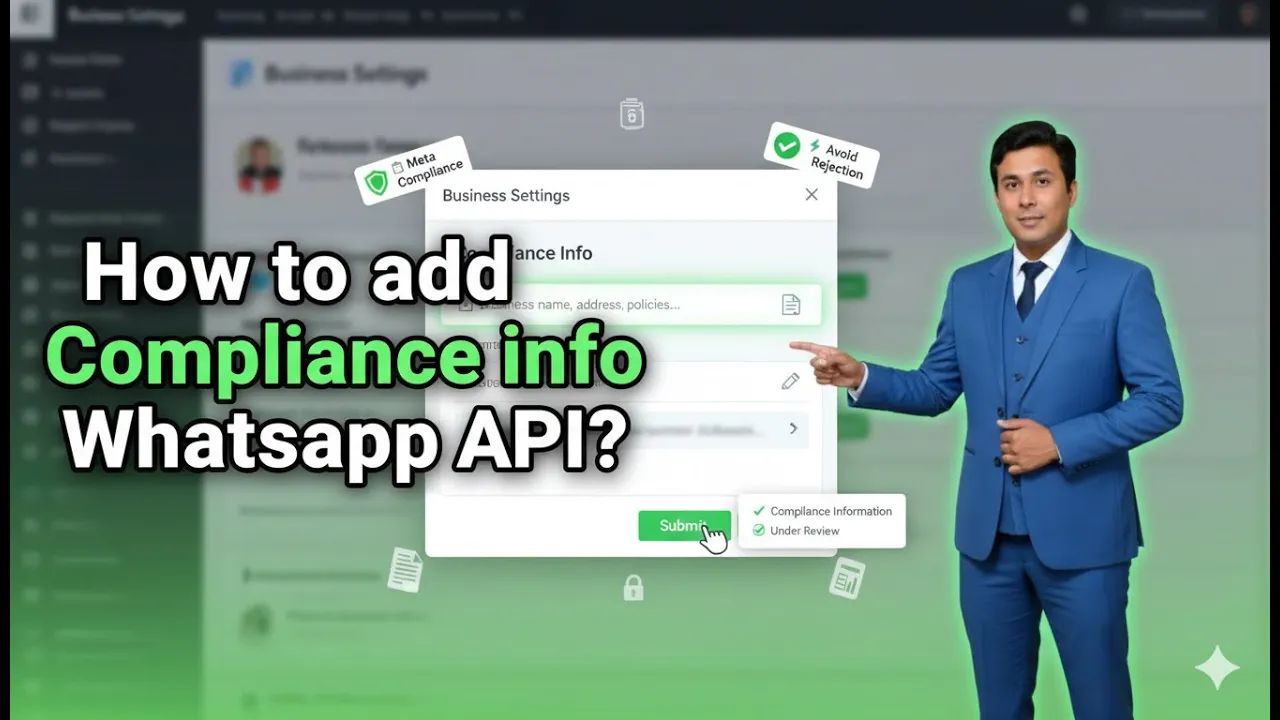
When using WhatsApp Business API through the Interakt platform, adding compliance information is an essential step. Compliance information helps users understand who they are interacting with, view official business details, and know how to contact a grievance officer if required. This builds trust, transparency, and credibility for your business on WhatsApp. In this article, we will learn how to add compliance information in WhatsApp Business API using Interakt. The complete process is explained step by step, starting from accessing the business profile to successfully submitting compliance details.
Understanding Compliance Information in WhatsApp Business API
Compliance information includes key business details such as:
- Business logo
- Business bio
- Business category
- Business address
- Business email
- Business website
- Legal business name
- Business type
- Grievance officer name and contact details
Once this information is added, users who message your WhatsApp Business API number can view your business profile, logo, and compliance details directly from WhatsApp.
How to add Compliance info on Whatsapp Business API?
To begin adding compliance information, you must first access the business profile section inside the Interakt dashboard.
Step 1: Log In to the Interakt Dashboard
Log in to your Interakt account that is connected to your WhatsApp Business API. Once logged in, you will see the main Interakt dashboard.
On the top-right corner of the dashboard, you will find the profile icon.
Step 2: Open the Business Profile Section
Click on the profile icon located in the top-right corner.
From the dropdown options, select Business Profile.
This section contains all the fields required to update your WhatsApp Business API profile and compliance information.
Uploading Business Branding Details
Branding details help users visually identify your business on WhatsApp.
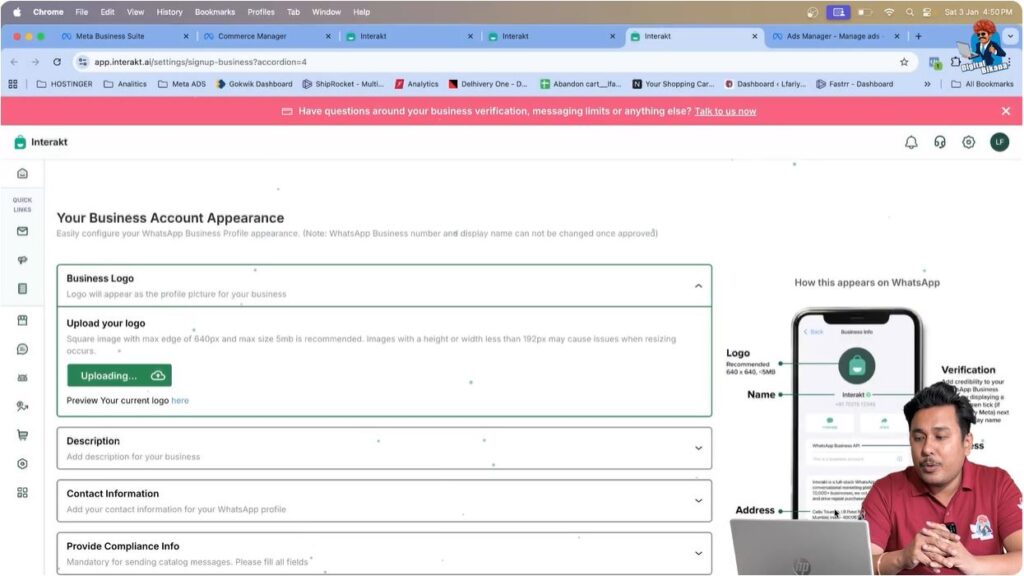
Step 3: Upload the Business Logo
In the business profile section, you will see an option to upload the business logo.
- Click on the upload option
- Browse your system and select your business logo
- Upload the selected logo
Once uploaded successfully, the logo will be associated with your WhatsApp Business API profile.
This logo will be visible to users when they view your WhatsApp business profile.
Step 4: Add Business Bio
After uploading the logo, the next field is the Business Bio.
In this section:
- Enter a short description of your business
- Use relevant keywords related to your business
- Keep the bio clear and informative
The business bio helps users quickly understand what your business does.

Step 5: Select Business Category
Next, select the category that best describes your business.
Choosing the correct business category ensures your business is properly classified within WhatsApp’s system and improves profile clarity for users.

Adding Contact and Business Information
Accurate contact details are an important part of compliance.
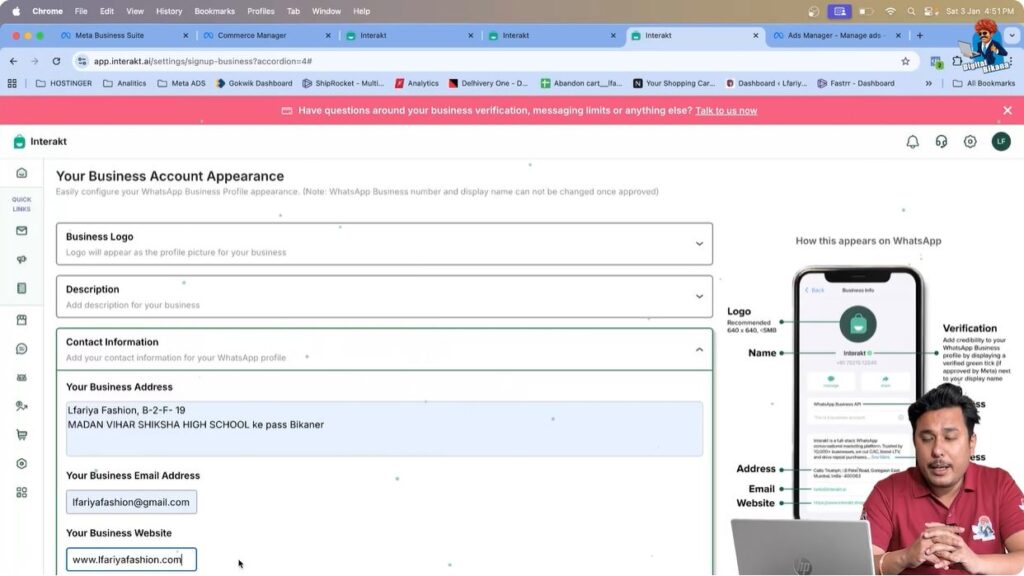
Step 6: Enter Business Address
In the contact information section, enter your complete business address.
This should be the official address associated with your business. Enter the address carefully to avoid errors.

Step 7: Add Business Email Address
Enter your official business email address in the provided field.
This email address can be used for business communication and compliance-related contact.

Step 8: Add Business Website
In the business website field:
- Enter your official website URL
- Make sure the website includes https://
If the website URL is not entered correctly, the system may show an error and prevent saving the compliance information.
Providing Compliance Information
This section is critical for legal and regulatory transparency.
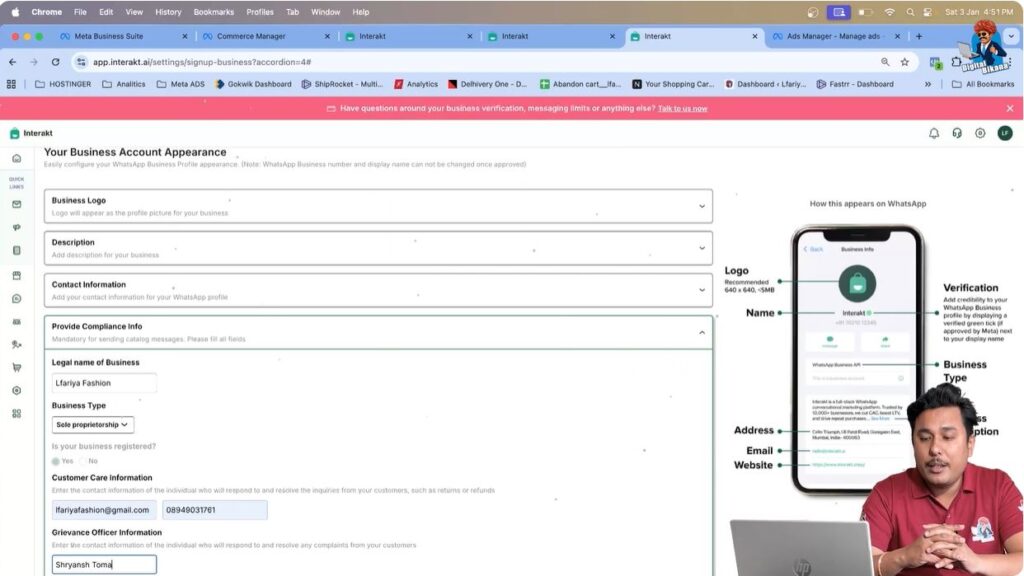
Step 9: Enter Legal Business Name
In the Provide Compliance Info section, enter the legal name of your business.
It is possible that:
- Your brand name is different
- Your legal business name is different
In such cases, always enter the legal business name as per official records.

Step 10: Select Business Type
Select the appropriate business type from the available options.
This helps define the nature of your business entity within the WhatsApp Business API system.

Step 11: Re-enter Business Email ID
Enter the business email address again in the compliance section.
This ensures consistency and accuracy of contact details across the profile.

Adding Grievance Officer Details
Grievance officer details are required for compliance and user support.
Step 12: Enter Grievance Officer Name
Enter the name of the grievance officer.
The grievance officer is the designated person responsible for handling complaints, issues, or concerns raised by users.
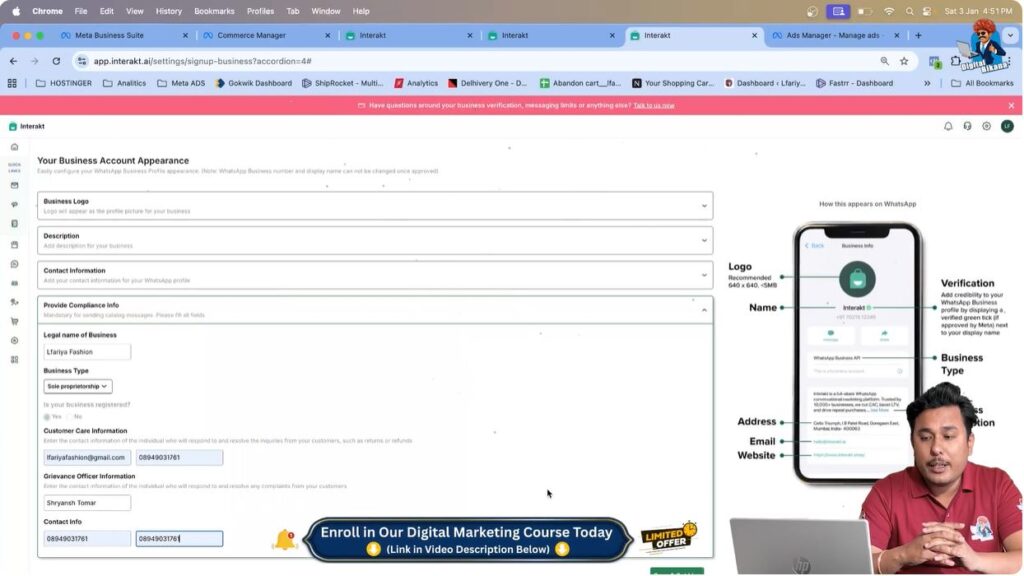
Step 13: Add Grievance Officer Contact Information
Enter the contact number of the grievance officer.
This can be:
- A different number from the main business number
- A dedicated support or compliance contact
Ensure the contact details are correct and accessible.
Saving the Compliance Information
Step 14: Save the Compliance Details
After entering all required information, click on Save.
If the system shows an error, such as an invalid website URL:
- Go back to the website field
- Ensure the URL includes https://
- Try saving again
Once saved successfully, your compliance information is submitted.

What Happens After Compliance Info Is Submitted
After submission:
- Your business logo becomes visible on WhatsApp
- Users can view your business bio and category
- Users can see your address, website, and email
- Grievance officer details become accessible
When someone messages your WhatsApp Business API number and clicks on your profile, they can easily understand your business and know how to contact you if required.
Importance of Compliance Information in WhatsApp Business API
Adding compliance information helps in:
- Building trust with users
- Maintaining transparency
- Improving business credibility
- Ensuring regulatory readiness
- Providing grievance redressal options
This information enhances the overall professionalism of your WhatsApp Business API presence.
Final Summary
In this article, we learned how to add compliance information in WhatsApp Business API using Interakt. The process included:
- Accessing the business profile
- Uploading a business logo
- Adding business bio and category
- Entering address, email, and website
- Providing legal business details
- Adding grievance officer information
- Saving and submitting compliance info
Once completed, your WhatsApp Business API profile becomes fully informative and compliant.
Conclusion
Submitting compliance information is a crucial step when using WhatsApp Business API through Interakt. It ensures transparency, improves user trust, and allows customers to clearly identify and contact your business. By carefully filling in all required fields and saving accurate details, you can maintain a professional and compliant WhatsApp business presence.
This completes the process of adding compliance information in WhatsApp Business API using Interakt.

Related Posts