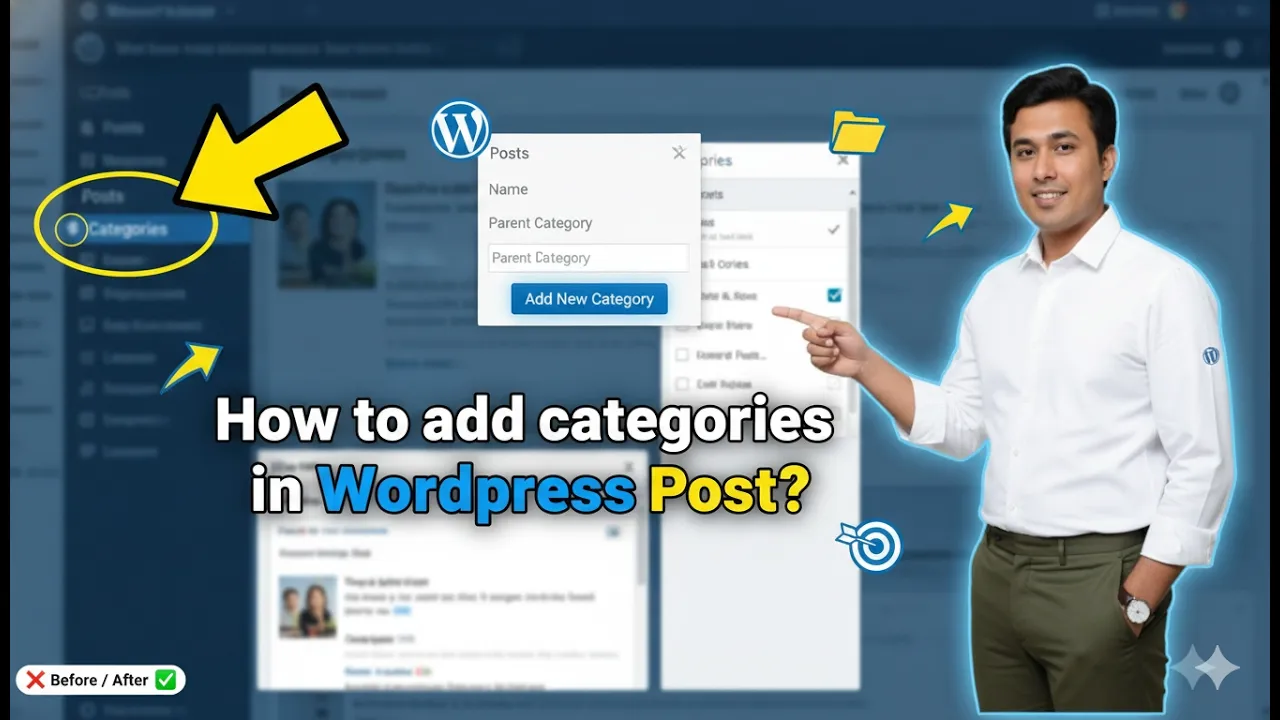
Adding categories in a WordPress post is an important step in organizing your website content. Categories help group similar blog posts together so that visitors can easily find related content. Proper category structure also helps improve the SEO of your website because category pages can rank in search engines and attract organic traffic.
In this article, you will learn how to add categories in a WordPress post, how to create parent categories and subcategories, and how to optimize categories for SEO.
Opening the Posts Section in WordPress Dashboard
First, log in to your WordPress admin dashboard.
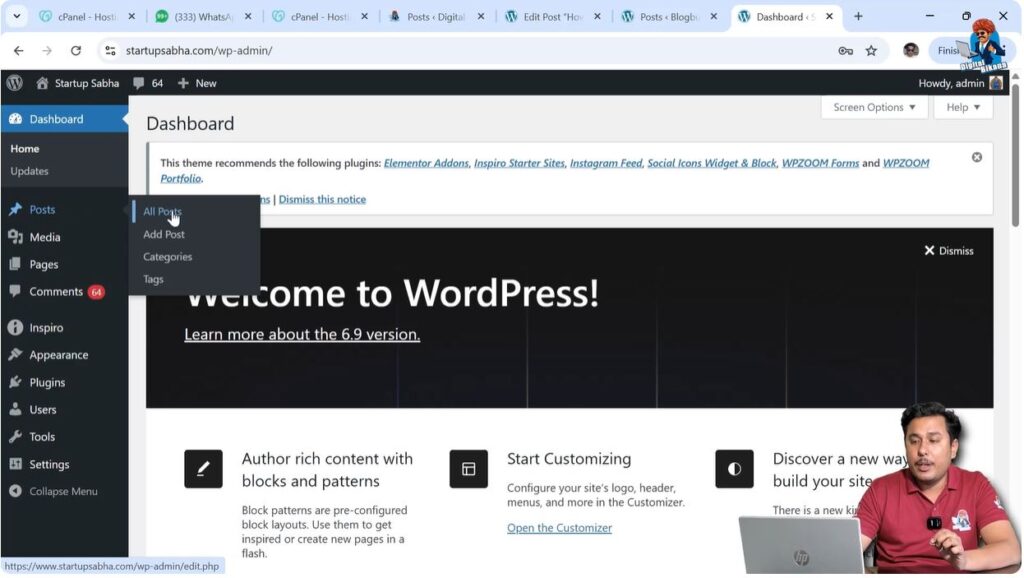
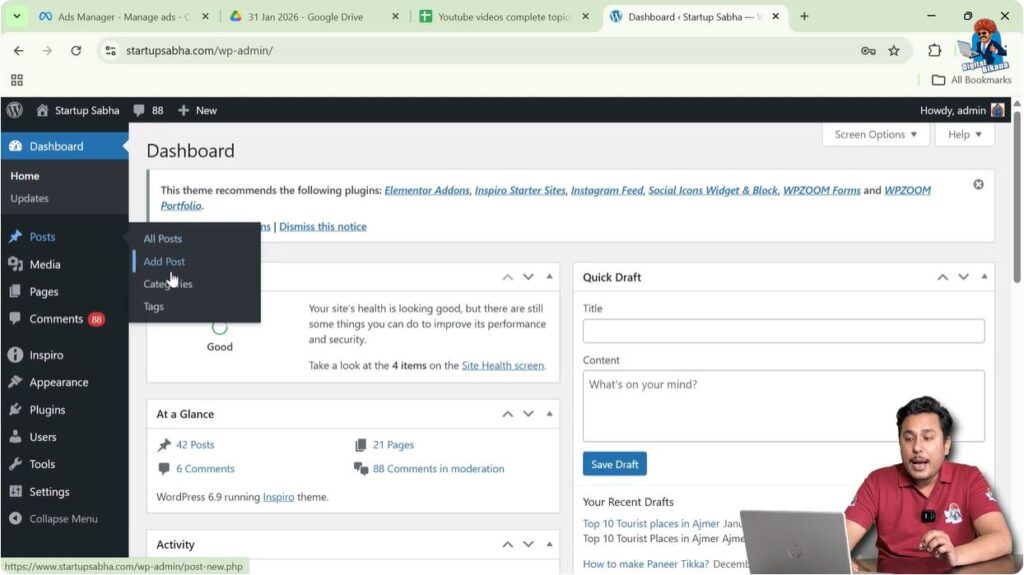
After logging in, look at the left-side toolbar where you will find the Posts section. When you move your cursor over the Posts option, a submenu will appear automatically.
The submenu contains options such as:
- All Posts
- Add Post
You can click on Add Post to create a new blog post, or you can click on All Posts to view and edit existing blog posts.
If you already have a blog post written, you can open it and add categories after writing the content.
Opening or Creating a Blog Post
To add categories, you first need to open a blog post.
You can either create a new post or edit an existing post.
Click on Add Post to create a new blog post.
Or click on All Posts and open any existing post by clicking on the Edit option.
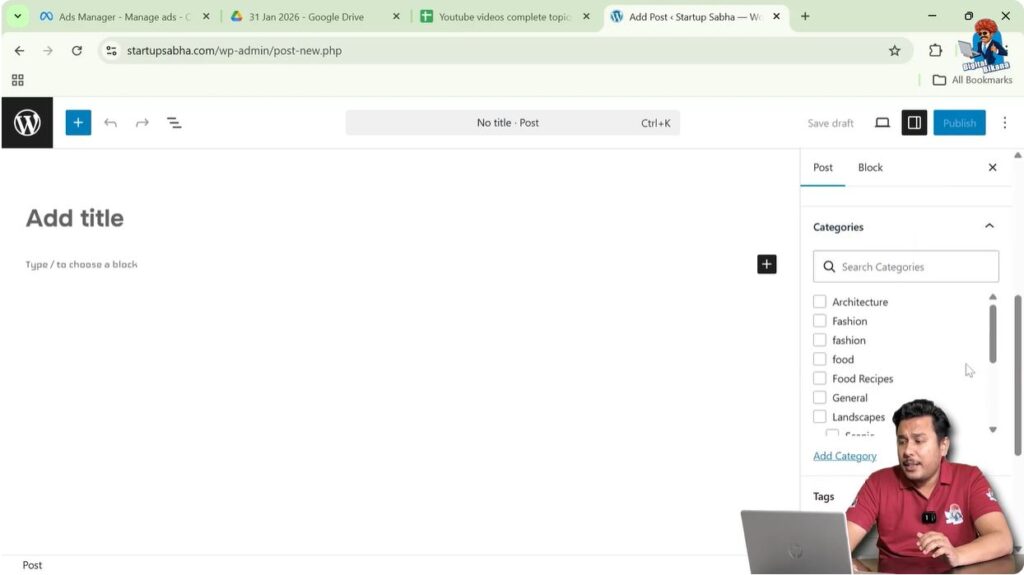
After opening the post editor, you can add categories from the right-side settings panel.
Opening Category Settings
After opening the blog post editor, look at the right-side toolbar.
The toolbar contains two sections:
If the toolbar is not visible, click on the Settings icon located near the Publish button in the top-right corner.
The settings panel will appear.
Open the Post section.
Scroll down until you see the Categories section.
Here you can select existing categories or create new ones.
Step 1 – Open Category Settings
Open the blog post in the WordPress editor.
Go to the right-side settings panel.
Click on the Post section.
Scroll down to the Categories section.
Selecting an Existing Category
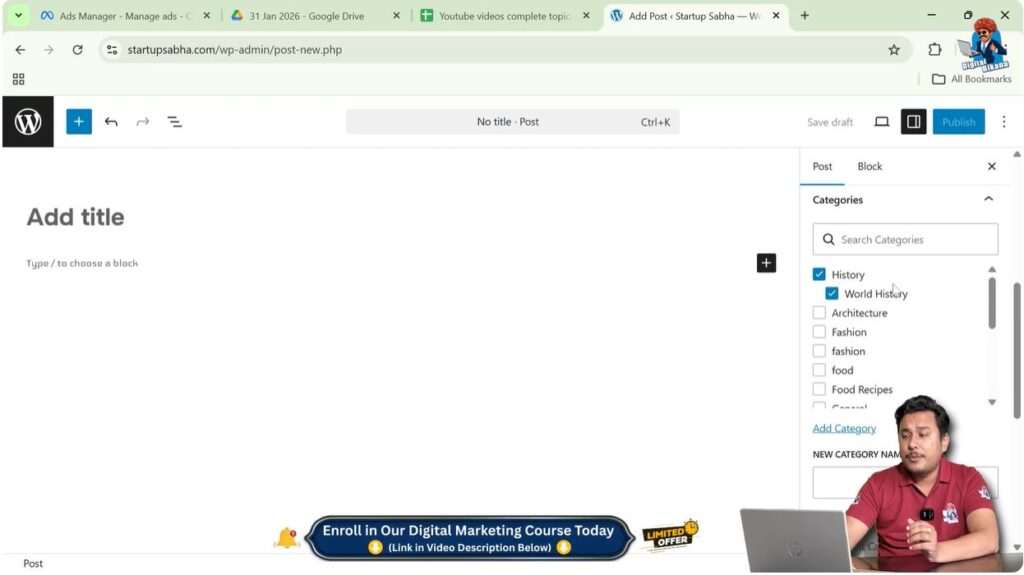
If categories already exist on your website, you can select them directly.
Inside the Categories section, you will see a list of available categories.
You can select any category that matches your blog post topic.
After selecting the category, your blog post will appear under that category after publishing.
Step 2 – Select Category
Open the Categories section.
Select the relevant category.
Publish or update the blog post.
Creating a New Category
If a suitable category does not exist, you can create a new category.
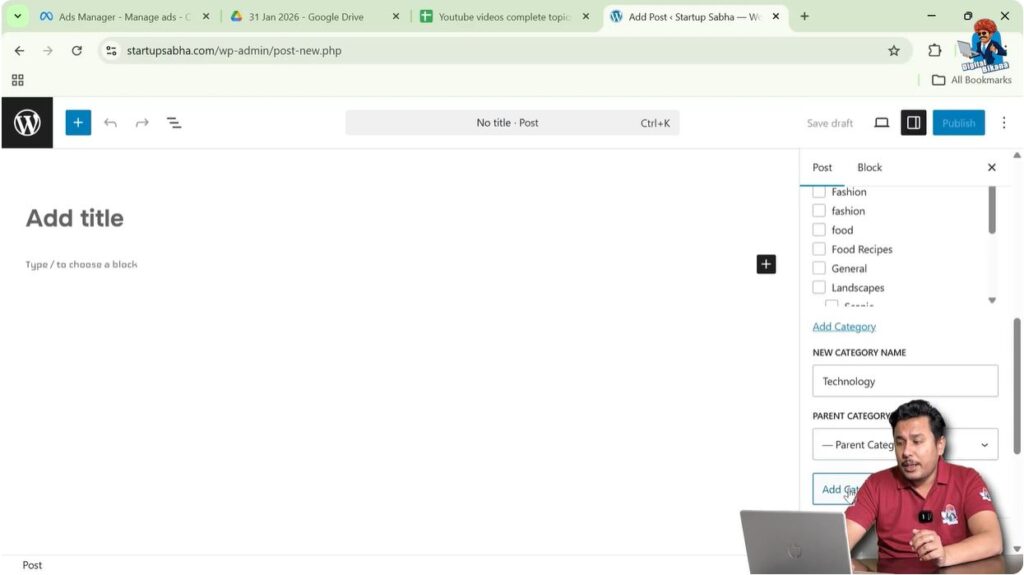
Inside the Categories section, there is an option called Add New Category.
Click on the Add New Category option.
Enter the category name.
If the category is a main category, you can keep it as a parent category.
Click on Add Category.
The category will be created and added to the list.
After creating the category, you need to select it before publishing the post.
Step 3 – Create Parent Category
Click on Add New Category.
Enter the category name.
Select Parent Category if required.
Click on Add Category.
Select the category before publishing.
Creating Subcategories
WordPress allows you to create subcategories under parent categories.
Subcategories help organize content in a structured way.
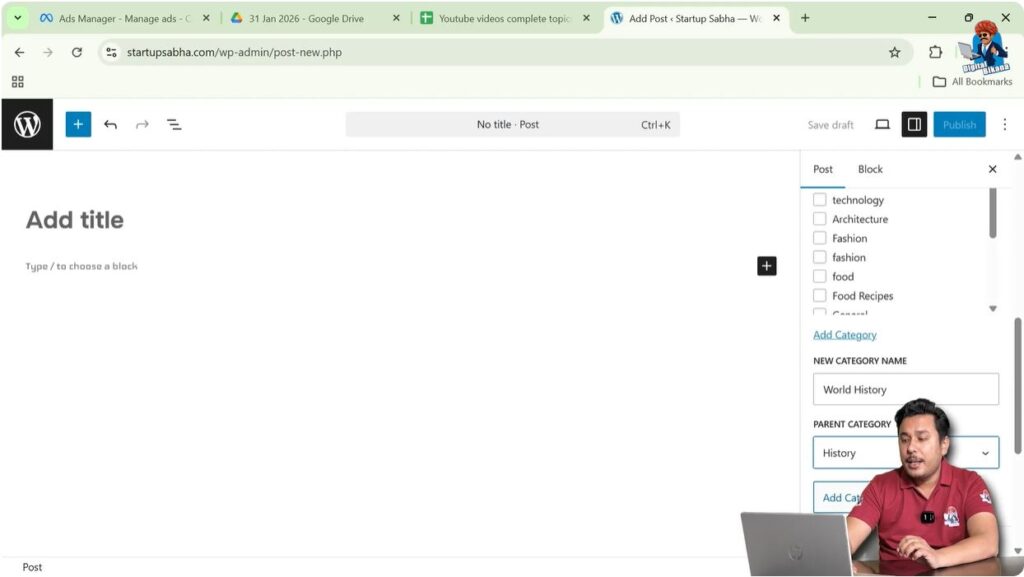
For example, a category called History can have a subcategory called World History.
To create a subcategory, click on Add New Category.
Enter the subcategory name.
Select the parent category from the Parent Category dropdown.
Click on Add Category.
The subcategory will appear under the parent category.
Step 4 – Create Subcategory
Click on Add New Category.
Enter the subcategory name.
Select the parent category.
Click on Add Category.
The subcategory will be created.
Importance of Keyword Research for Categories
Before creating categories, keyword research should be done.
Keyword research helps identify high search volume keywords.
You can use keyword research tools to find keywords that have good search volume.
Category names should ideally be based on keywords with high search volume.
Category pages have their own URLs and can rank in search engines.
If category pages rank higher in search results, they can attract a good amount of traffic.
Visitors who open a category page can see multiple blog posts related to that category.
This helps generate more page views and traffic.
Category Pages and SEO
Each category has its own URL.
Category URLs can appear in search engine results.
If a category page ranks higher, it can attract organic traffic.
Visitors who land on a category page can browse multiple articles.
This helps improve website traffic.
Proper category selection helps improve SEO performance.
Managing Categories from Categories Section
You can also manage categories from the Categories section in the WordPress dashboard.
Go to the left-side toolbar.
Click on Posts.
Click on Categories.
Here you will see the list of all categories.
From this section, you can edit category names and settings.
Step 5 – Edit Categories
Go to Posts → Categories.
Find the category.
Click on Edit.
Modify the category details.
Save the changes.

Optimizing Category Search Appearance Using SEO Plugin
If you have installed an SEO plugin such as Yoast SEO, you can optimize the search appearance of categories.
In the category edit page, you can modify the SEO title.
You can also add a meta description.
The SEO title controls how the category appears in search engine results.
This allows you to target long-tail keywords.
On the website menu, you may keep a short category name.
In search results, you can use a longer keyword phrase.
This helps target more keywords without making the website menu look awkward.
Optimizing category search appearance helps improve category ranking.
Using Short Category Names on Website
Short category names are better for website menus.
Long category names may look awkward in menus.
Short names make navigation easier.
However, SEO titles can be longer and more descriptive.
This allows you to target long-tail keywords without affecting website design.
Conclusion
Adding categories in a WordPress post helps organize content and improve SEO. You can select existing categories or create new parent categories and subcategories from the post settings panel.
Category names should be chosen based on keyword research to attract more traffic. Category pages have their own URLs and can rank in search engines.
You can also manage categories from the Categories section and optimize their search appearance using SEO plugins.
Proper category structure helps visitors find related content and improves the overall SEO performance of your website.

Related Posts