

Product categories play a very important role in organizing your WooCommerce store. They help you structure your products properly, improve user experience, and also enhance SEO performance. If your products are well categorized, customers can easily navigate your store and find what they are looking for.
In this article, you will learn how to add product categories in WooCommerce on a WordPress website using two different methods. Both methods are simple and can be used depending on your workflow.
Understanding Product Categories in WooCommerce
Before creating categories, it is important to understand why they are necessary.
Product categories help:
- Organize products in a structured way
- Improve navigation on your website
- Enhance SEO performance
- Create parent and subcategory hierarchy
- Improve user experience
For example, if you are selling decorative items, footwear, or clothing, categorizing them properly makes your store look professional and structured.
Method 1: Adding Product Categories from the Categories Section
This is the first and most commonly used method.
Accessing the Categories Section
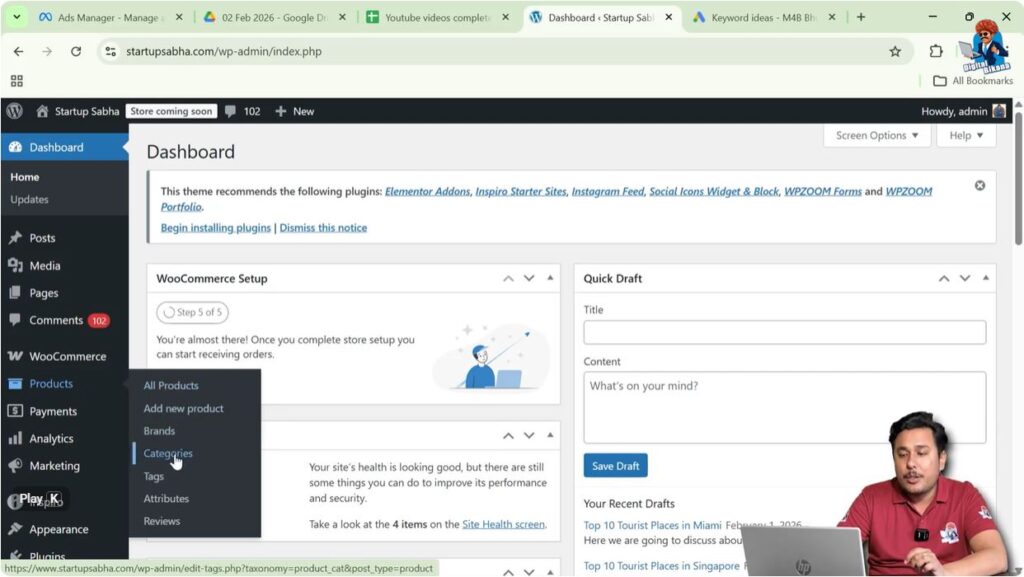
Step 1: Open Product Categories
Log in to your WordPress admin dashboard.
On the left side toolbar, move your cursor over the Products section.
A submenu will appear with the following options:
- All Products
- Add New
- Brands
- Categories
Click on Categories.
You will now enter the category management page.
Creating a New Parent Category
Step 2: Enter Category Details
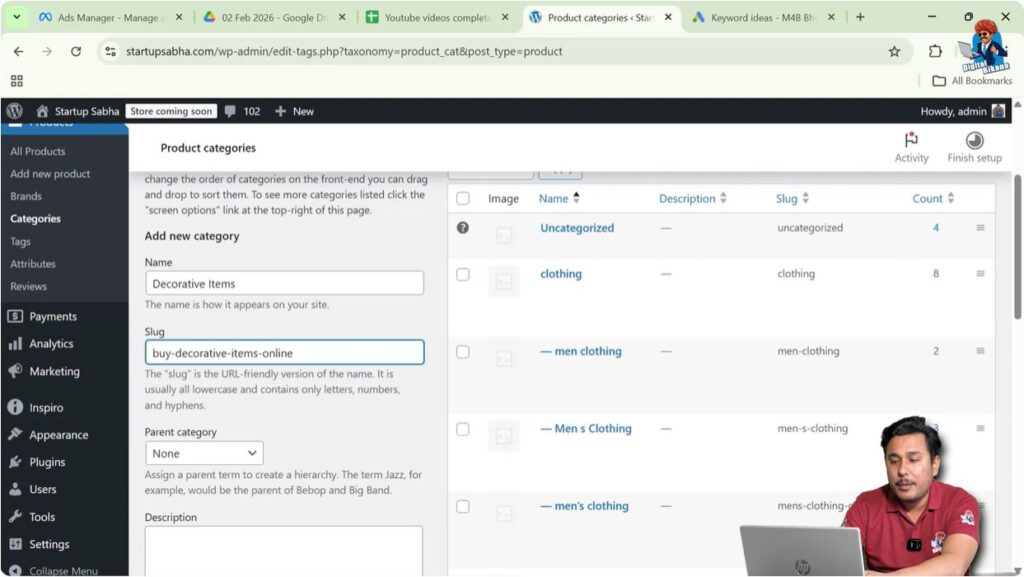
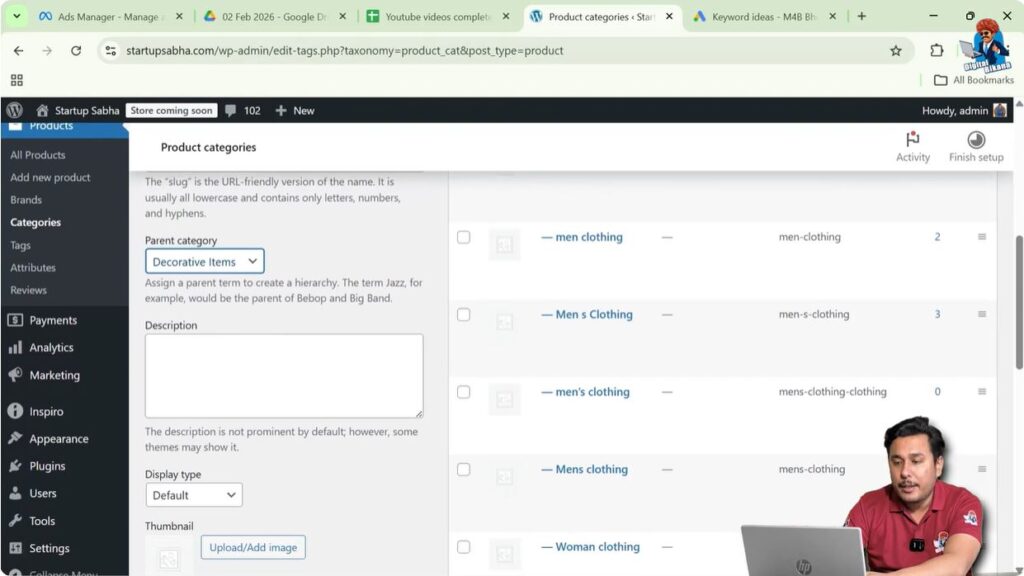
On the left side of the screen, you will see fields to create a new category.
Enter the category name.
For example:
Decorative Items
Now move to the slug field.
The slug should be SEO-friendly. Since URLs cannot contain spaces, replace spaces with hyphens.
Example:
decorative-items
You can also use a long-tail keyword as a slug if needed, such as:
buy-decorative-items-online
This helps improve search engine visibility.
Selecting Parent Category
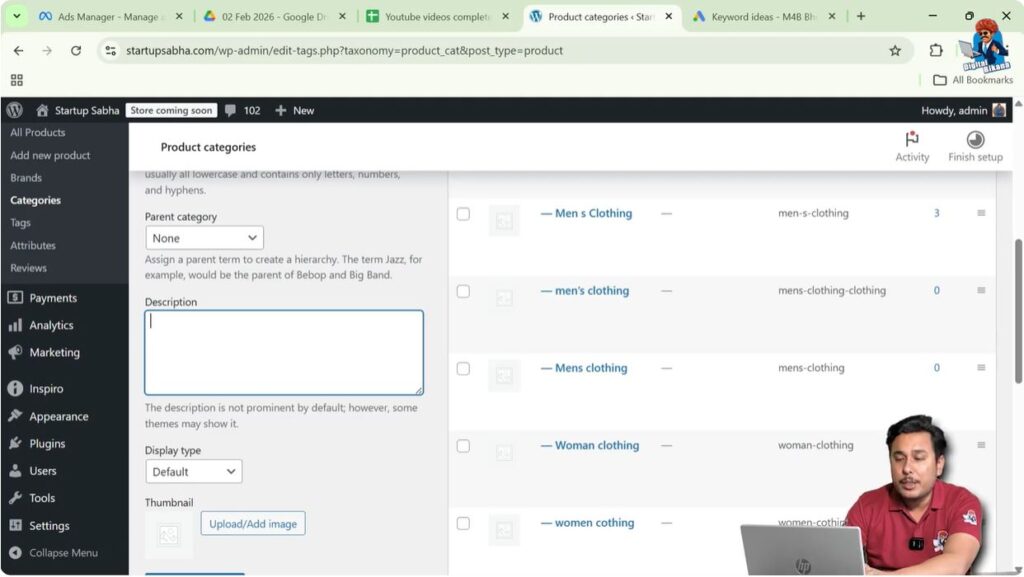
If the category is a main category, you do not need to select a parent category.
If it is a subcategory, you must choose a parent category from the dropdown list.
For example:
If Decorative Items is a main category, leave parent blank.
Adding Description and Thumbnail
Step 3: Add SEO-Friendly Description
Write a detailed description using relevant keywords with good search volume. This can help the category page rank in search engine results.
Step 4: Upload Thumbnail Image
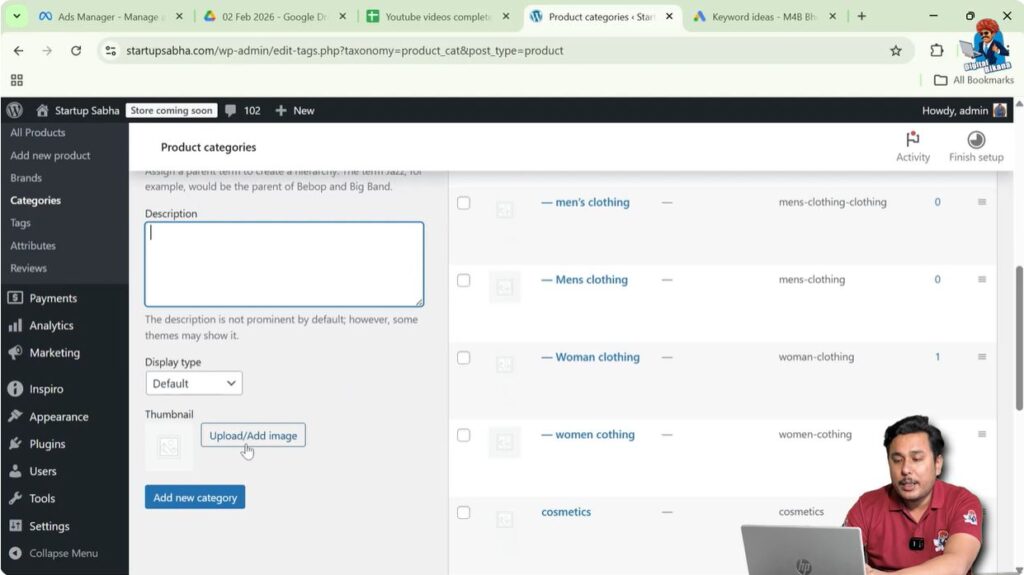
Click on Upload/Add Image to add a thumbnail.
Before uploading:
- Rename the image properly
- Add alt text for SEO
After filling all details, click on Add New Category.
The category will now be created.
Creating a Subcategory
Now let us create a subcategory.
Step 5: Create Subcategory
Again, enter a new category name.
For example:
Planters
Enter the slug:
planters-online
Now select the parent category as:
Decorative Items
Add description and thumbnail if required.
Click on Add New Category.
Now Planters will appear as a subcategory under Decorative Items.
This completes Method 1.
Method 2: Adding Categories While Creating a Product
Sometimes, you may start creating a product before creating its category. In that case, you can create categories directly from the product page.
Creating a New Product
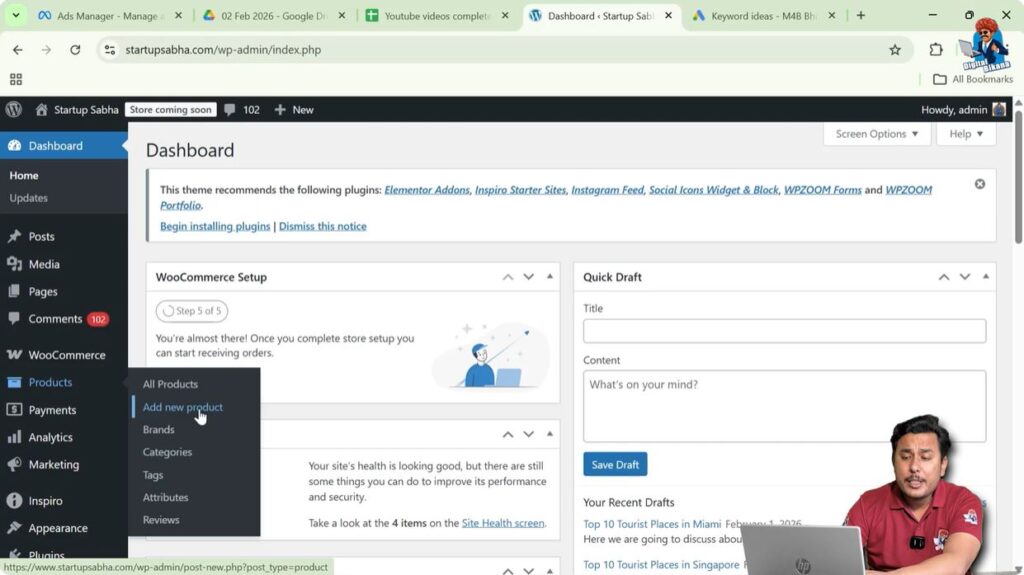
Step 6: Go to Add New Product
Go back to the WordPress admin dashboard.
Move your cursor over Products.
Click on Add New.
Now enter the product name.
For example:
Slippers for Bathroom
Adding Category from Product Page
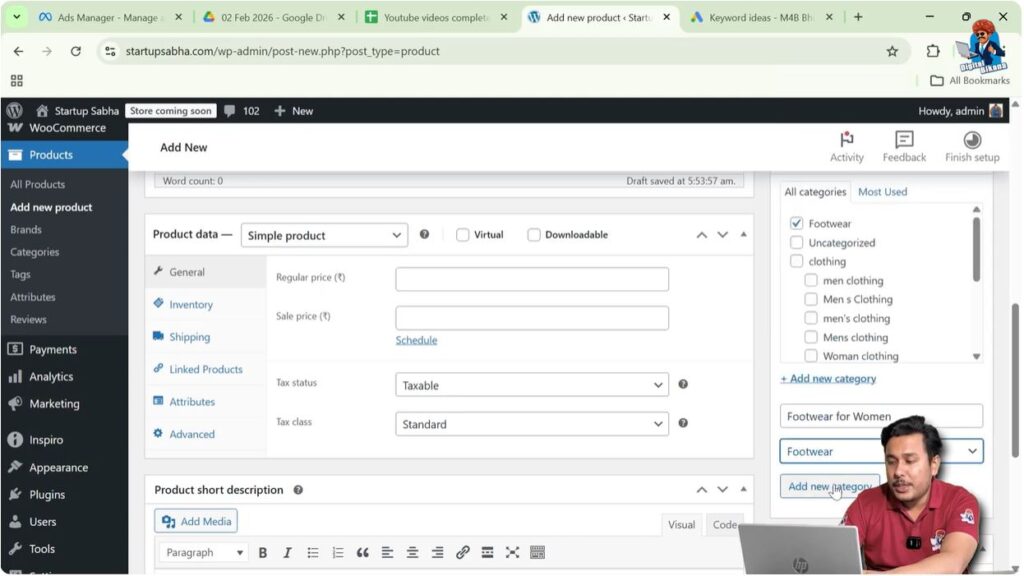
On the right side of the product editor, scroll down to find the Product Categories section.
You will see an option called Add New Category.
Click on it.
Creating Parent Category
Step 7: Add Parent Category
Enter category name:
Footwear
Since this is a main category, select Parent Category as None.
Click on Add New Category.
The category will now appear in the list.
Creating Subcategory from Product Page
Now let us create a subcategory.
Enter category name:
Footwear for Women
In the parent category dropdown, select:
Footwear
Click on Add New Category.
Now Footwear for Women becomes a subcategory under Footwear.
Editing Slug After Category Creation
While creating a category from the product page, you may not get the option to set a slug.
Do not worry.
You can edit the slug later.
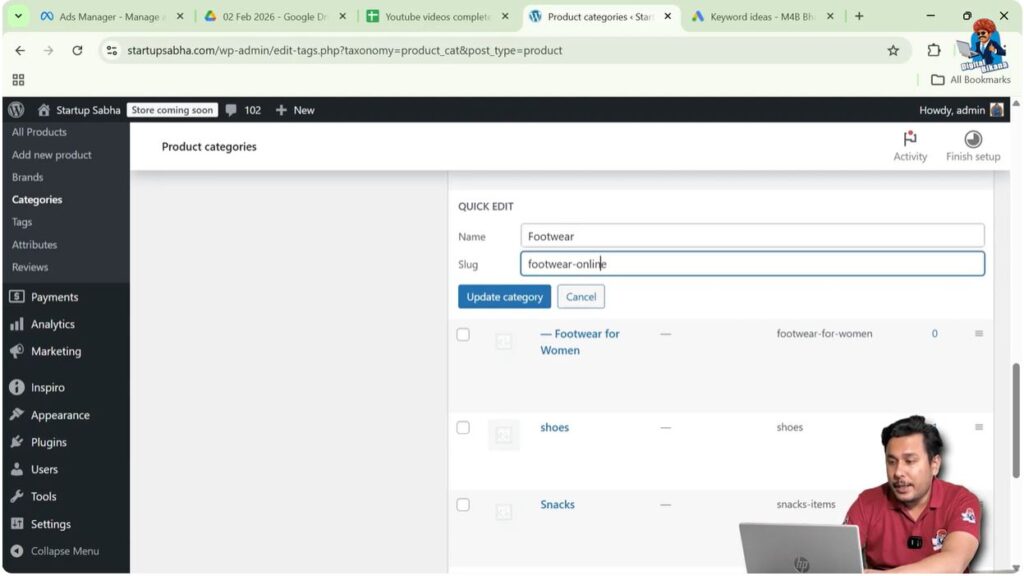
Step 8: Edit Category Slug
Go to:
Products → Categories
Scroll down and locate the category.
Click on Quick Edit under the category name.
Now you can:
- Modify the slug
- Update category details
Click on Update Category.
You can follow the same process for subcategories as well.
Importance of SEO-Friendly Slugs
- Uses hyphens instead of spaces
- Contains relevant keywords
- Avoids special characters
- Is short and descriptive
Example:
Correct:
footwear-for-women
Incorrect:
Footwear For Women!!!
Always maintain clean and structured URLs.
Benefits of Using Proper Category Structure
Using a proper category structure provides many benefits:
- Improves internal linking
- Enhances crawlability
- Organizes product listings
- Improves customer navigation
- Boosts SEO performance
A well-structured store hierarchy makes it easier for search engines to understand your product organization.
Parent and Subcategory Structure Example
Example structure:
Decorative Items
Planters
Wall Art
Table Decor
Footwear
Footwear for Women
Footwear for Men
This hierarchical structure improves both usability and SEO.
Common Mistakes to Avoid
While creating categories, avoid these mistakes:
- Creating too many unnecessary categories
- Using duplicate slugs
- Leaving category description empty
- Not optimizing thumbnail images
- Not assigning products to correct categories
Always plan your category structure before creating your store.
When to Use Each Method
Method 1 is best when:
- You are planning store structure in advance
- You want full control over SEO settings
Method 2 is best when:
- You forgot to create categories earlier
- You are quickly adding products
Both methods are valid and useful.
Final Thoughts
Adding product categories in WooCommerce is simple and essential for organizing your online store. You can create categories directly from the Categories section in the Products menu or while creating a new product.
Method 1 allows detailed control over slug, description, and thumbnail before product creation. Method 2 allows quick category creation during product setup, and you can edit slugs later using the Quick Edit option.
By properly structuring parent categories and subcategories with SEO-friendly slugs and optimized descriptions, you improve both user experience and search engine visibility.
Using these two methods, you can efficiently create and manage product categories in WooCommerce on your WordPress website.

Related Posts


