

Duplicating blocks in a WordPress blog post is a simple and useful feature that helps save time while editing content. Sometimes you may want the same content, image, or layout to appear multiple times in a blog post. Instead of creating the same block again and again, you can simply duplicate an existing block.
This guide explains how to duplicate blocks inside a WordPress blog post using the block editor. The process is simple and can be applied to text blocks, image blocks, and other types of blocks.
When you log in to the WordPress admin dashboard, you will see different options on the left side. The Posts section allows you to manage blog posts. From here you can create new posts or edit existing ones.
Duplicating blocks is usually done while editing an existing blog post, but the same method can also be used while creating a new post.
Accessing the Posts Section
Before duplicating a block, you need to open a blog post in the WordPress editor.
Step 1: Open Posts Menu
Log in to the WordPress admin dashboard.
On the left side, move your cursor over the Posts option.
A submenu will appear showing the following options:
- All Posts
- Add Post
- Categories
- Tags
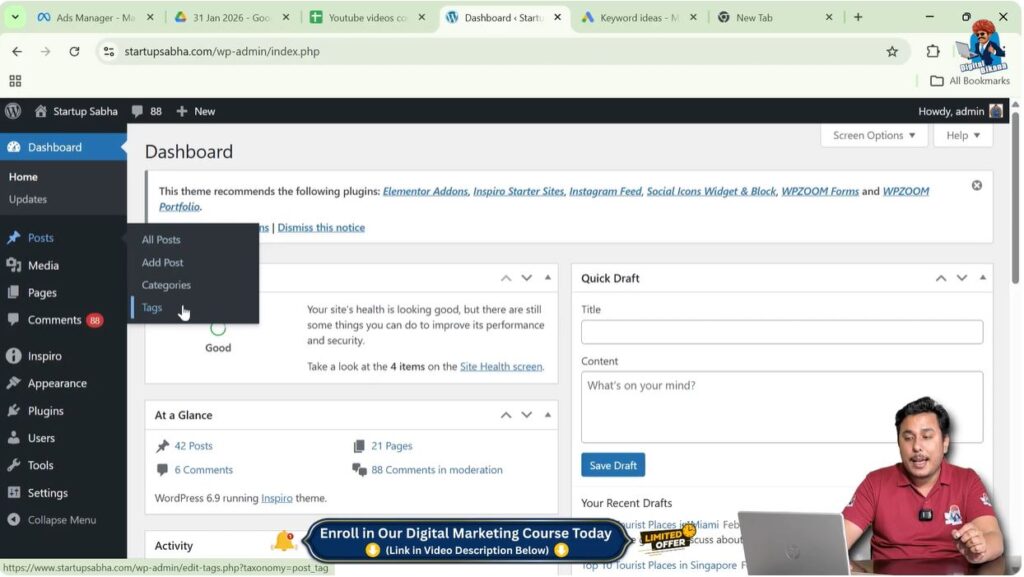
If you want to edit a pre-existing blog post, you need to click on All Posts.
If you want to create a new post, you need to click on Add Post.
In this case, the All Posts option is selected because the goal is to edit an existing blog post and demonstrate how to duplicate blocks.
Opening an Existing Blog Post
After clicking on All Posts, a list of blog posts will appear.
These blog posts may be:
- Published
- Draft
- Scheduled
- Trashed
Each blog post title will have editing options.
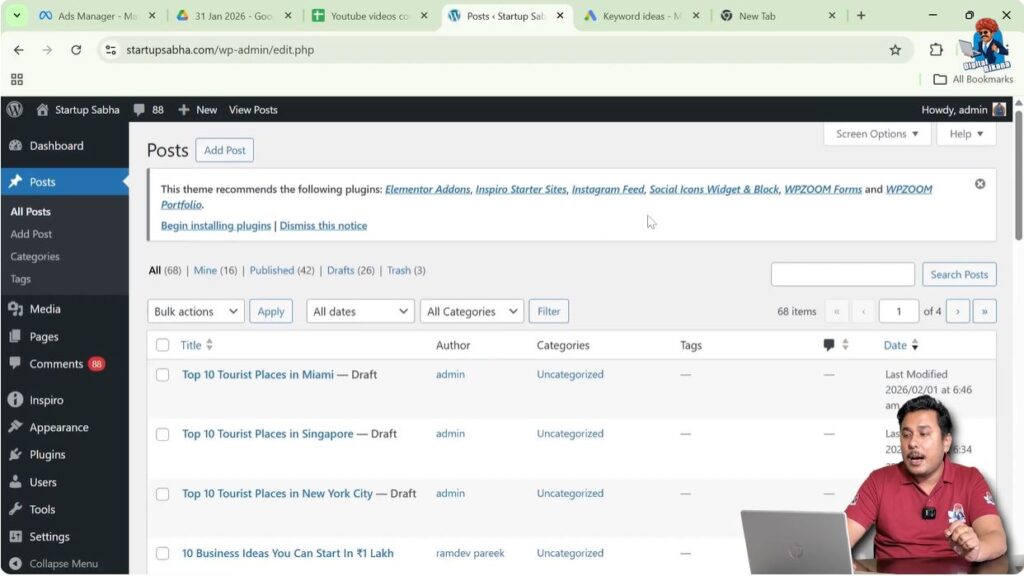
Step 2: Edit a Blog Post
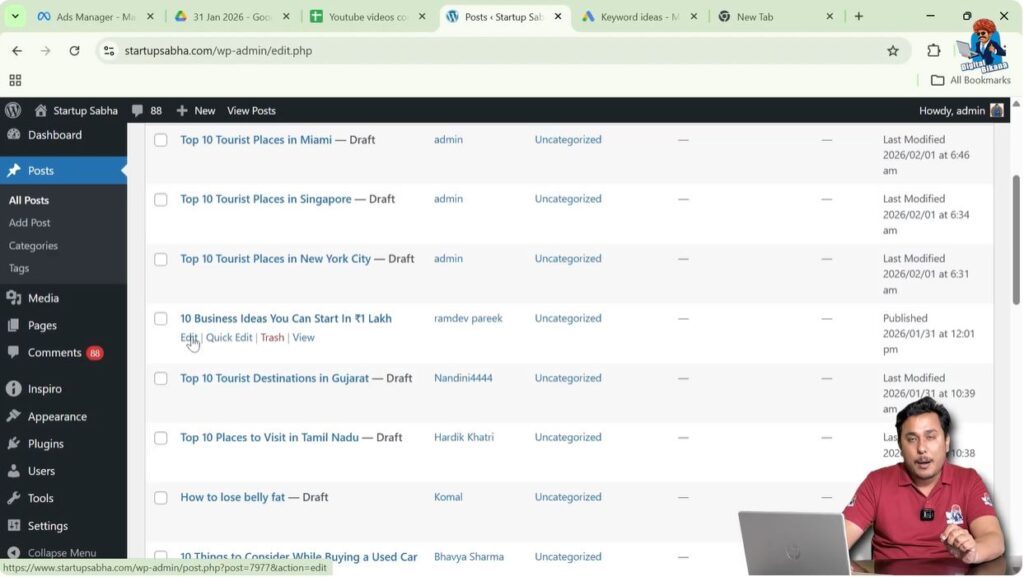
Move your cursor over any blog post title.
The Edit option will appear under the title.
Click on Edit.
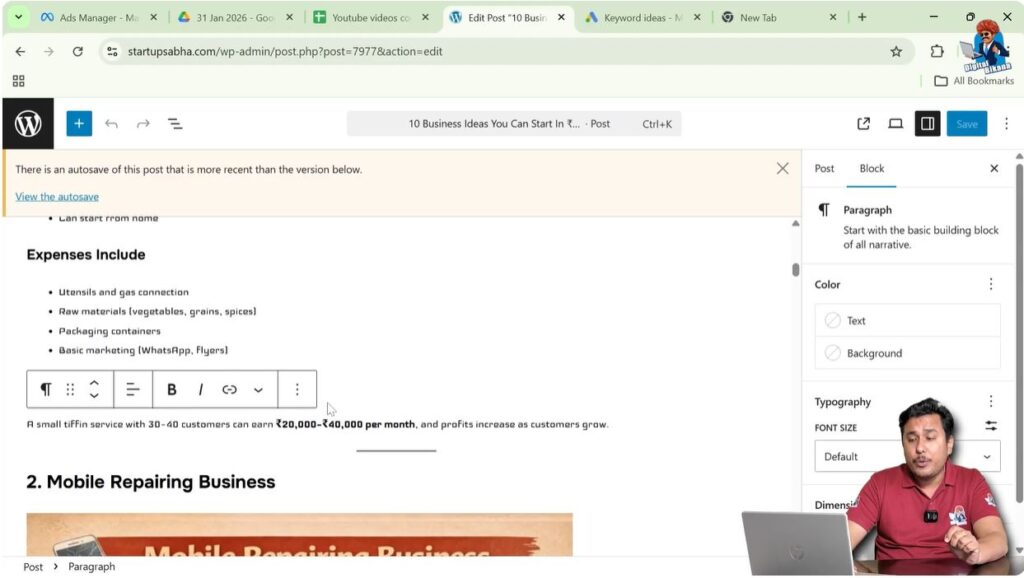
After clicking Edit, the WordPress blog post editor will open.
From here you can modify the content and duplicate blocks.
Understanding Blocks in WordPress Editor
WordPress uses a block editor where each piece of content is placed inside a block.
Examples of blocks include:
- Paragraph blocks
- Image blocks
- Heading blocks
Each block has its own toolbar.
The toolbar appears only when a block is selected.
This toolbar contains different options including duplicate and delete.
Understanding how blocks work is important before duplicating them.
Duplicating a Text Block
Text blocks are commonly duplicated when similar content needs to be repeated.
Step 3: Select the Block
Place your cursor inside the block that you want to duplicate.
For example, place the cursor at the end of the text inside the block.
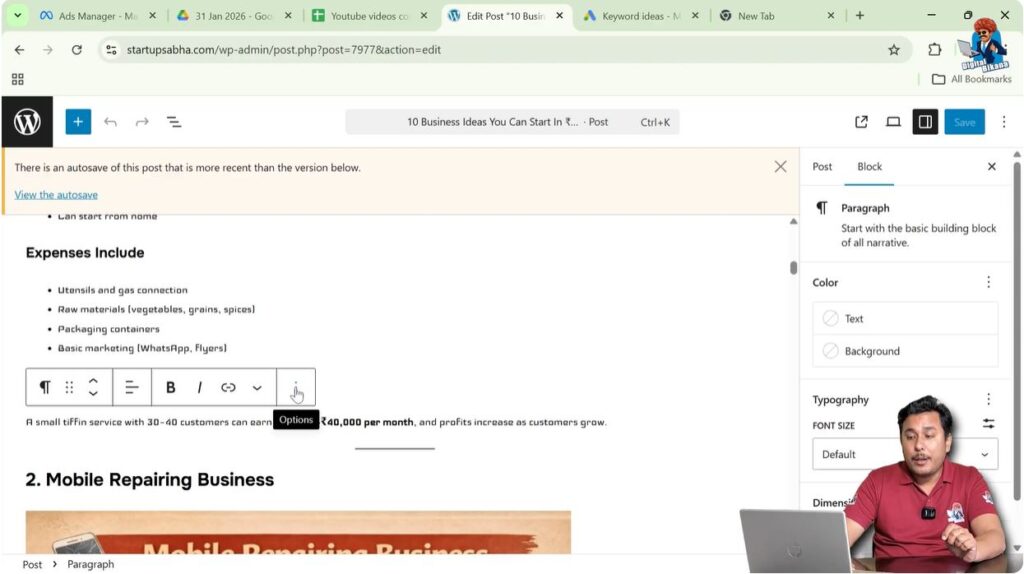
After selecting the block, a toolbar will appear above the block.
This toolbar contains different options for managing the block.
Step 4: Open Block Options Menu
On the block toolbar, find the three-dot icon.
This icon opens additional block options.
Click on the three-dot icon.
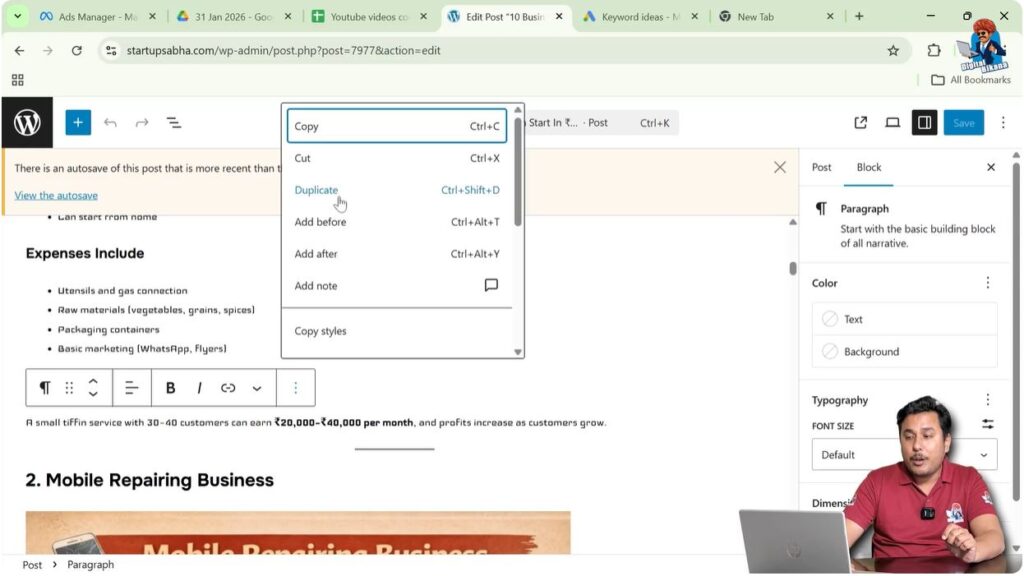
A dropdown menu will appear.
Step 5: Duplicate the Block
In the dropdown menu, click on Duplicate.
As soon as you click Duplicate, the block will be copied.
The duplicated block will appear immediately below the original block.
This is how a text block can be duplicated in a WordPress blog post.
Duplicating an Image Block
The same process can be used to duplicate image blocks.
Image duplication is useful when the same image needs to appear multiple times in a blog post.
Step 6: Select the Image Block
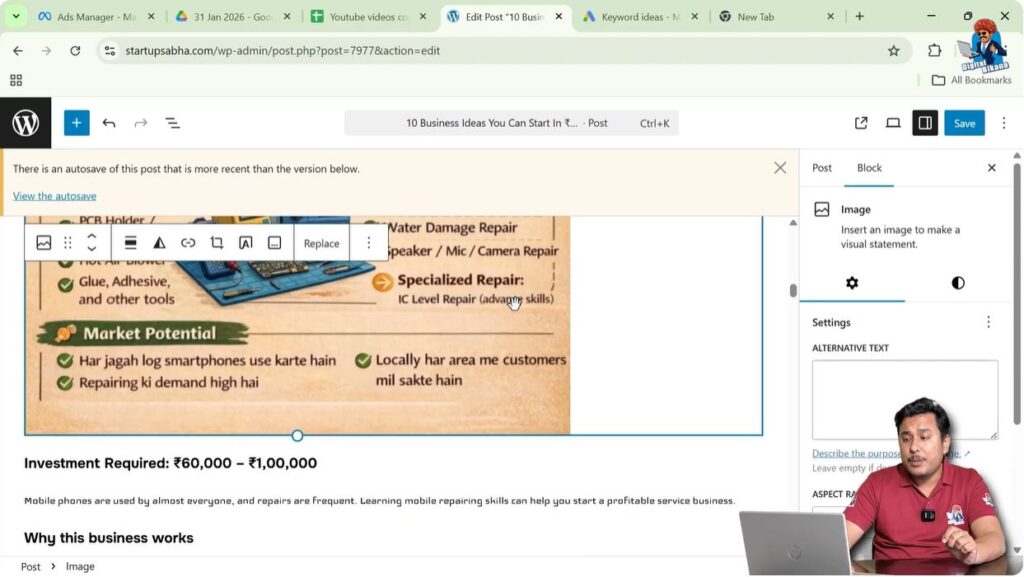
Click on the image block.
After selecting the image block, the block toolbar will appear above the image.
The toolbar appears only when the block is selected.
Step 7: Open Block Options
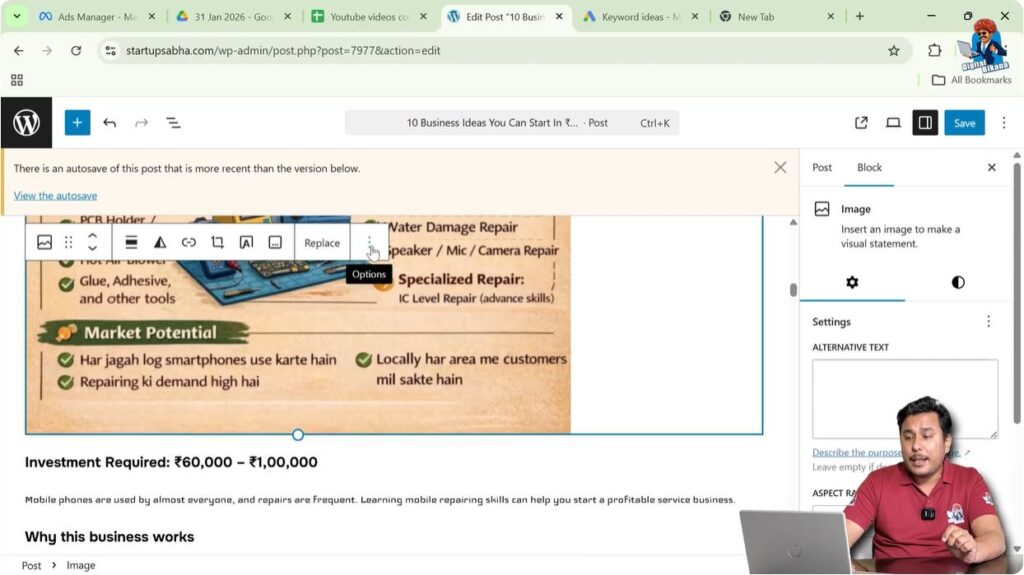
Click on the three-dot icon in the toolbar.
This will open the block options menu.
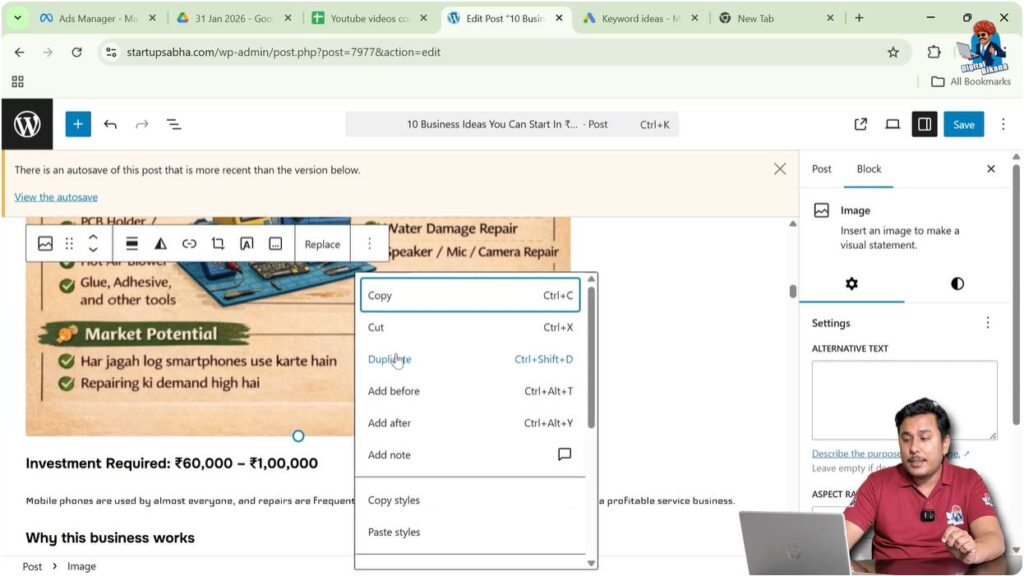
Step 8: Duplicate the Image Block
Click on Duplicate.
The image block will be duplicated.
The copied image block will appear below the original image block.
This method works for all types of blocks in the WordPress editor.
Deleting a Duplicated Block
If a block is duplicated by mistake, it can be deleted easily.
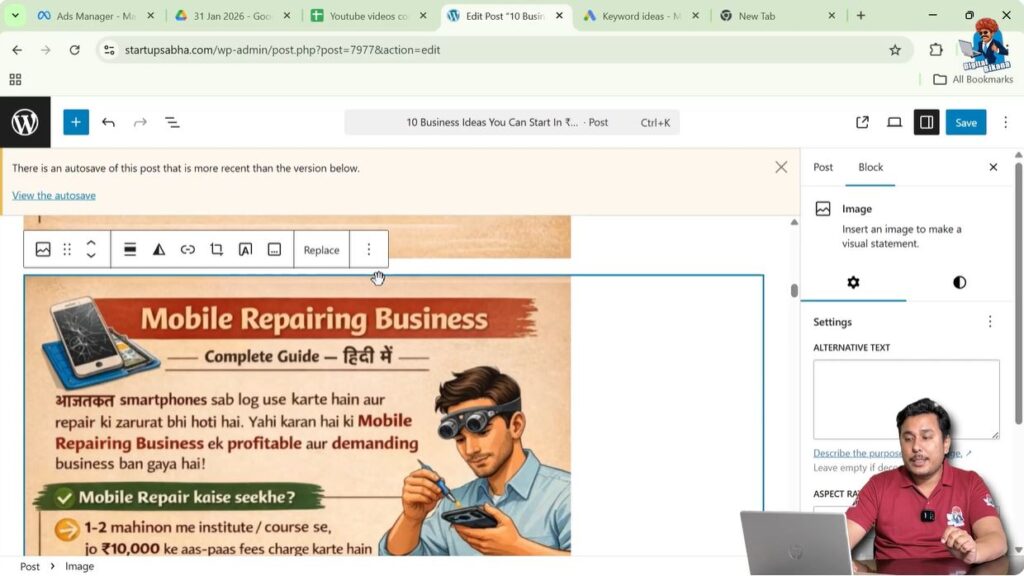
Step 9: Select the Block to Delete
Click on the duplicated block.
The block toolbar will appear.
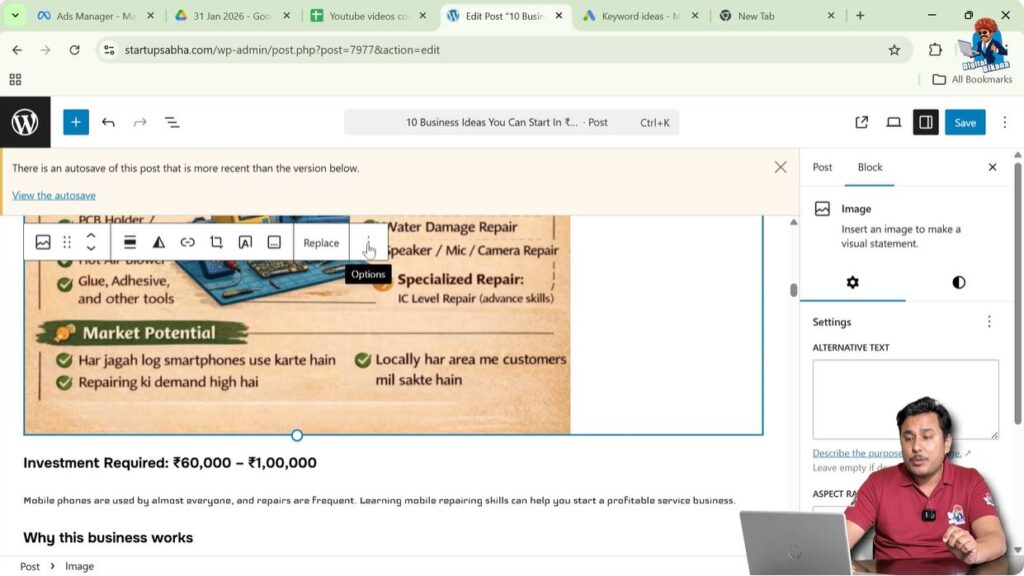
Step 10: Open Block Options Menu
Click on the three-dot icon.
A dropdown menu will appear.
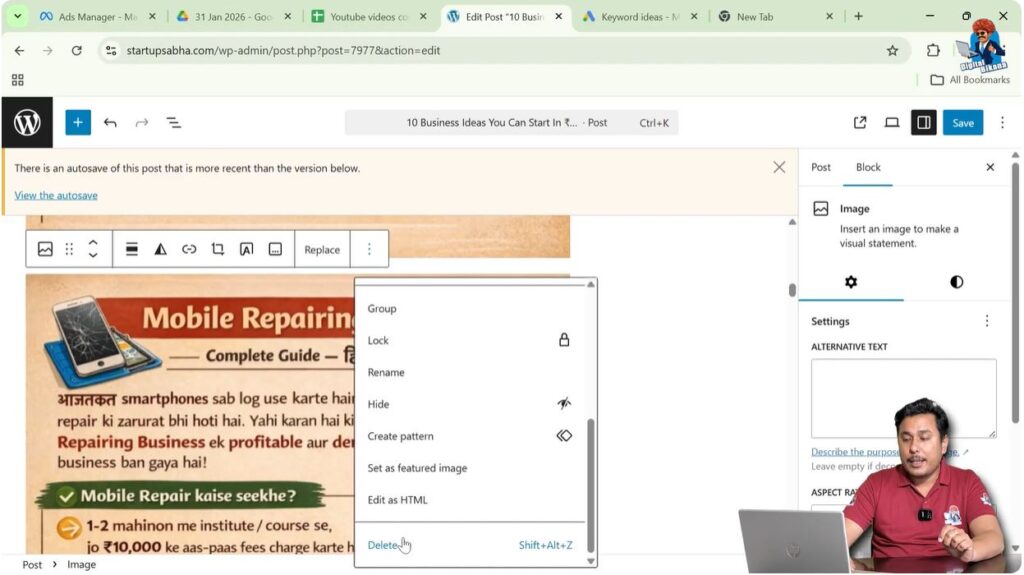
Step 11: Delete the Block
Click on Delete.
The duplicated block will be removed.
This allows you to undo unwanted duplication.
Important Note About Block Toolbar
The block toolbar appears only when a block is selected.
If you do not click on a block, the toolbar will not appear.
Therefore, always select the block first before trying to duplicate it.
Once the block is selected, the toolbar will appear automatically.
From there you can access the duplicate option.
Duplicating Multiple Blocks
You can duplicate blocks multiple times if needed.
If the same content needs to appear several times in a blog post, you can repeat the duplication process.
Step 12: Select Another Block
Click on another block that you want to duplicate.
The toolbar will appear.

Step 13: Duplicate the Block Again
Click on the three-dot icon.
Select Duplicate.
The block will be copied again.
You can repeat this process as many times as required.

When to Duplicate Blocks
Duplicating blocks is useful when you want the same block to appear multiple times in a WordPress blog post.
Instead of creating the same block again and again, duplication saves time.
You can duplicate:
- Text blocks
- Image blocks
- Heading blocks
This feature makes content editing easier and faster.
Conclusion
Duplicating blocks in a WordPress blog post is a simple process that helps save time during content editing. By selecting a block and using the duplicate option from the block toolbar, any block can be copied instantly.
The block toolbar appears only when a block is selected, and the duplicate option is available inside the three-dot menu. This method works for text blocks, image blocks, and other types of blocks.
Using the duplicate feature allows the same content to appear multiple times in a WordPress blog post without creating the blocks manually.

Related Posts


