Creating an external hyperlink in a WordPress website is a simple process. External hyperlinks connect your website to other websites and provide additional information to users. External links can improve the usefulness of your content and help users access more information related to the topic.
In this article, you will learn how to create an external hyperlink in a WordPress website and understand important tips for adding external links properly.
Opening the Posts Section in WordPress Dashboard
First, log in to your WordPress admin dashboard.
After logging in, go to the left-side toolbar where you will see the Posts section.
Click on Posts, and then click on All Posts to reach the screen where all blog posts are displayed.
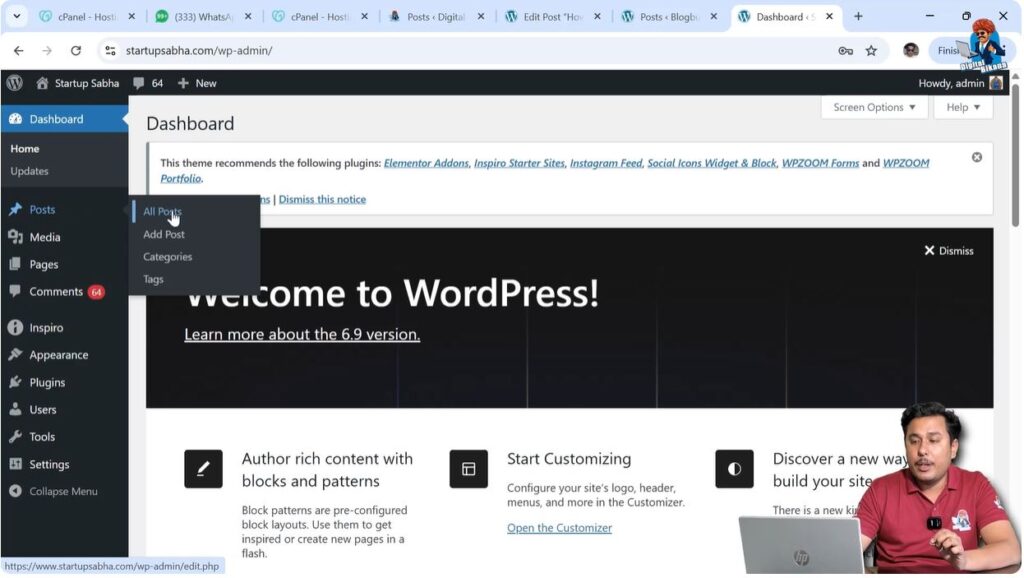
From here, you can create a new post or edit an existing blog post.
In this example, an existing blog post is edited to demonstrate how to add an external hyperlink.
Move your cursor over the title of a previously published article or blog post.
You will see the Edit option.
Click on Edit to open the blog post.
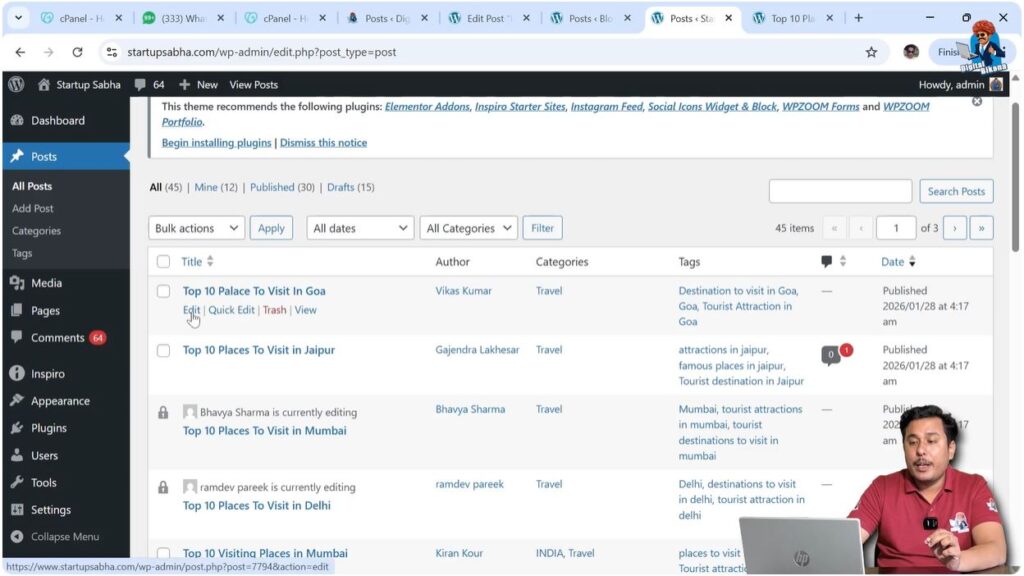
Opening the Blog Post Editor
After clicking Edit, the WordPress editor will open.
Here you will see the content of the blog post.
You can add external hyperlinks anywhere in the content.
For example, you may want to add an external hyperlink on a specific word or phrase.
First, select the word or phrase where you want to add the hyperlink.
This selected text will be the anchor text.
Step 1 – Select Anchor Text
Open the blog post editor.
Locate the word or phrase where you want to add the hyperlink.
Select the word or phrase.
The toolbar will appear above the selected text.
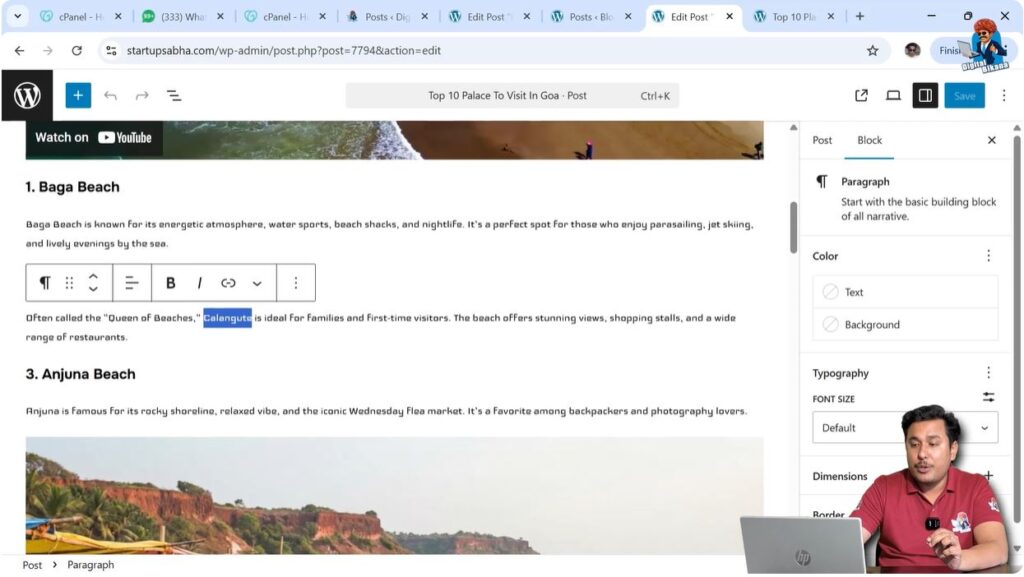
Searching External Website Link
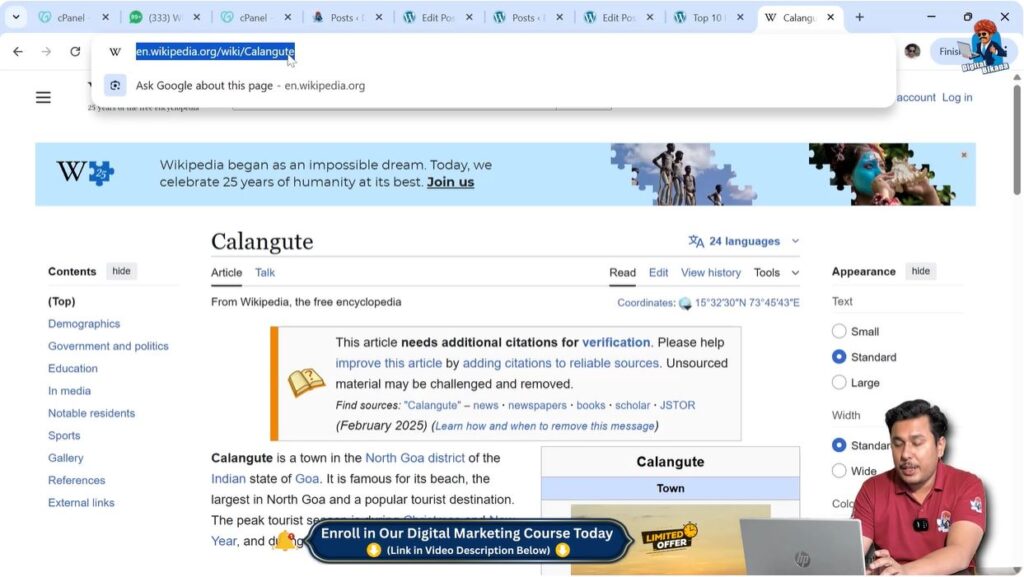
After selecting the anchor text, open a new tab in your browser.
Search for the topic related to the selected word.
For example, you may search for information related to a location or topic on Google.
Open a relevant website such as an informational website.
After opening the website, copy the URL from the address bar.
This URL will be used to create the external hyperlink.
Step 2 – Copy External URL
Open a new browser tab.
Search for the required topic.
Open the relevant web page.
Copy the URL from the address bar.
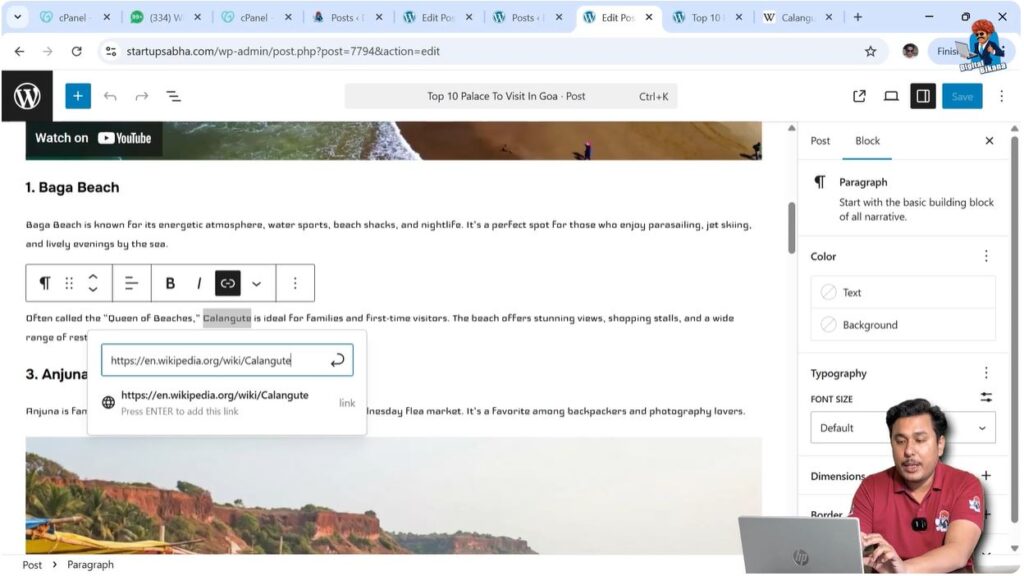
Creating External Hyperlink
After copying the URL, go back to the WordPress editor.
Make sure the anchor text is still selected.
Click on the Link icon in the toolbar.
Paste the copied URL into the link field.
Press Enter.
The external hyperlink will be created.
If a user clicks on the anchor text, the linked external web page will open.
Step 3 – Insert External Link
Select the anchor text.
Click on the Link icon.
Paste the URL.
Press Enter.
The external hyperlink will be created.
Position of External Hyperlinks
External hyperlinks should not be added at the top of the web page.
If external links are placed within the first few paragraphs, users may leave your website early by clicking the link.
This can reduce the average watch time of your web page.
It is better to place external hyperlinks in the middle or near the end of the article.
This allows users to read most of the content before visiting another website.
Proper placement helps maintain good engagement.
Importance of External Links for SEO
Adding external hyperlinks is not mandatory, but it is recommended for SEO purposes.
External links provide references to other sources of information.
They indicate that your content is supported by additional sources.
External links help users access more information about the topic.
Search engines may consider such pages more informative.
Providing references from other websites helps improve credibility.
External links show that the content is supported by reliable sources.
Avoid Linking Competitor Pages on Focus Keywords
External links should not be added on focus keywords.
For example, if your blog post is targeting a particular keyword, you should avoid linking other websites on the same keyword.
If you add competitor links on focus keywords, search engines may consider the external page more relevant.
Search engines may become confused about which page should rank higher.
Therefore, avoid adding external links on keywords that you want your own page to rank for.
Instead, add links on other related words.
Add Only Relevant External Links
External links should always be relevant to the topic.
Irrelevant external links do not help users.
Users may ignore irrelevant links.
Relevant links provide useful information to users.
Relevant links improve the quality of the content.
Always link to pages that are related to your topic.
Recommended Number of External Links
You should not add too many external hyperlinks in a web page.
Adding too many external links can make the page look spammy.
It may appear that the page is promoting other websites.
Too many external links can reduce user engagement.
Users may leave your website by clicking external links.
It is recommended to add only one or two external hyperlinks on a web page.
This keeps the page clean and useful.
Conclusion
Creating an external hyperlink in a WordPress website is a simple process. You need to select the anchor text, copy the URL of the external page, and insert the link using the link icon.
External links should be relevant and placed carefully within the content. Avoid adding competitor links on focus keywords and avoid adding too many external links.
Proper use of external hyperlinks helps improve content quality and supports SEO.

Related Posts