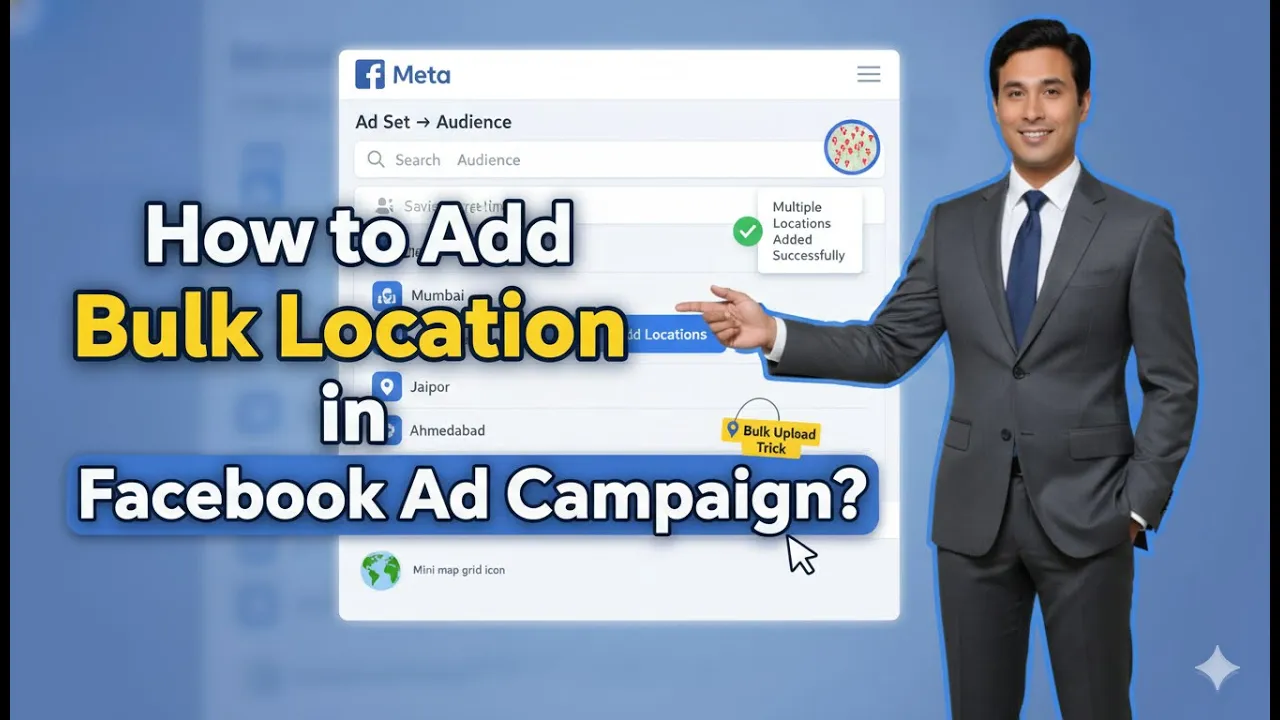
When running Facebook ad campaigns, location targeting plays a very important role. Many advertisers target multiple cities, postal codes, or specific areas. However, manually adding each location one by one can be time-consuming and inefficient.
If you want to run ads in multiple cities or postal codes, Facebook provides a feature that allows you to add locations in bulk. This makes the process faster and more organized.
In this article, we will clearly explain how to add locations in bulk in a Facebook ad campaign using the built-in feature available at the ad set level.
Understanding Where Location Targeting Is Set
Before learning how to add locations in bulk, it is important to understand where location targeting is configured in Facebook Ads Manager.
Location targeting is set at the ad set level, not at the campaign or ad level.
Facebook ad campaigns have three levels:
- Campaign level
- Ad set level
- Ad level
Audience targeting, including location targeting, is always done at the ad set level.
When You Need Bulk Location Targeting
Bulk location targeting becomes useful when:
- You want to target 50 different cities.
- You want to target multiple postal codes.
- You want to target hundreds of specific pin codes.
- You are running region-based campaigns.
Instead of entering each location manually, the bulk option simplifies the process.
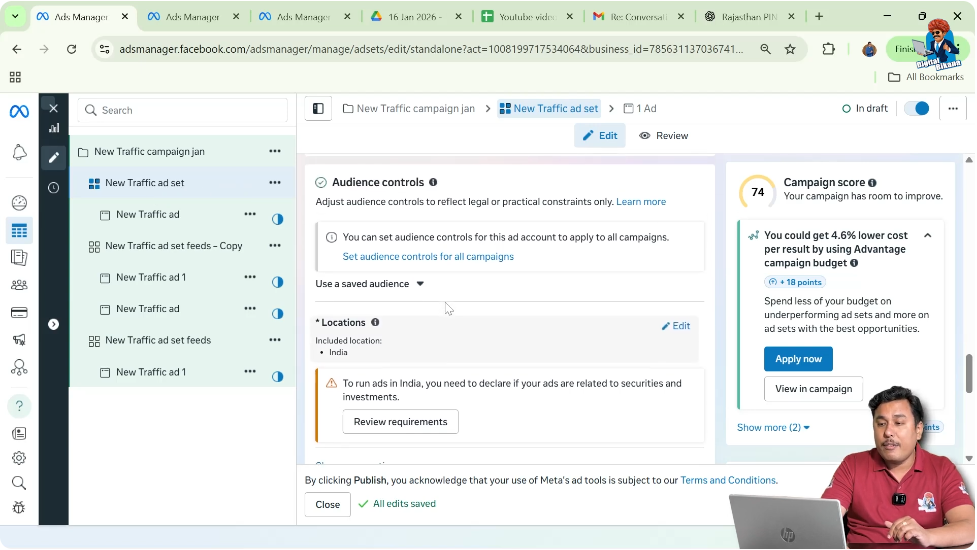
Step 1: Go to Ad Set Level
Open the Audience Control Section
- Log in to Facebook Ads Manager.
- Create a new ad campaign or open an existing one.
- Navigate to the Ad Set level.
- Scroll to the Audience Control section.
This is where location targeting settings are available.
Understanding the Manual Location Entry Method
Normally, advertisers enter locations manually by typing city names one by one and selecting them from the dropdown list.
While this works for a small number of locations, it becomes inefficient when targeting dozens or hundreds of areas.
That is where the bulk location feature becomes helpful.
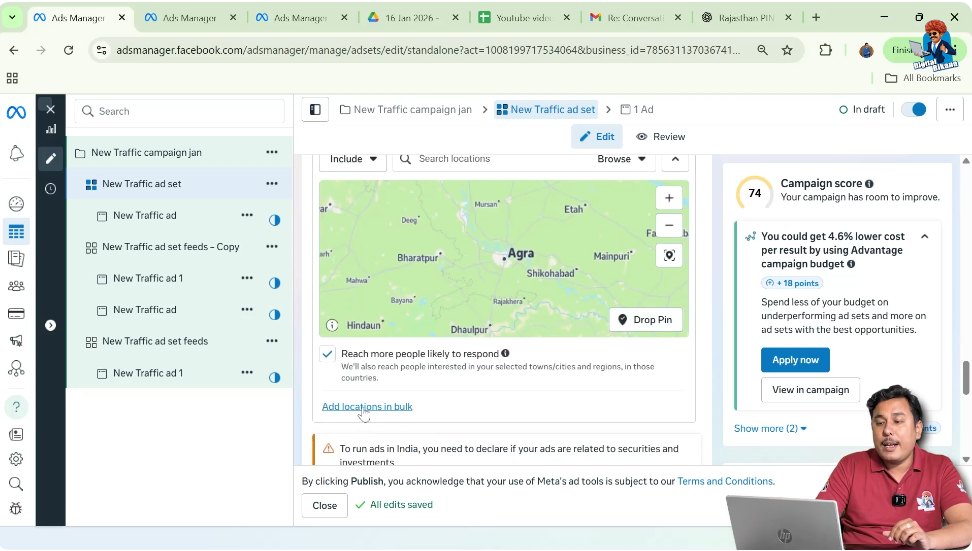
Step 2: Click on “Add Locations in Bulk”
Access the Bulk Location Feature
Inside the Audience Control section:
- Locate the location targeting area.
- Click on the option Add Locations in Bulk.
This opens a new window that allows multiple locations to be entered at once.
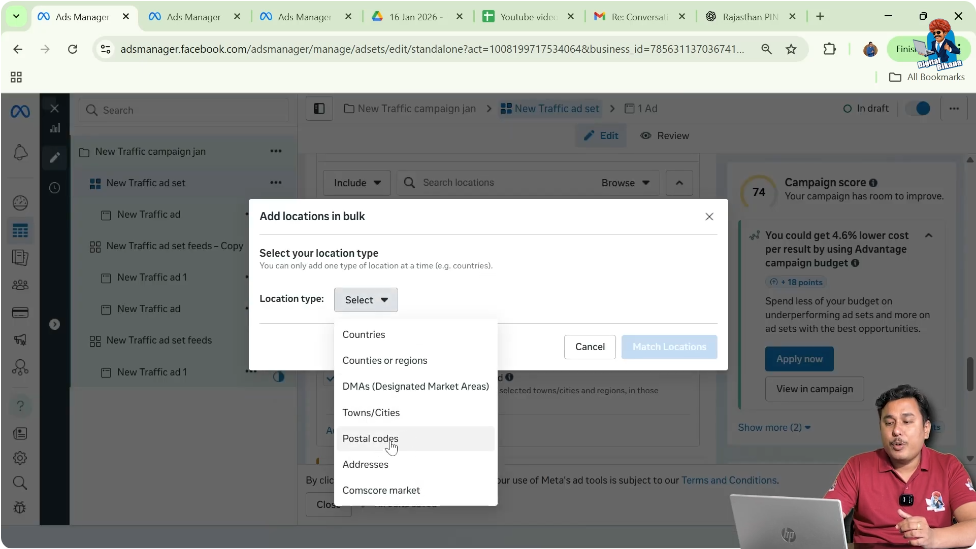
Choosing the Location Type
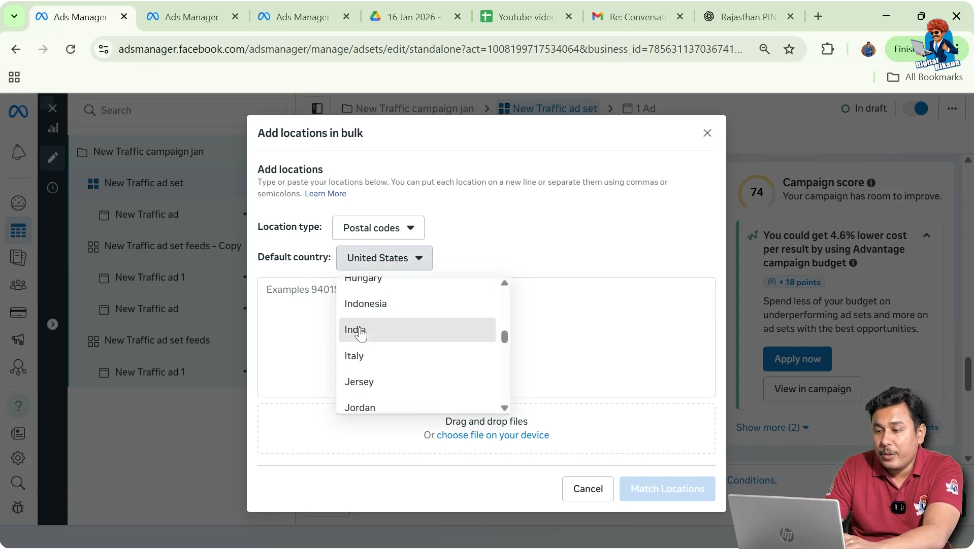
When you open the bulk location window, you must first choose the location type.
Location types may include:
- Cities
- Postal codes
- Regions
If you are targeting postal codes, select the postal code option.
Step 3: Select the Location Type
Choose Postal Code or City
- Choose the appropriate location type from the dropdown.
- For example, if running ads in various postal codes, select Postal Code.
- Ensure the correct type is selected before entering data.
Selecting the correct type ensures accurate matching.
Step 4: Select the Country
Choose the Country Where You Want to Run Ads
After selecting the location type:
- Select the country from the dropdown list.
- Make sure the country matches your target market.
Facebook needs this information to correctly identify postal codes or cities.
Step 5: Enter Locations Separated by Commas
Add Postal Codes or Cities in Bulk
In the text box provided:
- Enter all postal codes or city names.
- Separate each entry using a comma.
- Make sure there are no unnecessary spaces or errors.
For example:
123001, 123002, 123003, 123004
You can add:
- 50 postal codes
- 100 postal codes
- Even 500 postal codes
All separated by commas.

Why Comma Separation Is Important
Facebook requires comma separation to recognize each location individually.
If locations are not separated properly:
- They may not be matched correctly.
- Some locations may be ignored.
Always double-check formatting before proceeding.
Step 6: Click on “Match Locations”
Validate the Entered Locations
After entering all postal codes or cities:
- Click on Match Locations.
- Facebook will process the entered data.
- It will identify and match valid locations.
This step ensures that the system recognizes your entries.

Step 7: Click on “Add Locations”
Confirm and Add All Matched Locations
Once Facebook matches the entered locations:
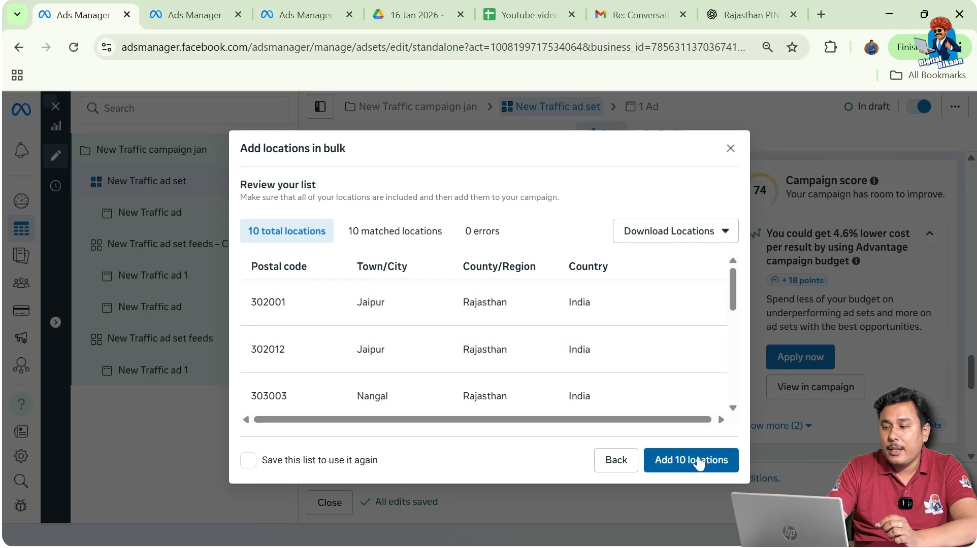
- Review the matched list.
- Click on Add Locations.
All selected postal codes or cities will now be added to your ad set targeting.
Verifying Added Locations
After clicking “Add Locations,” you will see:
- All selected postal codes displayed in the location section.
- The targeting updated accordingly.
This confirms that bulk locations have been successfully added.
Advantages of Adding Locations in Bulk
Using the bulk location feature provides several benefits:
- Saves time
- Reduces manual effort
- Minimizes typing errors
- Allows targeting large geographic areas efficiently
This method is ideal for large-scale location targeting.
Example Scenario
Suppose you want to run ads in:
- 50 different cities
- 100 postal codes
- 500 pin codes
Instead of manually entering each location:
- Enter all in a single list
- Separate with commas
- Match and add
This simplifies the entire process.
Common Mistakes to Avoid
When adding locations in bulk, avoid the following mistakes:
- Selecting the wrong location type
- Choosing the wrong country
- Not separating entries with commas
- Entering incorrect postal codes
Always verify entries before clicking “Match Locations.”
Manual vs Bulk Location Entry
Manual Entry:
- Suitable for few locations
- Time-consuming for large lists
Bulk Entry:
- Suitable for many locations
- Fast and efficient
- Reduces workload
Bulk targeting is recommended when handling multiple geographic areas.
Important Reminder
Always ensure that:
- Postal codes are correct
- Country is selected properly
- Locations are formatted correctly
Incorrect entries may result in unmatched or missing locations.
Final Explanation in Simple Words
To add location in bulk:
- Go to ad set level.
- Open audience control.
- Click Add Locations in Bulk.
- Select location type.
- Choose country.
- Enter locations separated by commas.
- Click Match Locations.
- Click Add Locations.
That’s all you need to do.
Conclusion
Adding locations in bulk in a Facebook ad campaign is a simple and efficient process available at the ad set level inside the audience control section. Instead of manually entering cities or postal codes one by one, you can use the bulk location feature to add multiple areas at once.
By selecting the correct location type, choosing the appropriate country, entering postal codes separated by commas, and matching the locations before adding them, you can quickly set up large-scale geographic targeting.
This feature saves time, reduces manual errors, and allows advertisers to run campaigns across multiple locations efficiently.

Related Posts