In this article, we are going to learn how to create a custom audience in Facebook Ads Manager using mobile numbers. Many times, businesses already have mobile numbers of their existing customers or prospective customers. These users may be actively using Facebook or Instagram with the same mobile numbers they used while signing up for their accounts.
If you want to show your business ads specifically to those users on Facebook and Instagram, creating a custom audience using mobile numbers is a very effective method. This allows you to retarget users who already have some connection with your business.
This article explains the complete step-by-step process of creating a mobile number–based custom audience in Facebook Ads Manager, including downloading the template, editing the file correctly, uploading it, and finalizing the audience.
Understanding Mobile Number Custom Audience
A mobile number custom audience is created by uploading a list of phone numbers you already have. Facebook then matches these phone numbers with user accounts that were created using the same numbers.
When a match is found, those users become part of your custom audience. You can then show retargeting ads to them on Facebook and Instagram.
This method is useful when:
- You have customer phone numbers
- You have prospect or lead phone numbers
- You want to retarget existing contacts
- You want to improve ad relevance
Where to Create Mobile Number Custom Audience
To create a custom audience using mobile numbers, you need to go to the Audiences section inside Meta Ads Manager.
This section allows you to manage:
From here, you can start creating a new custom audience using your customer list.
How to Create a Custom Audience in Facebook Ads Manager Using Mobile Numbers?
Step 1: Go to the Audiences Section
Open Ads Manager and Navigate to Audiences
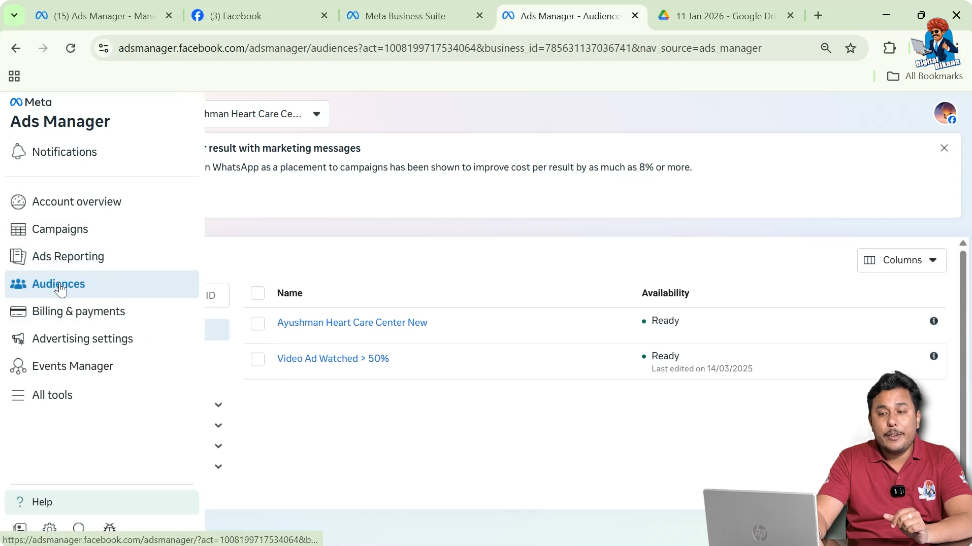
First, open Facebook Ads Manager. On the left side, you will see the Audiences option. Click on it to open the audiences page.
This is where all audience-related actions are performed.
Step 2: Click on Create Audience
Choose Custom Audience
On the audiences page, click on the Create Audience button. From the available options, select Custom Audience.
This allows you to create an audience using your own data.

Step 3: Select Customer List as Data Source
Choose Customer List Option
After selecting Custom Audience, Facebook will ask you to choose a data source. Select Customer List and click on Next.
This option is used to upload mobile numbers, email IDs, or other customer data.

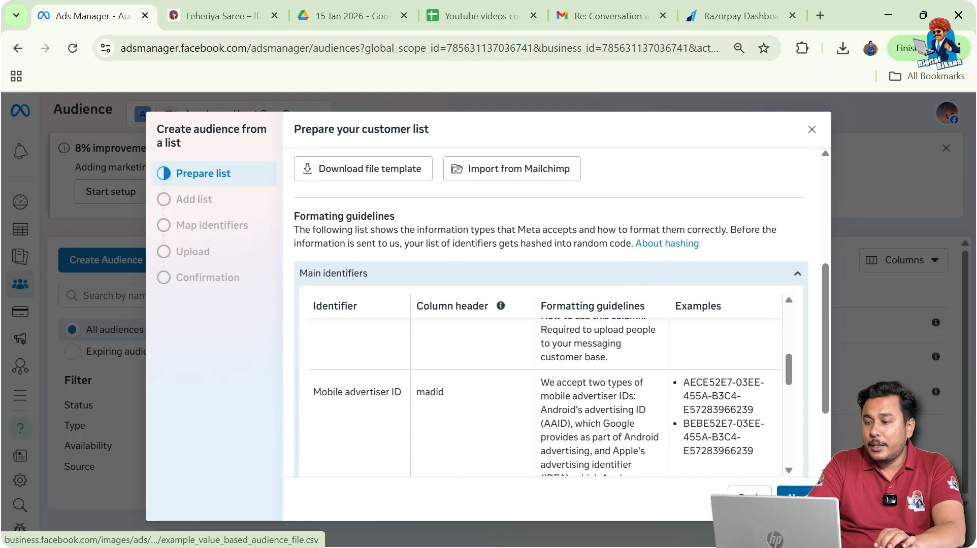
Downloading the Sample File Template
Step 4: Download the File Template
Get the Sample CSV File
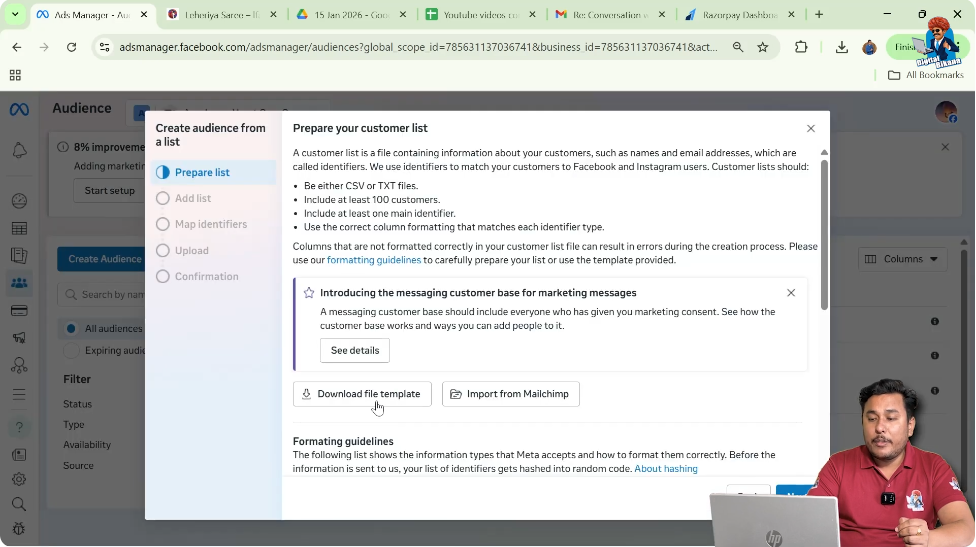
Facebook provides a sample file template to help you understand how to format your data. Click on Download File Template.
The file is downloaded in CSV format.
Opening and Preparing the File
Step 5: Open the Downloaded CSV File
Use Microsoft Excel
Open the downloaded CSV file using Microsoft Excel. Your Microsoft Excel or Microsoft Office must be activated to edit the file properly.
If Excel is not activated, you may not be able to make changes.

Step 6: Remove Email Columns
Delete Email Column
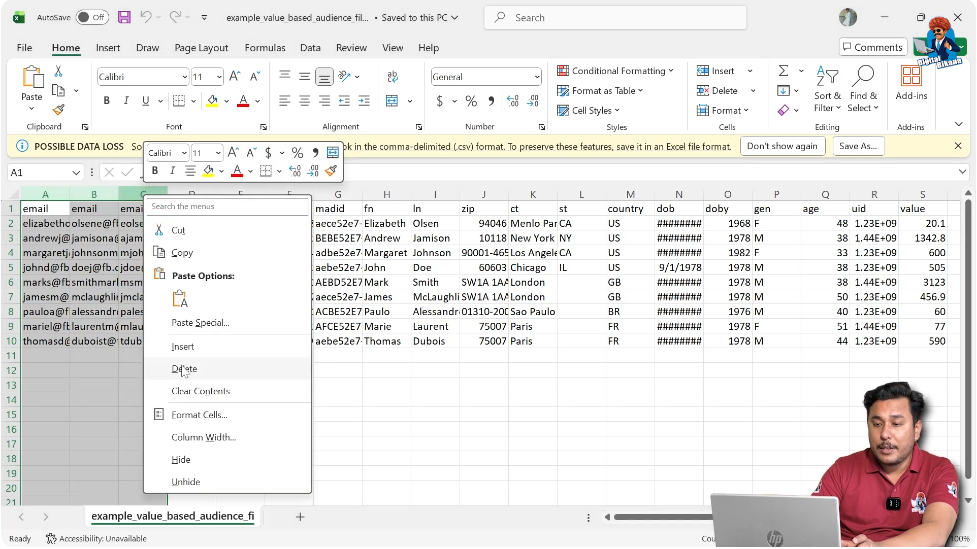
Since we are creating a custom audience using mobile numbers, the email column is not required.
- Select the email column
- Click on delete
This removes unnecessary data.
Step 7: Remove All Other Unnecessary Columns
Keep Only Phone Number Column
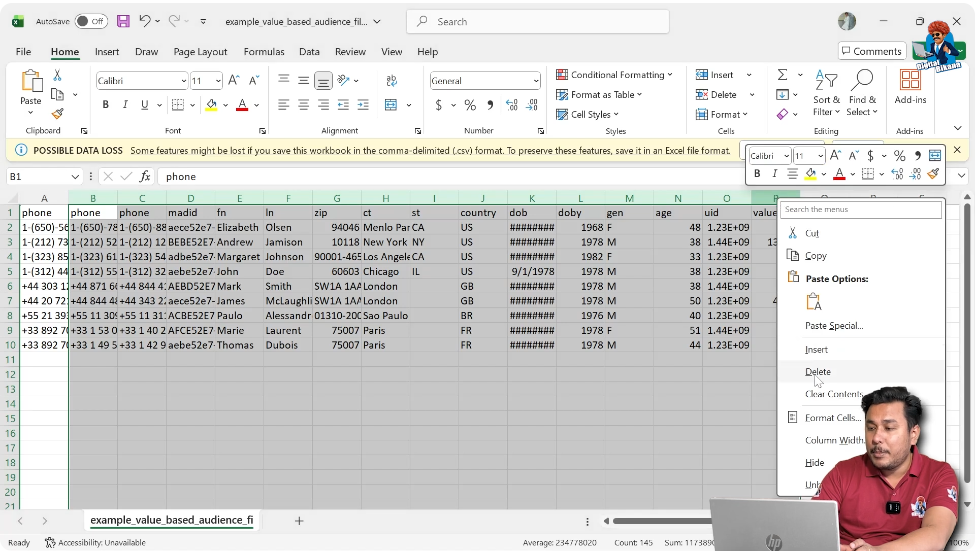
The sample file contains multiple columns that are not required.
- Select all unwanted columns
- Delete them
Only the phone number column should remain.
Step 8: Remove Sample Numbers
Clear Existing Sample Data
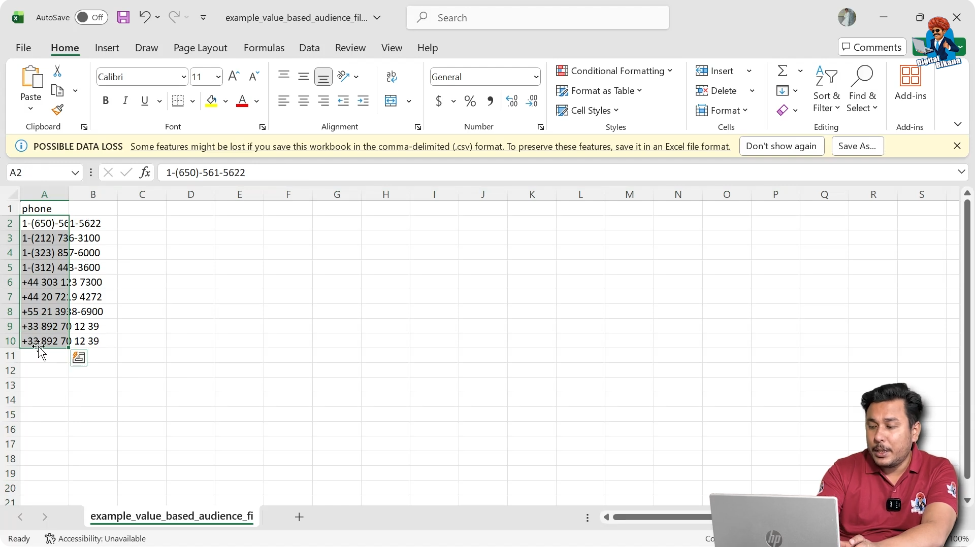
The template contains sample phone numbers. Select these sample numbers and delete them so that you can enter your own data.
Entering Mobile Numbers Correctly
Step 9: Enter Mobile Numbers With Country Code
Add Customer Phone Numbers
Now enter the mobile numbers of your customers or prospects.
Important points:
- Enter numbers with country code
- Enter one number per row
- You can add hundreds or thousands of numbers
This data will be used for audience matching.

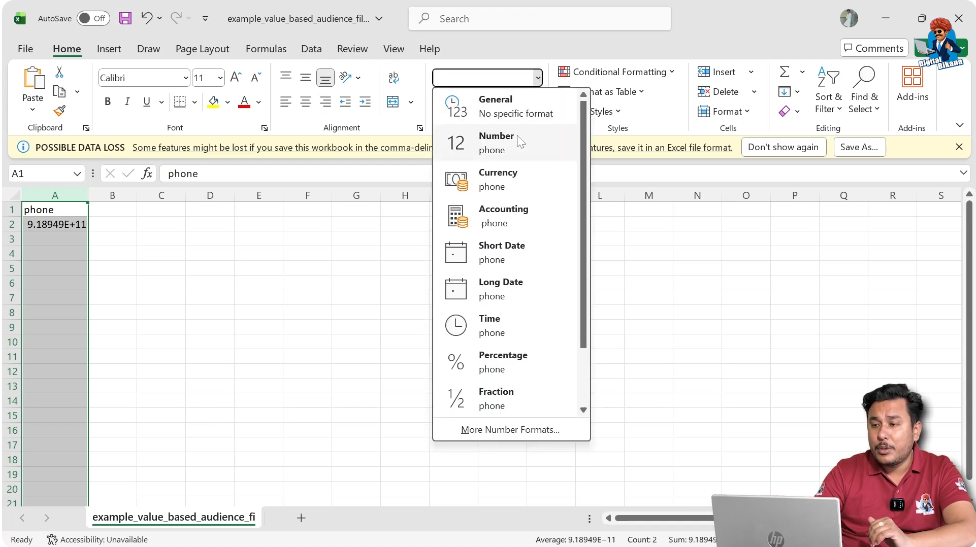
Step 10: Fix Exponential Number Format
Convert Exponential to Number
Sometimes, when a mobile number has more than 10 digits, Excel automatically converts it into exponential format.

To fix this:
- Select the phone number column
- Change format from General to Number
- Remove decimal values
This ensures the full mobile number is displayed correctly.
Step 11: Save the Edited File
Save CSV File
After entering all mobile numbers and correcting the format, click on Save.
Make sure the file remains in CSV format, as Facebook only accepts CSV files.
Uploading the File to Facebook Ads Manager
Step 12: Return to Ads Manager
Go Back to Browser
Go back to the Facebook Ads Manager page where you left the process. Click on Next to proceed.
Step 13: Upload the Edited CSV File
Choose File From Device
Facebook will ask you to drag and drop the file or choose it from your device.
- Click on Choose File
- Select the edited CSV file
- Click on Open
The file will now be uploaded.

Naming and Confirming the Audience
Step 14: Enter Custom Audience Name
Use a Clear Reference Name
After uploading the file, Facebook allows you to name the audience.
Use a clear name such as:
- Mobile Number Audience
- Trial Mobile Numbers
- Customer Phone List
This helps in identifying the audience later.

Step 15: Agree and Continue
Confirm Audience Creation
There is a checkbox to confirm that you agree to create a custom audience. Tick the checkbox and click on Next.
Mapping and Creating the Audience
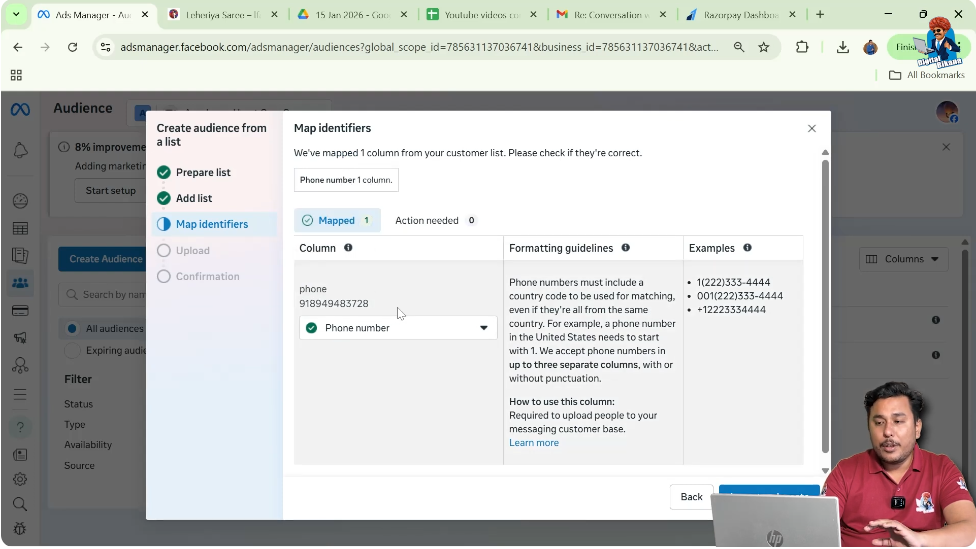
Step 16: Confirm Phone Number Mapping
Check Mapping Details
Facebook automatically maps the phone number column. It shows that one column has been mapped as phone number.
This confirms the file is uploaded correctly.
Step 17: Import and Create Audience
Final Creation Step
Click on Import and Create.
Facebook now starts creating your mobile number custom audience.
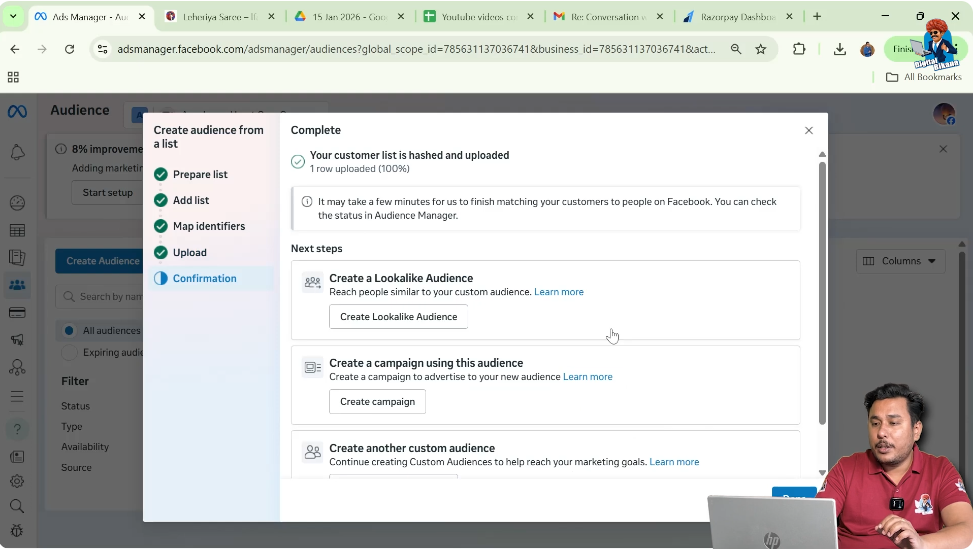
Audience Creation Status
After importing:
- The audience is created
- The number of rows uploaded is displayed
- The audience status becomes Populating
This means Facebook is matching phone numbers with user accounts.
Time Required for Audience to Be Ready
The custom audience usually takes 24 to 48 hours to become ready.
During this time:
- Facebook matches phone numbers
- Audience size is finalized
Once ready, the audience can be used in ad campaigns.
Using Mobile Number Custom Audience for Retargeting
After the audience is ready, you can:
- Create a new ad campaign
- Select this custom audience at the ad set level
- Run retargeting ads
These ads will be shown only to users whose mobile numbers you uploaded.
Benefits of Mobile Number Custom Audience
Creating a mobile number custom audience helps you:
- Retarget existing customers
- Reach prospect leads
- Increase ad relevance
- Improve conversion chances
Users are more likely to engage because they already know your business.
Mobile Number Custom Audience Explained in Simple Words
In simple words:
- You already have customer phone numbers
- You upload them to Facebook Ads Manager
- Facebook matches them with user accounts
- You show ads only to those users
- You run retargeting campaigns
This makes your ads more focused and effective.
Common Mistakes to Avoid
While creating a mobile number custom audience:
- Do not upload Excel files instead of CSV
- Do not keep unnecessary columns
- Do not forget to fix exponential number format
- Do not forget country codes
Avoiding these mistakes ensures smooth audience creation.
Final Conclusion
Creating a custom audience in Facebook Ads Manager using mobile numbers is a powerful way to retarget users who already have a connection with your business. By correctly downloading the template, removing unnecessary columns, entering mobile numbers with proper formatting, and uploading the CSV file, you can easily create a mobile number–based custom audience.
Once the audience is ready, you can use it for retargeting ad campaigns on Facebook and Instagram. This method helps improve ad relevance, build brand recall, and increase conversion chances using your existing customer data.

Related Posts