Facebook Ads Manager is the main platform where advertisers create, manage, and analyze their advertising campaigns. Before running any advertisement on Facebook or Instagram, the first and most important step is accessing Ads Manager correctly. Many beginners find it confusing to locate Ads Manager, especially because Facebook provides more than one way to access it. In this article, we will explain how to open Ads Manager in Facebook in a very simple and structured manner. There are two official methods to open Ads Manager, depending on whether you are using your Facebook profile or your Facebook page. Both methods are explained step by step so that even a beginner can follow them easily.
Understanding Ads Manager in Facebook
Ads Manager is the place where all advertising-related activities happen. Once Ads Manager is opened, users can create new ad campaigns, manage existing campaigns, check performance reports, control budgets, and handle billing-related settings. Because of its importance, knowing how to access Ads Manager quickly is essential for anyone involved in digital marketing or online advertising.
Facebook allows users to access Ads Manager from different interfaces to make the process flexible. These interfaces depend on whether you are operating as an individual user or as a business page admin.
How to Open Ads Manager in Facebook?
Method 1: Opening Ads Manager from Facebook Profile
This is the first and most commonly used method. It is suitable when you are logged into your personal Facebook account.
Step 1: Log in to Your Facebook Account
Start by logging in to your Facebook account using your email address or phone number and password. Once logged in, you will land on your Facebook home feed. This is the main dashboard of your Facebook profile.
At this stage, make sure you are logged into the correct account that has access to Ads Manager.
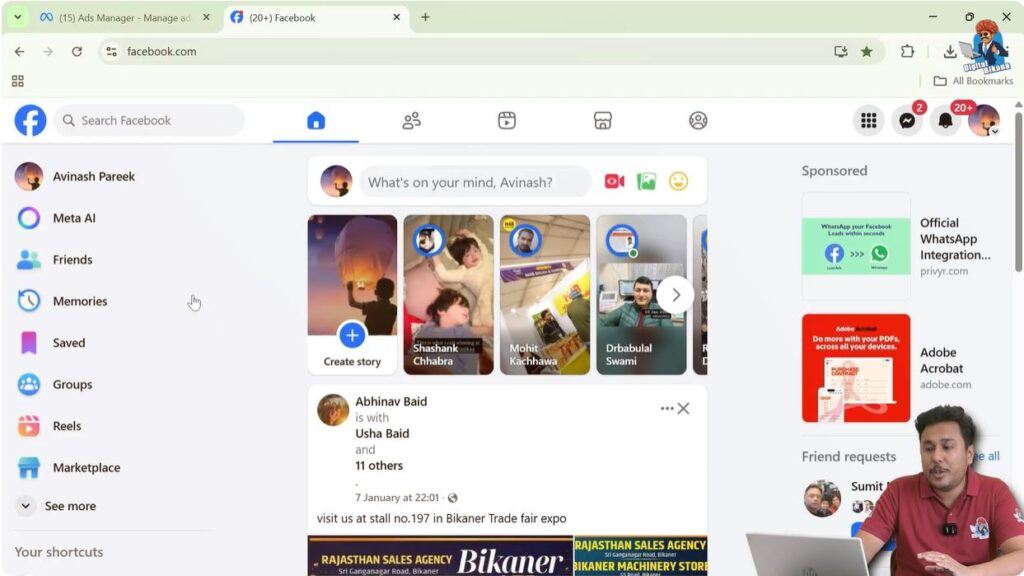
Step 2: Locate the Left-Side Menu
After logging in, look at the left-hand side of your Facebook screen. This section contains several shortcuts such as Friends, Groups, Marketplace, Memories, and more.
However, Ads Manager may not be visible immediately in this list.
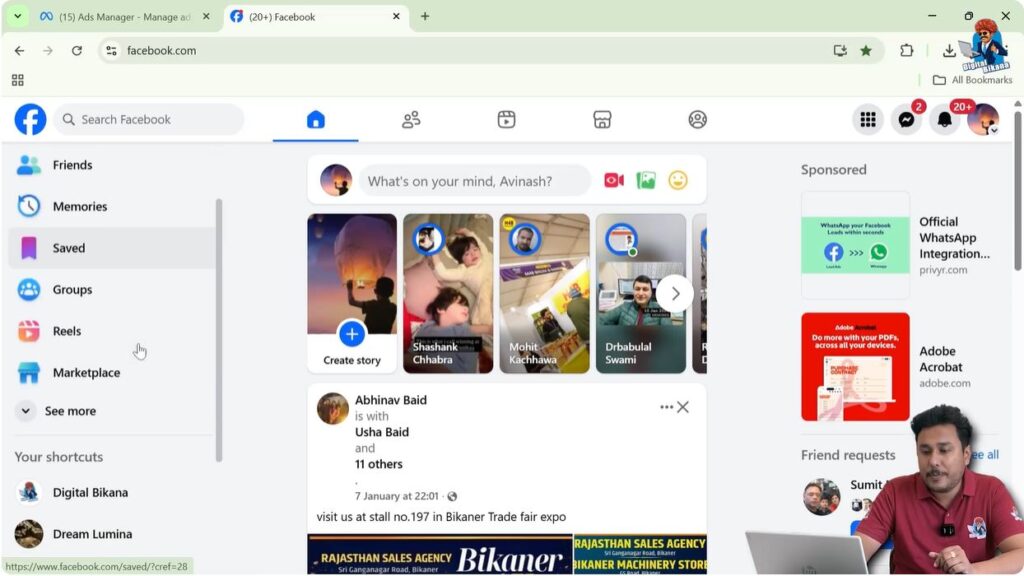
Step 3: Click on “See More”
In the left-side menu, scroll slightly and look for an option called “See more.” This option expands the menu and shows additional tools and features available on Facebook.
Click on “See more” to reveal hidden options.

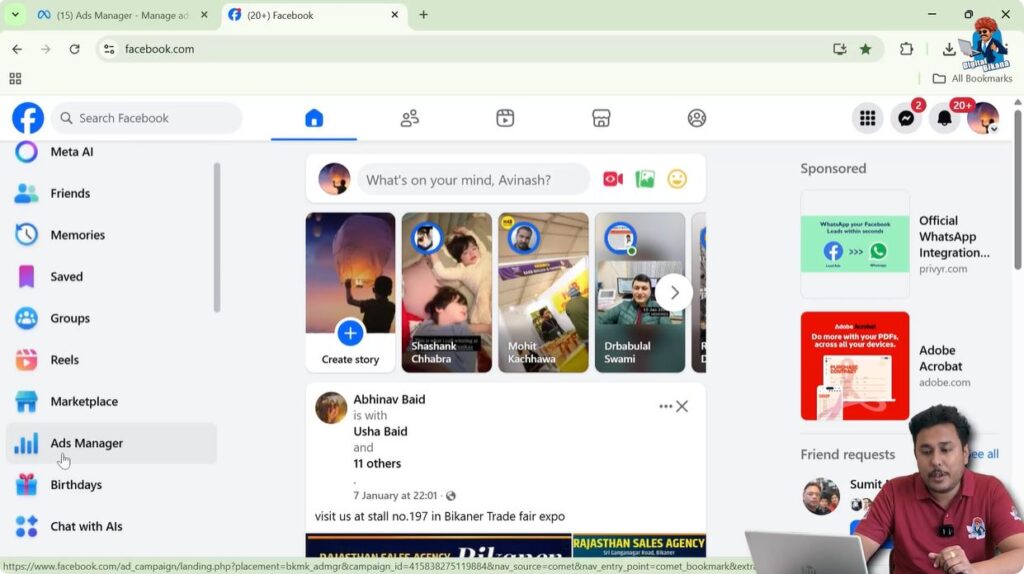
Step 4: Find and Click on Ads Manager
Once the menu expands, you will see the Ads Manager option in the list. This option is specifically designed to take users directly to Facebook Ads Manager.
Click on Ads Manager.
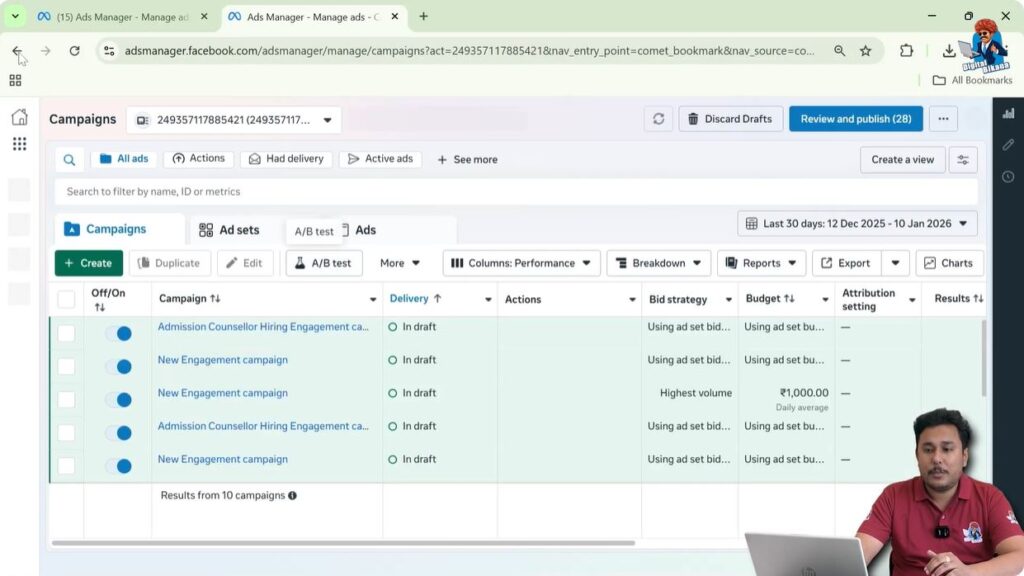
Step 5: Ads Manager Opens Successfully
As soon as you click on Ads Manager, Facebook will redirect you to the Ads Manager interface. You are now inside Ads Manager and can start managing or creating ad campaign.
This confirms that Ads Manager has been opened successfully using your Facebook profile.
Method 2: Opening Ads Manager from Facebook Page
The second method is useful when you are already operating from a Facebook page, especially if you manage ads for a business or brand.
Switching from Facebook Profile to Facebook Page
Before accessing Ads Manager through this method, you must first switch from your Facebook profile to your Facebook page.
Step 1: Click on the Top-Right Profile Icon
On the top-right corner of Facebook, you will see your profile icon. Click on this icon to open the account switching menu.
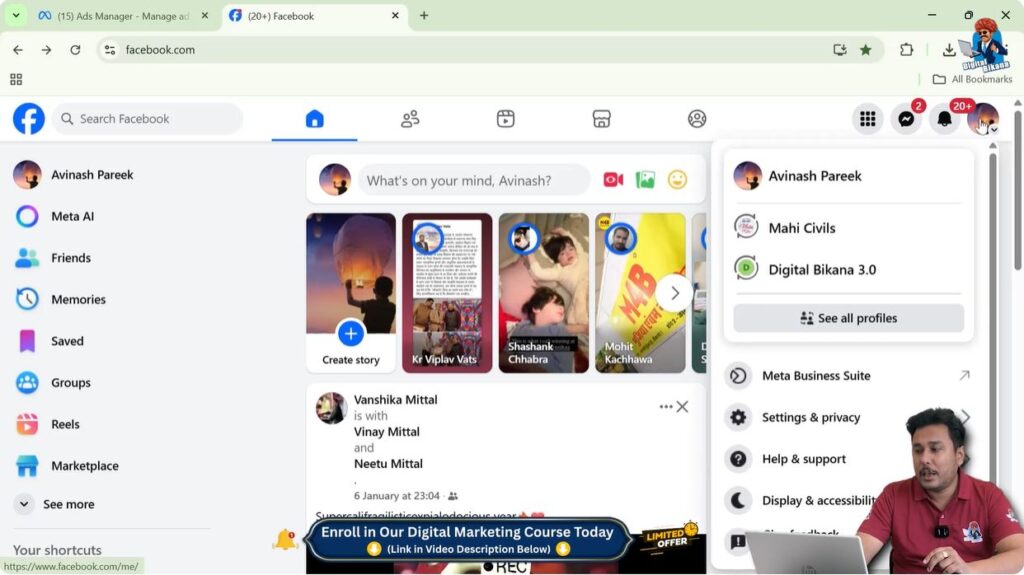
Step 2: Switch to Your Facebook Page
From the dropdown menu, select the Facebook page you want to manage. Once selected, Facebook will switch your view from your personal profile to your business page.
Now you are officially using Facebook as a page.
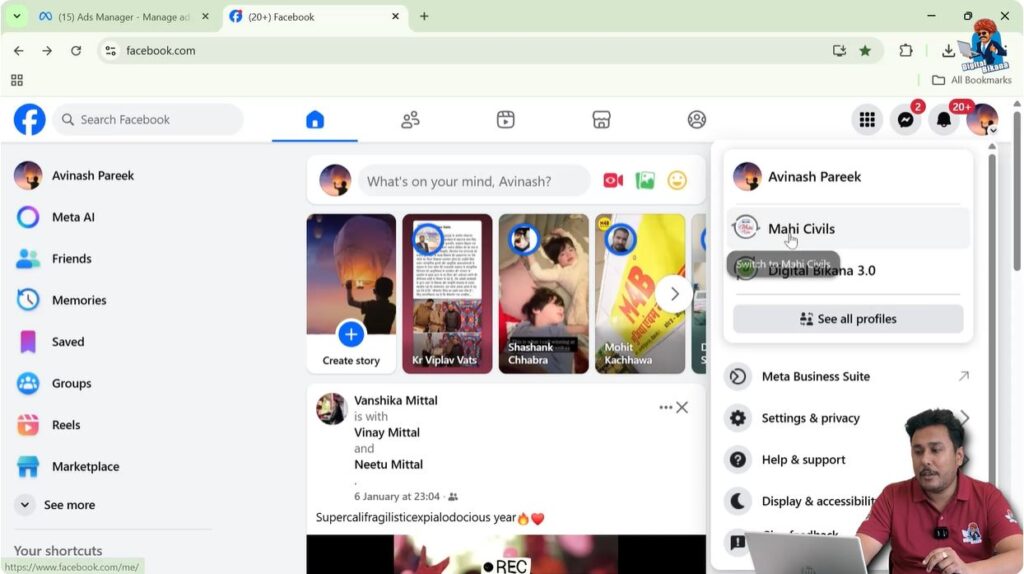
Step 3: Locate Ads Manager in the Left-Side Menu
After switching to your Facebook page, look at the left-hand side menu again. Unlike the profile view, Ads Manager is often directly visible in the page interface.
There is no need to click on “See more” in most cases.
Step 4: Click on Ads Manager
Click directly on Ads Manager from the left-side menu.
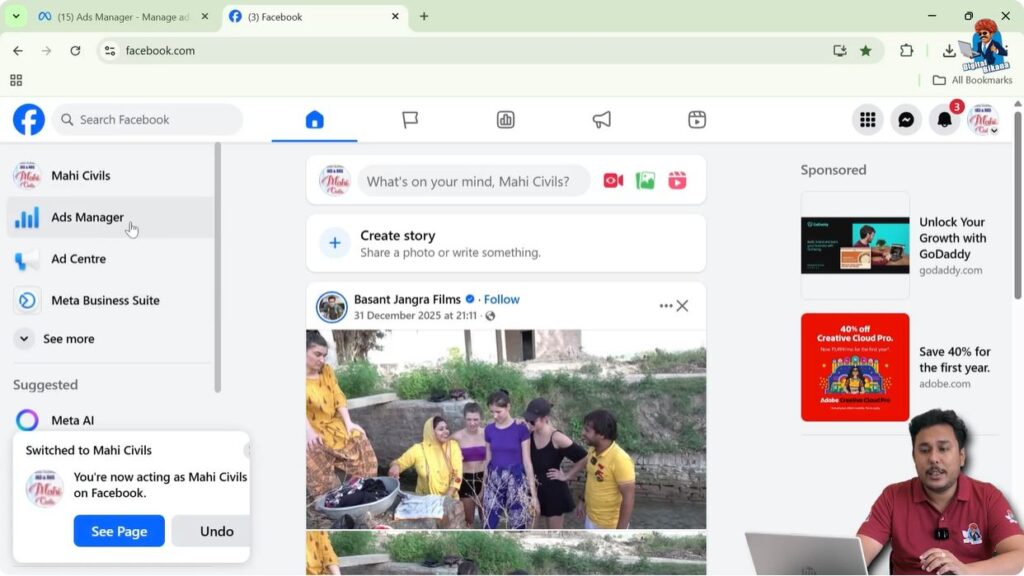
Step 5: Ads Manager Opens from Page View
Once clicked, Ads Manager opens immediately. You are now inside Ads Manager while operating from your Facebook page.
This method is especially useful for businesses, agencies, and page administrators who manage ads regularly.
Difference Between the Two Methods
Both methods lead to the same Ads Manager interface. The difference lies only in how you access it, not in what you can do inside Ads Manager.
- The first method is useful when you are browsing Facebook as an individual user.
- The second method is convenient when you are already managing a Facebook page.
Regardless of the method used, all advertising tools and features remain the same once Ads Manager is opened.
Why Facebook Provides Two Methods to Open Ads Manager
Facebook supports both individual advertisers and businesses. Some users prefer working from their personal profiles, while others operate entirely through Facebook pages. To support both workflows, Facebook offers multiple access paths to Ads Manager.
This flexibility ensures that users can open Ads Manager quickly without unnecessary navigation.
Common Mistakes While Trying to Open Ads Manager
Many beginners struggle to open Ads Manager because they expect it to be visible immediately. In reality, it may be hidden under the “See more” option or available only after switching to a page.
Understanding both methods helps avoid confusion and saves time.
Final Thoughts
Opening Ads Manager in Facebook is a simple process once you understand where to look. Whether you are using a Facebook profile or a Facebook page, Facebook provides a clear and direct way to access Ads Manager.
By following the steps explained above, you can easily open Ads Manager and start working on your advertising campaigns without any difficulty.
This article covered both available methods in detail so that you can choose the one that best suits your workflow.

Related Posts