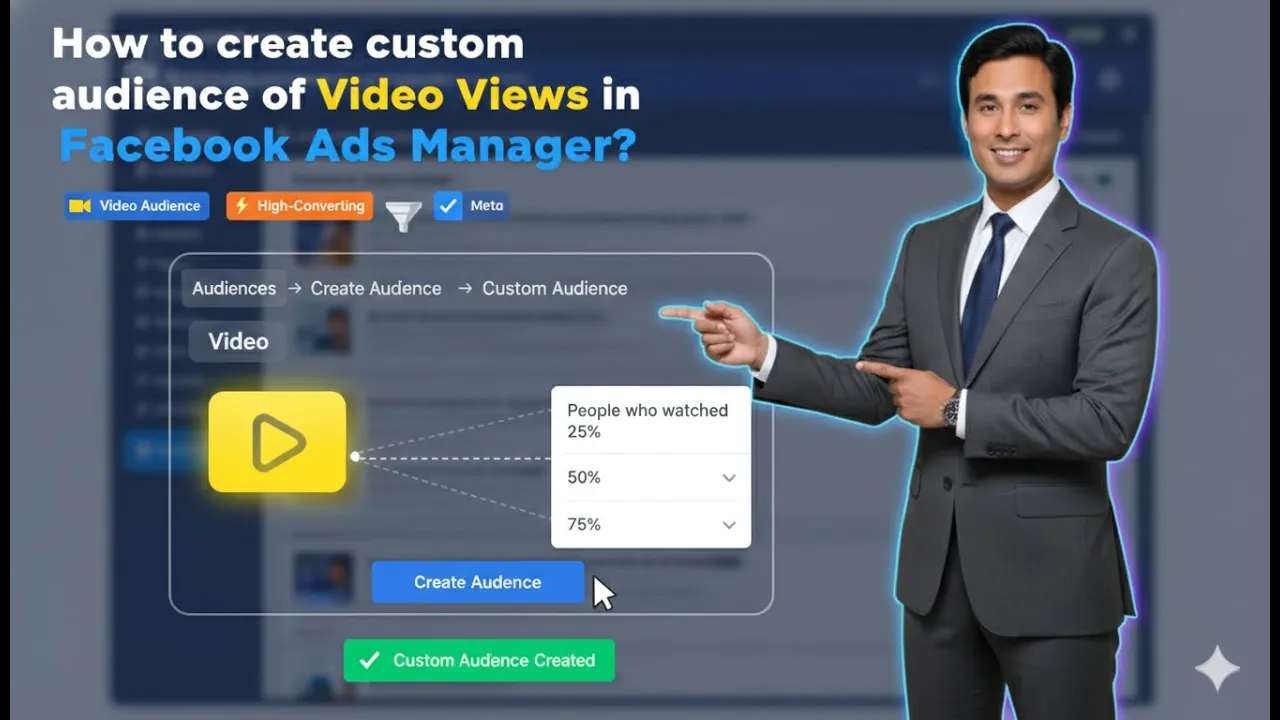
In this article, we are going to learn how to create a custom audience of video views in Facebook Ads Manager. Video view–based custom audiences are extremely useful when you want to retarget users who have already shown interest in your content by watching your videos.
When someone watches your video for a longer duration, it clearly indicates interest. Facebook Ads Manager allows advertisers to create custom audiences based on how much of a video users have watched. These audiences can later be used for retargeting campaigns to get better results.
This article explains the complete process of creating a video views custom audience, how to choose the right video watch percentage, how to select videos, how audience retention works, and how this strategy helps in running effective ad campaigns.
Understanding Video Views Custom Audience
A video views custom audience is created from users who have watched your video ads or video content on Facebook or Instagram. Instead of targeting cold users, this audience allows you to retarget people who have already engaged with your videos.
The longer a user watches your video, the more interested that user is likely to be. This is why video view duration plays a very important role in audience quality.
Where to Create Video Views Custom Audience
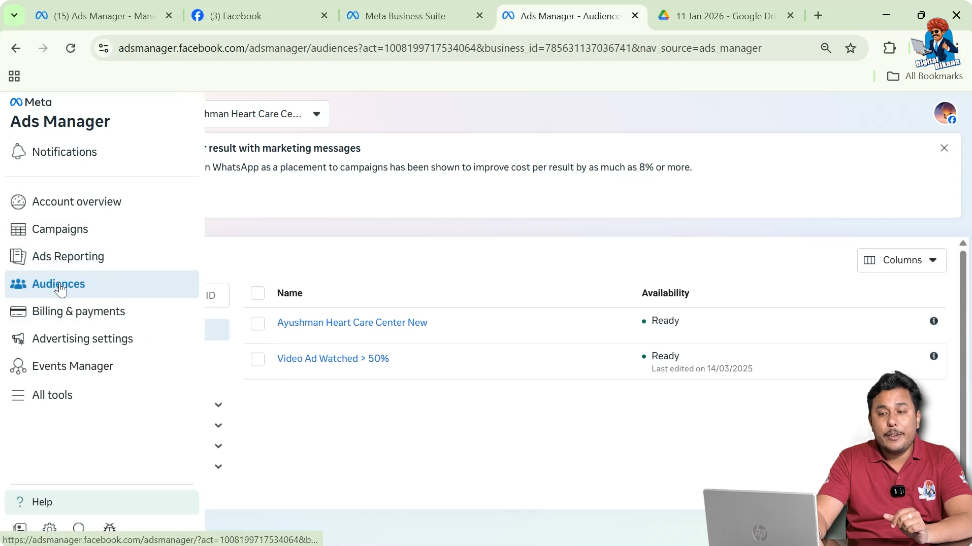
To create a custom audience of video views, you need to go to the Audiences section inside Facebook Ads Manager.
This section allows you to:
- Create custom audiences
- Manage existing audiences
- Use audiences for future ad campaigns
How to Create a Custom Audience of Video Views in Facebook Ads Manager?
Step 1: Go to the Audiences Section
Open Facebook Ads Manager
First, log in to Facebook Ads Manager. Inside Ads Manager, click on the Audiences option. Once you click on it, the audiences page will appear.
This is the starting point for creating any custom audience.
Step 2: Click on Create Audience
Select Custom Audience
On the audiences page, click on the Create Audience button. From the available options, select Custom Audience.
This allows you to create an audience based on engagement or interaction.

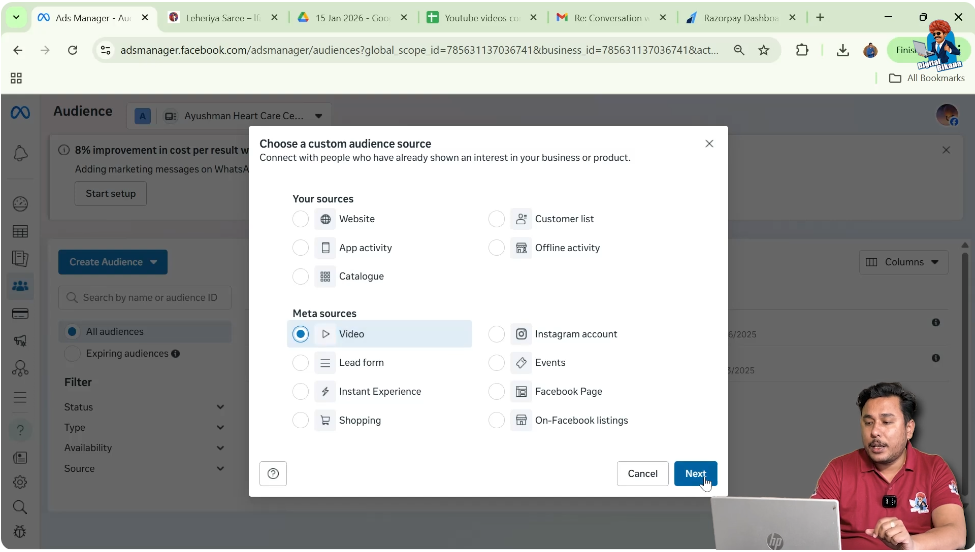
Step 3: Select Video as the Custom Audience Source
Choose Video Engagement
After selecting Custom Audience, you will see different data source options. From these options, select Video as your custom audience source and click on Next.
This means your custom audience will be created based on video engagement.
Understanding Video Engagement Options
After selecting video as the source, Facebook asks which type of video engagement you want to use to create the audience.
There are multiple options available.
Video Engagement Options Explained
3 Seconds Video View
Facebook allows you to create a custom audience of people who watched at least 3 seconds of your video. However, this duration is very small and usually not recommended for quality retargeting.
Users may watch 3 seconds accidentally or without interest.
10 Seconds and 15 Seconds Video View
You can also create audiences of users who watched:
- At least 10 seconds
- At least 15 seconds
These audiences are better than 3 seconds but still may include users with low intent.
Percentage-Based Video Views
Facebook also allows you to create custom audiences based on the percentage of video watched:
- 25%
- 50%
- 75%
- 95%
These options help you create more targeted and relevant audiences.

Choosing the Right Video View Percentage
Selecting the correct video view percentage is very important for getting good results.
Strategy Behind Using Video Views for Custom Audience
To understand this properly, let us take an example.
Suppose you want to promote a digital marketing course.
Instead of directly running sales or promotional ads, you first create informational videos. These videos are not advertisements but educational content.
For example:
- How to promote your business using social media
- How to create a Facebook page
- What is required to create a website
You run these videos as awareness or traffic ad campaigns to a general or saved audience.
How User Interest Is Measured Through Video Views
If a user is not interested in business or digital marketing:
- They may watch only 3 to 10 seconds
- They may skip the video quickly
But if a user:
- Is a businessman
- Is interested in social media marketing
- Wants to promote their business
Then they are more likely to watch the video for a longer duration.
Why 25% Video View Is Not Always Enough
For a 1-minute video:
- 25% equals 15 seconds
In most cases:
- The first 15 seconds are used for introduction
- Many users watch this part even if the video is not relevant
So 25% video view does not always indicate strong interest.
Why 50% Video View Is a Good Choice
50% of a 1-minute video equals 30 seconds.
By this time:
- The actual content has started
- Users have decided whether the video is relevant or not
If someone watches 50% of your video, it clearly shows interest.
This is why 50% video view is considered a healthy and balanced option.
Why Not Always Choose 75% or 95%
While 75% or 95% video views create very high-quality audiences, they can be too narrow.
If your audience becomes too small:
- Retargeting may not be effective
- Ad delivery may be limited
So a balance between quality and audience size is important.
Step 4: Select 50% Video View Option
Choose a Healthy Engagement Level
For this reason, select 50% video view as your engagement criteria.
This gives you:
- Interested users
- A healthy audience size

Selecting Videos for Custom Audience
Step 5: Select Video Source
Choose Facebook Page
After selecting the video view percentage, you need to choose the source of your videos.
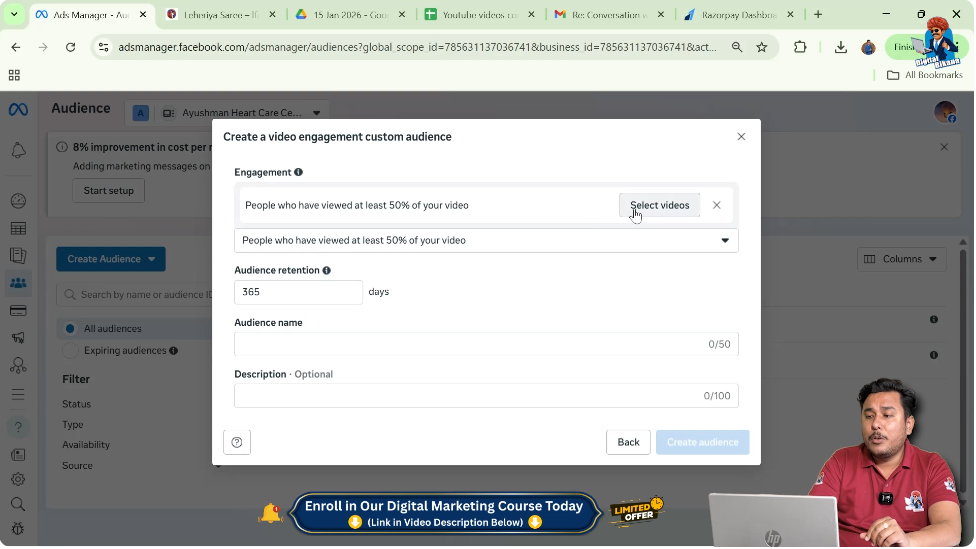
You can select:
- Videos from your Facebook page
- Videos from your Instagram account
- Videos used directly in ad campaigns
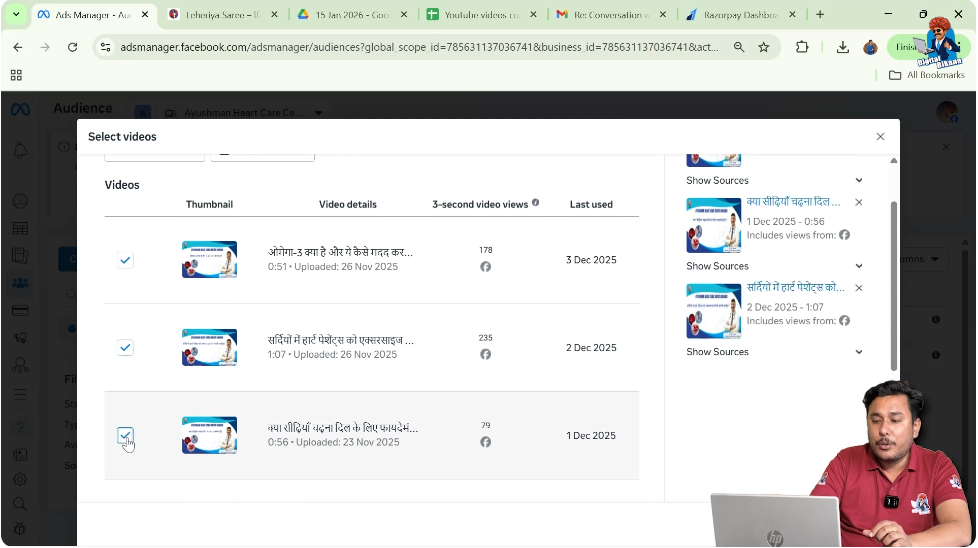
Selecting Multiple Videos
You are not restricted to selecting only one video.
You can:
- Select multiple videos
- Combine engagement from different videos
This helps increase audience size.
Using Videos Uploaded Directly in Campaigns
Even if you have not published a video on your Facebook page or Instagram profile, you can still use it.
Videos uploaded directly into ad campaigns can also be selected as a source for creating video view custom audiences.
Step 6: Confirm Video Selection
Finalize Video Choice
After selecting all required videos, click on Confirm.
Setting Audience Retention Duration
Step 7: Set Audience Retention Days
Choose Retention Period
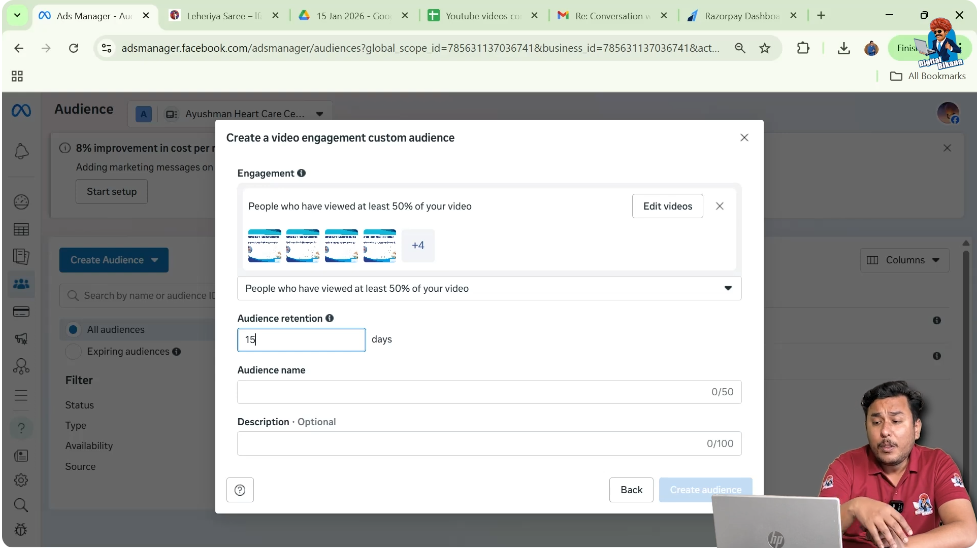
Now you need to decide how long users should remain in this custom audience.
For example:
- Set retention to 15 days
This means:
- Users who watched the video in the last 15 days will remain
- Older users will automatically be removed
How Audience Retention Works
As time passes:
- New users keep getting added
- Old users keep leaving
This keeps your custom audience fresh and updated.
Why 15 Days Retention Is Recommended
Generally:
- Users lose interest after 15 to 20 days
- If they have not converted within this period, chances reduce
So keeping a 15-day retention helps focus on active and interested users.
Naming and Creating the Custom Audience
Step 8: Enter Audience Name
Use a Reference Name
Enter an audience name such as:
- Video Trial 1
- Video Views 50%
This name is for your internal reference.
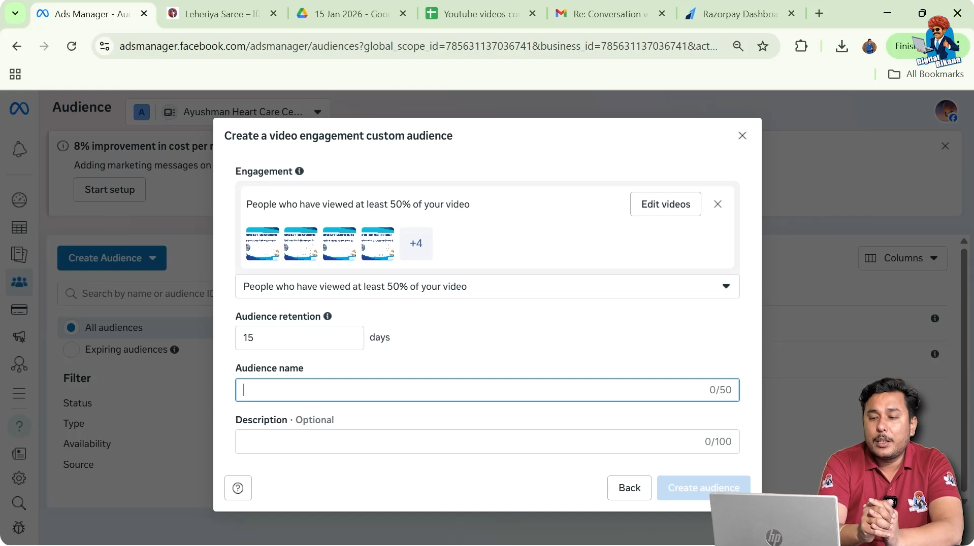
Step 9: Add Description and Create Audience
Final Creation Step
You can add a description for clarity and then click on Create Audience.
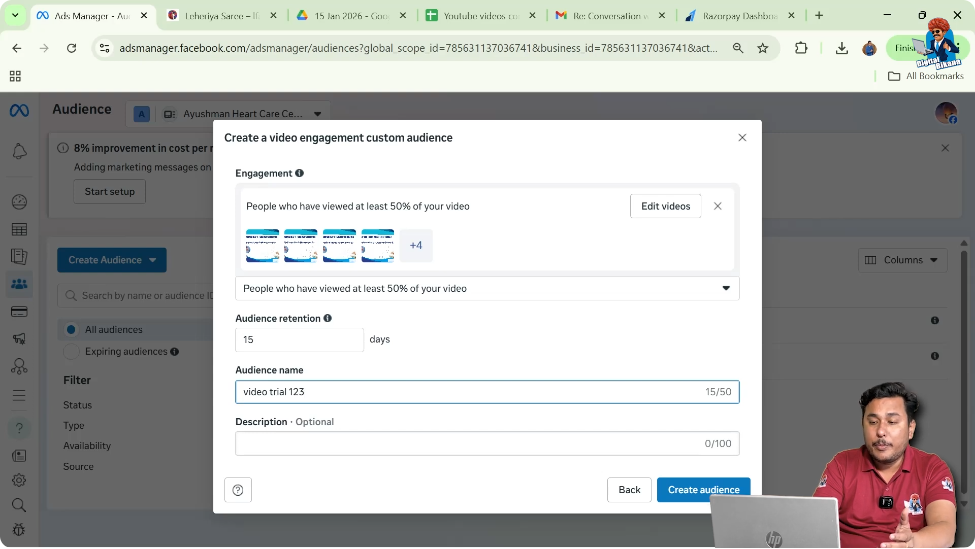
Custom Audience Creation Status
After clicking create:
- The custom audience is created
- Status shows Populating
- Audience becomes ready in 24 to 48 hours
Once ready, you can use it in ad campaigns.
Using Video Views Custom Audience for Retargeting
After the audience is ready, you can:
- Create retargeting ad campaigns
- Show commercial or sales ads
- Target only interested users
For example:
- Show course ads to users who watched 50% of your educational video
This significantly improves conversion chances.
Benefits of Video Views Custom Audience
Using video views custom audience helps you:
- Filter interested users
- Reduce ad waste
- Improve ad relevance
- Increase conversion rate
Video Views Custom Audience Explained in Simple Words
In simple words:
- You run an informational video ad
- People watch different portions of the video
- You create an audience of people who watched 50%
- You retarget them with sales ads
- You get better results
Final Conclusion
Creating a custom audience of video views in Facebook Ads Manager is a powerful retargeting strategy. By first running informational video content and then creating a custom audience of users who watched at least 50% of the video, you can identify genuinely interested users.
Selecting the right video view percentage, choosing the correct videos, setting proper retention days, and using this audience for retargeting campaigns helps improve ad performance significantly. Once the audience is ready, it becomes a valuable asset for running high-converting ad campaigns on Facebook and Instagram.

Related Posts