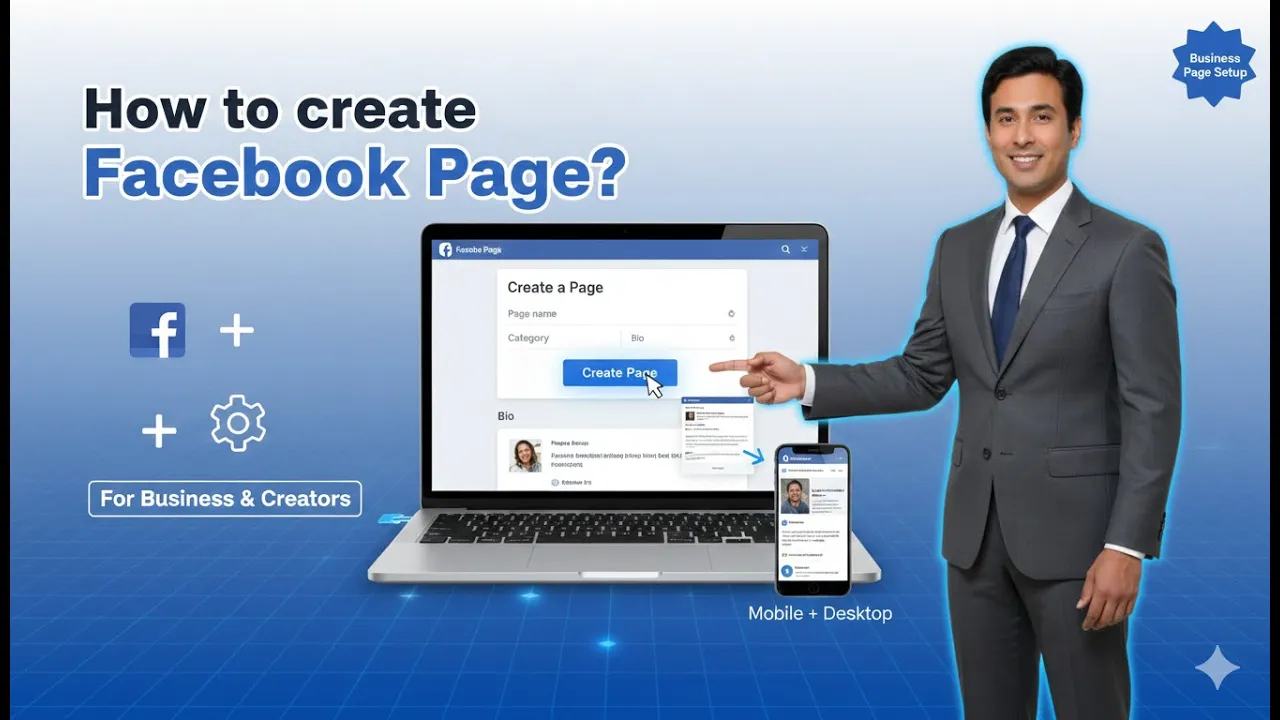
Creating a Facebook page for your business is one of the easiest ways to establish an online presence. Facebook allows businesses to create public pages that help them share information, connect with people, and represent their brand professionally. In this article, we will explain how to create a Facebook page for your business by walking through each step in detail.
How to create a Facebook Page for Business? (Step-by-Step)
The entire process is simple and can be completed within a few minutes by following the steps explained below.
1. Logging in to Your Facebook Account
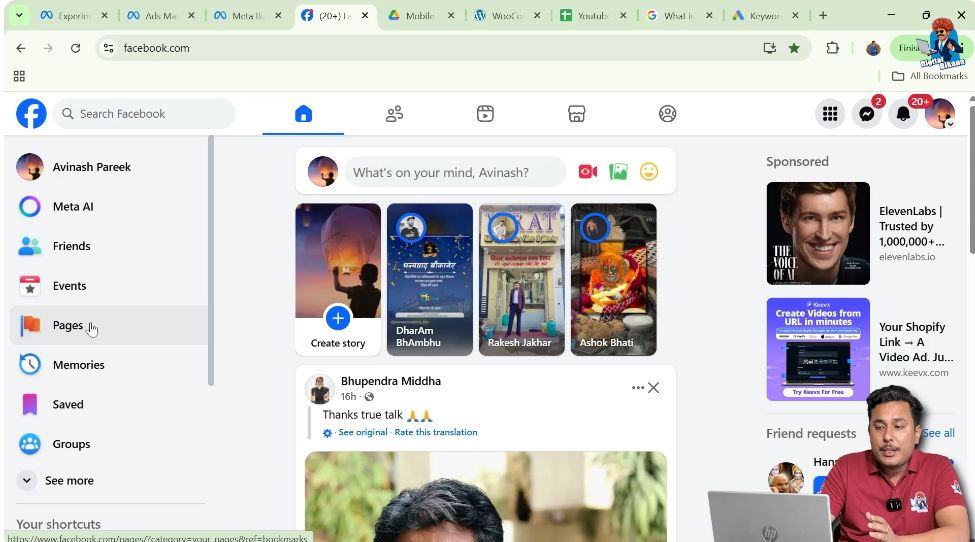
To begin creating a Facebook page, the first step is to log in to your Facebook account. Once logged in, you will be taken to the Facebook homepage. This is the main screen where you can access all Facebook features such as posts, notifications, groups, and pages.
From the homepage, you can navigate to different sections using the menu available on the left-hand side of the screen.

2. Accessing the Pages Section
After reaching the Facebook homepage, look at the left menu. In this menu, you will find an option called Pages. This section is used to manage existing Facebook pages and to create new ones.
Click on the Pages option. Once you do this, Facebook will take you to the Pages dashboard, where you can see any pages you already manage or have access to.
3. Clicking on Create Page
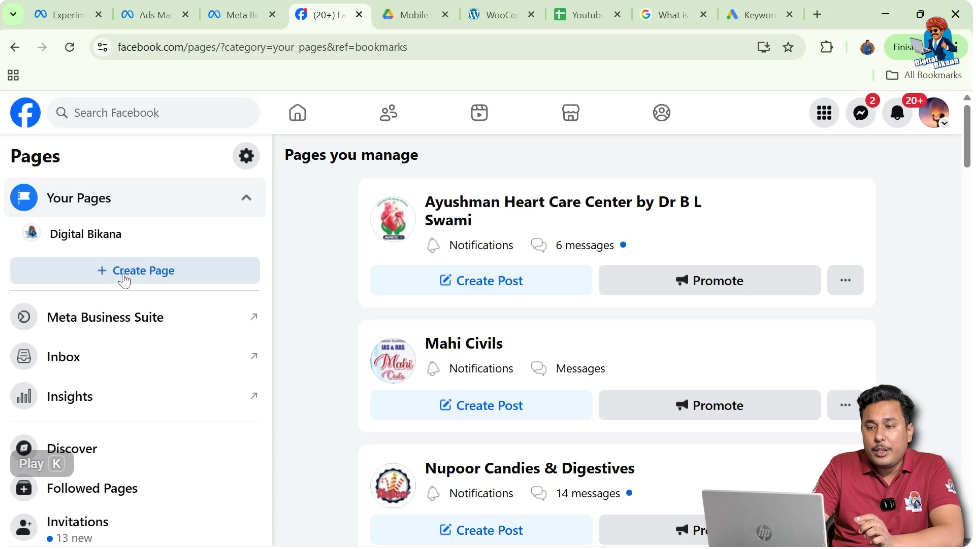
Inside the Pages section, you will see an option labeled Create Page. This option allows you to start the process of creating a new Facebook page.
Click on Create Page to move forward. This action opens the page creation setup, where Facebook begins asking you questions related to the type of page you want to create.
4. Choosing the Page Type
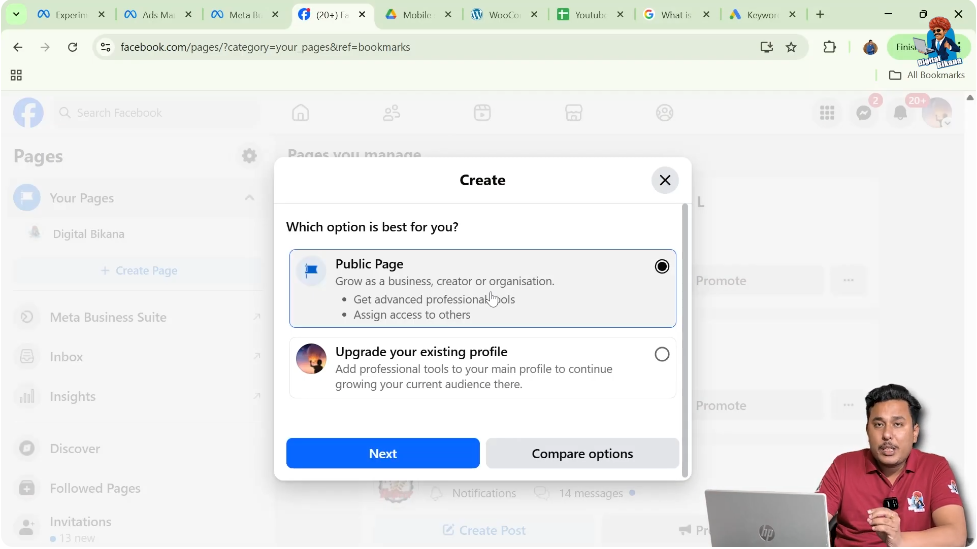
After clicking on Create Page, Facebook asks you to choose between two options:
- Creating a public page
- Upgrading an existing Facebook profile into a page
Facebook provides the option to convert a personal Facebook profile into a Facebook page. However, in this case, the goal is to create a new Facebook page specifically for a business.
Therefore, select the Public Page option. This option is suitable for businesses, brands, and professional use.
Once selected, click on Next or Get Started to continue.
5. Entering the Facebook Page Name
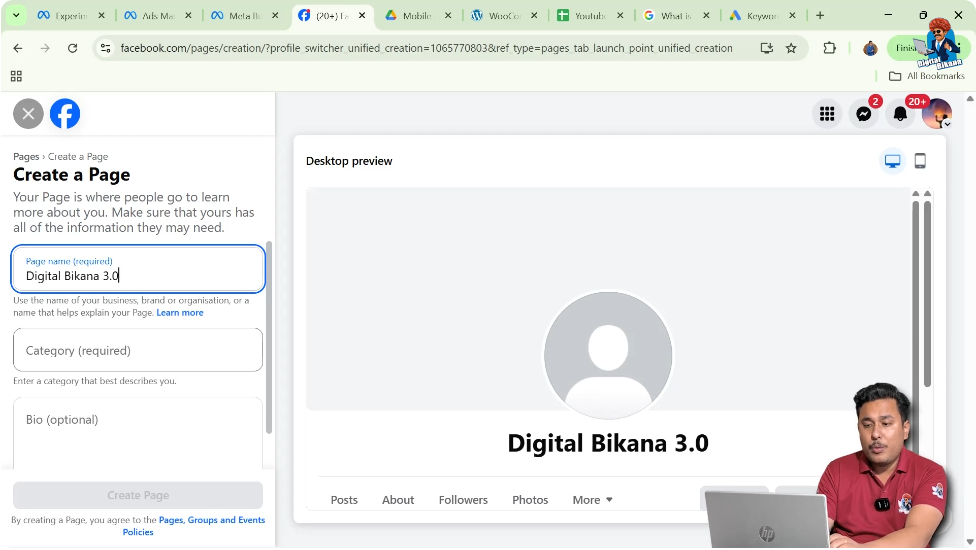
The next step is to enter the page name. The page name represents your business identity on Facebook and is how people will find your page.
In this case, the page name entered is Digital Bicana 3.0. You can type your business name into the page name field.
Once the page name is entered, Facebook moves to the next step.
6. Selecting the Business Category
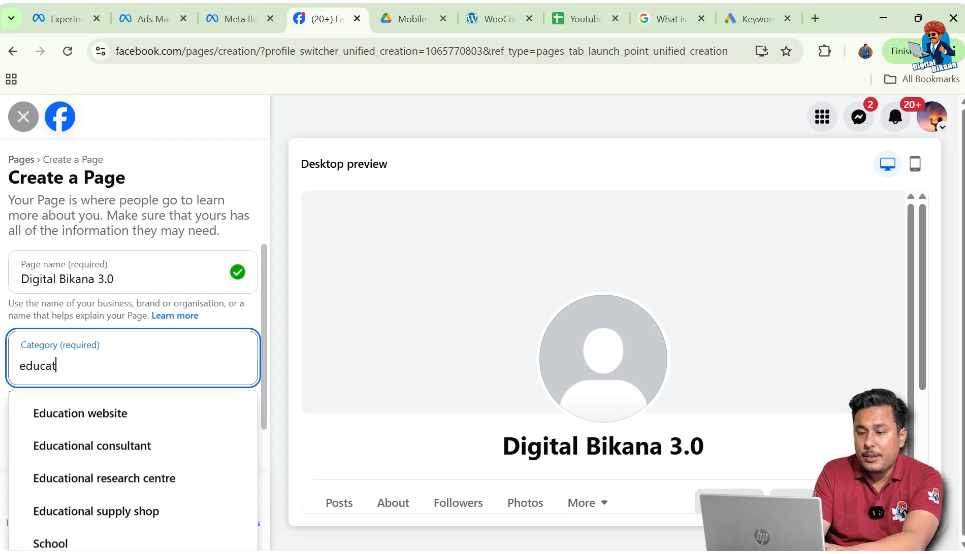
After entering the page name, Facebook asks you to select a category. The category helps Facebook understand what type of business your page represents.
In this process, the category selected is Educational Consultant. You can search and select the category that best describes your business.
Choosing the correct category is important because it helps Facebook place your page correctly within its system.
7. Adding a Business Bio
After selecting the category, Facebook gives you the option to add a bio for your business. The bio is a short description that explains what your business is about.
You can write a brief introduction about your business in this section. Once the bio is added, click on Create Page to continue.
At this point, Facebook starts setting up your page based on the information you have provided.

8. Entering Contact Details
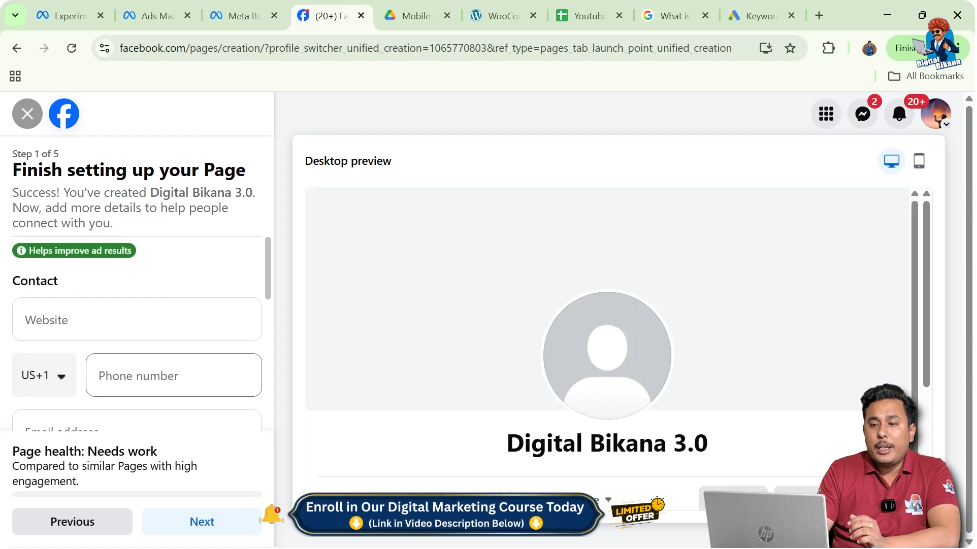
After creating the page, Facebook asks you to add contact details. These details help people contact or locate your business.
The contact details section includes:
- Website URL
- Phone number
- Email address
- Address and location
- Postcode
- Working hours
Filling in these details is not mandatory. You can choose to add all, some, or none of the information at this stage.
If you prefer, you can skip this step and add the details later.
Skipping Optional Information
If you do not want to enter contact details right away, you can simply click on Next without filling in the information.
Facebook allows you to move forward even if the contact section is left empty. This flexibility makes the page creation process fast and simple.

9. Adding a Profile Picture
Facebook then gives you the option to add a profile picture to your Facebook page. The profile picture represents your business visually and appears next to your page name.
At this stage, you can upload a profile picture if you have one ready. However, adding a profile picture is optional, and you can also add it later.
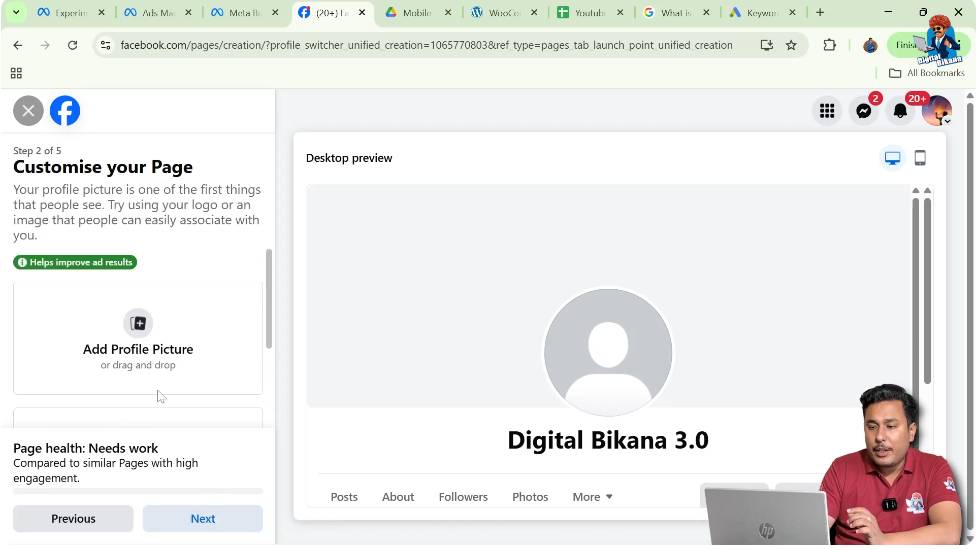
10. Adding a Cover Photo
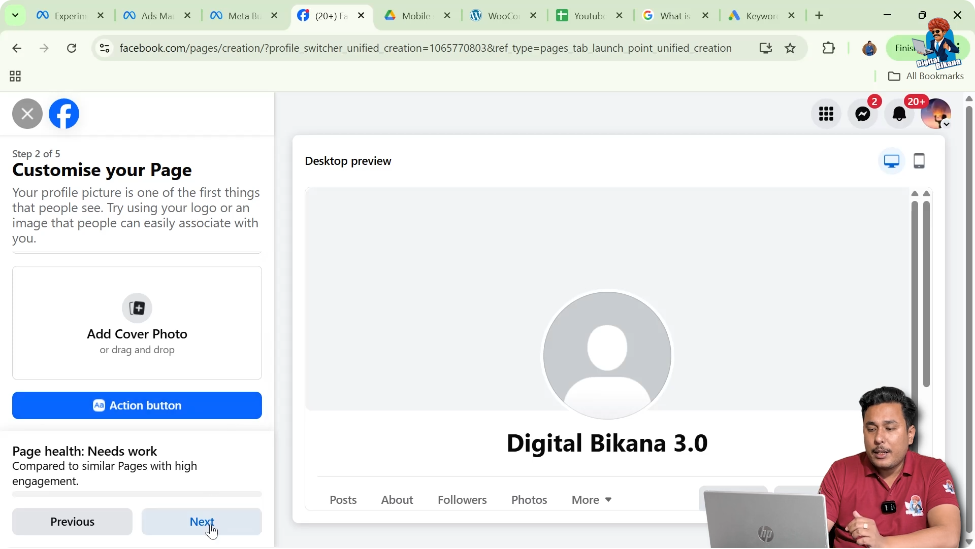
Along with the profile picture, Facebook also gives you the option to add a cover photo. The cover photo appears at the top of your Facebook page.
Just like the profile picture, uploading a cover photo at this time is optional. You can skip this step if you want and upload it later.

Skipping Image Uploads
If you do not want to upload images immediately, you can click on Next and then choose Skip.
Facebook allows you to complete the page creation process even if you skip adding a profile picture and cover photo.
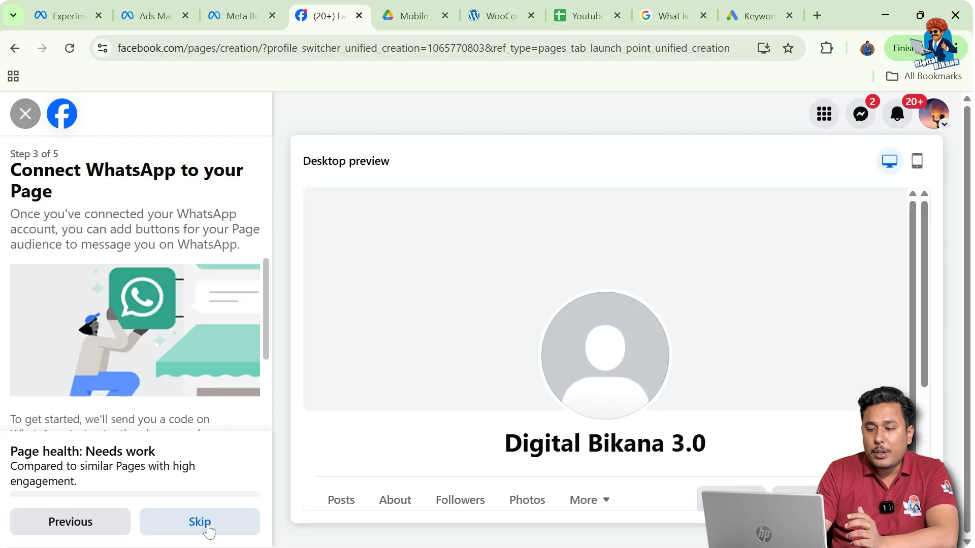
11. Completing the Facebook Page Creation
After skipping or completing all the optional steps, Facebook finishes setting up your page.
Once this process is complete, your Facebook page is successfully created. You will now be able to see your new Facebook page and access its dashboard.

Understanding How Easy the Process Is
As you can see, creating a Facebook page for your business is very easy. The process involves only a few simple steps:
- Logging into Facebook
- Going to the Pages section
- Clicking on Create Page
- Selecting Public Page
- Adding page name and category
- Optionally adding bio and contact details
- Skipping or adding images
- Completing the setup
All these steps can be completed quickly without any technical difficulty.
Final Thoughts
Creating a Facebook page is an essential step for any business that wants to have a presence on Facebook. The platform provides a simple and user-friendly process that allows anyone to create a page without confusion.
By following the steps explained in this article, you can easily create a Facebook page for your business and complete the setup in just a few minutes.

Related Posts