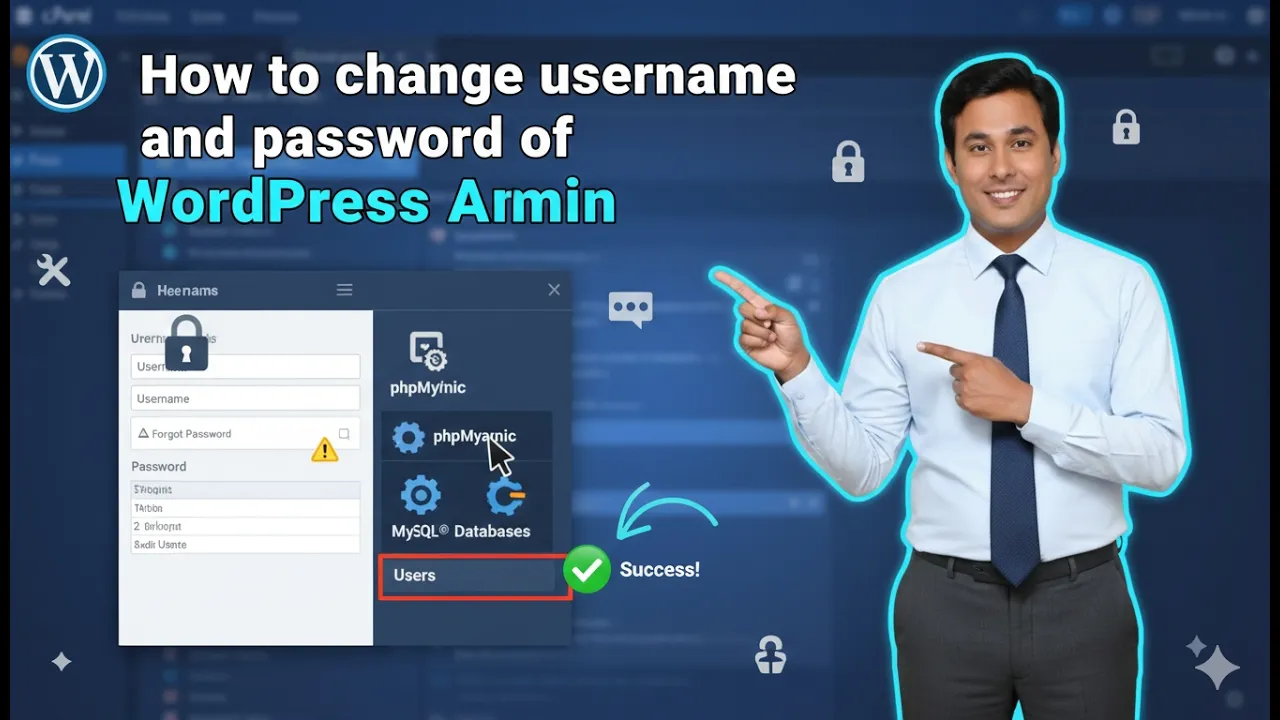
In this article, you will learn how to change the WordPress username and password using cPanel. This method allows you to update your WordPress admin login credentials directly from your hosting control panel. If you have access to your hosting account and cPanel, you can easily modify the administrator username, password, and email address.
Before starting the process, it is important to know how to access cPanel. If you already know how to reach cPanel, you can proceed directly to the steps. Otherwise, the following section explains how to access cPanel through your hosting account.
How to Access cPanel from GoDaddy
To change the WordPress username and password through cPanel, you must first log in to your hosting account and open the control panel. This can be done easily through your GoDaddy account.
First, log in to your GoDaddy account. After logging in, you will see your account dashboard. From there, click on the profile icon and open the My Products section. Inside My Products, all your purchased services will be displayed.
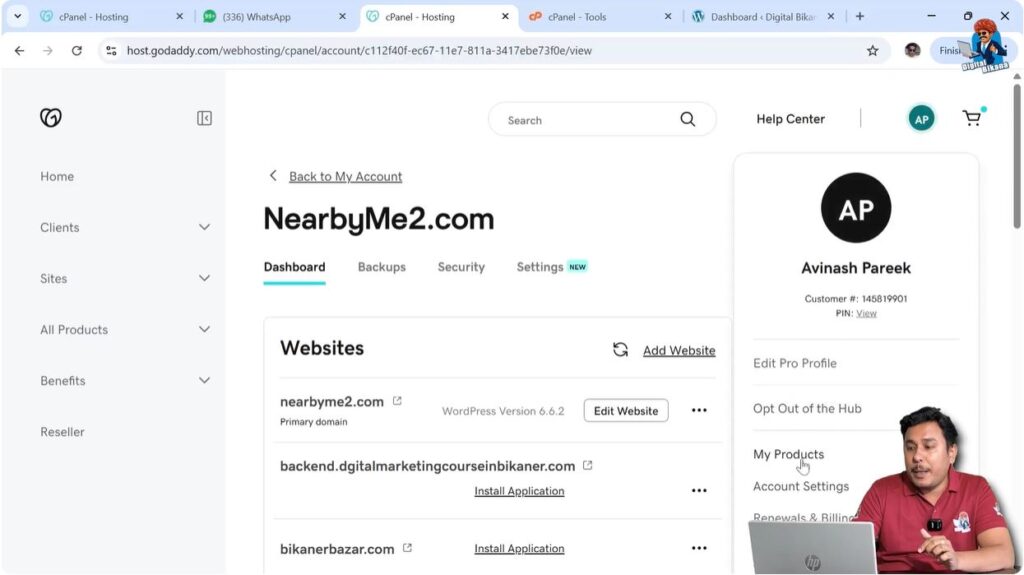
Find your web hosting plan and click on Manage. After opening the hosting details, click on Control Panel Admin. This will open the cPanel dashboard.
Once cPanel is open, you will see different sections related to hosting management such as files, databases, domains, and applications.
If you are not familiar with these steps, you can check dedicated tutorials explaining how to buy a domain name from GoDaddy, how to buy a hosting plan, how to connect a domain name with hosting, and how to install WordPress in cPanel.
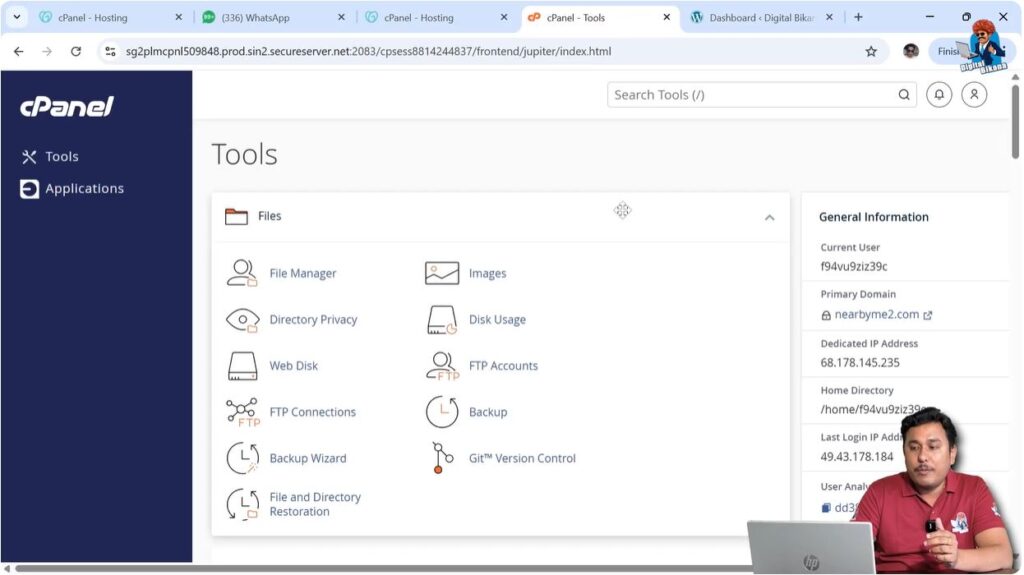
After opening cPanel, you can proceed to change the WordPress username and password.
Changing WordPress Username and Password in cPanel
After opening cPanel, you can change the WordPress admin dashboard username and password through the application management section.
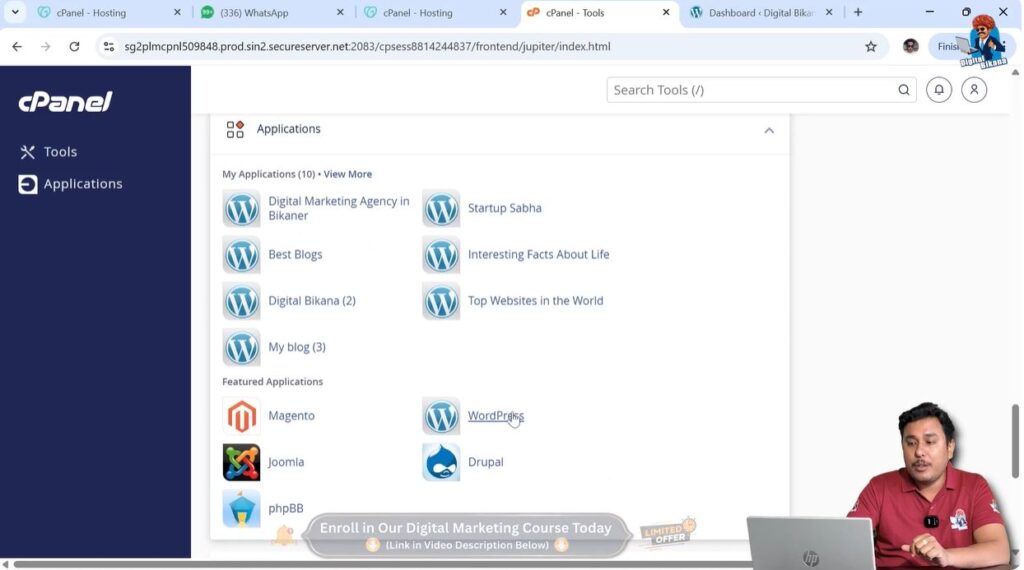
You need to scroll down inside cPanel until you reach the Application section. This section shows installed applications and options to install new applications.
In this section, you will see the option to install a new WordPress application. Since WordPress is already installed on your domain, you do not need to install it again. Instead, you need to open the list of installed applications.
Step 1 – Open the Application Section
Scroll down in cPanel and locate the Application section. This section contains all application-related options.
If you want to install a new WordPress application, you can click on the install option. However, since WordPress is already installed, you need to manage the existing installation.
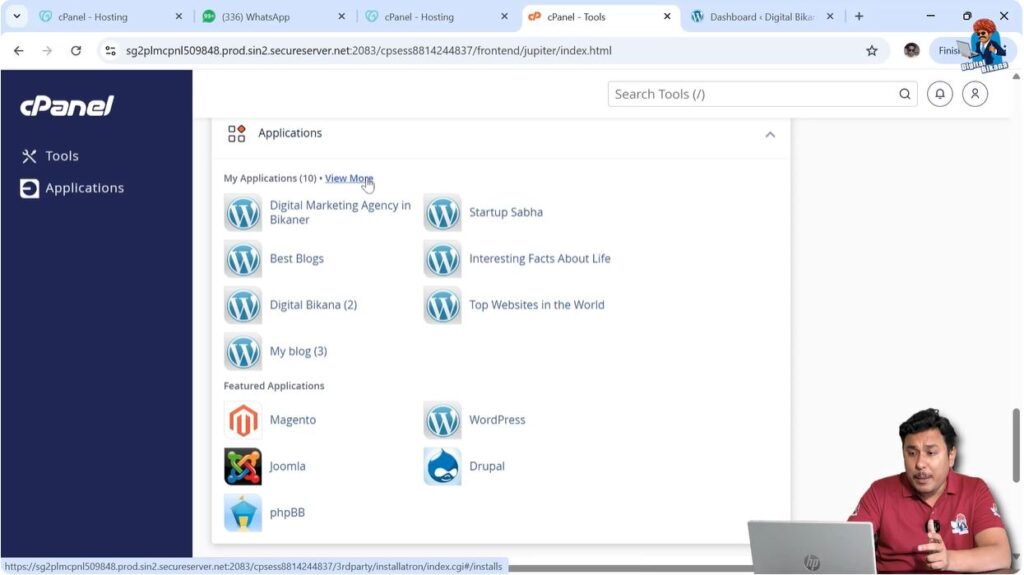
Click on View More to see all installed WordPress applications.
If multiple WordPress installations exist on different domain names, they will all be listed here.
Step 2 – Select the WordPress Installation
After clicking on View More, you will see a list of WordPress installations.
Each installation corresponds to a specific domain name. From this list, select the WordPress installation for which you want to change the username and password.

Click on the WordPress installation to open its management settings.
Step 3 – Click on the Edit Button
After selecting the WordPress installation, you will see several options related to that application.
Look for the Edit button and click on it.
This option allows you to modify the settings of the selected WordPress installation.
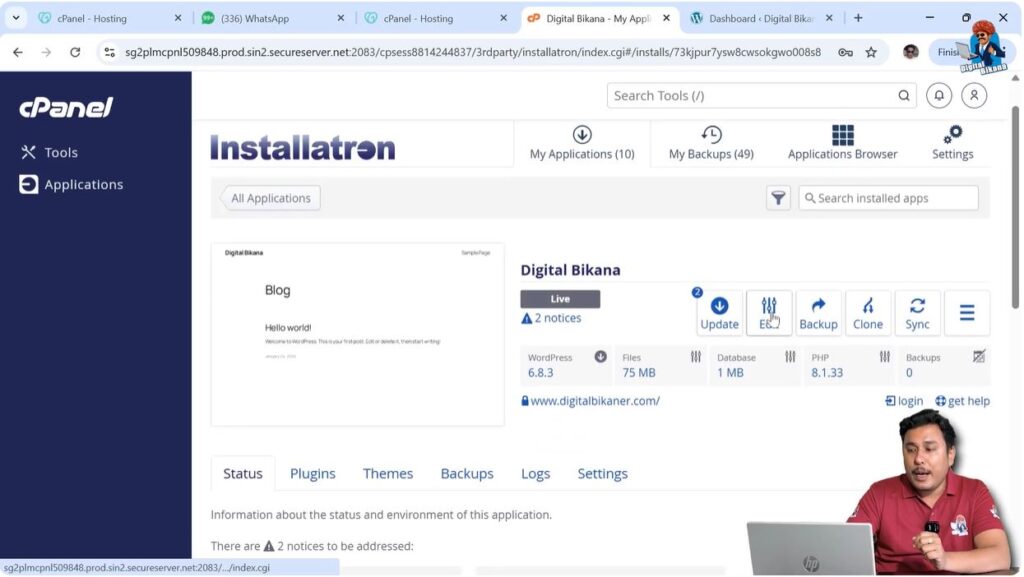
Step 4 – Open the Settings Section
After clicking the Edit button, go to the Settings section.
The Settings section contains various configuration options related to your WordPress installation.
Inside Settings, you need to navigate to the Application section.
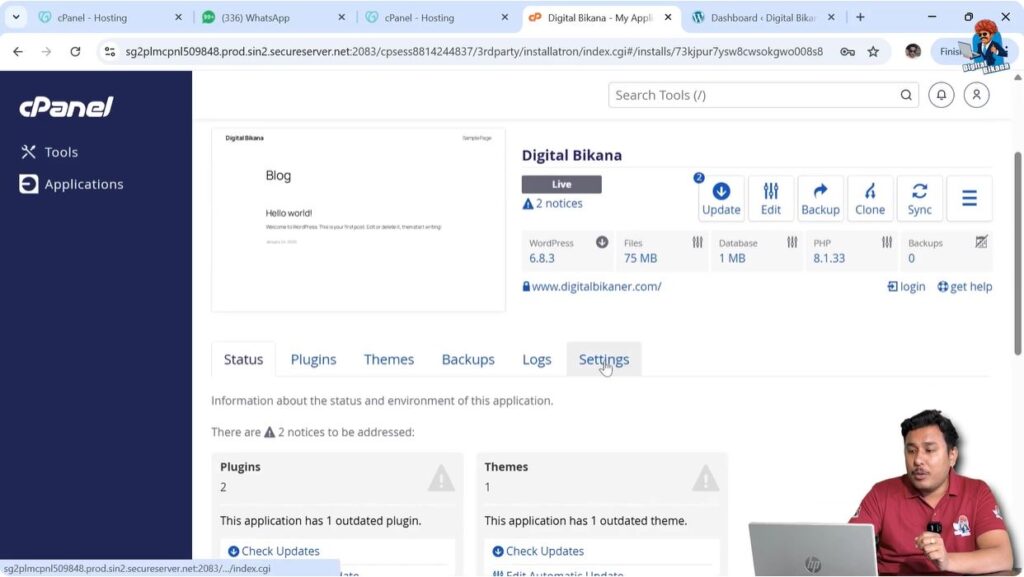
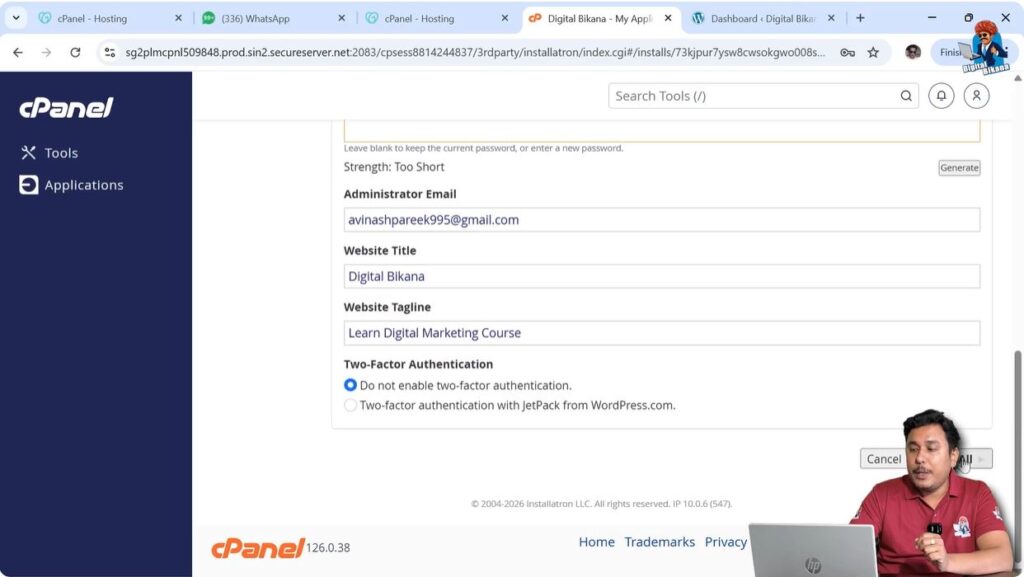
Step 5 – Change Username and Password
Inside the Application section, you will find the options to change the administrator credentials.
Here you can change:
- WordPress admin username
- WordPress admin password
- Administrator email address
Enter the new username and password carefully. Make sure the password is strong and secure.
You can also update the administrator email address if required.

Step 6 – Save the Changes
After entering the new details, click on the Save button.
Once you save the changes, the WordPress admin dashboard username, password, and email ID will be updated.
You can now log in to your WordPress dashboard using the new credentials.
Managing Multiple WordPress Installations
If you have installed WordPress on multiple domain names, all installations will appear in the Application section after clicking View More.
Each installation can be managed separately. You must make sure to select the correct domain before changing the username and password.
This is important because changing the credentials in one installation will not affect other WordPress installations.
Updating Administrator Email
Along with the username and password, you can also change the administrator email address from the Application section.
Updating the administrator email is useful if you want to receive WordPress notifications on a different email address.
This email address is used for:
- Password reset notifications
- WordPress updates
- Plugin notifications
- Security alerts
After updating the email address, click Save to apply the changes.
Important Points to Remember
Before changing the WordPress username and password, there are a few important things to keep in mind.
Always make sure you have access to your hosting account before making changes. Without hosting access, you cannot modify WordPress credentials through cPanel.
Enter the new username and password carefully to avoid login problems.
Make sure to store the new login credentials safely so you do not forget them.
If you have multiple WordPress installations, verify the correct domain before making changes.
When to Change WordPress Username and Password
There are several situations where changing the WordPress username and password is necessary.
You may need to change your login details if you forget your WordPress password.
It is also recommended to change credentials regularly for better security.
If your website is handled by multiple users, changing the admin credentials can help maintain security.
Another reason to change login credentials is when a website is transferred from one owner to another.
Benefits of Changing WordPress Credentials Through cPanel
Changing WordPress credentials through cPanel is a reliable method because it works even if you cannot access the WordPress dashboard.
This method allows you to update administrator details directly from the hosting control panel.
It is especially useful when:
- You cannot log in to WordPress
- You forgot your password
- The login email is not accessible
- WordPress dashboard is not working
Using cPanel gives you complete control over your WordPress installation.
Conclusion
Changing the WordPress username and password through cPanel is a simple and effective method to update administrator credentials. By accessing your hosting account and opening cPanel, you can easily modify the WordPress admin username, password, and email address.
You need to scroll down to the Application section, click on View More, select the WordPress installation, open the Edit option, go to Settings, and update the administrator details. After saving the changes, your new login credentials will become active.
This method allows you to manage your WordPress login details directly from the control panel and ensures that you always have access to your WordPress admin dashboard.

Related Posts