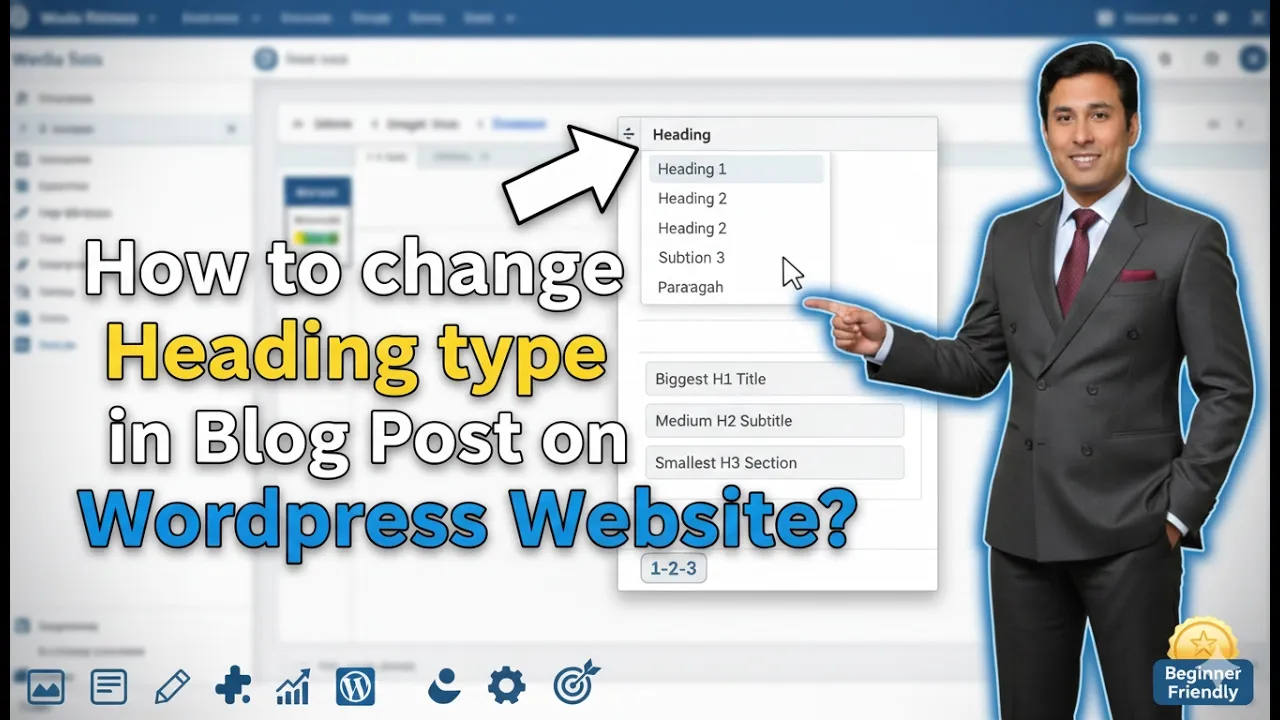
In this article, you will learn how to change the heading type in a blog post on a WordPress website. Headings are an important part of blog writing because they help organize the content and make the article easier to read. WordPress allows you to change heading types easily from the editor.
As you can see, we are inside the WordPress admin dashboard. From here, we can edit any blog post and change the heading type according to our requirement. This guide explains the complete process of changing heading types in a WordPress blog post.
Opening WordPress Admin Dashboard
1. Go to All Posts Section
First, log in to your WordPress admin dashboard.
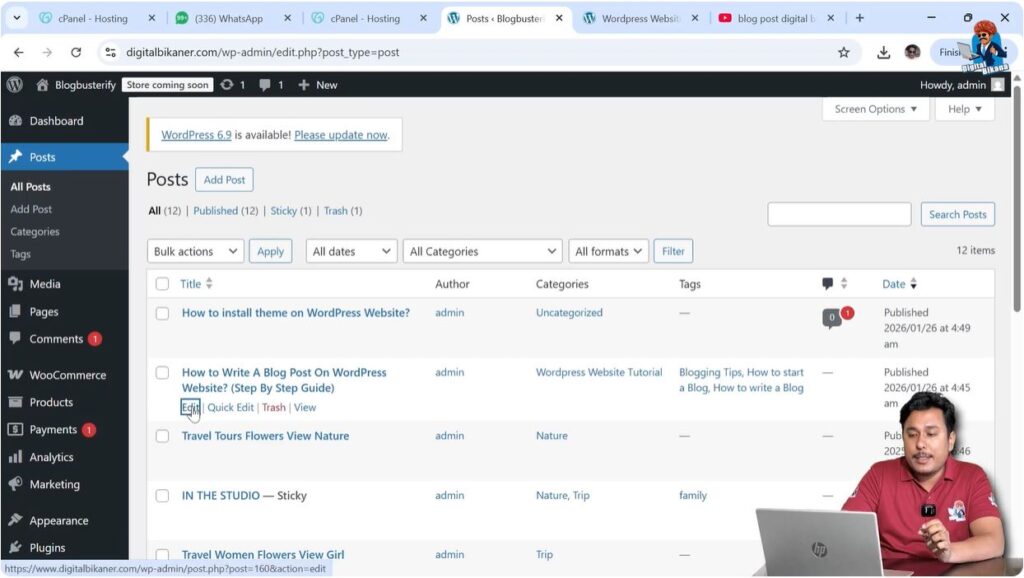
After logging in, go to the Posts section on the left side of the dashboard.
Click on All Posts.
In the All Posts section, you will see all the blog posts that you have created.
From here, select the blog post that you want to edit.
Click on the Edit option of the selected blog post.
After clicking Edit, the blog post editor will open.
Selecting Heading
2. Select Heading Text
Inside the blog post editor, find the heading whose type you want to change.
Click on the heading text.
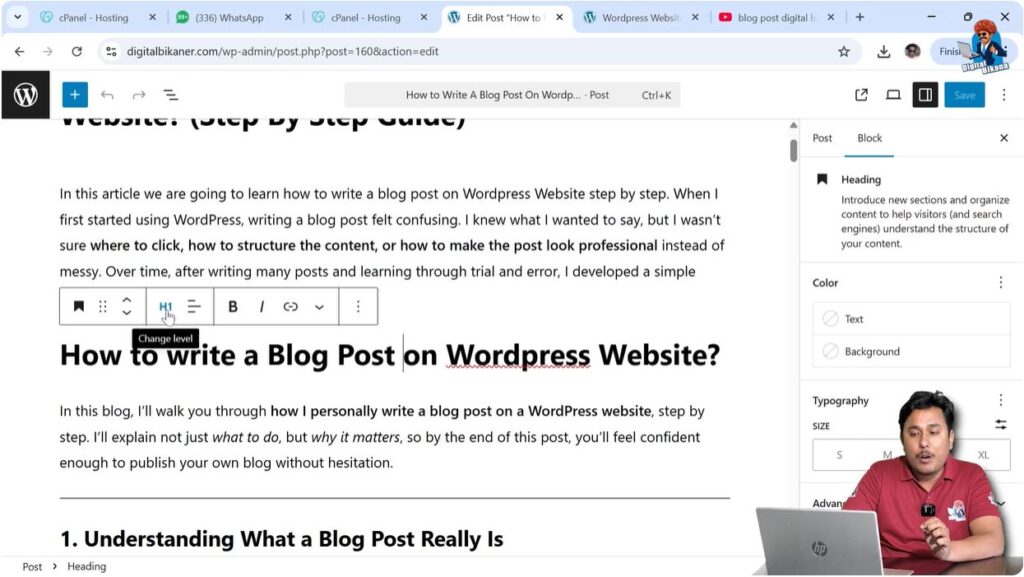
After clicking on the heading, heading options will appear above the text.
You will see the heading type such as H1 displayed in the editor.
Changing Heading Type
3. Change Heading Level
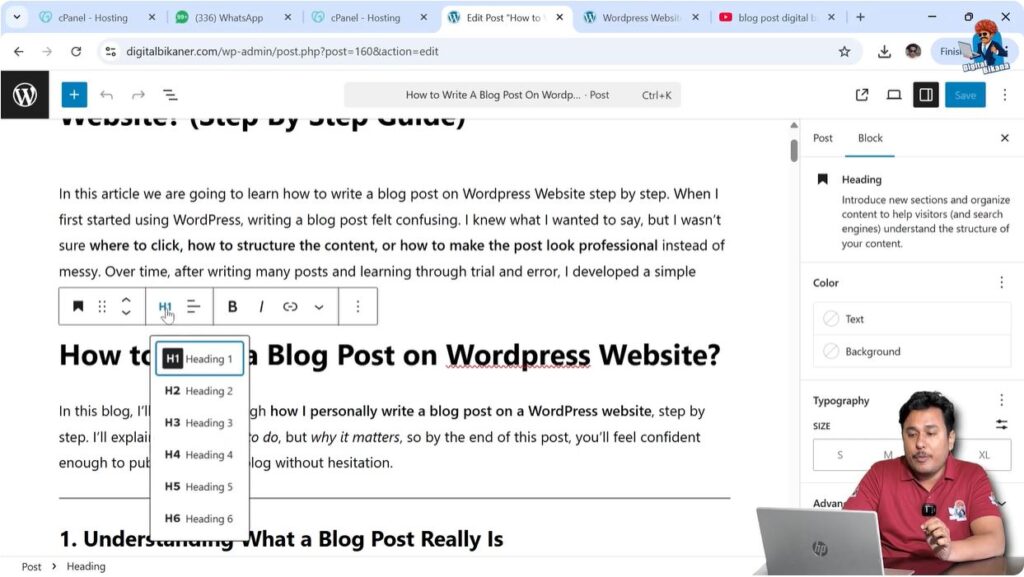
After selecting the heading, click on the heading option.
You will see different heading types such as:
- H1
- H2
- H3
- H4
- H5
You can select any heading type according to your requirement.
When you change the heading type, the size of the heading changes automatically.
Smaller heading levels appear in smaller font sizes.
For example:
- H1 is larger
- H2 is slightly smaller
- H3 is smaller
- H4 and H5 are even smaller
You can select the heading level that suits your article structure.
Converting Heading into Paragraph
Changing Heading to Paragraph
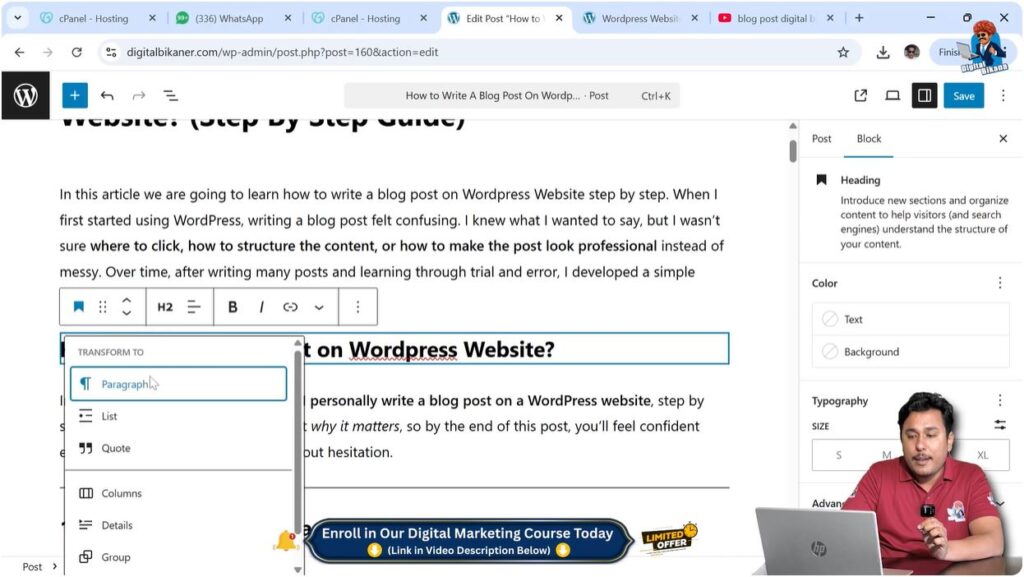
If you want to convert a heading into paragraph format, click on the heading text.
Then click on the heading icon.
Select Paragraph.
After selecting Paragraph, the heading will be converted into normal paragraph text.
Converting Paragraph into Heading
Changing Paragraph to Heading
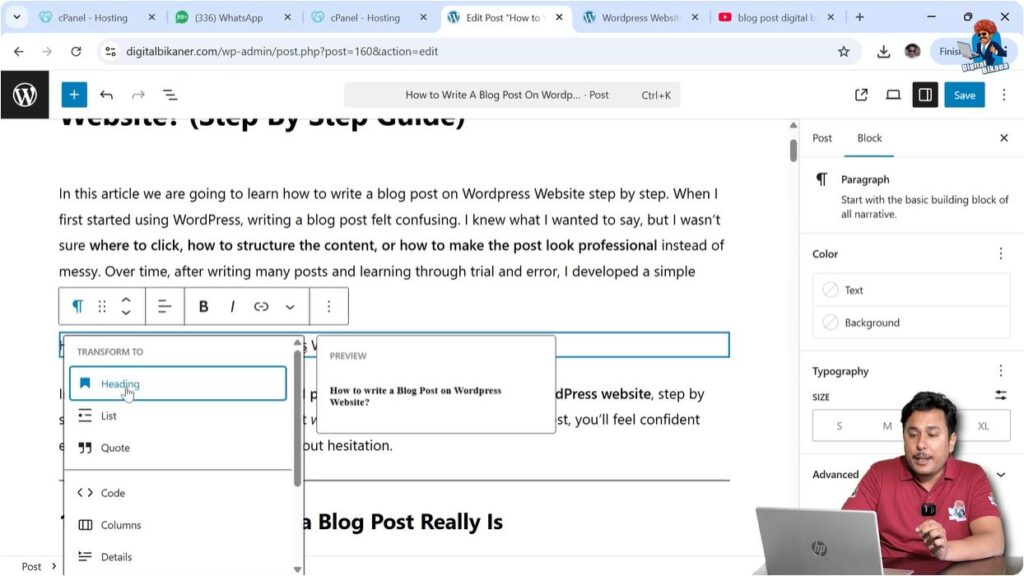
If you want to convert paragraph text into a heading, click on the paragraph line.
Then click on the paragraph icon.
Select Heading.
After selecting Heading, choose the heading type such as H1, H2, or H3.
The paragraph will be converted into a heading.
Conclusion
Changing the heading type in a WordPress blog post is a simple process. You need to open the blog post in the editor, select the heading text, and choose the heading type.
You can also convert headings into paragraphs and paragraphs into headings.
This is how you can change the heading type in a blog post on a WordPress website.

Related Posts