In this article, you will learn how to buy a professional email domain from GoDaddy step by step. A professional email domain allows you to create email addresses connected to your domain name. These email addresses help build trust between you and your customers.
For example, instead of using a normal email address, you can create professional email addresses such as:
- founder@yourdomain.com
- sales@yourdomain.com
- support@yourdomain.com
- customercare@yourdomain.com
A professional email address looks more trustworthy and professional when communicating with customers.
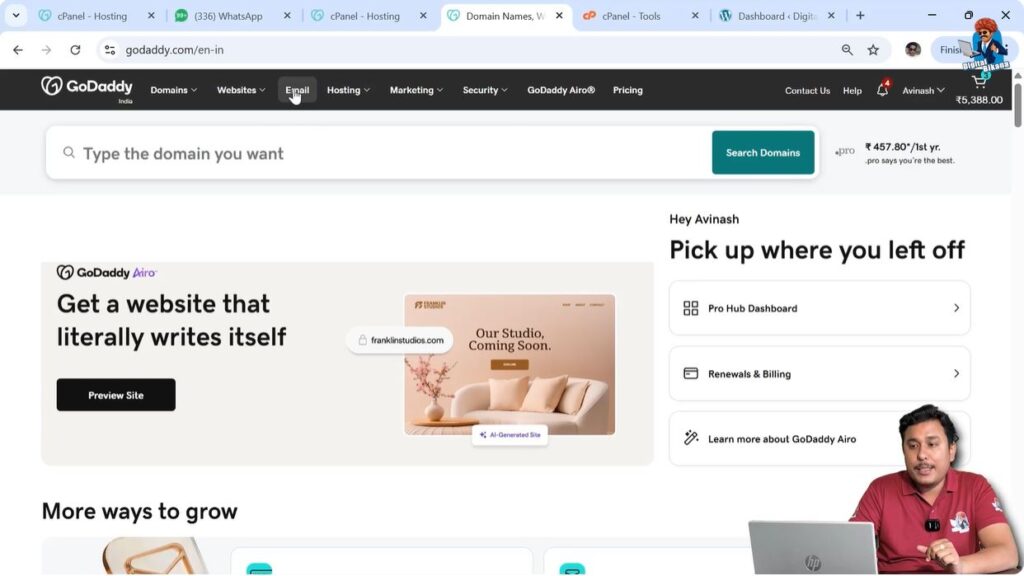
To buy a professional email domain, you can visit GoDaddy by searching GoDaddy on Google and opening the first website. After opening the website, sign in to your GoDaddy account. Once you log in, you will land on the GoDaddy homepage.
This guide explains the complete process of purchasing a professional email domain from GoDaddy.
Benefits of Professional Email Domain
A professional email domain helps create trust between you and your customers.
When customers receive emails from a domain-based email address, they consider the business more reliable and professional.
For example, an email address like:
founder@digitalbikana.com
looks more professional compared to a free email address.
You can create multiple email addresses based on your domain name such as:
- sales@example.com
- support@example.com
- customercare@example.com
These email addresses can be used for different departments of your business.
Opening GoDaddy Website
1. Sign in to GoDaddy Account
First, open your browser and search for GoDaddy on Google. Open the first website and sign in to your GoDaddy account.
After signing in, you will land on the GoDaddy homepage where you can access different services.

Navigating to Email Section
2. Go to Email Section
On the GoDaddy homepage, you will see the header section.
In the header menu, there is an option called Email.
Click on the Email option to proceed further.
If you want to create an email account associated with your domain name, you need to purchase a professional email domain.
Choosing Email Service
3. Select Business Email Section
After clicking on the Email option, you will see different email services.
You may see options such as:
- Business Email
- Microsoft 365
If you are a beginner, it is recommended to select the Business Email section.
It is not recommended to purchase Microsoft 365 plans unless you have proper knowledge of what Microsoft 365 includes.
For beginners, Business Email plans are easier to use and manage.

Business Email Plans
In the Business Email section, you will see four different plans.
These plans provide different storage capacities and features.
You can select a plan according to your storage requirement.

Email Storage Options
Different Business Email plans offer different storage sizes.
10 GB Storage Plan
This plan provides 10 GB of email storage.
If you want a single professional email address, you can choose this plan.
This plan is also suitable if you want a few email addresses with limited storage.
For example, you can create up to five email addresses if the storage requirement is low.
30 GB Storage Plan
This plan provides 30 GB of email storage.
This plan also supports up to 150,000 emails.
This plan is suitable if you require more storage capacity.
50 GB Storage Plan
This plan provides 50 GB of email storage.
This plan is suitable for users who need higher email storage.
100 GB Storage Plan
This plan provides 100 GB of email storage.
This plan is suitable for users who require large email storage.
Selecting Email Plan
4. Choose Email Plan
After comparing the available plans, you can select the email plan according to your requirement.
If you only need one professional email address, the basic plan with 10 GB storage is sufficient.
If you need multiple email addresses or higher storage, you can select a higher plan.
After selecting the plan, add it to your cart.
Adding Email Plan to Cart
5. Add Email Plan to Cart
After selecting the plan, click on Add to Cart.
You will then see the price of the professional email domain.
This will show the total cost of the email plan.

Payment Process
6. Complete Payment
After adding the email plan to the cart, proceed to checkout.
You can make payment using different methods such as:
- Debit Card
- Credit Card
- Net Banking
- UPI
After completing the payment, the professional email domain will be purchased in your GoDaddy account.

Setting Up Professional Email
Email Setup Options
After purchasing the professional email domain, you can set up your email account.
You can connect your professional email with email tools such as:
- Outlook
- Gmail
After setup, you can check your emails regularly and send emails to your customers using your professional email address.
Conclusion
Buying a professional email domain from GoDaddy is a simple process. You need to sign in to your GoDaddy account, go to the Email section, select the Business Email plan, and complete the payment.
A professional email domain helps build trust with customers and makes your business look more professional.
After purchasing the email plan, you can set up your professional email account in Outlook or Gmail and start sending emails to your customers.

Related Posts