
Elementor is a powerful page builder that allows users to design visually appealing webpages in WordPress without writing any code. One of the useful design features available in Elementor is the ability to apply gradient backgrounds to containers. Gradients allow you to combine two or more colors smoothly, creating a modern and visually attractive background for sections or containers.
Using gradients in container backgrounds can make a webpage look more professional and engaging. Instead of using a plain color or an image, gradients create a smooth transition between colors, which enhances the overall design of the webpage.
In this article, you will learn how to add a gradient in the background of a container while editing a webpage using Elementor in WordPress.
Opening Elementor Editor
Before adding a gradient background, you need to open the Elementor editor while editing a webpage.
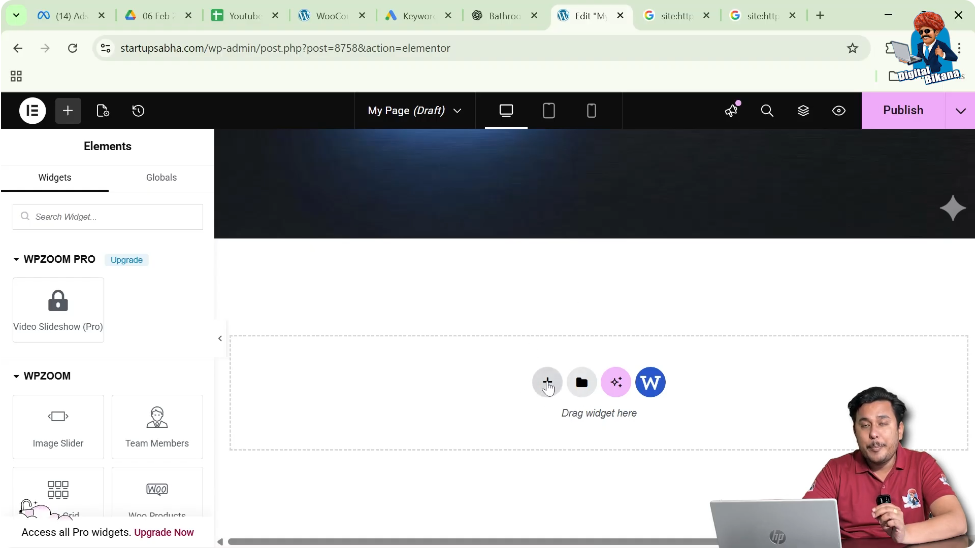
When you edit a page using Elementor, the Elementor interface appears on the screen. The live preview of your webpage is displayed in the center, while the editing tools are displayed on the left side toolbar.
In the middle of the screen, you will notice a plus icon (+). This icon is used to add a new container or section to your webpage.
To start the process, you need to create a container.
Creating a Container in Elementor
Containers are used to organize content and layout elements on a webpage.
Step 1: Click the Plus Icon
Click the plus icon located in the middle of the screen.
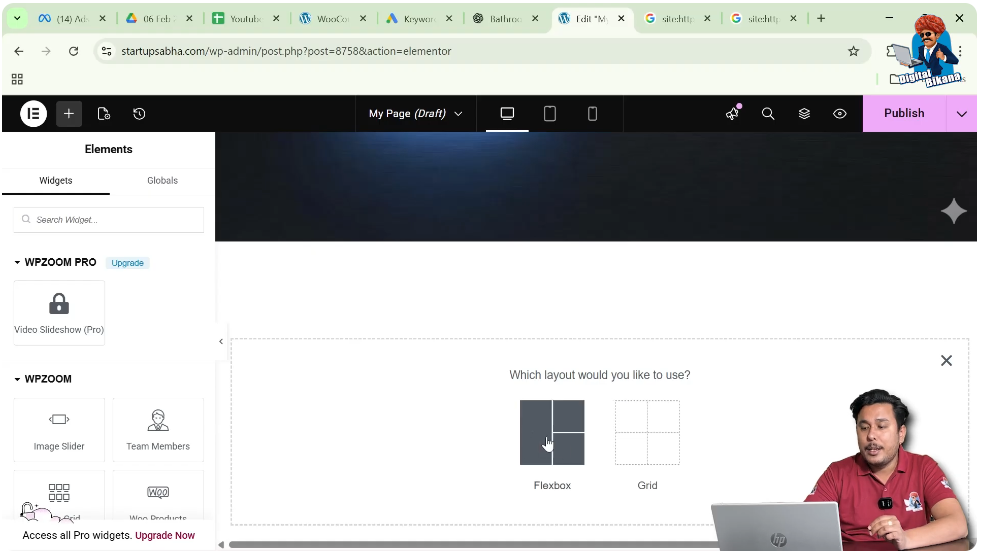
After clicking the icon, Elementor will ask you to select a layout type.
Step 2: Select Flexbox Layout
Elementor provides two layout options:
For this example, select Flexbox.
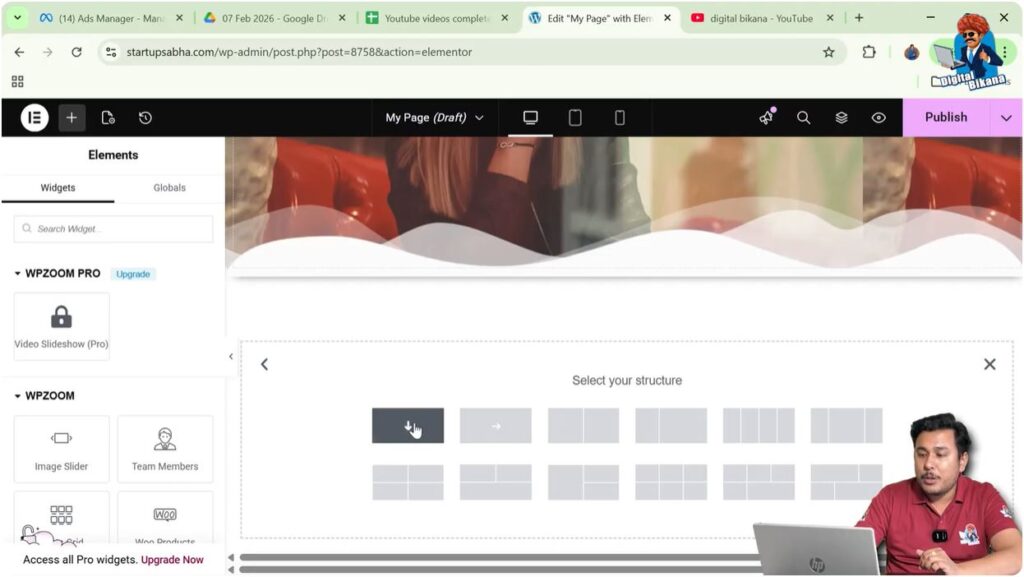
Step 3: Select Structure
After selecting Flexbox, you will see different structure options.
Choose the Direction Column structure.
Once selected, the container will appear on the screen.
Editing the Container
After creating the container, you can customize it using the container settings.
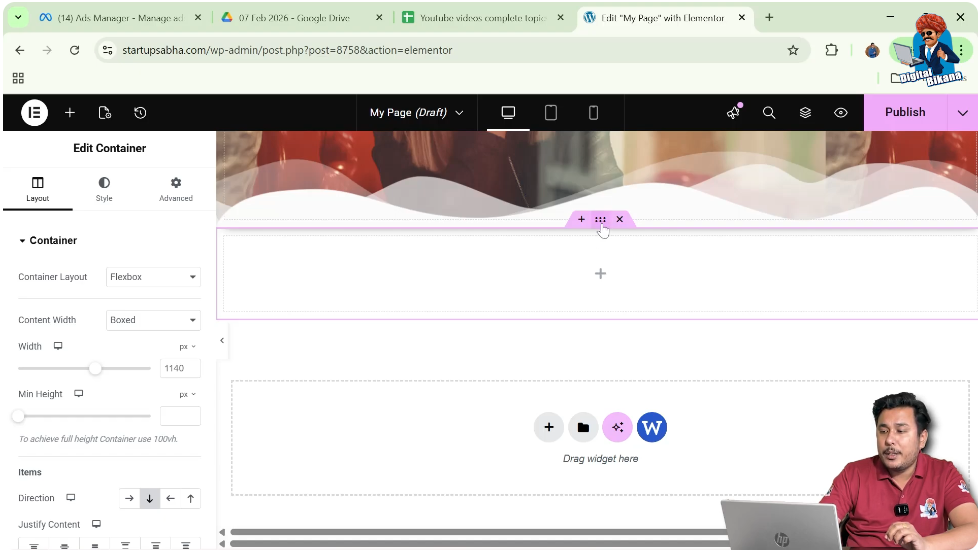
Step 1: Click the Edit Container Icon
Above the container, you will see an Edit Container icon represented by six dots.
Click this icon.
Step 2: Open Container Settings
Once clicked, the container settings will appear in the left side toolbar.
In the container settings panel, you will see three main options:
- Layout
- Style
- Advanced
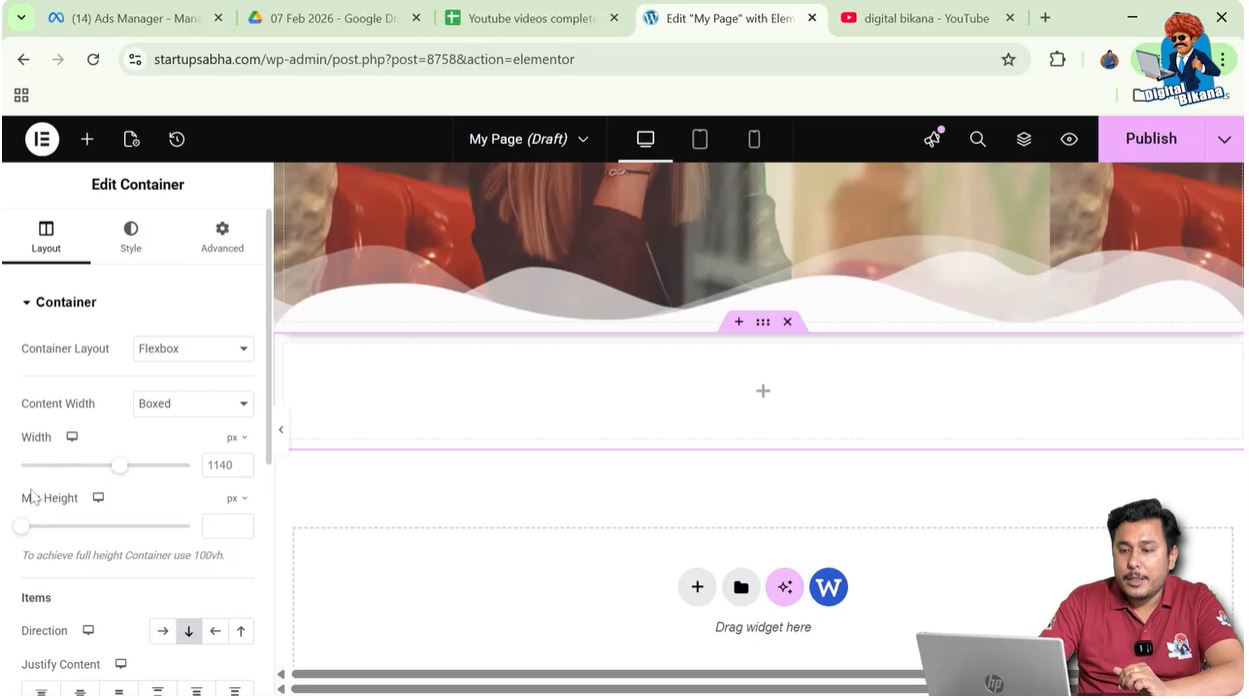
To add a gradient background, you need to open the Style settings.
Opening Background Settings
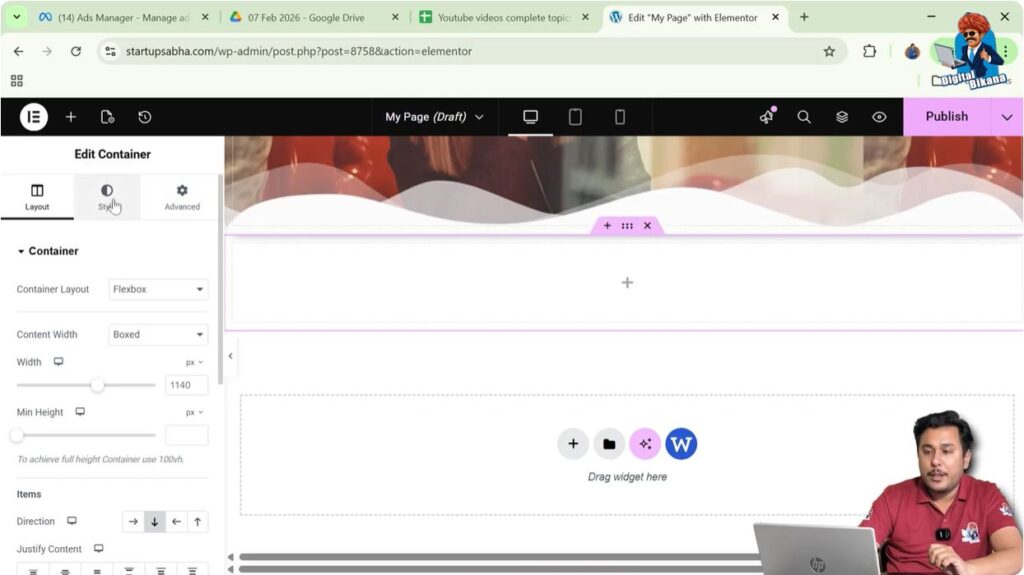
Inside the Style tab, you will find different visual customization options.
Step 1: Go to Style Settings
Click the Style tab in the container settings panel.
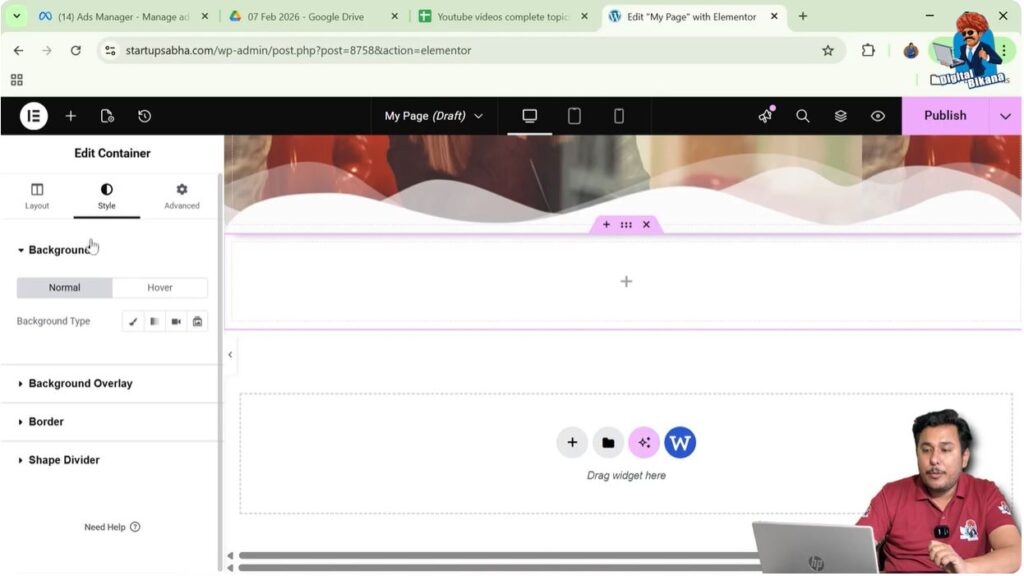
Step 2: Open Background Section
Inside the Style tab, locate the Background section.
Here you will see different options related to background customization.
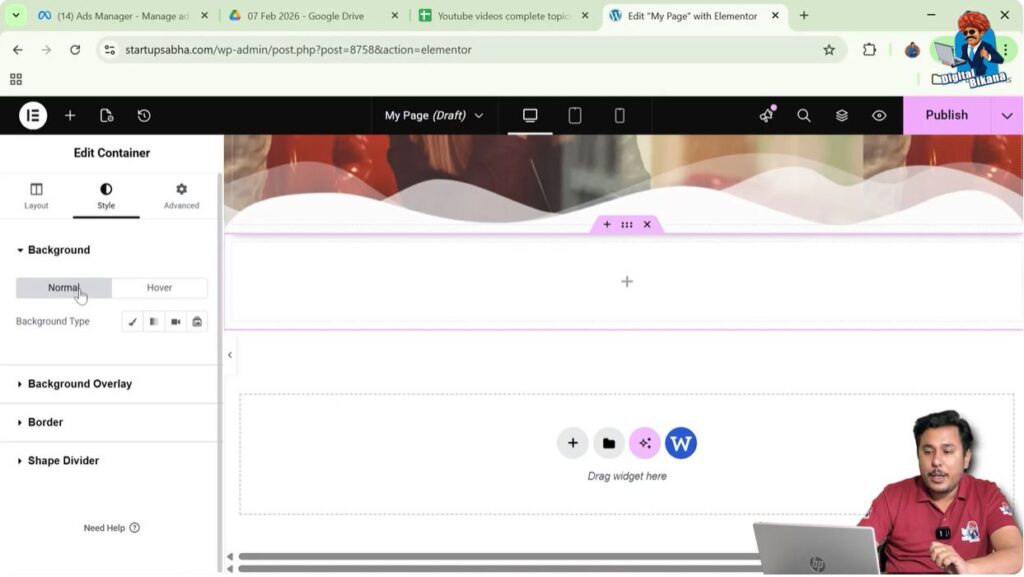
Step 3: Select Normal Background
The background settings contain two options:
- Normal
- Hover
For this example, we will work with the Normal background option.
Selecting Gradient Background Type
Elementor allows you to choose different background types.
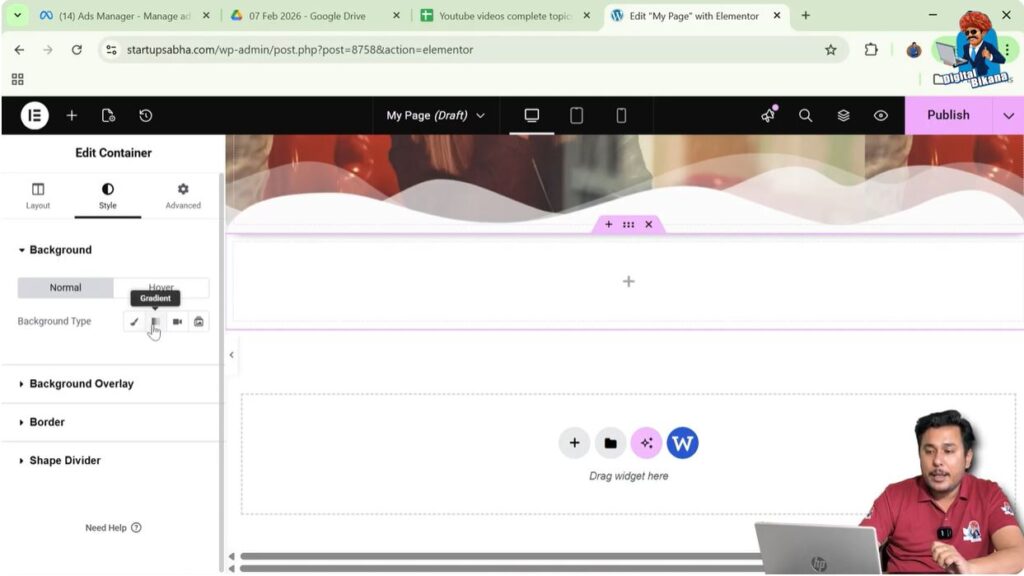
Step 1: Choose Background Type
Inside the background settings, you will see multiple background types such as:
- Classic
- Gradient
- Video
- Slideshow
Select Gradient as the background type.
Once selected, additional gradient settings will appear.
Choosing Gradient Colors
A gradient requires at least two colors to create a smooth transition.
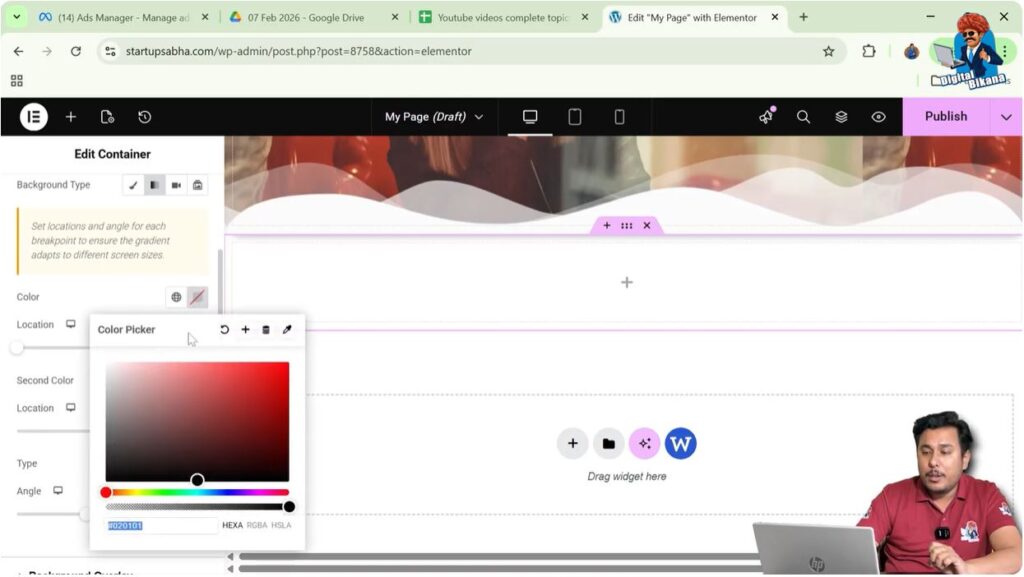
Step 1: Select Color One
Click on the Color One option.
The color palette will appear.
Choose a color from the palette.
For example, you can select green.
You can adjust the shade of the color by moving the color selector within the palette.
Step 2: Select Color Two
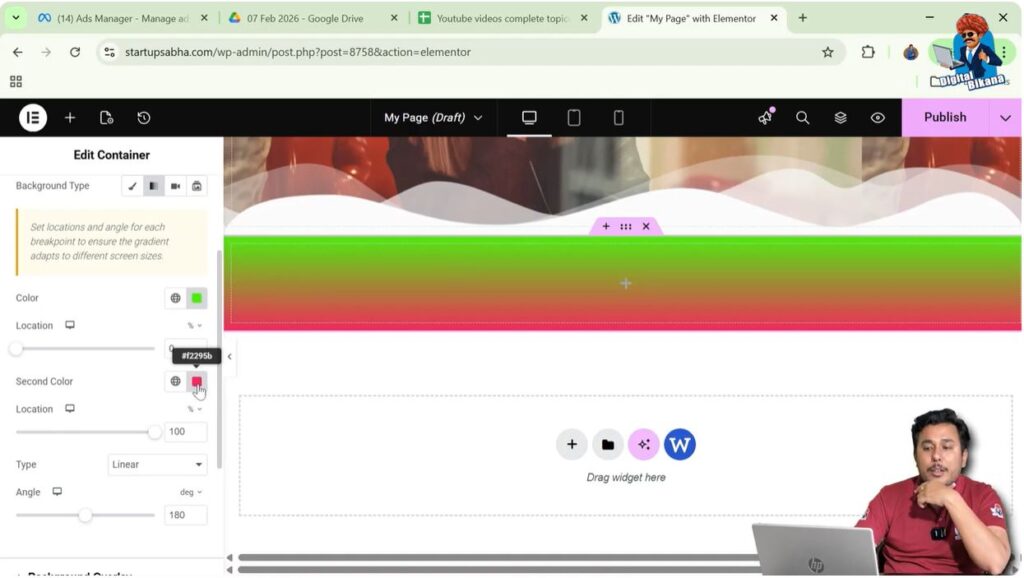
Now choose the second color.
Click on Color Two and select another color from the palette.
For example, you can select a red shade with the hex code #f2955b.
Now both colors will appear as a gradient inside the container.
Viewing the Gradient Background
Once two colors are selected, the gradient background will automatically appear in the container.
For example:
- The green color may appear at the top.
- The red color may appear at the bottom.
The colors smoothly blend into each other, creating a gradient effect.
This simple technique can instantly improve the visual appearance of the container.
Adjusting Gradient Location
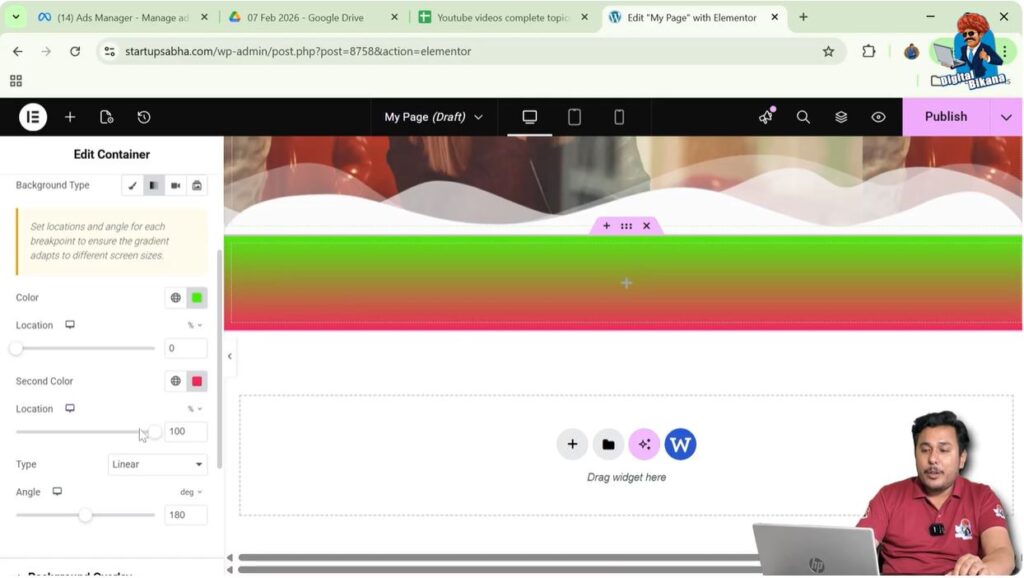
Elementor also allows you to adjust the location of the gradient colors.
Step 1: Modify Color Location
Inside the gradient settings, you can change the location percentage of each color.
By adjusting the location slider:
- One color may cover more area
- The other color may appear less
For example, the red color can be moved upward to cover more of the container area.
This allows you to control how the gradient is distributed across the container.
Changing Gradient Type
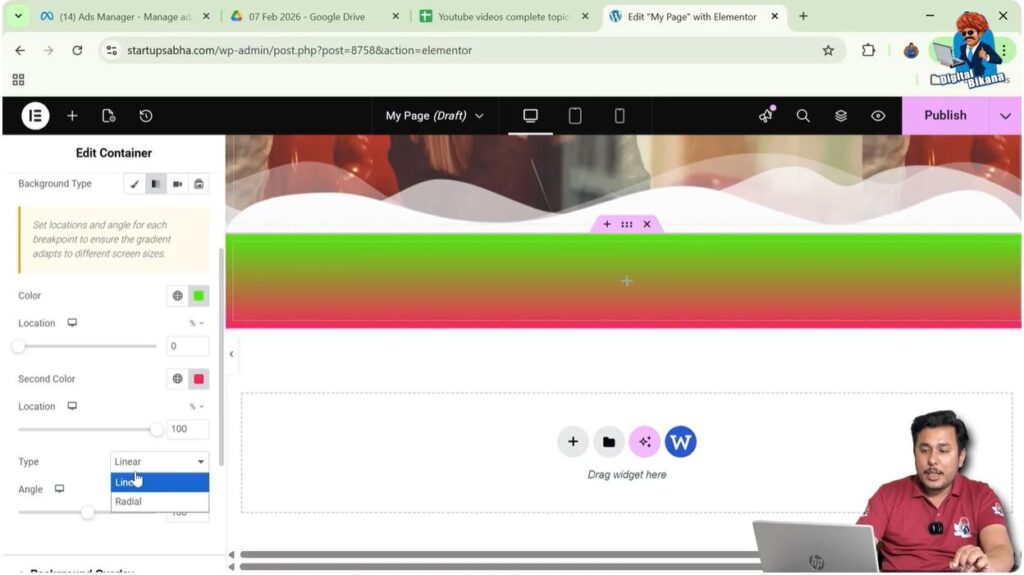
Elementor allows you to change the gradient type.
Step 1: Select Gradient Type
You will see two gradient types:
- Linear
- Radial
Linear Gradient
A linear gradient blends colors in a straight line across the container.
Radial Gradient
A radial gradient creates a circular gradient effect where colors spread outward from the center.
You can switch between these types depending on the design style you want.
Adjusting Radial Gradient Position
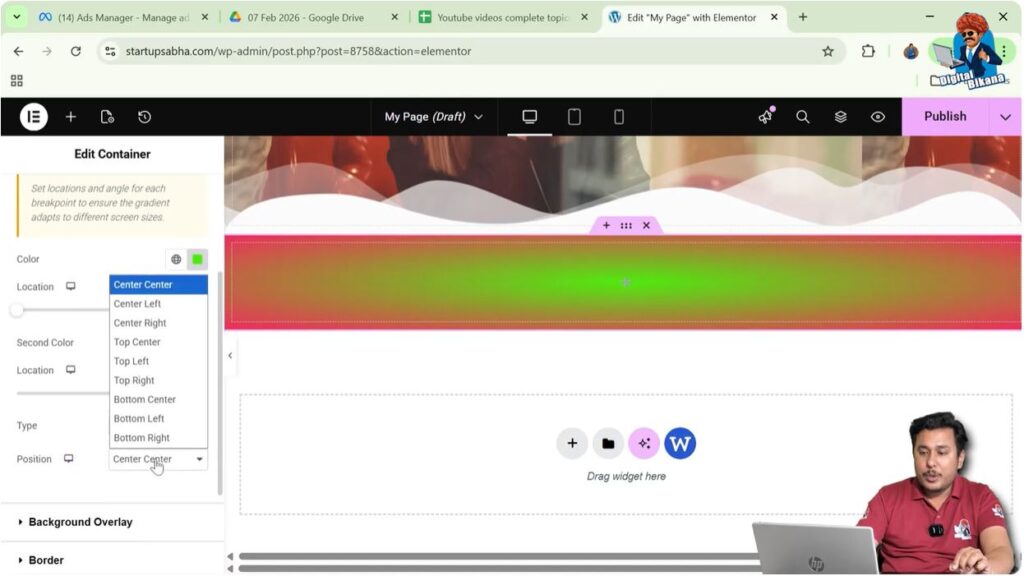
If you select Radial gradient, Elementor allows you to change the position of the gradient circle.
You can select positions such as:
- Center Center
- Left Center
- Right Center
- Top Center
- Top Left
- Top Right
- Bottom Center
- Bottom Left
- Bottom Right
Changing the position moves the center point of the radial gradient.
This allows you to create different visual effects depending on your design needs.
Adjusting Gradient Location
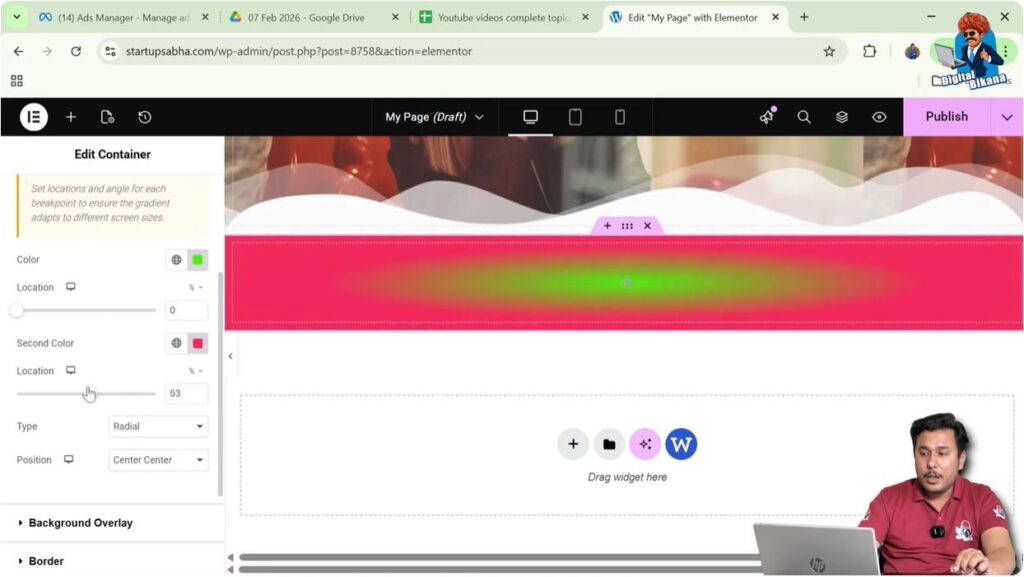
You can also increase or decrease the location value of the gradient.
This changes how quickly one color transitions into another.
For example:
- A lower value may show more of the first color
- A higher value may show more of the second color
Adjusting this setting allows you to fine-tune the appearance of the gradient.
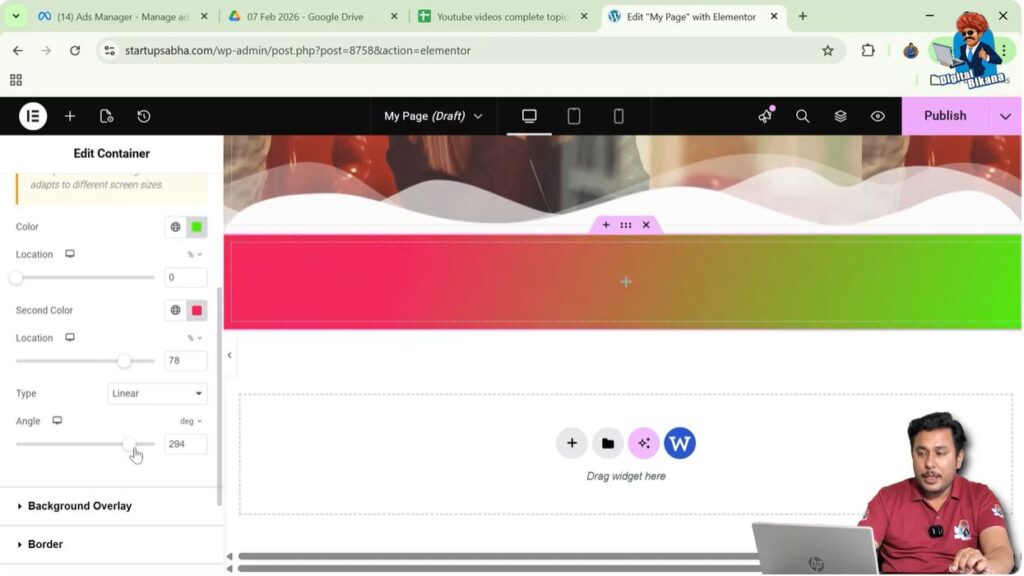
Rotating Linear Gradient Angle
If the gradient type is set to Linear, you can rotate the gradient direction.
Step 1: Adjust Gradient Angle
Inside the gradient settings, you will see an Angle option.
By adjusting the angle slider, you can rotate the gradient direction.
For example:
- 0° may display the gradient vertically
- 90° may display the gradient horizontally
You can rotate the gradient to match your design layout.
Benefits of Using Gradient Backgrounds
Gradients are commonly used in modern website design because they provide a smooth and visually appealing color transition.
Some benefits include:
- Making webpage sections more attractive
- Creating modern design effects
- Enhancing visual depth in layouts
- Avoiding plain and boring backgrounds
- Improving overall website design
Gradients are especially useful for hero sections, banners, and container backgrounds.
Conclusion
Adding a gradient background in a container using Elementor in WordPress is a simple process that can significantly improve the visual appearance of your webpage.
You begin by creating a container using the plus icon and selecting the Flexbox layout. Then you edit the container and open the Style settings. Inside the background settings, you select Gradient as the background type.
After selecting the gradient option, you choose two colors to create the gradient effect. You can then adjust the gradient location, change the gradient type between linear and radial, modify the position, and rotate the gradient angle.
By using these settings, you can easily create beautiful gradient backgrounds for containers while designing webpages using Elementor in WordPress.

Related Posts


