
Adding a short description to your product in WooCommerce is an important step in optimizing your product pages. A well-written short description helps customers quickly understand the product’s key features and benefits. It also plays a significant role in improving search visibility when relevant keywords are included properly.
In this detailed guide, you will learn step by step how to add a short description to a product in WooCommerce on your WordPress website. This article explains the complete process clearly, starting from the WordPress dashboard to generating and adding a short description using AI tools.
Accessing the WordPress Admin Dashboard
Before adding a short description, you need to log in to your WordPress admin panel.
Once you log in successfully, you will see the WordPress dashboard. On the left-hand side, there is a vertical toolbar that contains various options such as Posts, Pages, Media, Plugins, Appearance, and Products. Since WooCommerce adds product-related functionality to your website, you will find a separate option labeled “Products” in this left-side menu.
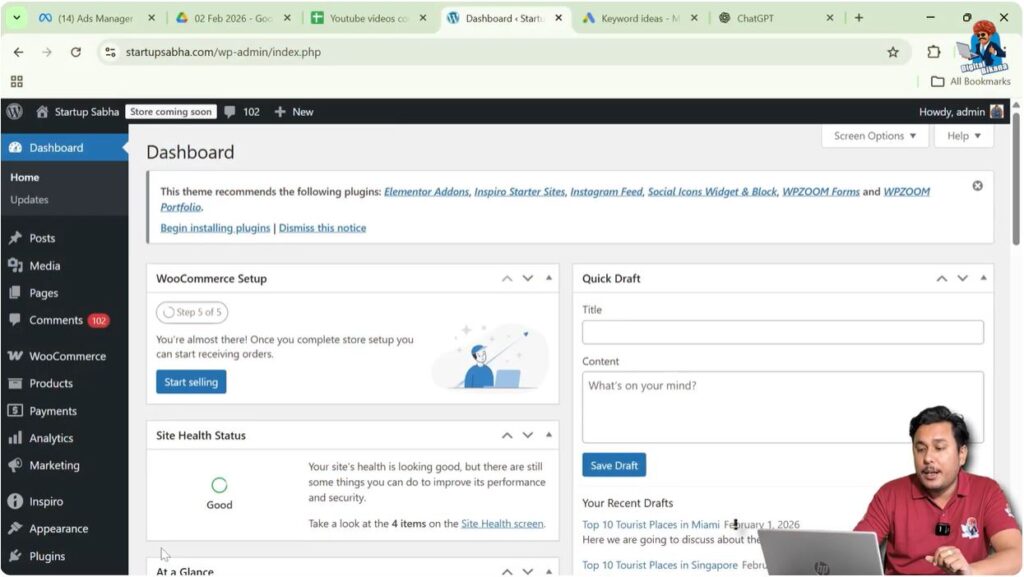
This is where all product-related actions are managed, including adding new products, editing existing products, and managing product categories.
Navigating to the Products Section
To add a short description, you first need to either create a new product or edit an existing one.
Hover Over the “Products” Option
Move your cursor over the “Products” option in the left-side toolbar. As soon as you hover over it, a submenu will automatically appear.
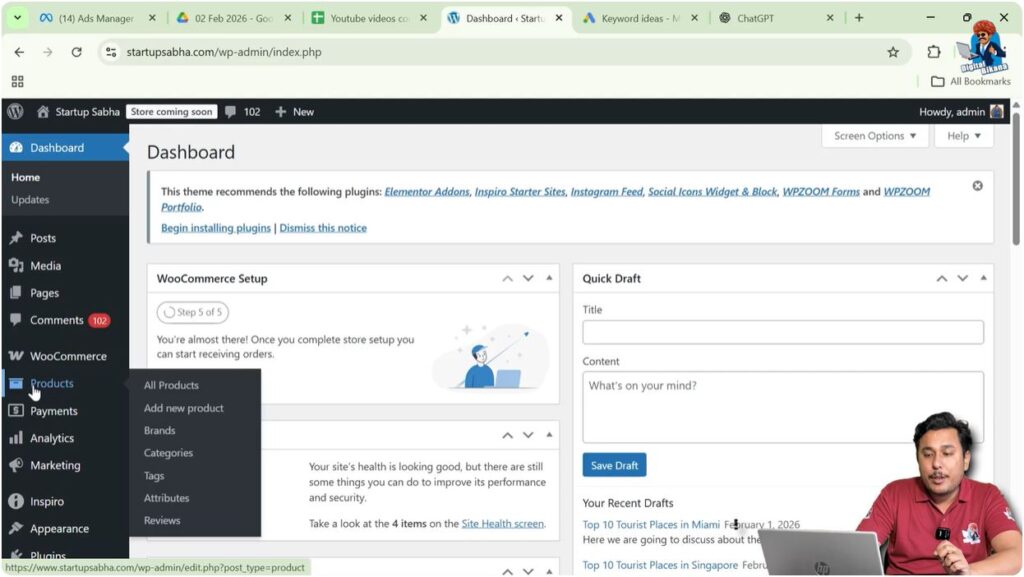
This submenu typically includes options such as:
- All Products
- Add New
- Categories
- Tags
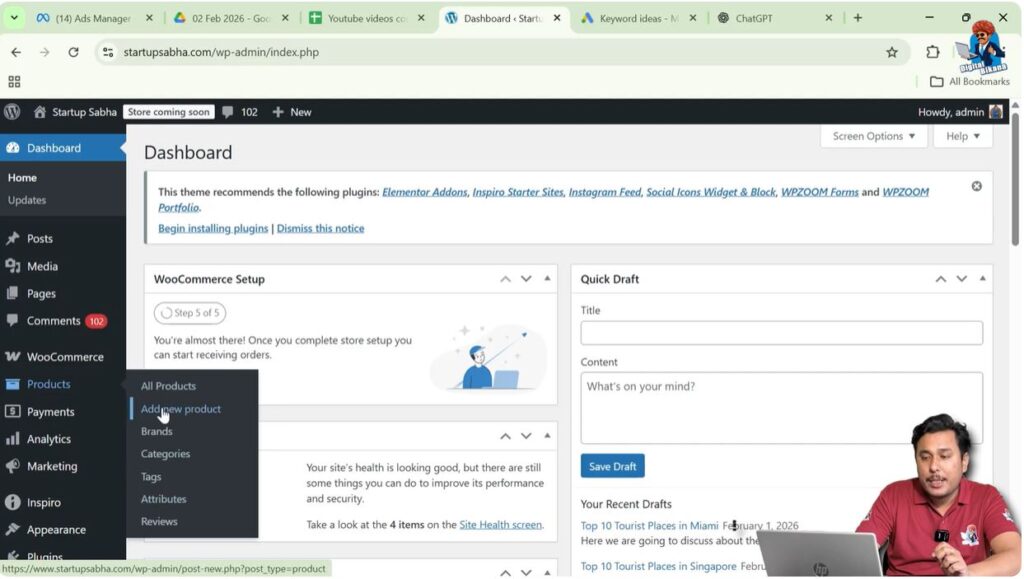
For adding a new product, you need to click on the “Add New” option.
Adding a New Product in WooCommerce
After clicking on “Add New,” you will be redirected to the product creation page. This page contains multiple sections where you can enter detailed information about your product.
Enter the Product Name
At the top of the page, there is a field to enter the product name.
For example, you can write:
Bathroom Slippers for Women of Nylon
This is the product title that will appear on your product page and in search results. Make sure the product name is clear and descriptive.
Writing the Long Product Description
Once you enter the product name, scroll down to the next section.
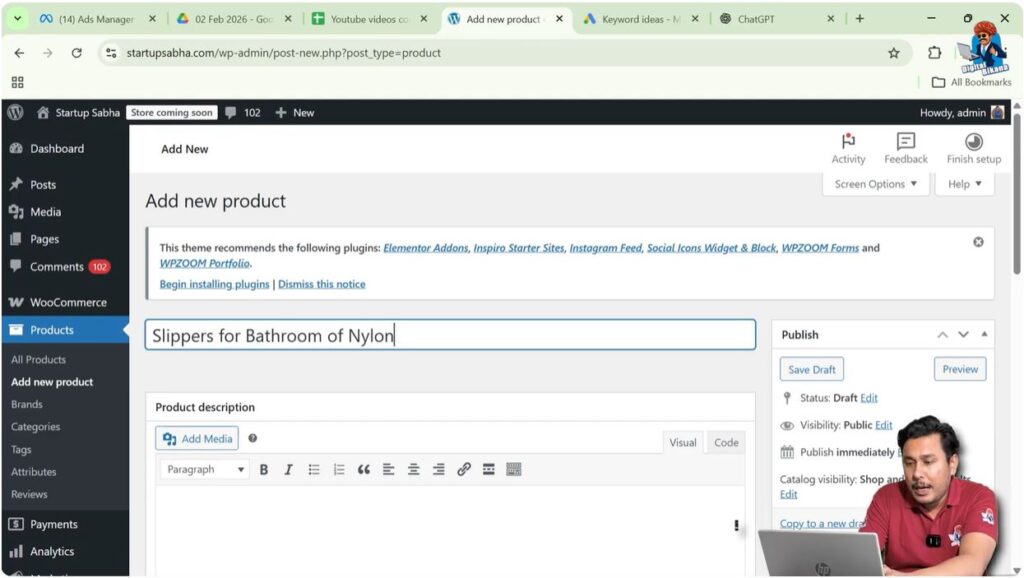
Product Description Section
Below the product title, you will find a large text editor. This is the main product description area.
In this section, you can write a detailed and lengthy description of your product. This area allows you to:
- Write complete product information
- Add images
- Insert internal hyperlinks
- Insert external hyperlinks
- Format text in bold or italic
- Add bullet points and headings
This section is useful for explaining all the features, benefits, specifications, and usage details of your product. You can structure the content in a professional way and provide complete information to your customers.
For example, if you are selling bathroom slippers made of nylon, you can describe:
- The material quality
- Comfort level
- Water resistance
- Durability
- Suitable usage
- Design and color options
The long description gives customers in-depth information about the product.
Scrolling Down to the Product Short Description Section
After writing the long description, scroll down to the bottom part of the product page.
Product Short Description Area
At the last section of the page, you will find the “Product Short Description” field.
This area is specifically designed for writing a brief summary of the product. Unlike the long description, this section should be concise and focused.
The short description usually appears near the product title on the product page. It helps customers quickly understand the main highlights of the product without reading the entire long description.
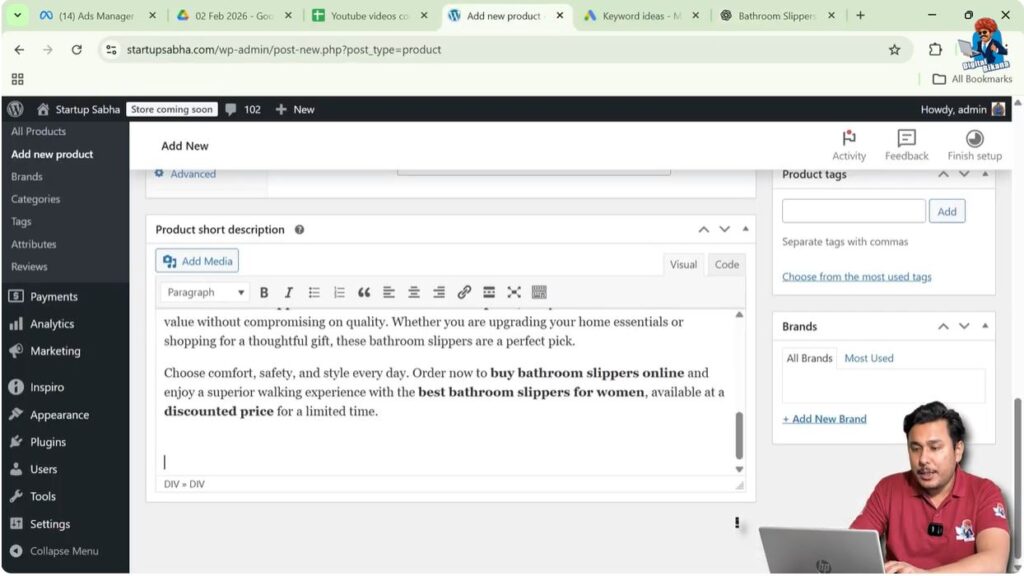
Writing the Short Description
You have two options for writing the short description:
- Write it manually
- Take help from an AI tool
Both methods are effective. However, using AI can help you create an optimized and keyword-rich description quickly.
Using AI to Generate a Short Product Description
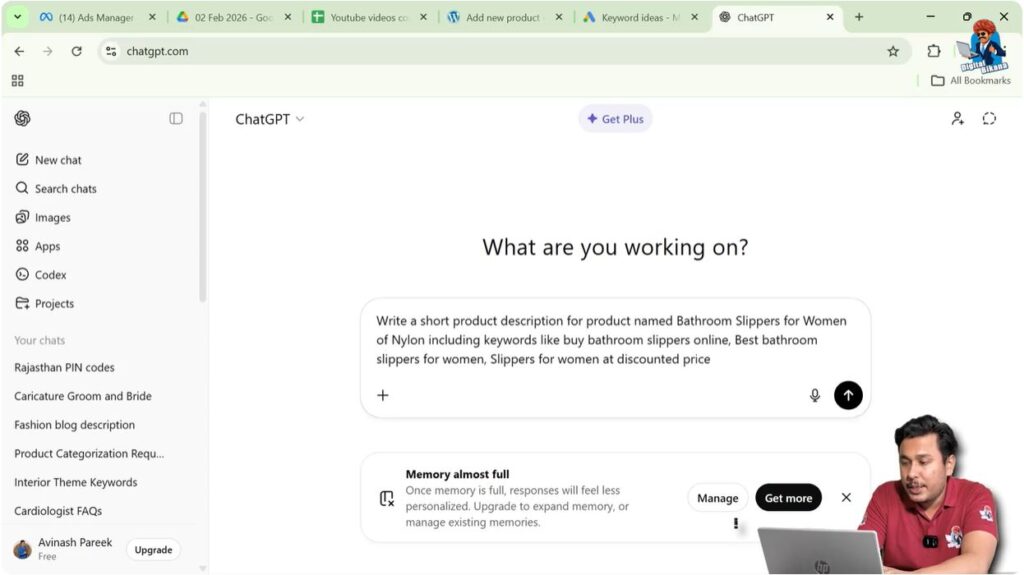
If you choose to take help from AI, you can provide a clear instruction to generate the description.
For example, you can ask AI to write:
A short product description for the product name “Bathroom Slippers for Women of Nylon,” including keywords such as:
- Buy bathroom slippers online
- Best bathroom slippers for women
- Slippers for women at discounted price
You can also specify the desired word count, such as 250 words.
Including keywords with good search volume is important because it helps improve your product’s visibility in search engines.
Importance of Using Keywords in Short Description
Adding relevant keywords in your short description is a smart strategy for SEO.
For example:
- “Buy bathroom slippers online” targets customers who are ready to purchase.
- “Best bathroom slippers for women” attracts users searching for quality options.
- “Slippers for women at discounted price” targets price-sensitive buyers.
When these keywords are naturally included in your short description, your product page becomes more optimized for search engines.
However, it is important to ensure that the keywords are used naturally and do not appear forced.
Copying the Generated Description
Once the AI generates the short product description, review it carefully.
Make sure:
- The content is relevant to your product
- There are no grammatical errors
- The keywords are placed naturally
- The tone matches your brand
After reviewing, simply copy the generated description.
Pasting the Short Description in WooCommerce
Now return to your WooCommerce product page.
Paste in the Product Short Description Field
In the “Product Short Description” area:
- Click inside the text box
- Paste the copied content
Once pasted, you can format it if needed.
After completing all product details, you can publish the product by clicking on the “Publish” button on the right side of the screen.
Final Step: Publishing the Product
After adding:
- Product name
- Long description
- Short description
- Other required details like price, images, and categories
Click the “Publish” button.
Your product will now be live on your WordPress website with a properly added short description.
Why Product Short Description is Important
The short description plays a key role in enhancing user experience.
It helps:
- Capture customer attention quickly
- Highlight main features
- Improve search engine optimization
- Increase conversion rates
A well-written short description can directly influence a customer’s decision to purchase.
Manual vs AI-Generated Description
Both manual and AI-generated descriptions have their advantages.
Manual Writing
When you write the description manually:
- You have full control over tone and structure
- You can personalize it according to your brand voice
- You can ensure accuracy
AI Writing
When you use AI:
- It saves time
- It helps generate SEO-friendly content
- It suggests structured and professional language
- It can include targeted keywords easily
Choosing between manual writing and AI depends on your preference and workflow.
Complete Process Summary
Let us summarize the complete process of adding a short description in WooCommerce:
Step 1: Log in to WordPress Dashboard
Access your WordPress admin panel.
Step 2: Go to Products
Hover over the “Products” option in the left toolbar.
Step 3: Click on Add New
Select “Add New” from the submenu.
Step 4: Enter Product Name
Write the product title, such as Bathroom Slippers for Women of Nylon.
Step 5: Write Long Description
Add detailed product information in the main description section.
Step 6: Scroll to Product Short Description
Move to the bottom section of the page.
Step 7: Write or Generate Short Description
Write it manually or generate it using AI with relevant keywords.
Step 8: Copy and Paste
Copy the generated content and paste it into the short description field.
Step 9: Publish the Product
Click “Publish” to make the product live.
Conclusion
Adding a short description in WooCommerce on your WordPress website is a simple yet powerful step in product optimization. By navigating to the Products section, adding a new product, entering the product name, writing a detailed long description, and finally adding a short description, you can create a well-structured product page.
You can either write the short description manually or generate it using AI by including relevant keywords such as “buy bathroom slippers online,” “best bathroom slippers for women,” and “slippers for women at discounted price.” Once generated, simply copy and paste it into the short description field.
By following these steps carefully, you can effectively add a product short description in WooCommerce and enhance both user experience and SEO performance on your WordPress website.

Related Posts


