
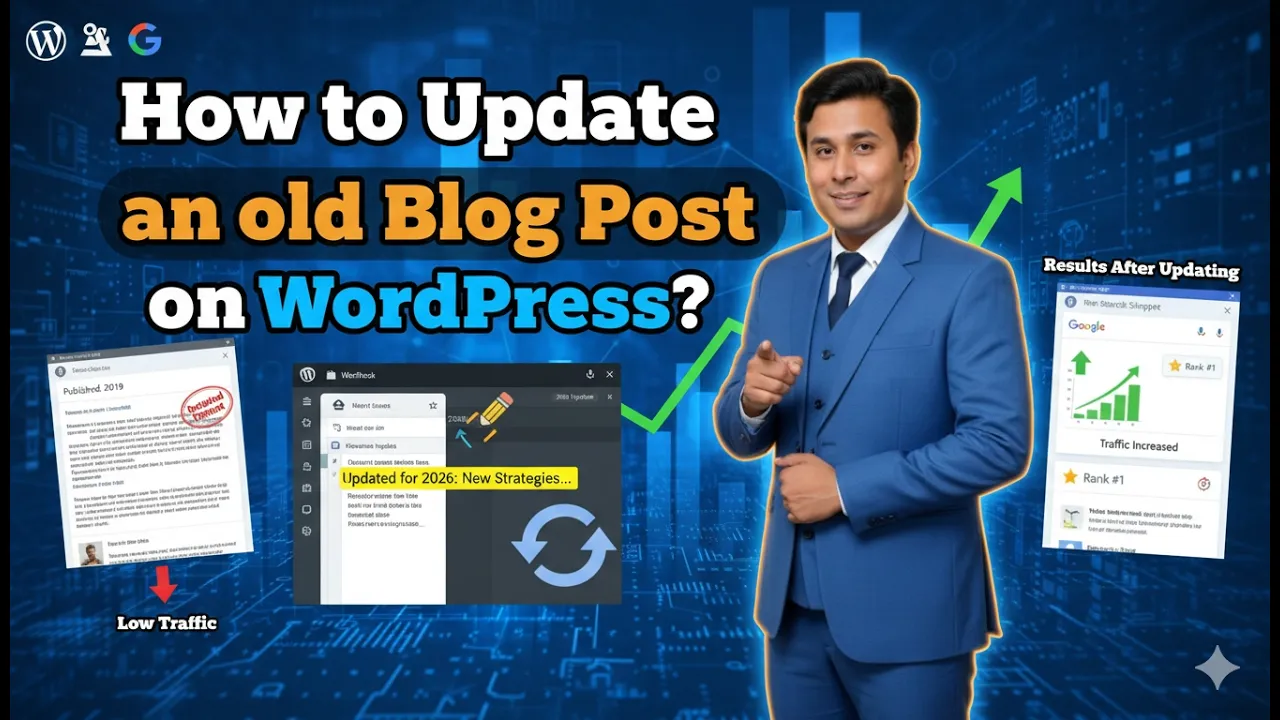
Updating a blog post in a WordPress website is an important part of maintaining content freshness. Once a blog post is published, it does not mean the content should remain unchanged forever. Over time, you may need to add new information, correct mistakes, update images, or improve the structure of your article.
Keeping your content updated helps maintain accuracy and improves user experience. It also ensures that your website remains relevant. In this article, you will learn how to update a blog post in a WordPress website in a simple and structured way.
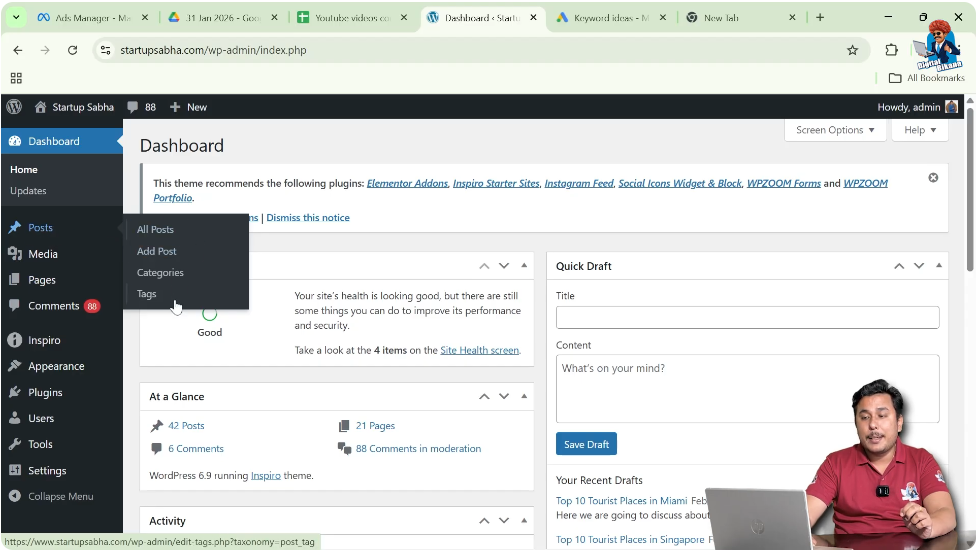
When you log in to your WordPress admin dashboard, you will see different options in the left side toolbar. One of these options is the Posts section, which allows you to manage all blog posts written on your website.
Accessing the Posts Section
Before updating a blog post, you need to open the Posts section inside the WordPress dashboard.
Step 1: Open the Posts Menu
Log in to your WordPress admin dashboard.
On the left side toolbar, move your cursor over the Posts option.
As soon as you move your cursor over Posts, a submenu will appear.
This submenu includes:
- All Posts
- Add Post
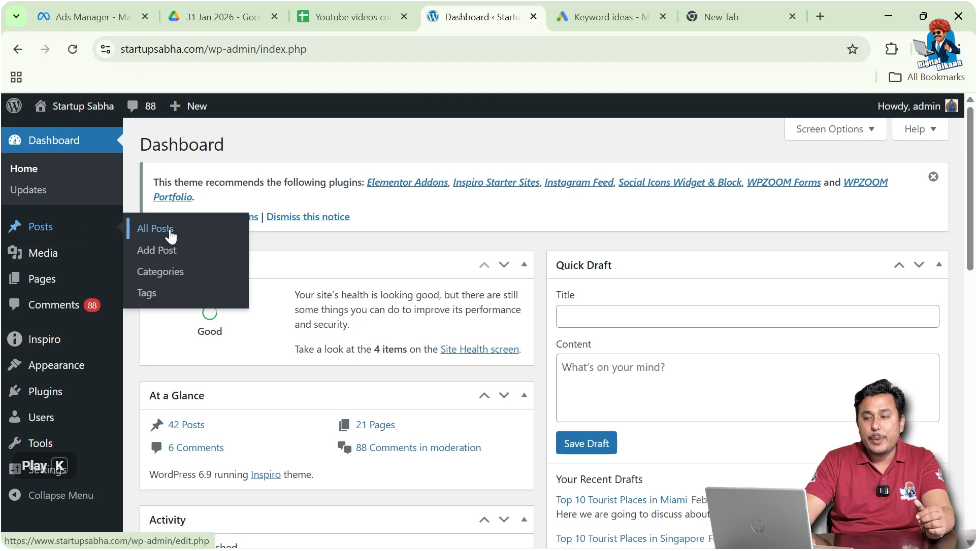
Click on All Posts.
After clicking All Posts, you will see all blog posts written by you.
Viewing All Blog Posts
The All Posts section displays every blog post available on your website.
Here you can see:
- Published posts
- Draft posts
- Scheduled posts
All blog post titles are listed here.
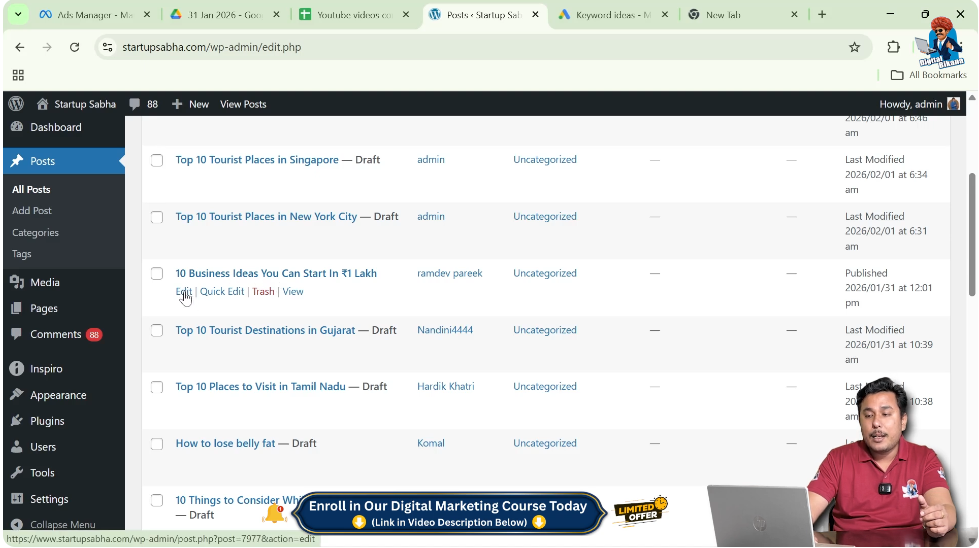
When you move your cursor over any blog post title, different options appear.
One of these options is the Edit option.
Opening the Blog Post for Editing
To update a blog post, you must open it in editor mode.
Step 2: Click on Edit
Move your cursor over the blog post title that you want to update.
Click on the Edit option.
After clicking Edit, the blog post will open in the WordPress editor.
Now you can make changes to the content.
Making Changes to the Blog Post
Once the blog post is open in the editor, you can update different parts of the content.
You can:
- Add new images
- Remove existing images
- Add new paragraphs
- Delete paragraphs
- Add subheadings
- Edit existing content
You can modify any section of the blog post as needed.
Adding New Content
Sometimes you may want to add updated information to your blog post.
For example:
- Adding new statistics
- Adding new sections
- Including additional examples
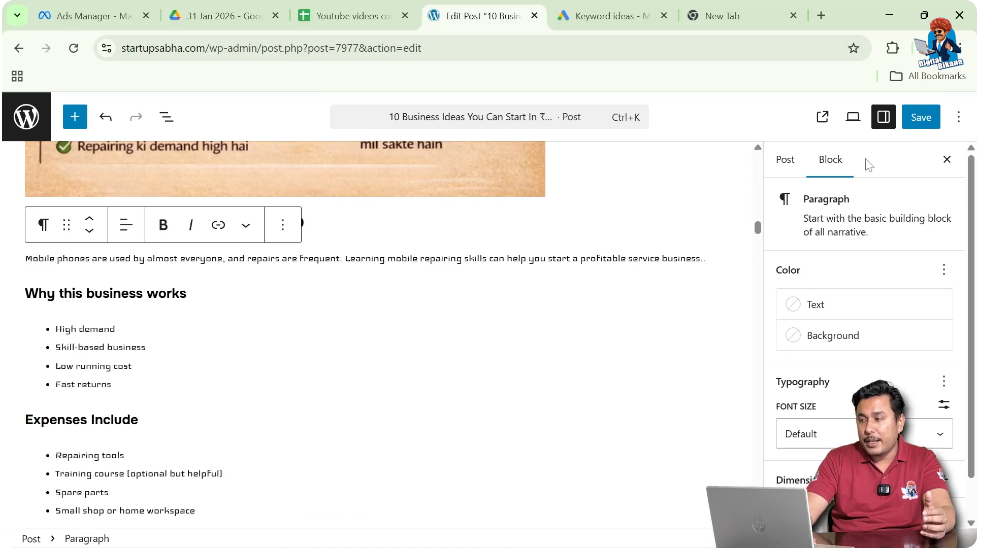
To add new content, place your cursor where you want to insert the new text.
Start typing the updated content.
You can also use formatting tools such as headings, lists, or images.
Editing Existing Content
If you find any mistakes in the blog post, you can edit them directly.
You can:
- Correct spelling errors
- Update outdated information
- Modify sentences for clarity
Simply click inside the paragraph and make the necessary changes.
Updating Images
Images play an important role in blog posts.
If you want to replace an image:
Click on the image.
Use the image options to remove or replace it.
You can upload a new image if required.
This helps improve the visual quality of the blog post.
Maintaining Content Freshness
Content freshness is important for maintaining relevance.
Updating your blog posts regularly ensures that:
- Information remains accurate
- Readers get updated knowledge
- Content stays relevant
Even small updates can improve the quality of a blog post.
Saving the Updated Blog Post
After making the necessary changes, you need to save the updates.
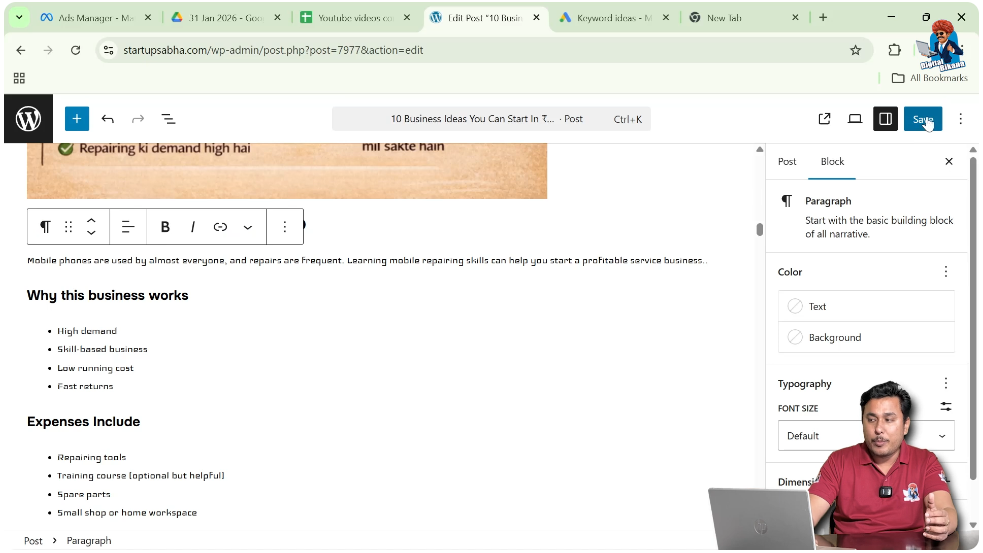
Step 3: Click on Save or Update
Once your editing is complete, click on the Save or Update button.
After clicking Update, your blog post will be updated on the website.
The changes will immediately reflect on the live version of the blog post.
Reviewing the Updated Blog Post
After updating the blog post, you can review it on the website.
Check:
- Formatting
- Images
- Headings
- Paragraph structure
Make sure everything appears correctly.
If further changes are needed, you can edit the blog post again.
Why Updating Blog Posts Is Important
Updating blog posts helps in:
- Keeping information accurate
- Improving readability
- Enhancing user experience
- Maintaining website credibility
Instead of creating new posts for minor changes, updating existing posts is often more effective.
It also keeps your content organized.
Conclusion
Updating a blog post in a WordPress website is a simple and important process. By opening the Posts section, selecting All Posts, clicking Edit, and making necessary changes, you can easily update your blog post.
You can add new content, edit existing paragraphs, update images, and improve structure. After making changes, click Update to save them.
Maintaining content freshness ensures that your blog remains relevant and useful to readers. By regularly updating your blog posts, you can keep your WordPress website organized and up to date.

Related Posts


