

Adding a numbered list in a WordPress post helps present information in a clear and organized format. Numbered lists are useful when you want to show steps, sequences, or points in a specific order. Instead of writing long paragraphs, numbered lists make the content easier to read and understand.
In this article, you will learn how to add a numbered list in a WordPress post using the WordPress block editor. The explanation uses an existing blog post as a reference so that the process can be understood easily.
When you log in to the WordPress admin dashboard, you will see different options on the left side toolbar. One of these options is the Posts section, which allows you to manage blog posts.
Accessing the Posts Section
Before adding a numbered list, you need to open a blog post inside the WordPress editor.
Step 1: Open the Posts Menu
Log in to your WordPress admin dashboard.
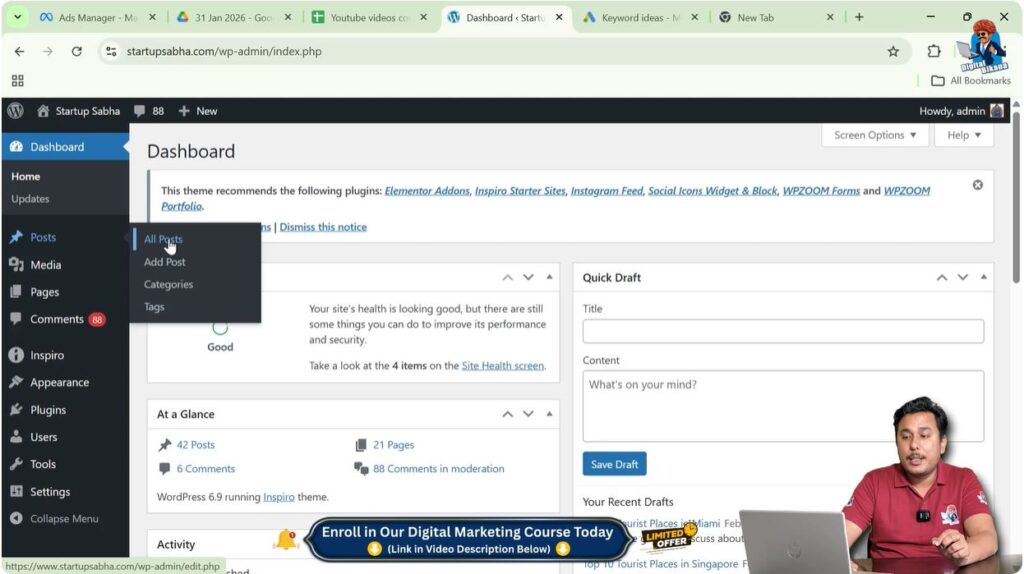
On the left side toolbar, move your cursor over the Posts option.
As soon as you move the cursor over Posts, a submenu automatically appears.
This submenu contains the following options:
- All Posts
- Add Post
If you want to create a new blog post, you should click on Add Post.
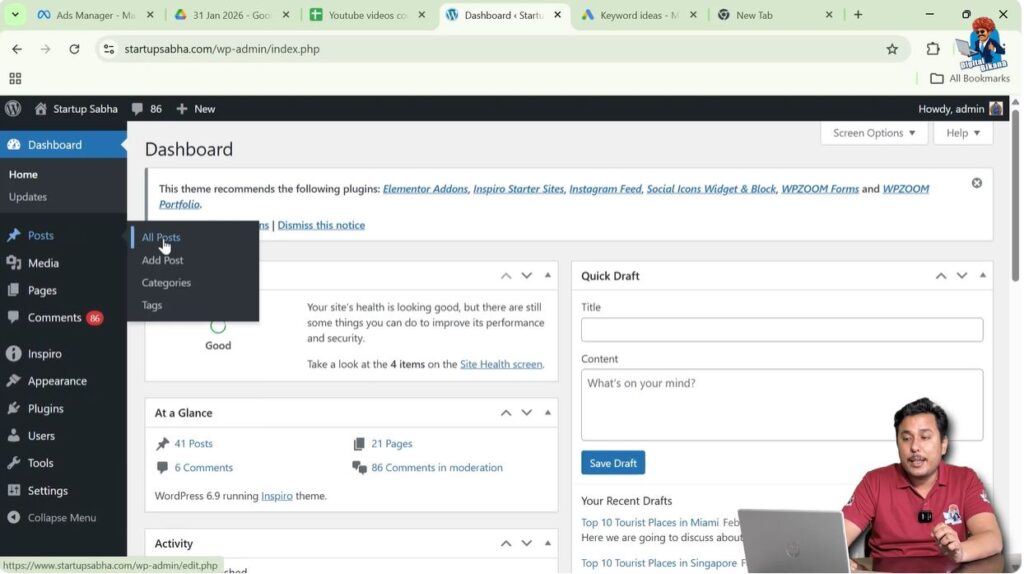
In this case, the All Posts option is selected because an existing blog post is used as a reference for better understanding.
Opening an Existing Blog Post
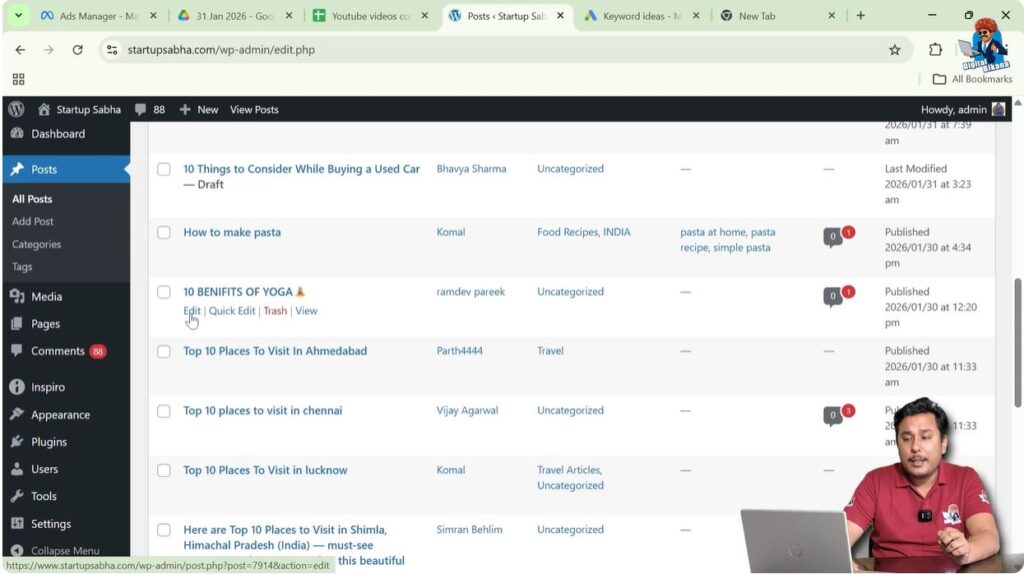
After clicking on All Posts, a list of blog posts will be displayed.
These posts include articles that are already written on the website.
Step 2: Edit a Blog Post
Find the blog post that you want to edit.
For example, a blog post titled 10 Benefits of Yoga can be selected.
Under the blog post title, there is an Edit button.
Click on the Edit button.
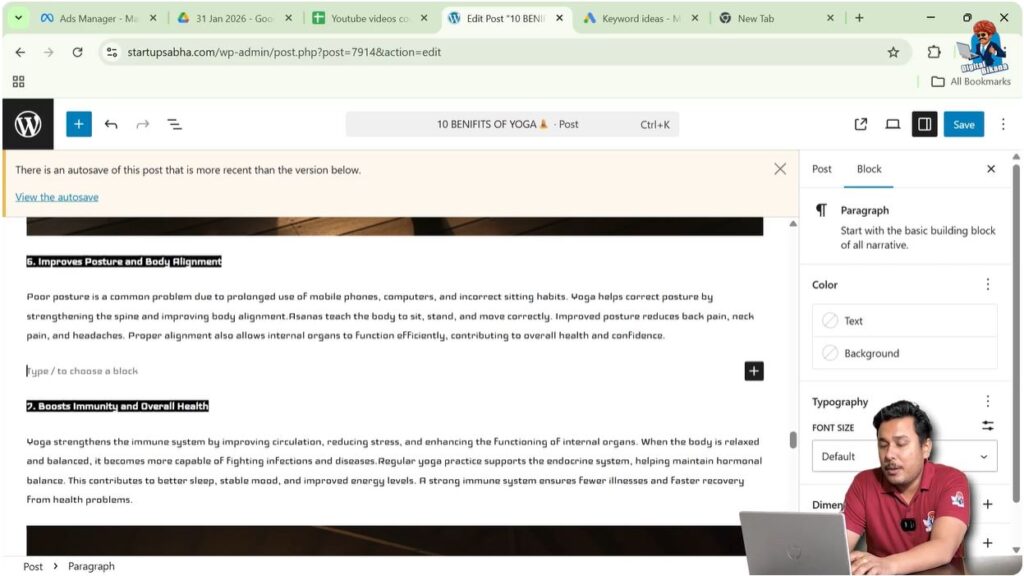
After clicking Edit, the article will open inside the WordPress editor.
This editor allows you to modify the content and add numbered lists.
Choosing the Location for Numbered List
After opening the blog post editor, you need to decide where the numbered list should be added.
Numbered lists are usually added between paragraphs or under subheadings.
Step 3: Place Cursor at the Required Location
Scroll to the section where you want to add the numbered list.
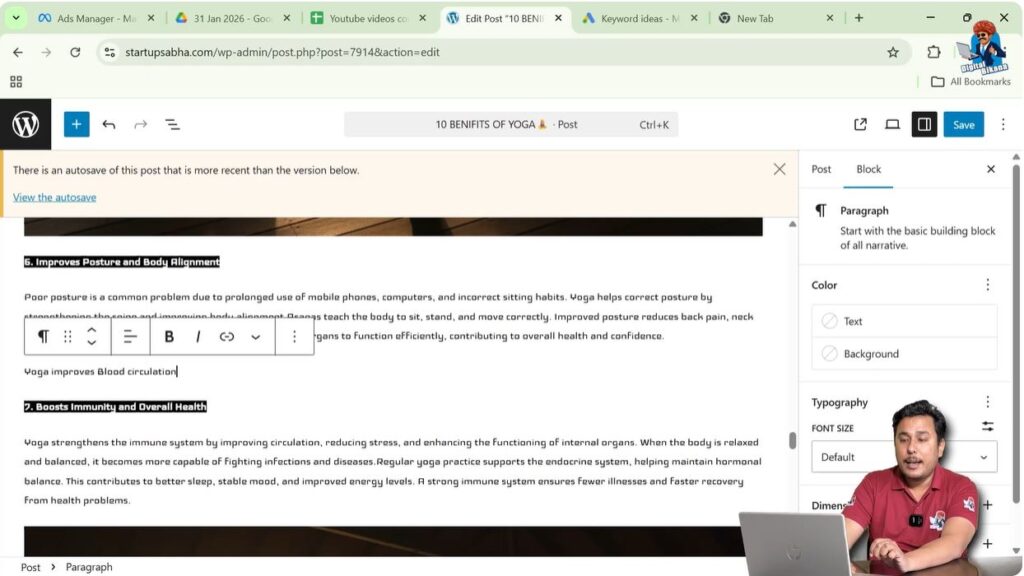
For example, you may want to insert the numbered list between paragraph six and paragraph seven.
Place the cursor at the end of paragraph six.
Press Enter to create a new line.
Now you can start typing the content.
Writing Text for Numbered List
Before converting text into a numbered list, you need to write the content.
Step 4: Type the First Point
Start typing the text.
For example:
Yoga improves blood circulation.
After typing the text, the next step is to convert the text into a numbered list.
Converting Text into Numbered List
WordPress provides tools to convert normal text into numbered lists.
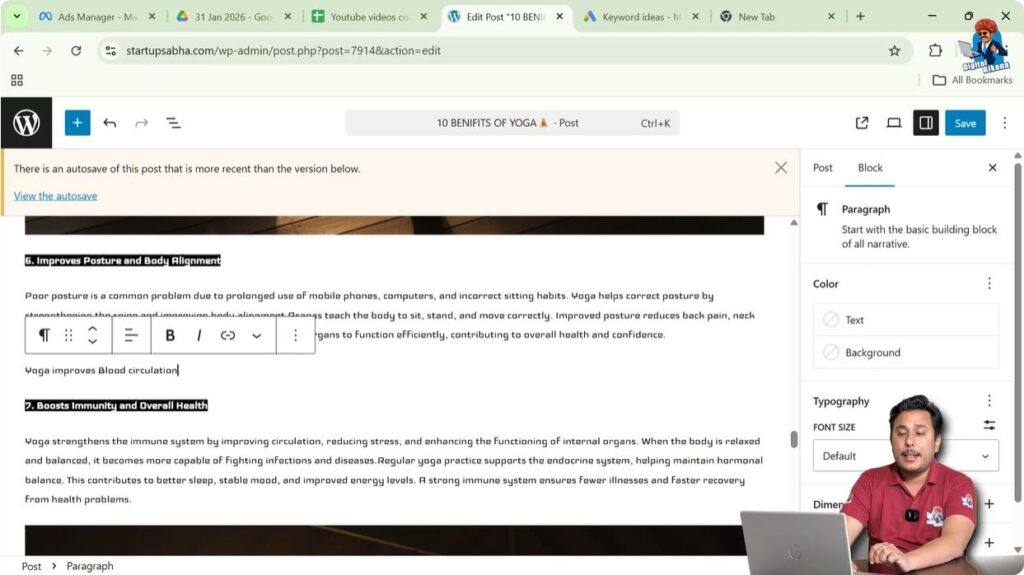
Step 5: Select the Text
Move your cursor over the text you have written.
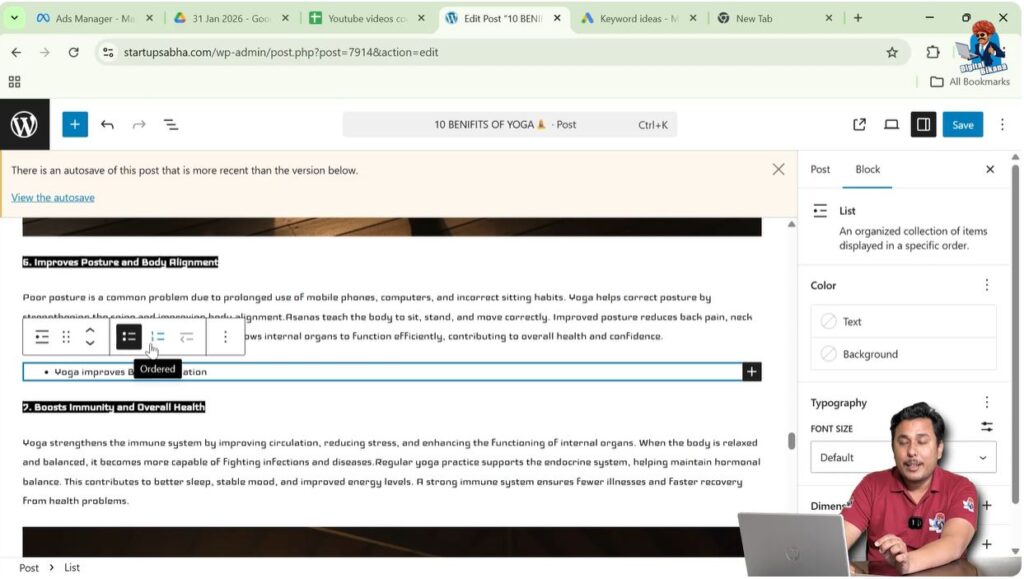
When the text is selected, a toolbar will automatically appear above the text.
This toolbar contains formatting options.
Step 6: Select Paragraph Option
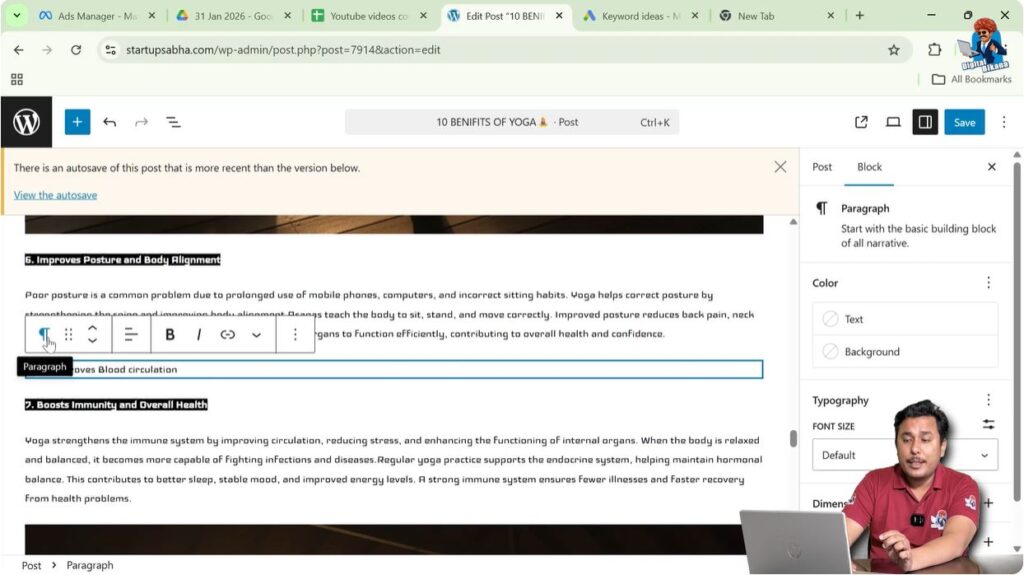
In the toolbar, find the Paragraph option.
Click on the Paragraph option.
A dropdown menu will appear.
Step 7: Select List Option
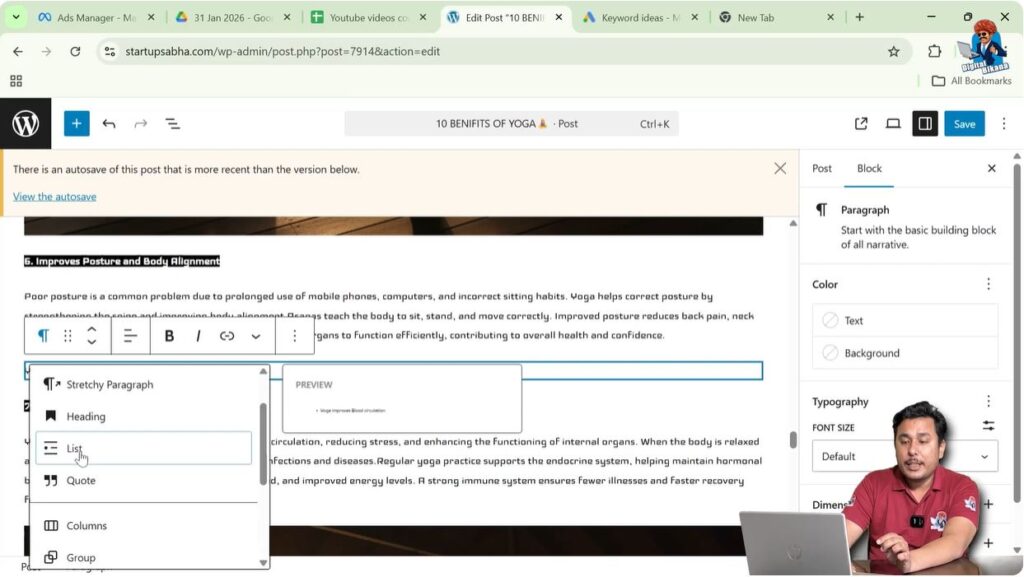
From the dropdown menu, select List.
After selecting List, the text will be converted into bullet points.
However, the goal is to create a numbered list.
Step 8: Convert Bullet Points into Numbered List
Move your cursor again over the text.
The toolbar will appear again.
In the toolbar, find the Ordered option.
Click on the Ordered option.
After selecting Ordered, the bullet points will be converted into a numbered list.
Now the first numbered point has been created.
Adding More Numbered Points
After creating the first numbered point, additional points can be added easily.
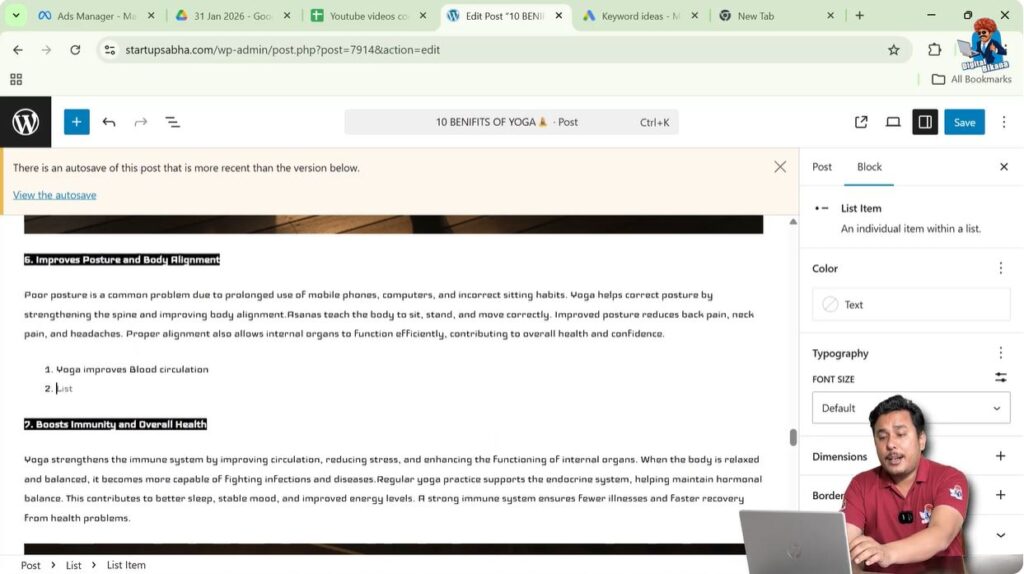
Step 9: Press Enter for Next Point
Place the cursor at the end of the numbered point.
Press Enter.
A new numbered point will automatically appear.
Step 10: Type the Next Point
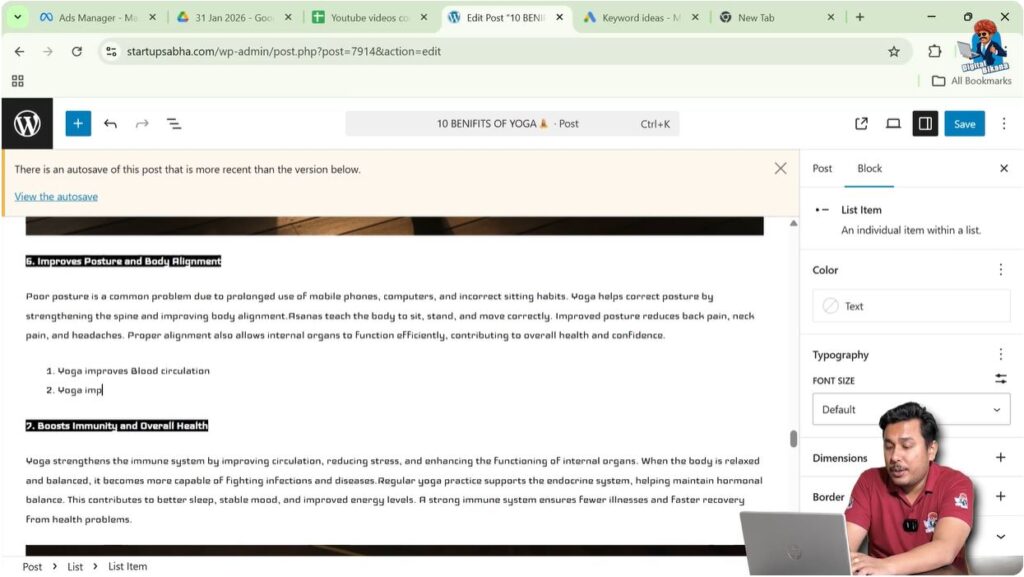
Type the next point.
For example:
Yoga improves body posture.
The text will automatically appear as the second numbered point.
You can continue writing more points in the same way.
Automatic Numbering in WordPress
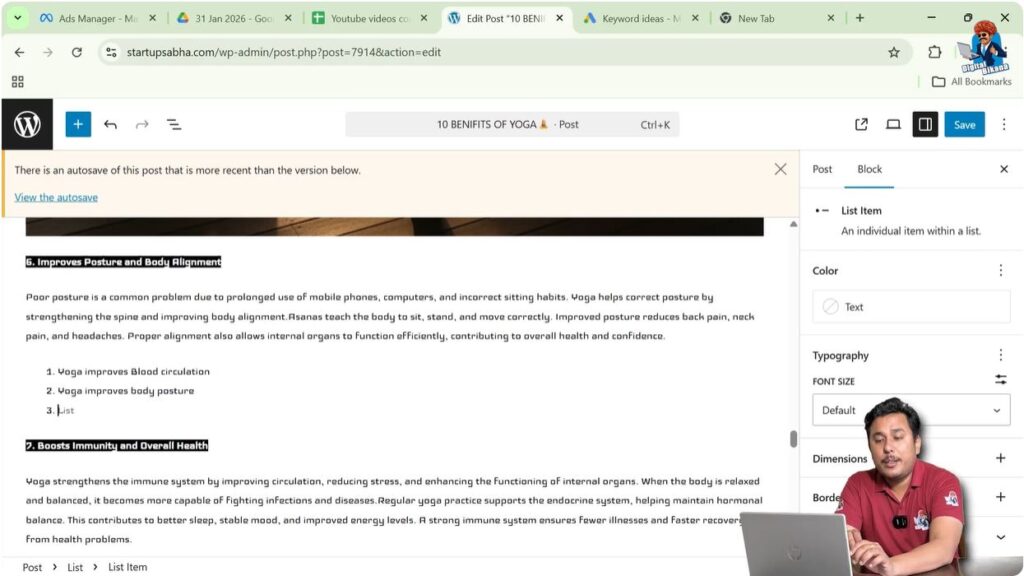
WordPress automatically manages numbering in a numbered list.
Each time you press Enter and create a new line, the next number appears automatically.
This makes it easy to create structured lists.
You do not need to manually type the numbers.
WordPress handles the numbering automatically.
Numbered Lists for Better Readability
Numbered lists improve readability and presentation.
They make blog posts easier to understand.
Instead of writing everything in paragraph form, numbered lists highlight important points.
Numbered lists are useful for:
- Showing steps
- Listing instructions
- Explaining processes
- Presenting ordered points
Using numbered lists helps create well-structured blog posts.
Toolbar Appears Automatically
The formatting toolbar appears automatically when text is selected.
If the text is not selected, the toolbar will not appear.
Therefore, always select the text before converting it into a numbered list.
Once selected, the toolbar will appear automatically and formatting options can be used.
Using Numbered Lists Correctly
Numbered lists should be used when the order of points is important.
If the order does not matter, bullet points can be used instead.
Numbered lists are suitable for step-by-step instructions.
They help readers follow the sequence easily.
Using numbered lists correctly improves the structure of blog content.
Conclusion
Adding a numbered list in a WordPress post is a simple process that helps organize content clearly. By opening a blog post, placing the cursor at the required location, typing the content, and converting the text into a numbered list, structured points can be created easily.
The WordPress block editor provides options to convert text into lists and ordered lists. WordPress automatically manages numbering when new points are added.
Numbered lists improve readability and make blog posts easier to understand. They help present information in a clear and organized format.

Related Posts


