

In this article, we will learn how to take a backup of a WordPress website for free. Many website owners are always worried about losing their website data. Sometimes mistakes happen while updating themes, plugins, or making design changes, and the website may stop working properly. Because of this reason, it is always recommended to create a backup before making any changes to your website.
Creating a backup ensures that your website data remains safe. If anything goes wrong, you can restore your website to its previous condition. In this tutorial, we will learn how to take a free backup of a WordPress website using a plugin.
As you can see, we are inside the WordPress website dashboard. From here, we will install a plugin that will help us create a backup of the entire website.
Installing a Backup Plugin
To take a backup of a WordPress website, we need to install a backup plugin. WordPress provides a plugin directory where we can install different WordPress plugins according to our needs.
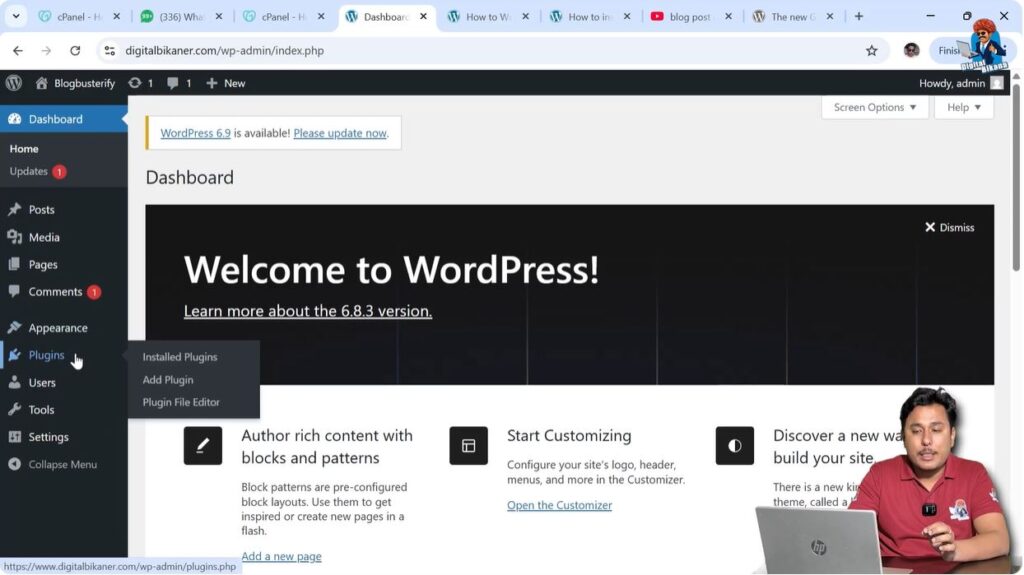
In the WordPress dashboard, there is a Plugins option available in the left-side toolbar. From there, we need to click on Add Plugin to install a new plugin for WordPress website backup.
After opening the plugin directory, we need to search for a backup plugin.
Step 1: Go to Plugins Section
First, go to the left-side toolbar and click on Plugins. After that, click on Add Plugin. This will open the WordPress plugin directory where you can search for plugins.
Step 2: Search for Backup Plugin
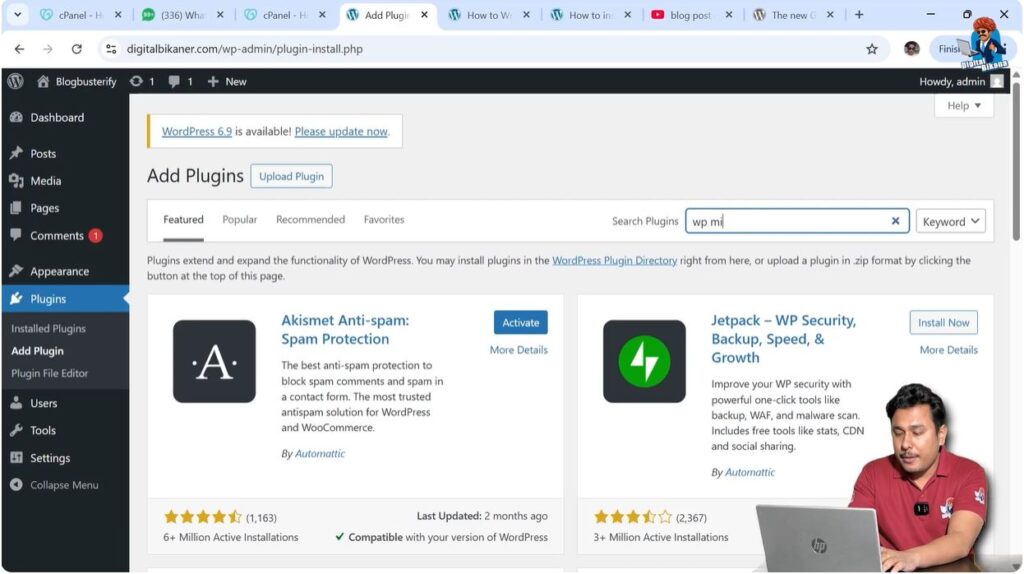
In the search bar, type WP Migrate. After scrolling down, you will find a plugin named All-in-One WP Migration.
This is a good plugin for taking backups of WordPress websites.
Step 3: Install the Plugin
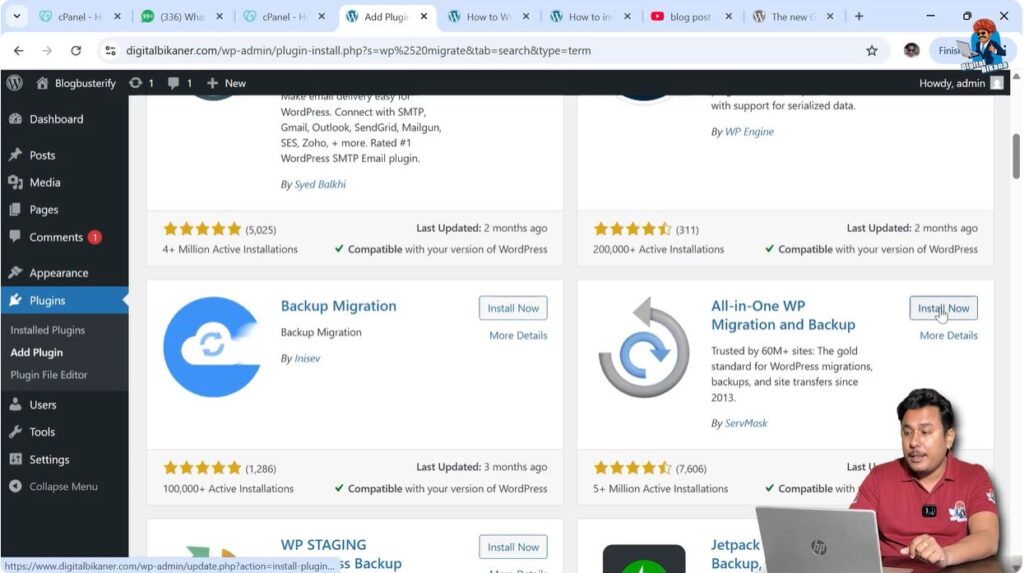
Click on the Install Now button next to the plugin. The plugin will start installing on your WordPress website.
Every plugin comes with certain limitations. This plugin allows you to download backups for free. However, while uploading backups, there is a certain limit. If your website size exceeds that limit, then you may need to purchase the premium version.
If you have a small website, then the free version is good enough.
Step 4: Activate the Plugin
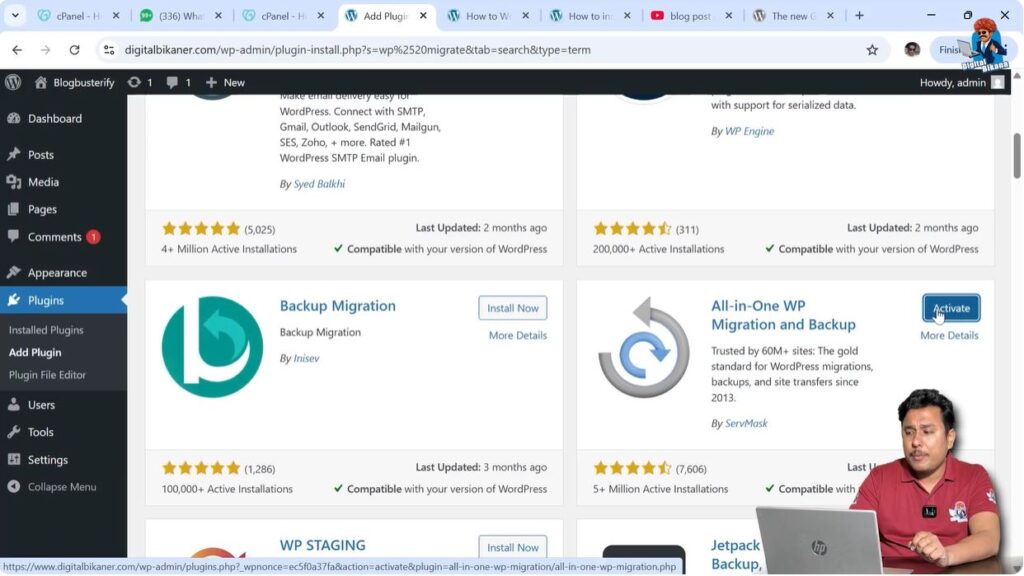
After installing the plugin, click on the Activate button.
Once the plugin is activated, a new option will appear in the left-side toolbar.
Creating WordPress Website Backup
After installing and activating the plugin, we can create a backup of the WordPress website.
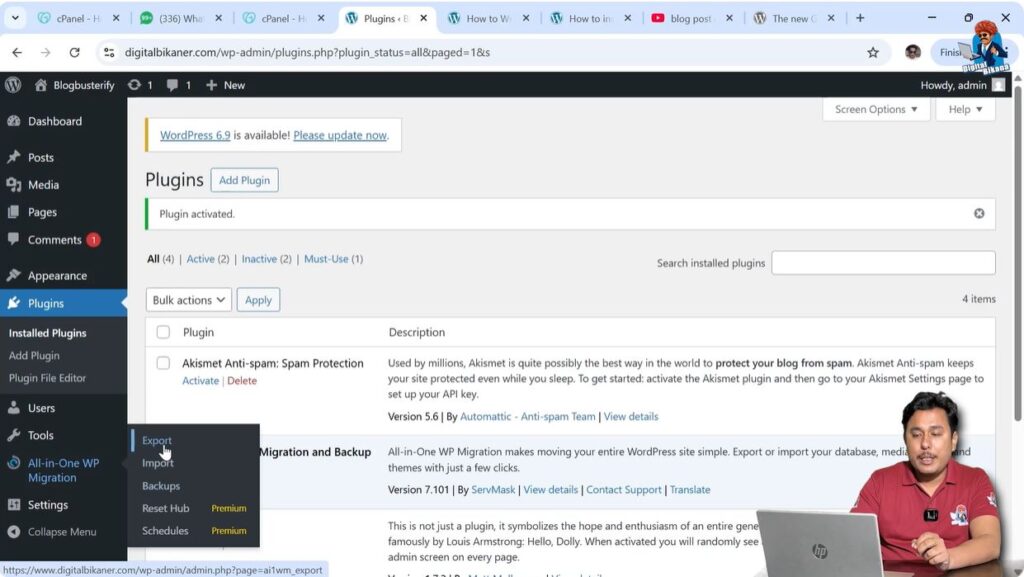
In the left-side toolbar, you will see the plugin options. From there, we need to select the export option.
Step 1: Open Export Option
Click on the plugin option in the left-side toolbar and select Export.
This option allows you to export the complete WordPress website backup.
Step 2: Export Site Backup
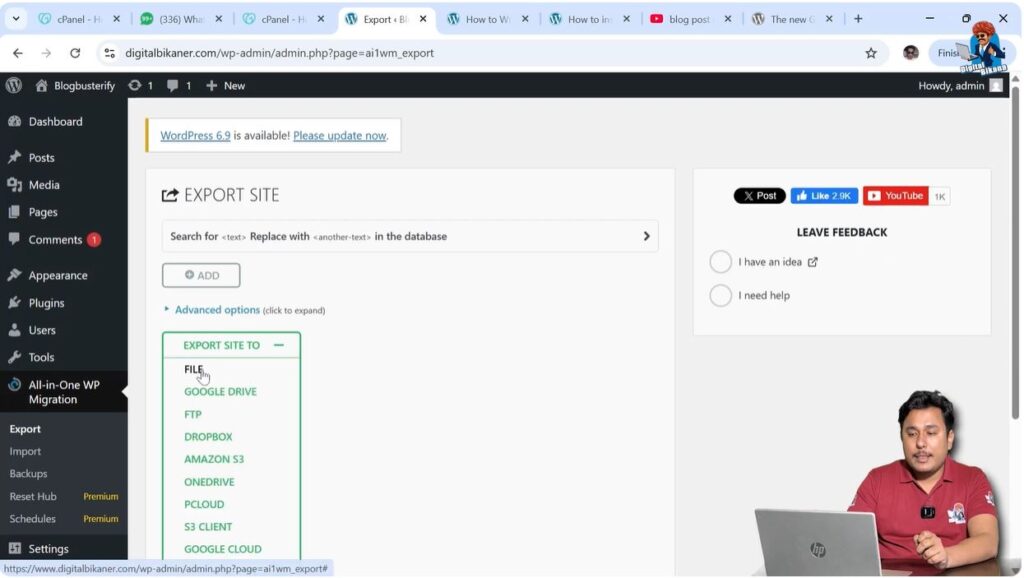
After opening the export option, you will see an option called Export Site To.
Here you need to select the format in which you want to download your backup.
Select File Format because we want to download the backup as a file.
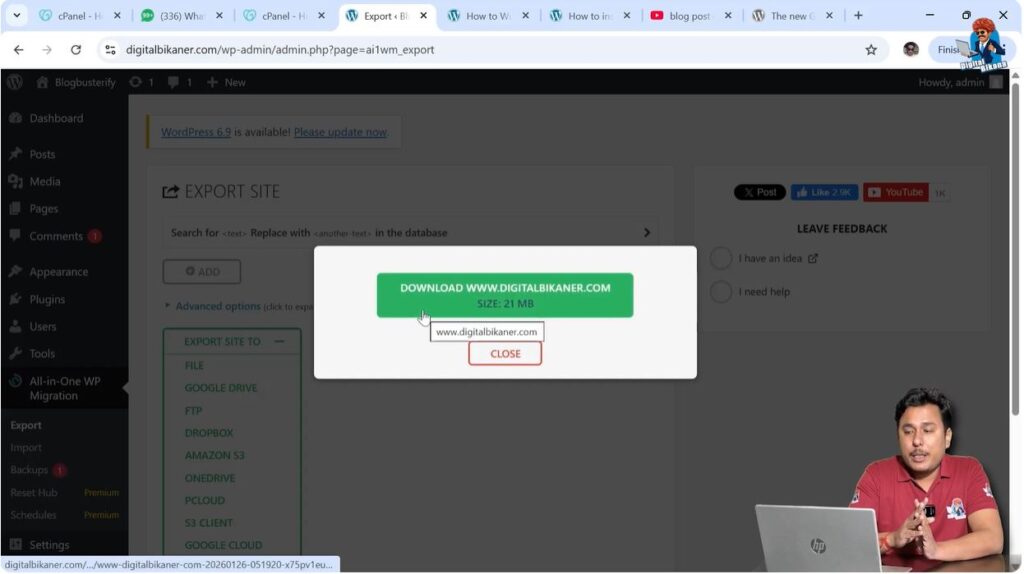
After selecting the file format, the plugin will start preparing your website backup.
The plugin will collect all the data from your WordPress website and create a backup file.
Once the process is complete, you will be able to download the backup file.
This backup file will contain your entire WordPress website data.
Restoring WordPress Website Backup
Sometimes websites get damaged or data gets lost. In that situation, backups help us restore the website.
If your website gets deleted or stops working, then you can restore it using the backup file.
Before restoring the backup, you need to install WordPress again.
Reinstall WordPress Application
First, reinstall the WordPress application from your hosting control panel.
If you are using GoDaddy hosting, then you need to reinstall WordPress from GoDaddy CPanel.
You need to install WordPress on your domain name again.
After installing WordPress, you need to log in to your WordPress admin dashboard.
Importing Backup File
After installing WordPress again, the next step is to import the backup file.
First, install the same backup plugin again on your WordPress website.
After installing and activating the plugin, follow the steps below.
Step 1: Open Import Option
Go to the plugin option in the left-side toolbar and click on Import.
This option allows you to upload your backup file.
Step 2: Upload Backup File
Upload the backup file that you downloaded previously.
After uploading the backup file, the plugin will start restoring your website.
Step 3: Restore Website
Once the backup file is imported successfully, your WordPress website will appear exactly as it was before.
All pages, posts, images, plugins, and themes will be restored.
Your website will be reinstated to its previous condition.
Why Website Backup is Important
Website backup is very important for every website owner.
Many times, website owners make changes in themes or plugins, and sometimes those changes break the website.
If you have a backup available, you can restore your website easily.
Without backup, you may lose your entire website data.
Before making any major changes on your WordPress website, always create a backup.
This ensures your website remains safe.
Plugin Limitations
Every plugin has some limitations.
The All-in-One WP Migration plugin allows free download of backups.
However, when uploading backups, there is a size limit.
If your website size is small, then the free version works perfectly.
If your website is large, then you may need to upgrade to the premium version.
For beginners and small websites, the free version is sufficient.
Conclusion
In this tutorial, we learned how to take a backup of a WordPress website for free.
We installed a backup plugin and exported the website backup as a file. We also learned how to restore the website using the backup file.
Taking backups regularly is a good habit for every website owner. It protects your website data from loss.
This is how you can create a WordPress website backup for free.

Related Posts


