

In this article, you will learn how to add alt text in images in a WordPress website. Adding alt text is a very important part of managing images on a website and it is also helpful for search engine optimization. Alt text can be added using different methods inside WordPress. In this guide, we will learn two simple methods to add alt text to images.
Adding alt text is a simple process and can be done either from the Media Library section or while editing a blog post. Both methods are easy to use and help improve the overall optimization of your website images.
Importance of Alt Text in WordPress Images
Alt text plays an important role in search engine optimization. Adding alt text to images helps your web pages appear higher in search engine results. It is considered a good SEO practice because it improves the understanding of images for search engines.
One important reason for adding alt text is accessibility. Blind people use the internet with the help of screen reader software. Screen readers read the alt text written for images and help users understand what the image is about. This makes the website more accessible.
Another reason for adding alt text is when images fail to load properly due to low internet connectivity. In such situations, the alt text appears in place of the image and tells users what the image is related to. This helps users understand the content even when the image is not visible.
Because of these reasons, adding alt text is always recommended for every image uploaded on a WordPress website.
Adding Alt Text from Media Library
1. Visit Media Library
The first method to add alt text is through the Media Library section.
First, log in to your WordPress admin dashboard.
After logging in, go to the left side toolbar and click on Media.
Then click on Library.
Here you will see all the images that have been uploaded to your website.
You can select any image from the Media Library.
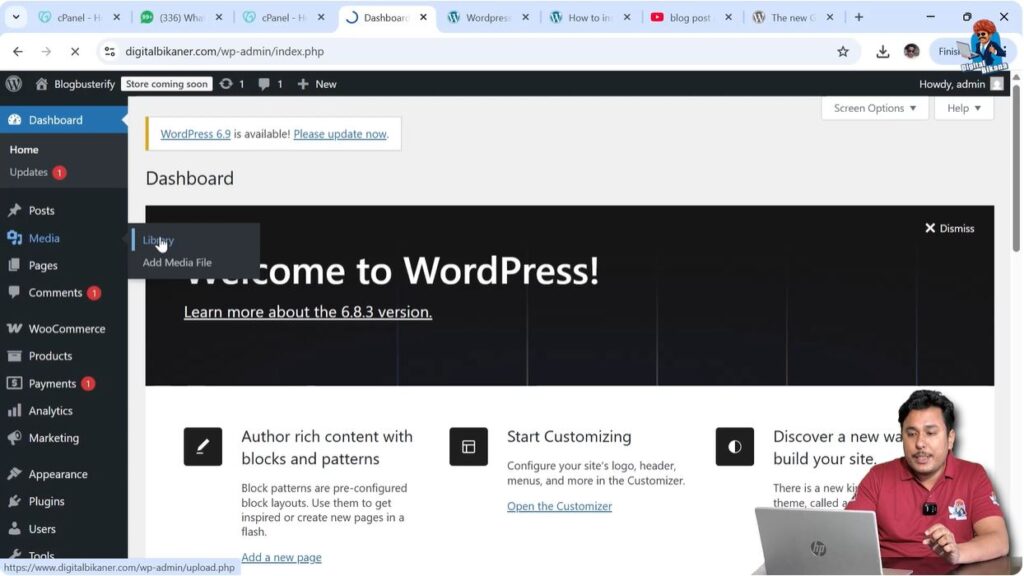
Selecting Image from Media Library
2. Select Image
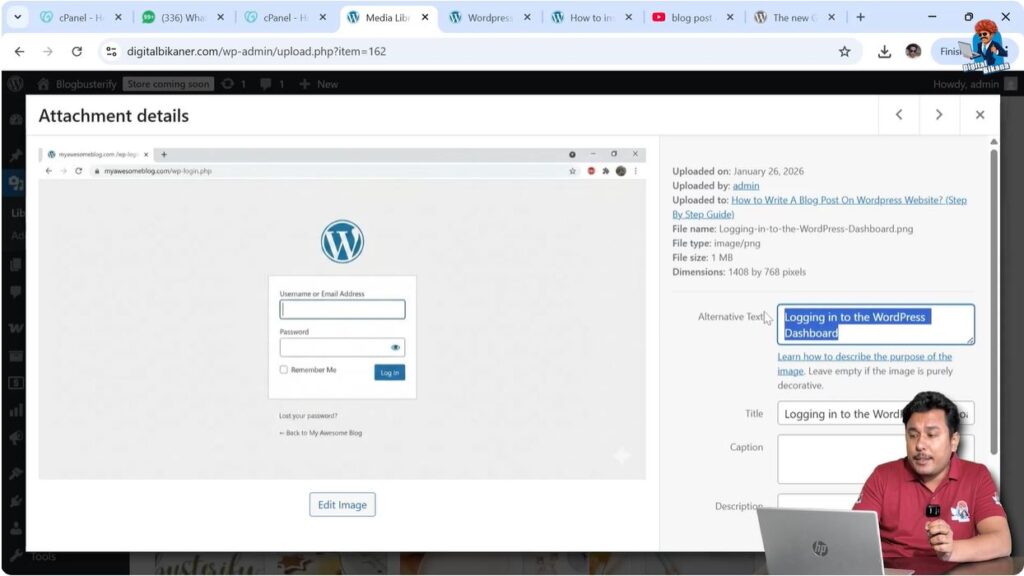
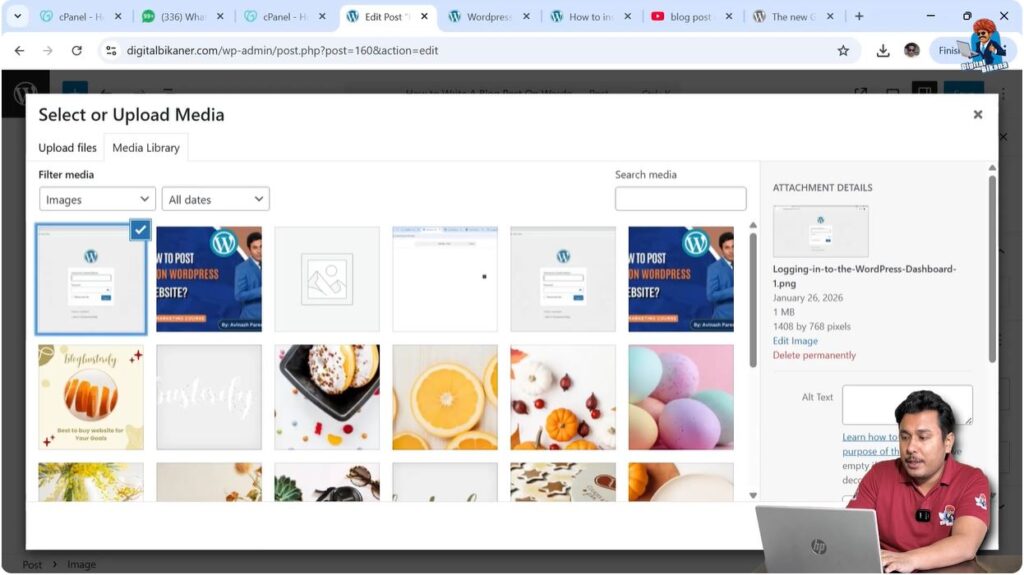
After opening the Media Library, click on the image in which you want to add alt text.
When you select the image, image details will appear on the screen.
Here you will see the option to enter Alt Text.
If alt text is not already available, you can type it manually.
After entering the alt text, click on the close button and the alt text will be saved automatically.
This is the easiest method to add alt text to images.
Adding Alt Text While Editing Blog Post
Another method to add alt text is while writing or editing a blog post.
This method is useful when you are uploading images directly into a blog post.
3. Open Blog Post Editor
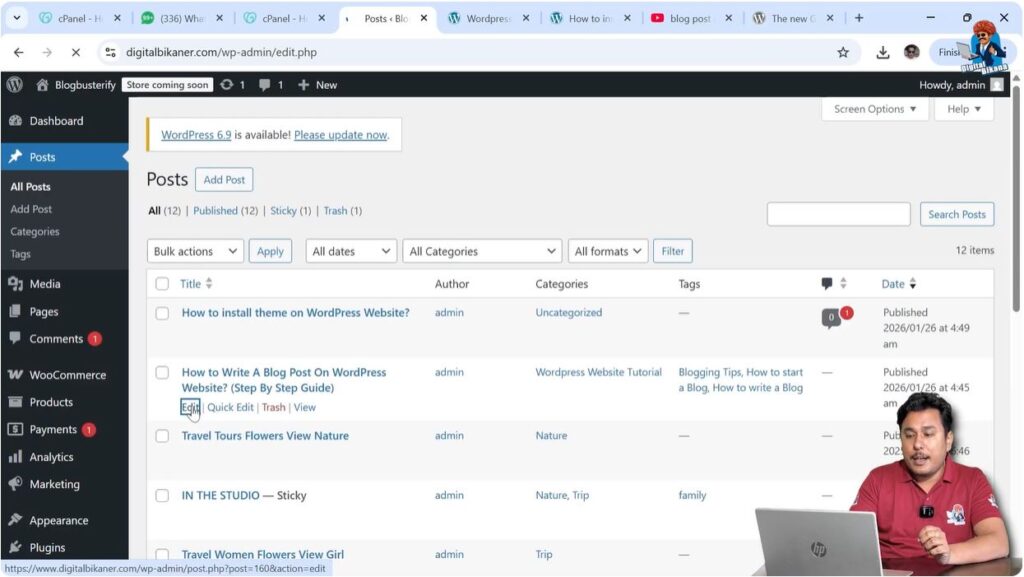
Go to Posts → All Posts.
Open any blog post for editing.
You can also create a new blog post.
After opening the post editor, you can add images and alt text together.
Uploading Image in Blog Post
4. Upload Image
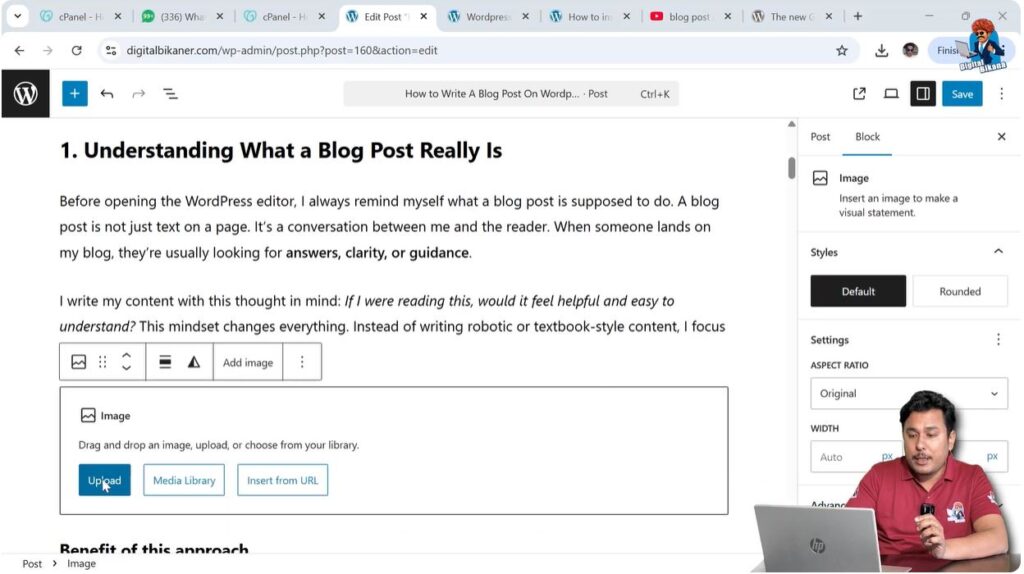
To add an image inside a blog post, bring the cursor to the end of a paragraph.
Press the Enter key to create a new line.
A new block will be created.
Click on the Plus icon.
Select Image.
Click on Upload.
Then select the image from your system.
It is recommended to rename the image in your system using relevant keywords before uploading. This helps the image rank in Google Image Search.
After selecting the image, click on Open.
The image will be uploaded and displayed inside the blog post.
Sometimes image uploading may take time because of slow internet connectivity.
Entering Alt Text in Blog Post
5. Add Alt Text
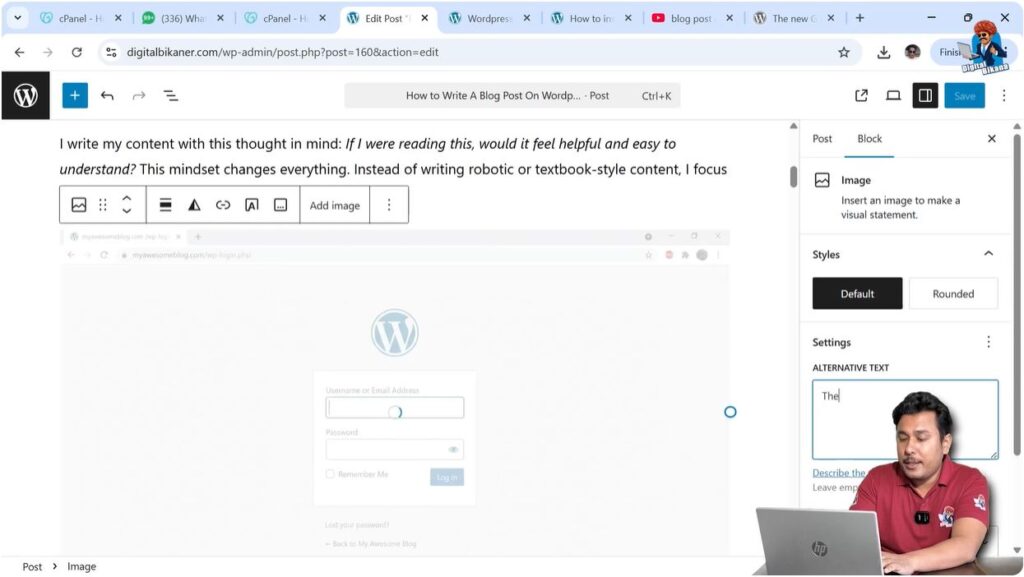
After the image appears inside the blog post, click on the image.
When the image is selected, the image settings will appear on the right side toolbar.
Here you will find the Alt Text field.
You can type the alt text in this field.
For example:
There is an image related to WordPress admin dashboard asking for username and password that admin needs to enter to log into the WordPress admin dashboard for making changes to the website.
After entering the alt text, it will be saved automatically.
You can also select the image from the Media Library and add alt text from there as well.
Using Media Library During Blog Editing
Media Library Option
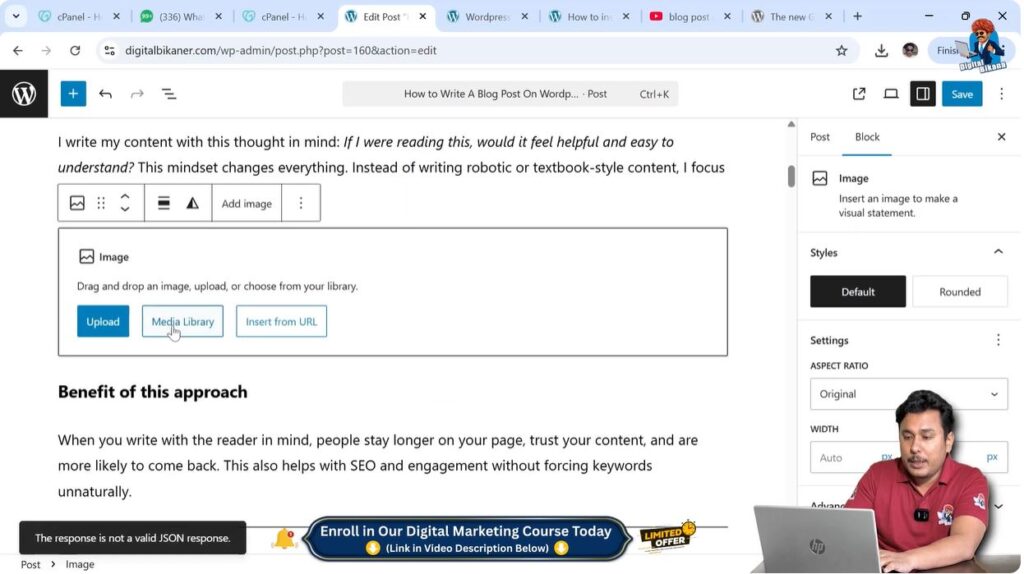
If the image upload fails or takes too long, you can select the image directly from the Media Library.
While adding an image block, click on Media Library.
Select the image.
Click on Select.
After selecting the image, you can enter the alt text in the right side toolbar.
This method works the same as uploading a new image.
Conclusion
Adding alt text in images in a WordPress website is very easy. You can add alt text either from the Media Library or while editing a blog post.
Alt text improves search engine optimization and helps search engines understand the images better. It also helps blind users understand the content with screen readers and provides information when images fail to load.
This is how you can add alt text in images in a WordPress website.

Related Posts


