
In this article, you will learn about the WordPress dashboard overview. The WordPress dashboard is the control panel of your website where you can manage posts, pages, media, themes, plugins, and settings. After logging in to your WordPress website, you will reach the admin dashboard where all website management activities take place.
In previous steps, you may have already learned how to purchase a good domain name, how to purchase a hosting plan, how to connect your domain name with your hosting plan, and how to install WordPress on your domain name. After completing those steps, you can log in to your WordPress dashboard and start managing your website.
This guide explains the main sections and features available in the WordPress dashboard.
WordPress Dashboard Interface
After logging in to WordPress, you will see the dashboard screen. The dashboard provides an overview of your website activities and settings. The main navigation menu is located on the left side of the screen, and it contains different sections used for managing your website.
The dashboard also shows recent activity, quick drafts, and website statistics. It may show information such as number of posts, number of pages, and number of comments on your website. It also displays WordPress events and news updates.
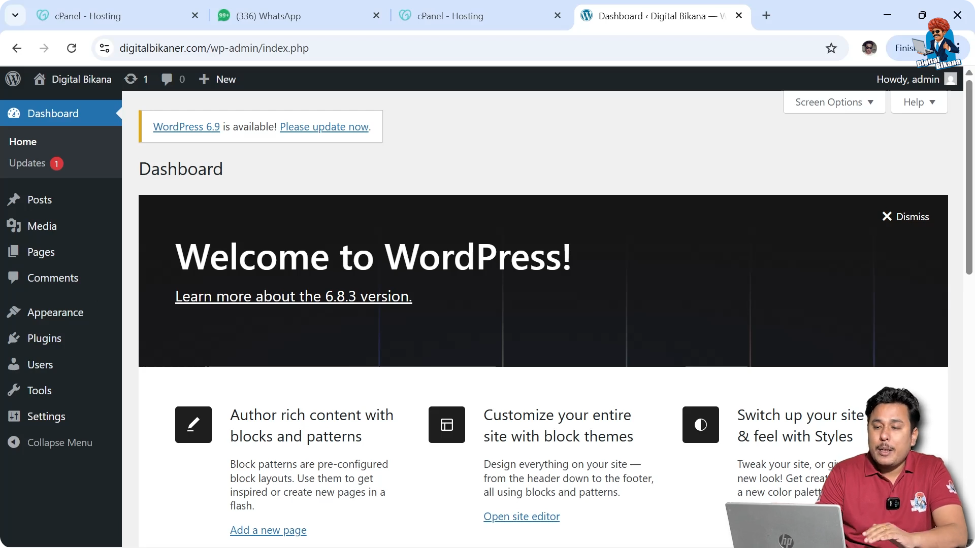
As you continue developing your website and installing plugins, additional options may appear in the dashboard.
Posts Section
Creating and Managing Blog Posts
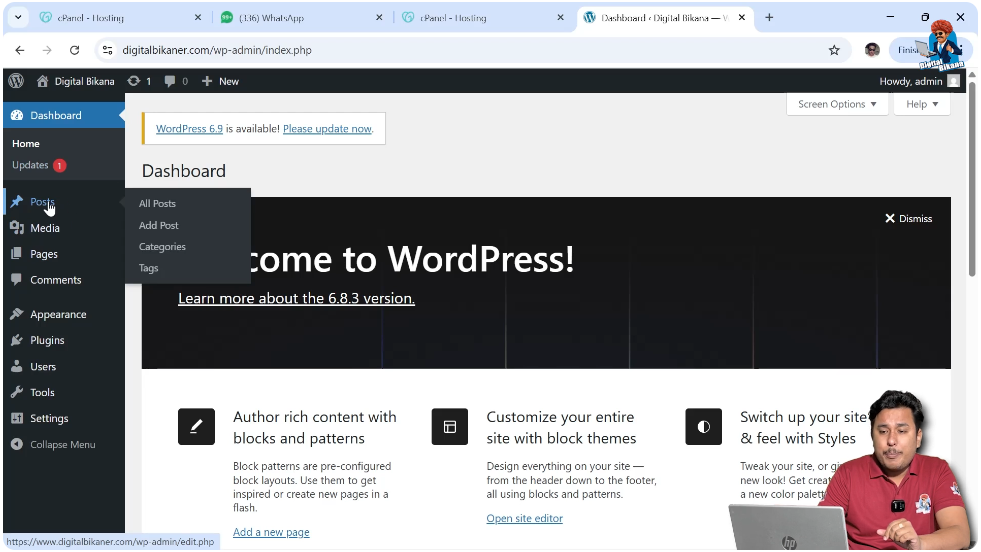
The Posts section is located on the left side of the dashboard. This section is used whenever you want to write blog posts on your WordPress website.
If you want to add a new blog post, you need to click on Add Post. If you want to see all the posts that you have created earlier, you need to click on All Posts. From the All Posts section, you can edit or update your existing blog posts.
You can also organize your blog posts using categories. For example, if you write blog posts related to travel, career, and technology, you can create separate categories for each topic. Categories make it easier for users to find blog posts according to their interests.
You can also add tags to your blog posts. Tags help your blog posts appear in related posts sections and make it easier for users to discover similar content.
Media Section
Managing Images and Videos
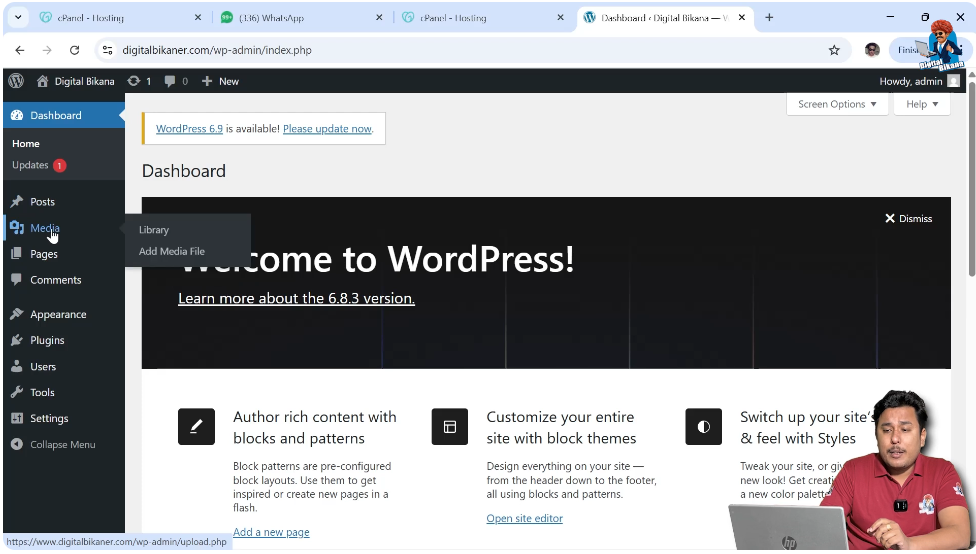
The Media section works like a gallery for your website. Similar to how images and videos are stored in a phone gallery, all uploaded media files are stored in the Media section.
Whenever you upload images or videos while creating posts or pages, they are stored in the Media library.
You can reuse these images while creating new pages or posts.
You can also rename media files and add alt text to images from this section.
Pages Section
Creating Website Pages
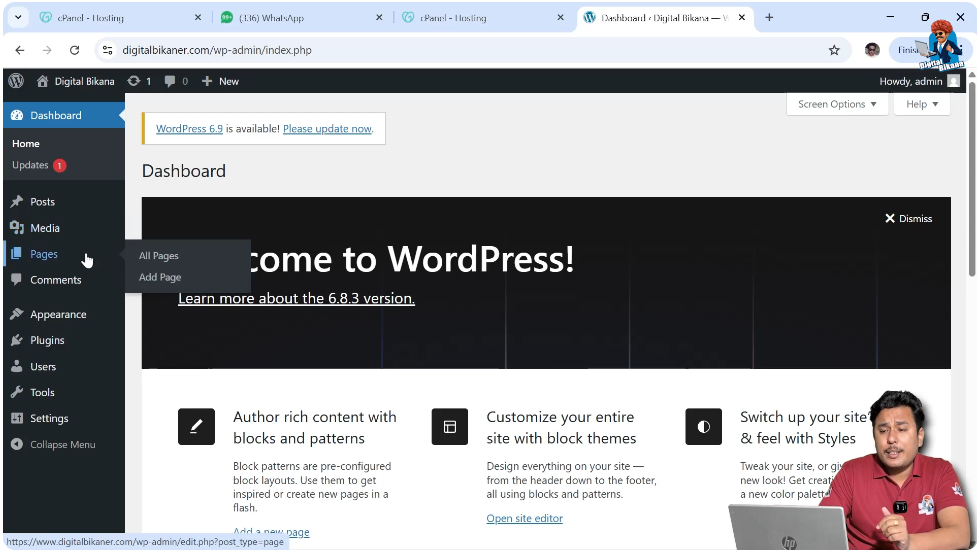
The Pages section is used for creating website pages.
If you want to create pages such as:
- Home Page
- About Us Page
- Contact Us Page
- Service Page
- Cart Page
- Login Page
- Shop Page
You need to use the Pages section.
To create a new page, click on Add Page. To see all the pages that you have created, click on All Pages.
From this section, you can edit and manage all pages of your website.
Comments Section
Managing User Comments
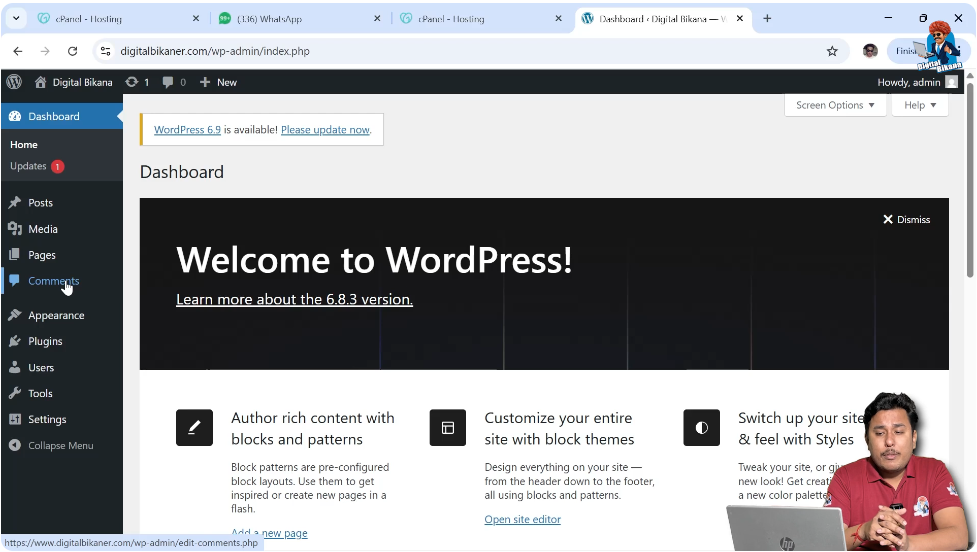
The Comments section shows all comments posted by users on your blog posts.
If you have written many blog posts and users comment on different posts, all comments will be displayed in this section.
You can read and reply to comments directly from here.
This makes it easy to manage comments even if your website has many posts.
Appearance Section
Managing Themes
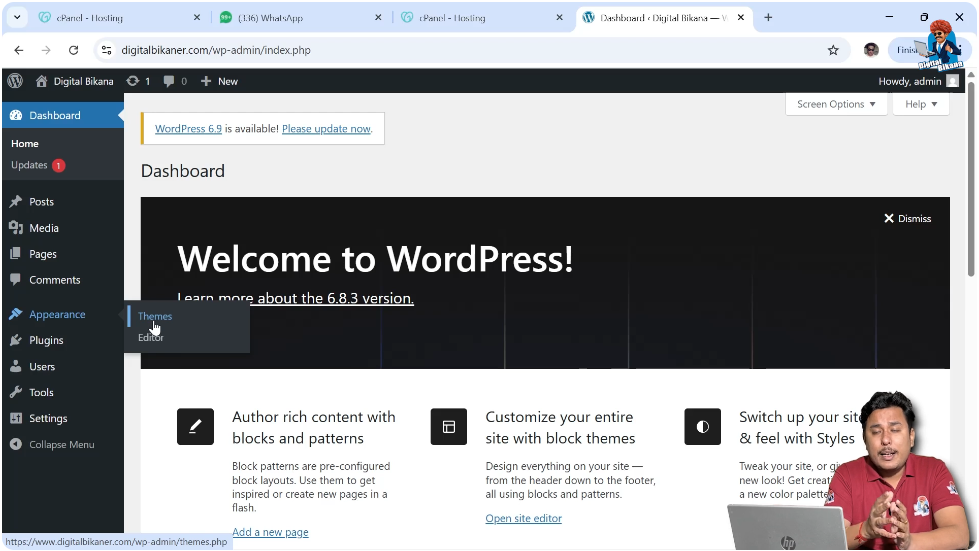
The Appearance section is used for managing themes on your WordPress website.
Themes control the design and layout of your website.
Inside the Appearance section, you can open the Themes option where you can see all installed themes.
You can install new themes from the theme store.
You can also edit installed themes from this section.
Plugins Section
Installing Plugins
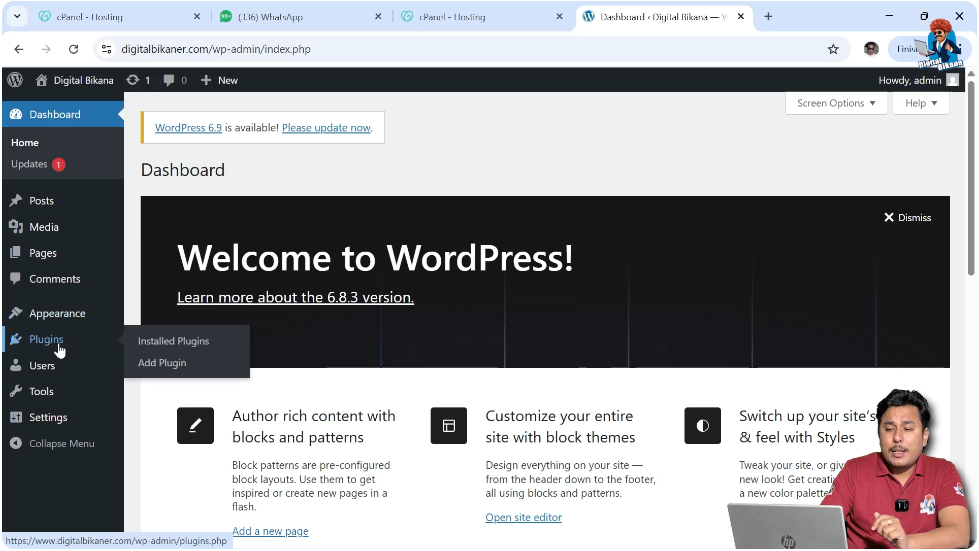
The Plugins section allows you to install plugins on your WordPress website.
Plugins can be understood as small software tools that add new features to your website.
For example:
- You can install a chat plugin to add a chat button on your website.
- You can install a form plugin to create forms.
- You can install an SEO plugin for search engine optimization.
- You can install plugins to display offers or announcements on your website.
The plugin directory works similar to an app store or play store where you can install plugins according to your requirements.
There are many plugins available for different purposes, and you can install them easily.
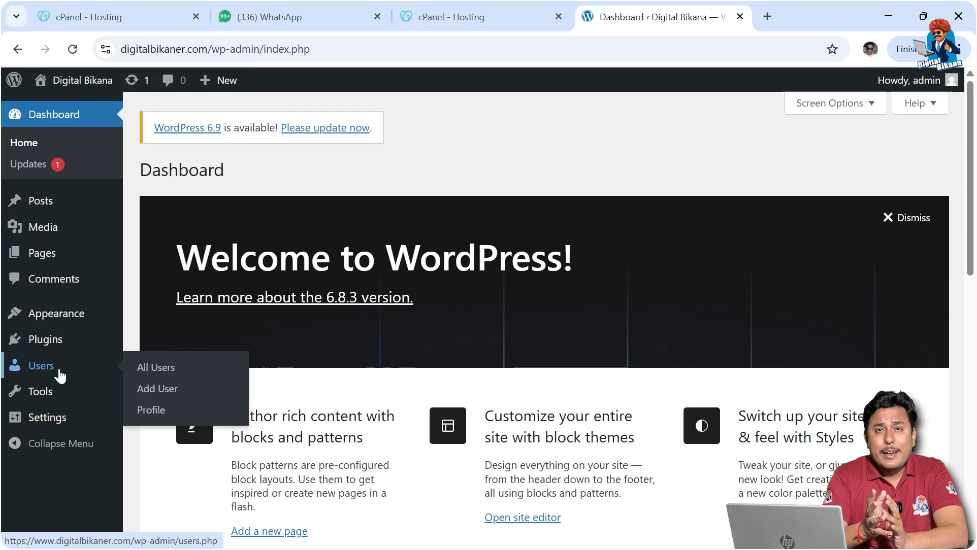
Users Section
Managing Website Users
The Users section allows you to manage users of your WordPress website.
If you are the website owner and you hire content writers, editors, or managers, you can add them as users.
You can assign different roles to users.
For example:
- Administrator
- Editor
- Author
- Subscriber
Each user role has different permissions.
Users can access only those features that are allowed according to their roles.
You can also see all users added to your website in the All Users section.
Tools Section
Import and Export Options
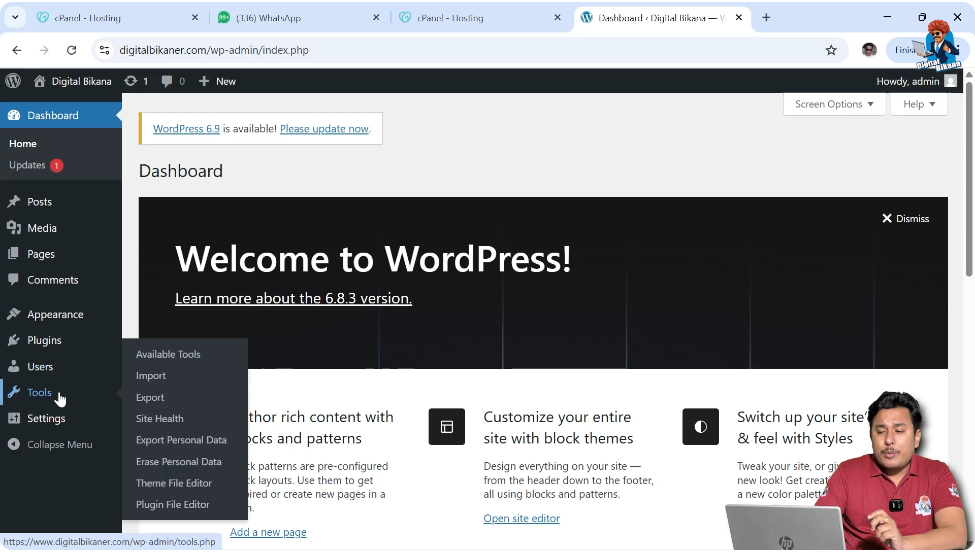
The Tools section contains general tools and utilities.
You can import and export website data from this section.
You can also check the site health and other basic information.
Settings Section
Website Settings
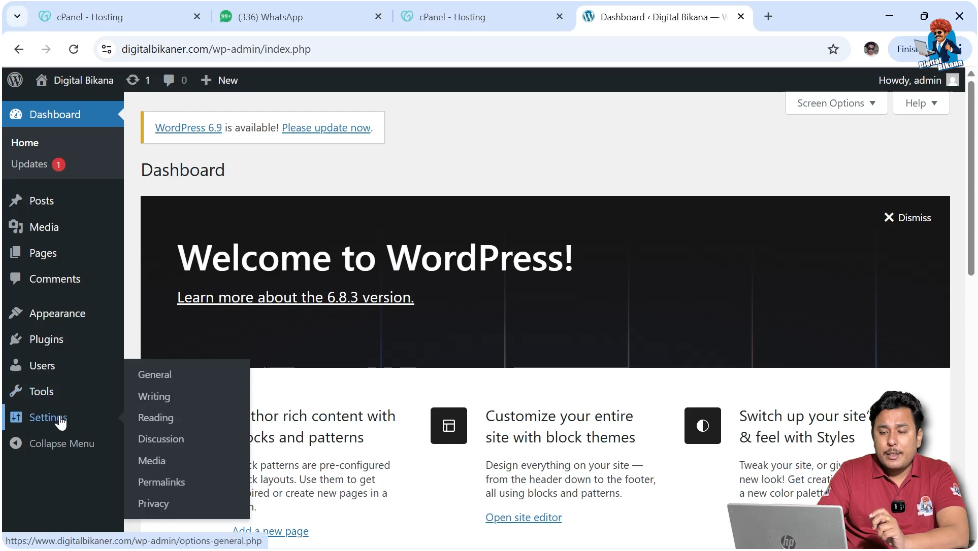
The Settings section contains general website settings.
From this section, you can change general settings, writing settings, reading settings, and discussion settings.
You can also manage media settings, permalinks, and privacy settings.
These are the basic settings available for your WordPress website.
Top Right Corner Options
Profile and Logout Options
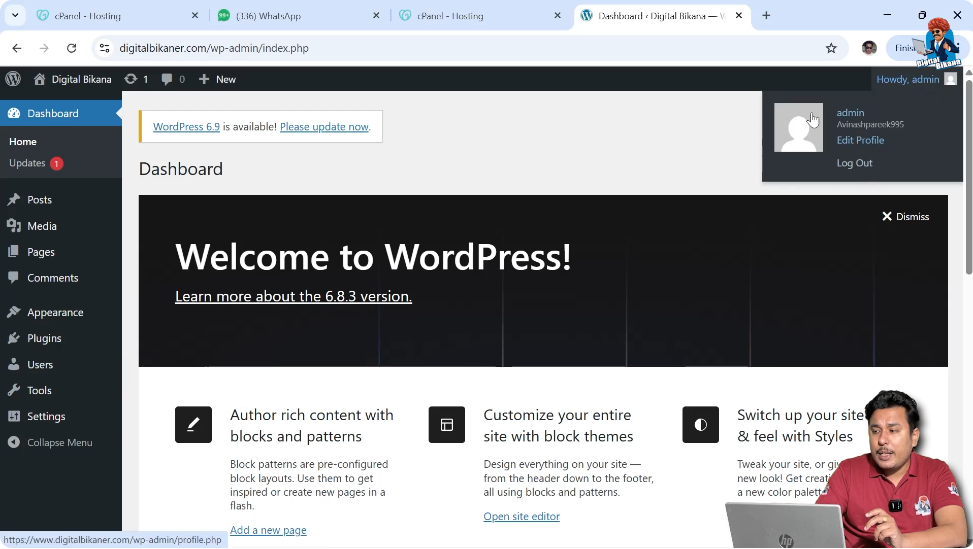
In the top right corner of the dashboard, you can edit your profile.
You can change your profile details and update your profile photo.
You can also log out from your WordPress dashboard using the logout option.
Dashboard Widgets
Dashboard Information
The dashboard screen displays important information about your website.
It shows recent activity and quick draft options.
The At a Glance section shows basic information such as number of posts, number of pages, and number of comments.
The dashboard may also display WordPress events and news updates.
If new WordPress updates are available, they will be shown in the dashboard.
Plugins and Dashboard Expansion
Dashboard Growth
Initially, the dashboard contains basic options.
As you start developing your website and installing plugins, new options will appear in the dashboard.
Each plugin may add new settings and features to the dashboard.
Over time, the dashboard becomes more detailed as your website grows.
Conclusion
The WordPress dashboard is the main control panel of your website. It allows you to manage posts, pages, media files, themes, plugins, users, and settings.
After logging in to your WordPress website, you can access all these features from the dashboard.
As you continue building your website and installing plugins, more options will appear in the dashboard.
Understanding the WordPress dashboard is the first step toward managing and developing your website effectively.

Related Posts


