

In this article, you will learn how to buy a domain name from GoDaddy step by step. A domain name is the address of your website that people type into their web browser to visit your site. Buying a domain name is the first step toward creating a website.
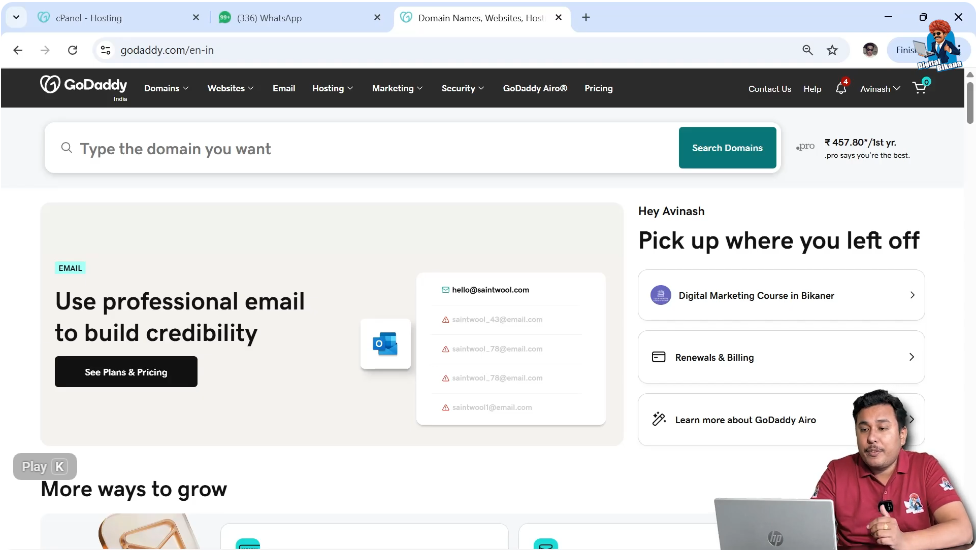
To buy a domain name, you can visit GoDaddy by searching GoDaddy on Google and opening the first website. After visiting the website, you need to sign in to your GoDaddy account. Once you are signed in, you will land on the homepage of GoDaddy where you can search for a domain name.
This guide explains the complete process of searching, selecting, and purchasing a domain name from GoDaddy.
Steps to Buy a Domain Name from GoDaddy
1. Open GoDaddy Website
First, open your web browser and search for GoDaddy on Google. Open the first website which will take you to the GoDaddy homepage.
After opening the website, sign in to your GoDaddy account. Once you log in successfully, you will reach the homepage where you can search for domain names.
2. Search for a Domain Name
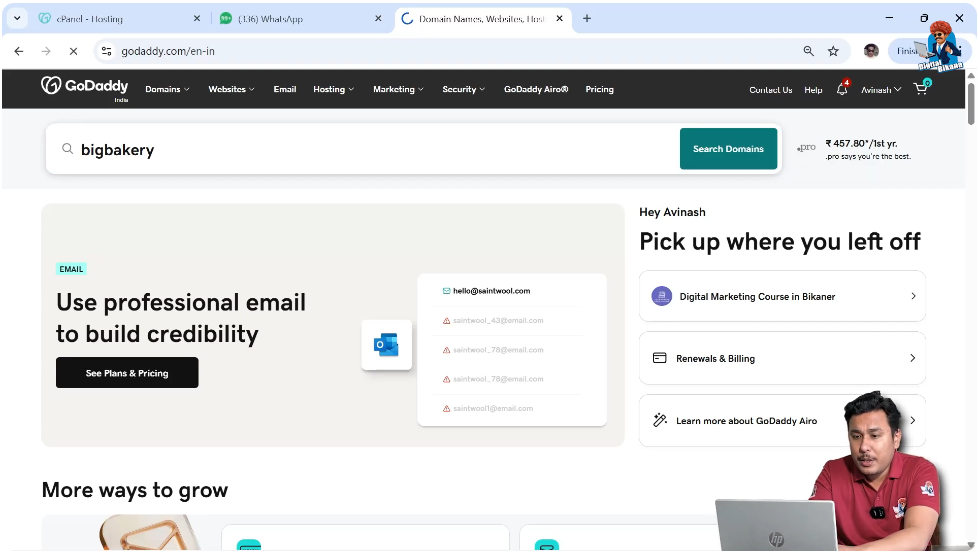
On the GoDaddy homepage, type your desired domain name into the search bar and click the search button.
GoDaddy will check whether the domain name is available or not and display the results.
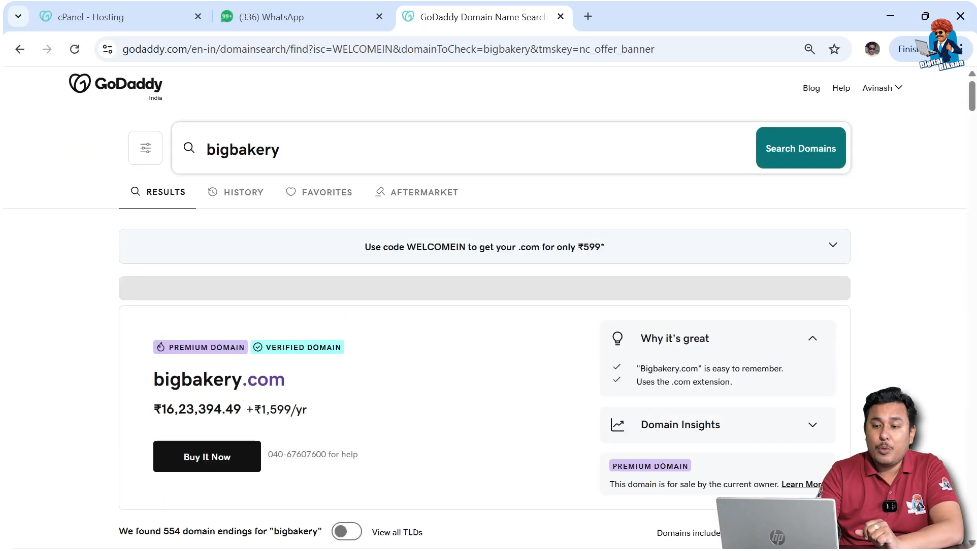
Sometimes you may see that a domain name is very expensive. For example, a domain name may cost more than ₹16 lakh.
Some domains are costly because many people search for those keywords on search engines. These domains are called premium domain names because they have high demand and high search volume.
If the domain is too expensive, you can search for another domain name.
3. Check Domain Availability
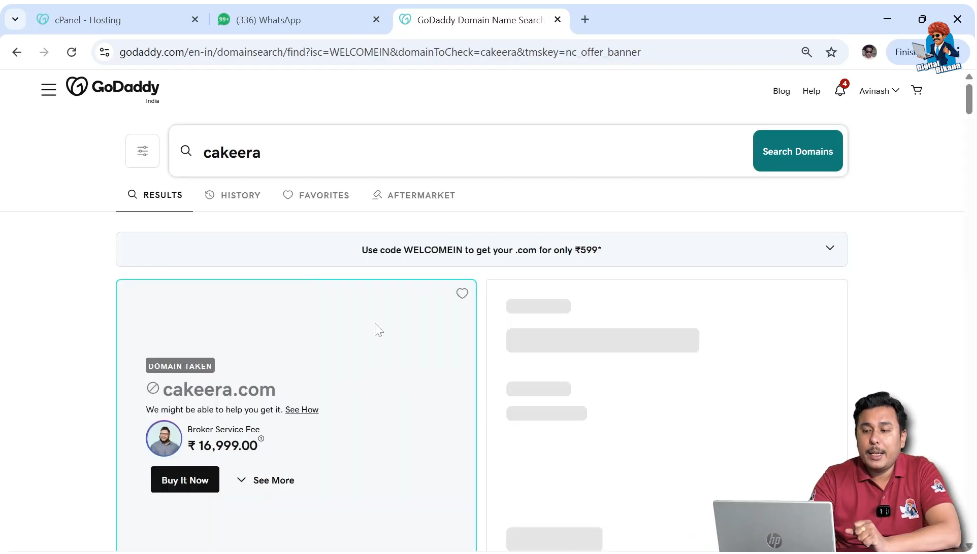
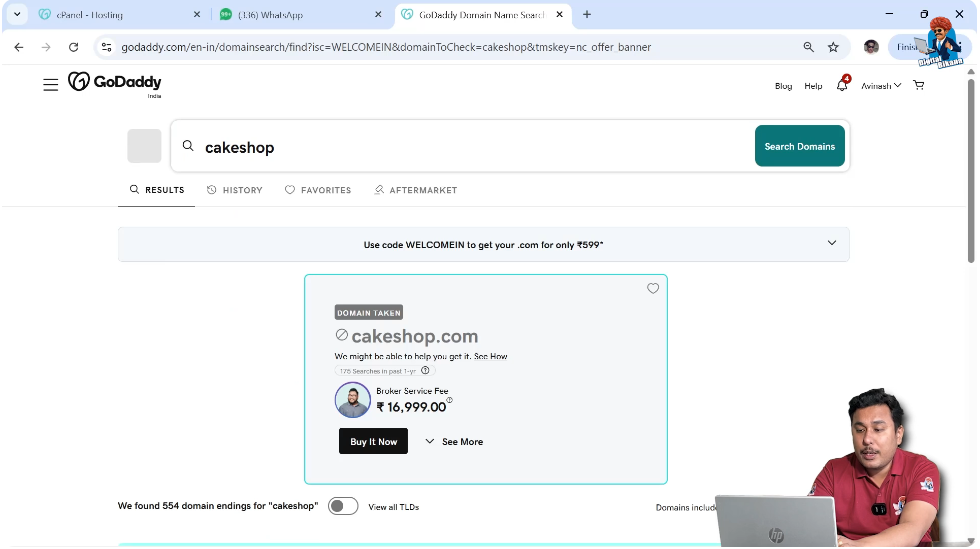
Sometimes the domain name you search for may already be taken.
In this case, GoDaddy will show that the domain is not available.
GoDaddy may also offer a service where they contact the domain owner and ask if they are interested in selling the domain.
For this service, GoDaddy may charge a brokerage fee of ₹16,999 to discuss the deal with the domain owner.
If the domain is not available or too expensive, it is better to search for another domain name.
4. Try Alternative Domain Names
If your first domain choice is not available, you can try searching with different keywords.
You may need to search multiple times before finding a suitable domain name.
Some domains may be premium domains, while others may already be taken.
You can continue searching until you find a domain name that is available and affordable.
5. Check Domain Suggestions
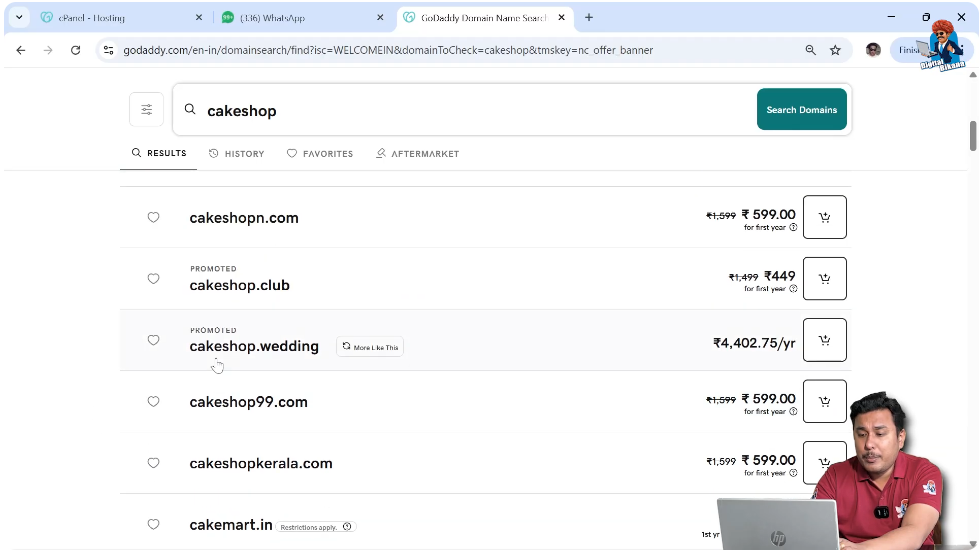
GoDaddy provides domain suggestions below the search results.
These suggestions include similar domain names and different domain extensions.
You can scroll down to see more options.
You may find domain extensions like:
- .in
- .world
- .online
- .net
However, most people prefer buying a .com domain because it shows a commercial domain and is easier to rank on search engines in different countries.
Once you find a good domain name, you can proceed to purchase it.
6. Add Domain to Cart
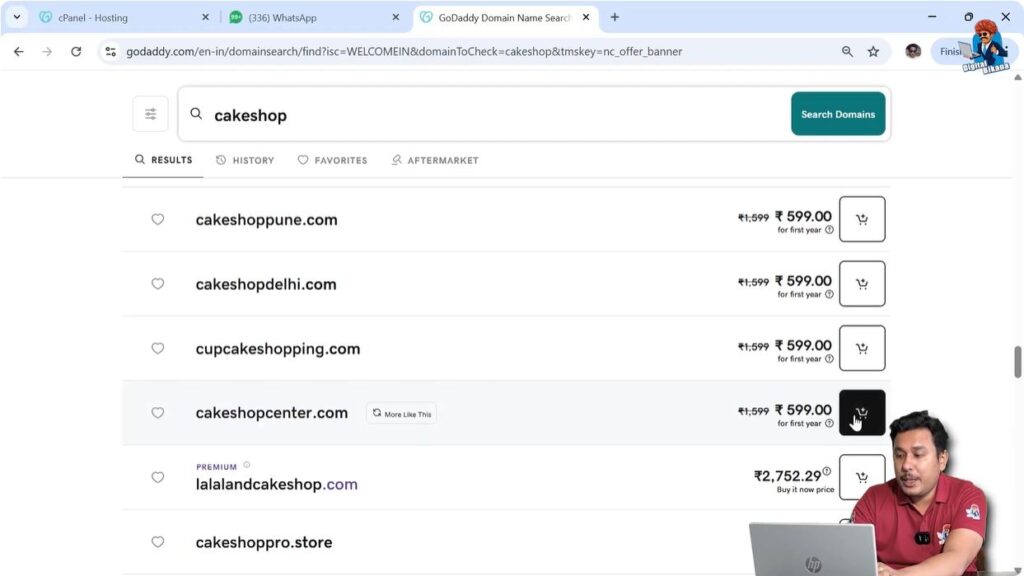
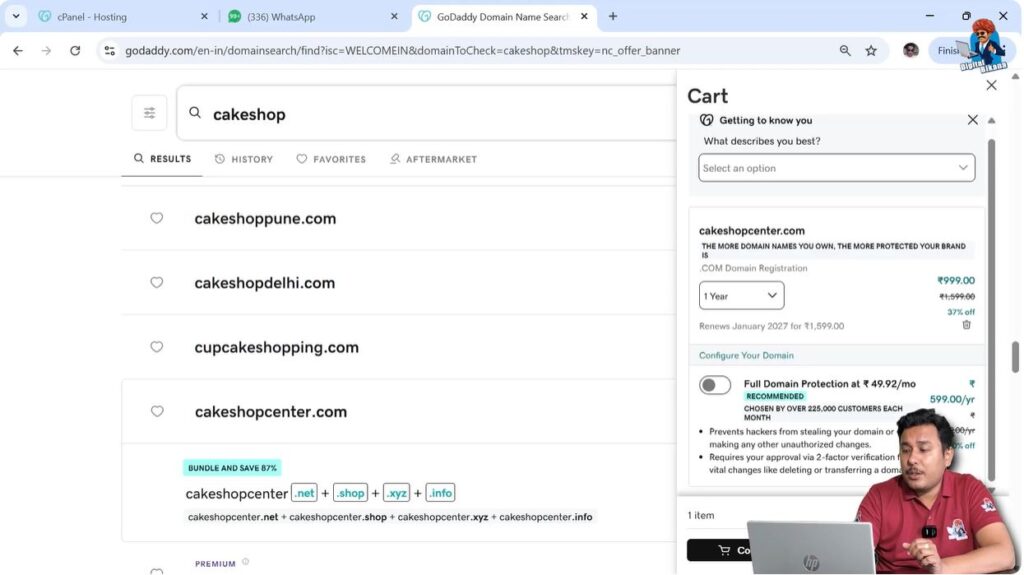
After selecting a suitable domain name, click on Add to Cart.
Then click on View Cart to continue.
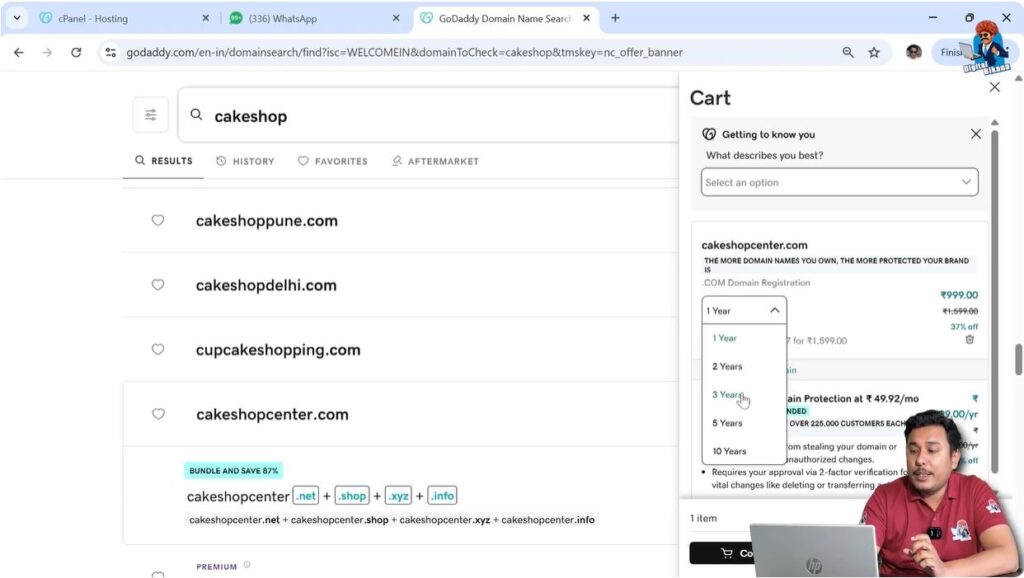
In the cart section, you will see the price of the domain name.
For example, a domain name may cost ₹999 for one year.
7. Choose Domain Registration Period
Next, select the registration period for your domain name.
For example:
- 1 Year
- 2 Years
- 3 Years
Sometimes GoDaddy offers discounts for longer registration periods.
For example, a three-year plan may provide around 33% discount, but the total price may be around ₹3,199.
You can choose the registration period according to your requirement.
8. Consider Buying Domain with Hosting
If you are planning to create a website, you will also need a hosting plan.
Sometimes GoDaddy offers a free domain name for the first year when you purchase a hosting plan.
In such cases, you only need to pay for hosting and the domain name will be free for the first year.
After the first year, you will need to pay renewal charges.
If you plan to build a website, buying domain and hosting together can be beneficial.
9. Continue Shopping
If you only want to buy the domain name, select the one-year plan and click Continue Shopping.
GoDaddy will then show additional options and services.
10. Skip Domain Protection (Optional)
GoDaddy may ask whether you want to buy full domain protection.
Full domain protection provides extra security for your domain.
If you are building a website for the first time, there may not be a need to purchase full domain protection.
These are usually cross-selling products offered by GoDaddy.
If you do not need this option, you can skip it and continue to cart.

11. Skip Professional Email (Optional)
GoDaddy may also suggest purchasing a professional email address such as:
example@yourdomain.com
Professional email is useful for businesses.
However, if you are creating a small website or starting a new project, it may not be necessary to buy a professional email immediately.
You can purchase it later when your business grows.
If you do not need this option, you can leave it unchecked.

12. Apply Promo Code (If Available)
Before checkout, you may have the option to apply a promo code.
If you have a promo code, you can enter it to get a discount.
If you do not have a promo code, you can continue without applying one.

13. Proceed to Checkout
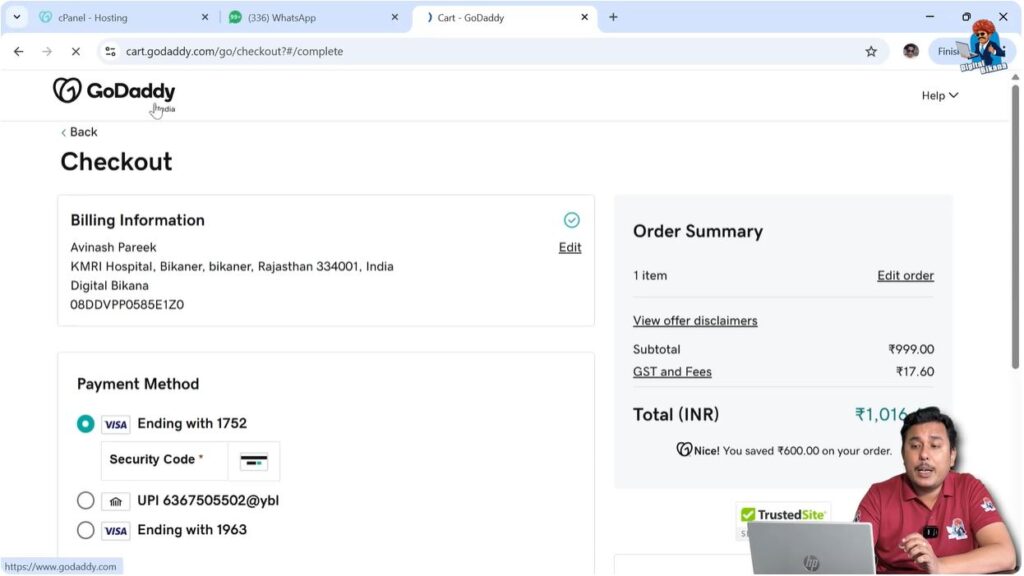
After reviewing your cart, click on Ready for Checkout.
At checkout, you need to add your payment method.
Then click on Review Order.
Check all the details carefully before making the payment.

14. Make Payment and Buy Domain
Finally, make the payment to complete the purchase.
After successful payment, your domain name will be added to your GoDaddy account.
You will become the owner of that domain name for the selected period.
Conclusion
Buying a domain name from GoDaddy is a simple process that involves searching for a domain name, checking availability, adding it to the cart, and completing the payment.
You can search multiple domain names until you find one that is available and affordable. Premium domains are usually expensive, while regular domains are available at normal prices.
After completing the payment, your domain name will be available in your GoDaddy account and ready to use.

Related Posts


