Location targeting is one of the most important elements of any Facebook ad campaign. When running ads, advertisers often need to target more than one city. Instead of creating separate ad sets for each location, Facebook allows you to add multiple locations inside a single ad set.
In this article, we will clearly explain how to add multiple locations in a single Facebook ad set within a single Facebook ad campaign. The process is simple and can be done directly from the ad set level inside Facebook Ads Manager.
Understanding the Structure of Facebook Ads
Before learning how to add multiple locations, it is important to understand the structure of Facebook ads.
Facebook ads are organized into three levels:
Location targeting is configured at the ad set level, not at the campaign or ad level.
This means if you want to add or modify locations, you must navigate to the ad set level.
Where to Add Locations in Facebook Ads
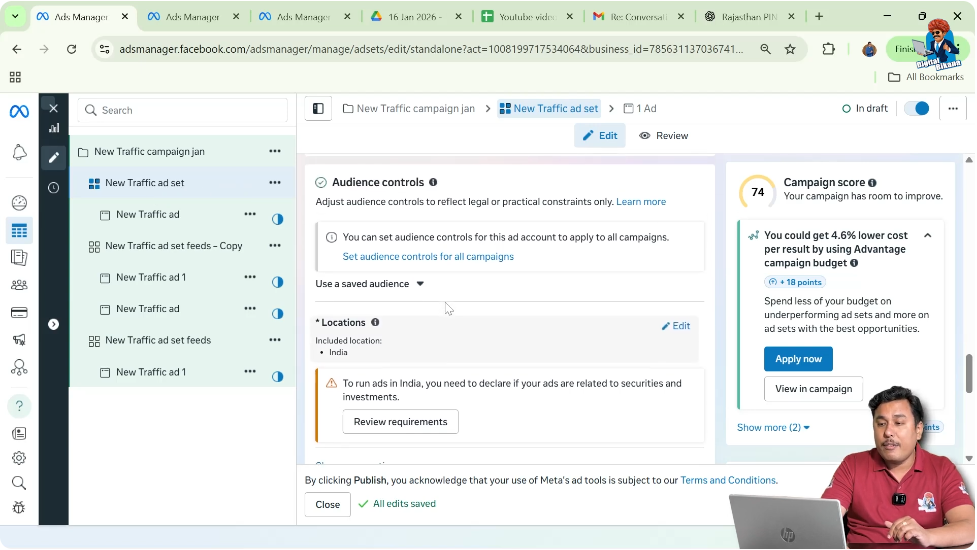
When you create a new ad campaign and move to the ad set level, you will see a section called Audience Control.
Inside this section, you can:
- Add locations
- Modify locations
- Remove locations
This is where geographic targeting is configured.
Why Add Multiple Locations in One Ad Set?
There are several reasons why you may want to add multiple locations in a single ad set:
- You want to target multiple cities.
- You want to run one campaign across different regions.
- You want to manage budget collectively for multiple locations.
- You want your ad to display in more than one city at the same time.
Instead of creating multiple ad sets, you can add multiple locations inside one ad set.
Step 1: Go to Ad Set Level
Navigate to Audience Control Section
- Log in to Facebook Ads Manager.
- Create a new ad campaign or open an existing campaign.
- Move to the Ad Set level.
- Scroll to the Audience Control section.
This is where location settings are available.
Step 2: Search for the First City
Enter and Select the Desired Location
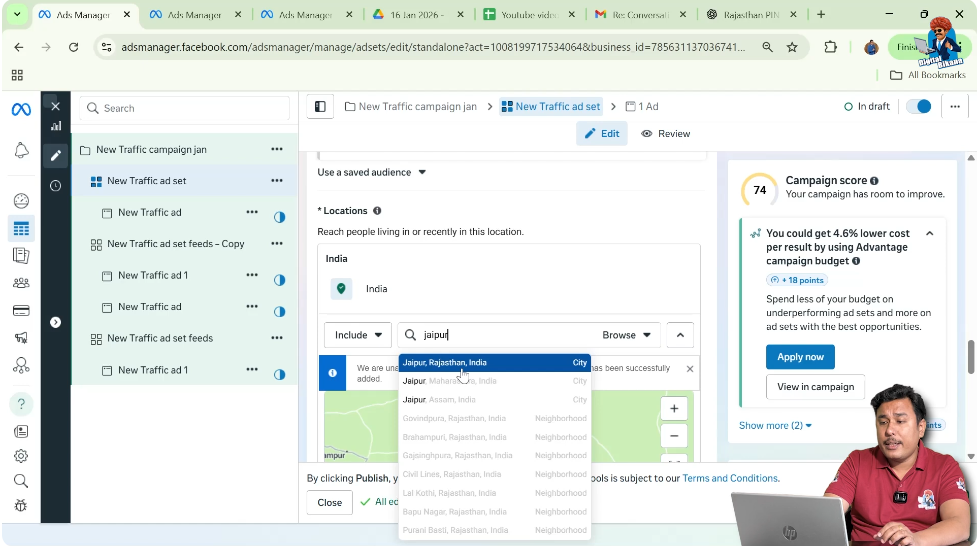
Inside the location targeting field:
- Type the name of the city where you want to show your ad.
- Select the correct city from the dropdown list.
Once selected, the city will appear in the targeting area.
This means your ad will now be shown in that city.
Step 3: Add Another City
Search and Select Additional Location
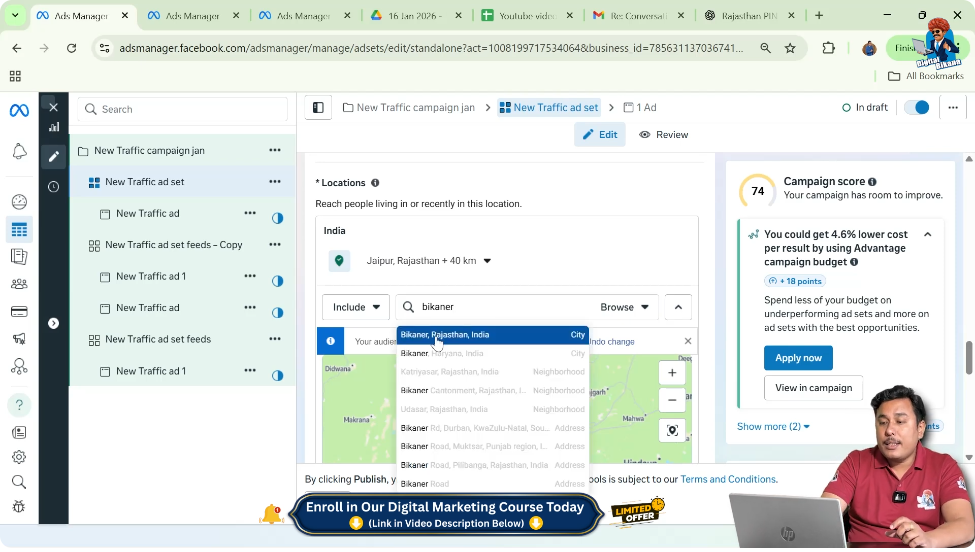
If you want to target another city:
- Click again in the location search field.
- Type the name of the second city.
- Select it from the dropdown.
Now both cities will appear in your location targeting.
Your ad will be displayed in both cities.
Step 4: Add More Cities
Continue Adding Locations
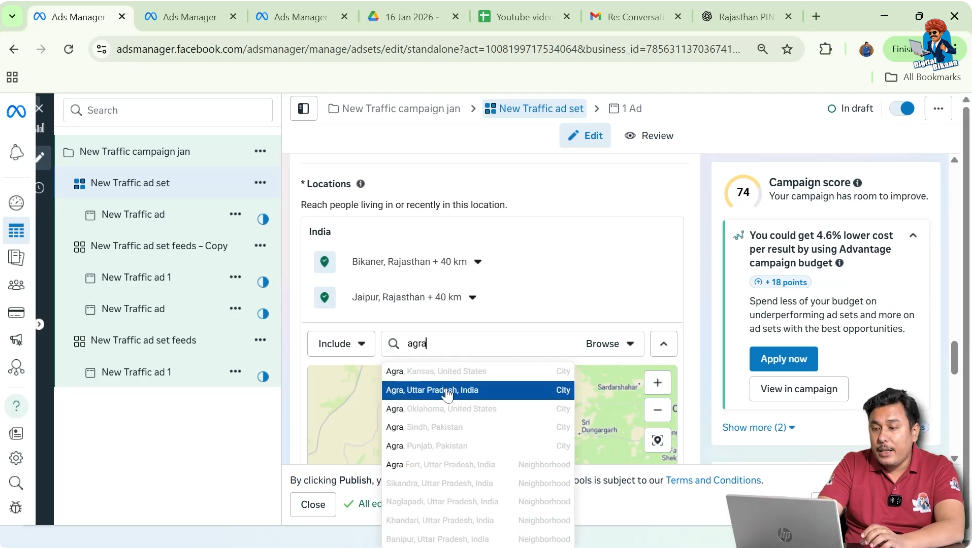
To add a third city or more:
- Repeat the same process.
- Type the next city name.
- Select it from the dropdown list.
You can continue this process for as many cities as you want.
Each selected city will be added to the list of targeted locations.
How Facebook Displays Ads in Multiple Locations
Once multiple cities are added:
- Your ad will be eligible to appear in all selected locations.
- Facebook will distribute impressions across these locations based on targeting settings and budget.
All selected cities remain active under the same ad set.
Important Points to Remember
When adding multiple locations:
- Always select the correct city from the dropdown.
- Make sure there are no duplicate entries.
- Double-check spelling before selection.
Each selected city should appear clearly in the location section.
When to Use Single Ad Set with Multiple Locations
Using one ad set with multiple locations is useful when:
- The same audience targeting applies to all cities.
- The same budget applies to all locations.
- You do not need separate performance analysis for each city.
If you want separate performance tracking per city, you may create separate ad sets instead.
Advantages of Adding Multiple Locations in One Ad Set
Adding multiple locations inside one ad set:
- Saves time
- Simplifies campaign structure
- Keeps budget centralized
- Reduces campaign duplication
It is a simple and effective method for multi-city targeting.
Example Scenario
Suppose you want to run ads in:
- City A
- City B
- City C
Instead of creating three different ad sets, you can:
- Add City A
- Add City B
- Add City C
All inside a single ad set.
Now your ad will run in all three cities.
Final Explanation in Simple Words
To add multiple locations in a single Facebook ad set:
- Go to ad set level.
- Open audience control section.
- Search for the first city and select it.
- Search for the second city and select it.
- Repeat for additional cities.
That’s all.
Your ad will now be displayed in all selected locations.
Conclusion
Adding multiple locations in a single Facebook ad set is a simple process inside Facebook Ads Manager. Since location targeting is done at the ad set level, you only need to navigate to the audience control section and search for each city individually.
By selecting multiple cities one by one, you can ensure that your ad campaign runs across all chosen locations within the same ad set. This approach simplifies campaign management and keeps your targeting organized.
Using this method, you can efficiently run ads in multiple cities without creating separate ad sets for each location.

Related Posts