When running Facebook ads, advertisers often need to test different targeting strategies, budgets, or placements within the same campaign. This is where creating multiple ad sets becomes important.
Many beginners create a campaign with only one ad set and later realize that they need another ad set inside the same campaign. At that point, they get confused about how to add a second ad set without creating a completely new campaign.
In this article, we will clearly explain how to create a second ad set in a single Facebook ad campaign. We will also discuss an alternative method for creating an additional ad set and briefly explain how to create another ad inside an existing ad set.
Understanding the Structure of Facebook Ad Campaigns
Before learning how to create a second ad set, it is important to understand the structure of Facebook ads.
A Facebook ad campaign consists of three levels:
- Campaign level
- Ad set level
- Ad level
The ad set is always a part of the campaign. You cannot create an ad set without a campaign. Similarly, ads are always created inside an ad set.
Understanding this hierarchy helps in correctly adding new ad sets.
Why You May Need a Second Ad Set
There are several practical reasons why you may need a second ad set inside the same campaign:
- To test different audiences
- To test different budgets
- To test different placements
- To compare performance variations
Instead of creating a new campaign, you can simply add another ad set within the existing campaign.
Method 1: Create a Second Ad Set from Campaign Level
The first method to create a second ad set is directly from the campaign level.
Step 1: Go to Campaign Level
Open Facebook Ads Manager
- Log in to Facebook Ads Manager.
- Open the campaign in which you want to create a second ad set.
- Make sure you are viewing the campaign structure.
The ad set is always part of the campaign, so you must start from the campaign level.
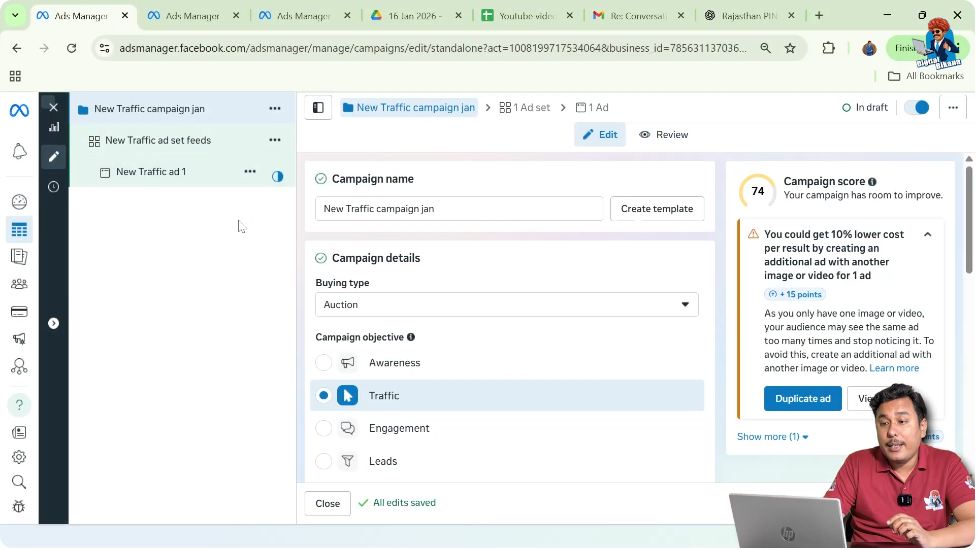
Step 2: Click on the Triple Dot Menu at Campaign Level
Access Campaign Options
At the campaign level, you will see a three-dot (⋯) menu.
- Click on the triple dot at the campaign level.
- A dropdown menu will appear with multiple options.
This menu allows you to perform actions related to the campaign.
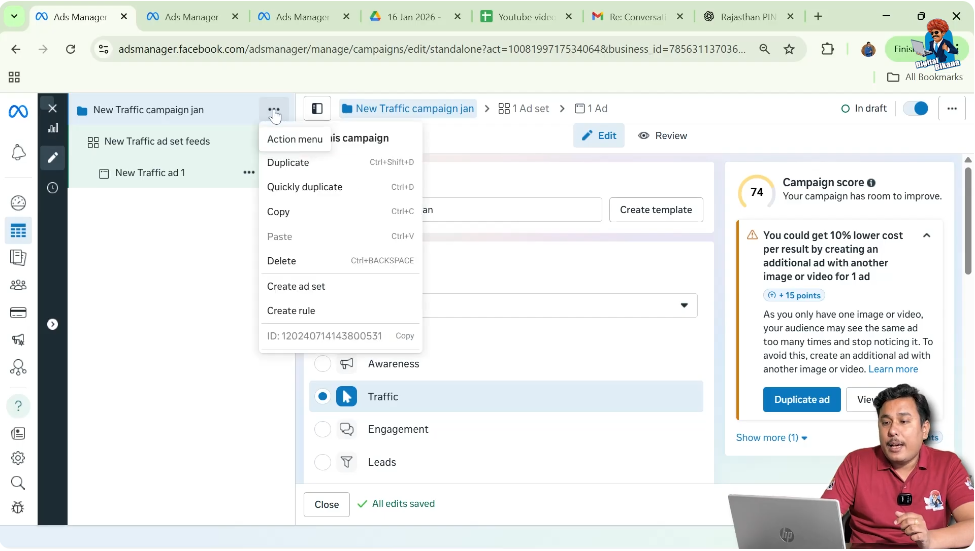
Step 3: Click on “Create Ad Set”
Generate a New Ad Set
From the dropdown options:
- Click on Create Ad Set.
- A new ad set will automatically be created inside the same campaign.
You will now see a second ad set added under the campaign.
This is the first and most direct method to create a new ad set.

Method 2: Create a Second Ad Set by Duplicating an Existing Ad Set
The second method involves duplicating an existing ad set.
This method is useful when you want to keep similar settings but make slight modifications.
Step 4: Go to Ad Set Level
Select the Existing Ad Set
- Open the campaign.
- Go to the ad set level.
- Select the ad set you want to duplicate.
Make sure you choose the correct ad set before duplicating.
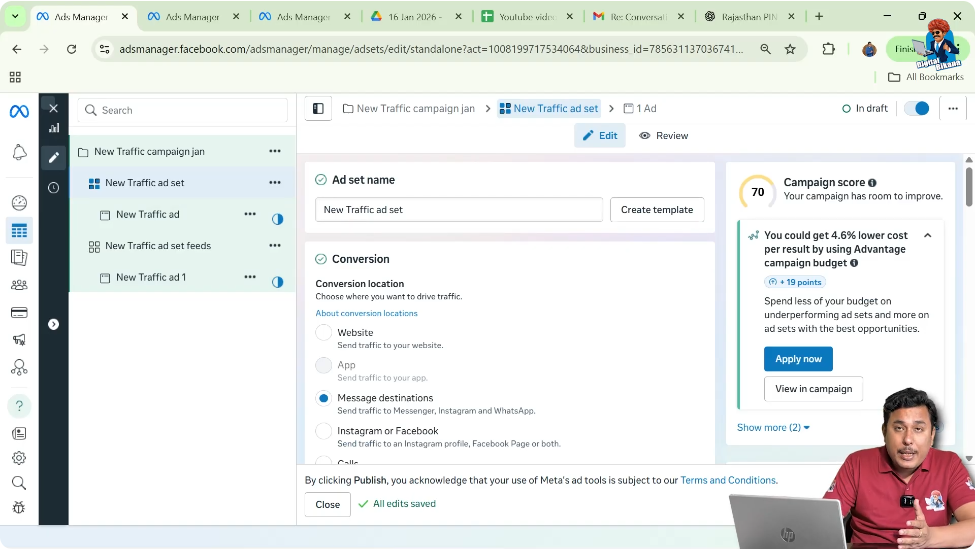
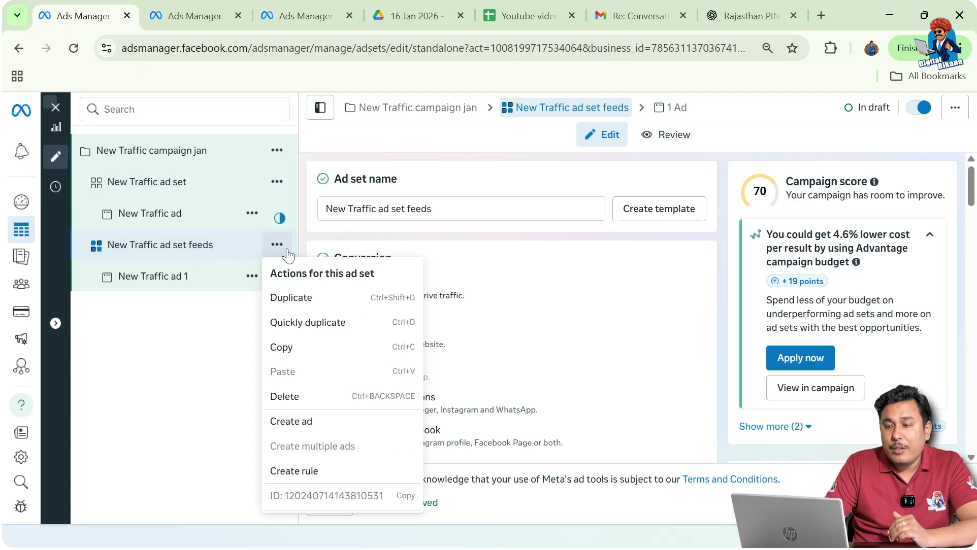
Step 5: Click on the Triple Dot at Ad Set Level
Access Ad Set Options
At the ad set level:
- Click on the triple dot (⋯).
- A dropdown menu will appear.
This menu contains options related to the selected ad set.
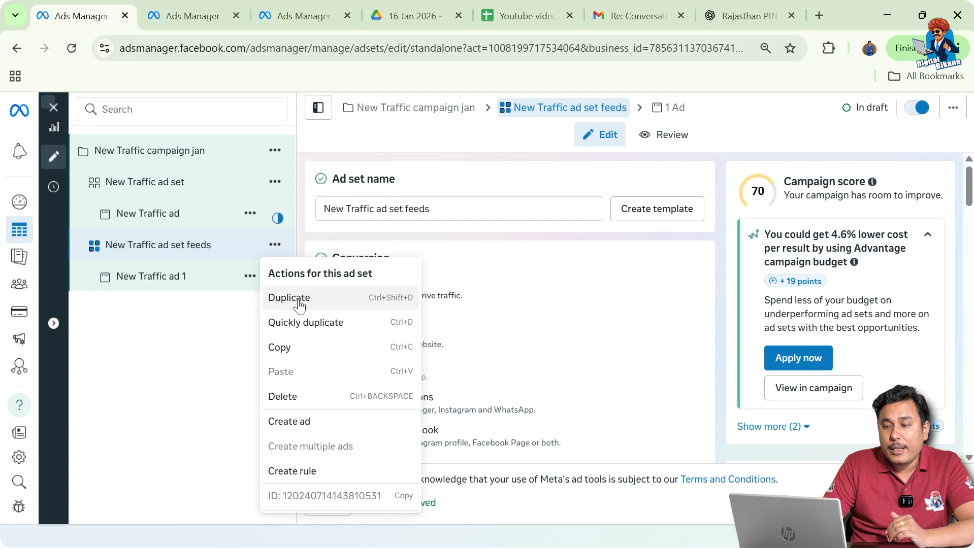
Step 6: Click on “Duplicate”
Create Another Ad Set in the Same Campaign
From the dropdown options:
- Click on Duplicate.
- Confirm duplication within the same campaign.
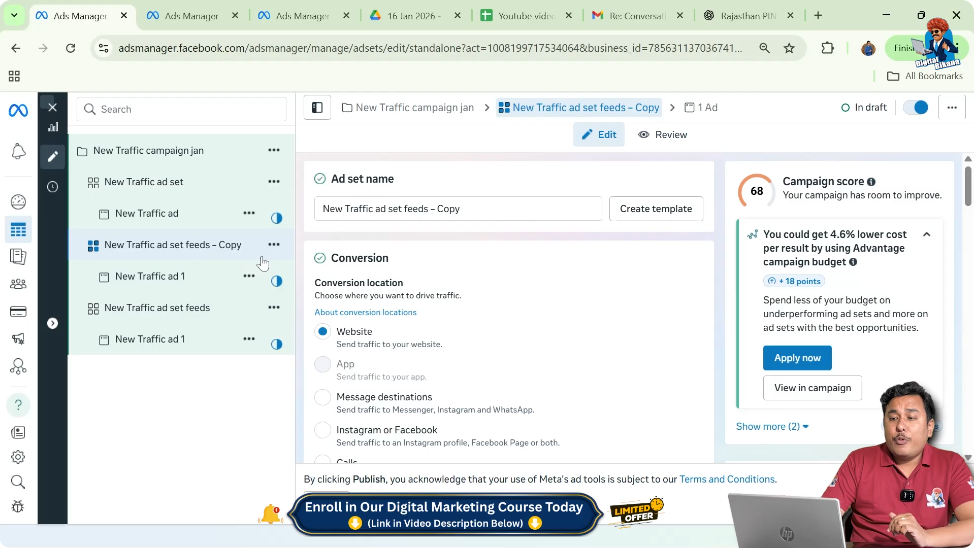
A new ad set will be created inside the original campaign with similar settings.
This method is helpful when you want to test variations without creating everything from scratch.

Comparison of Both Methods
Both methods achieve the same result — creating a second ad set within a single campaign.
Method 1 (Create Ad Set from Campaign Level):
- Creates a fresh new ad set.
- Useful when starting from scratch.
Method 2 (Duplicate Existing Ad Set):
- Copies settings from an existing ad set.
- Useful for testing variations.
You can use either method based on your requirement.
Creating Another Ad Inside the Same Ad Set
Apart from creating a second ad set, sometimes you may want to create another ad copy inside the same ad set.
This is done at the ad level.
Step 7: Go to Ad Level
Open the Desired Ad Set
- Select the ad set.
- Navigate to the ad level inside that ad set.
This is where individual ads are managed.
Step 8: Click on the Triple Dot at Ad Level
Create Another Ad Copy
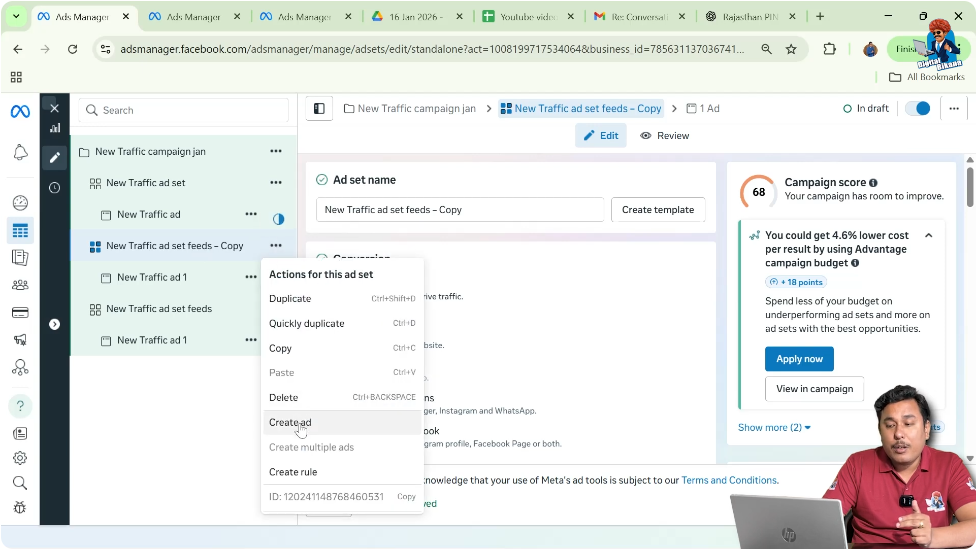
At the ad level:
- Click on the triple dot (⋯).
- Select Create Ad.
This will create another ad copy inside the same ad set.
This step is useful when you want to test different creatives within the same audience.
Understanding the Difference Between Ad Set and Ad
It is important not to confuse ad sets with ads.
- An ad set controls audience, budget, and placements.
- An ad controls creative, copy, and visuals.
If you want to test targeting or budget, create a new ad set.
If you want to test creatives, create a new ad inside the same ad set.
When to Use Each Method
Use Create Ad Set from Campaign Level when:
- You want a completely new ad set.
- You are testing a new audience from scratch.
Use Duplicate Ad Set when:
- You want similar settings.
- You want to test small modifications.
- You want faster setup.
Use Create Ad when:
- You want a new creative.
- You want to test multiple ads inside the same audience.
Benefits of Creating Multiple Ad Sets
Creating multiple ad sets inside one campaign allows you to:
- Compare audience performance.
- Optimize budgets effectively.
- Scale high-performing ad sets.
- Test strategies without creating new campaigns.
This structure keeps your account organized.
Common Mistakes to Avoid
While creating additional ad sets, avoid these mistakes:
- Creating a new campaign instead of adding a new ad set.
- Duplicating the wrong ad set.
- Forgetting to adjust settings after duplication.
- Confusing ad creation with ad set creation.
Always double-check the level where you are making changes.
Final Explanation in Simple Words
To create a second ad set in a single Facebook ad campaign:
Method 1:
- Click triple dot at campaign level.
- Click Create Ad Set.
Method 2:
- Click triple dot at ad set level.
- Click Duplicate.
Both methods allow you to create a new ad set within the same campaign.
If you want another ad copy inside the same ad set:
- Go to ad level.
- Click triple dot.
- Click Create Ad.
Conclusion
Creating a second ad set in a single Facebook ad campaign is simple once you understand the campaign structure. Since ad sets are always part of campaigns, you must start at the campaign level to add a new one.
You can either create a new ad set directly from the campaign level or duplicate an existing ad set. Both methods are effective and useful depending on your testing strategy.
Additionally, if you want to create another ad copy inside the same ad set, you can do so at the ad level.
By understanding these methods, you can efficiently manage and expand your Facebook ad campaigns without unnecessary confusion.

Related Posts