Managing a Facebook Page often involves collaboration. Page owners may invite other people as admins so they can help manage content, messages, or overall page activity. However, simply receiving an admin request does not automatically grant access. The invited person must first accept the admin request. In this article, we will explain in detail how to accept an admin request of a Facebook Page. This guide also explains how an admin request is sent and the two ways an invited person can accept it.
Understanding Facebook Page Admin Requests
When someone wants to add another person as an admin to a Facebook Page, Facebook sends an admin invitation. This invitation must be accepted by the person receiving it. Until the request is approved, the invited person cannot manage the page.
Facebook provides a simple approval process to ensure security and confirm that the invited person agrees to take responsibility for managing the page.
How an Admin Request Is Sent (Overview)
Before learning how to accept an admin request, it is important to understand how the request is sent.
To send an admin request, the page owner goes to the Facebook Page settings. In the left-hand menu, there is an option called Page Setup. Inside Page Setup, the Page Access section allows the page owner to give access to other people.
From Page Access, the page owner selects the person’s name and clicks on Give Access. This action sends an admin request to that person. The request remains pending until the invited person approves it.
Why Admin Request Approval Is Necessary
Facebook requires admin requests to be accepted to prevent unauthorized access. Even if someone sends an admin invitation, access is not granted unless the invited person confirms it.
This ensures that page management remains secure and that no one is added without their consent.
How to Accept Facebook Page Admin Request?
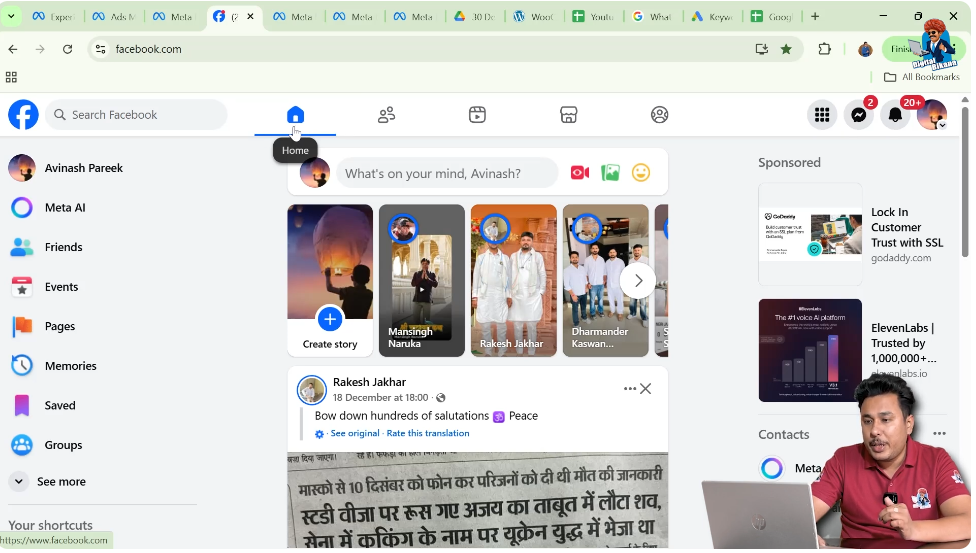
Step 1: Log in to the Facebook Account That Received the Request
To accept the admin request, log in to the Facebook account on which the invitation was sent.
Make sure you are logged in with the correct email ID and password. If you are logged in with a different account, you will not see the admin request notification.
Step 2: Check Facebook Notifications
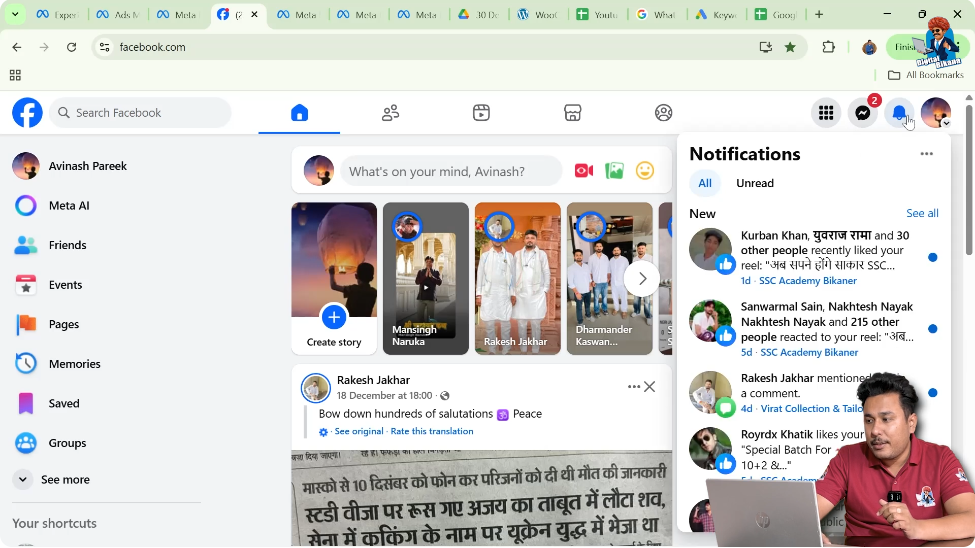
Once logged in, check the notifications section of your Facebook account.
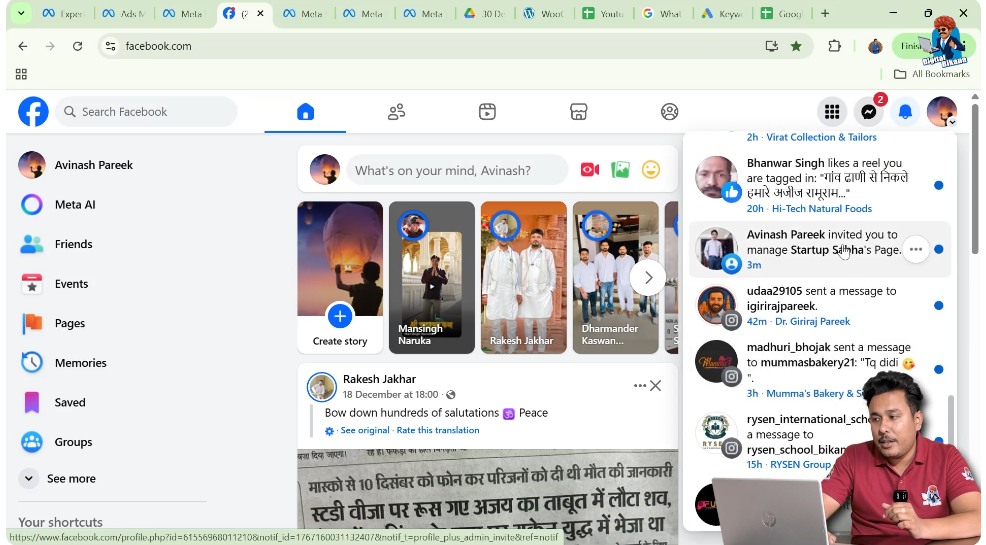
If an admin request has been sent, you should see a notification stating that you have been invited to manage a Facebook Page. The notification will usually mention the page name and the person who invited you.
Click on the notification to proceed.
Step 3: Open the Admin Invitation Notification
After clicking on the notification, you will be taken to the admin invitation screen.
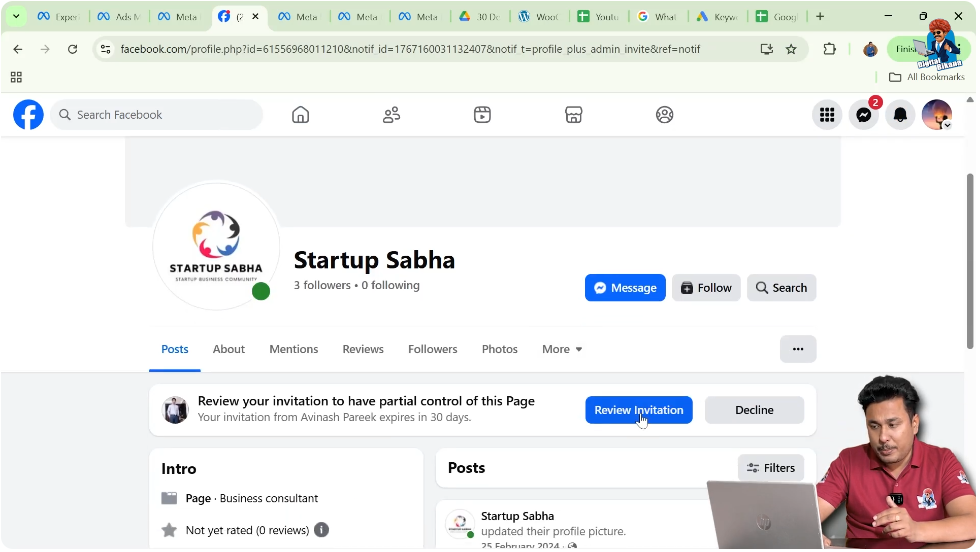
On this screen, you will see details about the page you have been invited to manage. There will also be a button labeled Review Invitation.
This button allows you to review and accept the admin request.
Step 4: Click on Review Invitation
Click on the Review Invitation button.
This step opens the confirmation process where Facebook asks you to confirm whether you want to accept the admin role for the page.
At this stage, you are only reviewing the invitation and have not yet accepted it.
Step 5: Accept the Admin Invitation
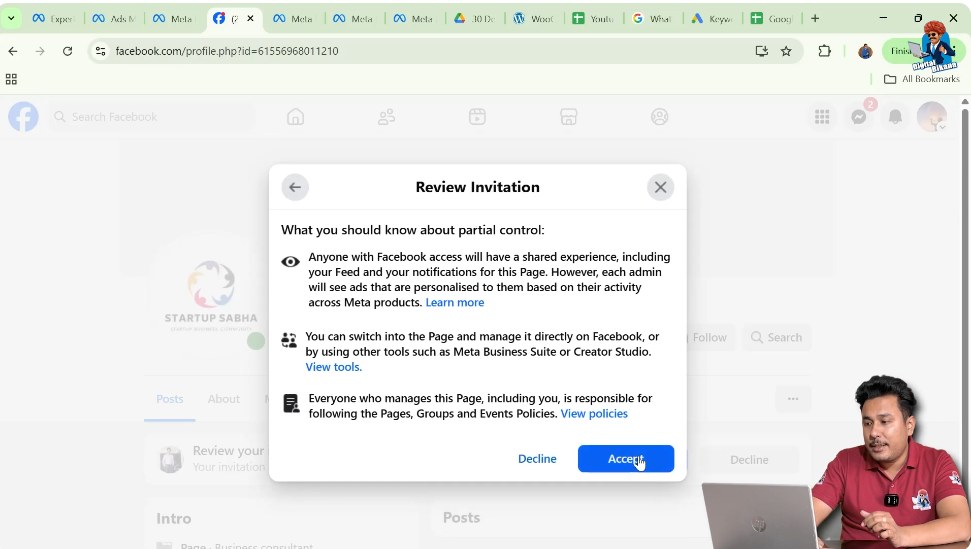
After reviewing the invitation details, click on Accept or proceed to the next step as shown.
This confirms that you agree to become an admin of the Facebook Page.
Alternate Method: What If You Do Not Receive the Notification?
Sometimes, Facebook notifications may be missed or not displayed immediately. In such cases, Facebook provides an alternate way to accept the admin request.
This method does not require waiting for a notification and can be done directly by visiting the page.
Step 6: Search for the Facebook Page Name
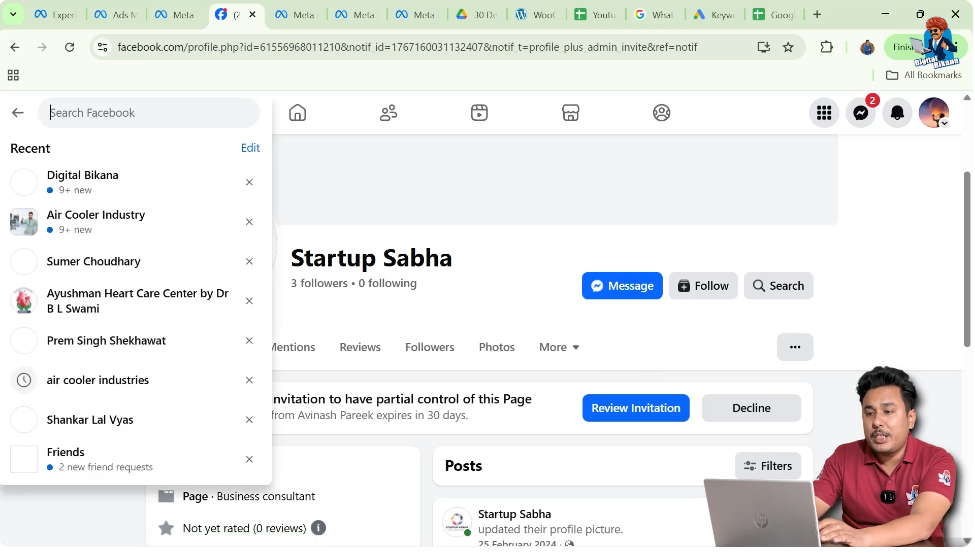
If you do not see the admin invitation notification, go to the Facebook search bar.
From the Facebook account that received the admin request, search for the name of the Facebook Page for which the admin access was sent.
Step 7: Open the Facebook Page from Search Results
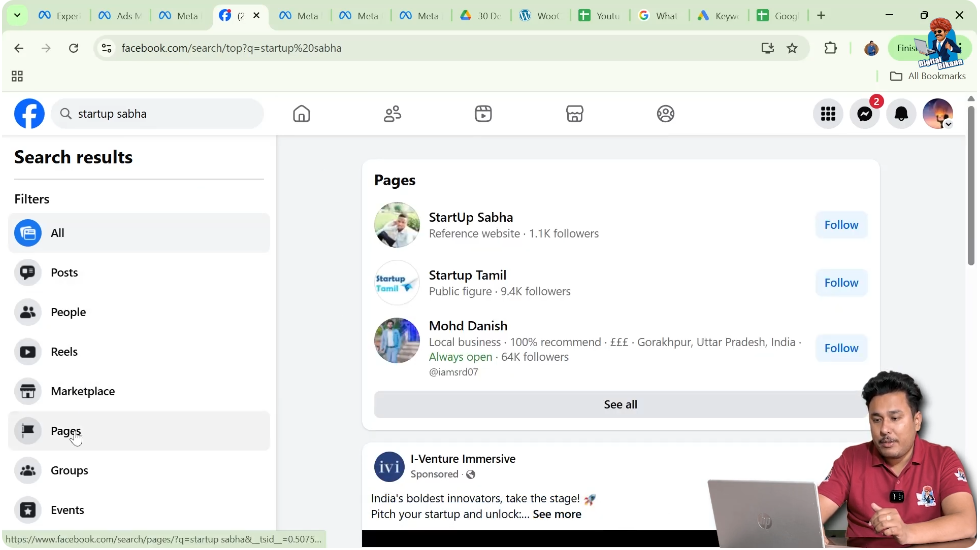
After searching, go to the Pages section in the search results.
Find the correct Facebook Page and open it.
When you open the page, Facebook automatically detects that an admin invitation is pending for your account.
Step 8: Click on Review Invitation from the Page
Once the page opens, you will see an option to Review Invitation.
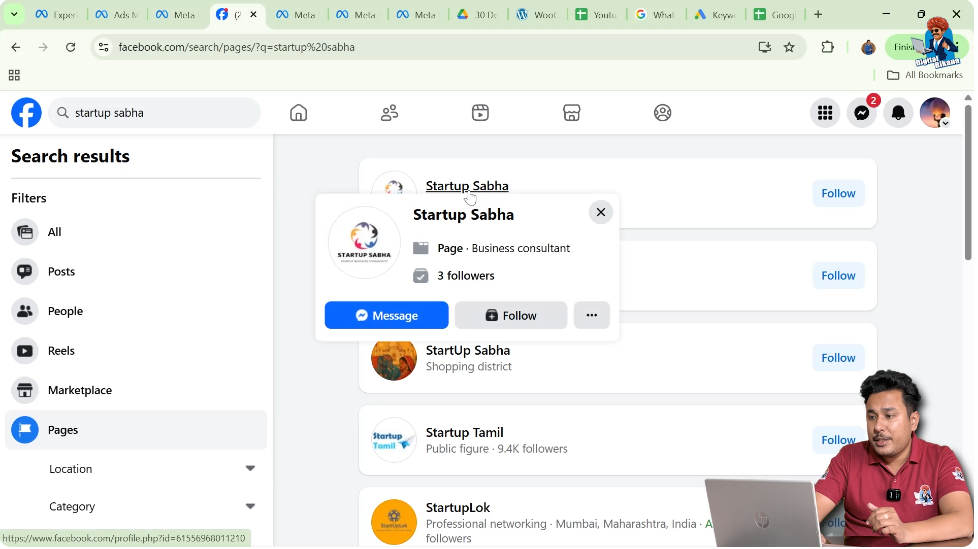
Click on this option to proceed with accepting the admin request.
This method works even if the notification was not received or was accidentally ignored.
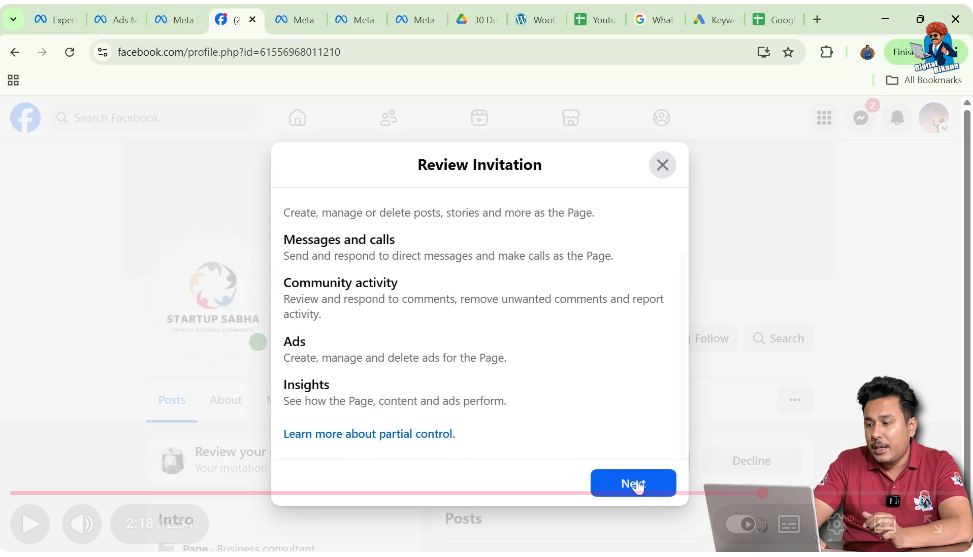
Step 9: Click Next and Accept
After clicking Review Invitation, click on Next and then Accept to confirm the admin access.
This step finalizes your decision to become an admin of the Facebook Page.
Step 10: Enter Your Facebook Password
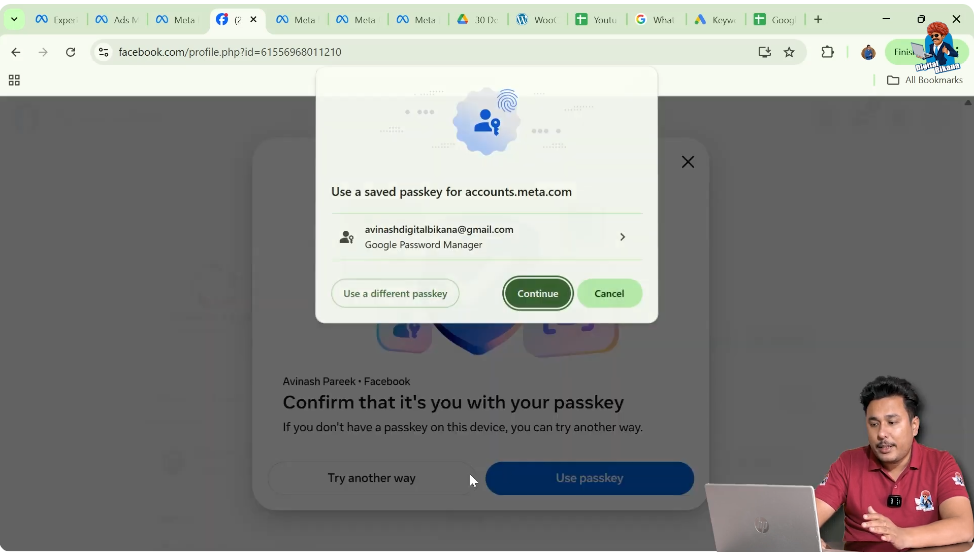
For security reasons, Facebook will ask you to enter your account password.
Enter your Facebook password carefully and confirm the action. This step ensures that only the account owner can accept admin access.
Step 11: Admin Request Successfully Accepted
Once the password is entered and confirmed, the admin request will be accepted.
You will now have admin access to the Facebook Page and will be able to manage the page according to the permissions provided.
What Happens After Accepting Admin Access
After accepting the admin request:
- You will be added to the page’s admin list
- You can manage the Facebook Page
- You can access page settings and tools
- Your role becomes active immediately
The page owner will also be able to see that you have accepted the invitation.
Important Points to Remember
- Admin access must be accepted manually
- Notifications may sometimes be missed, but the page search method always works
- Password confirmation is mandatory for security
- Access is not active until the invitation is accepted
Remembering these points helps avoid confusion during the process.
Common Mistakes to Avoid
Some common mistakes include:
- Checking notifications on the wrong Facebook account
- Ignoring the admin invitation notification
- Searching for the page while logged into a different account
- Entering the wrong password during confirmation
Being careful at each step ensures a smooth acceptance process.
Why Facebook Uses Two Acceptance Methods
Facebook provides both notification-based and page-search-based acceptance methods to ensure that admin requests are not missed.
This flexibility helps users accept invitations even if notifications fail to appear.
Final Thoughts
Accepting an admin request of a Facebook Page is a simple but important process. Whether you accept the request through notifications or by searching for the page directly, the steps are straightforward and secure.
By following the steps explained in this article, you can easily accept admin access and start managing the Facebook Page without any confusion. Always make sure you are logged in to the correct account and review the invitation carefully before accepting it.

Related Posts