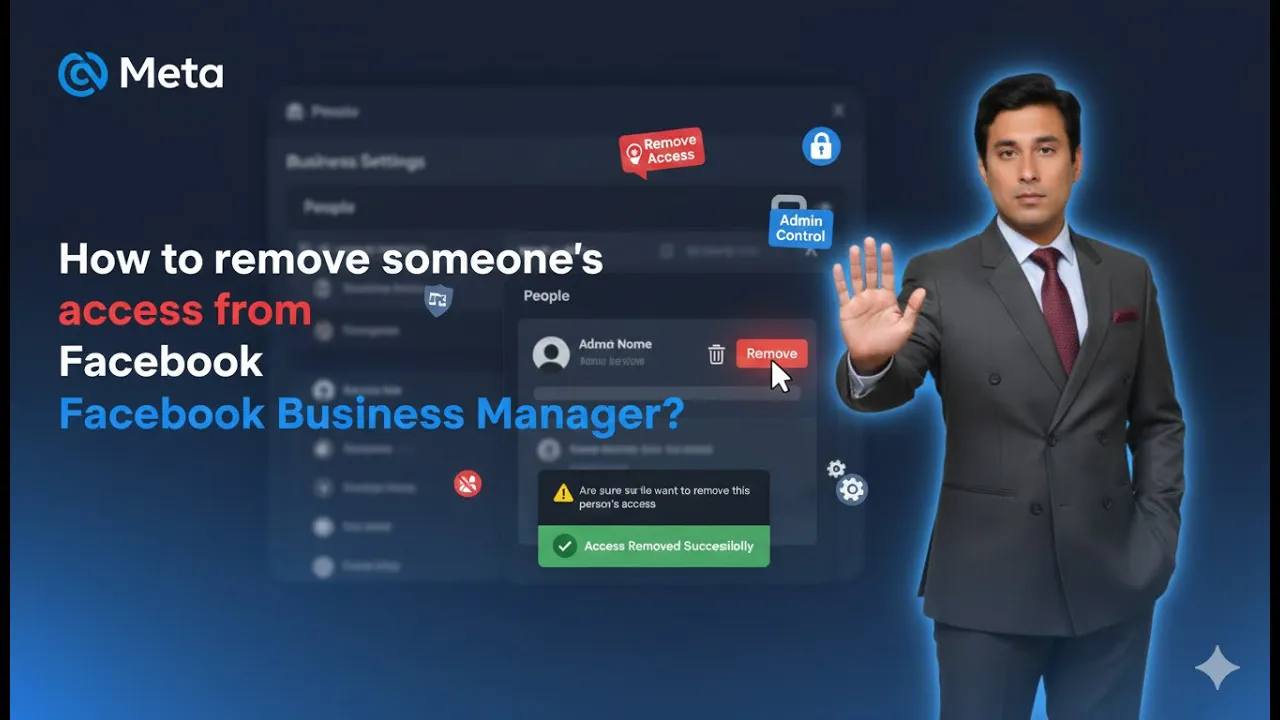
Managing access to your Facebook business assets is crucial for maintaining security and control over your business accounts. Whether you want to revoke access from a former employee, a freelancer, or an agency, removing someone from your Facebook Business Manager (now called Meta Business Suite) is a straightforward process if done correctly. In this guide, we will walk you through every step to safely remove a person from your business portfolio.
Why Removing Access is Important
Facebook Business Manager allows multiple people to access your business assets, such as Facebook pages, Instagram accounts, and ad account. However, keeping unnecessary users in your business portfolio can pose security risks, including:
- Unauthorized changes to your Facebook page or ad campaign
- Access to sensitive financial or ad data
- Risk of unintentional mistakes affecting campaigns or page management
Regularly auditing your business portfolio and removing inactive or untrusted users ensures the security and smooth functioning of your business operations.
How to Remove someone’s access from Facebook Business Manager?
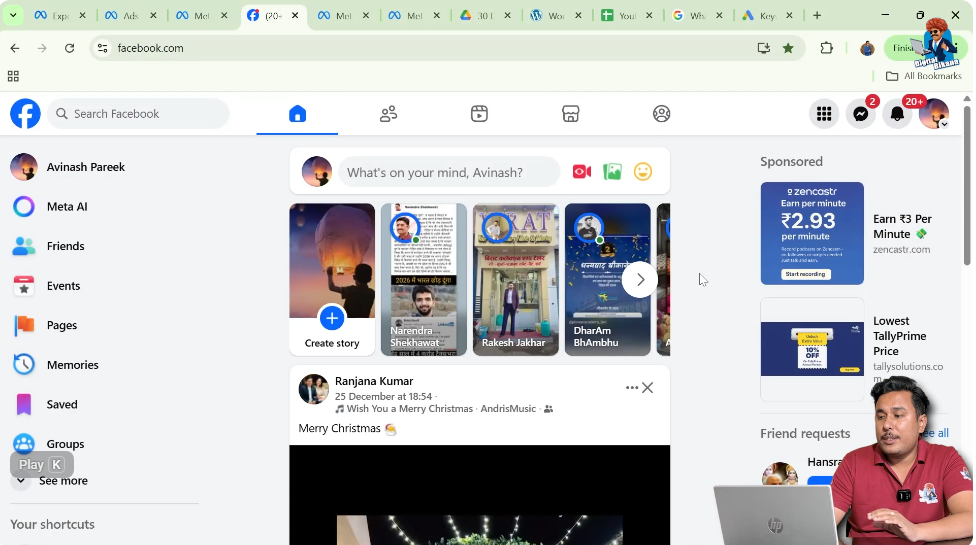
Step 1: Log In to Your Facebook Account
Before removing anyone, log in to your Facebook account. Make sure you use an account with admin privileges on the Facebook page associated with the business portfolio. Without admin access, you cannot manage or remove users from Meta Business Suite.
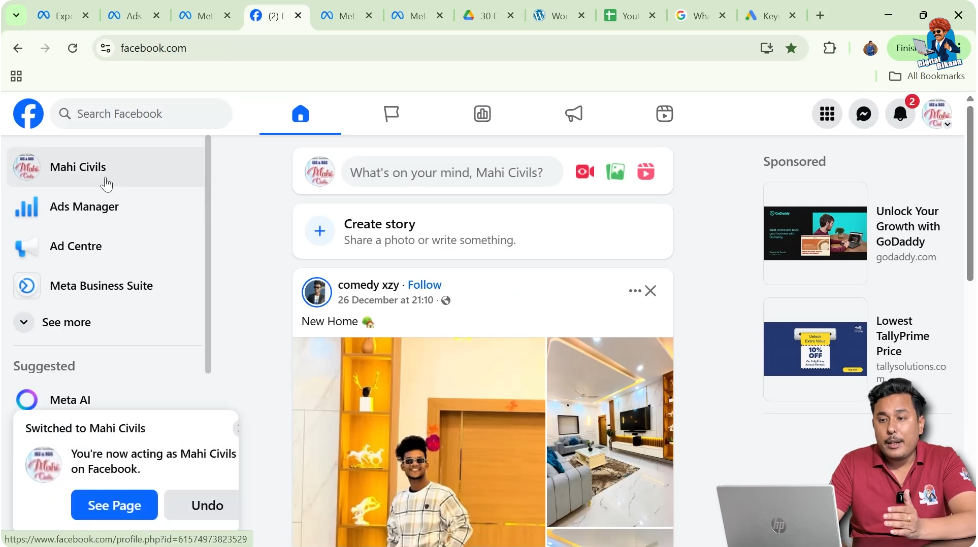
Step 2: Switch to Your Facebook Business Page
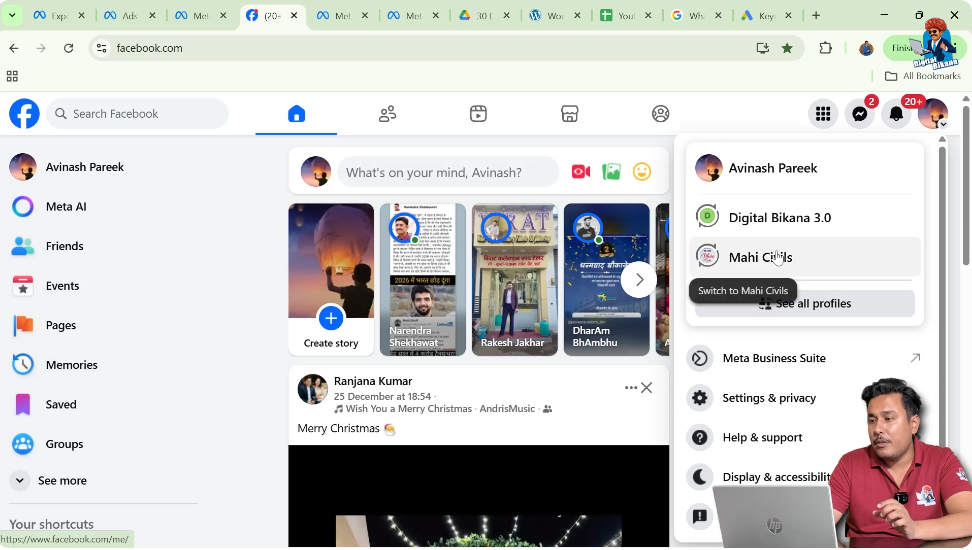
After logging in, you need to switch from your personal Facebook account to your Facebook business page.
- Click on the top-right corner icon of your Facebook account.
- A dropdown menu will appear showing your personal profile and the pages you manage.
- Click on your Facebook business page name.
Once selected, you will be switched to your business page, which is the first step to accessing Meta Business Suite.
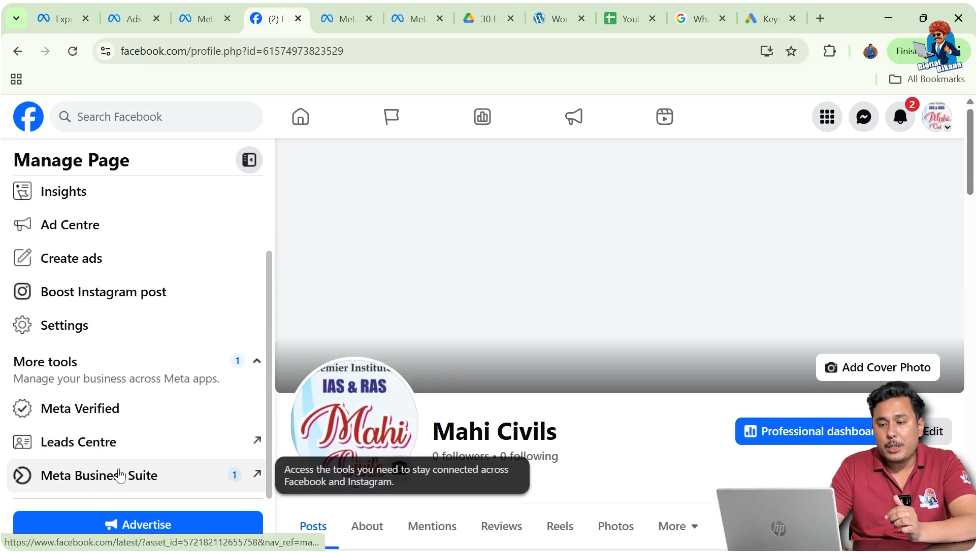
Step 3: Open Your Facebook Page Profile
After switching to your business page, click again on your Facebook page name. This will take you to the profile page of your business, where you can access settings, insights, and management tools.
The profile page is where all the controls for page management are available, including user access management through Meta Business Suite.
Step 4: Access Meta Business Suite
On your Facebook page profile, look for Meta Business Suite. This is Facebook’s central hub for managing your business assets. Meta Business Suite combines all your Facebook and Instagram business tools into one dashboard, making it easier to control:
- Facebook pages
- Instagram accounts
- Ad account
- User roles and permissions
Click on Meta Business Suite to proceed. This will take you to your business portfolio.
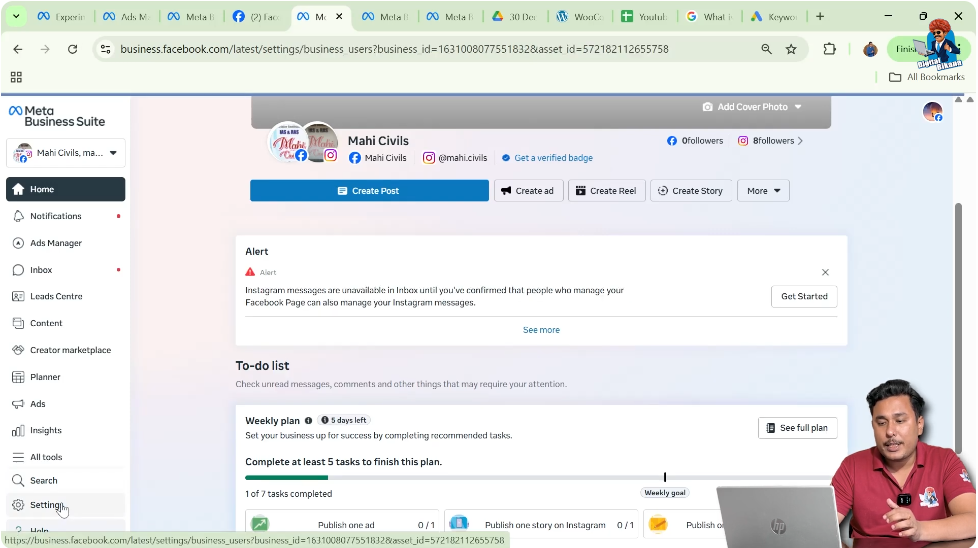
Step 5: Navigate to Settings
Inside Meta Business Suite, look at the left-hand menu. You will see a Settings tab. Click on it to open the settings page of your business portfolio.
The settings page allows you to manage all aspects of your business account, including people, pages, ad accounts, and security settings.
Step 6: Locate the Person You Want to Remove
Once in the settings page, scroll down until you see the list of people who have access to your business portfolio. Each person will have their role displayed, such as Admin, Employee, or Analyst, depending on the permissions you previously granted.
Identify the person whose access you want to remove. Carefully check their role and make sure you are removing the correct person. Removing the wrong person may disrupt business operations.
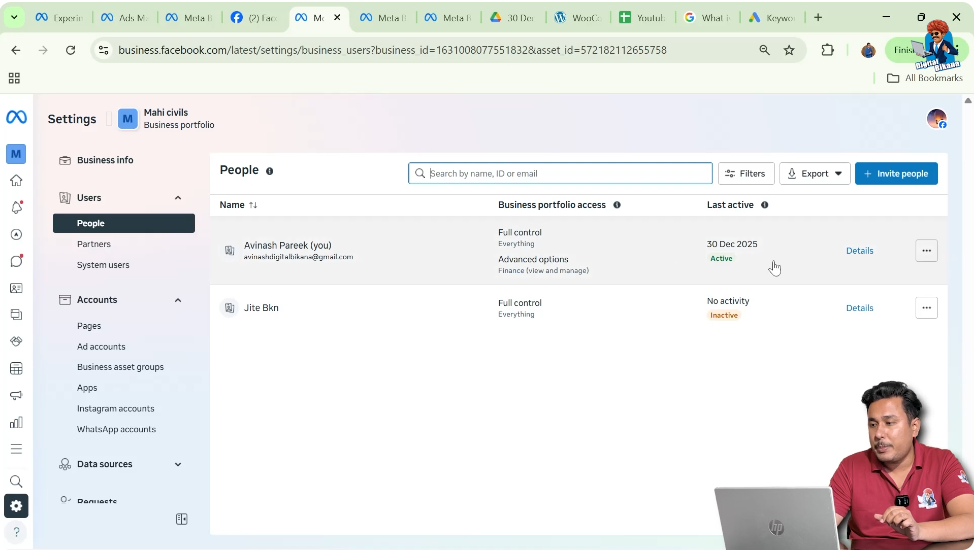
Step 7: Remove the Person
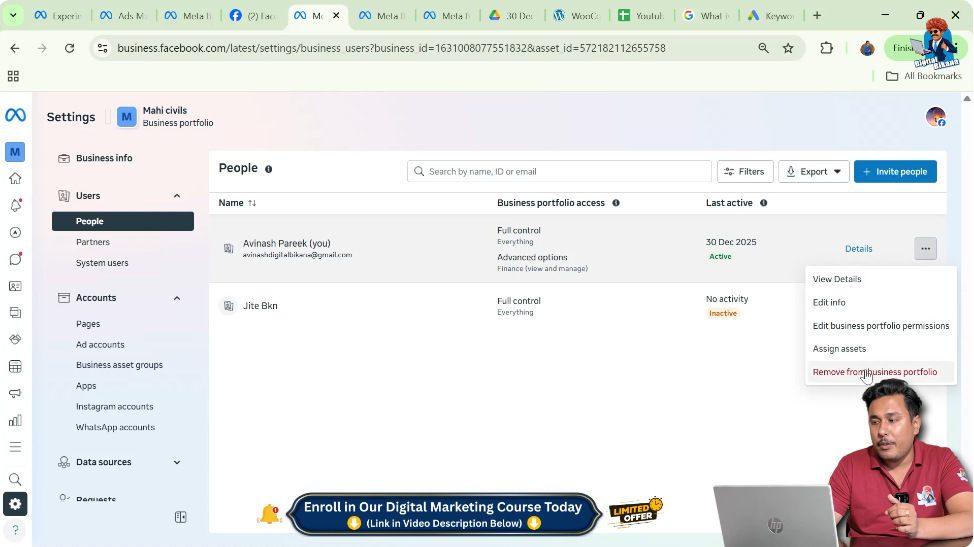
Next to the person’s name, you will see a triple-dot menu (⋮). Click on it to see additional options.
From the dropdown, select Remove from Business Portfolio. Facebook will ask for confirmation before permanently removing the person. Confirm your action to remove the user immediately.
Once removed, the person will no longer have access to any of the business assets, including pages, ad accounts, and Instagram accounts associated with your Meta Business Suite.
Step 8: Confirm Removal
After removing the person, it is a good practice to check that they have been successfully removed from the business portfolio. Refresh the settings page and verify that their name no longer appears in the list of users.
Additionally, check that your Facebook page, ad accounts, and other assets are still fully accessible to admins and that no other roles were accidentally altered during this process.
Step 9: Audit Remaining Access
After removing a user, it is recommended to audit the remaining users and their roles. Make sure only trusted team members have access to your business portfolio.
You can also:
- Review roles for employees and partners
- Remove outdated or inactive users
- Update access levels based on job responsibilities
Regular audits improve security and prevent unauthorized changes or access.
Additional Tips for Managing Facebook Business Access
- Keep a Backup Admin: Always maintain at least one other admin on the business account. This ensures you do not get locked out if your main admin account is compromised.
- Regularly Review Roles: Roles like Employee, Analyst, and Finance Editor provide different access levels. Make sure each person has only the access necessary for their work.
- Revoke Third-Party Access: If you have connected agencies or third-party apps, periodically check their access and remove unused connections.
- Enable Two-Factor Authentication: Secure your business portfolio by enabling two-factor authentication for all admins. This prevents unauthorized access.
Common Mistakes to Avoid
- Removing yourself: Ensure you have another admin account before removing any users. Removing yourself can lock you out of your business portfolio.
- Not checking roles: Verify the person’s role before removing them to avoid disrupting critical functions.
- Ignoring pending access requests: If someone has a pending invitation, they might still have partial access until it is canceled.
Conclusion
Removing someone’s access from Facebook Business Manager (Meta Business Suite) is an essential step for maintaining security and control over your business assets. By following the steps outlined above, you can:
- Safely remove unwanted users
- Protect sensitive information
- Maintain full control over your Facebook pages, Instagram accounts, and ad accounts
Always remember to audit your business portfolio regularly, maintain backup facebook page admin, and review access roles to ensure smooth and secure operations.
By following this detailed guide, even beginners can confidently manage user access in Meta Business Suite without making errors.

Related Posts