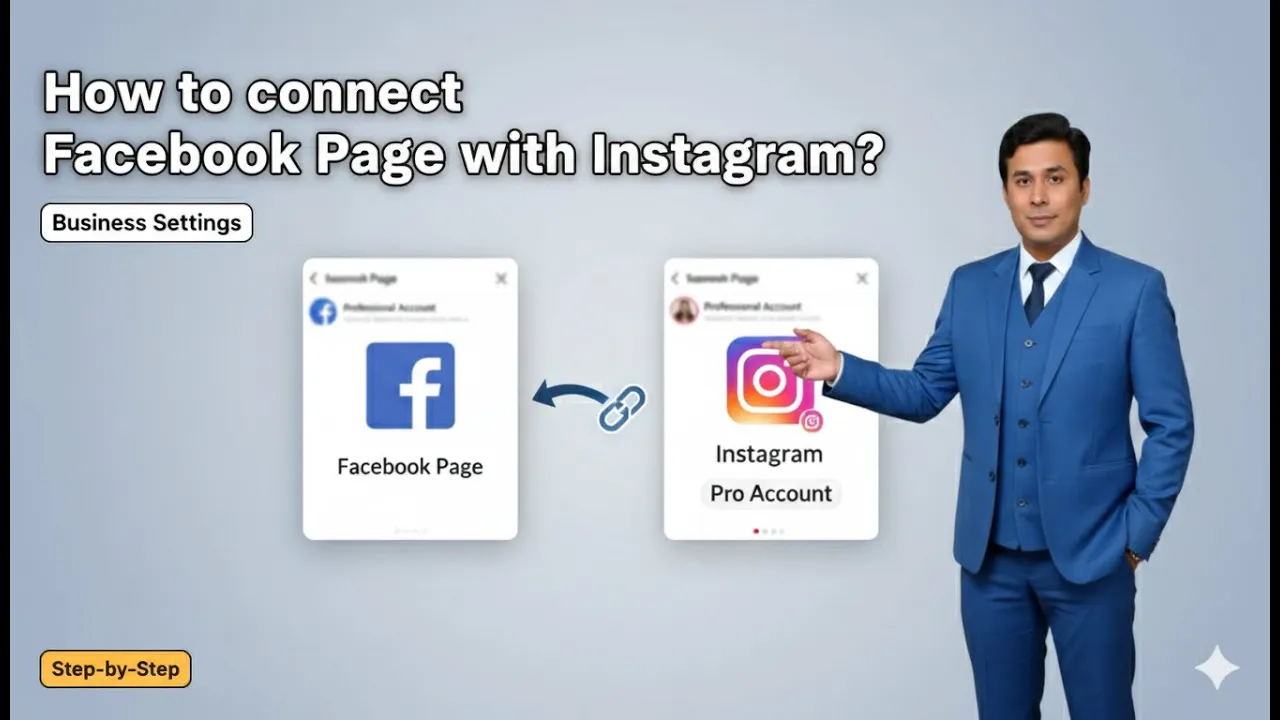
Connecting a Facebook page with an Instagram account is an essential step for businesses that want to use Instagram professionally. When a Facebook page is connected to an Instagram account, the Instagram account automatically gets converted into an Instagram professional account. This setup allows businesses to manage both platforms more efficiently and access professional tools through Meta’s ecosystem.
In this article, we will explain the complete process of connecting a Facebook page with an Instagram account in a detailed and easy-to-understand manner, exactly following the steps involved in the process.
Understanding the Purpose of Connecting Facebook Page and Instagram Account
Before starting the process, it is important to understand why connecting a Facebook page with an Instagram account is necessary. When both platforms are connected, Instagram recognizes the account as a business account and automatically converts it into an Instagram professional account. This connection also enables the creation of a business portfolio, which helps manage assets under one place.
The entire process is completed directly from the Facebook page settings and Meta Business Suite.
How to connect a Facebook Page to Instagram Business Account?
1. Switching to the Facebook Page Profile
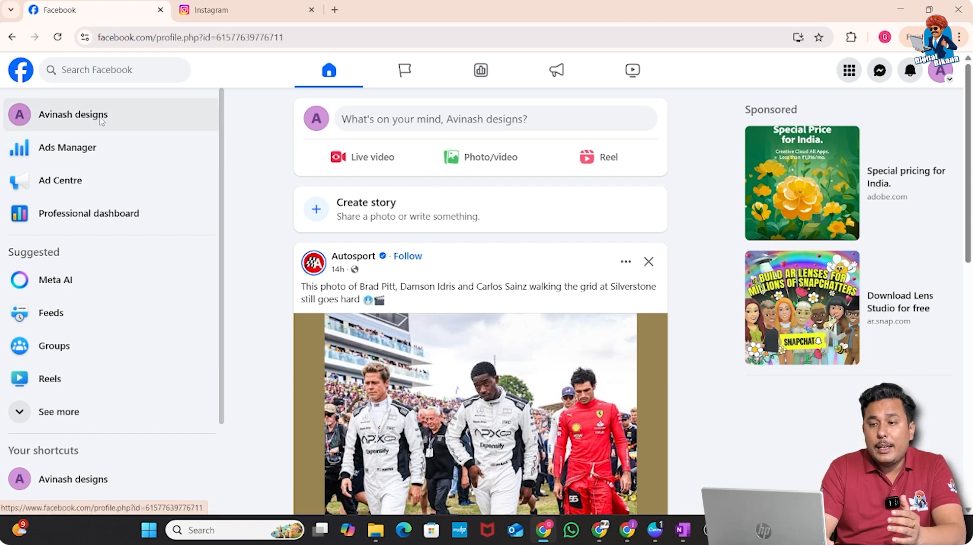
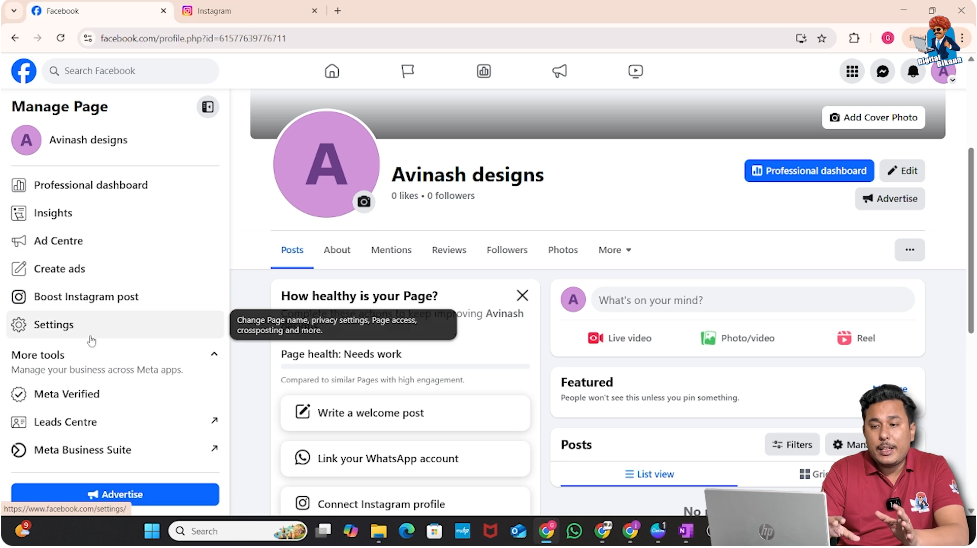
The first step in the process is switching to your Facebook page. On the left side of the screen, click on your Facebook page profile. Once you click on it, you are taken inside the Facebook page interface where all page-related settings and options are available.
This step is important because the connection between Facebook and Instagram starts from the Facebook page, not from the Instagram app.
2. Opening the Settings Option on Facebook Page
After entering the Facebook page profile, locate and click on the Settings option. The settings section contains various controls related to page management, account linking, and integrations.
Opening the settings ensures that you can access advanced options required to connect external platforms such as Instagram.
3. Accessing the Linked Accounts Section
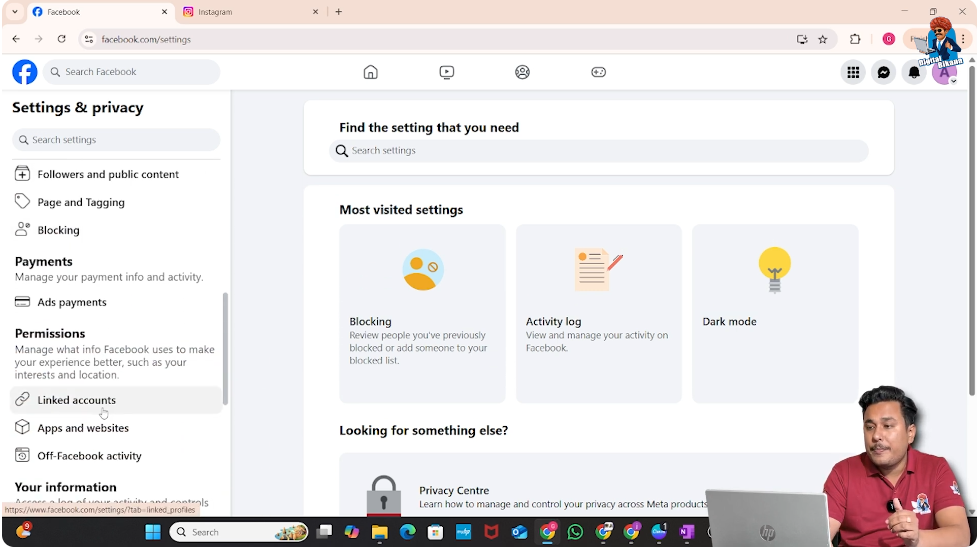
Inside the settings area, scroll down on the left-hand side of the screen. As you scroll, you will find an option named Linked Accounts. This section is specifically designed to manage connections between your Facebook page and other platforms.
Click on Linked Accounts to move to the next step.
4. Selecting Instagram to Begin the Connection Process
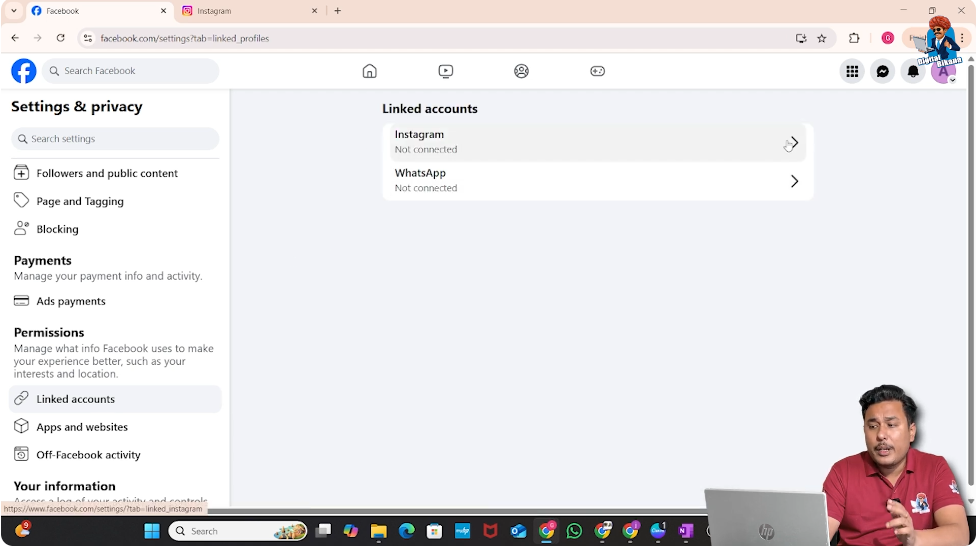
Within the Linked Accounts section, you will see different platform options. From these options, click on Instagram. This selection tells Facebook that you want to connect an Instagram account to your Facebook page.
This step initiates the Instagram connection workflow.
5. Connecting the Instagram Account
After selecting Instagram, click on Connect Account. Facebook then asks you to confirm the connection again, so click on Connect once more. After confirming, click on Continue to proceed further.

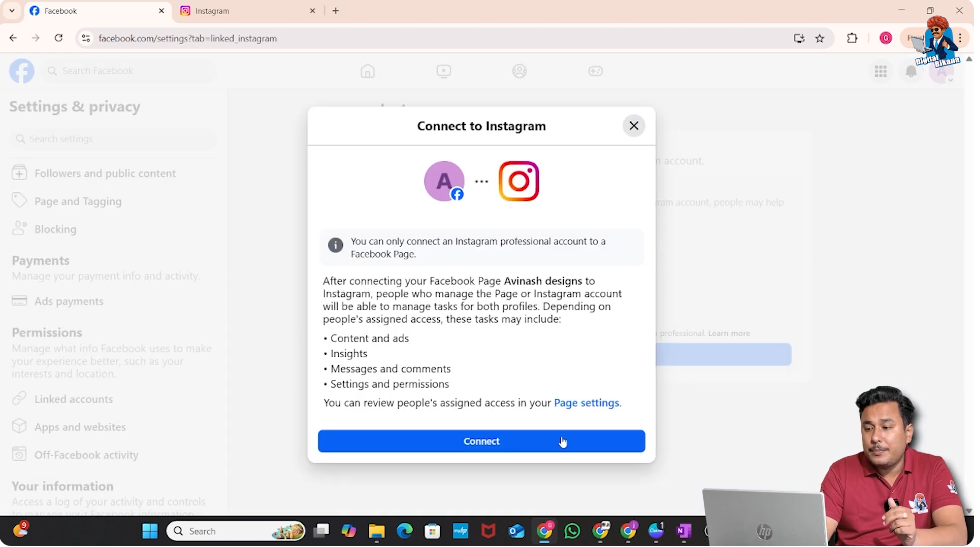
At this stage, Facebook asks which Instagram account you want to connect. If you already have multiple Instagram accounts, you can choose the desired one. If you want to connect a different Instagram account, you can click on Switch Account and select the correct account.

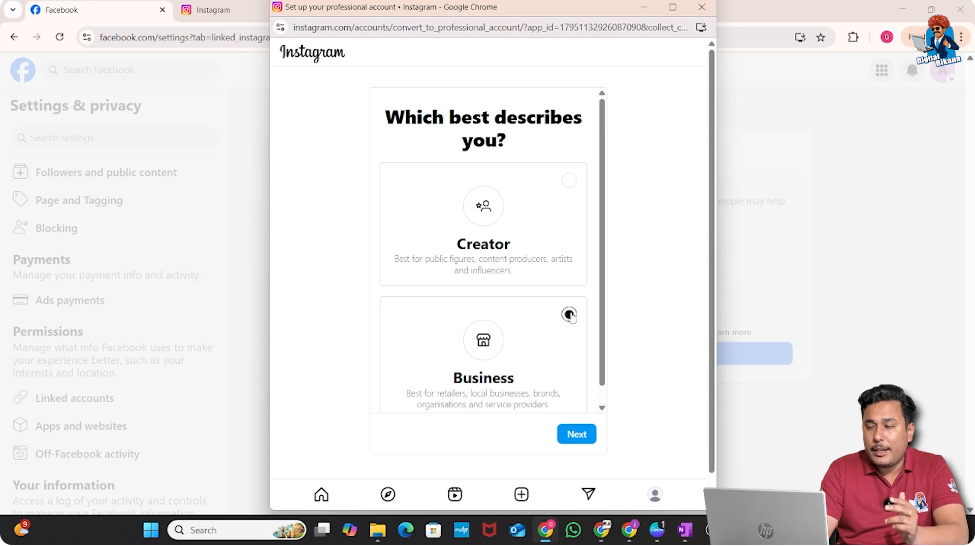
6. Choosing the Account Type as Business
Once the Instagram account is selected, Facebook asks you to choose the account type. Since this setup is for business purposes, select Business as the account type.
After selecting Business, click on Next, and then click on Next again to continue the setup process. This step confirms that the Instagram account will be used as a business account.
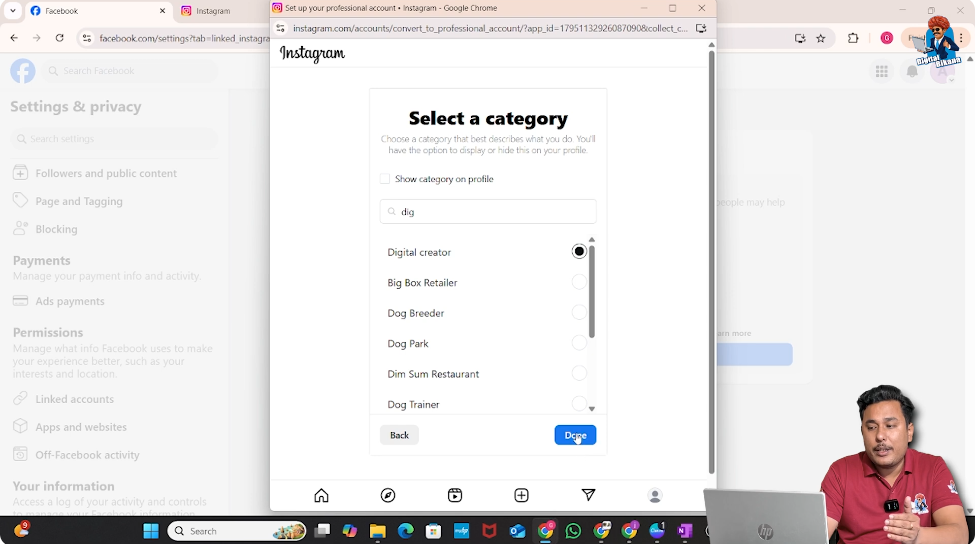
7. Selecting the Business Category
After choosing the account type, you are asked to select your business category. This category helps Instagram and Facebook understand what kind of business the account represents.
For example, if you are a digital creator, you can enter Digital Creator as your business category. Once the appropriate category is entered, click on Done, and then click on Continue to proceed.
8. Instagram Business Account Ready to Use
After completing the category selection, a message appears on the screen stating that your Instagram business account is ready to use. This message confirms that the Instagram account has successfully been converted into a professional account.
Click on Done to finish this stage of the process.

9. Creating a Business Portfolio
After setting up the Instagram business account, Facebook asks whether you want to create a business portfolio. A business portfolio is used to manage connected assets such as Facebook pages and Instagram accounts. Click on Continue to proceed.

After this step, a confirmation message appears showing that your Instagram account has been successfully connected to your Facebook page.
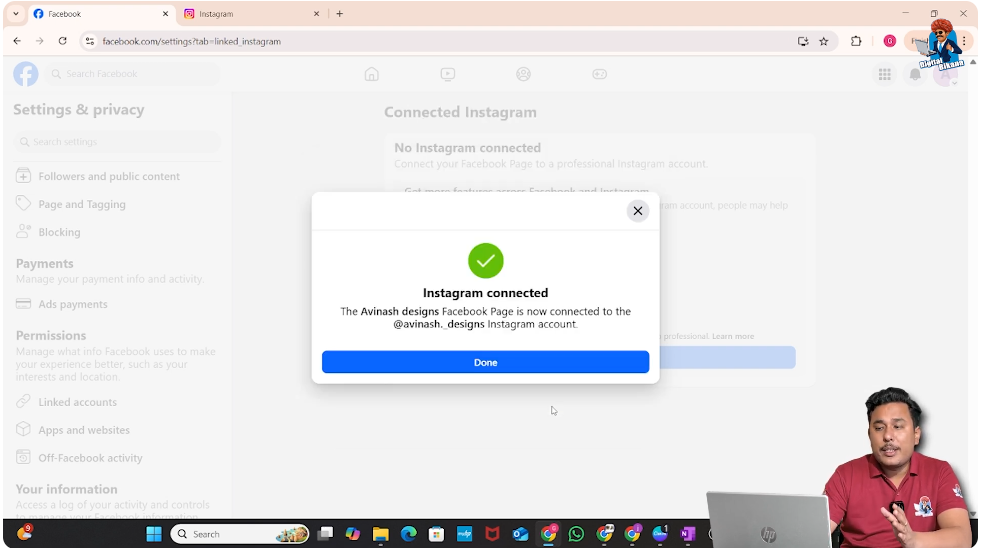
10. Opening Meta Business Suite from Facebook
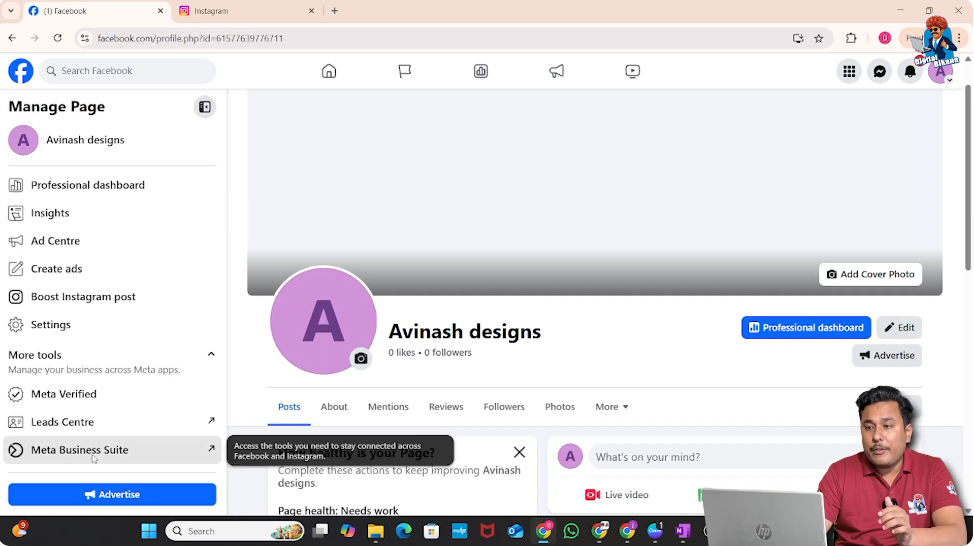
Now return to the Facebook homepage. On the left-hand side, scroll down and look for the See More option. Clicking on See More reveals additional tools and options.

If the Meta Business Suite option is not visible, click on your profile page, move to the left side, and then select Meta Business Suite from the available options.

11. Verifying the Connection in Meta Business Suite
Once you open Meta Business Suite, it displays information related to your connected assets. A popup may appear showing that your Facebook page is already connected with your Instagram account. Close this popup to continue.
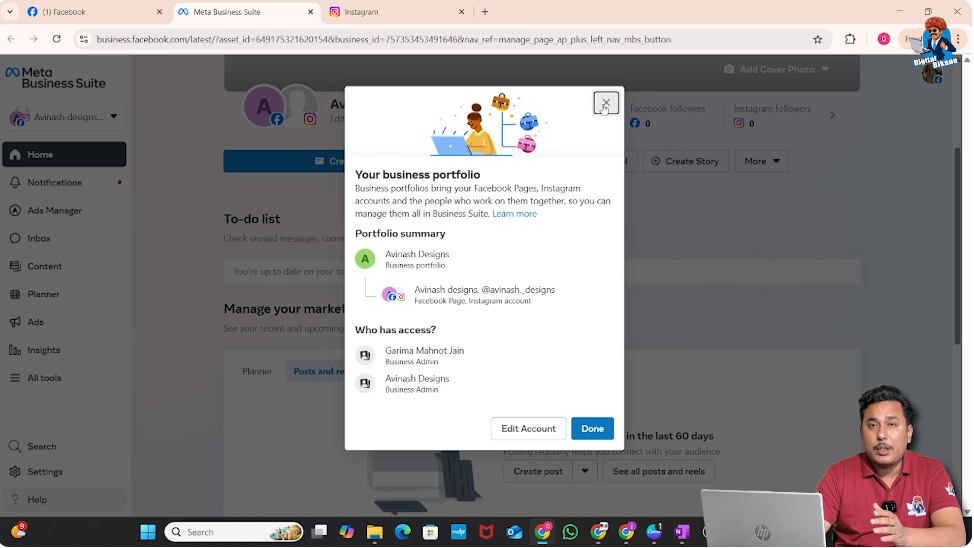
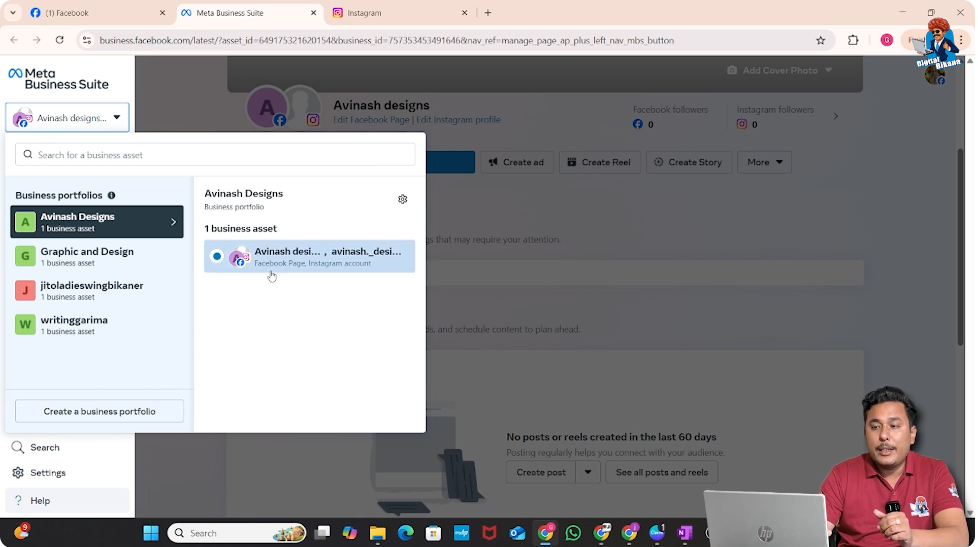
On the left bar, click on your name. Here, you will see that both the Facebook page and the Instagram account are listed under the same business portfolio. This confirms that the connection has been completed successfully.
Understanding How Business Portfolio Is Created
The business portfolio is automatically created when you connect a Facebook page with an Instagram account. You do not need to manually create a business portfolio in this case.
This automatic creation helps streamline the setup process and ensures that both platforms are managed under a single structure.
Creating a Business Portfolio Without Instagram Account
Many students ask how to create a business portfolio without connecting an Instagram account. This is possible directly from Meta Business Suite.
If you want to create a new business portfolio using only a Facebook page, you can click on the Create a Business Portfolio option available inside Meta Business Suite. This allows portfolio creation without linking an Instagram account.
Final Overview of the Entire Process
To summarize the complete process of connecting a Facebook page with an Instagram account:
- Switch to your Facebook page profile
- Open the Settings option
- Scroll down and click on Linked Accounts
- Select Instagram
- Click on Connect Account and Continue
- Choose the Instagram account
- Select Business as account type
- Choose the business category
- Complete the setup and confirm
- Open Meta Business Suite to verify the connection
Once these steps are completed, the Instagram account becomes a professional account and is successfully linked with the Facebook page.
Conclusion
Connecting a Facebook page with an Instagram account is a straightforward process that automatically converts the Instagram account into a professional account. The connection also results in the creation of a business portfolio, making it easier to manage both platforms together.
By following the steps explained in this article, anyone can connect their Facebook page and Instagram account smoothly using Facebook settings and Meta Business Suite.

Related Posts