When running advertisements on Facebook, many people understand campaigns and ad sets but often get confused about ad creatives. An ad creative is the most visible part of your ad campaign because it is what users actually see on Facebook and Instagram. In this article, we will explain in detail what an ad creative is in a Facebook ad campaign, what settings are available at the ad creative level, and how each option works.
Understanding the Structure of Facebook Ads
Before understanding ad creatives, it is important to understand where they fit in the overall ad structure.
A Facebook ad campaign has three levels:
The campaign defines the objective, such as traffic, calls, or sales.
The ad set controls budget, audience, and placements.
The ad creative is the final level where the actual advertisement is created.
An ad creative is part of an ad set, and an ad set is part of an ad campaign.
What Is an Ad Creative?
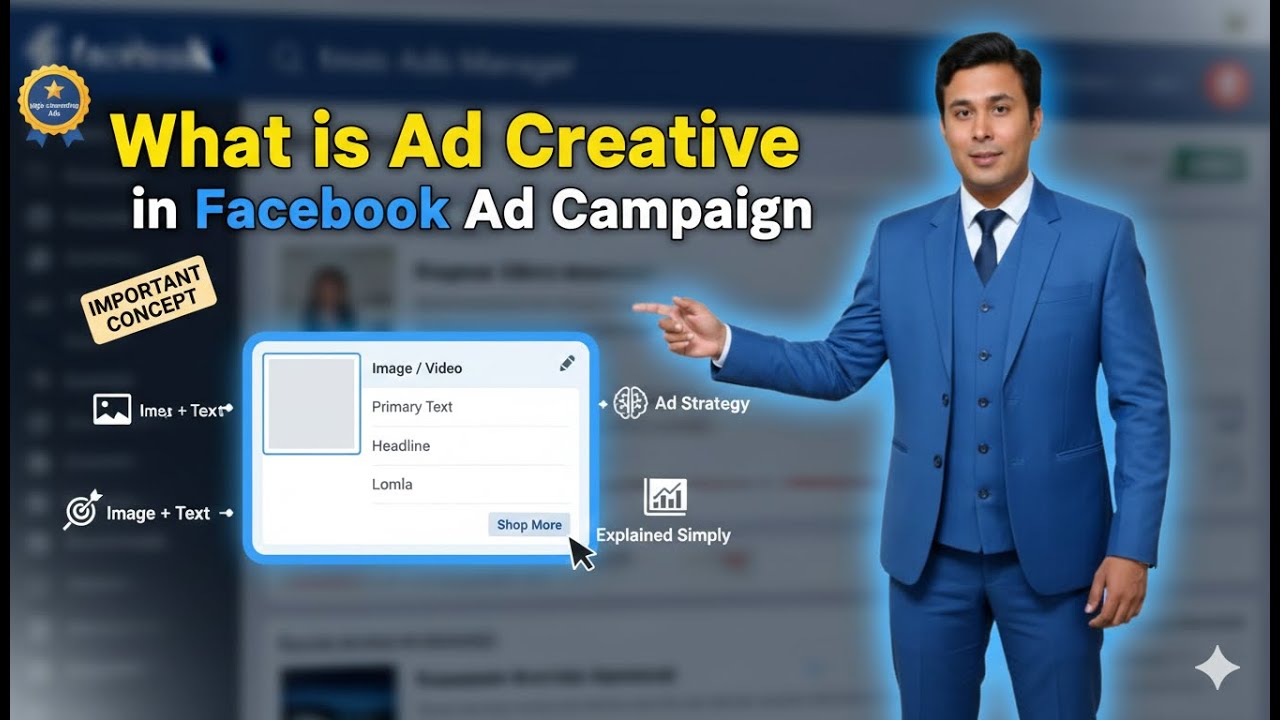
An ad creative is the actual advertisement that appears to people on Facebook and Instagram.
It includes:
- Image or video
- Text or caption
- Headline
- Call-to-action button
- Destination (where users go after clicking)
When users scroll their feed, stories, or reels, what they see is the ad creative.
Identifying the Ad Creative Level
While creating a Facebook ad campaign, the ad creative level is clearly highlighted in blue. This indicates that all the settings being adjusted at this point belong to the ad creative.
At this level, you do not change audience or budget. Instead, you focus on how the ad looks and what message it delivers.

Renaming the Ad Creative
The first option available at the ad creative level is renaming the ad creative.
The ad creative name is only for internal reference. It is not visible to users. You can name it anything that helps you identify the creative, such as “Banner One” or “Creative Call Ad.”
Renaming helps when you create multiple creatives in the same ad set.

Partnership Ad Section
The next section is Partnership Ad.
This option is used only when you are running an ad campaign in collaboration with another business, Facebook Page, or Instagram account. If you are not collaborating, this option does not need to be turned on.
In this case, the partnership ad option is kept off.

Selecting Facebook Page and Instagram Account
At this stage, the relevant Facebook Page and Instagram account are selected.
These are the accounts from which the ad will be shown. Selecting the correct page and Instagram account ensures that the ad displays the correct brand identity.

Ad Setup Options
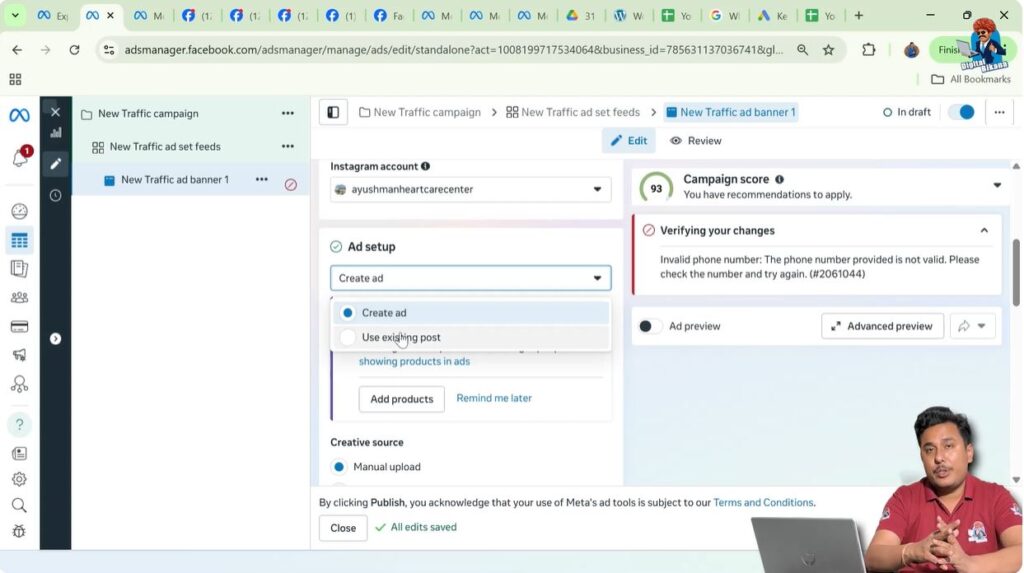
Next comes the Ad Setup section.
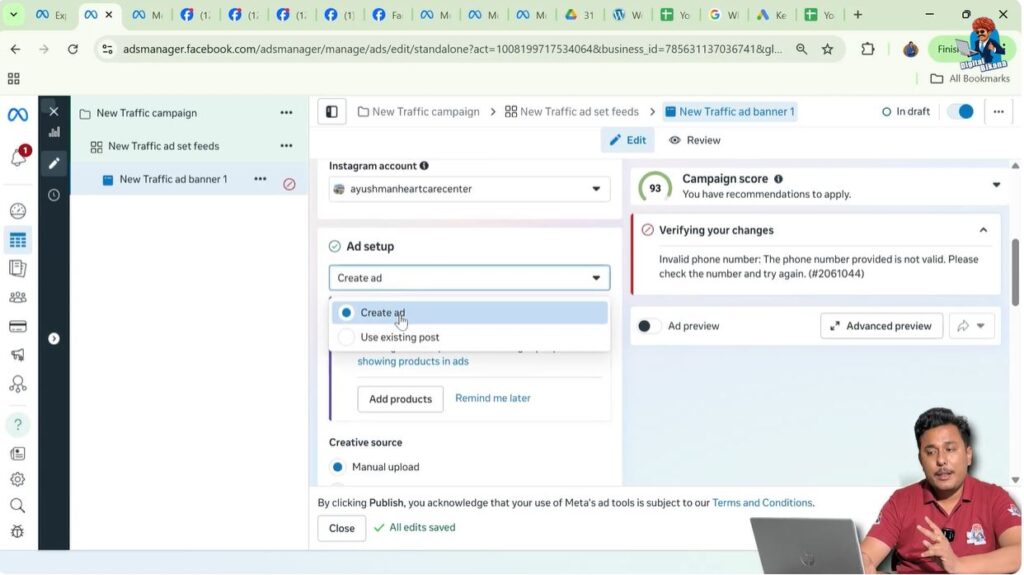
Here, you have two options:
- Create Ad
- Use Existing Post

Create Ad Option Explained
The Create Ad option is selected when you want to directly upload a banner or video and run it as an advertisement.
This option is useful when you do not want to post the creative on your Facebook Page or Instagram account and only want to use it for ads.
In this case, Create Ad is selected.
Use Existing Post Option Explained
The Use Existing Post option is selected when the banner or video is already posted on your Facebook Page or Instagram business account.
If you want to promote that existing post as an advertisement, you should choose this option.
Choosing the Ad Format
After selecting Create Ad, the next step is choosing the ad format.
There are two main formats:
- Single image or video
- Carousel
Single Image or Video Format
The single image or video format is used when your ad consists of one image or one video.
This format is simple and commonly used for most ad campaigns. In this case, the single image format is selected.

Carousel Format
The carousel format is used when you want to show multiple images or videos in a sliding format.
This type of ad allows users to swipe through different creatives. If selected, multiple images or videos must be uploaded.

Multi-Advertiser Ads Option
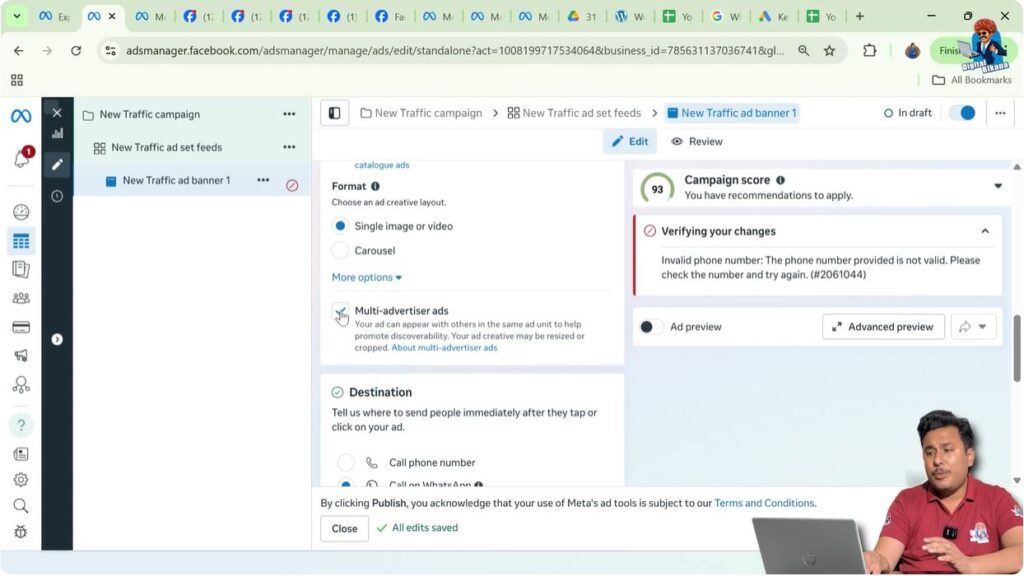
The next section is Multi-Advertiser Ads.
This option is kept off. Enabling it can cause your ad to appear between ads of other businesses. Since this is not required here, it remains disabled.
Destination Section in Ad Creative
The destination section defines where users go after clicking the call-to-action button.
In this case, the destination selected is Call Phone Number.

Setting Call Destination
To set the call destination:
- Select the country code
- Enter the phone number
The call-back request option is kept off. This means users can directly call using the call button.

Selecting the Ad Creative Image
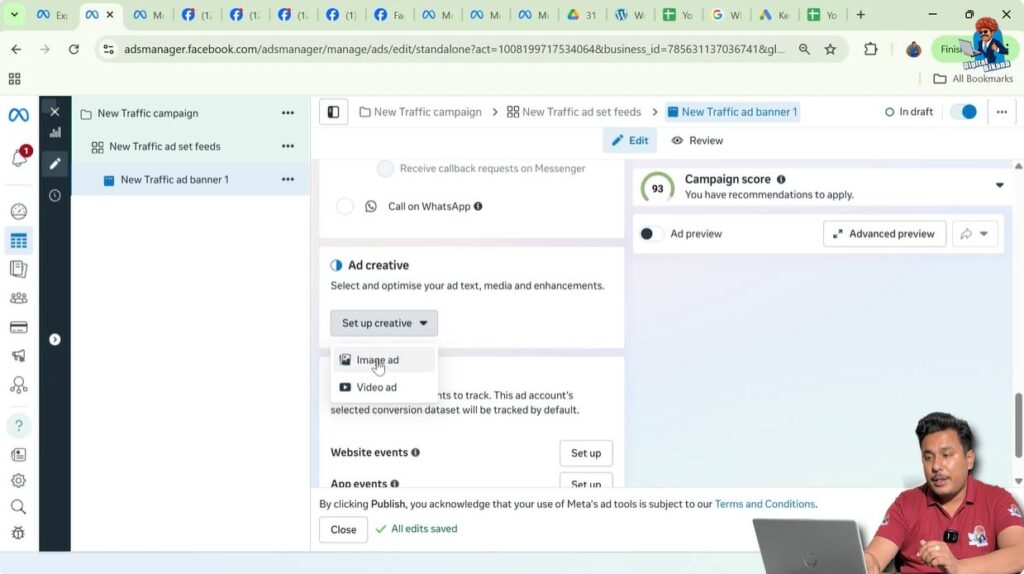
Next, the ad creative image is selected.
The image is uploaded manually from the system and confirmed by clicking on Next.
Aspect Ratio Selection
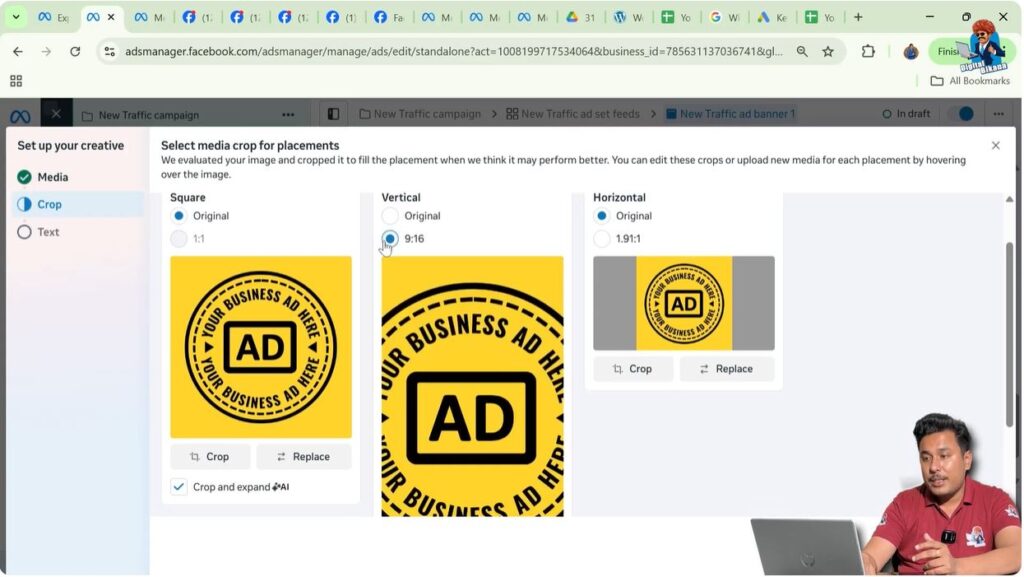
After selecting the image, Facebook asks you to choose the aspect ratio.
The Original aspect ratio is selected. If a vertical 9:16 ratio is selected, the image may get cropped.
Since the banner is designed in 1:1 or 4:5 format, selecting the original ratio is the correct choice.
How Ads Appear in Different Placements
For feed placements that support square or vertical formats, the ad appears properly.
For placements that support only vertical formats, such as stories and reels, the ad may show black bars on the sides or top and bottom if the creative is not in 9:16 format.
This is normal and acceptable unless you want a perfectly optimized creative.
Adding Primary Text and Headline
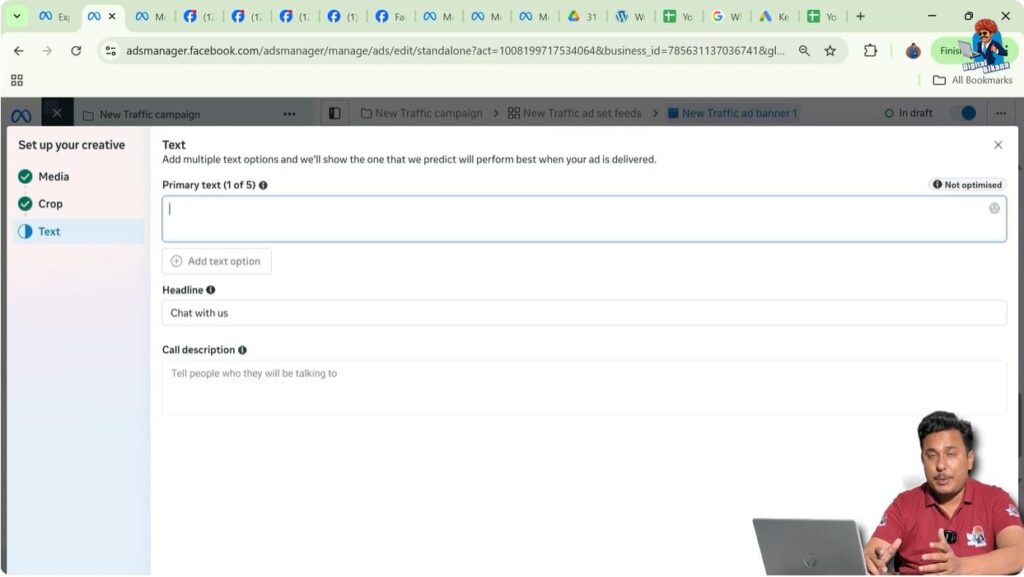
Next, the primary text or caption is added.
The caption can be written manually or generated using tools like ChatGPT or Gemini. This text appears above or below the ad creative depending on placement.
A headline can also be added, such as “Call Now,” “Talk With Us,” or any relevant line.
Call Description Option
The call description option allows you to mention whom users will talk to if they call.
This option is not mandatory and can be skipped if not required.
After entering the details, click on Done.
Previewing the Ad Creative
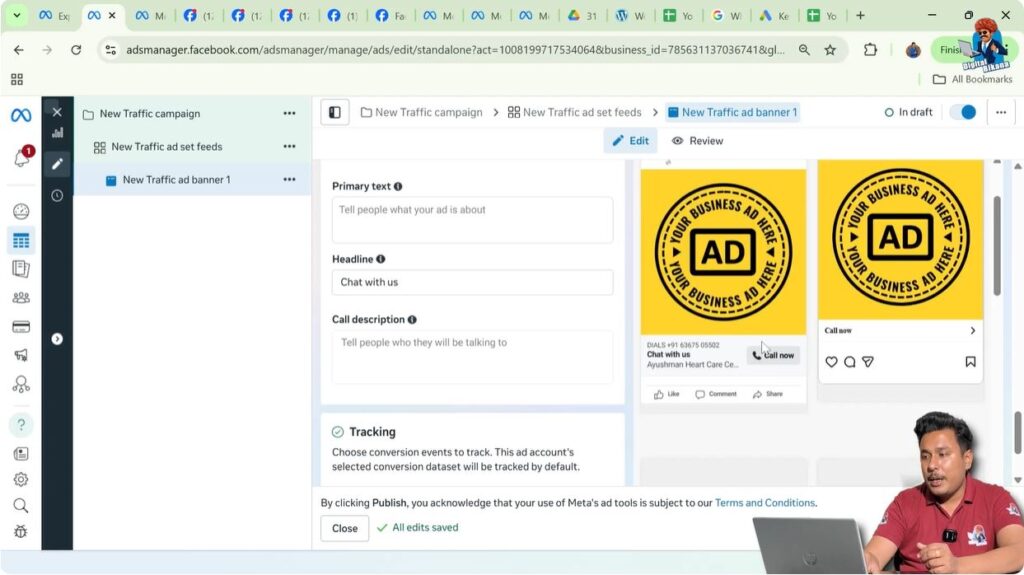
Once the ad creative is ready, a preview is shown.
The preview displays:
- Page name with “Sponsored”
- Ad image
- Headline
- Page name
- Call-to-action button
Since the destination is calls, the CTA button appears as Call Now.
Viewing Ad Preview on Different Placements
The preview also shows how the ad will appear on:
- Instagram Feed
- Facebook Feed
- Instagram Stories
This helps understand how the creative looks across platforms.
Fixing Stories and Reels Creative
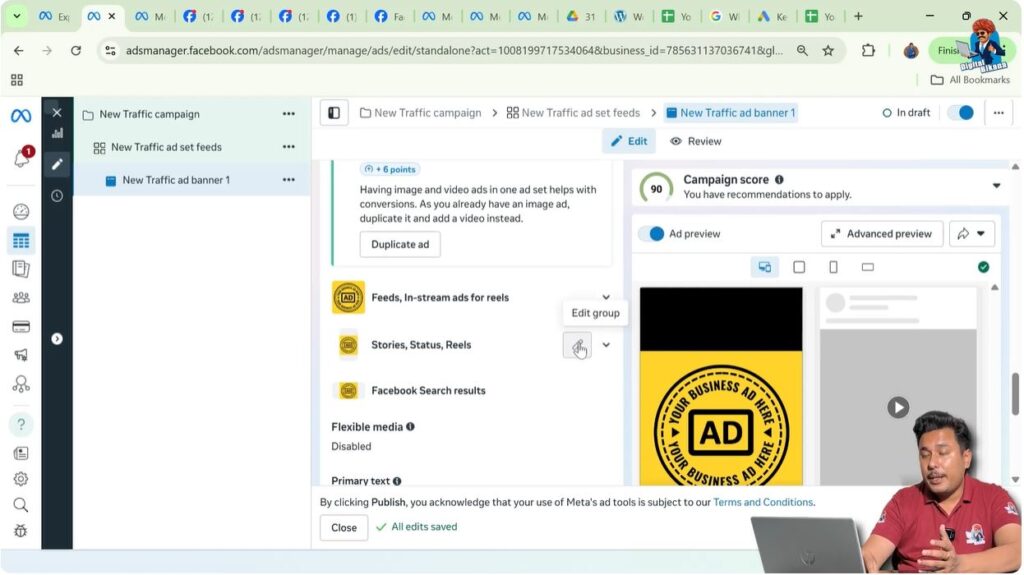
If the ad does not appear properly in stories or reels, it can be fixed.
Stories and reels support a 9:16 aspect ratio. By uploading a dedicated 9:16 banner or video and saving it, the ad appears properly in those placements.
Uploading a 9:16 Creative
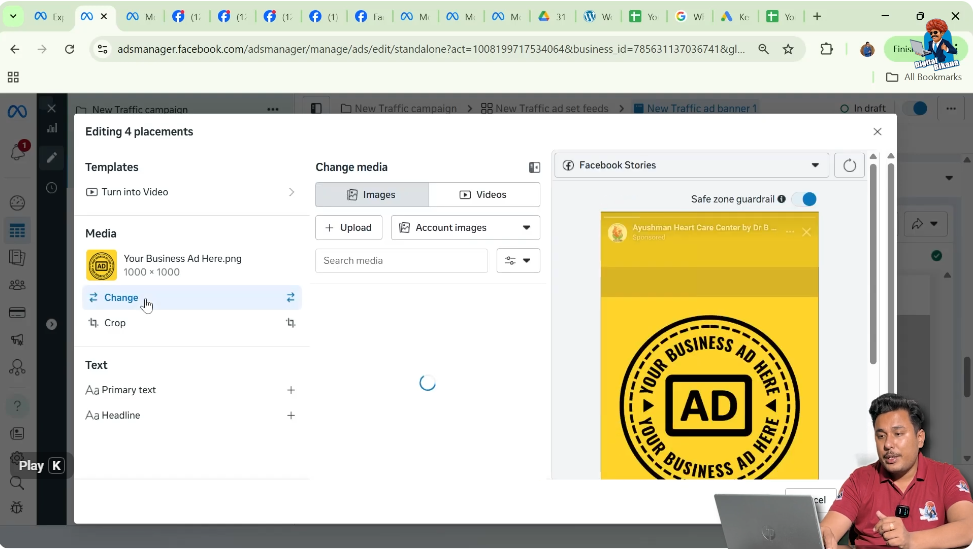
A 9:16 banner or video can be uploaded from the system.
After selecting and saving it, the creative fits correctly in stories and reels without cropping or black borders.
Final Ad Creative Display
After fixing the placements:
- Square banners appear in feeds
- Vertical banners appear in stories and reels
This ensures proper visibility across all placements.
Creating Multiple Ad Creatives
You can create multiple ad creatives within a single ad set.
This helps avoid ad fatigue, where users get bored of seeing the same ad repeatedly.
Duplicating Ad Creatives
To create multiple creatives:
- Click on the three-dot menu at the ad creative level
- Select Duplicate
Multiple copies can be created easily.


Renaming and Updating Duplicate Creatives
Each duplicated creative can be renamed, such as “Banner Two.”
All settings remain the same. You only need to replace the banner or video.
This saves time and allows quick testing of different creatives.


Running Multiple Creatives in One Ad Set
Running multiple creatives in one ad set allows Facebook ads to rotate ads and show different creatives to users.
This improves performance and reduces ad fatigue.
Publishing the Ad Campaign
After setting up all ad creatives, click on Publish.
The ad campaign is now ready to run.
Final Understanding of Ad Creative
An ad creative is the most important visible part of a Meta ad campaign.
It controls how your ad looks, what message it delivers, and how users interact with it. You can create multiple creatives in one ad set to improve engagement and performance.
Understanding ad creatives properly helps you create better-looking ads and run more effective Facebook ad campaigns.

Related Posts