Managing a Facebook Page often involves giving access to multiple people such as team members, managers, or collaborators. Over time, you may need to remove admin access from someone due to role changes, security reasons, or completion of work. Facebook provides a straightforward method to remove admin access when it has been granted directly through the Facebook Page.
In this article, we will explain in detail how to remove admin access of someone from a Facebook Page using the direct Page settings method. This guide focuses only on removing access that was given directly from the Facebook Page and not through Business Manager or Meta Business Suite.
Understanding Different Ways Facebook Page Access Is Given
Before removing access, it is important to understand how Facebook Page access can be granted.
There are two main ways access can be provided:
- Directly from the Facebook Page settings
- Through Facebook Business Manager or Meta Business Suite
The process to remove access depends entirely on how the access was originally given. In this article, we are explaining the direct Facebook Page method only. If access was given through Business Manager, the removal process is different and requires separate steps.
When You Should Remove Admin Access
Removing admin access is an important security practice. You may need to remove access in situations such as:
- A team member leaves your organization
- A freelancer or agency has completed their work
- You no longer want someone to manage your page
- You want to protect your page from unauthorized changes
Facebook allows page owners and admins to remove access at any time using page settings.
How to remove admin from Facebook Page?
Step 1: Visit Your Facebook Page
The first step is to visit your Facebook Page.
Make sure you are logged in to the Facebook account that has admin rights on the page. Without admin access, you will not be able to remove another admin.
Once logged in, ensure that you have switched from your personal profile to your Facebook Page. You should now be viewing your Page’s homepage.
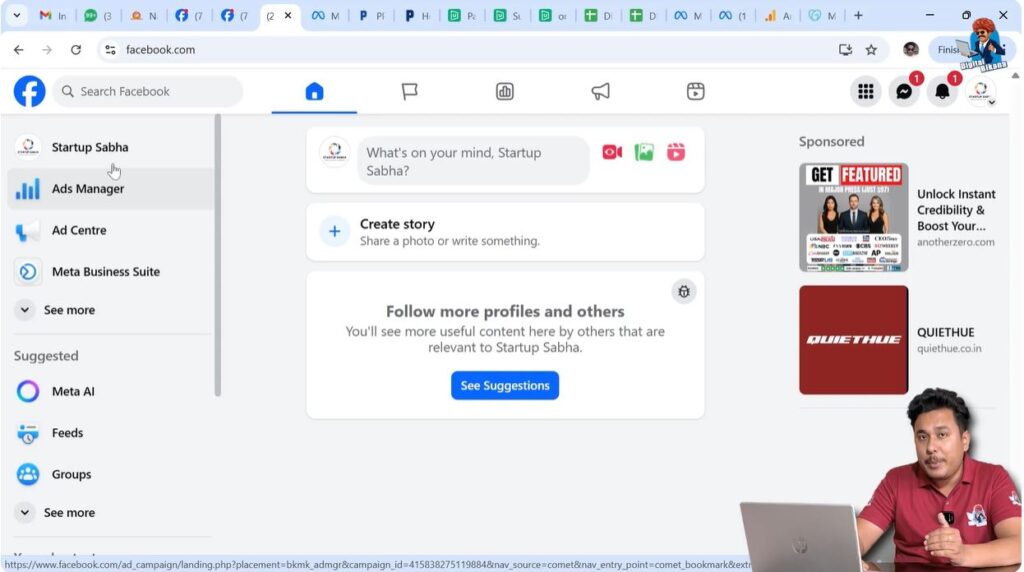
Step 2: Go to the Facebook Page Profile
After reaching the Facebook Page homepage, go to the Page profile section.
This is the main profile area of your Facebook Page where page-related settings and tools are available. From here, you can access the administrative options required to manage users and permissions.
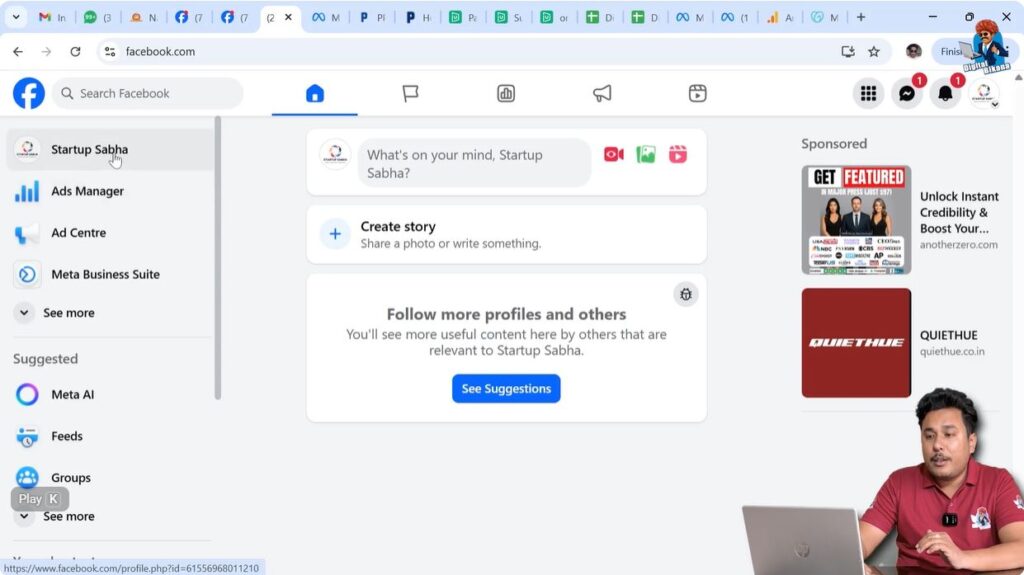
Step 3: Open the Settings Section
Next, click on Settings.
The Settings section is where Facebook provides control over all aspects of your page, including page information, privacy, security, and user access.
Opening Settings is a crucial step, as page access management is handled from within this area.
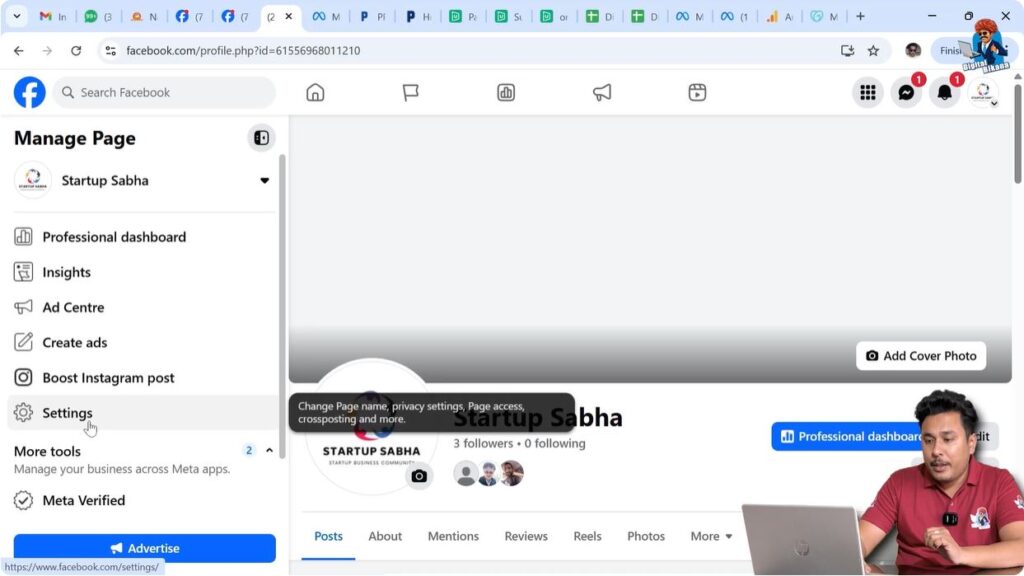
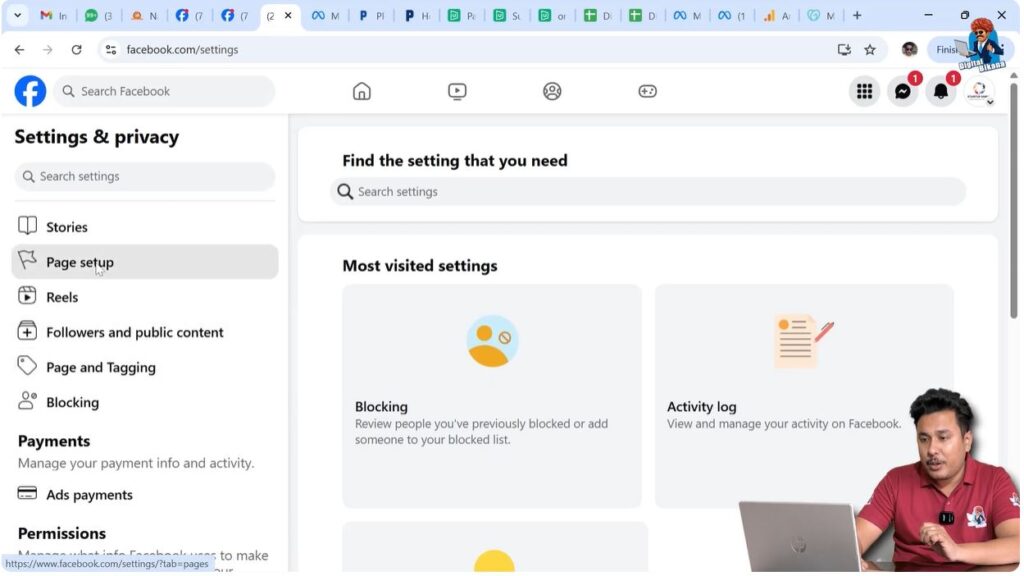
Step 4: Navigate to Page Setup
Inside the Settings menu, look for the Page Setup option on the left-hand side.
Page Setup contains settings related to how your page is structured and managed. This includes access control, roles, and visibility options.
Click on Page Setup to continue.
Step 5: Open the Page Access Option
Within Page Setup, find and click on Page Access.
The Page Access section displays all the people who currently have access to your Facebook Page. These users may have different levels of permissions, such as admin or other roles.
This section allows you to review who can manage your page and what level of control they have.

Step 6: Identify the Admin You Want to Remove
In the Page Access section, you will see a list of users who have been added to the page.
Locate the person whose admin access you want to remove. Make sure you are selecting the correct person, especially if multiple users have similar names.
Carefully reviewing this list helps avoid removing access from the wrong user.
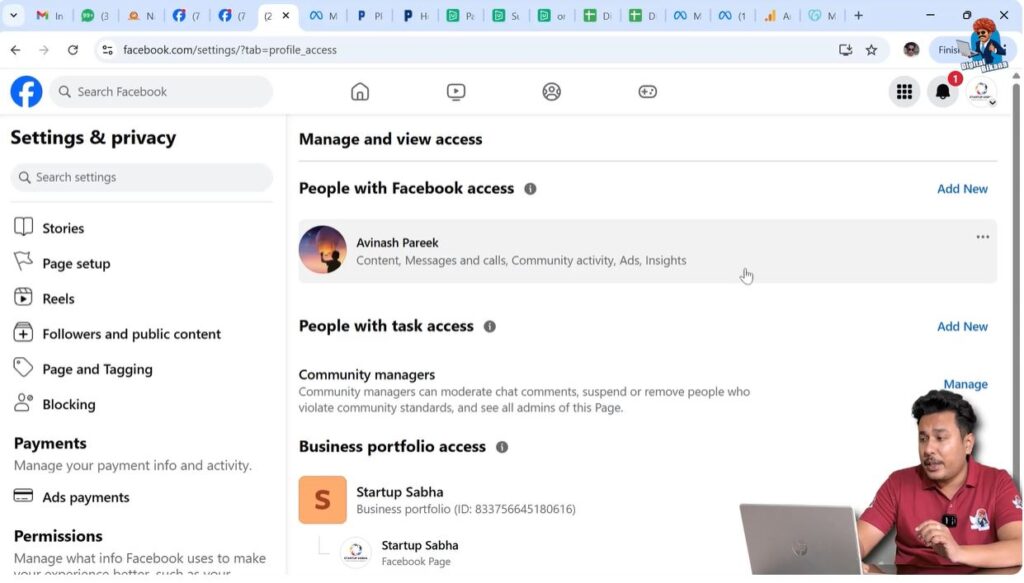
Step 7: Click on the Three Dots Menu
Next to each person’s name, you will see a three dots (more options) menu.
Click on the three dots next to the name of the person you want to remove from the Facebook Page.
This menu provides options related to managing or removing that user’s access.
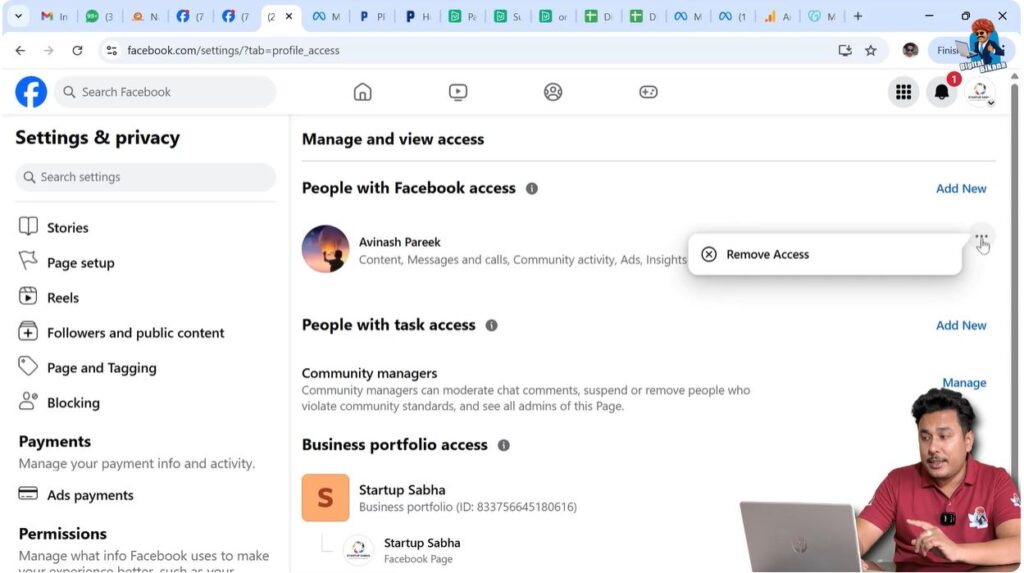
Step 8: Select Remove Access
After clicking on the three dots, select the Remove Access option.
This action tells Facebook that you want to revoke this person’s admin access from your page. At this stage, Facebook will ask for confirmation to ensure that the action is intentional.
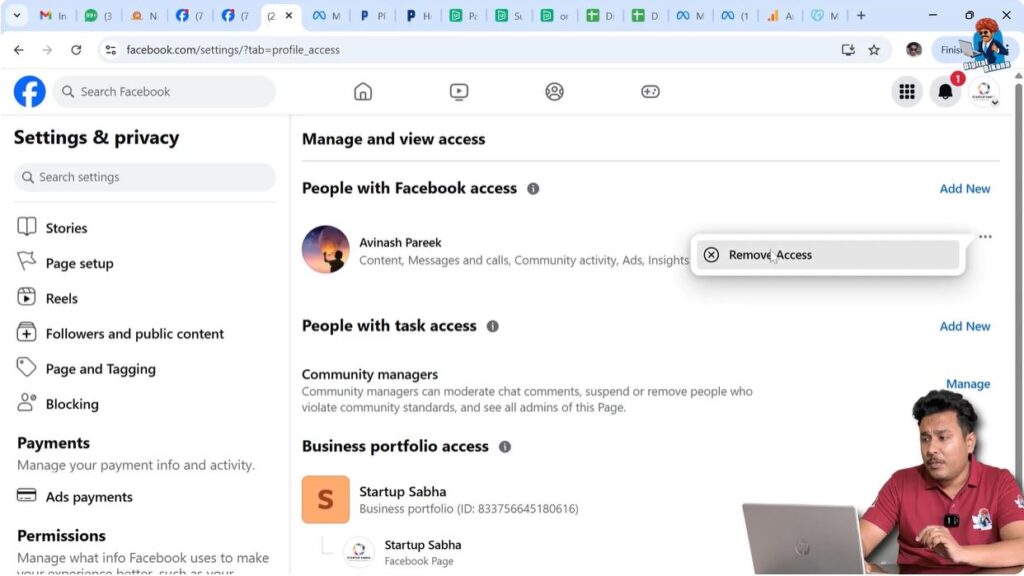
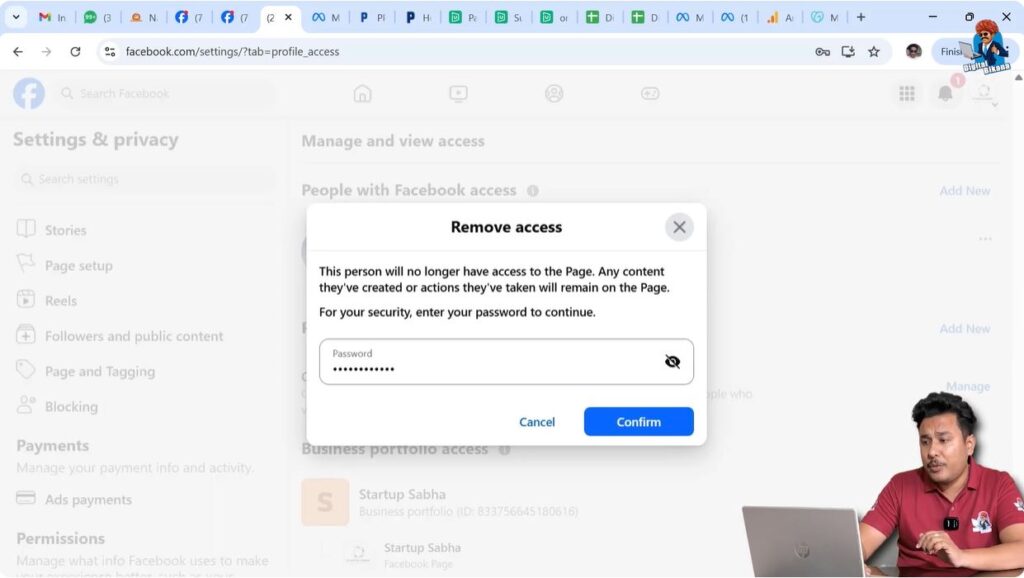
Step 9: Enter Your Facebook Password
To confirm the removal, Facebook will prompt you to enter your Facebook account password.
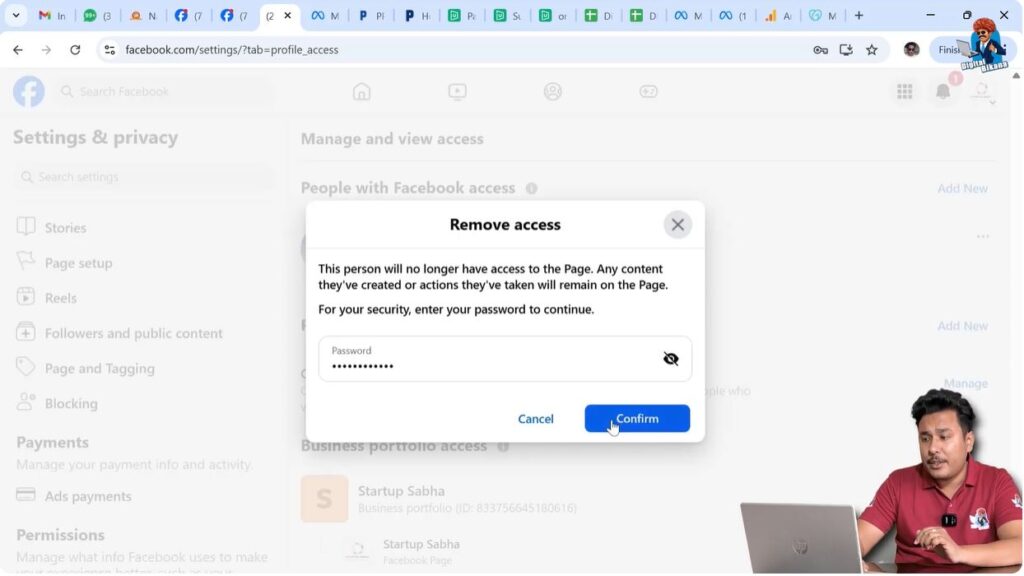
Entering your password is a security step designed to prevent unauthorized changes. Once you enter the correct password, proceed to confirm the action.
Step 10: Confirm and Complete the Removal
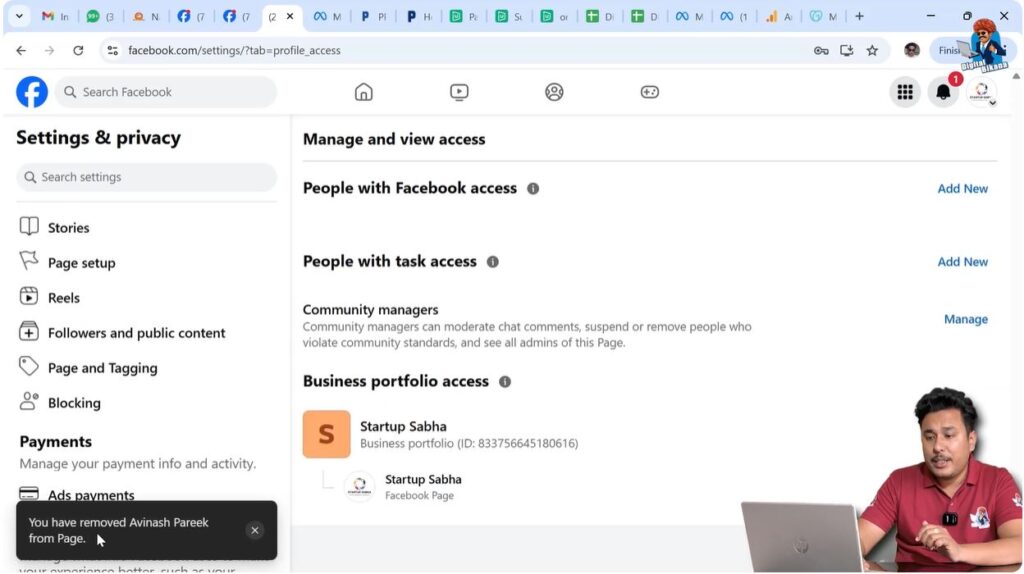
After confirming with your password, the admin access will be removed.
You will immediately see that the person no longer appears in the Page Access list. This confirms that the admin has been successfully removed from the Facebook Page.
What Happens After Admin Access Is Removed
Once admin access is removed:
- The person can no longer manage the Facebook Page
- They will not be able to post, edit settings, or access page insights
- Their permissions are completely revoked
The change takes effect instantly, ensuring your page remains secure.
Important Things to Remember
- You must be an admin to remove another admin
- This method works only if access was given directly from the Facebook Page
- If access was given through Facebook Business Manager, this method will not work
- Always double-check the user name before removing access
Understanding these points helps avoid confusion and access-related issues.
Common Mistakes to Avoid
Some common mistakes users make include:
- Trying to remove Business Manager users from Page Access
- Removing the wrong admin accidentally
- Forgetting their Facebook password during confirmation
Being careful during each step ensures a smooth process.
Why Facebook Uses Password Confirmation
Facebook requires password confirmation to protect page ownership and prevent accidental or malicious removal of admins.
This extra layer of security ensures that only authorized admins can make critical changes to page access.
Final Thoughts
Removing admin access from a Facebook Page is a simple but important task when managed correctly. By following the steps explained above, you can safely remove someone’s admin access if it was given directly through the Facebook Page.
This process helps maintain control, security, and proper management of your Facebook Page. Always review page access regularly to ensure that only trusted individuals have administrative permissions.

Related Posts