
Elementor is a powerful WordPress page builder that allows users to design webpages visually without writing any code. While creating or editing a webpage in Elementor, managing the structure of the page becomes very important. The structure of a webpage includes sections, containers, columns, and widgets arranged in a specific layout.
Sometimes while editing a webpage, you may want to change the order of sections or adjust the layout structure of the page. Elementor provides a feature called Structure Settings, which allows you to view and manage the entire layout hierarchy of your page in one place.
The Structure panel shows all the sections and containers used on the page and allows you to rearrange them easily using drag and drop. This makes it very easy to manage complex page layouts.
In this article, you will learn how to open structure settings in Elementor and how to use them while editing a webpage in WordPress.
Opening the Elementor Editor
Before accessing the structure settings, you first need to open the Elementor editor.
When you create or edit a webpage using Elementor, the Elementor editing interface appears on the screen. The page preview appears in the center, and the editing tools appear in the left side panel.
At the top of the editor, you will notice a black header bar that contains several tools and icons used for editing the page.
This top bar contains options that help you manage the page layout, preview the page, and access different Elementor tools.
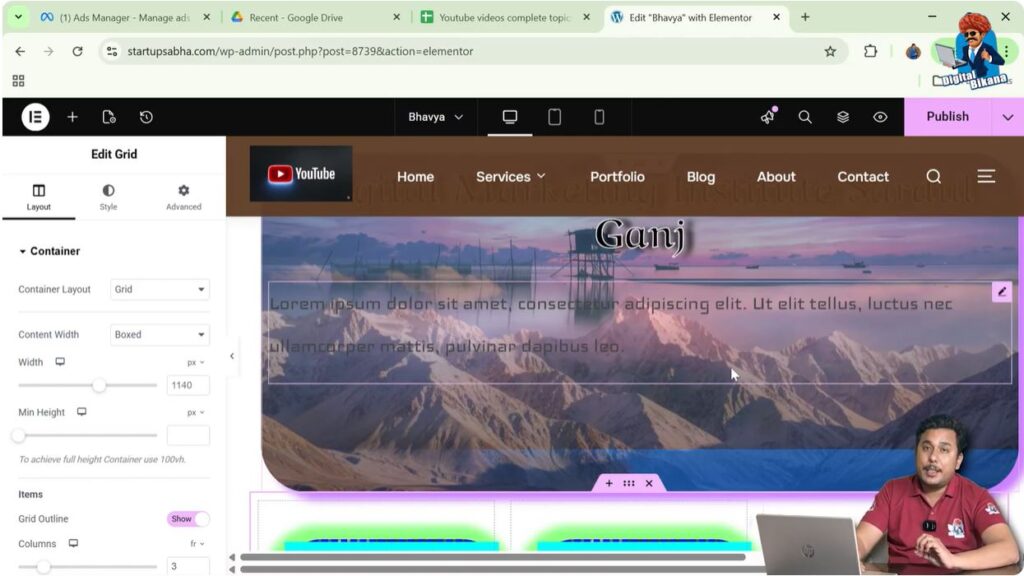
One of the icons available in this header bar is the Structure icon, which allows you to open the structure panel.
Understanding the Structure Settings
Structure settings in Elementor provide a complete overview of the layout of the webpage.
The structure panel displays all the layout elements such as:
- Sections
- Containers
- Columns
- Widgets
These elements are displayed in a hierarchical order so that you can easily understand how the webpage layout is built.
Using the structure panel, you can quickly identify different sections of the page and manage them efficiently.
This feature is especially useful when working with pages that contain multiple sections and containers.
Locating the Structure Icon
To open the structure settings, you need to locate the structure icon in the Elementor editor.
Step 1: Look at the Top Black Header Bar
At the top of the Elementor editor, there is a black header bar that contains several icons.
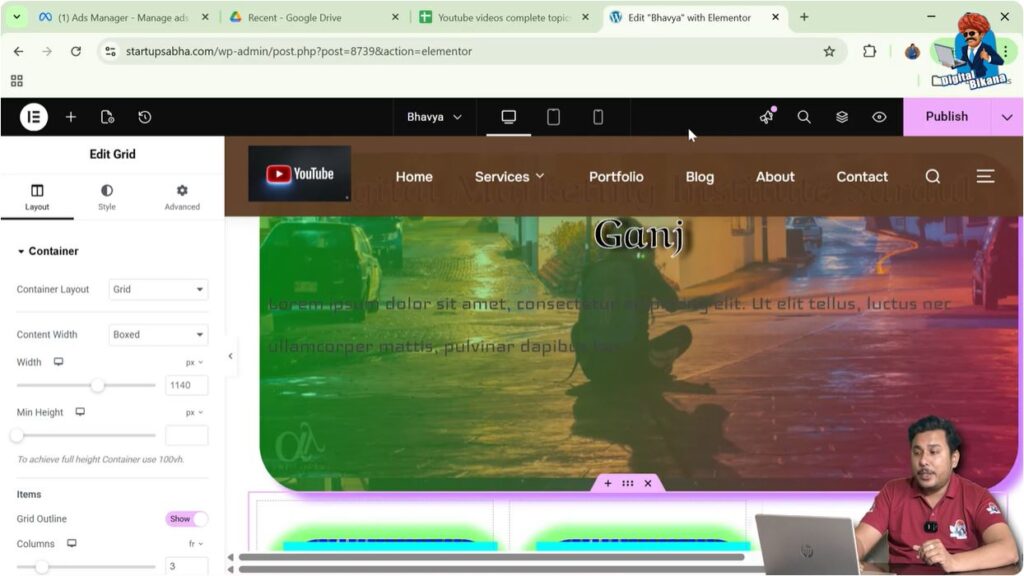
Step 2: Move Cursor to the Top Right Corner
Move your cursor to the top right corner of the screen.
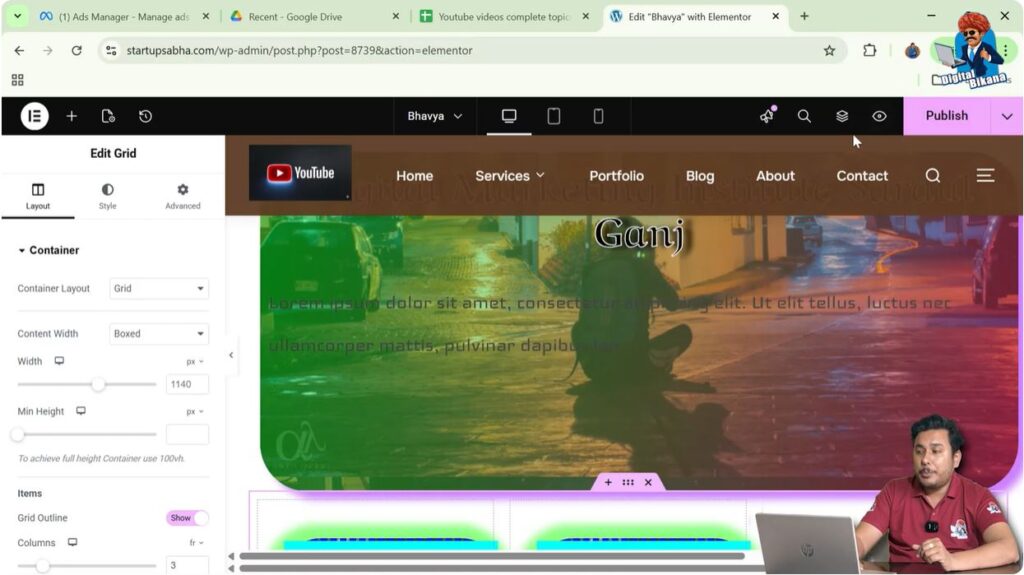
Step 3: Find the Structure Icon
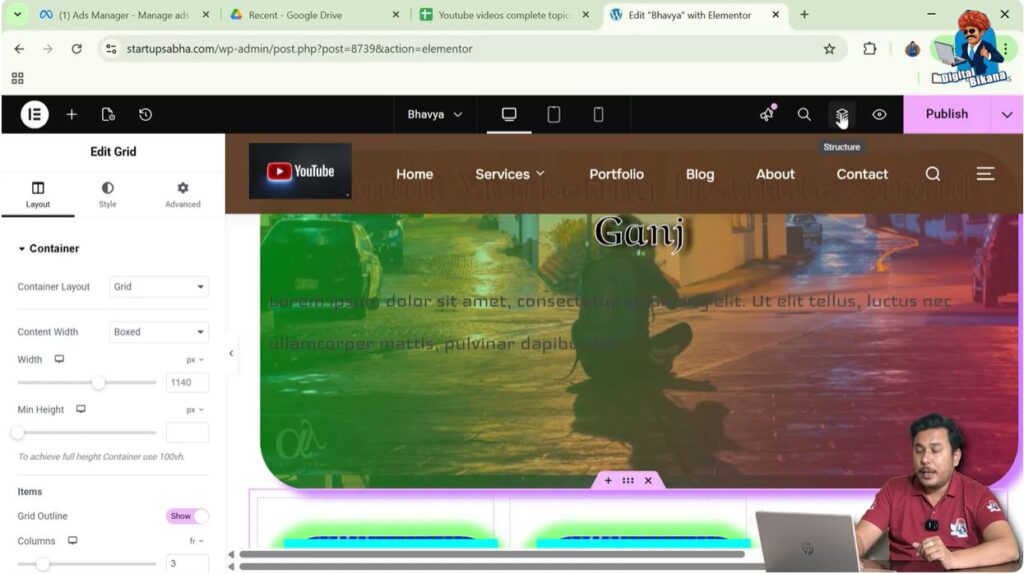
In this area, you will see a layer-like icon. This icon represents the Structure Settings in Elementor.
The icon looks similar to stacked layers.
Opening the Structure Settings
Once you locate the structure icon, you can open the structure panel.
Step 1: Click the Structure Icon
Click the layer-like structure icon in the top right corner.
Step 2: Structure Panel Opens
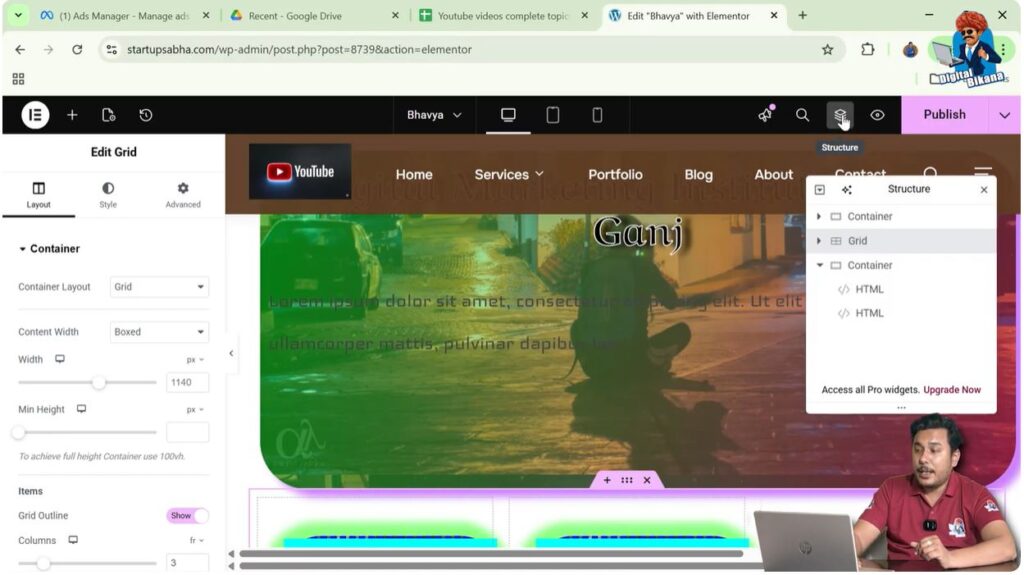
After clicking the icon, the structure panel will open.
This panel displays the full layout structure of the webpage.
You will now be able to see all the sections and containers used in the page.
Viewing the Page Layout Structure
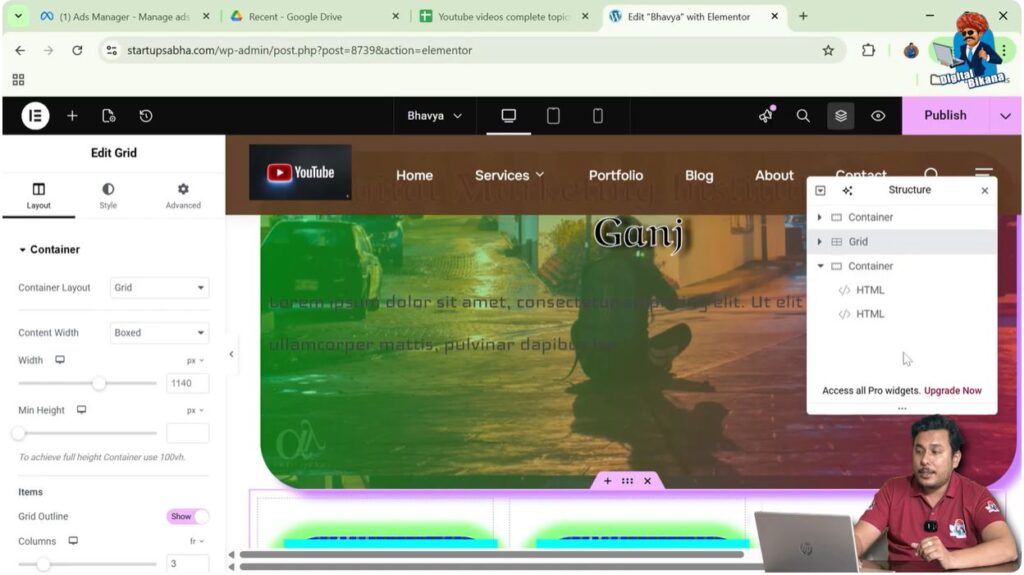
The structure panel shows a tree-like hierarchy of the entire webpage layout.
For example, you may see:
- Section 1
- Section 2
- Section 3
Inside each section, there may be containers and widgets.
This layout overview makes it easier to understand how different parts of the webpage are organized.
It also helps you locate specific sections quickly without scrolling through the page.
Rearranging Sections Using Structure Settings
One of the most useful features of structure settings is the ability to rearrange sections easily.
Instead of manually dragging sections in the page preview, you can rearrange them directly from the structure panel.
Step 1: Select the Section
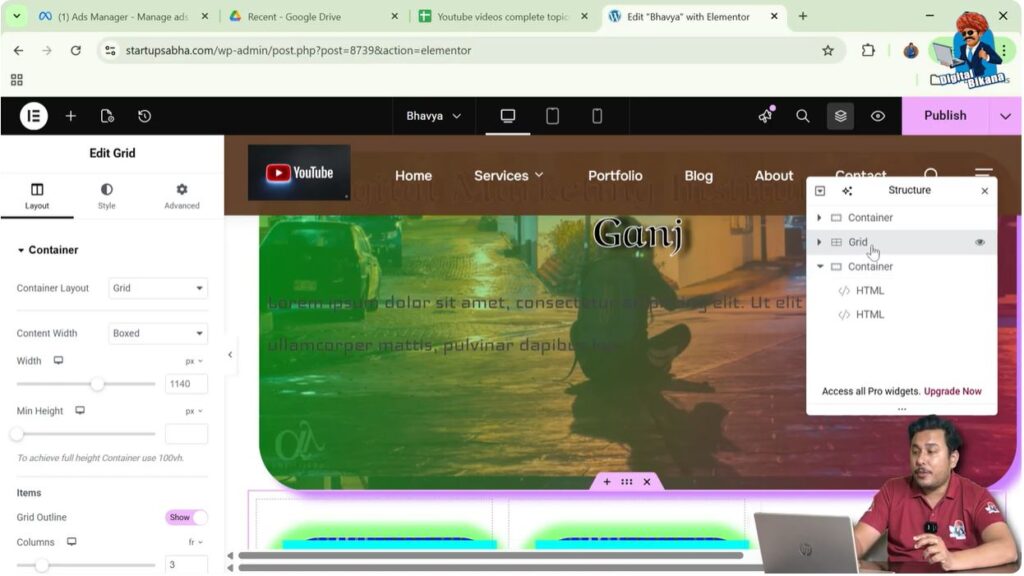
In the structure panel, click on the section you want to move.
Step 2: Drag the Section
Click and hold the section.
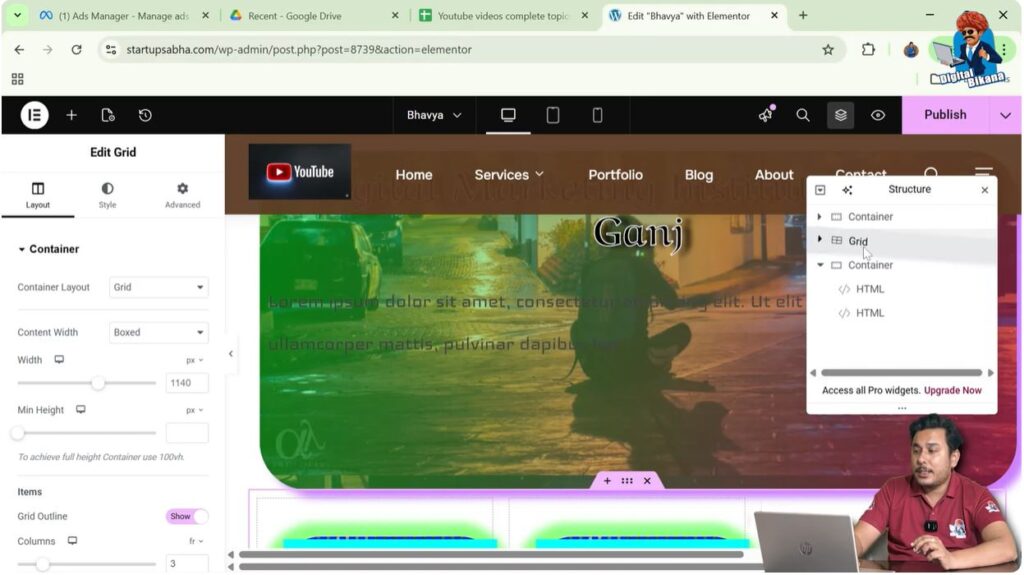
Step 3: Move to Another Position
Drag the section to the desired position in the structure panel.
For example, you can move the second section to the third position.
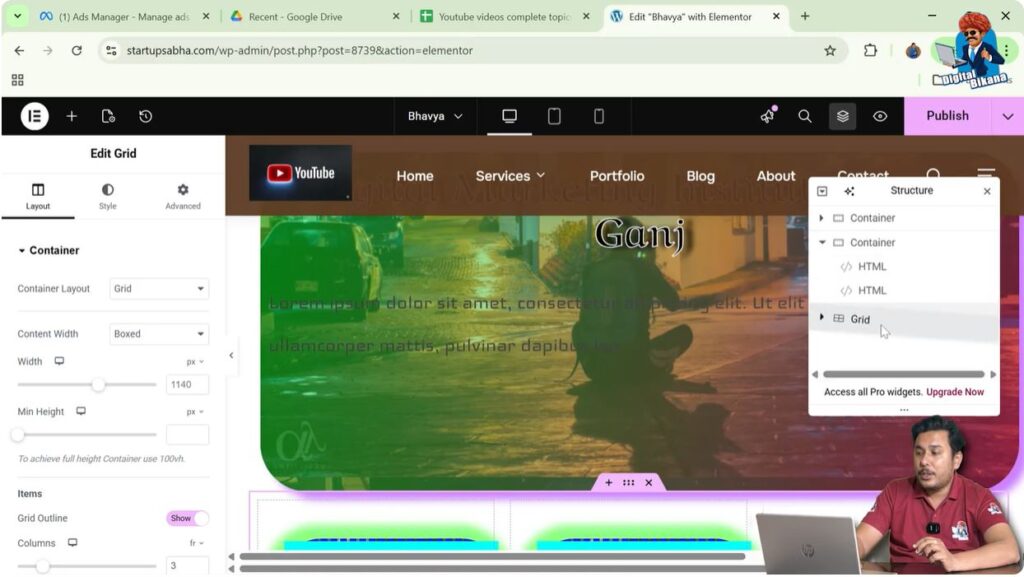
Step 4: Release the Section
Release the mouse button to place the section in the new location.
The layout of the webpage will automatically update according to the new structure.
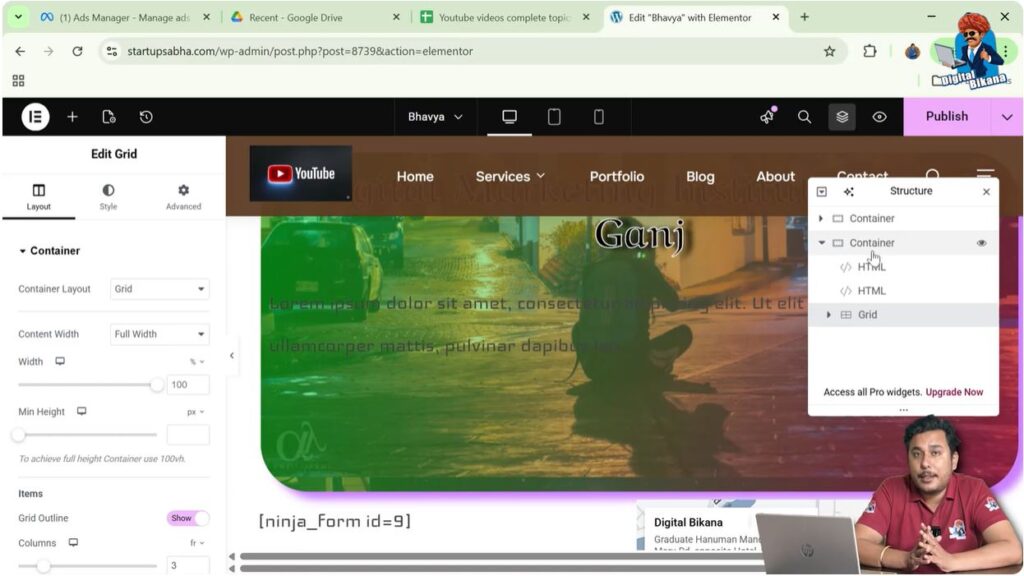
Managing Page Layout Using Structure Panel
The structure panel is very helpful when working with complex webpages that contain many sections and containers.
Instead of searching for elements manually on the page, you can quickly access them through the structure panel.
From this panel, you can:
- Identify sections easily
- Select containers quickly
- Rearrange layout elements
- Manage the page hierarchy
- Navigate through different parts of the page
This makes the editing process faster and more efficient.
Benefits of Using Structure Settings
Using the structure panel in Elementor provides several advantages while designing webpages.
Some of the key benefits include:
Easy Layout Management
The structure panel allows you to manage the entire page layout from one place.
Faster Navigation
You can quickly jump to any section or container without scrolling through the page.
Better Organization
The hierarchical view helps you understand how sections and containers are organized.
Simple Rearrangement
Sections and containers can be easily rearranged using drag and drop.
Efficient Page Editing
This feature improves workflow and saves time when working with large webpages.
When to Use Structure Settings
Structure settings become especially useful in situations where:
- A webpage contains many sections
- Multiple containers are used
- The layout needs to be reorganized
- You want to quickly locate a specific section
Instead of manually moving elements in the page preview, the structure panel provides a much cleaner and faster way to manage the layout.
Example of Rearranging Sections
For example, consider a webpage that contains three sections:
- Header section
- Services section
- Contact section
If you want the services section to appear after the contact section, you can simply open the structure panel and drag the services section below the contact section.
The order of sections on the webpage will change automatically.
Conclusion
Opening structure settings in Elementor is a simple process that helps you manage the layout of your webpage more efficiently.
While editing a webpage in Elementor, you can locate the structure icon in the top right corner of the black header bar. By clicking this icon, the structure panel opens and displays the entire layout hierarchy of the page.
From the structure panel, you can easily view all sections, containers, and widgets used in the page. You can also rearrange sections by dragging and dropping them into different positions.
This feature makes it easier to manage complex page layouts and helps improve your workflow while designing webpages in Elementor.

Related Posts


