

In this article, we will learn how to create an infinite loop slider in Elementor in WordPress. Elementor provides a powerful slideshow background feature that allows you to display multiple images in a continuous loop. This feature is useful for creating visually engaging sections on your website.
By using the slideshow background option, you can display multiple images that automatically transition from one to another. You can also control the speed, transition effects, and looping behavior. This guide explains the complete process step by step, from creating a container to enabling the infinite loop slider.
Creating a New Container in Elementor
To begin, you need to create a container where the slideshow will be applied.
Understanding Container Creation
A container in Elementor acts as a layout section where you can apply backgrounds, images, and other design elements.
Steps to Create a Container
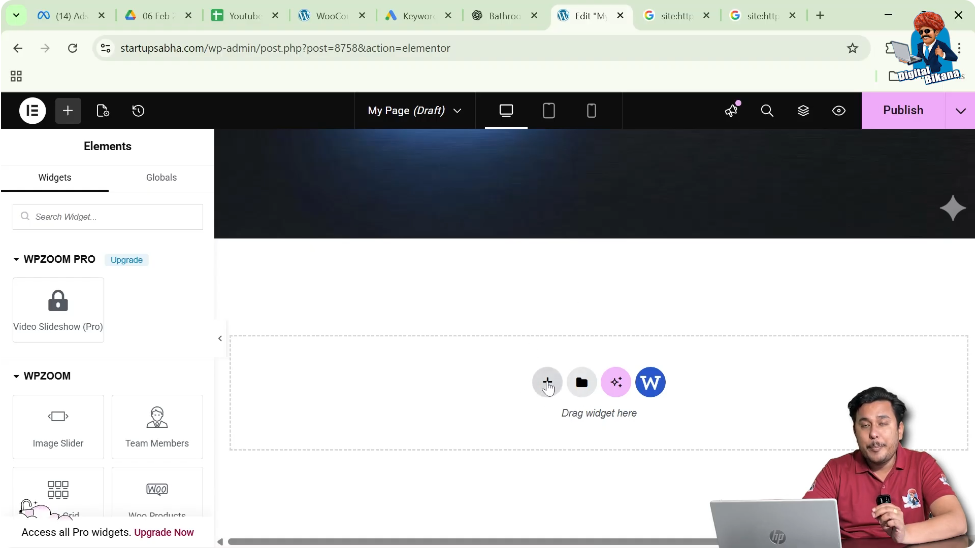
Step 1: Click on the Plus Icon
In the Elementor editor, click on the plus (+) icon displayed in the middle of the screen.
Step 2: Select Layout Type
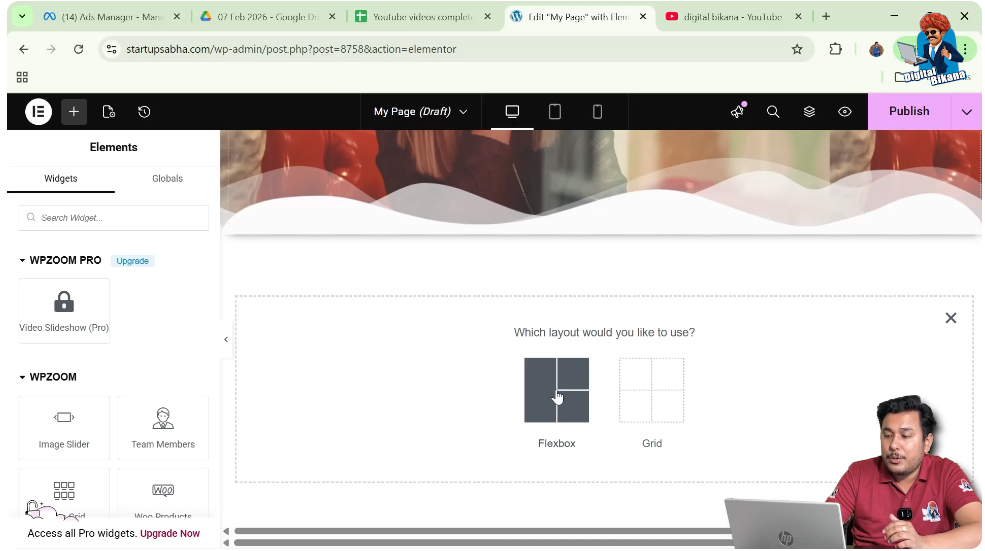
After clicking the plus icon, choose the layout as Flexbox.
Step 3: Choose Structure
Select the structure as a direction column.
Once these steps are completed, a new container will appear on your page.

Accessing Container Settings
After creating the container, you need to access its settings to apply the slideshow.
Understanding Edit Container Option
Elementor provides an “Edit Container” option that allows you to customize layout, style, and advanced settings.
Steps to Access Settings
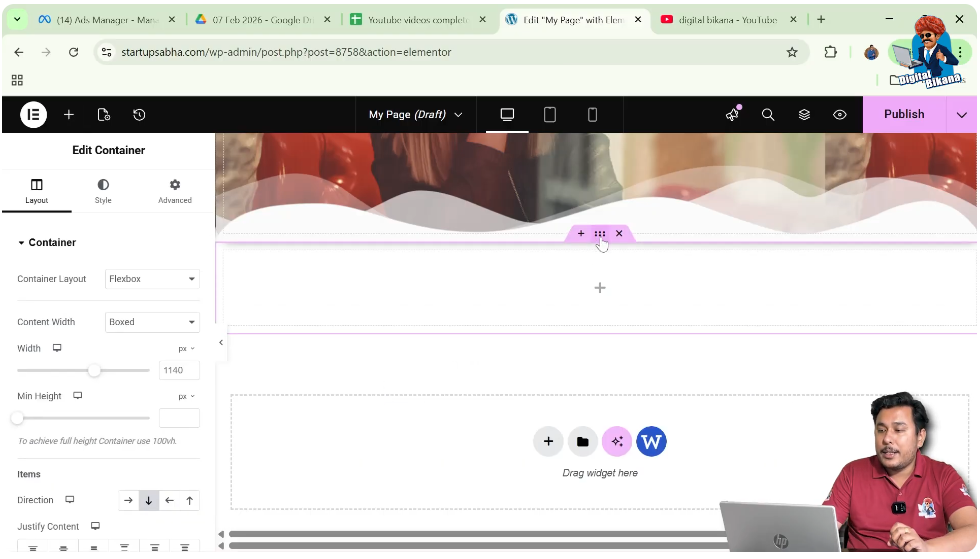
Step 1: Click on Edit Container
Click on the edit container button displayed above the container.
Step 2: Open Left Toolbar
After clicking, the left-side toolbar will appear with Layout, Style, and Advanced options.
Adjusting Container Height
Before adding the slideshow, it is important to adjust the height of the container.
Importance of Container Height
A proper height ensures that the slideshow is clearly visible and visually appealing.
Steps to Adjust Height
Step 1: Go to Layout Settings
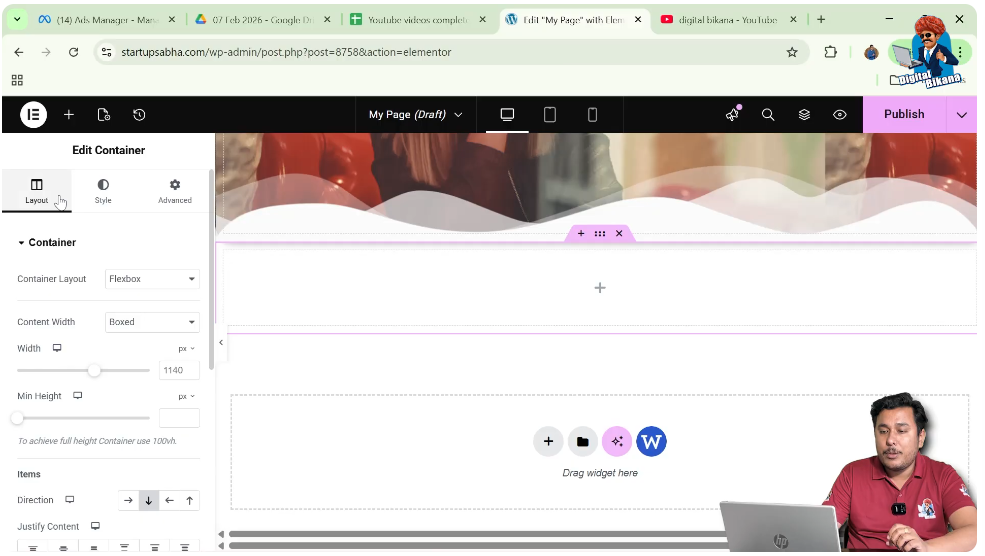
In the left toolbar, open the Layout section.
Step 2: Increase Height
Increase the height of the container as per your requirement.

Adding Slideshow Background in Elementor
Now the main step is to add the slideshow background.
Understanding Slideshow Background
The slideshow background allows you to display multiple images that automatically change over time.
Steps to Add Slideshow
Step 1: Go to Style Tab
Switch to the Style tab in the left toolbar.

Step 2: Select Background Type
Under Background, choose “Normal” and then select “Slideshow” as the background type.
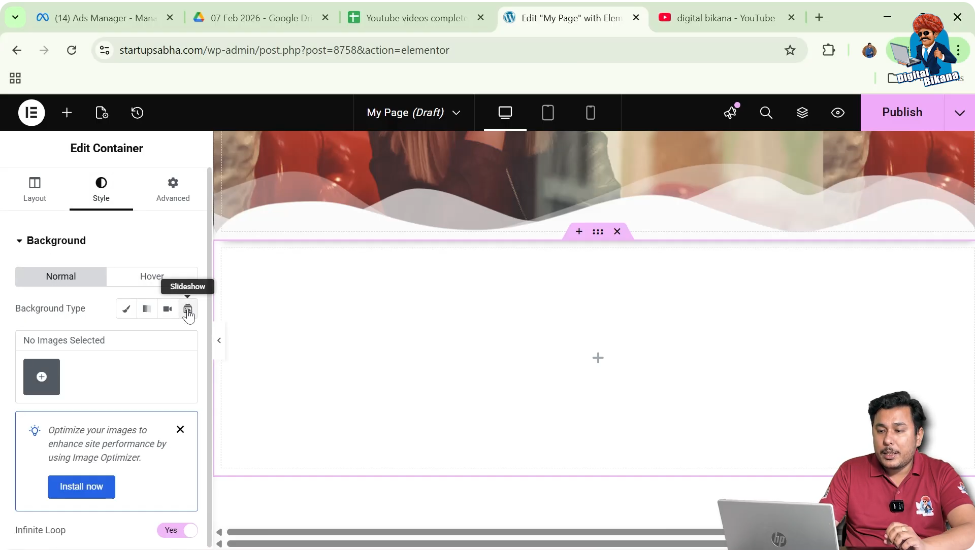
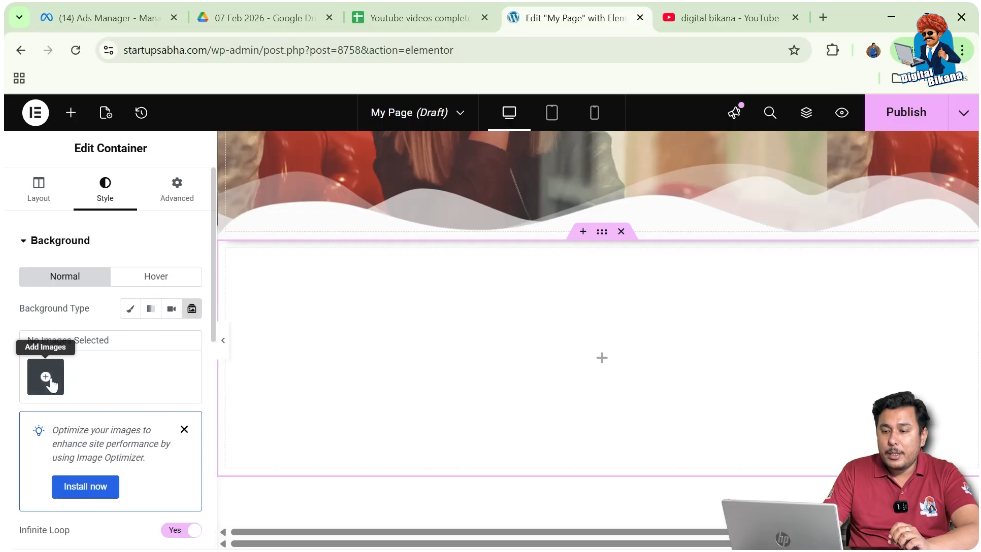
Step 3: Add Images
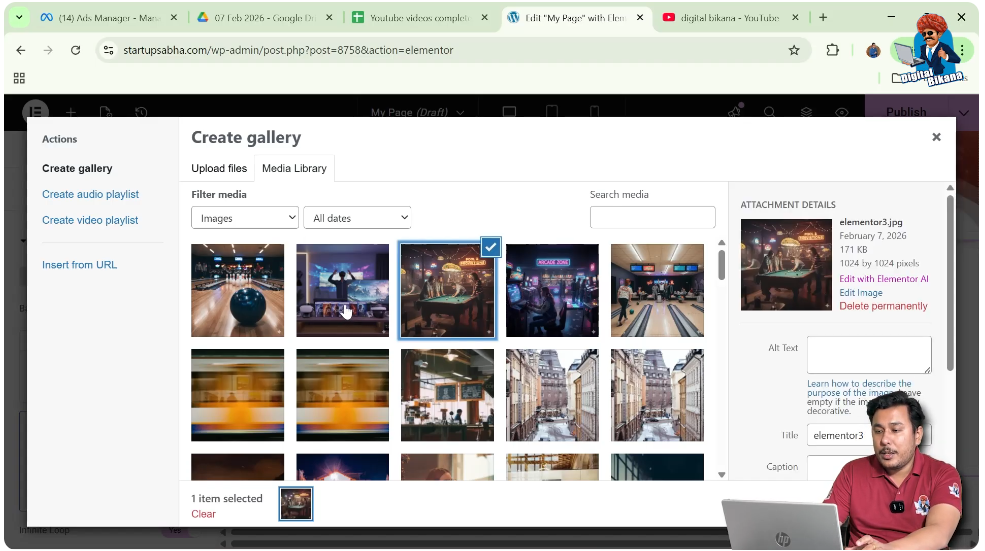
Click on “Add Images” and select multiple images from the media library.
You can select multiple images by holding the Ctrl key on your keyboard.
Step 4: Create Gallery
After selecting images, click on “Create New Gallery” and then “Insert Gallery.”
Now all selected images will be added to the slideshow.
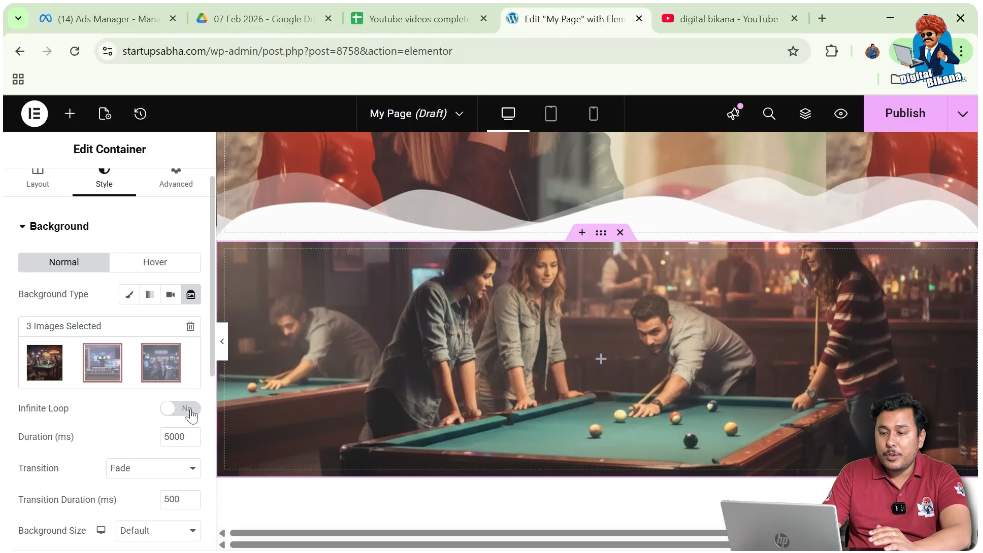
Understanding Infinite Loop in Slideshow
The infinite loop option controls whether the slideshow repeats continuously.
What is Infinite Loop
Infinite loop means that the images will keep repeating in a cycle without stopping.
Behavior When Loop is Disabled
If the infinite loop is turned off, the images will change only once in sequence and then stop.
Behavior When Loop is Enabled
If the infinite loop is turned on, the images will keep repeating in a cycle like:
1 → 2 → 3 → 1 → 2 → 3 and so on.
Enabling Infinite Loop
You can easily enable or disable the infinite loop option.
Steps to Enable Infinite Loop
Step 1: Locate Infinite Loop Option
In the slideshow settings, find the infinite loop toggle.
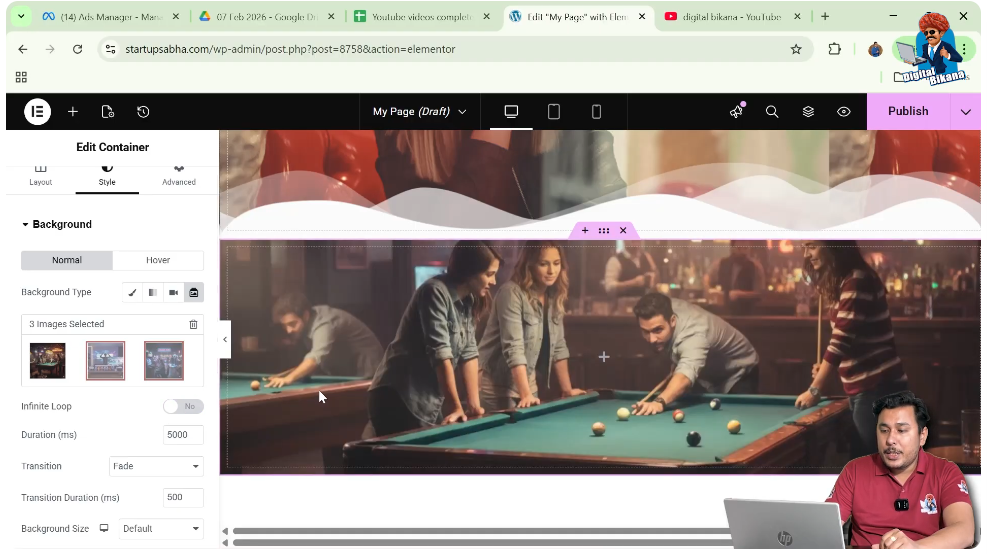
Step 2: Turn On Infinite Loop
Enable the option to allow continuous image transitions.
Once enabled, the slideshow will run endlessly.
Adjusting Slide Duration
You can control how quickly the images change in the slideshow.
Understanding Duration
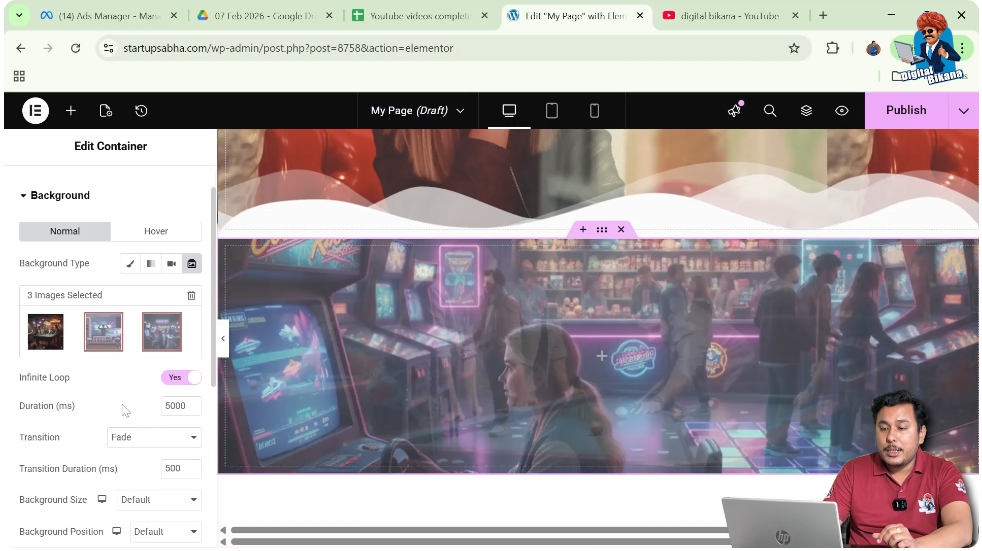
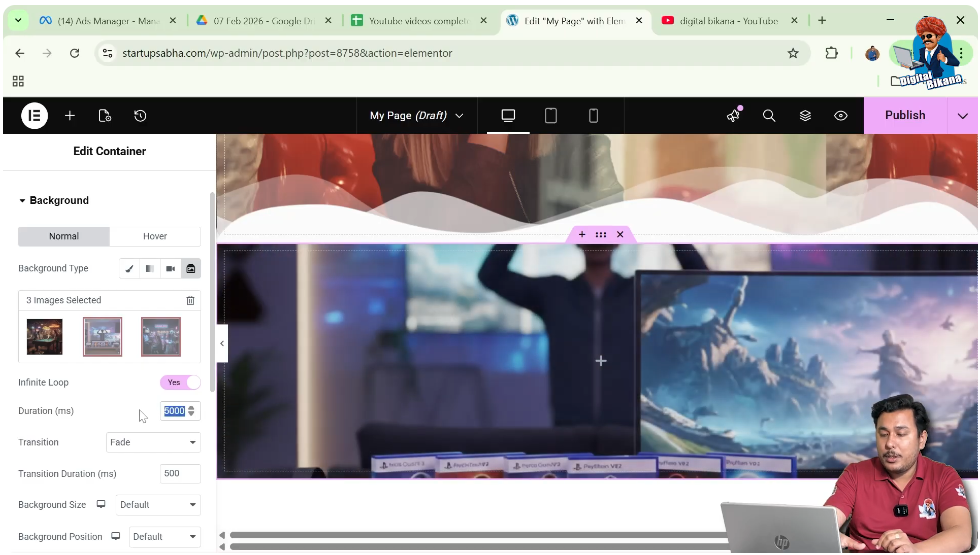
Duration defines the time each image stays on the screen before switching to the next one.
Steps to Adjust Duration
Step 1: Set Duration Value
Enter the desired duration in milliseconds.
For example, setting it to 1000 milliseconds will make the images change faster.
Step 2: Observe Speed
As you reduce the duration, the slideshow becomes faster.
Customizing Transition Effects
Elementor allows you to change how images transition from one to another.
Understanding Transition Effects
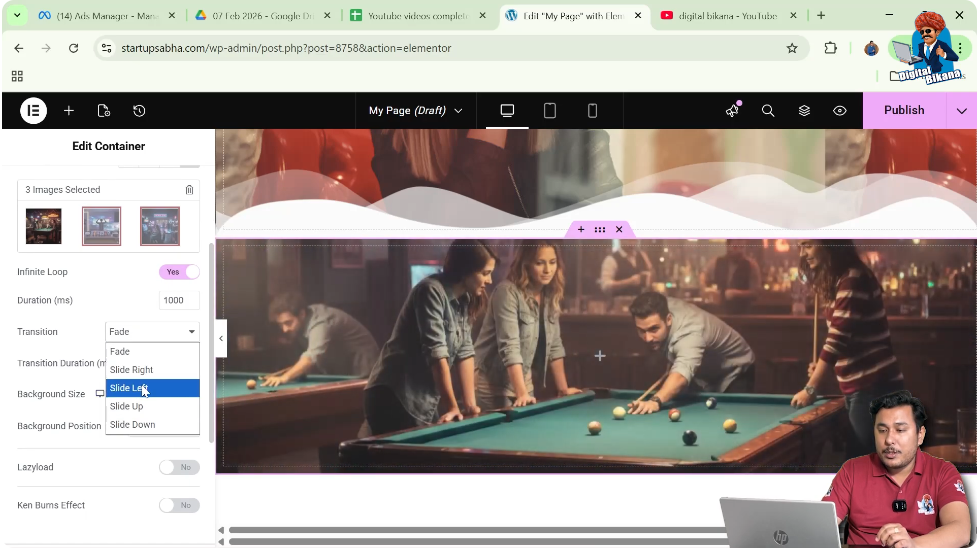
Transition effects define the animation style used when switching between images.
Steps to Change Transition Effect
Step 1: Select Transition Effect
Choose an effect such as slide.
Step 2: Apply Direction
For example, you can select slide left to control the animation direction.
Adjusting Transition Duration
Transition duration controls how long the animation takes to complete.
Understanding Transition Duration
A shorter duration results in faster transitions, while a longer duration creates smoother animations.
Steps to Adjust Transition Duration
Step 1: Set Transition Time
Adjust the transition duration value.
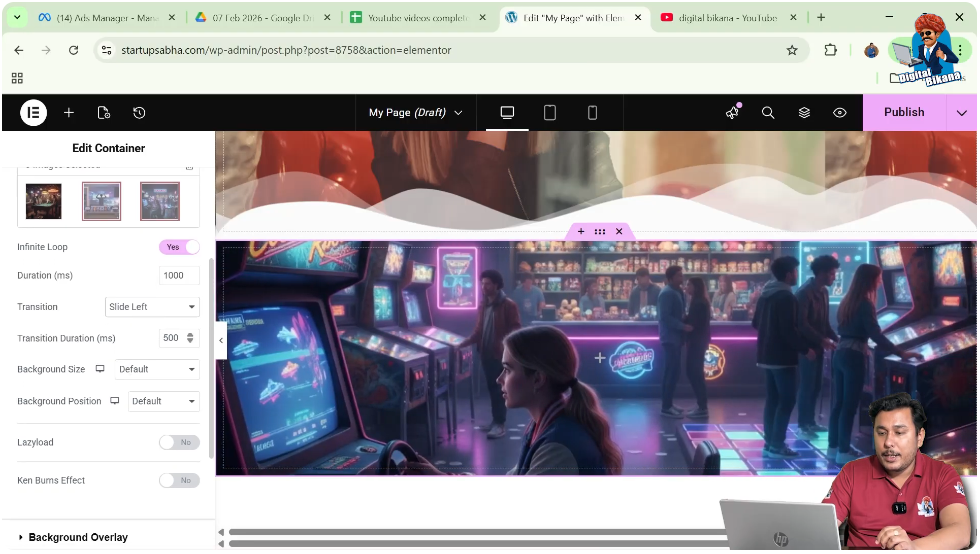
Step 2: Preview Effect
Observe how the animation speed changes based on your settings.
Adjusting Background Size and Position
You can also customize how images appear within the container.
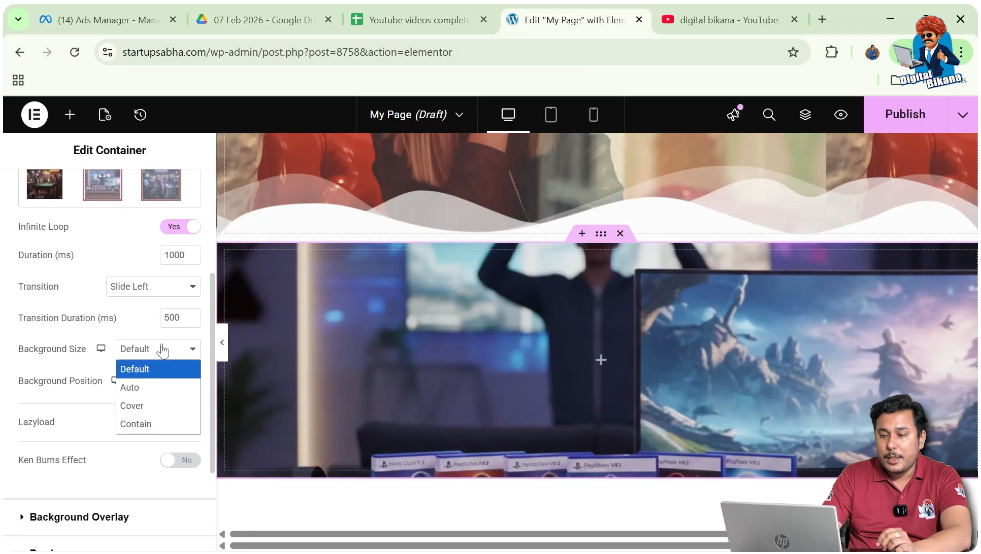
Background Size
Set the background size to “Cover” so that the image fills the container properly.
Background Position
You can choose positions like center center to align the image correctly.
Additional Settings
Elementor provides additional options to enhance the slideshow.
Lazy Load
Lazy load helps improve performance by loading images only when needed.
Ken Burns Effect
The Ken Burns effect adds a zoom animation to the slideshow, making it more dynamic.
Final Output and Result
After completing all the steps, your container will have:
- A slideshow background
- Multiple images
- Infinite loop enabled
- Custom duration and transition effects
- Optimized image size and position
This creates a dynamic and engaging visual section on your website.
Conclusion
Creating an infinite loop slider in Elementor is a simple and effective way to enhance your website design. By adding a slideshow background, selecting multiple images, enabling infinite loop, and customizing duration and transitions, you can create an attractive and interactive section.
Elementor provides flexibility to control every aspect of the slideshow, allowing you to design a professional and visually appealing layout. By following the steps explained in this article, you can easily create an infinite loop slider in WordPress.

Related Posts


