Adding multiple videos to a single section can make your website more engaging and informative. If you are using Elementor, you can easily place two videos inside one container without any coding. This method helps in organizing content efficiently and improves the overall layout of your webpage.
In this article, we will explain in detail how to add two videos into a single container in a section in Elementor. Each step is explained clearly so that even beginners can follow the process without confusion.
Creating a Section in Elementor
Before adding videos, the first step is to create a section where the content will be placed.
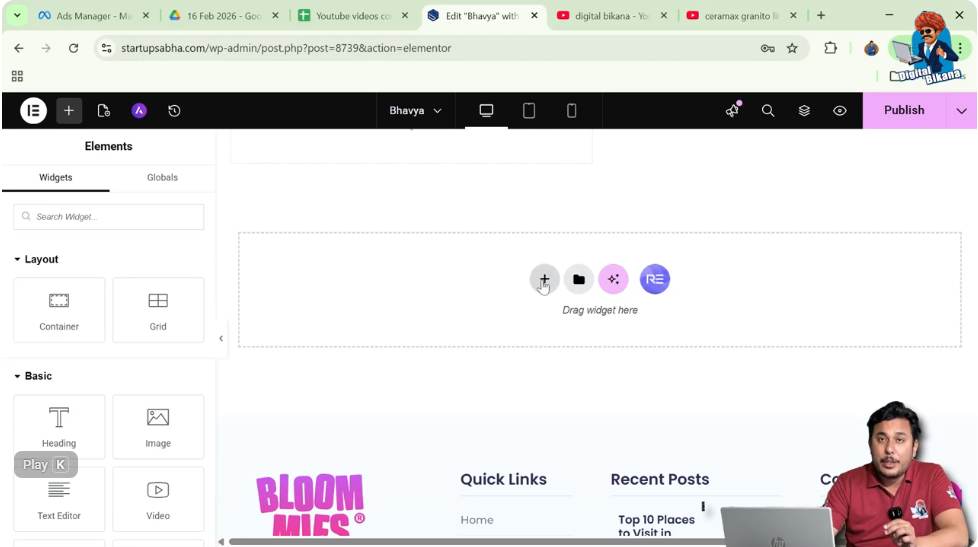
Step 1: Click on the Plus Icon
To create a new section, click on the plus icon located in the middle of the screen. This option allows you to start building your layout.
Once you click on it, Elementor will ask you to select a layout type.
Step 2: Choose Grid Layout
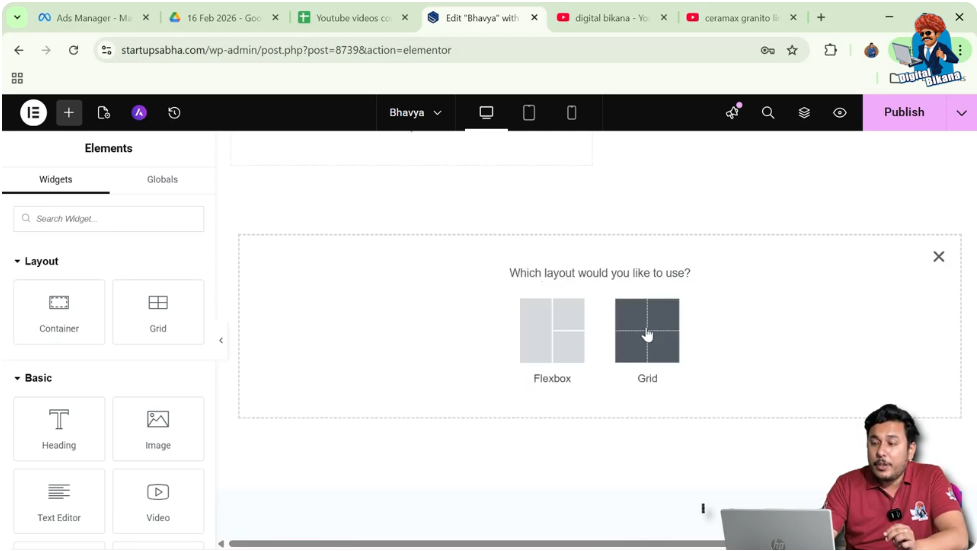
After clicking the plus icon, you will see options such as Flexbox and Grid.
You can select the Grid layout. This layout helps in structuring your content into rows and columns.
Step 3: Select the Structure
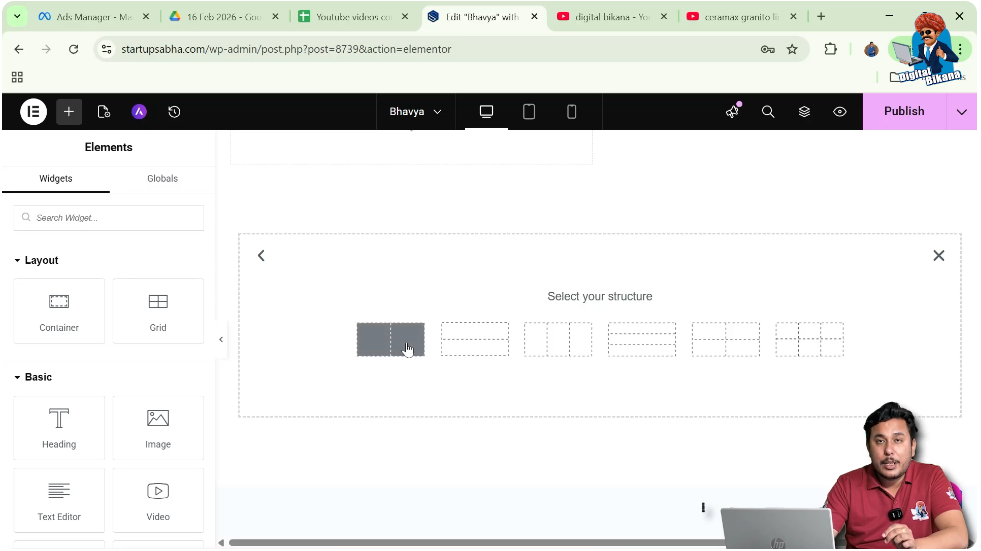
In the structure options, select the first structure that has one row and two columns.
This will create two columns in your section, allowing you to place content separately.
Understanding the Column Structure
After selecting the structure, you will see two columns:
- First column
- Second column
In this process, we will focus on the first column to add a container and videos.
Adding a Container Widget
To place multiple videos properly, we first need to add a container inside the column.
Step 4: Search for Container Widget
Click on the plus icon in the black header line at the top.
In the search bar, type “container”.
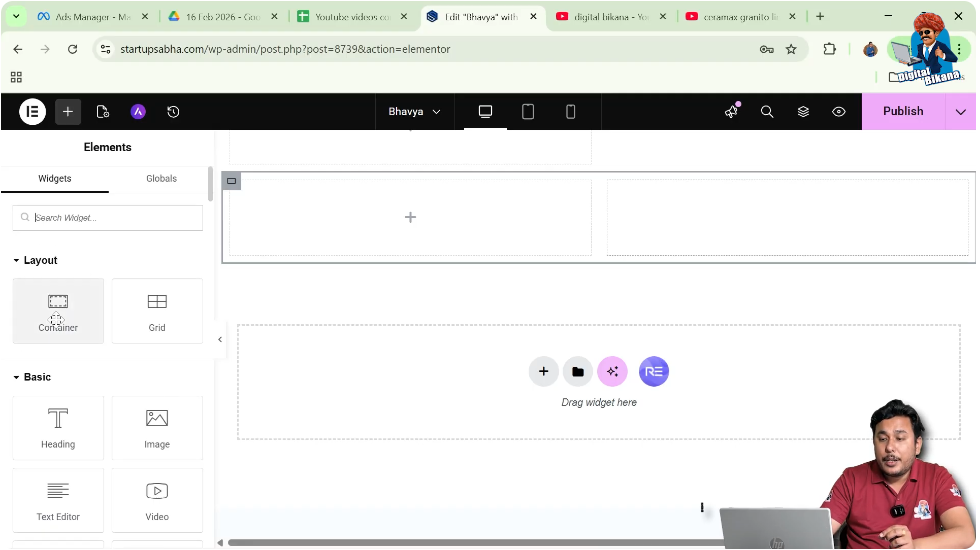
Step 5: Drag and Drop Container
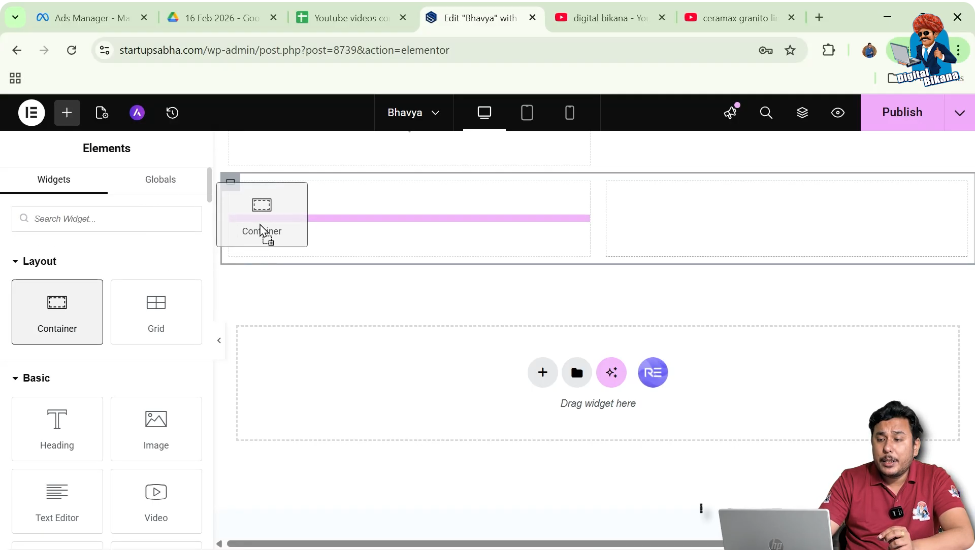
Once the container widget appears, drag and drop it into the first column.
Now your container is successfully added inside the column.
Adding First Video in Container
After adding the container, the next step is to add the first video.
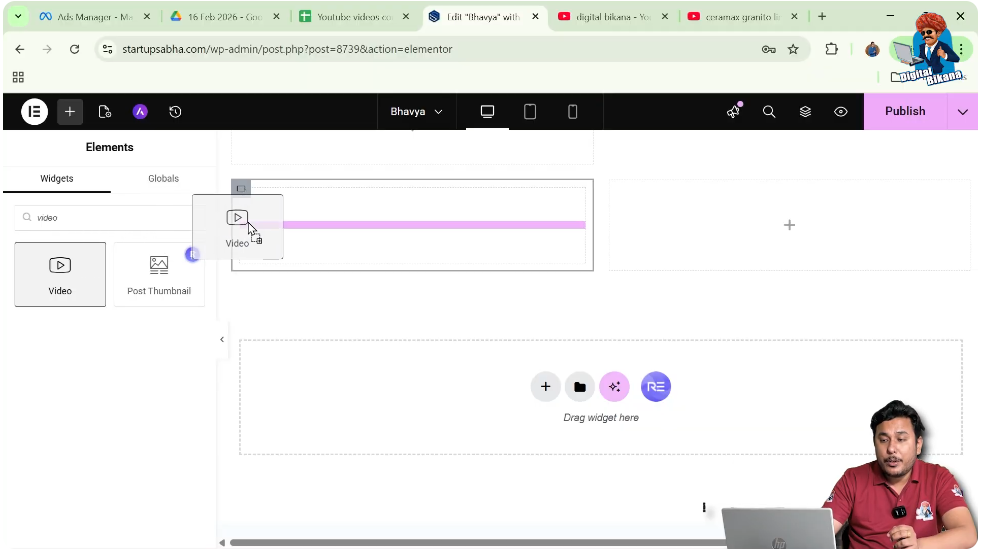
Step 6: Search for Video Widget
Click again on the plus icon in the black header line.
Search for “video” in the search bar.

Step 7: Drag and Drop Video Widget
Drag the video widget and drop it inside the container in the first column.
The video element will now appear inside the container.
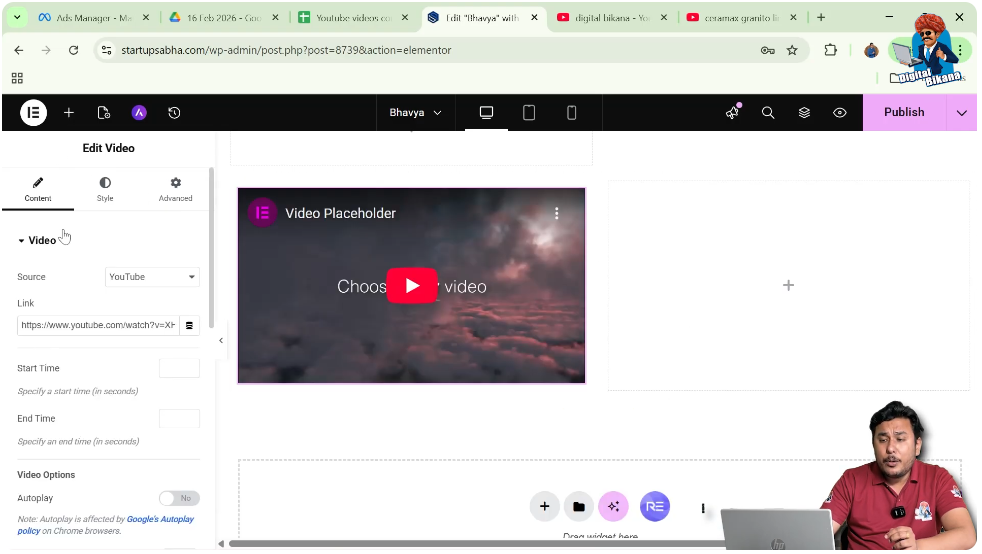
Step 8: Add Video Link
On the left-side toolbar, you will see content settings.
In the video section, paste your YouTube video link.
Once you paste the link, the video will be displayed inside the container.
Adding Second Video in Same Container
Now we will add another video inside the same container.
Step 9: Search for Video Widget Again
Click on the add element icon in the black header line again.
Search for “video”.
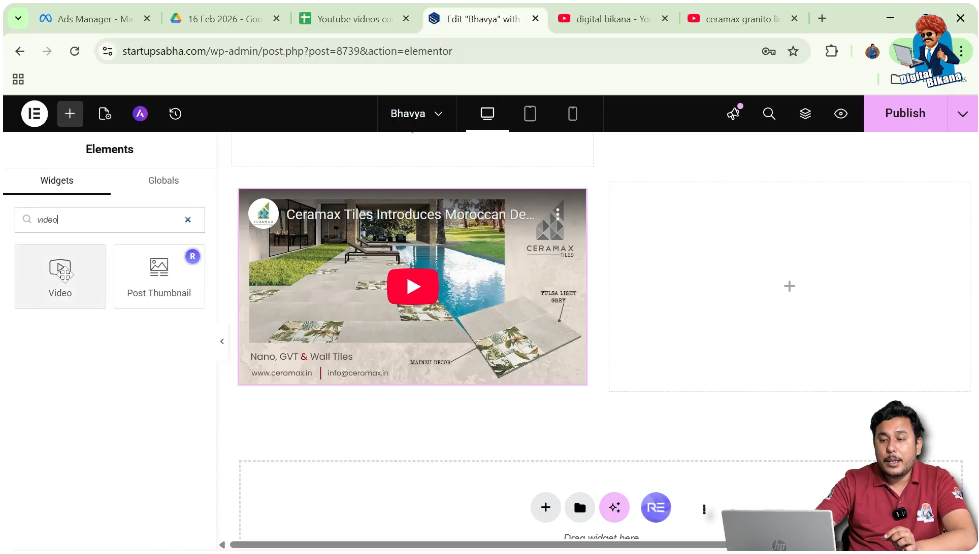
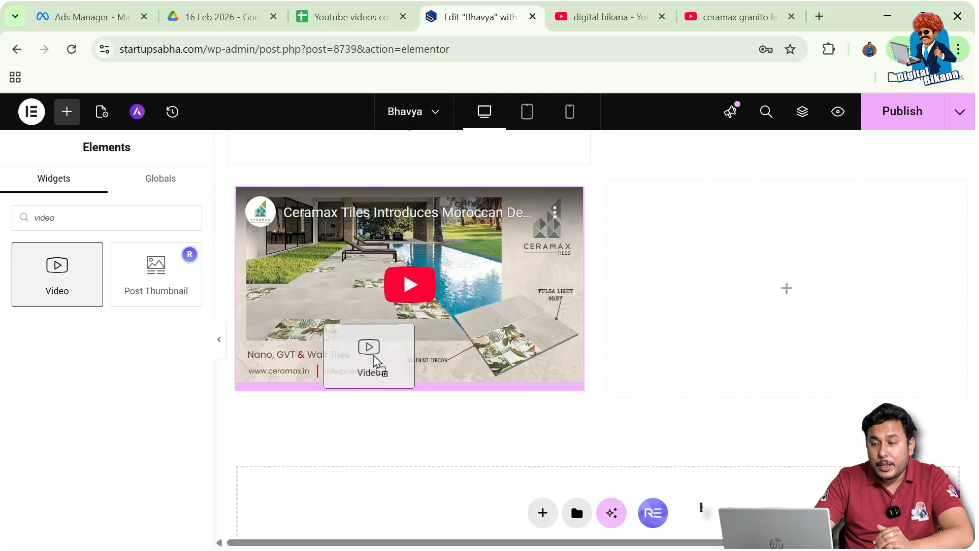
Step 10: Drag and Drop Second Video
Drag the video widget into the same container.
You will notice a pink line showing where the video will be placed.
Place the second video below the first video inside the container.
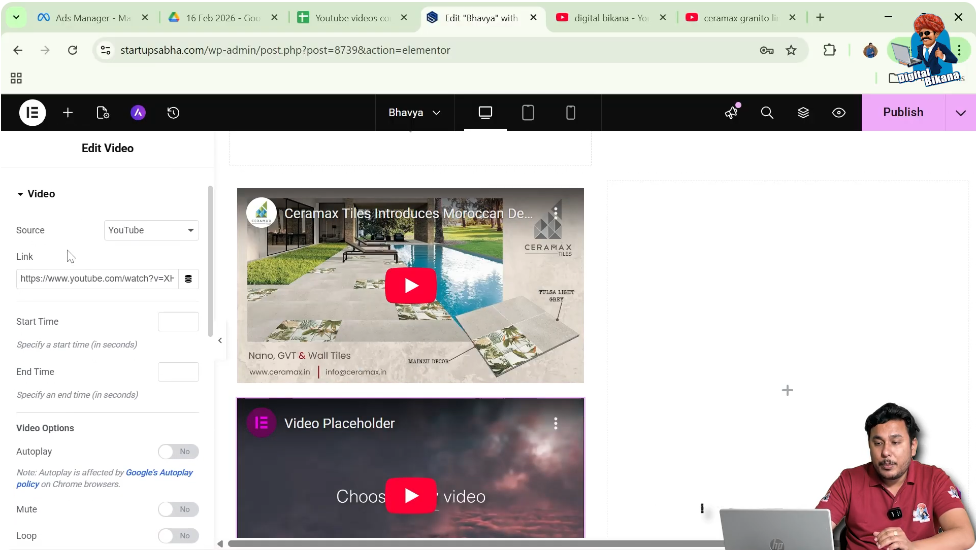
Step 11: Add Second Video Link
After placing the second video, go to the left-side toolbar.
In the content settings, paste another YouTube video link.
Now the second video will appear below the first one.
Understanding Content Settings
Content settings are used to define the actual video.
By adding a YouTube link, Elementor automatically embeds the video.
This makes it very easy to add videos without any technical setup.
Importance of Container in This Process
The container plays an important role when adding multiple videos.
It helps in organizing elements in a proper structure.
Without a container, managing multiple widgets inside a column can become difficult.
How Placement Works Inside Container
When you drag and drop elements inside a container, Elementor shows a pink line.
This line indicates the position where your widget will be placed.
You can use this feature to arrange videos vertically or in any desired order.
Benefits of Adding Multiple Videos
Adding two videos in a single container allows you to present more content in a compact space.
It helps users compare information, watch multiple tutorials, or explore more content without leaving the page.
Flexibility of Elementor Widgets
Elementor provides flexibility in adding multiple widgets inside a container.
You can add:
This makes it easy to create complex layouts using simple drag-and-drop actions.
Ease of Drag and Drop Functionality
One of the biggest advantages of Elementor is its drag-and-drop interface.
You can easily add, move, or rearrange elements without writing any code.
This makes the process simple and beginner-friendly.
Final Result
After completing all the steps, you will have two videos placed inside a single container in a section.
The process includes:
- Creating a section
- Selecting grid layout
- Adding a container
- Adding first video
- Adding second video
Both videos will be displayed one below the other inside the same container.
Conclusion
Adding two videos into a single container in Elementor is a simple and effective way to enhance your website content. By following the step-by-step process, you can easily organize multiple videos within a structured layout.
The use of containers ensures better alignment and control over your design. With Elementor’s intuitive interface, even beginners can create professional layouts without any difficulty.
By using multiple videos strategically, you can improve user engagement and make your website more interactive and informative.

Related Posts