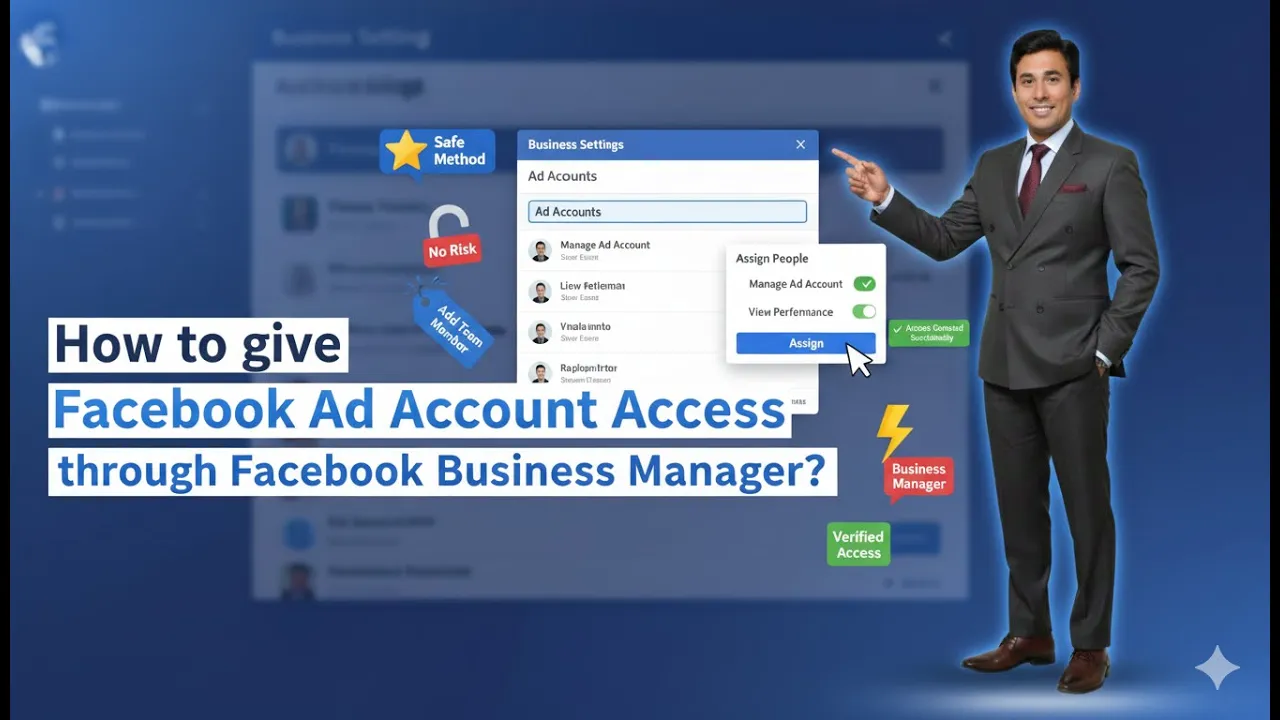
Running Facebook ads for a business often requires collaboration. Business owners may work with digital marketers, agencies, or team members who need access to the Facebook ad account. Instead of sharing login credentials, Facebook provides a secure and official way to grant ad account access through Meta Business Suite. In this article, we will explain in detail how to give access to a Facebook ad account using Facebook Business Manager through Meta Business Suite.
Understanding Facebook Ad Account Access
A Facebook ad account is used to create, manage, and run advertisements across Facebook platforms. Giving someone access to your ad account allows them to manage campaigns without owning the account.
Meta Business Suite ensures that access is permission-based and secure. You remain the owner of the ad account while others can work on it based on the access you assign.
How to give Facebook Ad Account Access through Facebook Business Manager?
Step 1: Log in to Your Facebook Account
The first step is to log in to your Facebook account using your registered email ID or phone number and password.
Make sure that the account you are using already has permission to manage the Facebook ad account. Only users with proper authority can give access to others.

Step 2: Switch to Your Facebook Page
After logging in, check whether you are operating as your Facebook Page.
If you are still on your personal profile, click on the top-right corner icon and switch to your Facebook Page. Once switched, all actions you perform will apply to your business assets.
This step is important because Meta Business Suite works at the business page level.

Step 3: Open Your Facebook Page Profile
Once you have switched to your Facebook Page, click on the Facebook Page name.
This will open your Facebook Page profile. From here, you can access tools related to page management, advertising, and business settings.

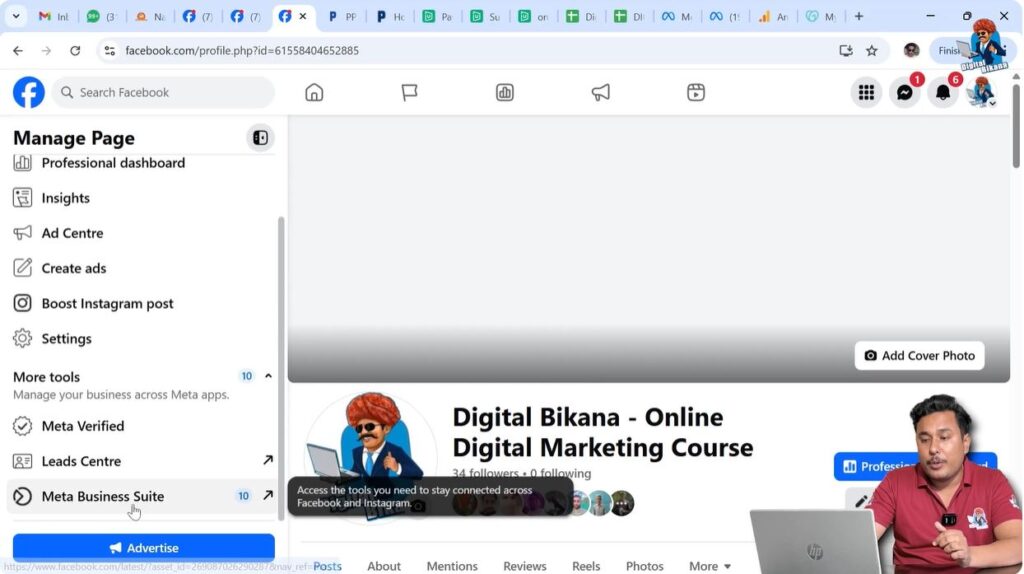
Step 4: Open Meta Business Suite
From your Facebook Page profile, click on Meta Business Suite.
You will now enter the Meta Business Suite dashboard. This dashboard is the central hub for managing Facebook Pages, ad accounts, users, and business settings.
Step 5: Go to the Settings Section
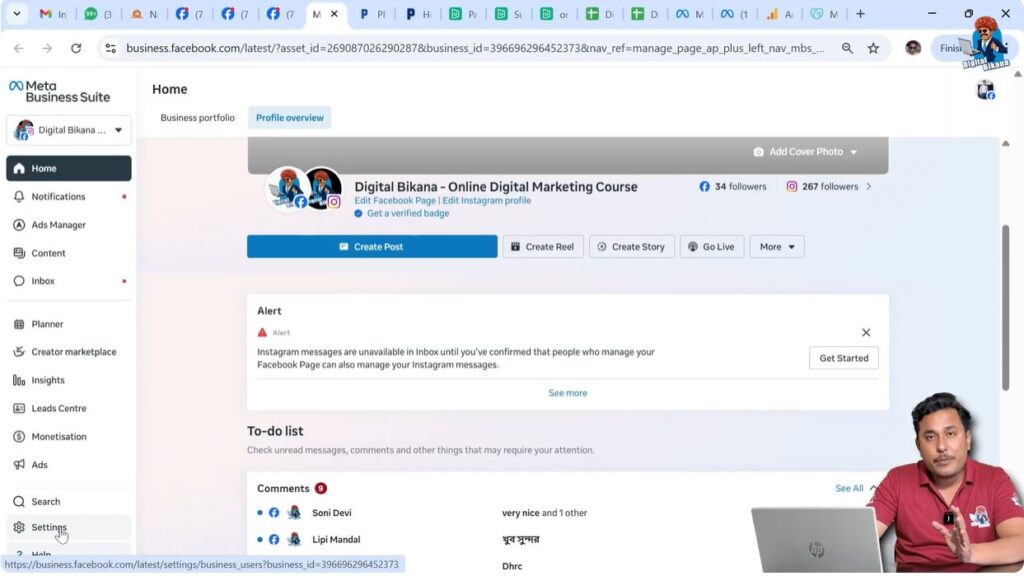
Inside Meta Business Suite, locate the Settings option and click on it.
The Settings section contains all administrative controls such as user access, asset permissions, and account management. This is where you control who can access your business assets.
Step 6: Open the People Section Under Users
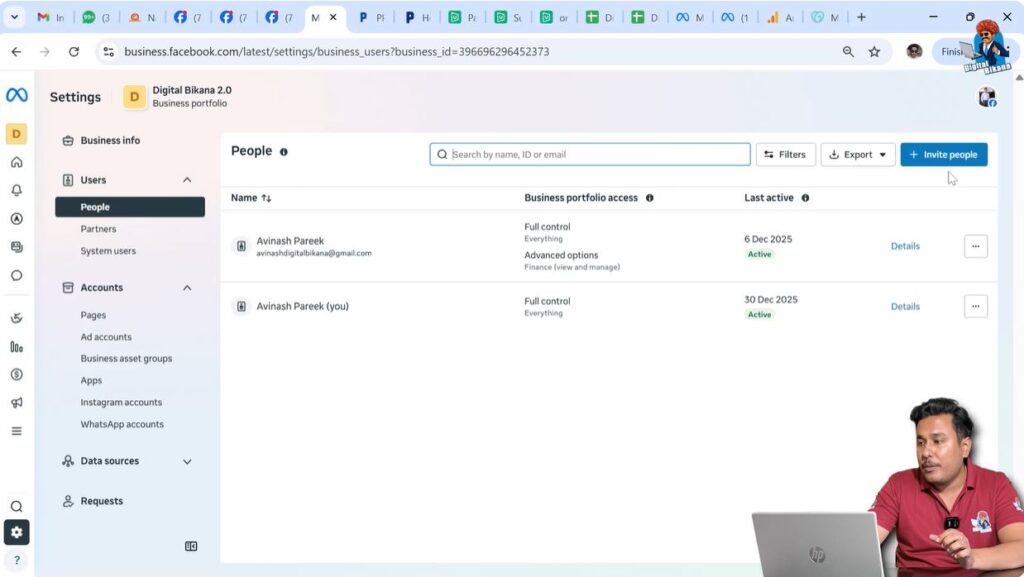
Within the Settings area, go to the Users section and click on People.
The People section shows all users who currently have access to your business assets. From here, you can invite new users or manage existing ones.
Step 7: Invite a New Person
In the People section, click on Invite People.
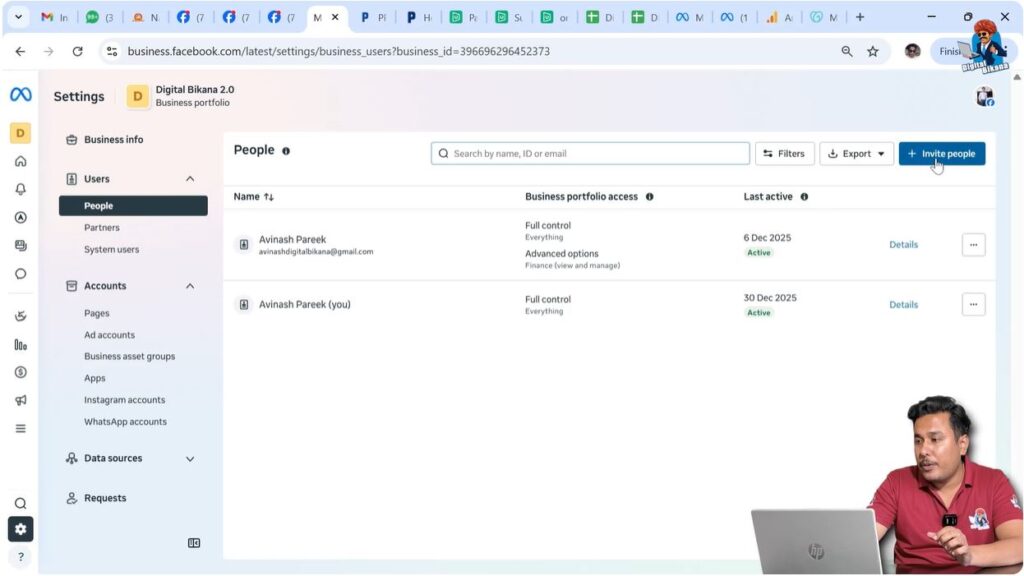
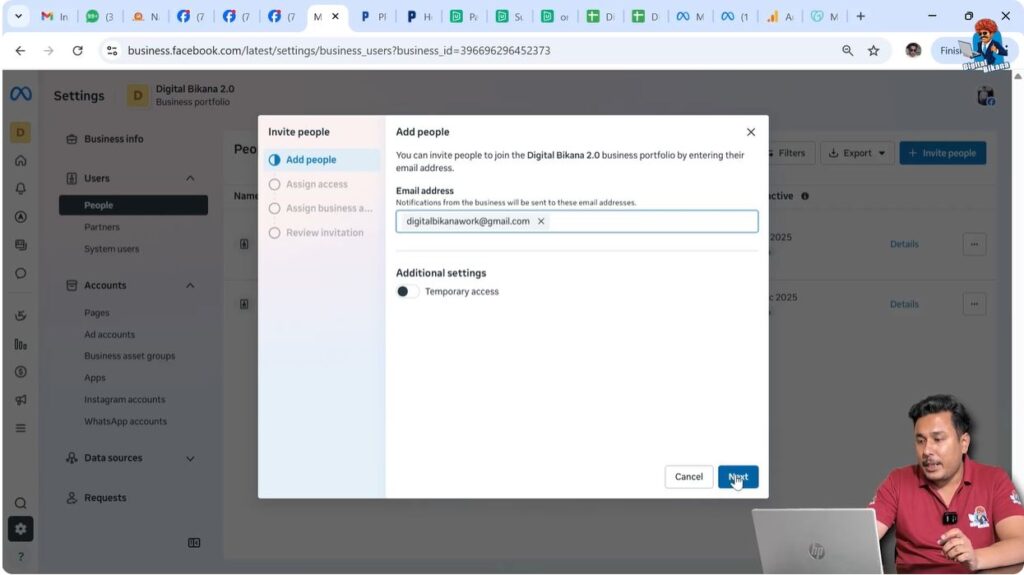
You will be asked to enter the email ID of the person to whom you want to give ad account access. Enter the correct email address carefully. This email must be associated with the person’s Facebook account.
After entering the email ID, click on Next.
Step 8: View Advanced Options and Choose Manage
After clicking Next, you will see the View advanced options.

Click on Manage, then click on Next. This option allows you to manually select which business assets you want to assign to the invited person.

Step 9: Select the Facebook Ad Account
Now you will see a list of available business assets.
Select the Ad Account for which you want to give access. This ensures that the person will receive access only to the selected ad account and not to other business assets.

Step 10: Give Full Control of the Ad Account
After selecting the ad account, assign full control access.
Full control allows the invited person to manage ads, campaigns, budgets, and settings related to the ad account. This level of access is usually given to trusted marketers or agencies.
Once full control is selected, click on Next.

Step 11: Review the Assigned Access
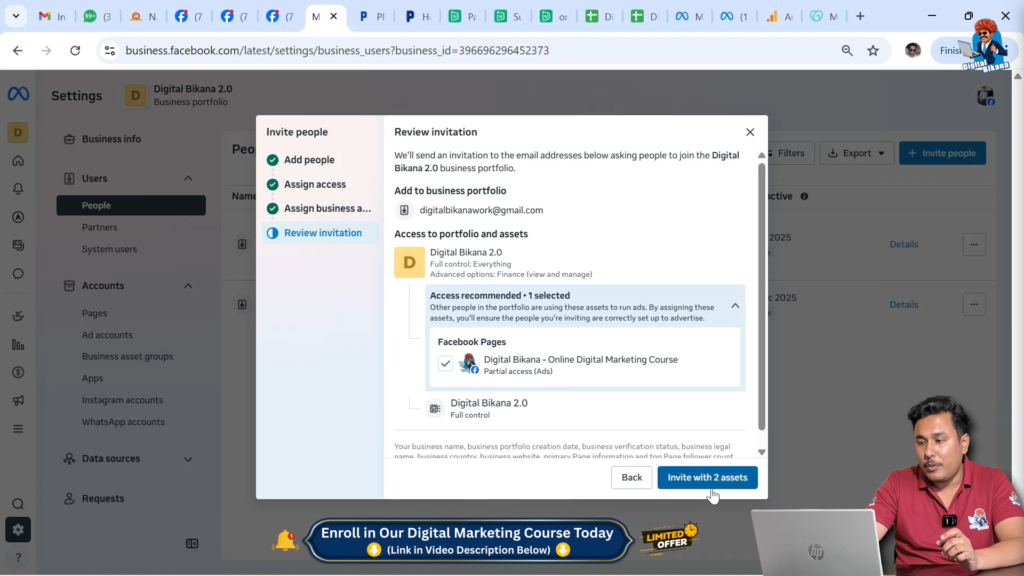
After clicking Next, Meta Business Suite will show a summary of the access being provided.
This screen confirms that only the ad account is selected and that full control access is being granted. Review the details carefully before proceeding.
Step 12: Send the Invitation
Once everything is confirmed, click on Invite with one asset.
Meta Business Suite will now send an invitation email to the person you added. This email contains a link to accept the ad account access.

Step 13: Invitation Acceptance by the User
The invited person will receive an email notification.
They need to open the email and click on the Accept Invitation button. After clicking the link, they will be asked to log in to their Facebook account.
Once logged in, the ad account access will be activated, and the person will be able to manage the ad account based on the permissions you assigned.
Why This Method Is Important
Giving ad account access through Meta Business Suite is the safest and most professional method.
It avoids password sharing, ensures accountability, and allows you to remove access at any time without changing your Facebook login credentials.
Common Use Cases for Ad Account Access
Businesses commonly give ad account access to:
- Digital marketing agencies
- Freelance advertisers
- In-house marketing teams
- Performance marketing specialists
Using Meta Business Suite makes it easy to manage all collaborators from one place.
Final Thoughts
Providing Facebook ad account access using Meta Business Suite is a simple and secure process when done correctly. By following the steps explained in this article, you can confidently grant access to trusted individuals without compromising the security of your business assets.
This structured approach helps businesses collaborate efficiently while maintaining full control over their advertising accounts.

Related Posts