While creating a Meta ad campaign, it is very common to use multiple ad creatives inside a single ad set. Showing the same ad creative repeatedly can cause ad fatigue, which means people may stop paying attention to your ads. To avoid this, Meta allows advertisers to create multiple ad creatives in one ad set and also provides an option to edit many ad creatives together. In this article, we will understand how to create multiple ad creatives in a single ad set and how to edit multiple ad creatives together, explained step by step exactly as the process happens in Meta Ads Manager.
How to Edit Multiple Ad Creatives in a Meta Ad Campaign together?
Step 1: Open Meta Ads Manager and Create a New Campaign
First, log in to your Meta Ads Manager.
Click on the Create button to start creating a new ad campaign.
At this stage, you will see the three main levels of a Meta ad campaign:
This structure remains the same for every Meta ad campaign.

Step 2: Understand the Current Campaign Structure
Initially, when a new campaign is created:
- There is one ad campaign
- Inside it, there is one ad set
- Inside that ad set, there is one ad creative
This is the default setup provided by Meta Ads Manager.
Step 3: Decide to Create Multiple Ad Creatives
Instead of running only one ad creative, you may want to create multiple ad creatives inside the same ad set.
For example:
- You want five different ad creatives
- Each ad creative can have a different video
- This ensures people do not see the same ad repeatedly
Using multiple creatives helps keep your ads fresh and engaging.

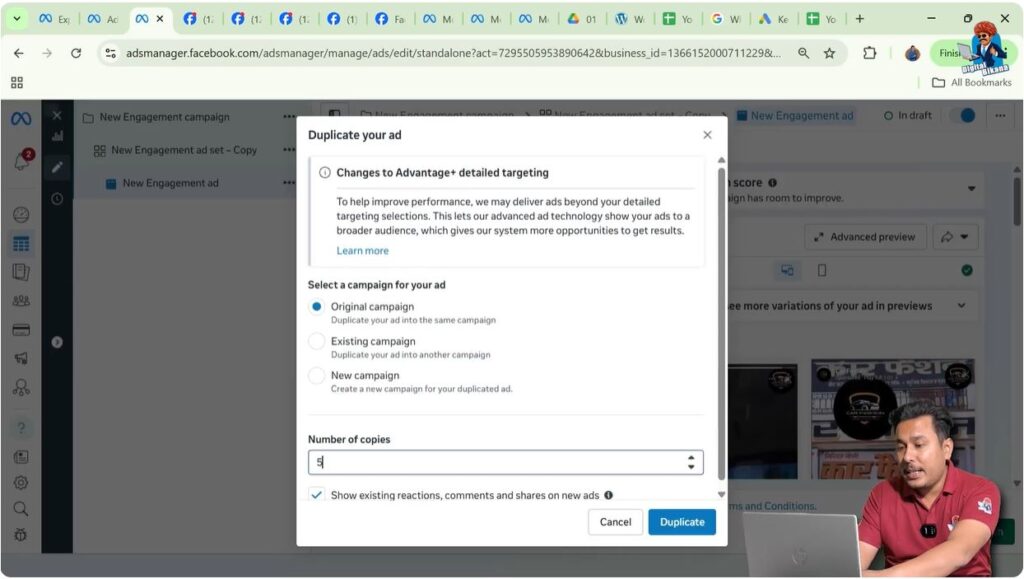
Step 4: Add Multiple Ad Creatives in the Same Ad Set
Within the same ad set, you can add multiple ad creatives.
Each ad creative exists independently but shares the same:
- Audience
- Budget
- Placement
- Schedule
Only the creative (video or content) changes.
Step 5: Understand Editing Options for Ad Creatives
There are two ways to edit ad creatives:
- Edit each ad creative individually
- Edit multiple ad creatives together
Editing creatives one by one can be time-consuming, especially when you have many creatives. That is why Meta provides a bulk editing option.
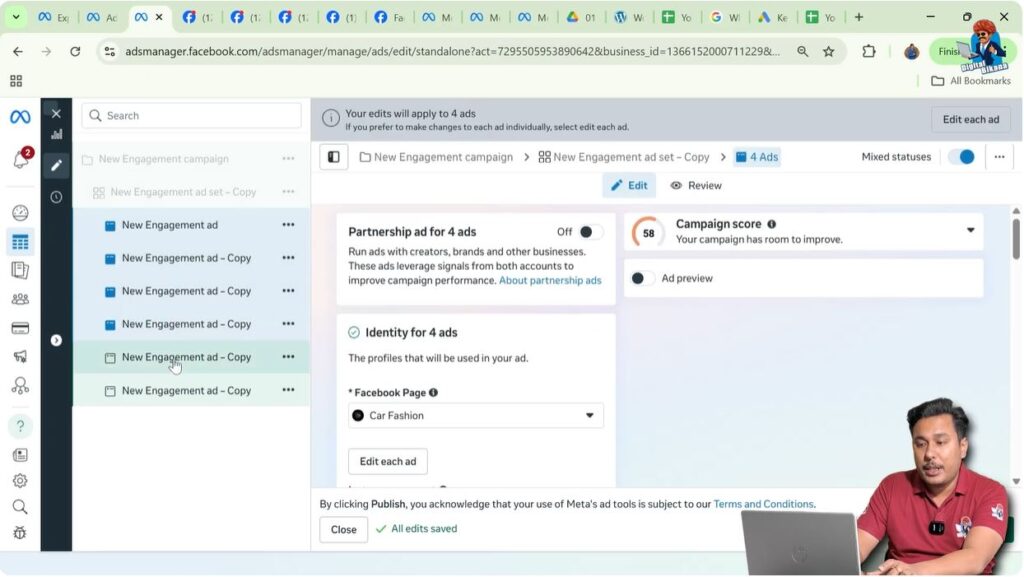
Step 6: Select Multiple Ad Creatives Together
To edit multiple ad creatives together, follow these exact steps:
- Click on one ad creative
- Press and hold the Control (Ctrl) key on your keyboard
- While holding Ctrl, click on the second ad creative
- Continue selecting other ad creatives one by one
- After selecting all required ad creatives, release the Ctrl key
Now, all selected ad creatives are highlighted.
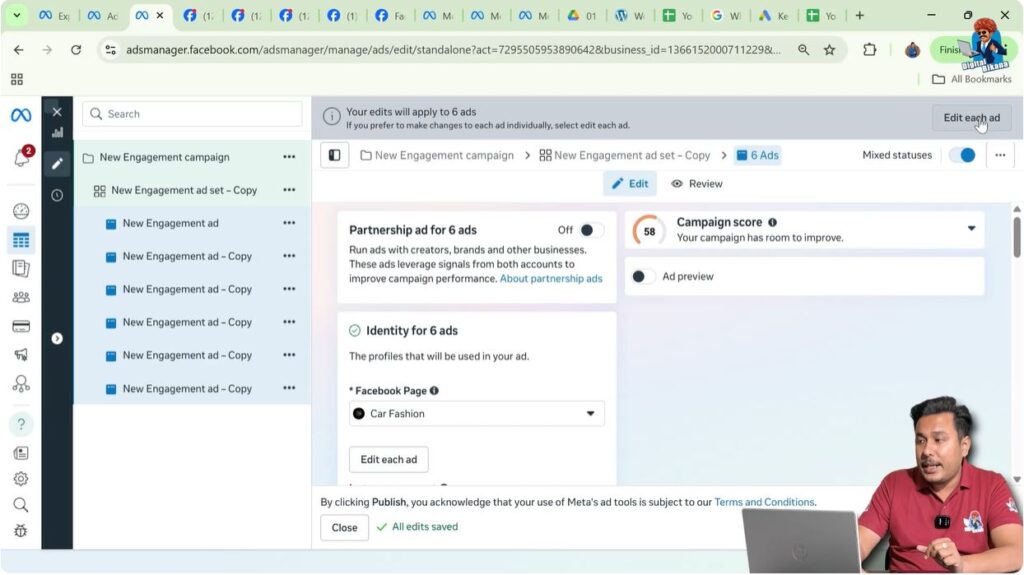
Step 7: Click on “Edit Each Ad”
After selecting multiple ad creatives, click on the Edit Each Ad option.
This opens a bulk editing panel where changes can be applied to all selected ad creatives at the same time.
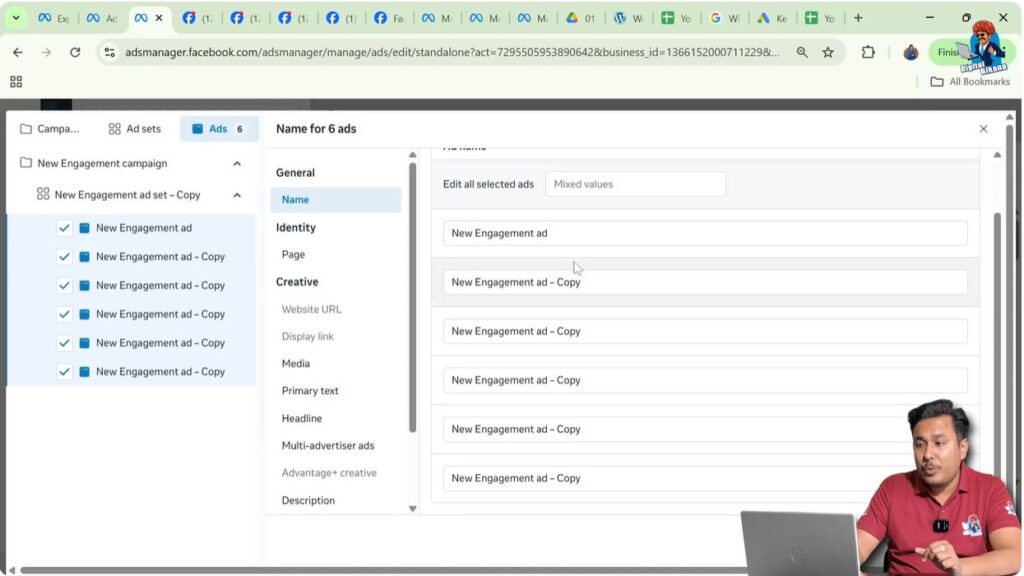
Step 8: Rename All Ad Creatives Together
The first column you will see is the Name section.
Here, you can rename all selected ad creatives in one go.
For example:
- Video 1
- Video 2
- Video 3
- Video 4
- Video 5
- Video 6
Renaming helps you identify each creative easily while managing the campaign.
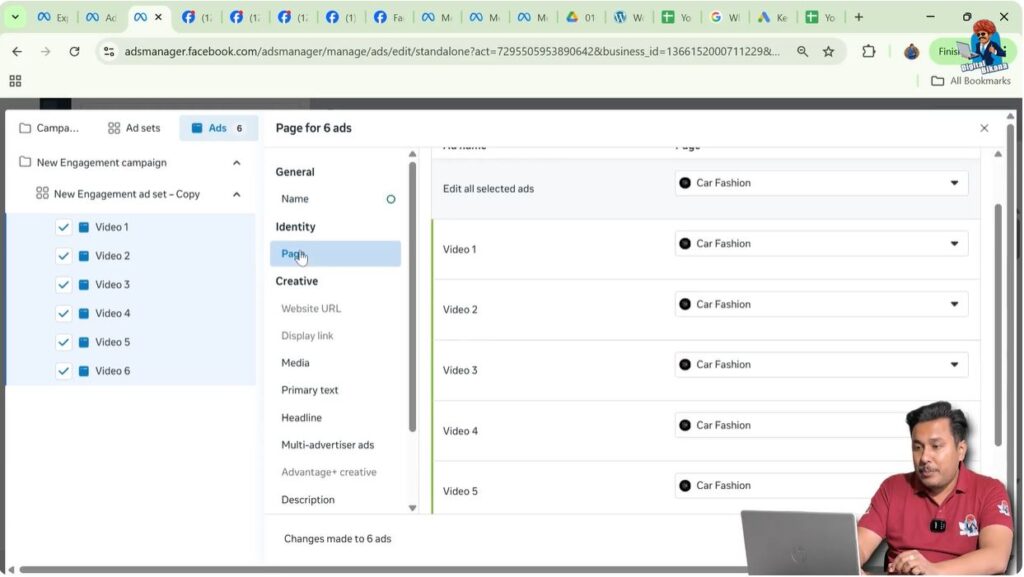
Step 9: Review the Page Section
Next, you will see the Pages section.
All ad creatives are connected to the same Facebook page. Since the page is the same for all creatives, there is no need to make any changes here.
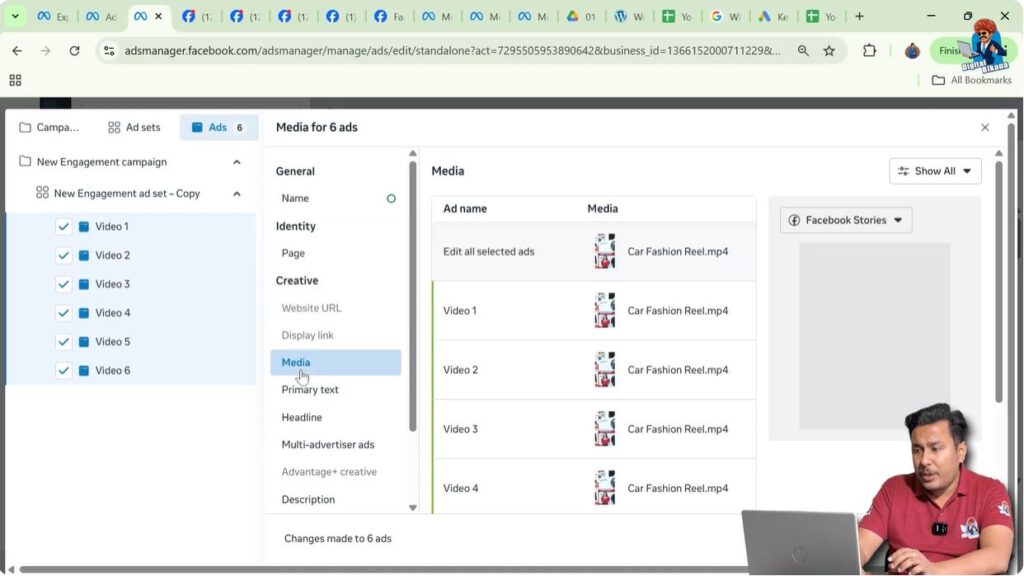
Step 10: Check the Media Section Limitation
In the Media section, you will notice that:
- The same video appears in all ad creatives
- There is no option to change media for all creatives together in this view
Earlier, Meta allowed bulk media editing, but this feature may no longer be available.
Step 11: Edit Primary Text for All Ad Creatives Together
In the Primary Text section:
- You can change the caption for all selected ad creatives at once
- The same primary text will be applied to every ad creative
This saves time and ensures consistency.

Step 12: Edit Headlines for All Ad Creatives Together
Similarly, you can update the Headline for all ad creatives in one place.
This is useful when you want uniform messaging across all creatives.

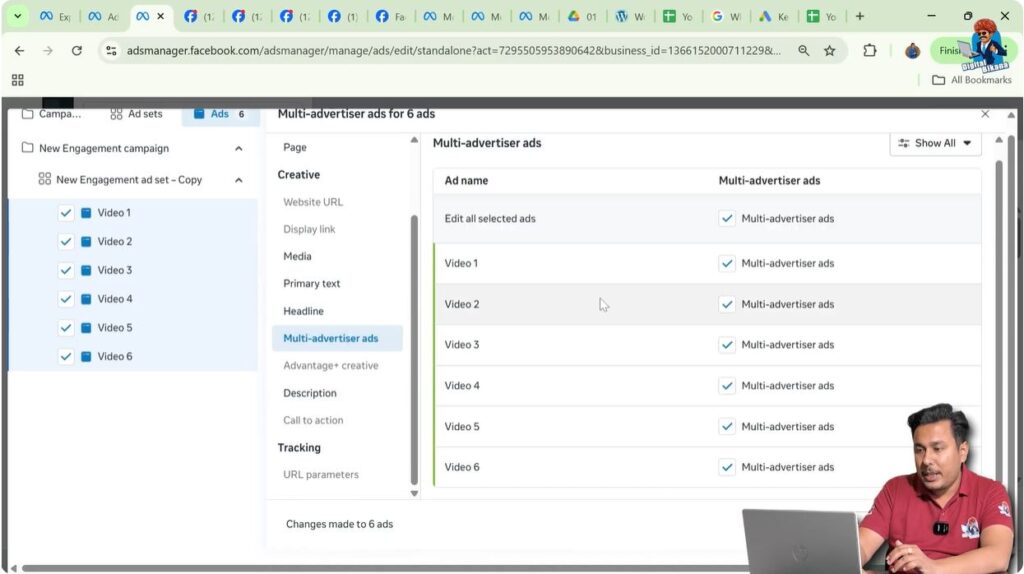
Step 13: Manage Multi-Advertiser Ads Setting
In the Multi-Advertiser Ads section:
- You can turn this option on or off for all selected ad creatives together
This ensures the same setting is applied across all creatives.
Step 14: Edit Description and Call Description Together
You can also update:
- Description
- Call description
for all selected ad creatives in a single action.

Step 15: Save Bulk Changes
After making changes to names, primary text, headlines, and descriptions:
- Click on Edit Each Ad
- Confirm the changes
All selected ad creatives will now reflect the updates.
Step 16: Exit Bulk Edit to Change Media
To change the media (videos) of individual ad creatives:
- Exit the bulk editing screen
- Return to the ad creative overview
Here, you will find another Edit Each Ad option specifically for media.
Step 17: Click on “Edit Each Ad” for Media Editing
Click on Edit Each Ad under the media section.
On the left side, you will now see a list of all ad creatives.
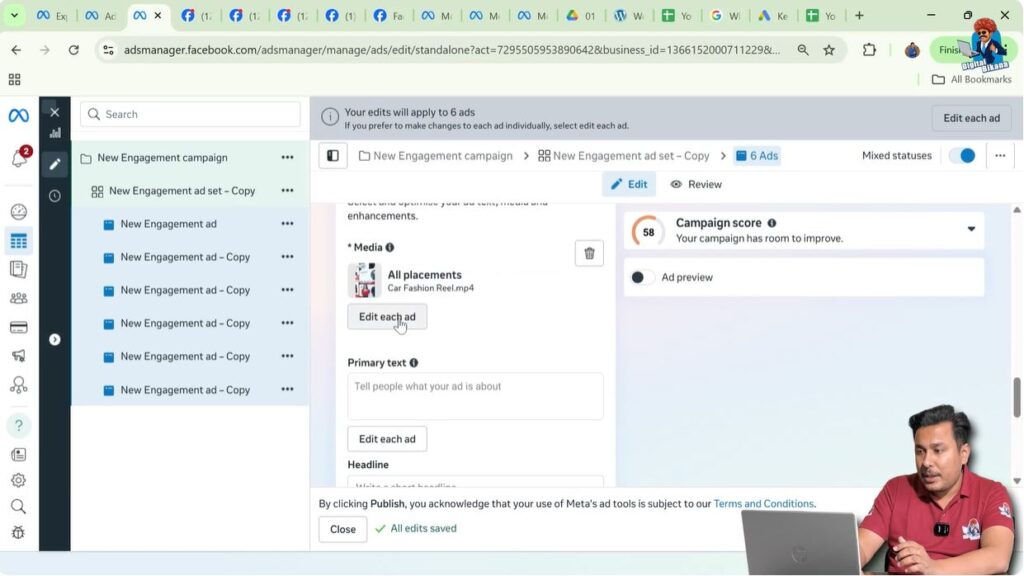
Step 18: Select and Change Media for Each Ad Creative
Now:
- Select the first ad creative
- Choose a different video from your page videos or system
- Repeat the process for each ad creative
This allows each ad creative to have a unique video.
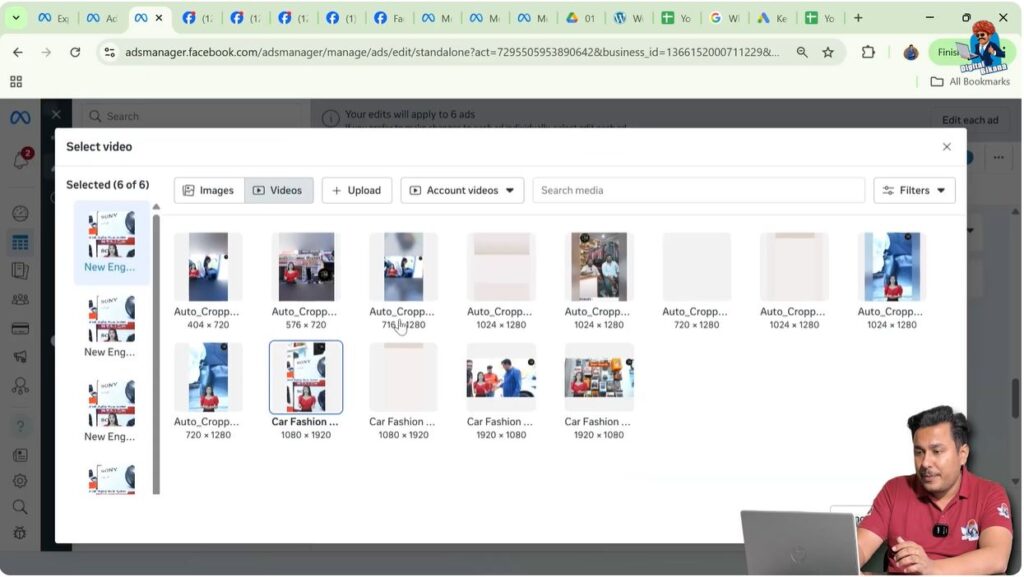
Step 19: Continue and Save Media Changes
After assigning different videos:
- Click on Continue
- Save the changes
Each ad creative now has its own media.
Step 20: Verify Media for Each Ad Creative
To confirm:
- Click on each ad creative one by one
- Check that every ad creative has a different video
This ensures everything is set correctly.
Step 21: Final Result of Editing Multiple Ad Creatives
At the end of this process:
- One ad set contains multiple ad creatives
- Each ad creative has different media
- Text elements can be edited together
- Time and effort are saved
Final Understanding
Meta Ads Manager allows advertisers to efficiently manage multiple ad creatives inside a single ad set. By selecting multiple creatives and using the Edit Each Ad option, you can quickly update names, captions, headlines, and descriptions together, while still assigning different media to each creative.
This approach helps improve campaign management, reduces ad fatigue, and makes your advertising process more professional and scalable.

Related Posts