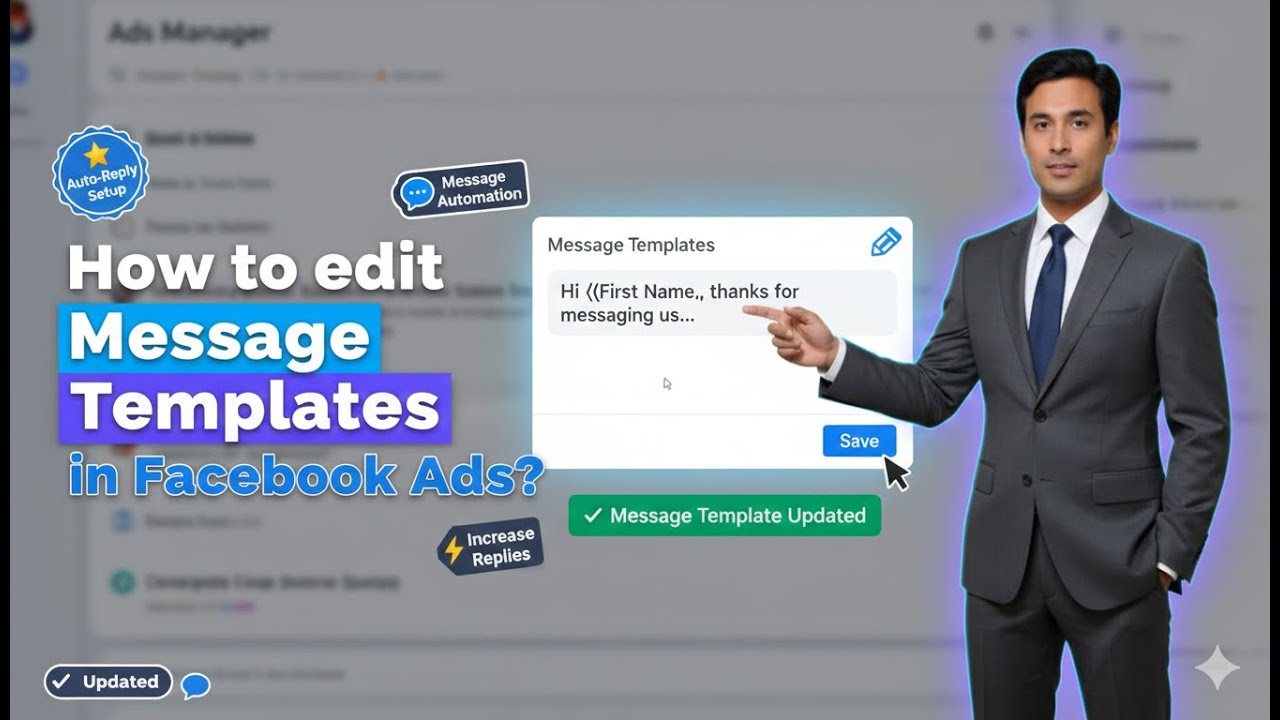
Hello friends, in this article we are going to understand how to edit facebook ads message templates in an engagement ad campaign in complete detail. Message templates are an important part of engagement campaigns because they help businesses start conversations automatically with people who show interest in their ads.
Understanding Facebook Engagement Ad Campaigns
Before learning how to edit the message template, it is important to understand what a Facebook engagement ad campaign is and how it is structured.
An engagement ad campaign is designed to:
- Encourage users to interact with your ad
- Generate likes, comments, shares, or messages
- Start direct conversations with potential customers
When the objective is messaging, the Message CTA button becomes the main action point for users.
Structure of a Facebook Engagement Ad Campaign
A Facebook engagement ad campaign follows a fixed three-level structure inside Ads Manager:
Campaign Level
This is where you select the engagement objective and define the overall goal of your campaign.
Ad Set Level
This level controls:
- Audience targeting
- Placements
- Budget and schedule
Ad Creative Level
This is where:
- The ad design is created
- Text, images, and CTA buttons are added
- The message template is configured
The message template can be edited only at the Ad Creative level.
Reaching the Ad Creative Level in Ads Manager
When you start creating a new engagement ad campaign in Meta Ads Manager, you move through the campaign creation flow in this order:
- Campaign setup
- Ad set setup
- Ad creative setup
Once you complete the campaign and ad set settings, you arrive at the Ad Creative level, which is where the message template option becomes available.
How to Edit Message Template in a Facebook Engagement Ad Campaign?
Step 1: Creating a New Engagement Ad Campaign
The first step is to create a new engagement ad campaign.
Inside Ads Manager:
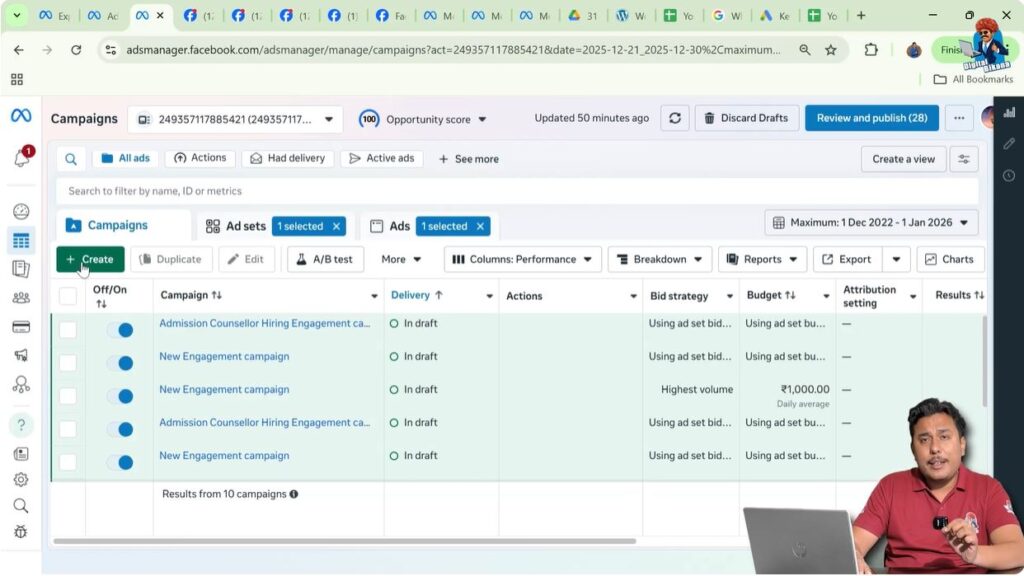
- Click on Create
- Select Engagement as the campaign objective
- Continue with the setup
This ensures that your ad is optimized for user interactions, including messages.
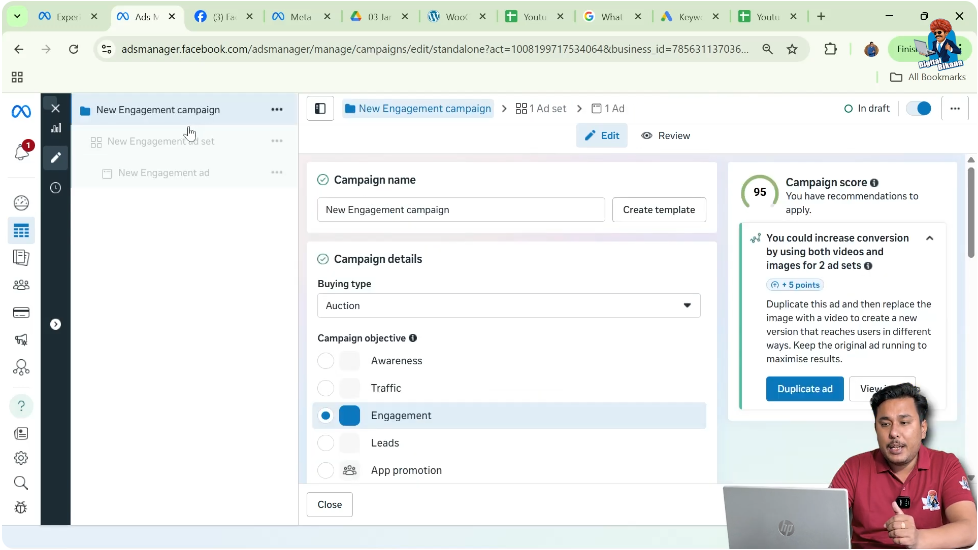
Step 2: Completing Campaign and Ad Set Settings
After selecting the engagement objective:
- Complete the campaign-level settings
- Set up the ad set by choosing audience, placements, and budget
Once these settings are done, proceed to the Ad Creative section.
Step 3: Arriving at the Ad Creative Level
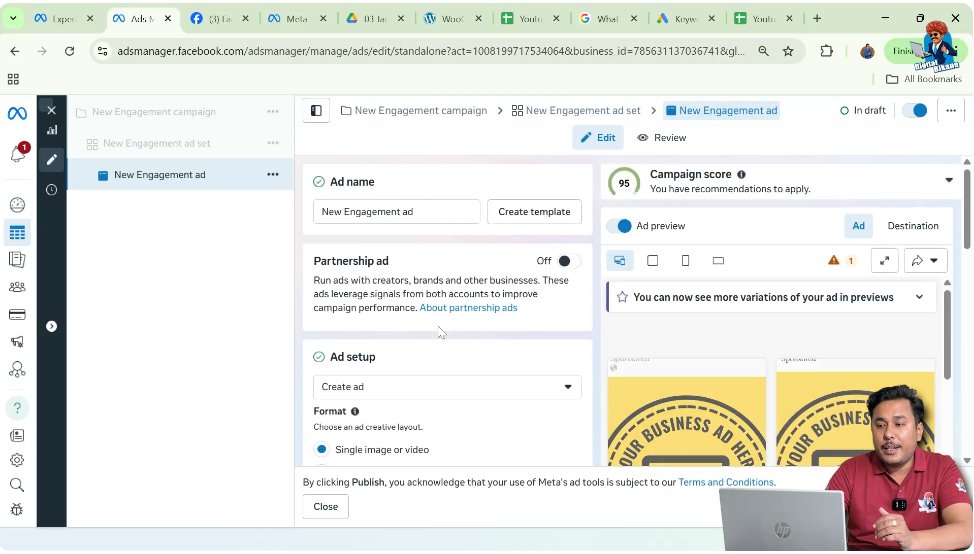
At the ad creative level:
- You design the actual advertisement
- You choose the creative format
- You define how users interact with your business
This is the level where the Message CTA button and message template are configured.
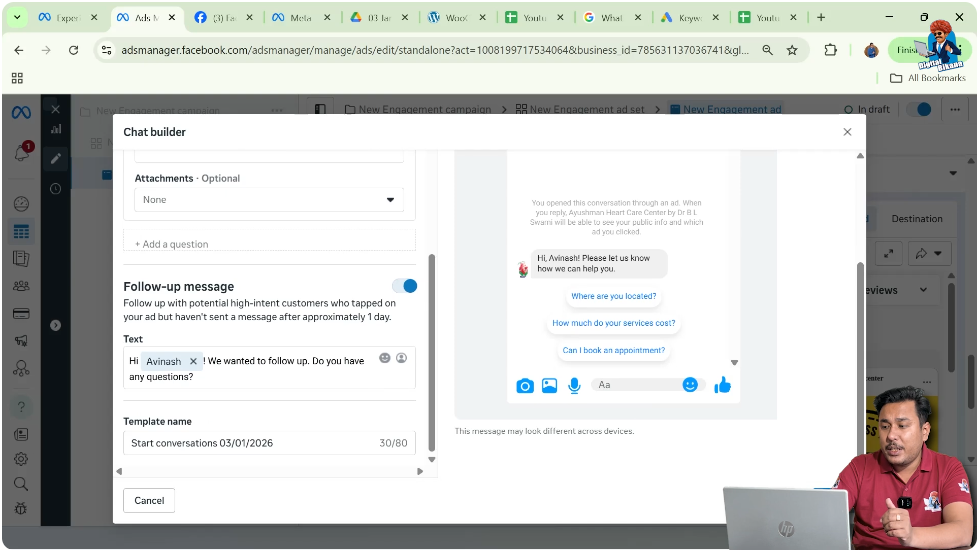
Step 4: Scrolling Down to the Chat Builder Section
Inside the ad creative setup, scroll down towards the bottom of the page.
Here, you will find a section called Chat Builder.
The Chat Builder controls:
- What happens when users click the Message CTA
- The automated message flow shown to users

Step 5: Opening the Message Template Editor
Inside the Chat Builder section:
- Locate the Message Template option
- Click on the Edit button
As soon as you click Edit, the message template editor opens.
This editor allows you to customize:
- The greeting message
- Frequently asked questions (FAQs)
- Automated responses

Understanding the Purpose of the Message Template
Before editing the template, it is important to understand what the message template actually does.
Whenever:
- A user sees your engagement ad
- Clicks on the Message CTA button
They instantly receive an automated message from your business.
This message:
- Starts the conversation
- Creates the first impression
- Guides the user on what they can ask
Default Greeting Message in the Template
The first element of the message template is the greeting message.
For example:
- “Hi {{name}}, please let us know how we can help you.”
Here:
{{name}}is a variable- It automatically pulls the name of the user who clicked on the ad
Step 6: Editing the Greeting Message
You can easily edit the greeting message.
In the editor:
- Modify the text as per your brand tone
- Keep the message simple and welcoming
- Retain the name variable if you want personalization
A personalized greeting makes the interaction feel more human and engaging.

Importance of the Greeting Message
The greeting message plays a key role because:
- It is the first message the user sees
- It sets the tone of the conversation
- It encourages the user to respond
A clear and friendly greeting increases the chances of receiving a reply.
Understanding Frequently Asked Questions (FAQs)
Below the greeting message, you will see a list of Frequently Asked Questions (FAQs).
These FAQs are:
- Predefined questions
- Shown automatically to users
- Easy for users to tap and send
FAQs act as conversation starters for users who may not know what to ask.
Why FAQs Are Important in Message Templates
For first-time users:
- It can be confusing to decide what to message
- Typing a question requires effort
FAQs solve this problem by:
- Giving ready-made options
- Reducing hesitation
- Making messaging easier
This directly increases the chances of users sending messages.
Step 7: Editing FAQ Questions
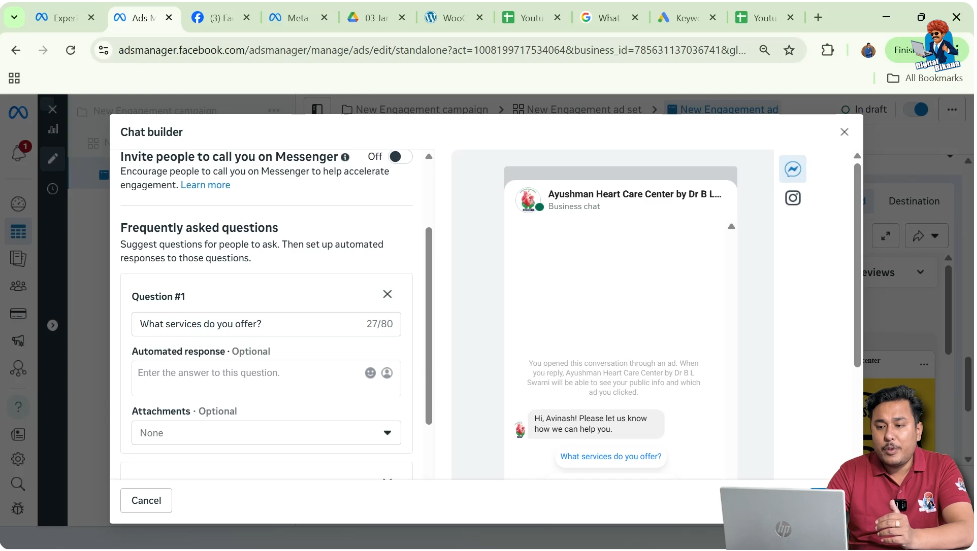
You can edit each FAQ question according to your business needs.
For example:
- Remove questions you do not want
- Change the wording of existing questions
- Add more relevant questions
If you do not want a question like:
- “What services do you offer?”
You can replace it with something like:
- “Where are you located?”
Step 8: Writing Automated Responses for FAQs
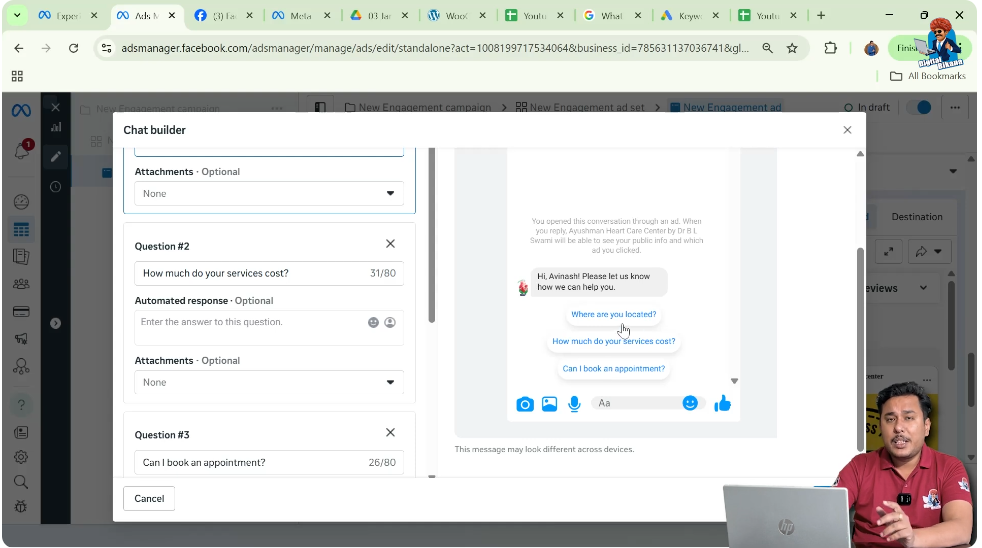
Each FAQ question allows you to add an automated response.
For example:
- Question: Where are you located?
- Answer: We are located in [your city name].
When a user:
- Selects this FAQ
- Sends it to your business
The response is automatically sent from your side.
How Automated Responses Work
Automated responses:
- Are sent instantly
- Do not require manual effort
- Provide quick and accurate information
This helps your business appear responsive even when you are not online.
Step 9: Previewing the Message Template
Inside the message template editor, you will also see a preview section.
This preview shows:
- How the greeting message appears
- How FAQs are displayed under the message
This helps you understand exactly what the user will see after clicking the Message CTA.
User Experience After Clicking the Message CTA
When a user clicks the Message button:
- They receive the greeting message
- They see the list of FAQs
- They can tap any FAQ to send it
This structured flow makes messaging simple and intuitive.
Step 10: Editing All Available FAQs
By default, you may see three FAQ questions.
You can:
- Edit all three questions
- Customize their responses
- Align them with your business goals
Each FAQ can guide users toward the most common or important queries.
How FAQs Increase Message Conversions
FAQs help increase message conversions because:
- Users do not need to type manually
- They feel guided
- The interaction feels easy and safe
This is especially useful for new users interacting with your business for the first time.
Step 11: Saving the Message Template
After making all the required changes:
- Greeting message
- FAQ questions
- Automated responses
Click on Save.
Once saved:
- The message template becomes active
- It will be used in your engagement ad campaign
What Happens After Saving the Template
After saving:
- Every user who clicks the Message CTA
- Will receive the updated greeting and FAQs
- Automated replies will work as configured
This ensures consistency in communication.
Benefits of Editing Message Templates
Editing message templates helps you:
- Increase incoming messages
- Save response time
- Provide clear information
- Improve user experience
It also helps your team handle conversations more efficiently.
Common Mistakes to Avoid
While editing message templates, avoid these mistakes:
Using Confusing Language
Keep messages simple and clear.
Adding Too Many FAQs
Too many options can confuse users.
Not Updating Responses
Ensure automated replies are accurate and updated.
Best Practices for Message Templates
To get the best results:
- Keep the greeting friendly and short
- Use FAQs that users commonly ask
- Provide clear and helpful automated responses
This improves engagement and trust.
Final Understanding of Message Templates
The message template in a Facebook engagement ad campaign is a powerful feature that allows you to:
- Start conversations automatically
- Guide users with FAQs
- Send instant automated replies
All of this can be managed easily at the Ad Creative level using the Chat Builder.
Final Conclusion
Editing the message template in a Facebook engagement ad campaign is a simple but highly effective process. By customizing the greeting message and FAQ questions, you can guide users, reduce confusion, and increase the number of messages your business receives.
Following the step-by-step process explained above ensures that your engagement ads are not only visually appealing but also conversationally effective.

Related Posts