
Duplicating a container in Elementor is a very useful feature that helps save time and maintain design consistency. Instead of creating a new container from scratch, you can simply duplicate an existing one and make the required changes. This is especially helpful when you want to reuse the same design, layout, or styling across multiple sections.
In this article, we will explain how to duplicate a container in Elementor using different methods based on the layout structure. The explanation follows a step-by-step approach and expands each scenario in detail so that you can clearly understand the process.
Accessing the Elementor Editor
To begin, you need to open Elementor and start editing your web page.
As shown in the process, you are inside the Elementor editor and working on a web page. A section has already been created, and it contains a container with a specific design.
Now, the goal is to duplicate this container so that you can reuse its structure and styling.
Understanding Why Duplication is Important
Duplicating a container allows you to:
- Save time
- Maintain consistent design
- Avoid recreating layouts manually
- Quickly create variations of the same section
This makes your workflow faster and more efficient.
Scenario 1: Duplicating Container in Single Container Section
In this scenario, the section contains:
- One row
- One column
- A single container
This is usually a flexbox layout.
Step 1: Move Cursor to Section Top
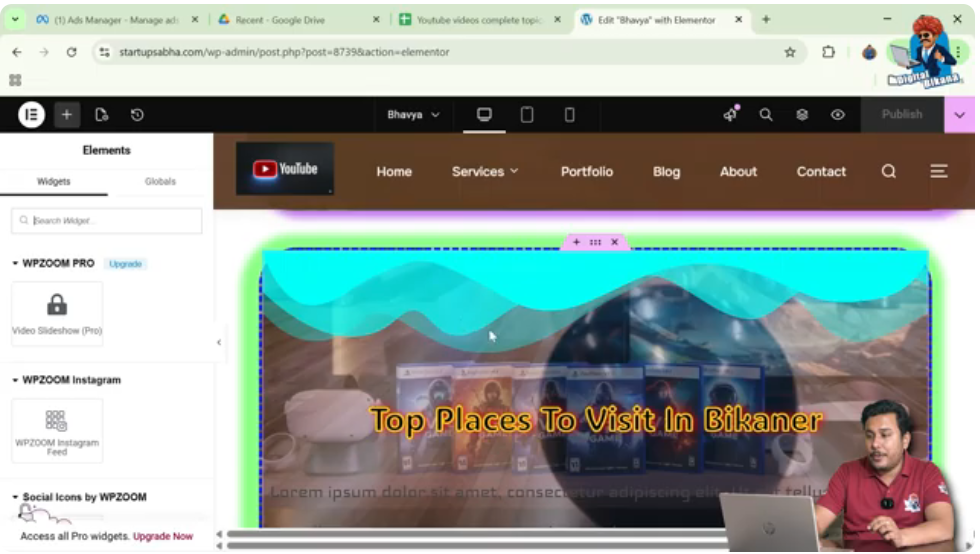
Move your cursor to the top of the section.
Step 2: Find Six Dot Icon
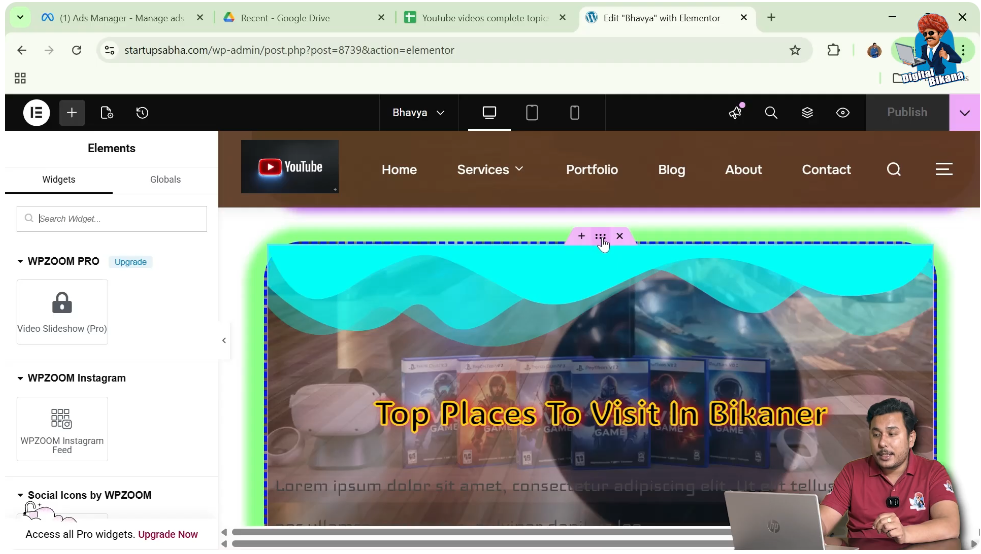
You will see a six-dot icon at the top of the section.
Step 3: Right Click on Icon
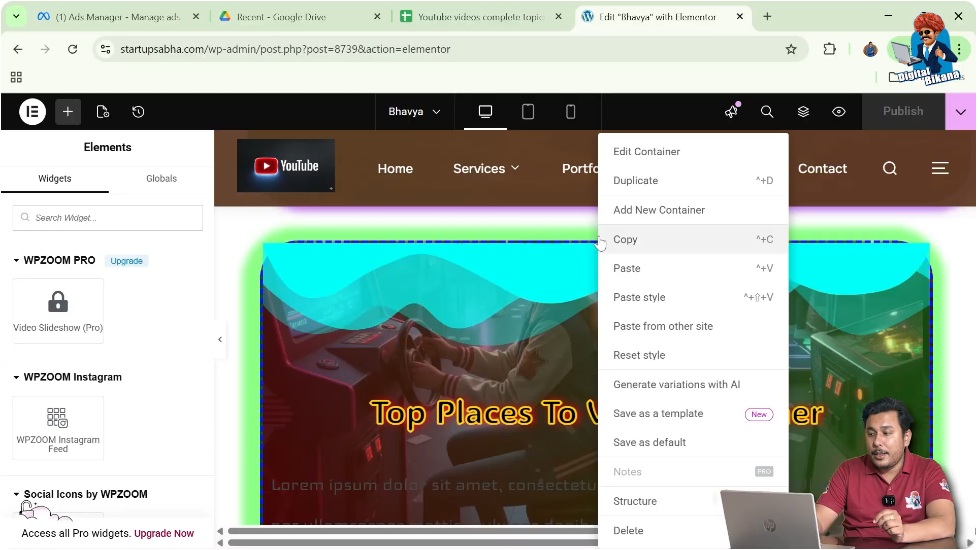
Right-click on the six-dot icon.
Step 4: Click Duplicate
From the options, click on Duplicate.
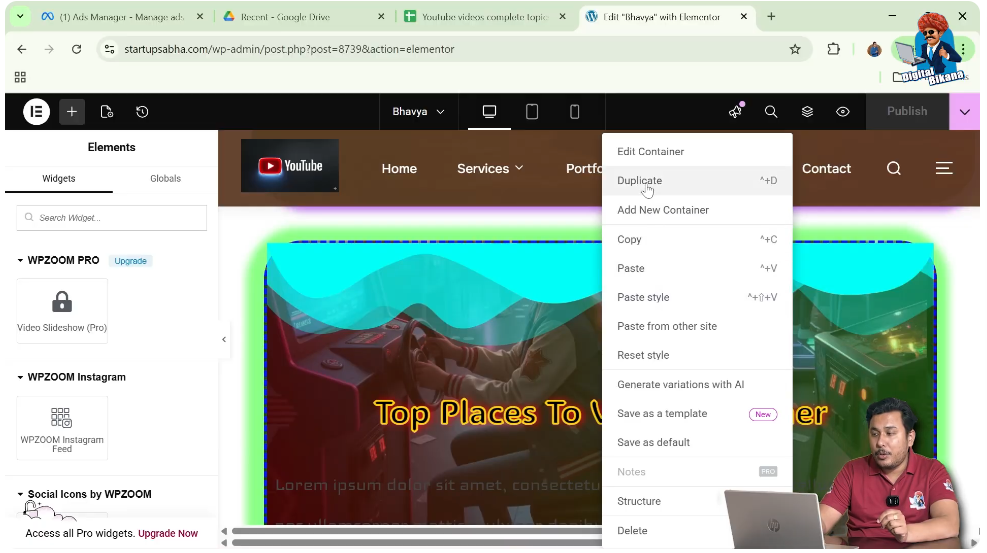
Result of Scenario 1
After clicking duplicate:
- The entire section with the container is duplicated
- A new identical container appears below
- You can now edit it without affecting the original
Creating a New Grid Section
To understand the second scenario, a new section is created.
Step 5: Add New Section
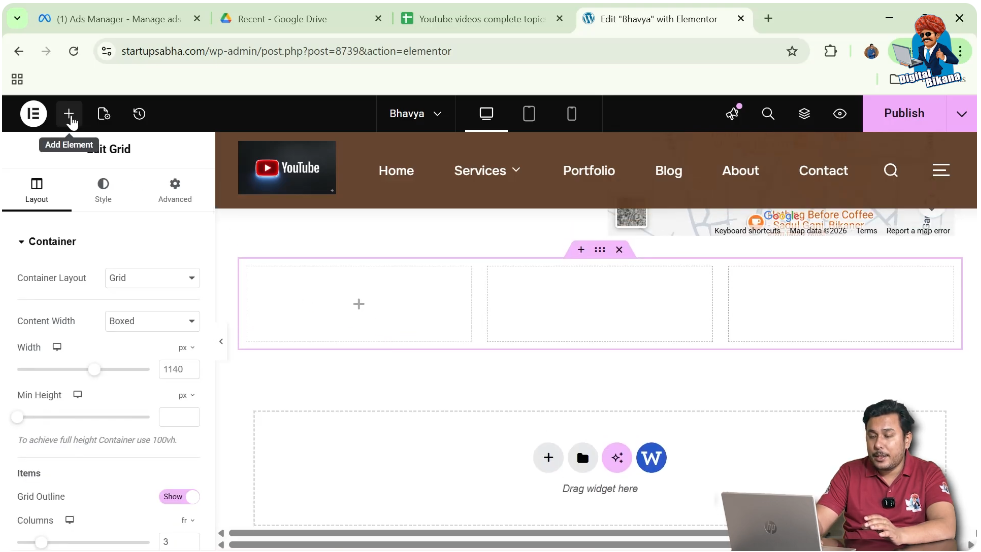
Click on the plus icon in the middle of the screen.
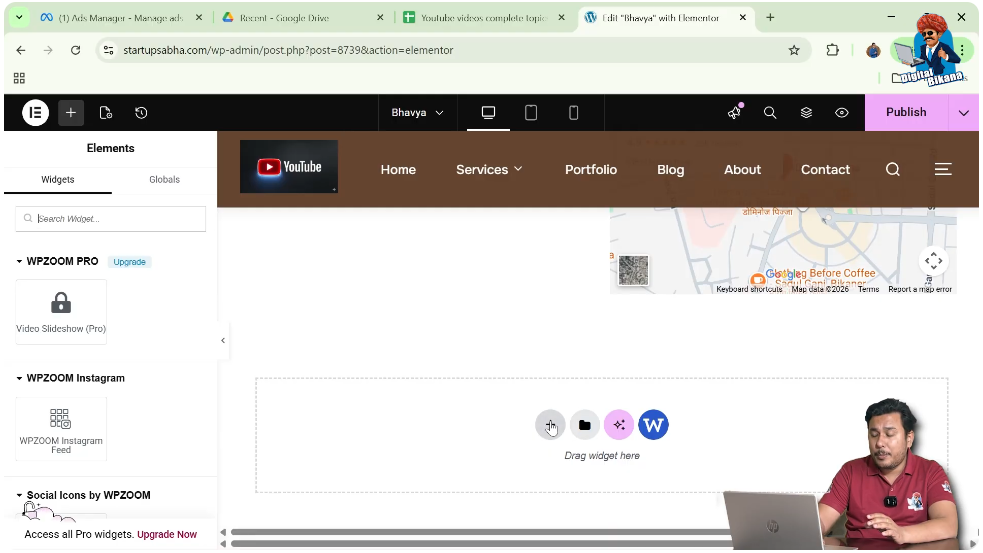
Step 6: Select Grid Layout
Choose the Grid layout.
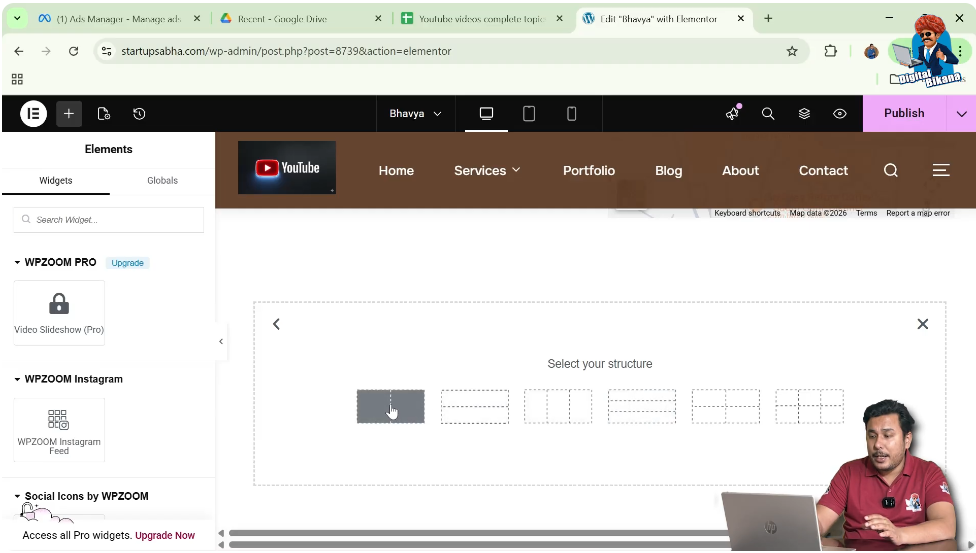
Step 7: Select Structure
Select a structure such as:
- One row
- Three columns
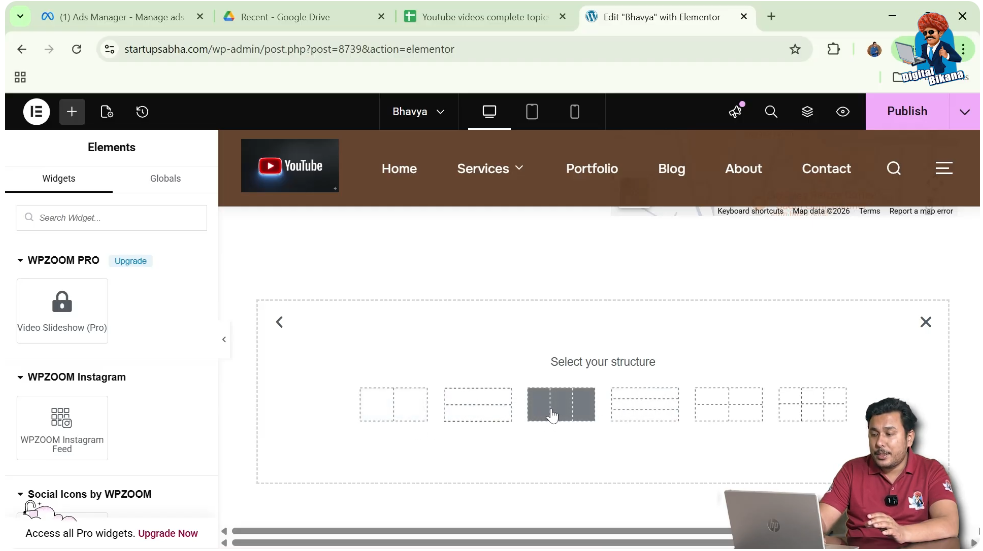
Adding a Container to Grid
Step 8: Add Container
Click on Add Element and search for the container widget.
Step 9: Place Container
Drag and drop the container into the desired position, such as:
- First row
- First column

Copying an Existing Container
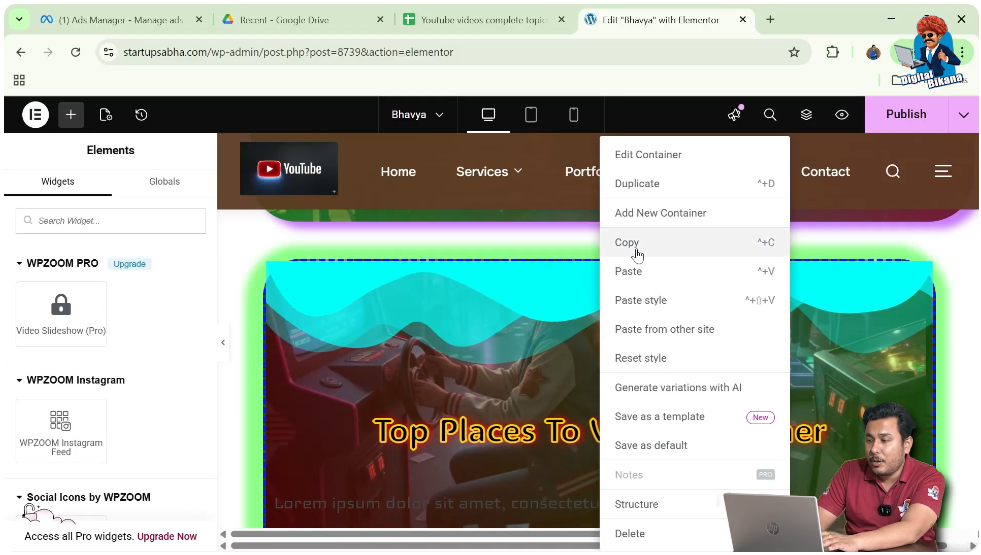
Step 10: Copy Container
Move your cursor to the top of the existing container.
Right-click on the six-dot icon.
Click on Copy.
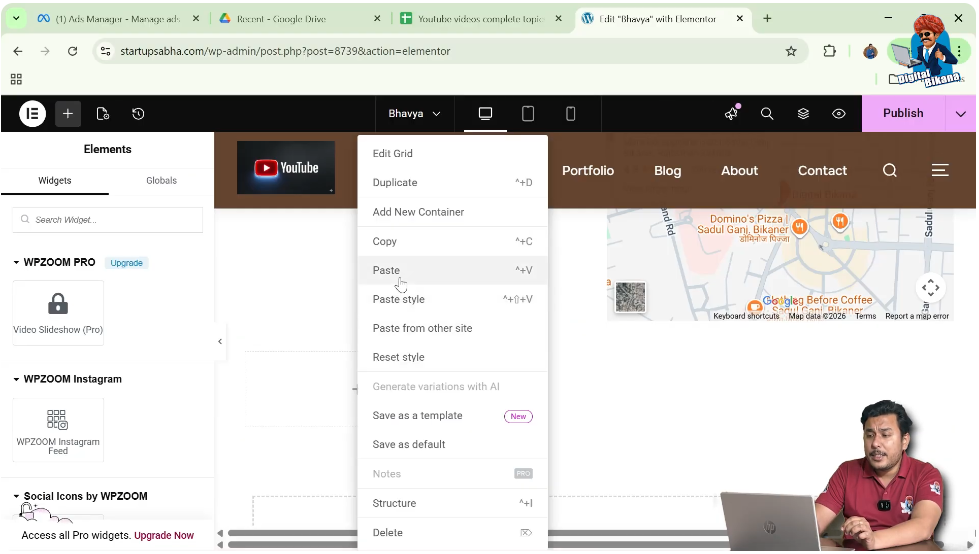
Step 11: Paste Container
Move to the new section.
Right-click on the desired grid position.
Click on Paste.
Result of Copy and Paste
After pasting:
- The container appears in the selected grid position
- It retains the same design and styling
Scenario 2: Duplicating Container in Grid Layout
In this scenario, the section contains:
- Multiple columns
- Multiple containers
Step 12: Locate Container
Move your cursor to the container you want to duplicate.
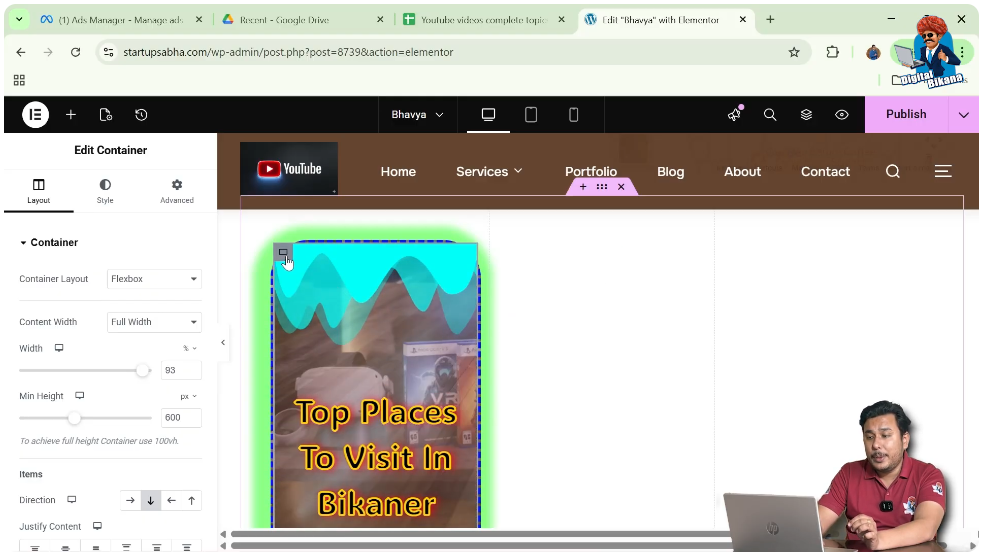
Step 13: Find Gray Box Icon
Move your cursor to the top left corner of the container.
You will see a gray box icon.
Step 14: Right Click on Icon
Right-click on the gray box icon.
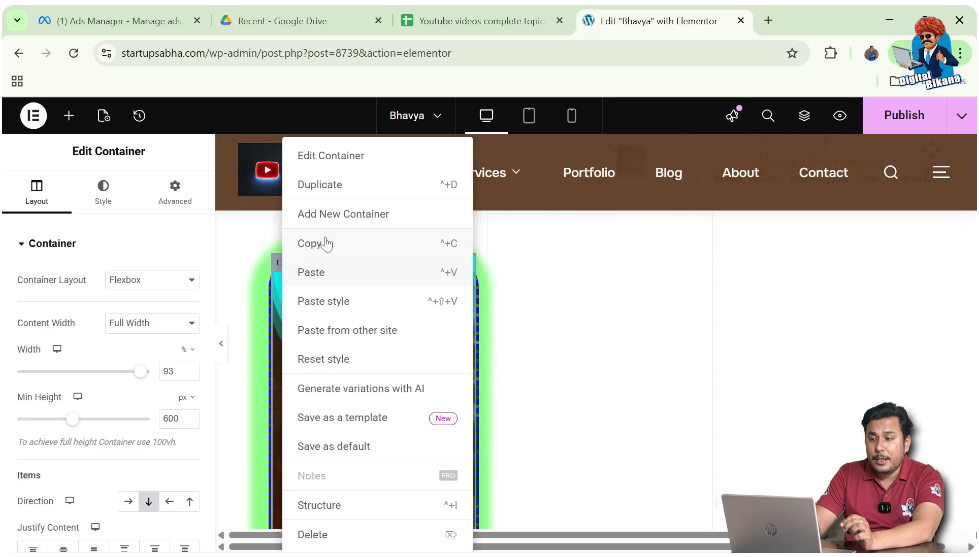
Step 15: Click Duplicate
Click on Duplicate.
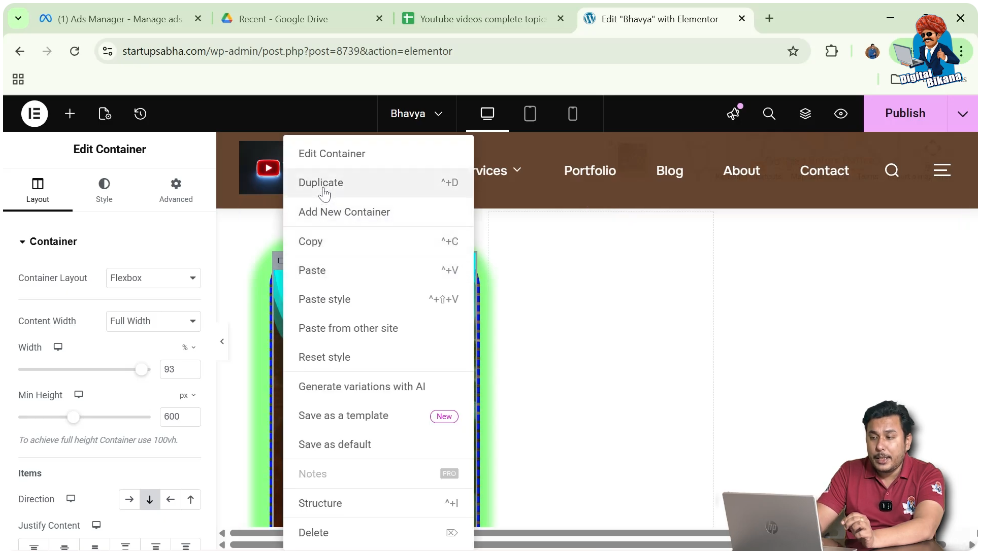
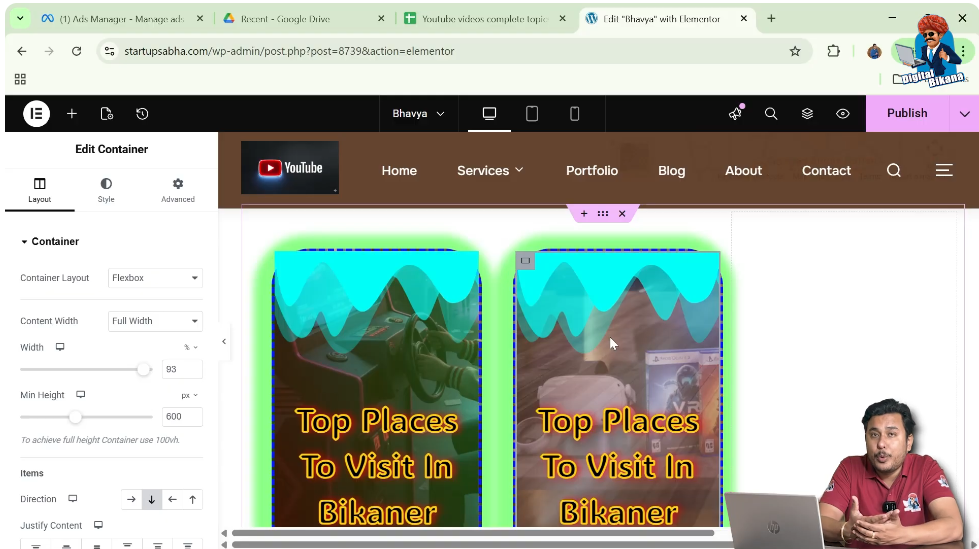
Result of Scenario 2
After duplication:
- The container is copied within the same section
- It appears in the next column or position
- You can edit it independently
Key Difference Between Both Methods
Single Container Section
- Use six-dot icon
- Duplicates entire section
Grid Layout Section
- Use gray box icon
- Duplicates only the selected container
Practical Demonstration
In the demonstrated process:
- A single container section is duplicated using the six-dot icon
- A grid section is created
- A container is copied and pasted
- The container is duplicated within the grid using the gray box icon
This shows how duplication works in different layouts.
Benefits of Duplicating Containers
Faster Workflow
You can create designs quickly.
Consistency
Design remains uniform across sections.
Easy Editing
You can modify duplicated containers without affecting the original.
Common Mistakes to Avoid
Using Wrong Icon
- Six-dot icon is for section
- Gray box icon is for container
Not Understanding Layout
Always check whether you are working in a grid or flexbox layout.
Over Duplication
Too many duplicates can clutter the layout.
Best Practices
- Use duplication for repeated designs
- Rename or organize sections properly
- Keep layout clean
- Test responsiveness after duplication
Final Understanding
Duplicating a container in Elementor depends on the layout structure. In a single container section, you use the six-dot icon, while in a grid layout, you use the gray box icon of the container.
Understanding this difference helps you work more efficiently and design better layouts.
Conclusion
Duplicating containers is a powerful feature in Elementor that simplifies web design. By using the correct method based on your layout, you can quickly replicate designs and improve productivity.
By following the steps explained in this guide, you can easily duplicate containers and create professional and consistent web pages.

Related Posts


