Duplicating an ad campaign in Meta Ads is one of the simplest yet most useful actions inside Ads Manager. Instead of creating a new campaign from scratch, duplication allows you to reuse existing settings, structure, and creatives quickly. This saves time and ensures consistency across campaigns. In this article, we will explain in detail how to duplicate an ad campaign in Meta Ads, what options appear during duplication, and what each option means.
Understanding Ad Campaign Duplication in Meta Ads
Ad campaign duplication means creating an exact copy of an existing Meta ad campaign. The duplicated campaign contains the same campaign structure, ad sets, and ad creatives as the original campaign.
This feature is useful when you want to:
- Reuse an already created campaign
- Create multiple similar campaigns quickly
- Avoid setting up everything again manually
Meta Ads Manager provides a built-in duplication option that makes this process very easy.
How to Duplicate an Ad Campaign in Meta Ads?
1. Opening Meta Ads Manager
The first step is to open Meta Ads Manager.
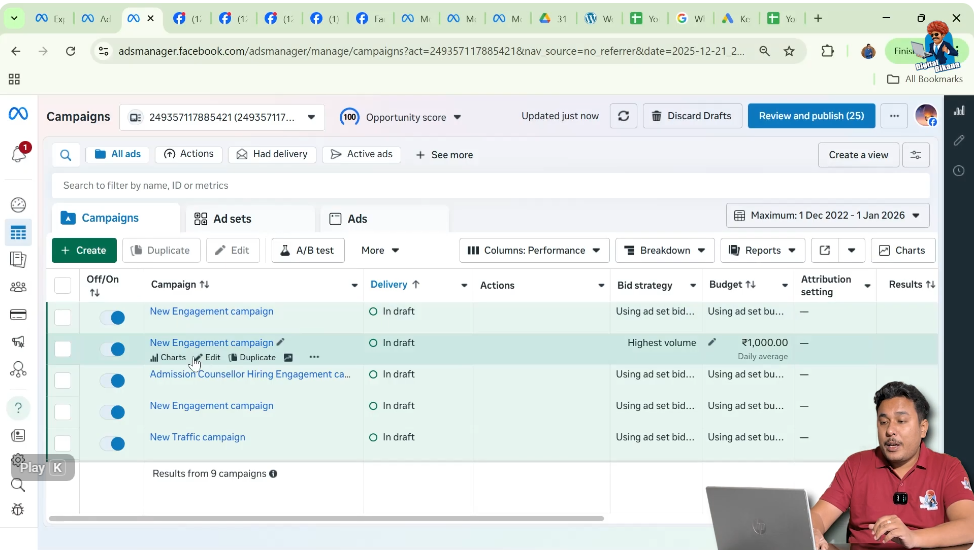
As shown on the screen, Ads Manager is already open, and at least one ad campaign is visible in the campaign list. You can only duplicate a campaign that already exists in your Ads Manager.
2. Identifying the Ad Campaign to Duplicate
Inside Ads Manager, all campaigns are listed in a table format.
Each ad campaign has a small checkbox in front of it. This checkbox is used to select the campaign for actions such as duplicating, deleting, or editing.
To duplicate a campaign, you must first select the correct ad campaign.

3. Selecting the Ad Campaign
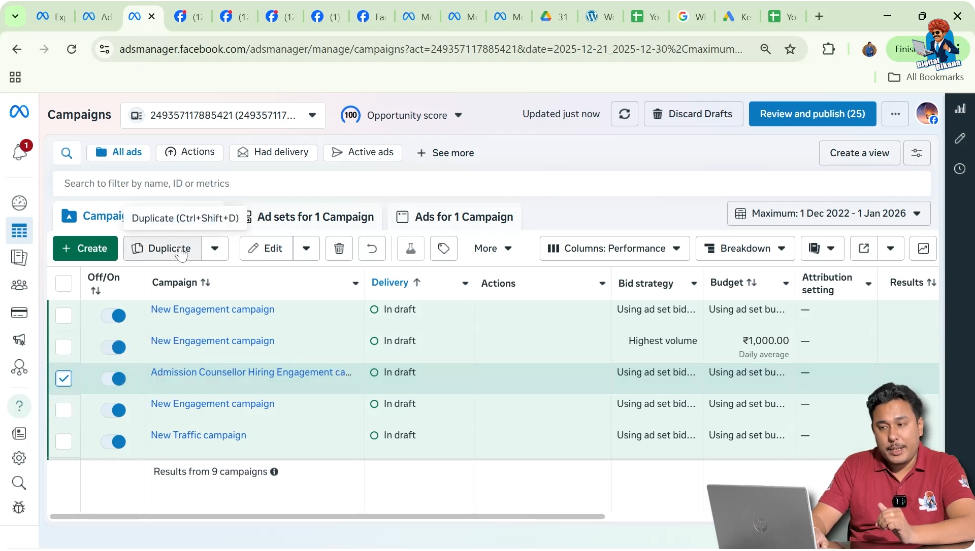
Click on the checkbox in front of the Meta ad campaign that you want to duplicate.
Once the campaign is selected, Ads Manager enables action buttons at the top, including the Duplicate option.

4. Clicking on the Duplicate Option
After selecting the ad campaign, click on the Duplicate button.
This tells Meta that you want to create a copy of the selected campaign.
5. Duplicate Campaign Popup Window
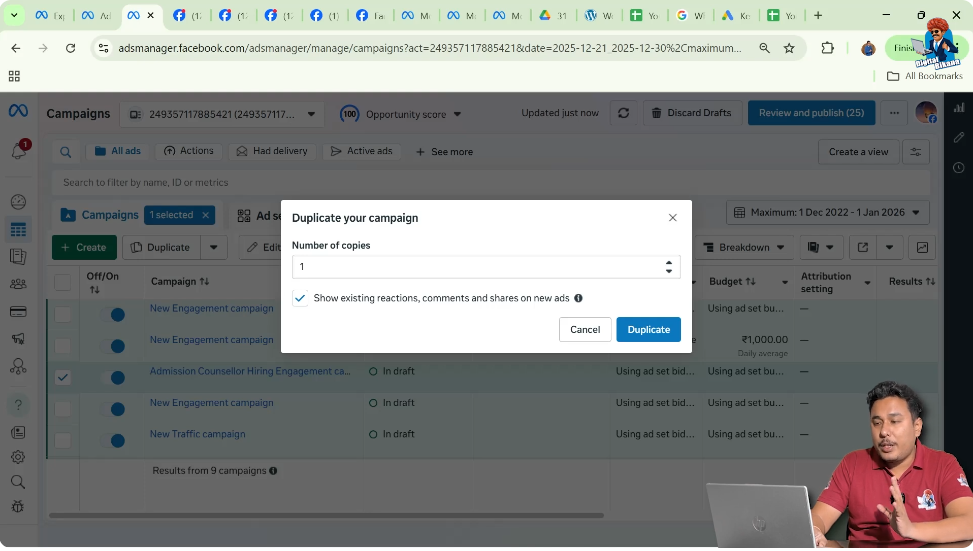
As soon as you click on Duplicate, Meta opens a popup window.
This popup contains important options related to duplication. These options decide how the duplicated campaign will be created.

6. Choosing the Number of Copies
The first option in the popup asks how many copies of the campaign you want to create.
For example:
- If you want only one duplicate, you can select 1 copy
- If you want multiple duplicates, you can increase the number
In the example shown, only one copy is selected.
Why Meta Asks for Number of Copies
Meta allows multiple copies so that you can create several similar campaigns at once.
This is useful when:
- You want to test similar campaigns
- You want multiple versions with the same base structure
However, in this case, only one copy is required.
7. Understanding the Engagement Transfer Option
Below the copy count option, Meta shows another option related to engagement.
This option asks whether you want to show existing reactions, comments, and shares on the new ads.
What Are Existing Reactions, Comments, and Shares?
If the original ad campaign has already run, its ad creatives may have received:
- Likes
- Comments
- Shares
These engagements are linked to the ad creative.
When duplicating a campaign, Meta gives you the option to carry forward these engagements to the new campaign.
8. Choosing Whether to Keep Existing Engagement
You have two choices:
- Checked: The duplicated ad campaign will show the same reactions, comments, and shares as the original campaign
- Unchecked: The duplicated ad campaign will start with zero engagement
You can decide based on your preference.

Why This Option Matters
This option matters because engagement affects how ads appear to users.
Ads with existing likes or comments may look more trustworthy, while fresh ads start clean.
Meta allows you to choose what works best for your campaign goals.
9. Finalizing the Duplication
After selecting:
- Number of copies
- Engagement preference
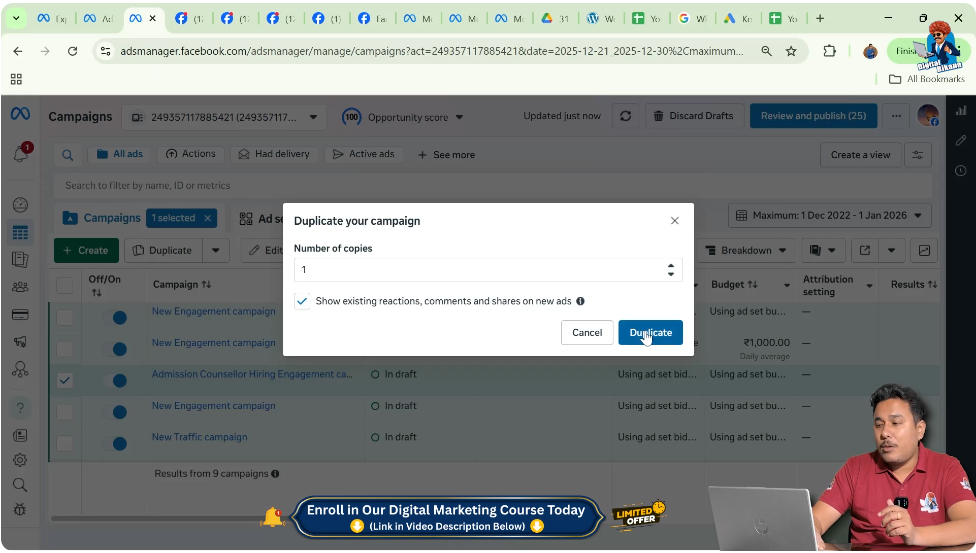
Click on the Duplicate button in the popup.
This confirms your duplication request.
10. Campaign Duplication Process
Once you click Duplicate, Meta processes the request.
Within a few moments, a new campaign appears in the campaign list.
11. Viewing the Duplicated Campaign
After duplication is complete, you will see a new campaign in Ads Manager.
This campaign is an exact copy of the original campaign.
The duplicated campaign contains:
- Same campaign objective
- Same ad sets
- Same ad creatives
The only difference is that it is a new campaign entry.

12. Identifying the Copied Campaign
Meta usually adds a label such as “Copy” to the duplicated campaign name.
This helps you identify which campaign is the duplicate and which one is the original.
What Happens to Campaign Settings After Duplication
All campaign-level settings remain the same.
This includes:
- Campaign objective
- Campaign structure
Nothing changes unless you manually edit the duplicated campaign.
What Happens to Ad Sets After Duplication
All ad sets inside the campaign are also duplicated.
This includes:
- Budget settings
- Audience targeting
- Placements
The duplicated campaign mirrors the original campaign completely.
What Happens to Ad Creatives After Duplication
All ad creatives are duplicated as well.
If you chose to keep existing engagement, the new ads will show the same likes, comments, and shares.
If not, the creatives will start without engagement.
Editing the Duplicated Campaign
After duplication, you are free to edit the new campaign.
You can:
- Change the campaign name
- Adjust budgets
- Modify ad creatives
- Pause or publish the campaign
Duplication simply creates the base structure.
Why Duplication Saves Time
Duplicating campaigns saves a lot of time because:
- You do not need to recreate settings
- You avoid repetitive setup
- You reduce chances of mistakes
Instead of starting from zero, you work from an existing framework.
When Duplication Is Commonly Used
Campaign duplication is commonly used when:
- Creating similar campaigns
- Reusing a tested structure
- Scaling ad operations
It is one of the most frequently used features in Meta Ads Manager.
Important Things to Remember
- You must select the campaign checkbox before duplicating
- You can choose how many copies you want
- You can decide whether to keep engagement
- The duplicated campaign is editable
Understanding these points ensures smooth duplication.
Common Mistakes to Avoid
Some common mistakes include:
- Duplicating the wrong campaign
- Forgetting to edit the duplicated campaign
- Running duplicate campaigns unintentionally
Always review duplicated campaigns before publishing.
Final Understanding of Campaign Duplication
Duplicating an ad campaign in Meta Ads is a simple and efficient process.
By selecting the campaign, choosing the number of copies, deciding on engagement transfer, and confirming duplication, you can create a new campaign instantly.
This feature helps advertisers manage campaigns faster and more efficiently.
Final Thoughts
Ad campaign duplication is a powerful time-saving tool in Meta Ads Manager. Whether you want to reuse a structure or quickly create similar campaigns, duplication allows you to do so without extra effort.
By following the steps explained in this article, you can confidently duplicate ad campaigns and manage your Meta ads more effectively.

Related Posts