
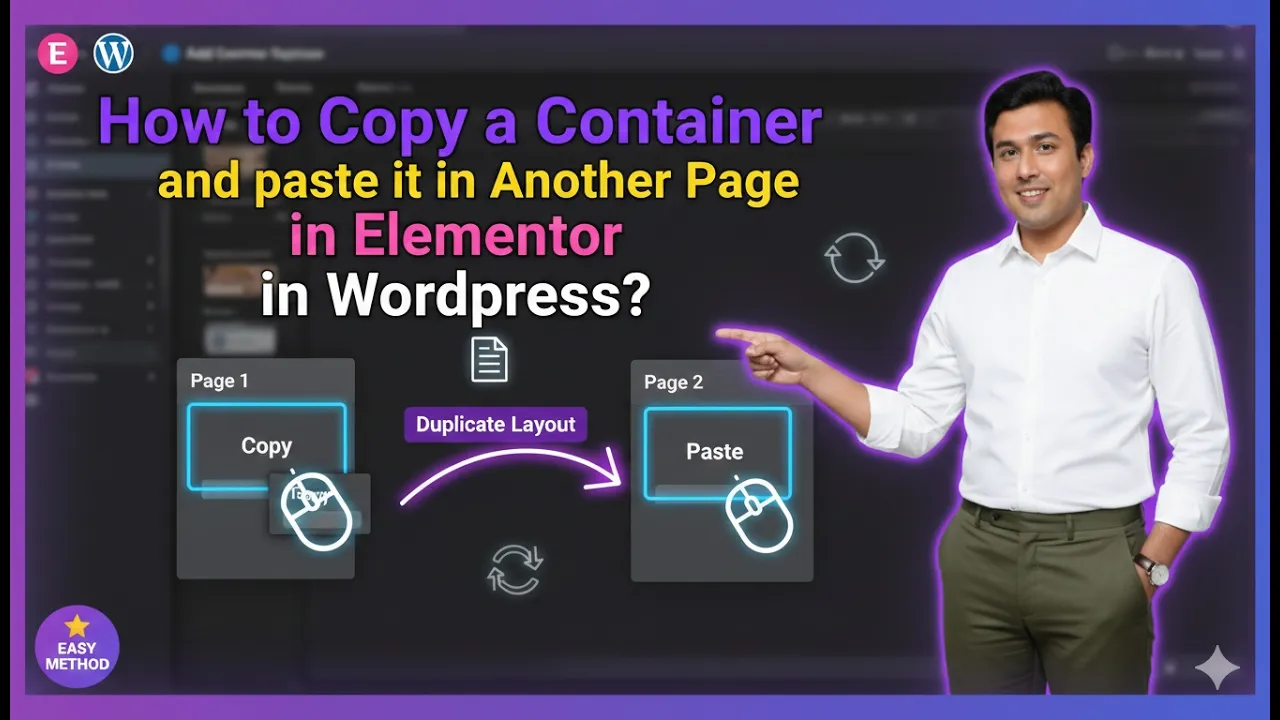
Copying a container from one page and pasting it into another page in Elementor is a highly useful feature that helps save time and maintain design consistency. Instead of recreating the same layout again and again, you can simply copy an existing container and reuse it on another page.
In this article, we will explain how to copy a container from one page and paste it into another page in Elementor step by step. The explanation follows a structured approach and expands each step in detail so that you can easily apply it while designing your website.
Accessing the Elementor Editor
To begin, you need to open Elementor and start editing your web page.
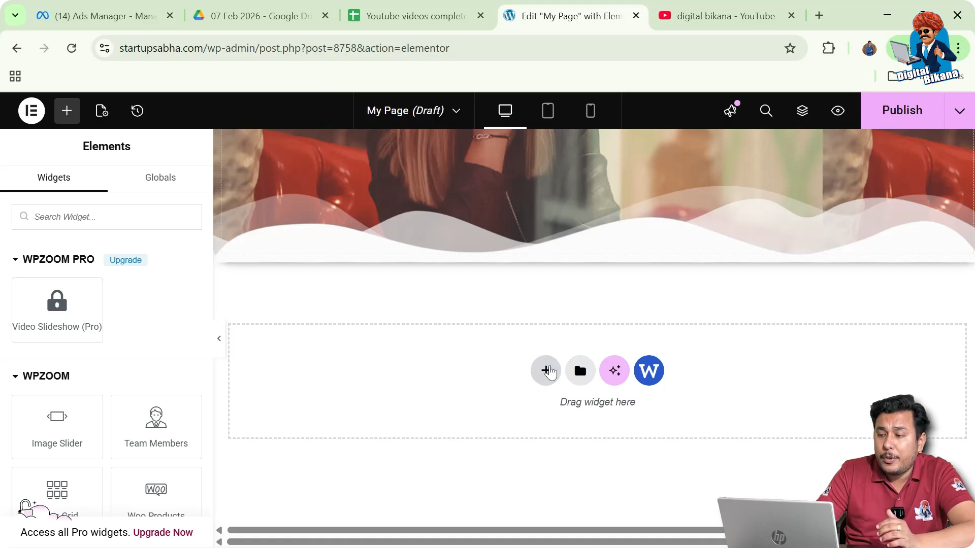
As shown in the process, you are inside the Elementor editor and creating a new web page. A plus icon is visible in the middle of the screen, which is used to create a new section.
Creating a Section in First Page
Step 1: Click on Plus Icon
Click on the plus icon displayed in the middle of the screen.
Step 2: Select Layout
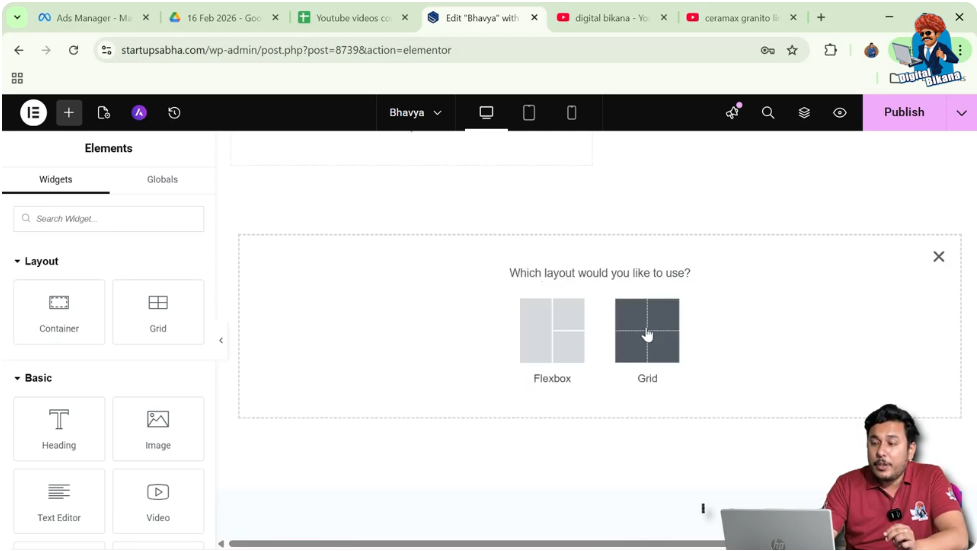
Choose the layout type:
Step 3: Choose Structure
Select a structure such as:
- One row
- Two columns
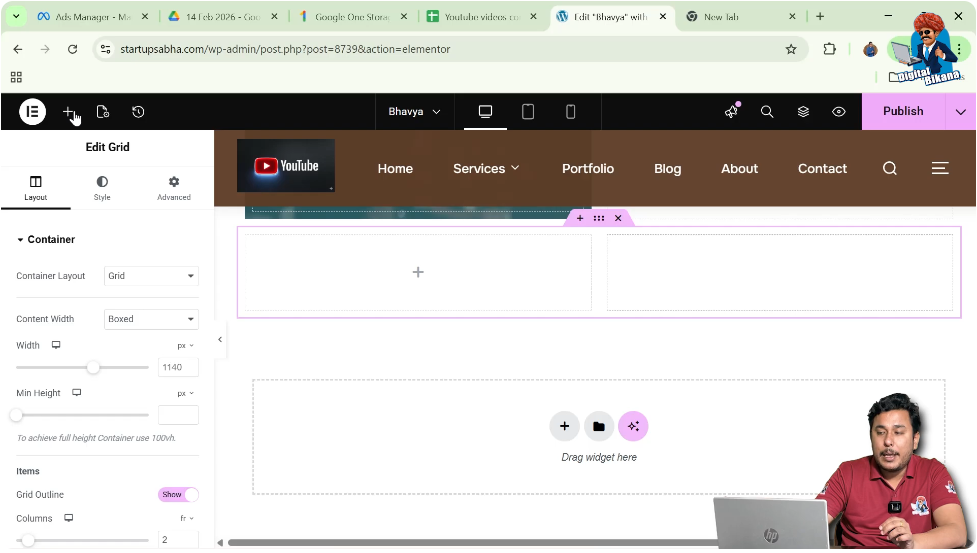
This creates a grid section.

Adding a Container
Step 4: Add Container
Click on the plus icon in the top black header line.
Step 5: Search for Container
In the widgets panel, search for Container.
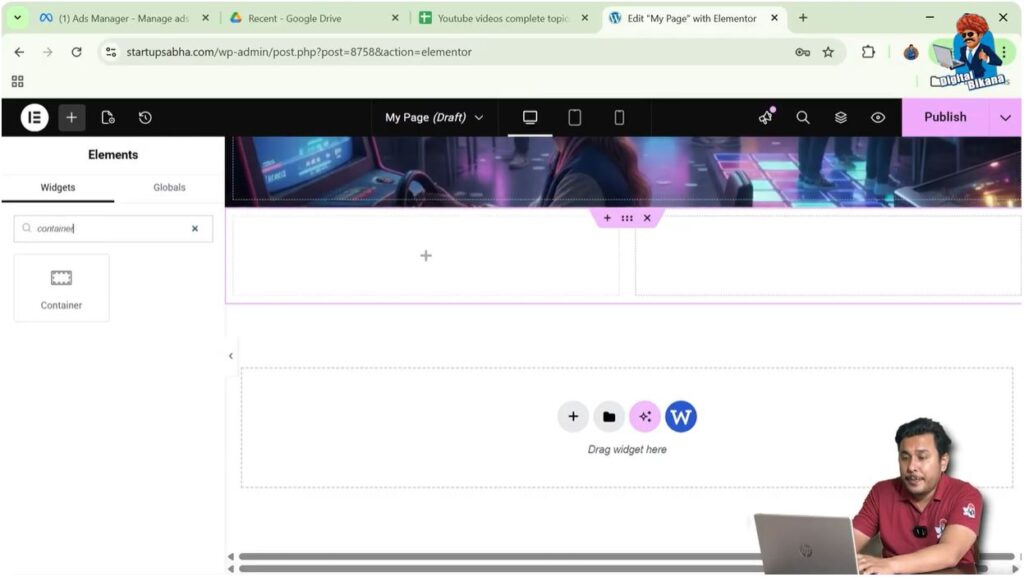
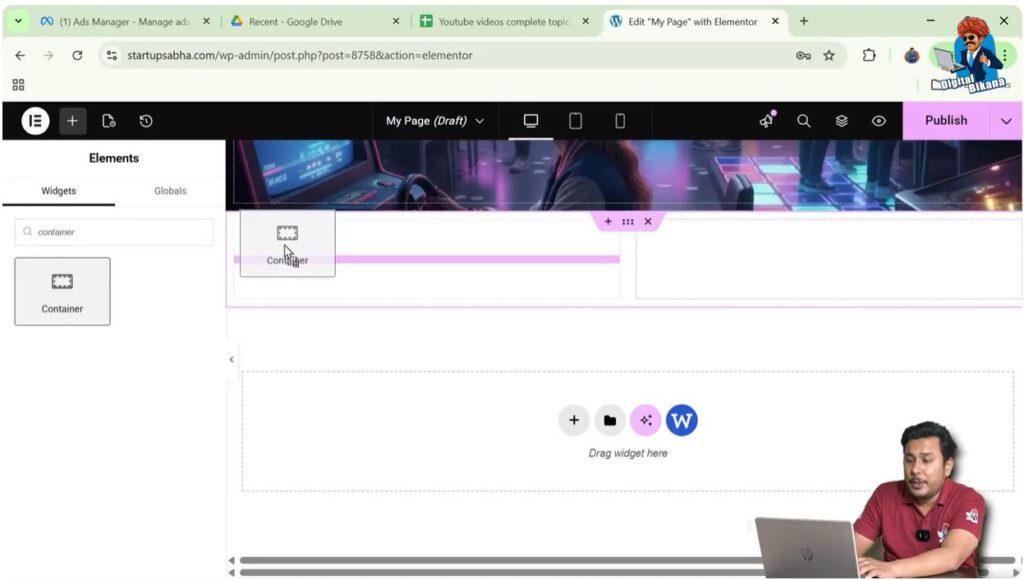
Step 6: Drag and Drop Container
Drag the container and place it in:
- First row
- First column
Editing the Container
Step 7: Select Container
Move your cursor to the top left corner of the container and click on the gray box icon.
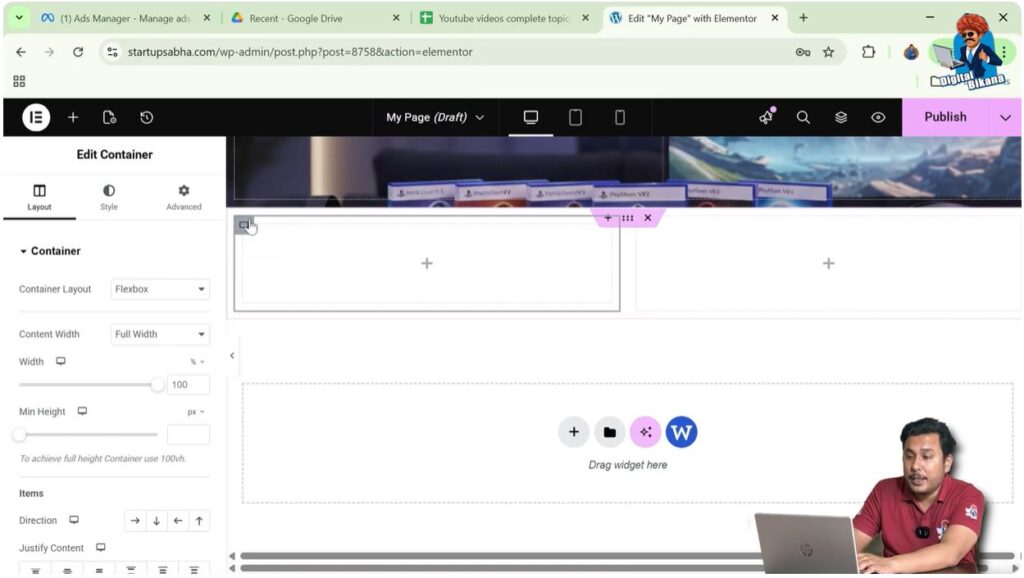
Step 8: Customize Container
In the left-side toolbar:
- Go to Style settings
- Select Background → Classic
- Choose an image
You can also adjust position and display size.

Opening Another Page
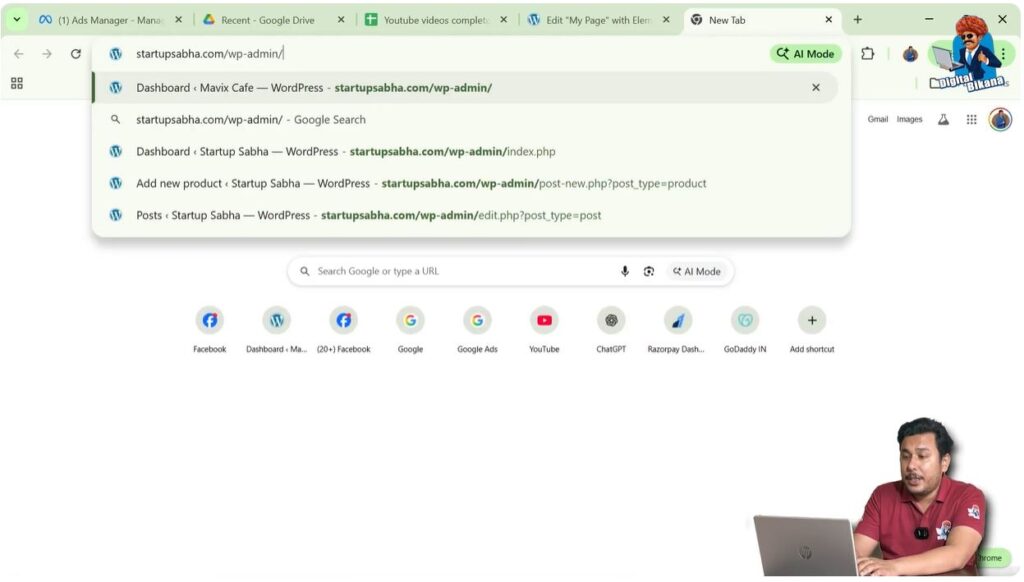
Step 9: Open New Tab
Open a new tab in your browser.

Step 10: Go to WordPress Dashboard
Open your WordPress admin dashboard.
Step 11: Navigate to Pages
Click on:
- Pages
- All Pages
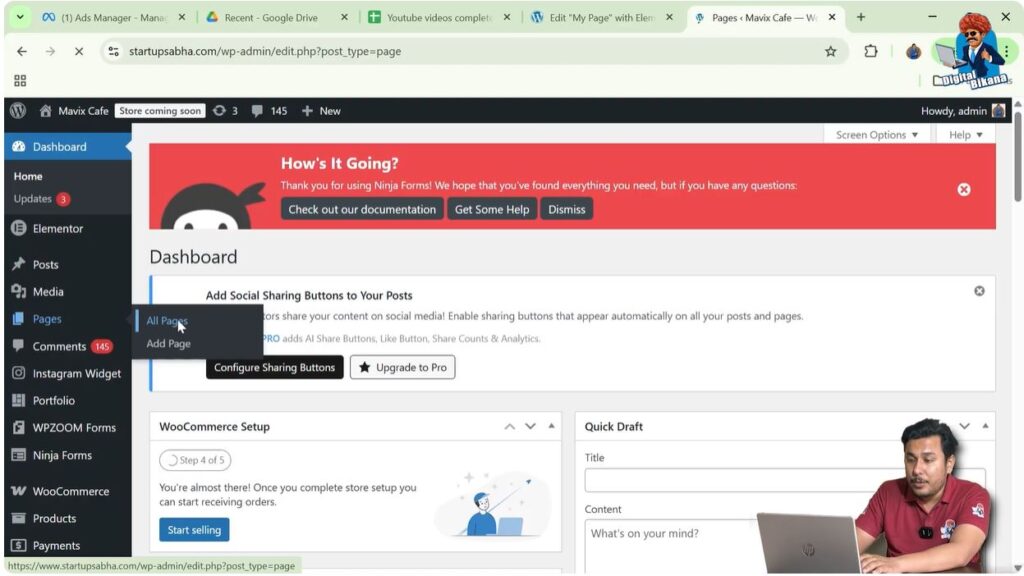
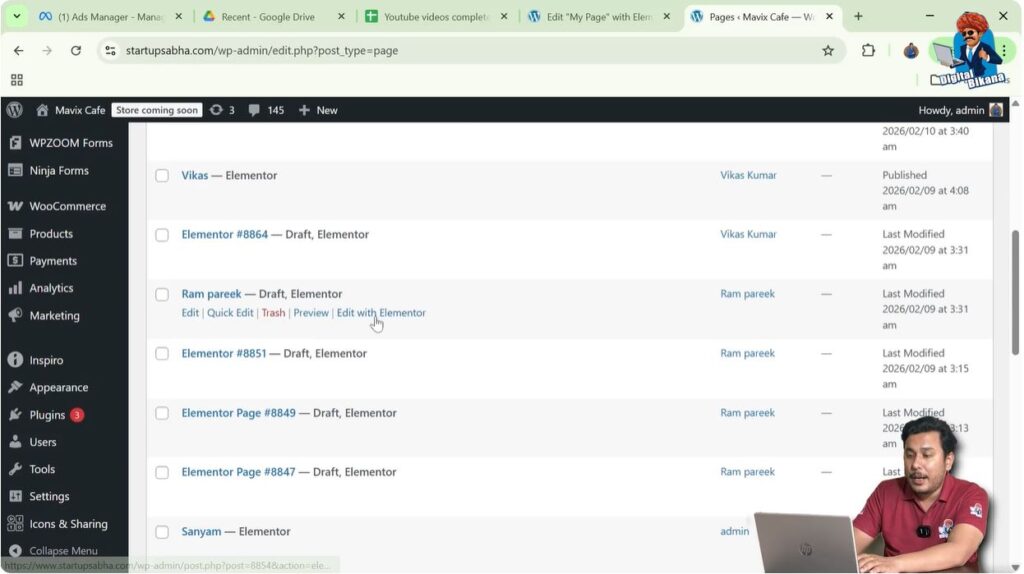
Step 12: Edit Another Page
Select any page and click on:
- Edit with Elementor
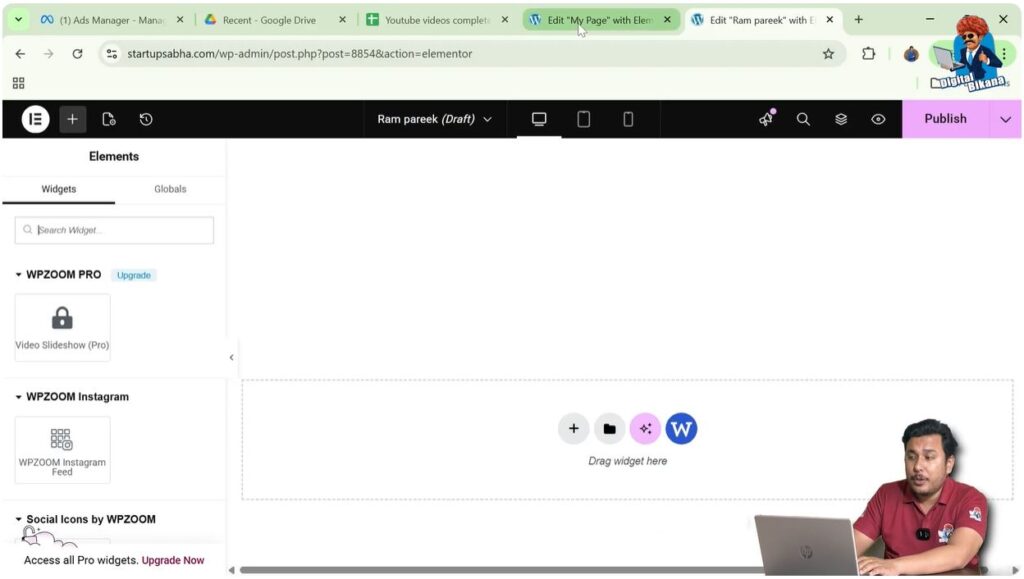
Now the second page is open.
Copying the Container
Step 13: Go Back to First Page
Return to the tab where the first page is open.
Step 14: Copy Container
Move your cursor to the top left corner of the container.
Right-click on the gray box icon and select:
- Copy

Pasting the Container
Step 15: Go to Second Page
Switch to the second page tab.
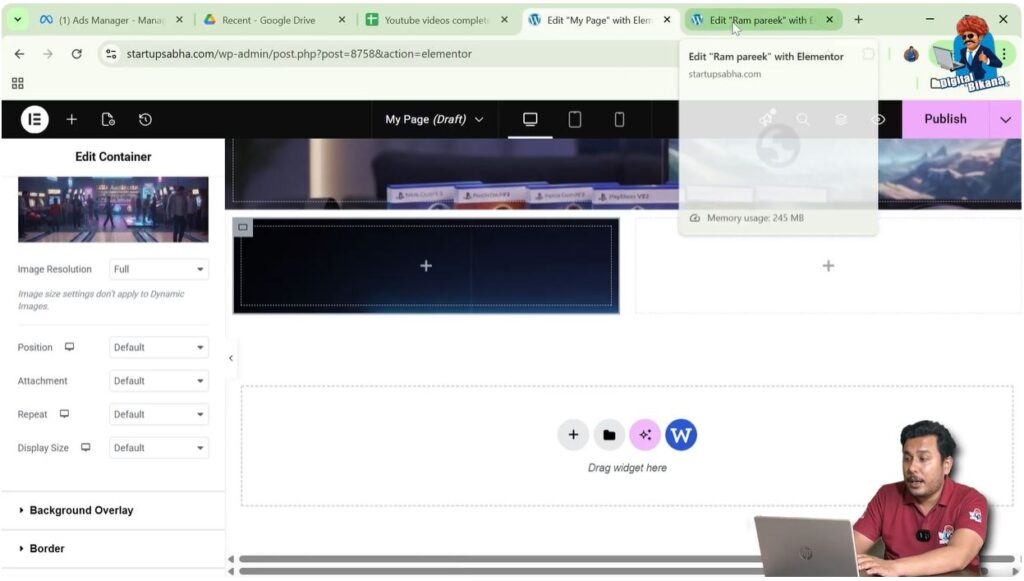
Step 16: Paste Container
Right-click on the plus icon in the middle of the screen and click:
- Paste
The container will be pasted.
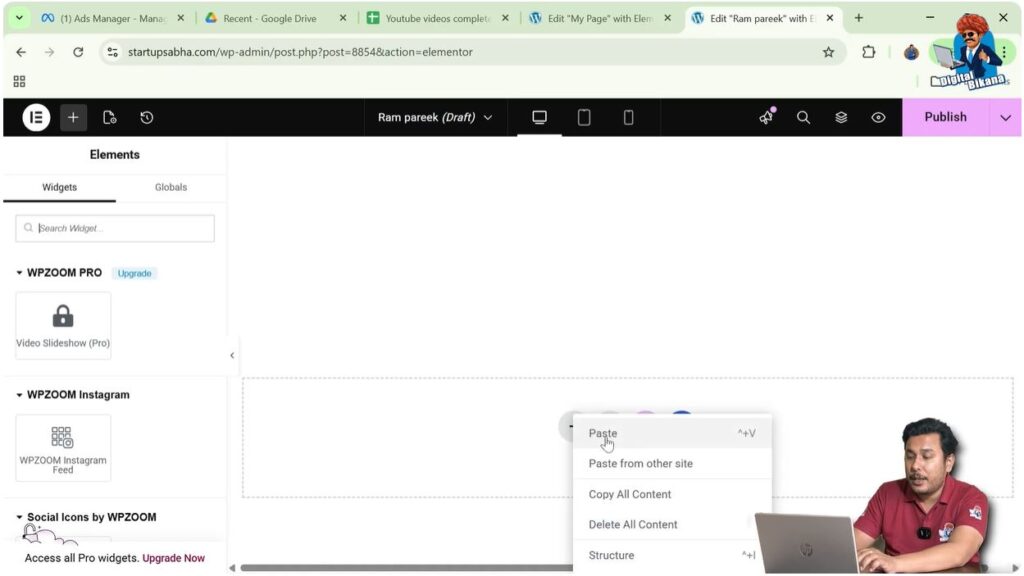
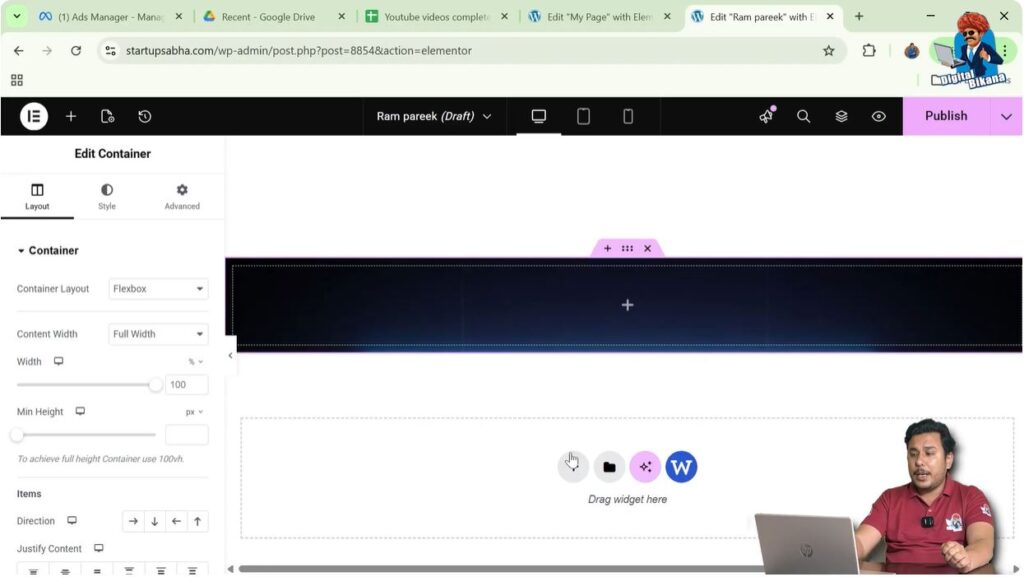
Understanding Layout Difference
When you paste directly:
- The container may appear full width
- This happens because no grid structure is applied
Maintaining Same Structure
Step 17: Create Section
Click on the plus icon and create a new section.
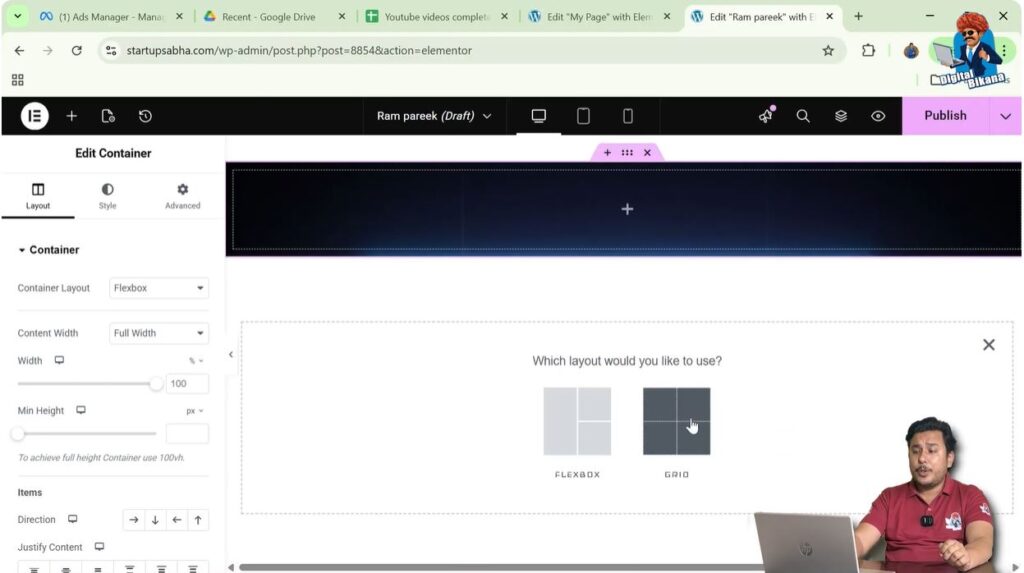
Step 18: Select Grid Layout
Choose:
- One row
- Two columns
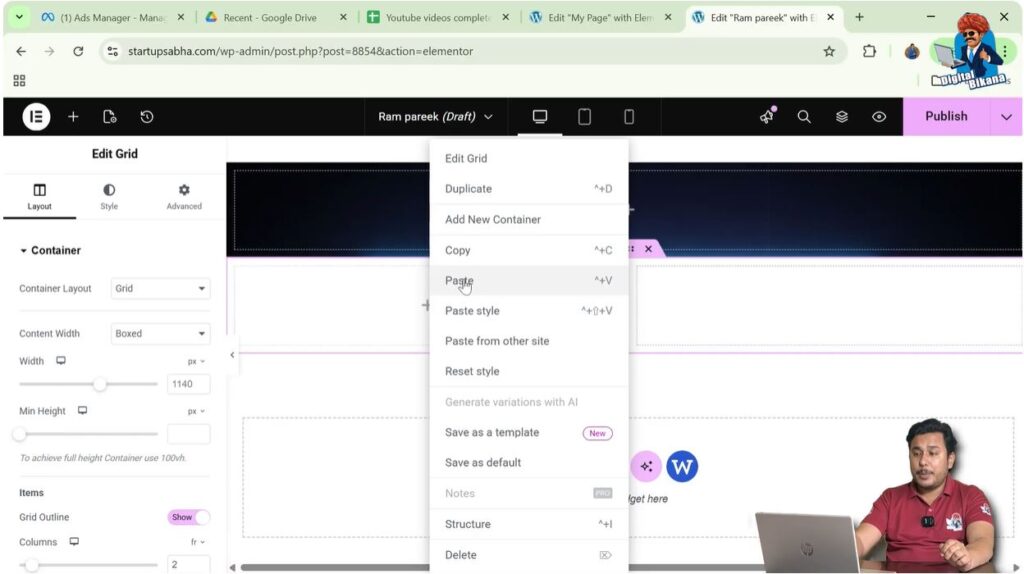
Step 19: Paste in Column
Right-click on the first column and click:
- Paste
Now the container appears exactly as it was in the first page.
Copying Entire Section
You can also copy the complete section instead of just the container.
Step 20: Copy Section
Go to the first page and move your cursor to the top of the section.
Right-click on the six-dot icon and select:
- Copy
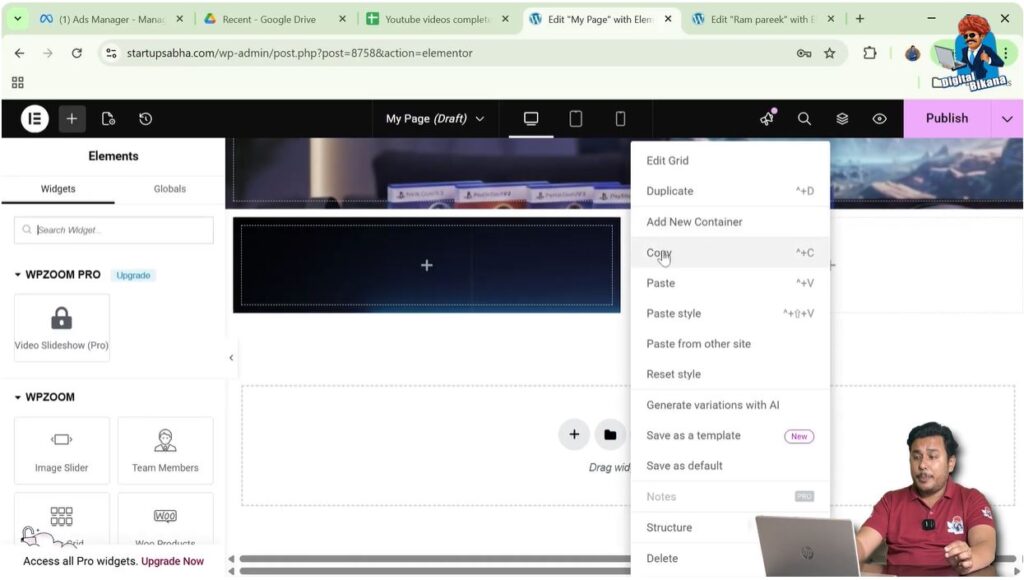
Step 21: Paste Section
Go to the second page.
Right-click on the plus icon and select:
- Paste
The entire section will be copied and pasted.

Practical Example
In the demonstrated process:
- A container is created and styled
- Another page is opened
- The container is copied
- It is pasted into the second page
- Grid structure is recreated for proper layout
- Entire section is also copied and pasted
Benefits of Copy and Paste
Saves Time
No need to redesign elements.
Maintains Consistency
Design remains uniform across pages.
Easy Workflow
Simplifies page building process.
Common Mistakes to Avoid
Not Using Same Layout
Different layouts can change appearance.
Pasting Without Section
Container may appear full width unexpectedly.
Forgetting Structure
Always recreate grid if needed.
Best Practices
- Use consistent layouts
- Copy complete sections when needed
- Organize containers properly
- Test layout after pasting
Final Understanding
Copying and pasting containers in Elementor allows you to reuse designs efficiently. By understanding how layout structures work, you can ensure that your design remains consistent across pages.
Conclusion
Elementor makes it very easy to copy containers and sections from one page to another. This feature improves productivity and helps maintain a professional design across your website.
By following the steps explained in this guide, you can easily copy and paste containers between pages and create a more efficient workflow.

Related Posts


